Halo Accounts Integrator Setup
- sage
- Quickbooks
- integrator
- Sage 50
- quickbooks desktop
In this guide we will cover:
- Setting up the API Application
The Halo Accounts Integrator is required to integrate with the following Accounting Software/Tools:
- Sage 50 UK - The Account Integrator has been updated to be compatible with Sage UK v32 (2026).
- Sage 50 Canada
- QuickBooks Desktop (All regions)
The Halo Accounts Integrator must be run on the same network as the Accounting Software but connects to Halo using the Halo API.
The latest version can always be downloaded from here - https://s3.halopsa.com/HaloAccountsIntegrator.zip
When starting the Halo Accounts Integrator for the first time you need to enter credentials from an API Application created in Halo. This should be configured as below with the Client ID and Secret option. Also ensure that an Agent is chosen in the "Agent to log in as". The permissions for this API Application are inherited from that Agent but also matched with the permissions added to the permissions tab.
Note: From v2.246+, The Halo Accounts Integrator will store the API Secret using the User level Windows Data Protection API and once saved or connected it can be removed from the .ini file for existing installations.
Setting up the API Application
After downloading the Accounts Integrator, you can create an API only agent at no additional license usage. This is done by creating a new agent and giving them administrator permissions via the Administrator role, then enabling the checkbox on the setting "API Only Agent" from the "Details" tab of the agent creation screen. From v2.253+, this option will instead need to be chosen from the "Agent Access" dropdown.
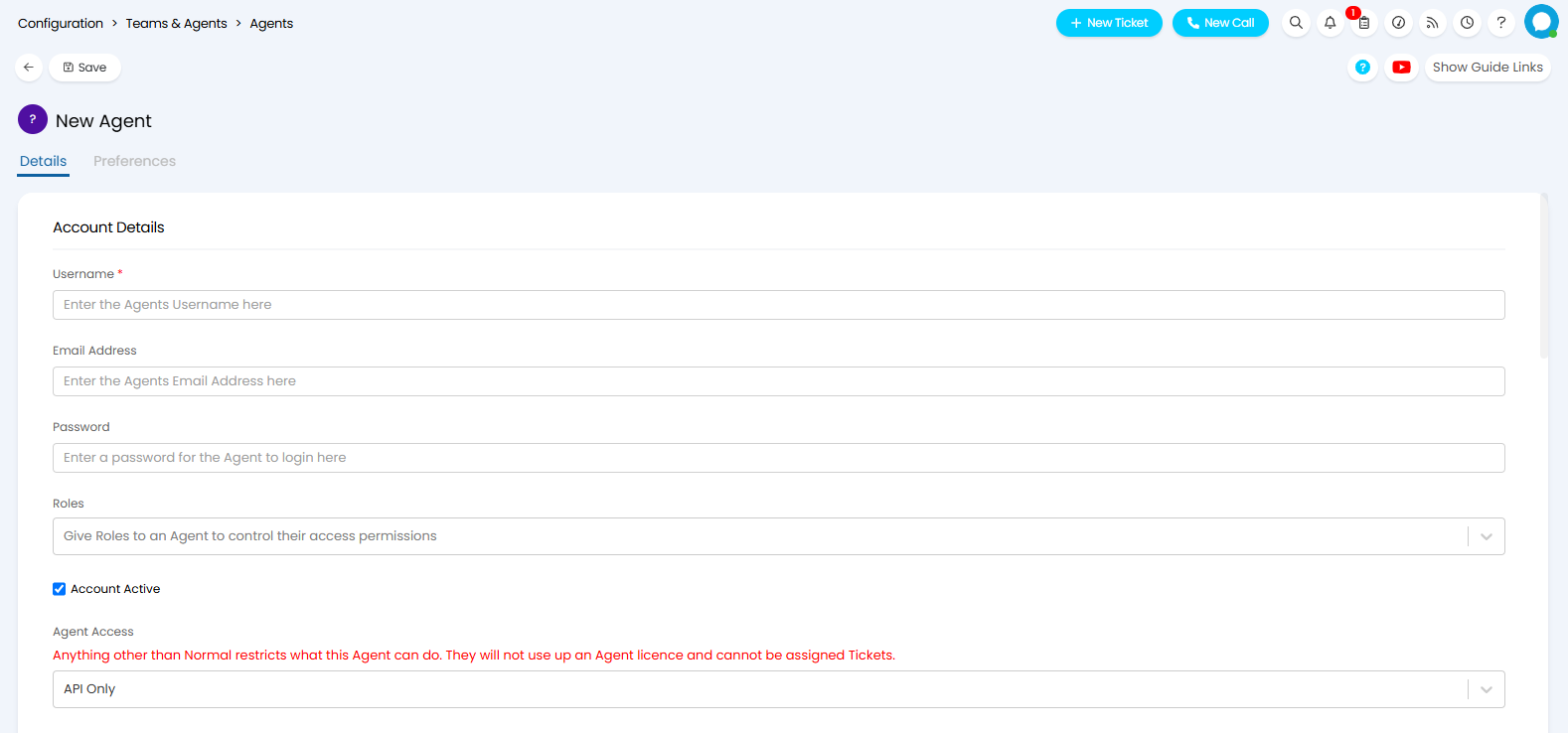 Fig 1. API agent.
Go to Configuration > Integrations > Halo API.
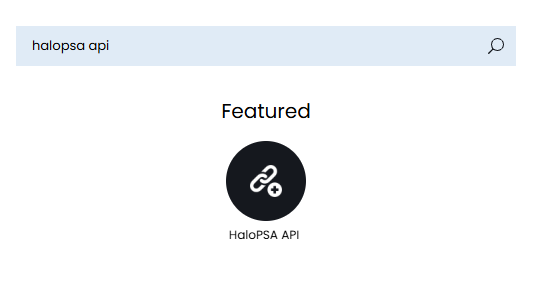 Fig 2. Halo API module.
Click into this module and then "View Application" (there will be a "New" button near the top right hand side of the list).
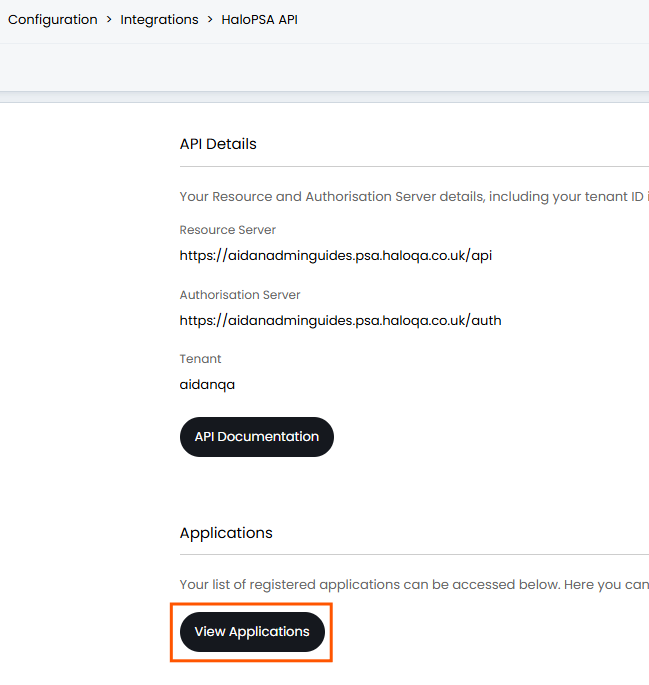 Fig 3. View Applications button.
Begin to create a new application.
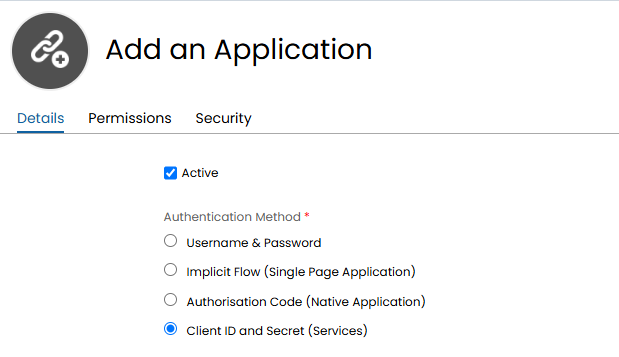 Fig 4. Creating an application.
Enter a sensible Application Name (such as "QuickBooks Desktop Application or Sage Application") and set the Authentication Method to "Client ID and Secret (Services)" and copy the Client ID and Secret.
Set the Login Type to "Agent" and choose the API Agent account which has been created.
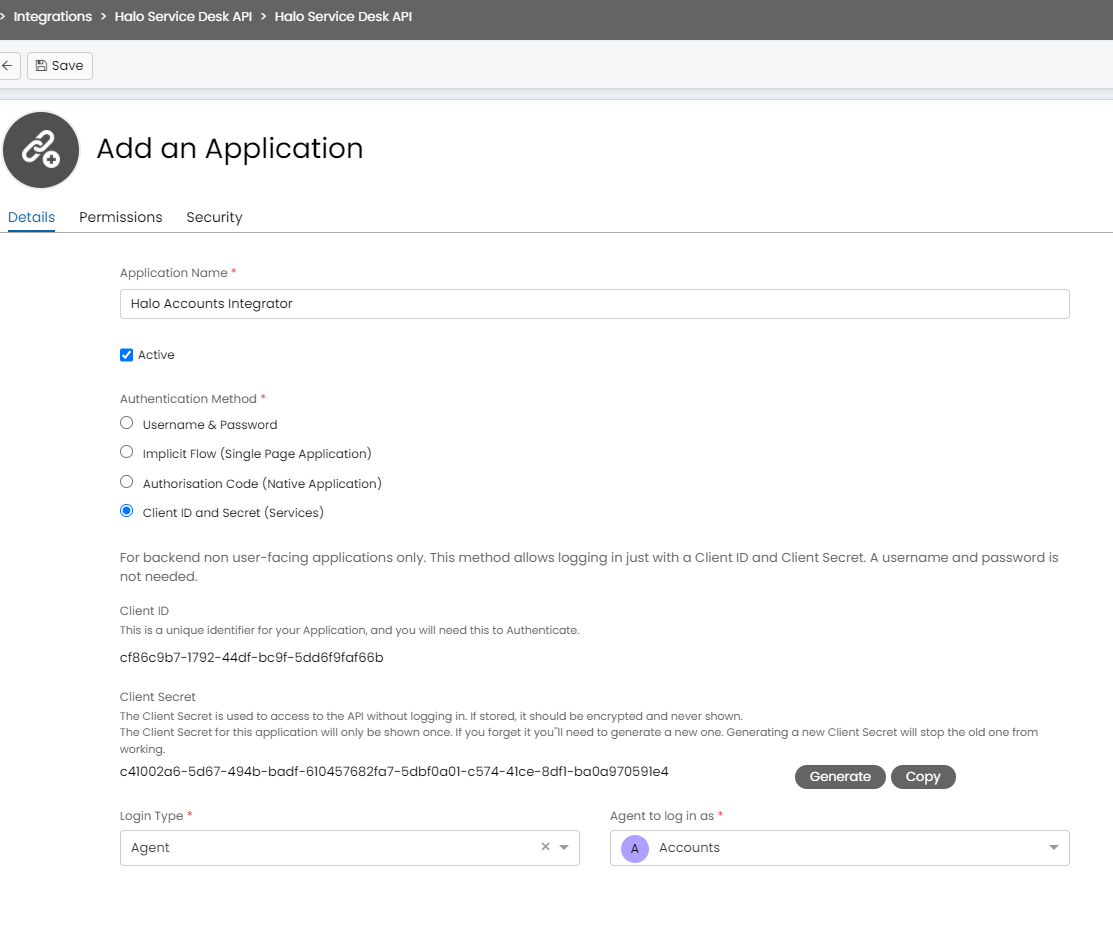 Fig 5. Application configuration.
Note: Admin privileges will need to be granted for the initial import of Tax rates.
Go to the "Permissions" tab of the API application, after clicking save. For example, your accounts integration may need you to turn on "Edit - Items", "Read - Items", "Edit - Customers", "Read - Customers", "Edit - Invoices", "Read - Invoices" and then Save again.
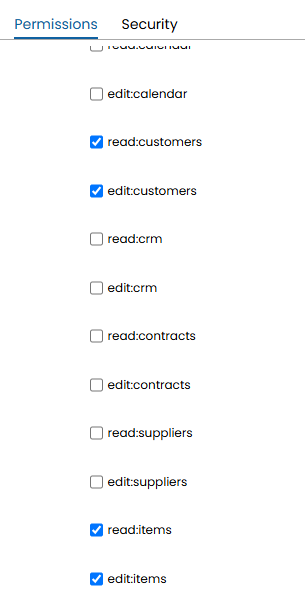
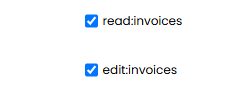
Fig 6. Permissions.
Additional Permissions
If there are permissions issues returned in the response of your API request, using the All Standard and All Teams permissions should be used, which encapsulates all the other permissions that show in list. all:standard will remove the need for adding the other permissions such as read: customers, edit: items etc.
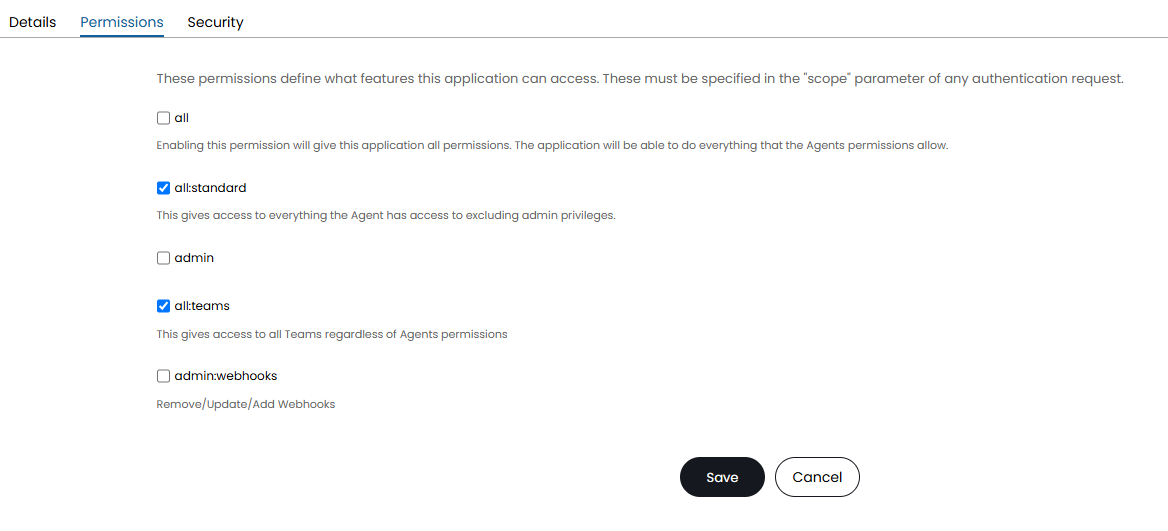
Fig 7. Permissions.
Admin is very rarely required for API Applications, and should be avoided where possible. However, Admin privileges will need to be initially granted in order to facilitate an import of Tax rates for QuickBooks Desktop