Sage 50 UK Integration
- sage
- Sage 50
- Sage50
- Sage UK
- tax rates
- tax
In this guide we will cover:
- What is the Sage 50 UK Integration?
- Downloading the Application
- Setting up the Integration
What is the Sage 50 UK Integration?
The Sage 50 integration allows UK-based Sage accounts to connect to Halo and sync Customers, Products and Invoices.
Downloading the Application
The Sage 50 UK (Desktop) integration runs on an application (accounts integrator) that is run locally but connects to your HaloPSA instance using the Halo API. Sage will need to be on v30+ for the integration to work.
You will need to download (and setup) the correct accounts integrator based on the version of Sage you are using:
Sage v34:
Sage v32:
Setting up the Integration
Download the app and ensure that it is running locally to Sage 50 UK Desktop.
Go to Configuration > Integrations > HaloPSA API > View Applications and create a new application. Enter a sensible Application Name (such as "Sage 50 UK") and set the Authentication Method to "Client ID and Secret" and take note of the Client ID and Secret.
Set the Login Type to "Agent" and choose an Agent account to impersonate.
Go to the permissions tab and ensure that at least "Admin", "Edit - Items", "Edit - Customers", "Edit - Invoices" are selected and Save.
Start the HaloAccountsIntegrator.exe and enter your HaloPSA URL and the Client ID and Secret.
Click "Connect" and the Click on the Sage 50 UK icon. Enter the location of the Sage Company file and a username and password combination for logging into Sage.
(https://gb-kb.sage.com/portal/app/portlets/results/viewsolution.jsp?solutionid=200427112157518&hypermediatext=null). Once connected you should see an introduction tab and 4 other tabs for each entity that the integration currently interacts with.
Tax rates with need to be configured appropriately in Halo, with tax codes T1, T2, T3. Customers and items will need to be synced with Sage.
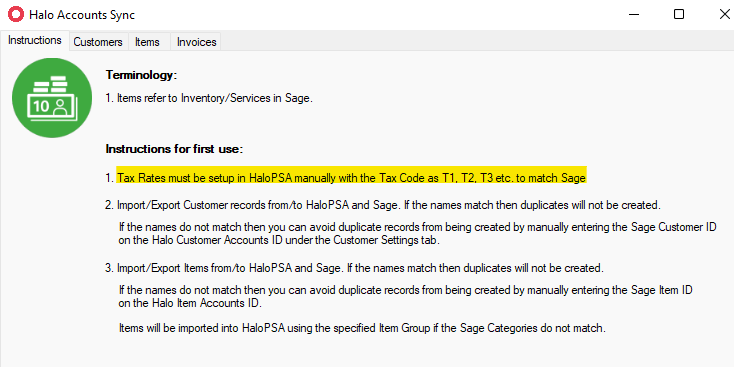
Fig 1. Halo Accounts Sync instructions.
Note: Please ensure you have at least one customer record in Sage for the import/export process to properly function.
Where is the Company file located?
The Company file is located in the relevant folder within the Accounts settings directory.
| Sage Accounts v29 | Windows 10 and 8 - C:\ProgramData\Sage\Accounts\2023 |
| Sage Accounts version | Default data path |
|---|
This can also be found in your Sage50 accounts platform if you navigate to Help > About. You will then be able to see the Settings Directory location.

Fig 2. Settings directory.
The Sage 50 Integration is used to sync Customers, Products and Invoices. There is no configuration for syncing Purchase Orders and Payments.
Note: If you run into any errors when connecting to Sage 50 on the Accounts Integrator tool, please ensure you are using the most recent version of Sage 50. Please see here for information on how to update your Sage 50 version.