Splunk Integration
- integration
- splunk
- splunk search
- splunk alert
In this guide we will cover:
- What is the Splunk Integration?
- Configuring and Integrating Splunk alerts
- Viewing Alerts from Splunk
What is the Splunk Integration?
The Splunk integration allows alerts in Splunk to automatically log tickets in Halo each time the alert is triggered, allowing technicians to be alerted to and manage Splunk alerts from within Halo.
Configuring and Integrating Splunk alerts
To enable the Splunk integration in Halo, go to Configuration > Integrations, and enable the module. Once the module has been enabled, click into the module to begin configuring it.
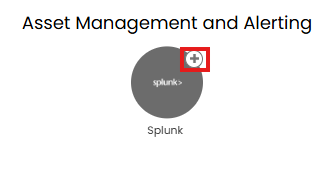
Fig 1. Enable integration module
Initially, you will see some text detailing what needs to be appended to your Halo instance URL when configuring your Webhooks in Splunk.
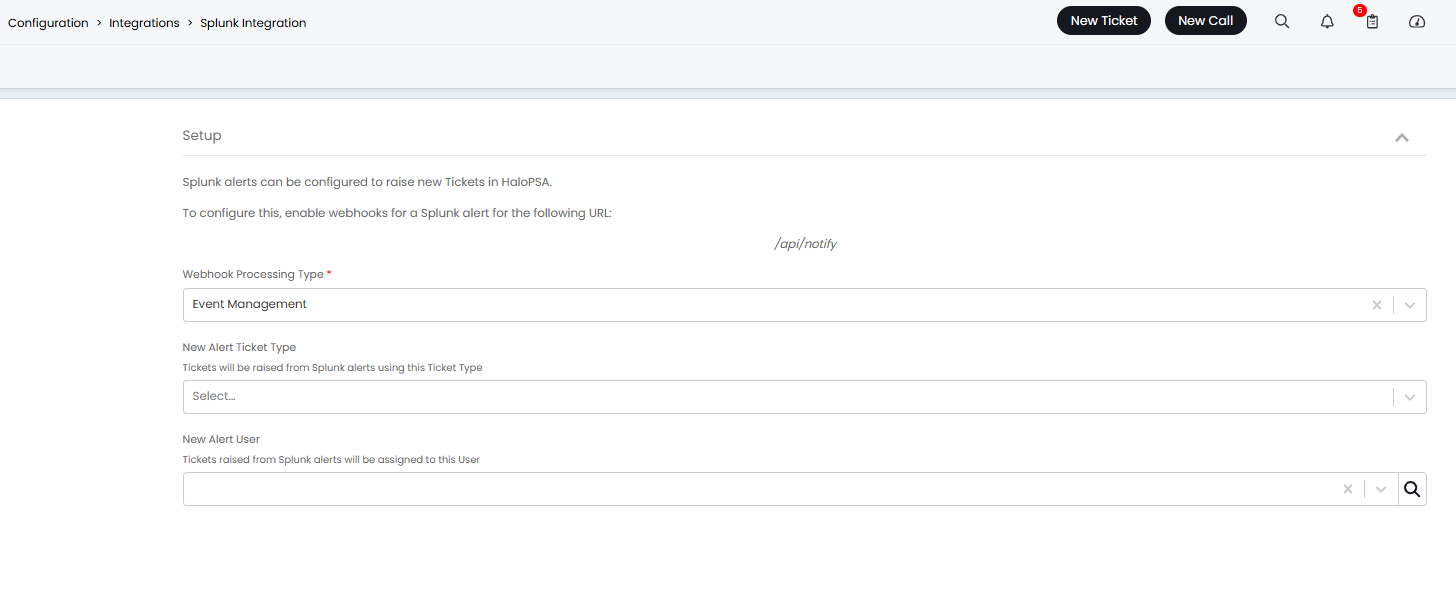
Fig 2. Splunk integration setup page
After this, there are three options. Choose the ticket type that you would like alerts from Splunk to be created as in Halo. Choose the end user that new tickets created from Splunk alerts gets assigned too. You will then need to choose the webhook processing type.
Webhook Processing Type - This field will determine how the webhook from Splunk will be processed.
- Default alert processing - Choose this option when you would like all webhooks from Splunk to log tickets in Halo. When this option is selected you will be able to choose whether the webhooks authentication or not. See the section 'Webhook Authentication' for more information on this.
- Event management - Choose this option when you would like to manage incoming alerts/webhooks from Splunk using the event management functionality. Using the event management functionality allows you to manage which alerts log tickets using rules, as well as what alert data the ticket is populated with, for more information on our even management functionality see our article here. If you configure Splunk webhooks to post to the the event management endpoint without selecting this option the webhook will not be processed, this is due to how webhooks from Splunk are authenticated.
Webhook Authentication
When Event Management is selected as the webhook processing type you can configure how the webhook is authenticated within the event management module. See our guide on event management for more information on this.
When the default alert processing method is selected as the processing type you will be able to choose the authentication method used for the webhook within the Splunk integration setup screen.
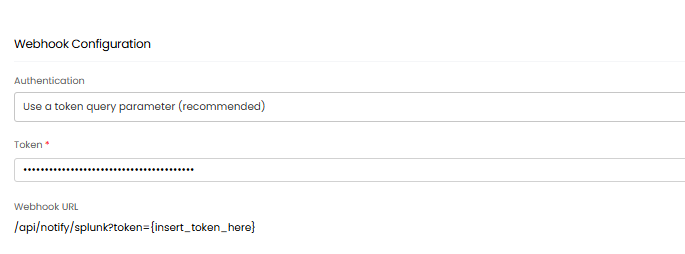
Fig 3. Webhook authentication options
Use a token query parameter - When this option is selected you will need to generate a token for the webhook created in Splunk. Then enter this token in the 'token' field in Halo. You will also need to include this token as a parameter in the Webhook URL, this parameter will be checked by the Halo API before the webhook is processed. This will prevent any other webhooks sent to this endpoint being processed, adding an additional layer of security.
No authentication - When selected no webhook authentication will take place, a token for the webhook does not need to be generated but this is a less secure method.
Once you have completed these fields on the configuration page you will need to head into Splunk and begin configuring a webhook.
Create Webhook for Splunk Alert
First you will need to create an alert in Splunk for a chosen event, this is done within the search and reporting app. Complete a search with your desired criteria, this is the criteria that will trigger the alert when met, then click save as > Alert in the top right corner.
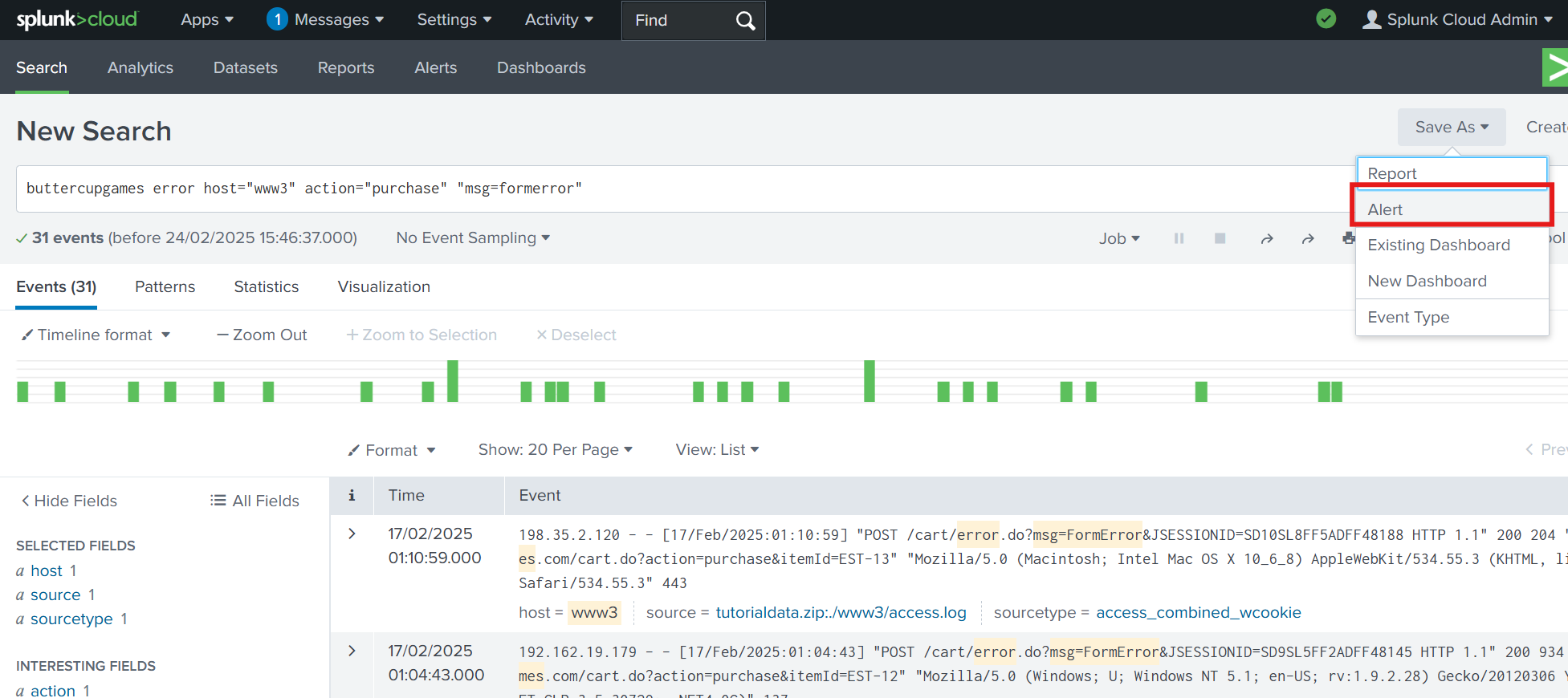
Fig 4. Alert criteria in Splunk
Now you will be able to configure the alert in Splunk, giving it a name, schedule and conditions. You can configure the alert to your preferences but the alert must be 'Shared in App' to have permission to create an alert in Halo.
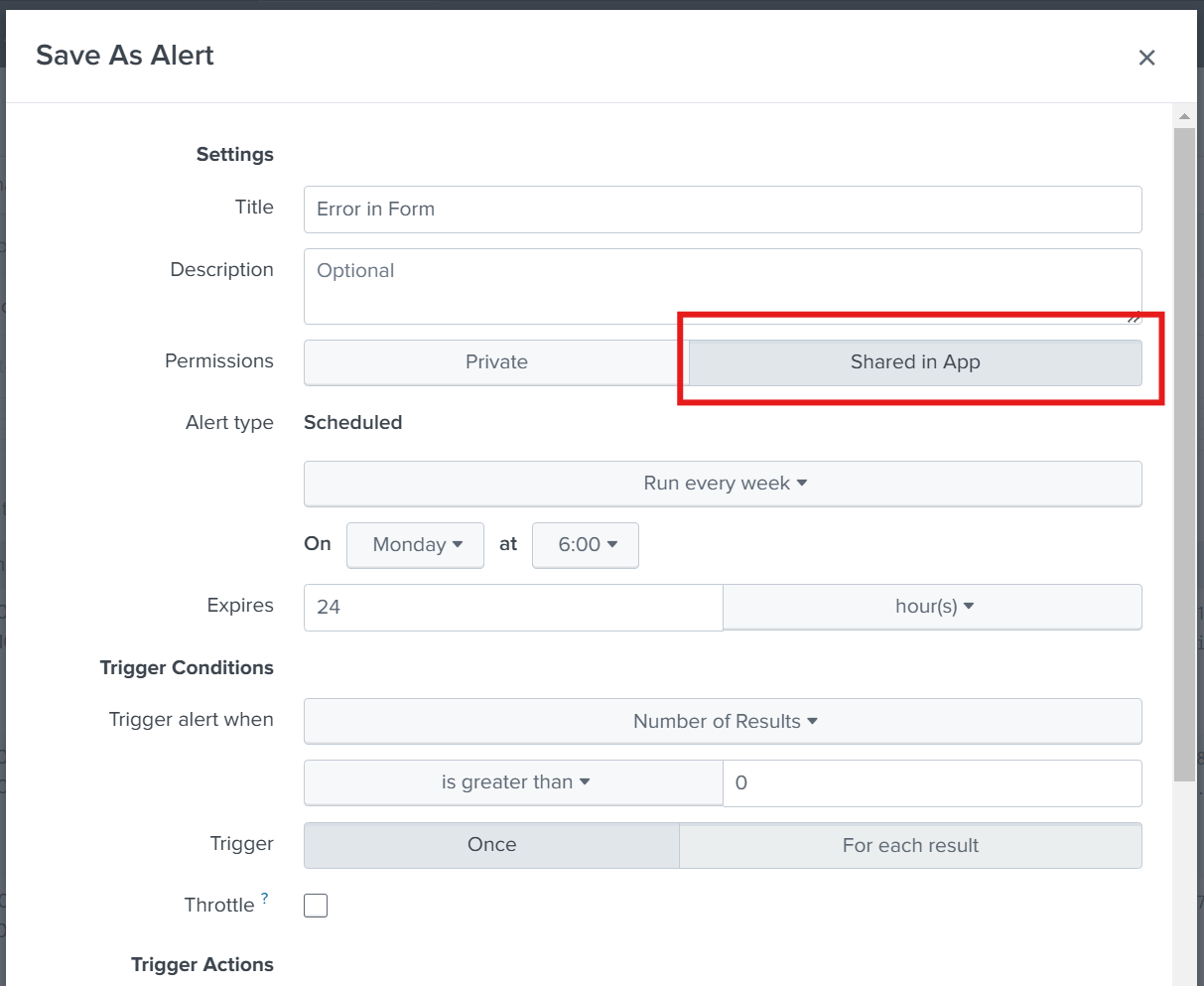
Fig 5. Alert configuration in Splunk
Add a trigger action to the alert and set this to be 'webhook'.
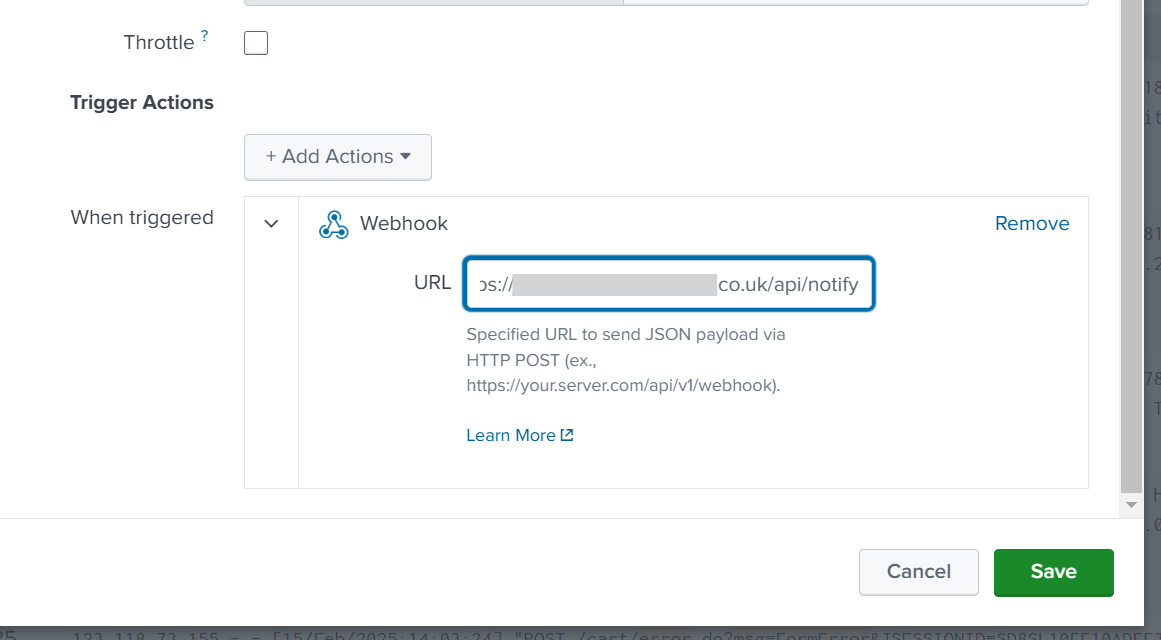
Fig 6. Webhook trigger action on alert
If you are using the default alert processing type: In the URL for the webhook enter your halo URL appended by "/api/notify", this should follow the format: https://YOURHALODOMAIN.co.uk/api/notify
If you are using Event Management processing for the webhook: In the URL for the webhook enter your halo URL appended by "api/incomingevent/process", this should follow the format: https://YOURHALODOMAIN.co.uk/api/incomingevent/process
Now you can save the alert.
Before the alert can be posted to Halo you will need to add the URL used for the webhook to the webhook allow list in Splunk. This can be found under settings > server settings. For more information on on adding/removing URLs to Splunk's webhook allow list see their guide here: https://docs.splunk.com/Documentation/SplunkCloud/9.3.2408/Admin/ConfigureWebhookAllowList
Note: If you are on a trial version of Splunk you will not have access to the webhook allow list.
If you are using the default processing method your setup is complete.
If you are using the event management processing method you will need to configure event rules for the alert, the alert must meet configured criteria in order for a ticket to be logged. See our event management guide for information on how to configure event rules.
Viewing Alerts from Splunk
Once the integration has been configured, and a new ticket has been created from a Splunk alert, it is possible to load the results of the Splunk Search that raised the alert from the ticket. If you open any ticket created from a Splunk alert, under "Ticket Details" you will see an option for Splunk search results:
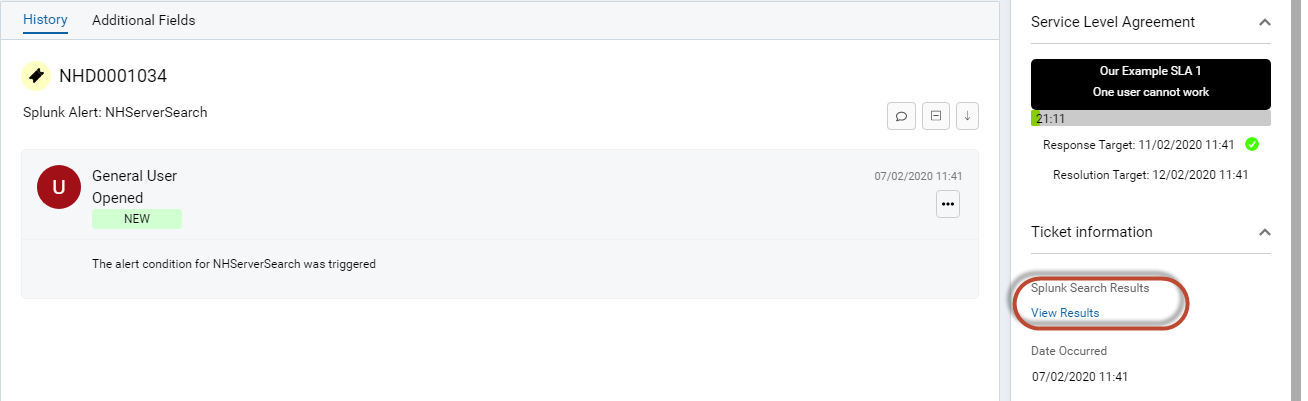
Fig 7. Ticket logged from Splunk alert
Clicking the “view results” hyperlink will open up Splunk in a new tab directly on the results page of the corresponding search that raised the alert.