The Report Screen Explained
- schedule
- Report
- data
- statistics
- edit
- metric
The core elements of the report screen detailed.
Related Articles:
- Scheduling reports
- Adding new reports
- System and Custom Fields
The reporting feature is a very powerful tool which allows you to explore your Halo database in full. With this it is possible to view metrics specific to your service desk, interpret this information and subsequently make changes to your system based on your findings.
A Full Explanation of the Report Screen
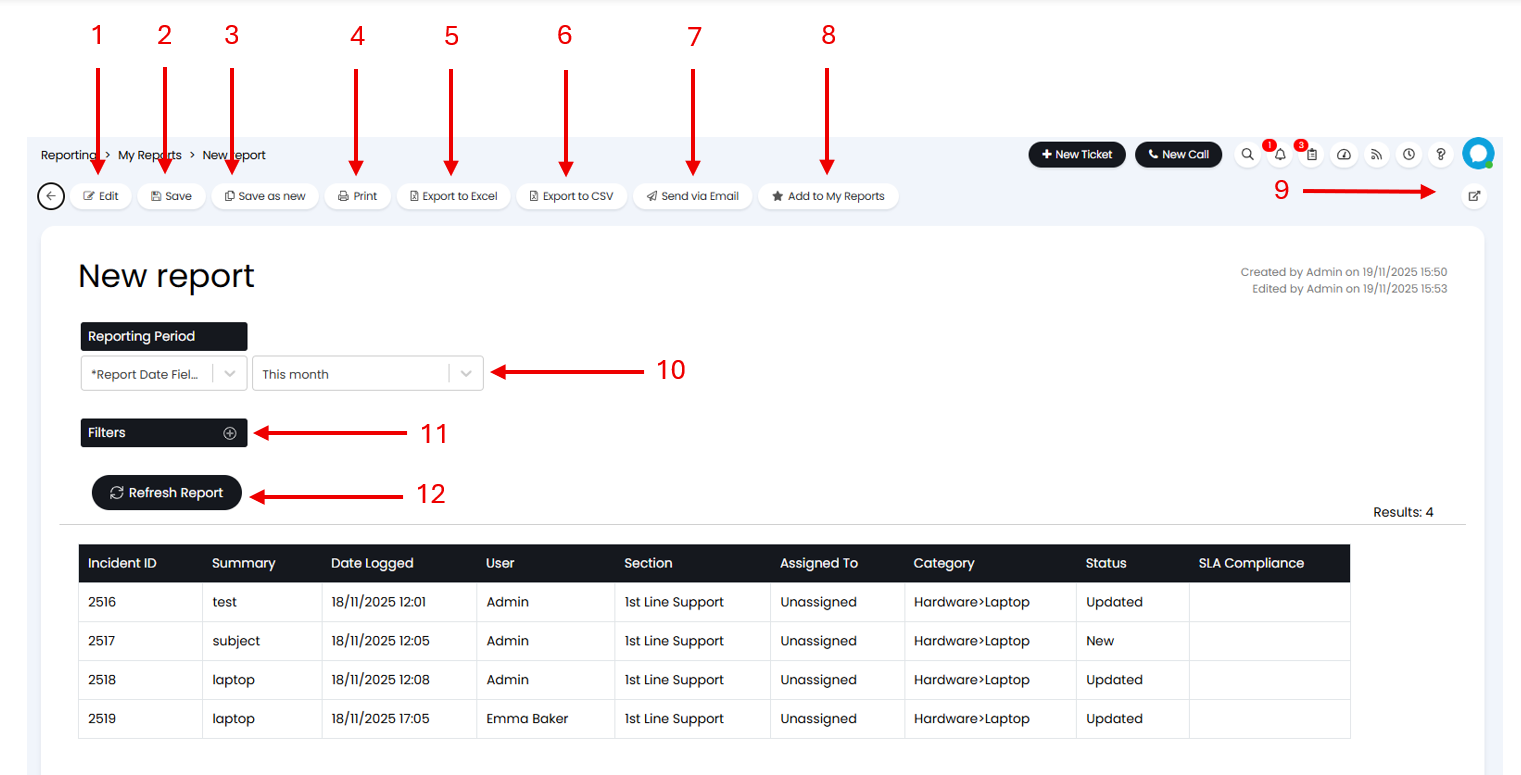
Fig 1. The Report Screen
- Edit - Click to edit the report, see section 2.
- Save - Saves and overwrites the report.
- Save as new - Copies this report to a new report, opens a new window so you can rename and change the details.
- Print - Brings up your browser's print menu.
- Export to Excel - Exports this report to Excel.
- Export to CSV - Exports this report to CSV.
- Send via Email - Generates a PDF of this report and opens a Send Email screen with this attached.
- Add to My Reports - Adds the report to the "My Reports" list.
- Opens the report up into its own window free of the upper and left navigation panes.
- This is the reporting date range you are looking at. This is available when using the @startdate and @enddate variables within the report.
- The filters enable you to filter the report by the columns selected in the SQL script of the report.
- This refreshes the data in the report to the current state of the database.#
The "Created by" and "Edited by" will show in the top right corner.

Fig 2. "Created by" and "Edited by" fields
Editing a Report
Clicking 'Edit' will open the edit pane (see below), this contains all of the options required to edit what is shown in the report, what data is represented in what format and whether/when it is sent out from Halo to any email addresses.
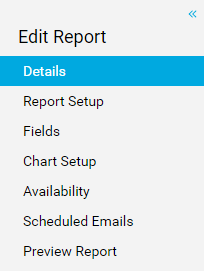
Fig 3. Editing a Report
- Details - The name and summary of the report including which group it is stored within.
- Report Setup - The SQL code with which the report is generated.
- Fields - Here you select which columns of data to pull through from the data to the report. You can also edit column orders and create "Totals" or "Averages" for columns here.
- Chart Setup - Configuration for adding a graph to the report.
- Availability - Controls for who can access the report, be it users, agents or a publication link for external use such as a dashboard.
- Scheduled Emails - Configuration for emailing this report on a schedule.
- Preview - This takes you to the report preview to see any changes made without saving the report.
For more information on using the reporting the suite please do refer to the following guides: