Composite Reports
In this guide we will cover:
- Creating and Selecting Reports
- Customising SQL with $-Variables
- Building the Composite Report
- Appending/Prepending a PDF
- Appearance Tab
- Reports Table
- Formatting the Composite Report
- End-User Access
- Scheduled Emails
Composite reports in Halo allow you to present multiple reports to your clients via a single document, which is particularly handy for QBR's and showing stakeholders multiple Metrics all at once.
There are two primary components to constructing your Composite Reports:
- Creating/selecting the Reports you want to include on the document - the QBR has to show some metrics, right?
- Formatting the reports to be presented as required on the document - because who doesn't love a pretty graph?
Creating and Selecting Reports
For this guide, I'm not going to go into creating reports and will assume all key reporting data can be found via existing reports in Halo's online repository.
Let's say I want to show a pie chart, and a table of Tickets in my composite report.
First, head into the 'Reporting' module:

Fig 1. The Reporting Module
Then to the Online Repository:
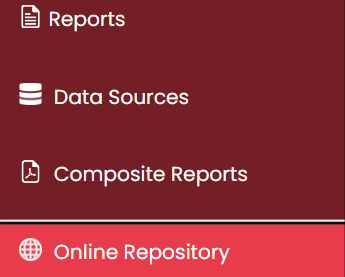
Fig 2. Halo's Reporting Online Repository
Where you'll find a list of the most common/useful reports requested by Halo's community.
In here, I'll search for reports to see if I can find what I'm after. Once I've found what I'm looking for, I can download this to my instance
Note: For most customers, the "Tickets By Category" report will be in the reporting suite by default, and there is no need to add it through the online repository.
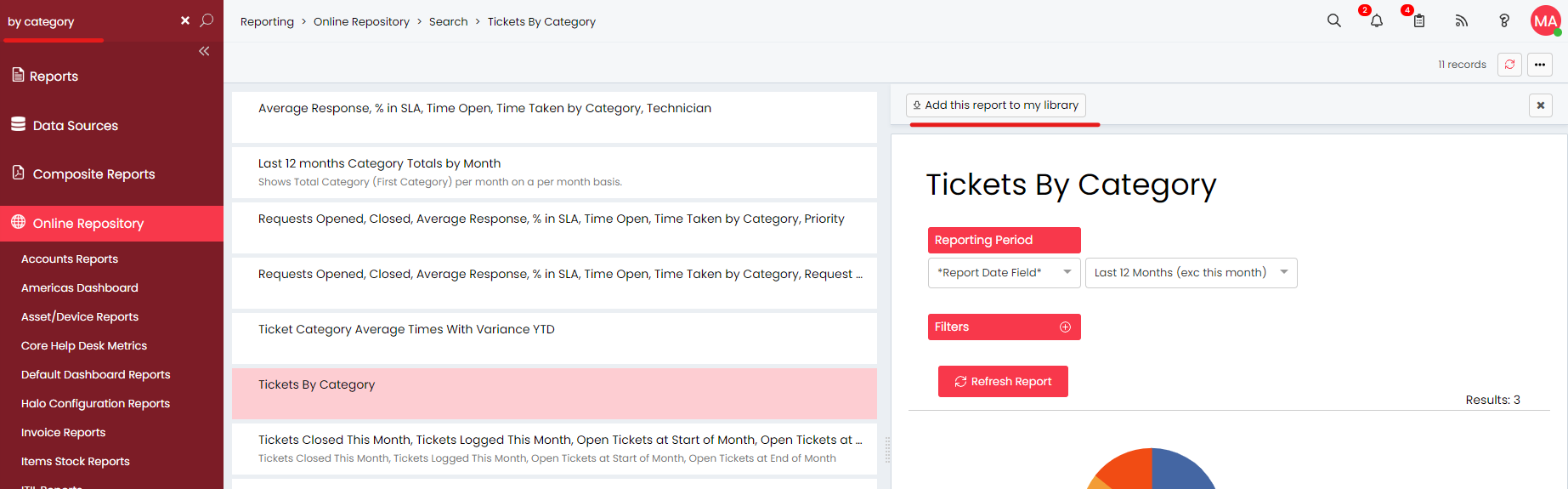
Fig 3. Searching the Online Repository and adding my selection to my local library
Note: If you can't find the report you are after and are struggling to create it yourself, please reach out to Halo support to create the report and add this to the repository for you. Reports done via Halo Support Staff should not be overly technical. Time consuming reports will be charged consultancy rates.
Now I have the reports I need in my library, I can start creating my Composite Report.
Customising SQL with $-Variables
Note: Composite Reports are generated per customer, so you must ensure that the reports you add to the Composite Report contain the '$clientid' variable i.e: if I'm querying the 'faults' (tickets) table, I need to ensure I have added "...from faults where areaint=$clientid...". Without doing so, data for Client A may be visible to Client B.
In the 'Tickets by Category' Report, I added the $clientid variable as follows:
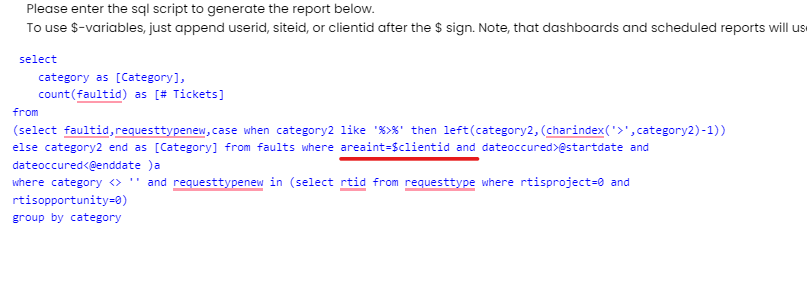
Fig 4. Adding the $-clientid to get only the metrics for each customer
And in the 'Priority 1 Incident Breakdown' again this will likely be found in the default list of reports:
 Fig 5. More SQL where $-clientid should be added
It is worth mentioning that while using 'areaint' will work when querying the 'faults' table, this will not work when querying any table. You will need to use the respective Client ID variable for the table you are querying. Check Our Schema to see which field you will need to use for querying respective tables.
Building the Composite Report
So now you have the reports required to build your Composite Report, the next step is to create the Composite Report itself. Head to the 'Composite Reports' section of the Reporting module (Fig 2) and click 'New' (top right hand side).
The first tab you're presented with is a 'Details' tab:
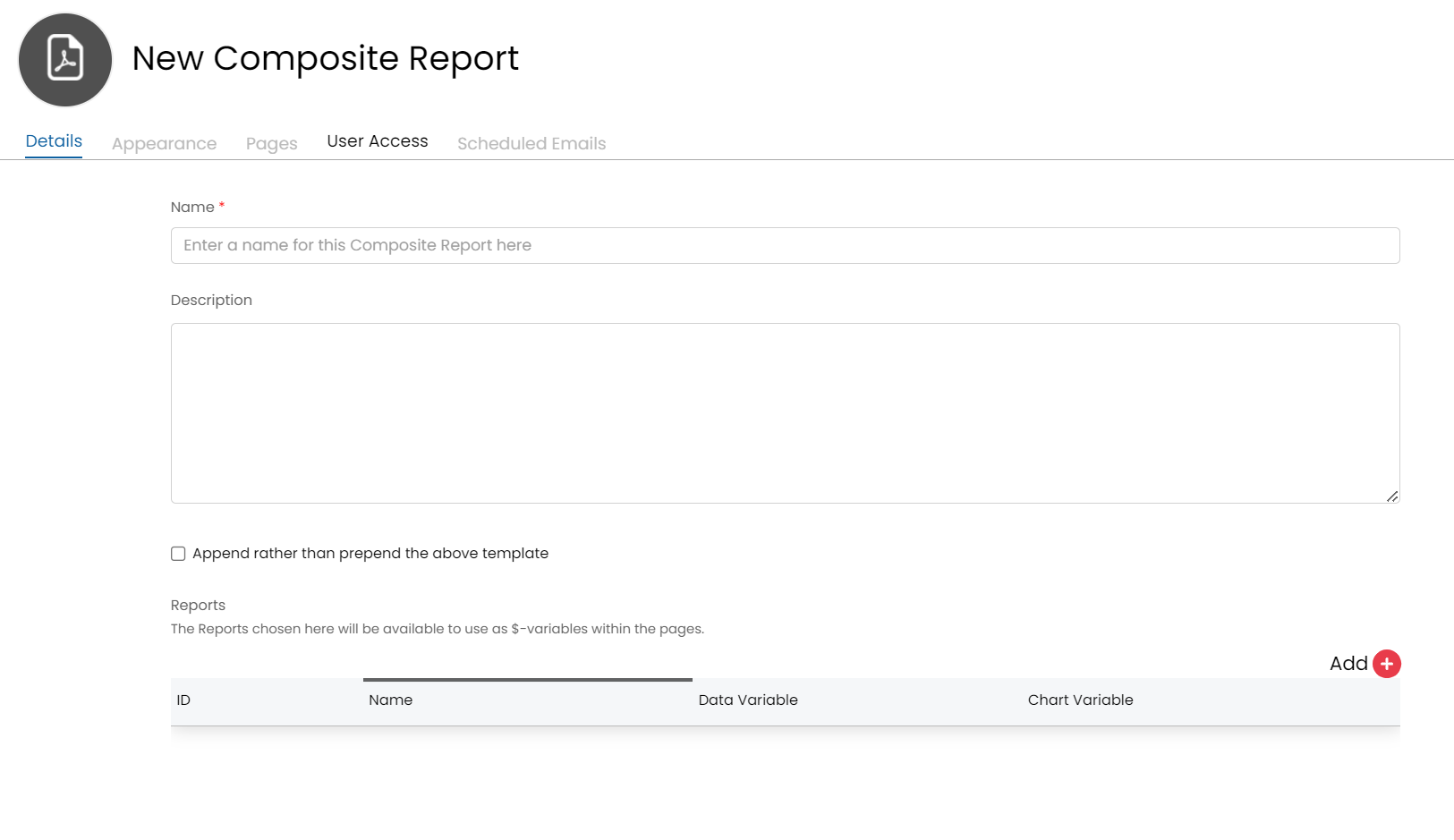
Fig 6. The new Composite Report Details tab
Give the Composite Report a sensible name (remember, this may be across clients so best to keep it fairly general) and description.
Appending/Prepending a PDF
After clicking on save, once you have made the new composite report, you can add a PDF to it, prepend or append the PDF onto the composite report and then click "Generate PDF" to see how it looks
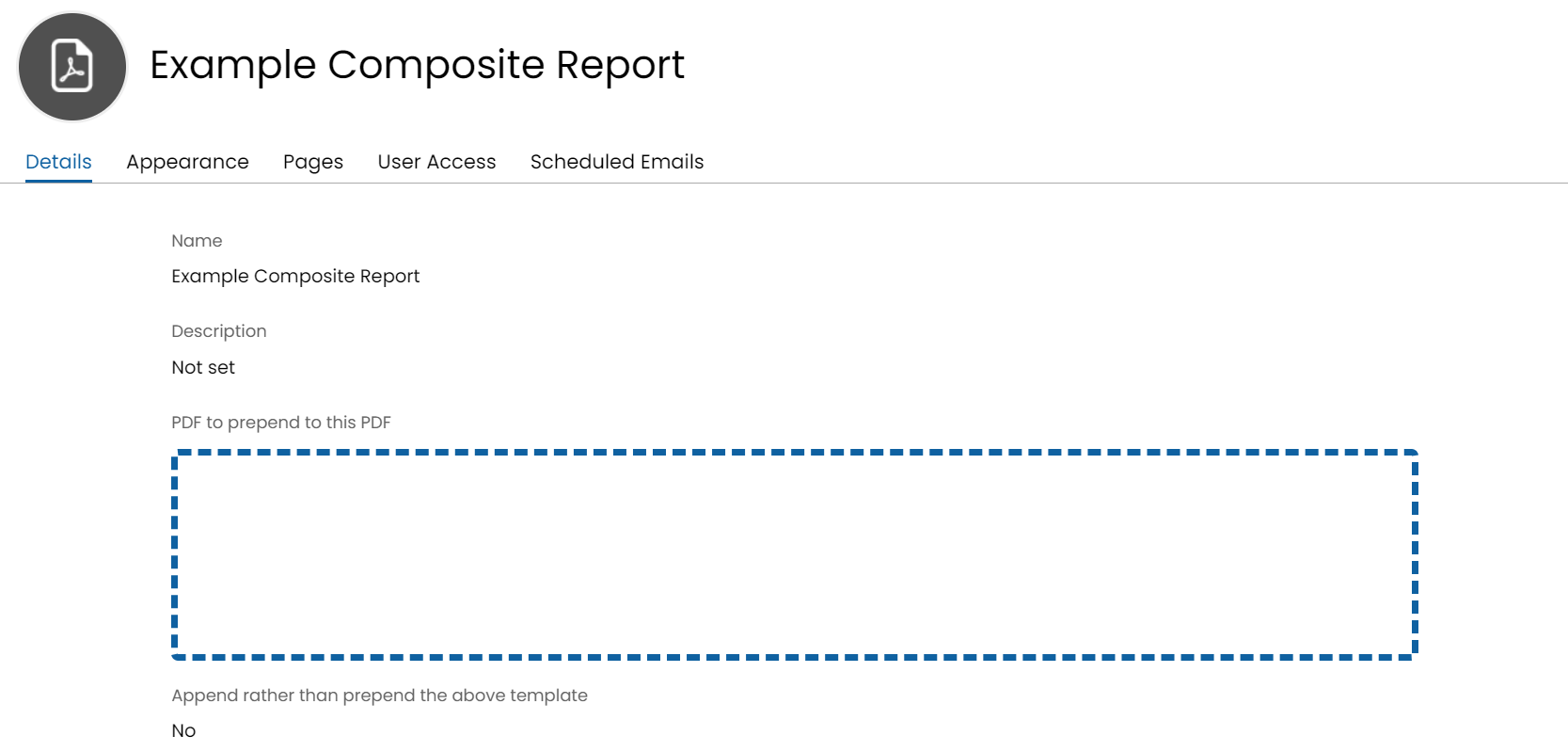
Fig 7. Adding a PDF to The Composite Report
Appearance Tab
This tab is for adding in Headers, Footers, Giving a default colour to the i.e. details table and any other out of the box html on the templates.
Headers and Footers can be added as custom HTML, by checking on "Use HTML Footer" or "Use HTML Header" note, headers must be enabled for this option to show. For a explanations of each option, checkout the Admin Guide for PDF's
Reports Table
Below these two options, you have a 'reports table'. Click 'Add' to add the reports that you would like to include in this document:
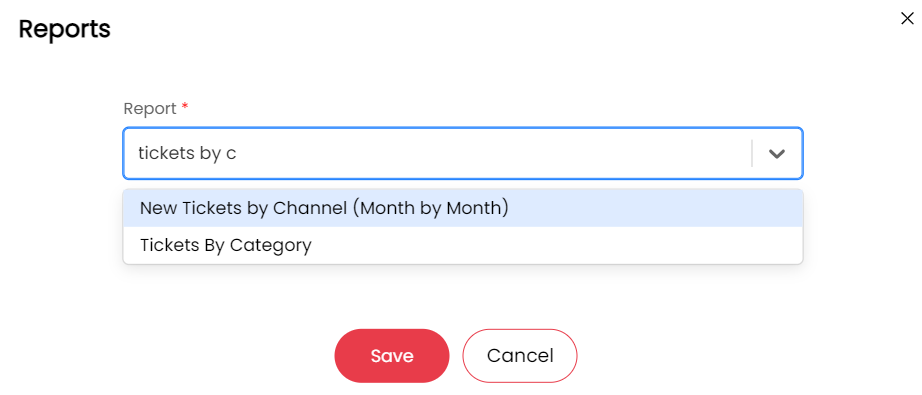
Fig 8. Adding the desired reports to my Composite Report
Once you've added the desired reports into this table, you'll see something similar to the below:

Fig 9. The Reports table of a Composite Report, once the desired reports have been added in
There are two important columns to note here: 'Data Variable' and 'Chart Variable'
Data Variable
Each report will have a corresponding 'Data Variable' - for my Priority 1 Incidents Breakdown, the respective Data Variable is $Report130Data. This variable will render the report table data, similar to how you see it when viewing the report itself.
Note: This tables presentation can be manipulated via CSS - more on this shortly.
Chart Variable
Each record will also have a corresponding Chart Variable. If you have configured a chart within your report, this variable will load that chart into the Composite Report as an image.
Upon clicking 'Save', some of the greyed out tabs in Fig 6. will become available, specifically the 'Pages' tab.
Formatting the Composite Report
On the Pages tab, you will find a table:
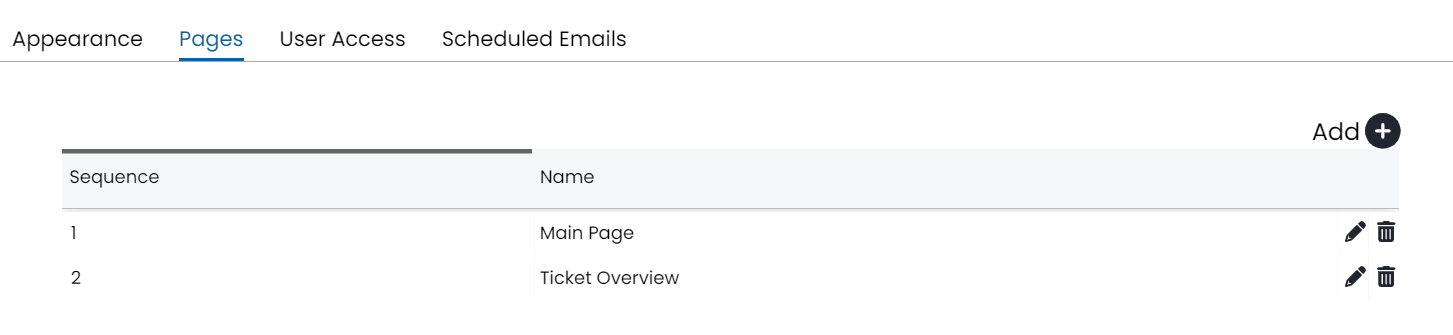
Fig 10. The Pages tab for a Composite Report
Each record in this table corresponds to a specific page that is rendered upon generating the PDF. For this example, we will keep things simple and only work with the main page - but a more comprehensive QBR would likely be composed of multiple pages containing different data sets.
Hit the pencil against the record to open up a HTML window where you can format the layout of the rendered page - this is also where you will include your Data/Chart variables.
I've made some minor adjustments to the default HTML to format the page as I need, with the crucial changed underlined below:
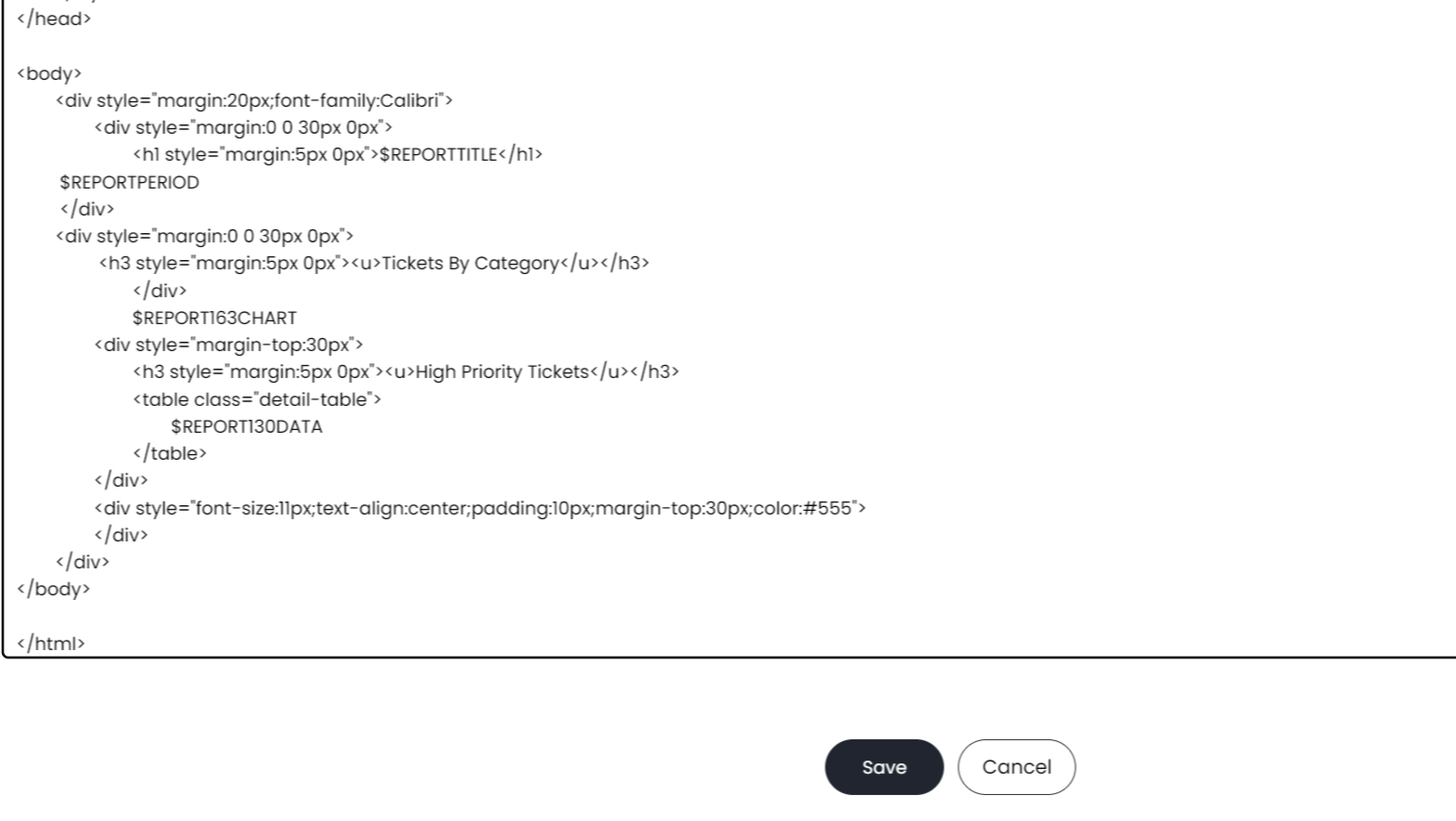
Fig 11. Altering the HTML of my Composite Report document
Note that I have included "$Report163Chart" and "$Report130Data" in my HTML. If we look back to Fig 6, we will see this should render the Tickets by Category (Pie) chart and the Priority 1 Incident Breakdown table. The default option is to show all of the report data in one section using $-REPORTCHARTS and $-REPORTDATA.
NB: As '$Report130Data' is going to render a table, I can wrap it in a 'table' element and hence can style this table as required (via the "styled-table" class I have created)
Make sure to click 'Save' at the bottom of the HTML edit page (Fig 11) then save again (top left hand side of the Composite Report page) to save your changes.
Now, when I click 'Generate PDF' I can select the Client I would like to generate this Composite Report for (via searching for the client name in the below):
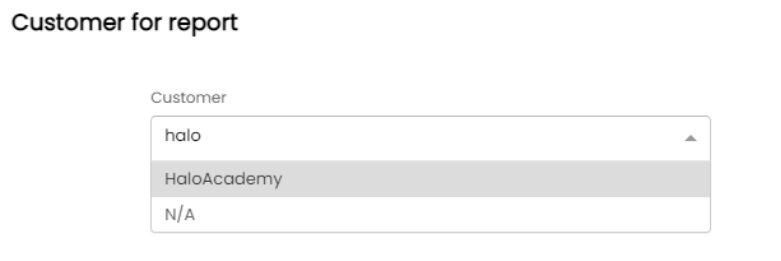
Fig 12. Selecting which Client to generate my Composite Report for
And my (admittedly pretty vanilla) HTML is rendered, with my chart/data variables replaced where needed:
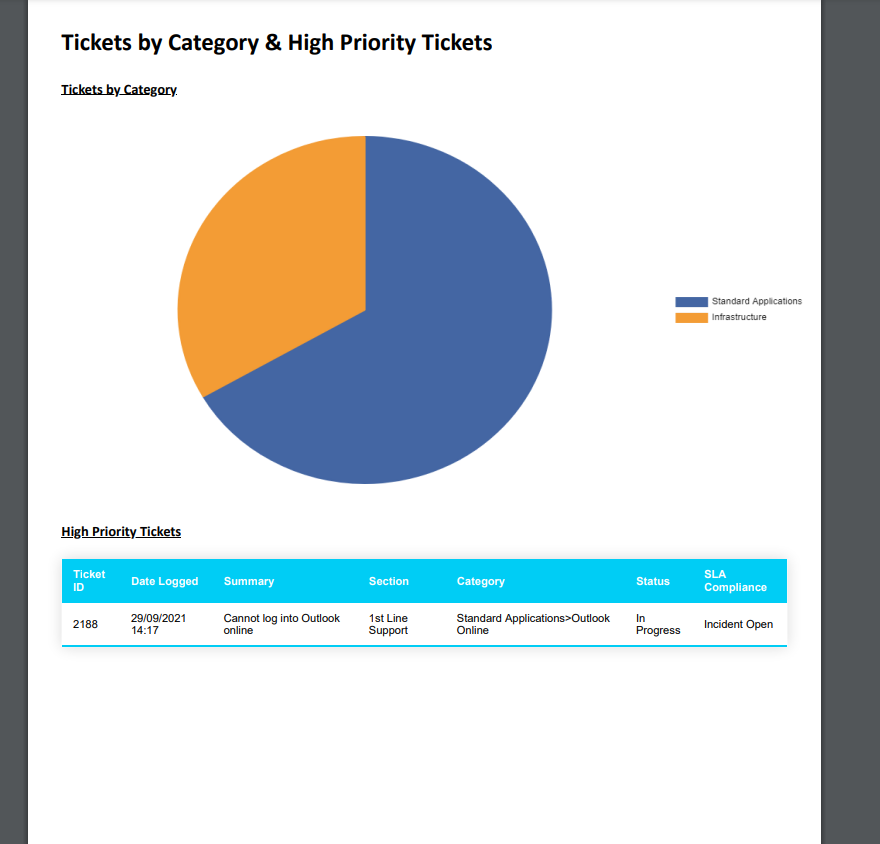
Fig 13. The Composite Report PDF
Note: Instead of using the default $-REPORTTITLE you can use whatever text, i.e. Tickets By Category and High Priority Tickets.
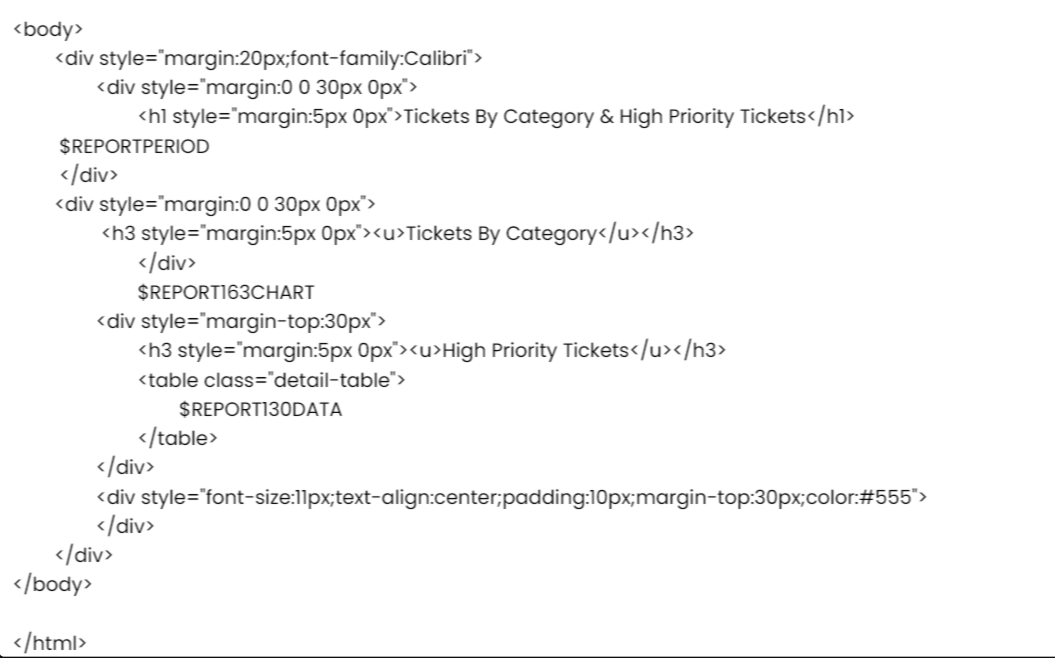 Fig 14. Changing the Report Title
Additional Points
Variables
We have discussed the use of two report variables, but there others which can be used. You'll find a full list of variables available for Composite Reports via the 'View $-variables' button:
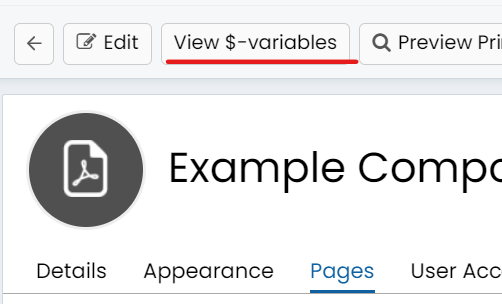
Fig 15. Viewing $_Variables available in Composite Reports
End-User Access/Portal Access
Composite Reports can also be made available for end-users to view via Halo's Self-Service Portal. To make a Composite Report available via Self-Service, simply head to the 'User Access' tab, shown in Fig 6 and add a list of end-users who should be able to access this Composite Report. You can give access to all users, this will only show their data or their clients data if configured correctly using $-variables, as explained previously:
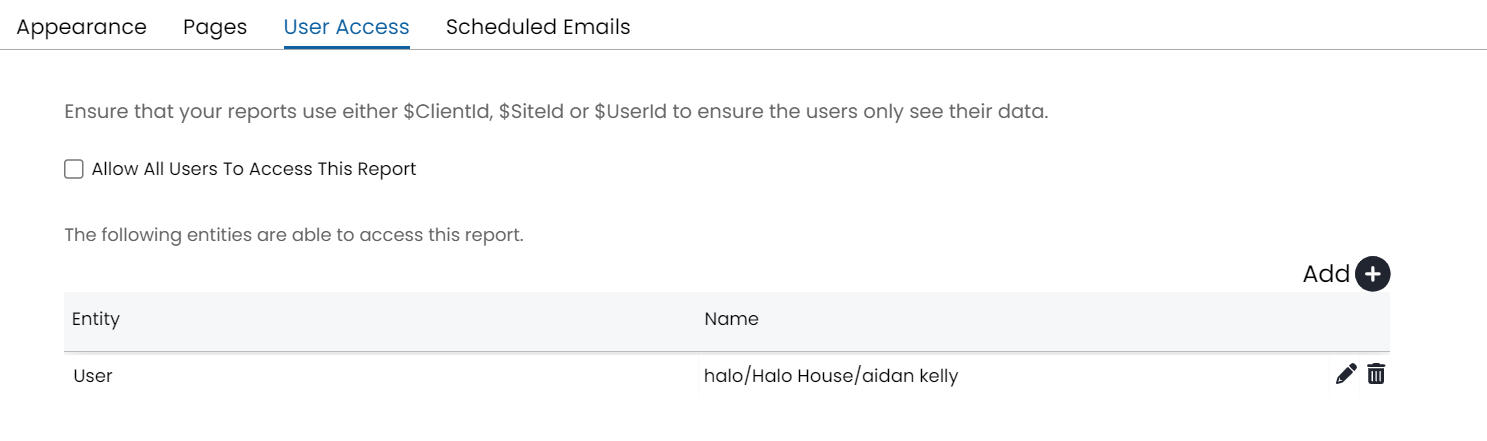
Fig 16. Making Composite Reports available for end-users to view via Self-Service
Provided you have the 'My Reports' (Configuration > Self Service Portal > *Scroll to The Menu Buttons Table*) option available on your Self-Service Portal, the end-users added to view the Composite Report (Fig 16) will see this in their list of 'My Reports'.
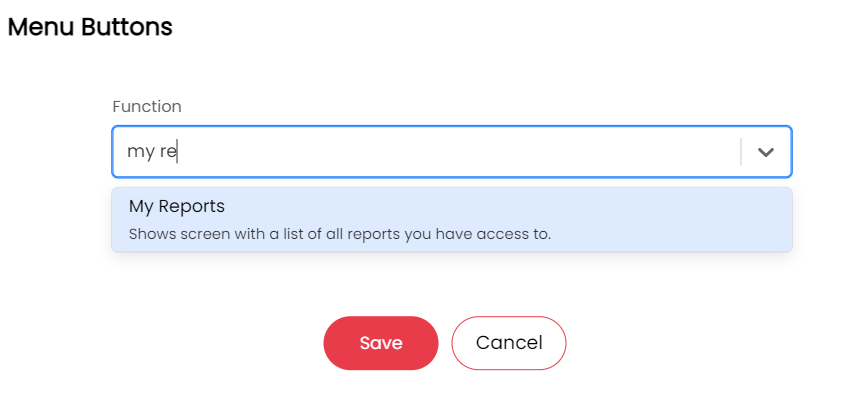
Fig 17. Adding The "My Reports" Menu Button to The Self Service Portal
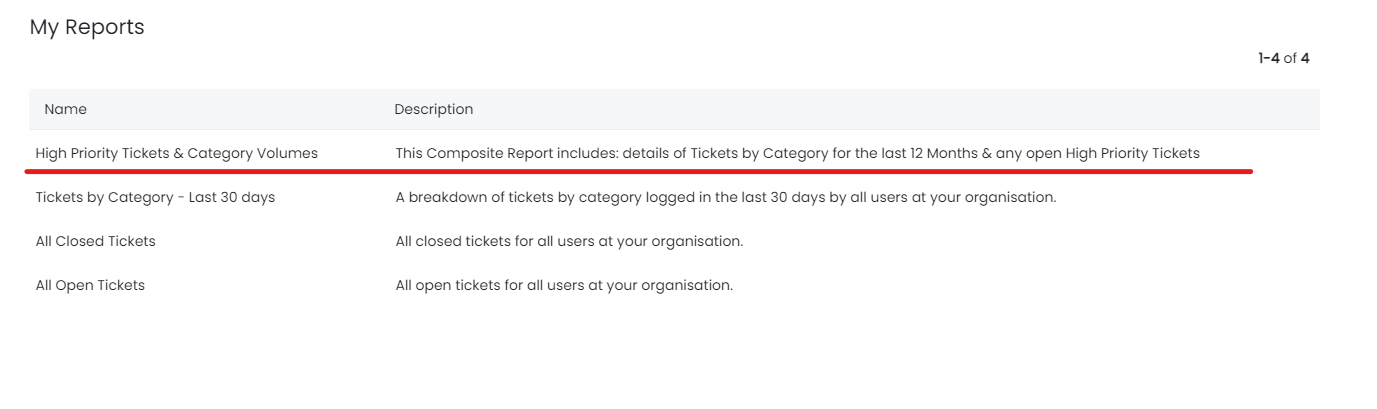
Fig 18. The Composite Report available on the Self-Service Portal
Note: Headers, Footers and Cover pages will not be rendered when viewing Composite Reports via the Self-Service Portal.
Scheduled Emails
Composite Reports can also be emailed to relevant stakeholders on a scheduled basis. To achieve this, head to the 'Scheduled Emails' Tab & click 'Add':
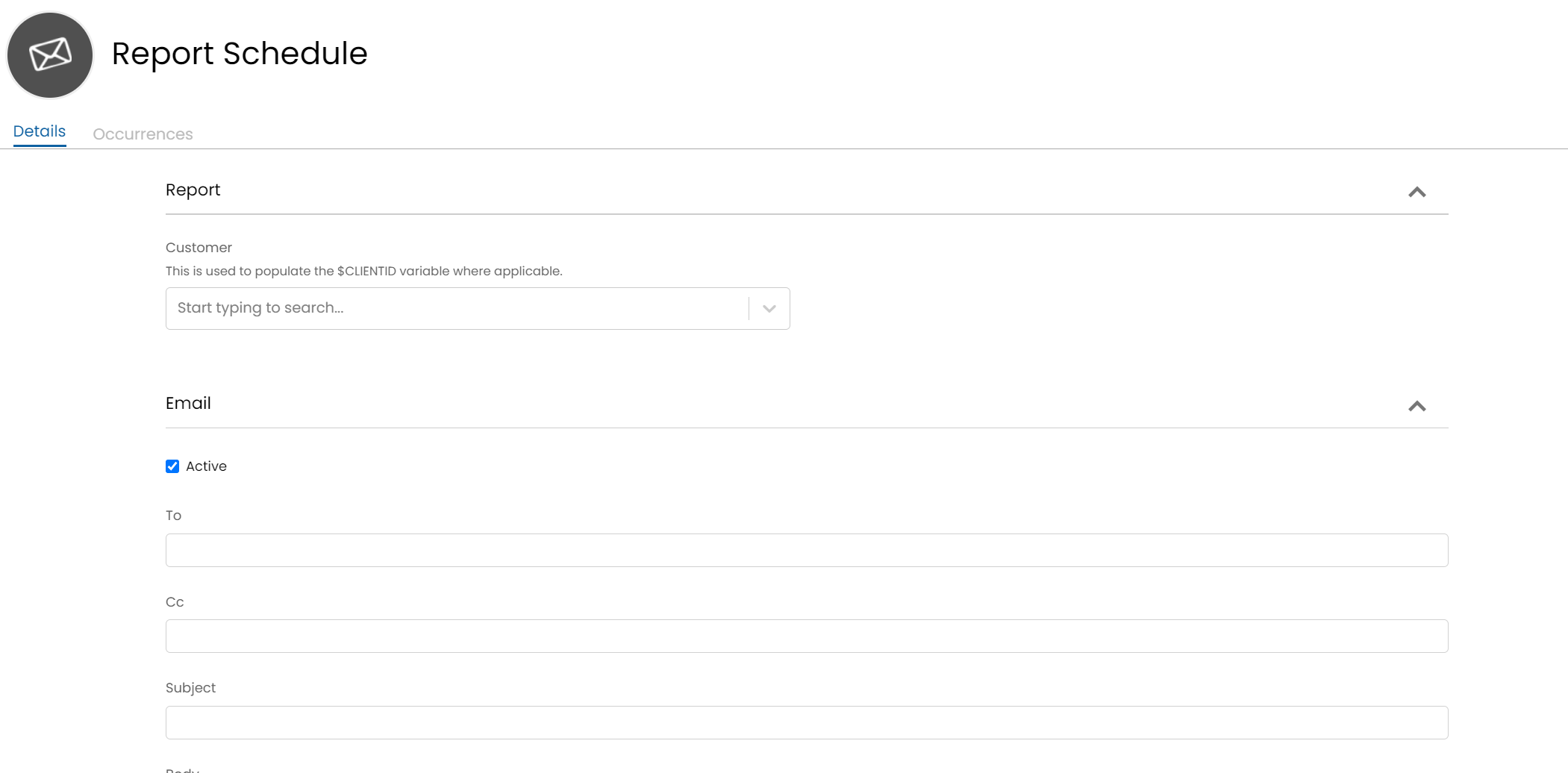 Fig 19. The Scheduled Emails window
Creating Scheduled Emails for Composite Reports is composed of 3 sections:
- Report - Pick the client that you want to generate the Composite Report for.
- Email - Specify the contents of the email which will be used once sent, namely: who to send the report to & the email subject/body.
- Schedule - Pick the schedule on which you would like your Composite Report to be generated & sent to the relevant stakeholders. NB: this scheduling sections is configured in a similar fashion to the Schedule for Recurring Invoices, Scheduled Tickets etc.