Reconciliation - Order of Precedence for CMDB/Asset Integrations
- asset integration
- Reconciliation
In this guide we will cover:
- What is Asset Reconciliation?
- Enabling Asset Reconciliation
- Set Global Precedence
- Set the Integration Precedence for each Field
What is Asset Reconciliation?
Asset Reconciliation allows you to specify which tool's data should take precedence when importing asset data from various asset integrations, by setting the precedence of each tool you import asset data from. This is useful if you store asset data across various tools, each integrated with Halo, but one tool acts as the source of truth for some asset information (such as the current state of the device) and another acts as the source of truth for other asset information (such as the last logged in user).
When an asset import runs, all data from the integrated tool will be checked, but an integration will only be allowed to overwrite a field's current data if the current data has come from an integration with a lower precedence.
Precedence checks will only be made for 'asset fields', other asset properties determined by imports (such as Site and Type) will not apply precedence checks.
When asset Reconciliation is not in use asset integrations will populate asset fields in the order imports are run by the Halo integrator, meaning the last (most recent) integration to run will be the source of truth as data imported from earlier run integrations will be overwritten.
Enabling Asset Reconciliation
To use and enable Asset Reconciliation, head to Configuration > Asset Management > enable the "Reconciliation" module using the '+' icon.
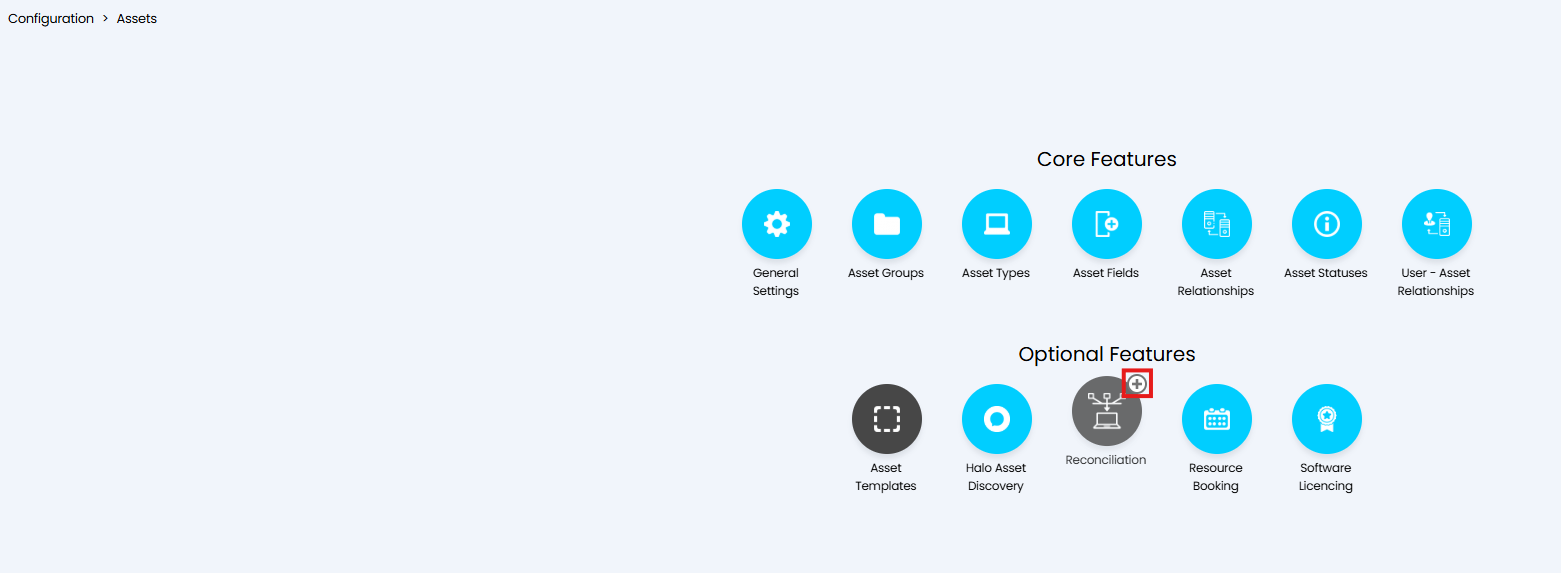
Fig 1. Enable Reconciliation Module
As soon as the Reconciliation module is enabled the precedence outlined in the module will be checked when importing data.
Once enabled, click into the module to begin configuration.
Set Global Precedence
A global precedence can be set to determine the default order in which integration data is checked/imported.
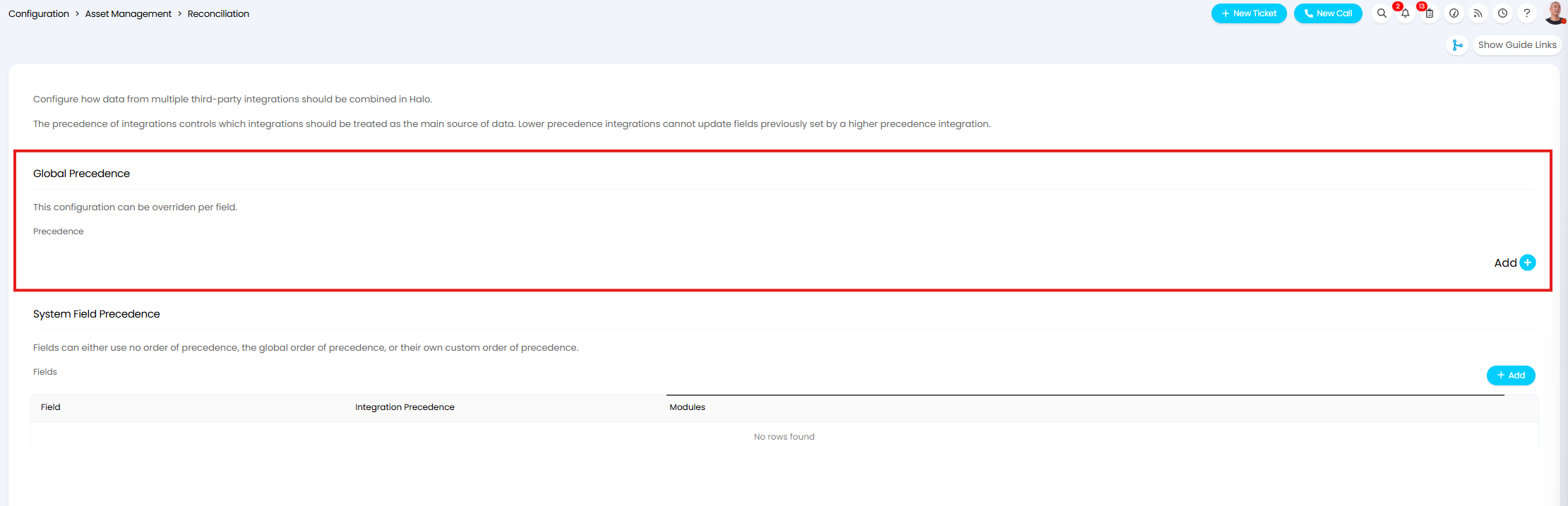
Fig 2. Set Global precedence of asset integrations
Add all the integrations you are importing data from here. When adding you will be able to choose from a list of the enabled native integrations that support the importing of asset data.
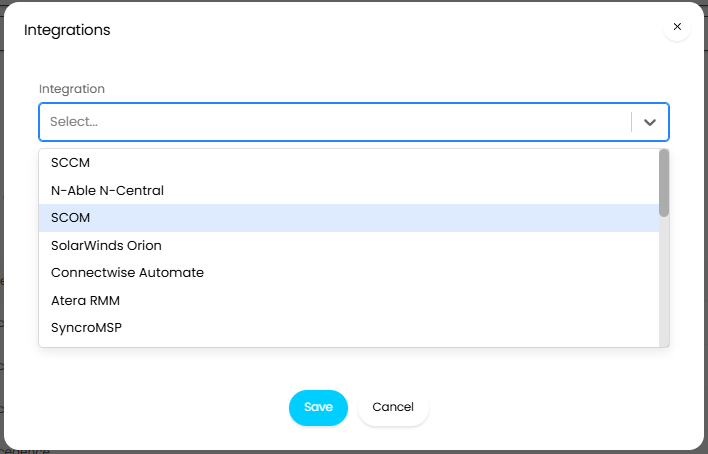
Fig 3. Add integrations to precedence list
Note: If importing assets from Intune via the CSP integration select "Microsoft CSP" as the integration here. This will be available to select and set precedence for from v2.248+. This will be available to choose from when the CSP integration is enabled.
Once you have added all your integrations you can drag and drop them to set the order or precedence. The ones highest in the list will take the most precedence.
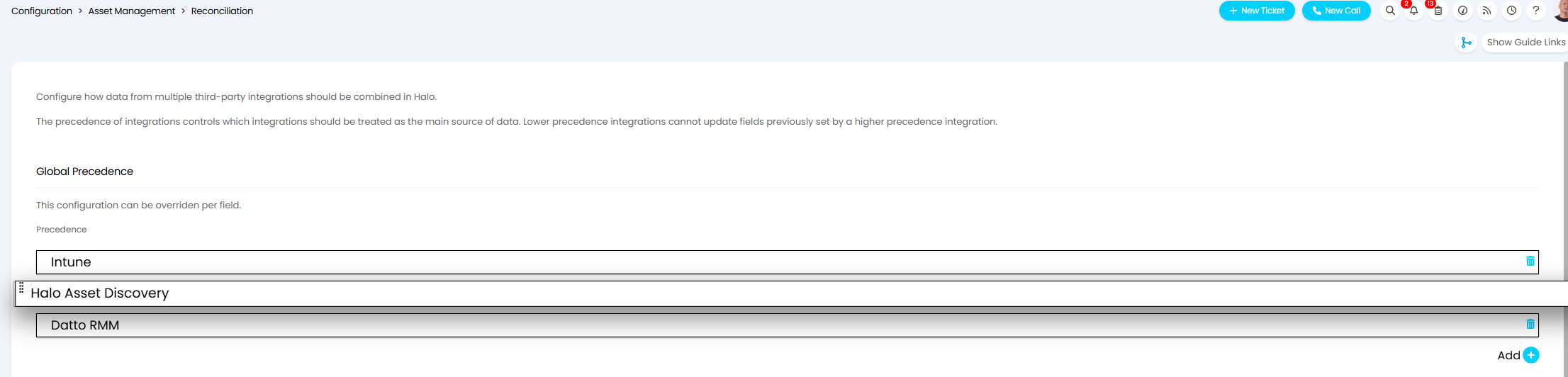
Fig 4. Drag and drop integrations to set precedence
If data is imported from another integration, not listed or selected here, it will take the highest level of precedence.
Set the Integration Precedence for each Field
Precedence can additionally be set for each field available on assets. This allows you to to set a different integration to be used as the source of truth for each asset field. By default all asset fields will use the global precedence, so be sure to set precedence on each asset field you would not like the global precedence to apply to (this includes excluding the field from precedence checks).
When setting the integration precedence for each field the following options will be available:
Do not use order of precedence - When chosen, the field will be updated each time data is imported from an asset integration, data from one tool can be overridden each time new data is imported from another tool. Use this when only one integration contains data for this field so there is no risk of another tool overwriting the field's data.
Use global precedence - When chosen, the field will be updated with data from the tool with the highest level of precedence as outlined by the global precedence. If data for this field cannot be imported from the highest precedence tool, the next one in the list is checked until a data for this field is found. Used when the source of truth for this field follows the same order of precedence as outline globally.
Use custom precedence - When chosen, you will be able to set a new order in which integration data is checked/imported that applies to this field(s) only. Custom precedence's are set in the same way as the global precedence, select all your integrations and drag and drop the order in which they should be checked.
Fields against assets in Halo are categorised into three 'types' of fields:
- System fields
- Custom Fields for Assets
- Asset Fields
The precedence for each of these 'types' of field is set in different places, the next subsections run through where to set the precedence for each type of field.
Set System Field Precedence
System field precedence is set within the Reconciliation module, shown in Figure 5.
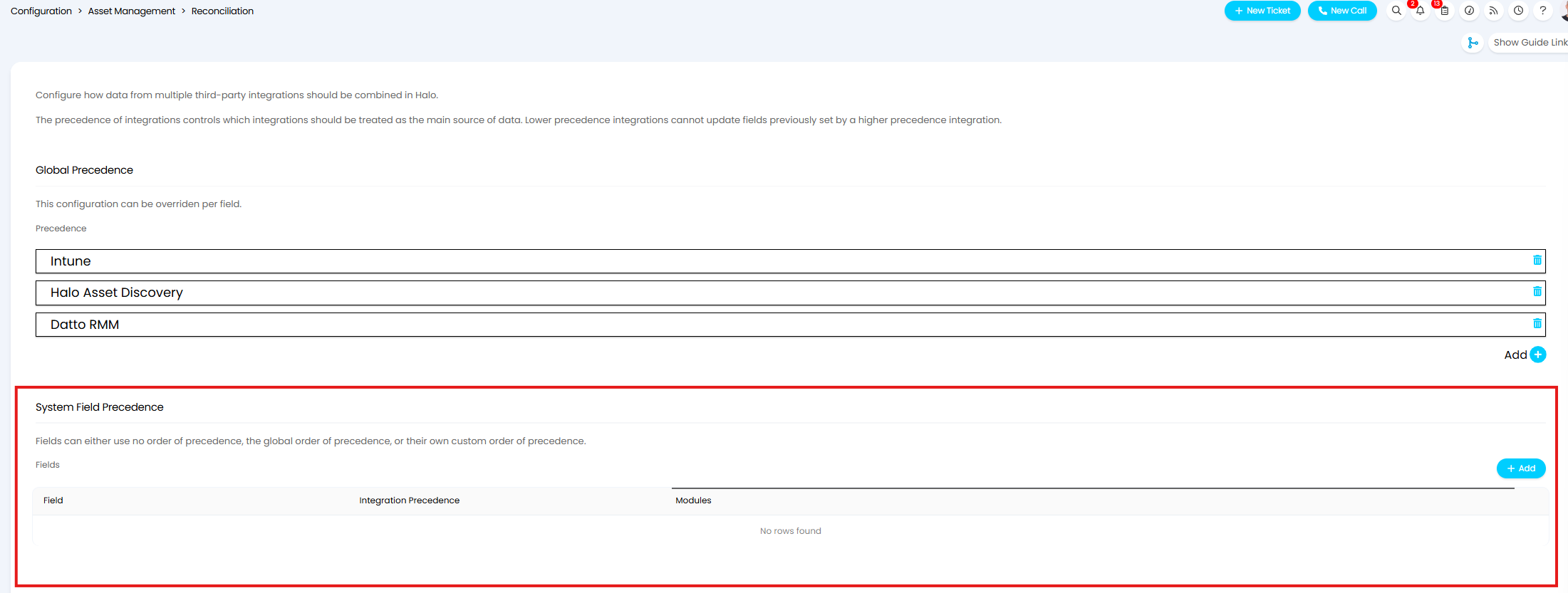
Fig 5. Set System Field Precedence
Simply add to this table, choose the field(s) to set precedence for, and choose what precedence to use.
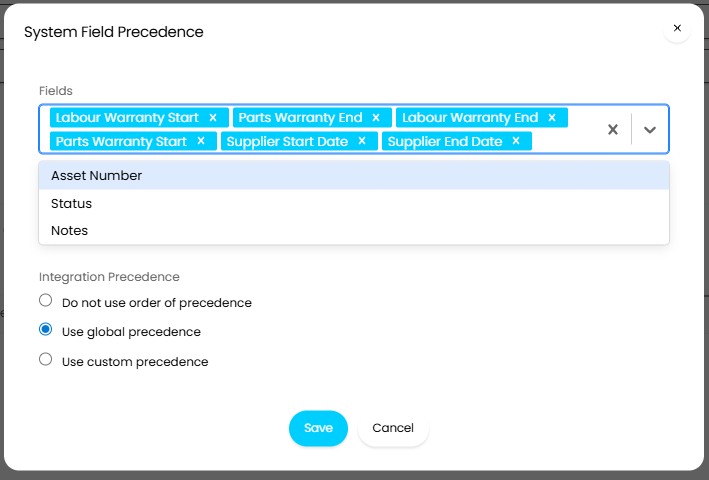
Fig 6. Set System Field Precedence
Once system field precedence is set, the precedence being used for each field will show in the "System Field Precedence" table.
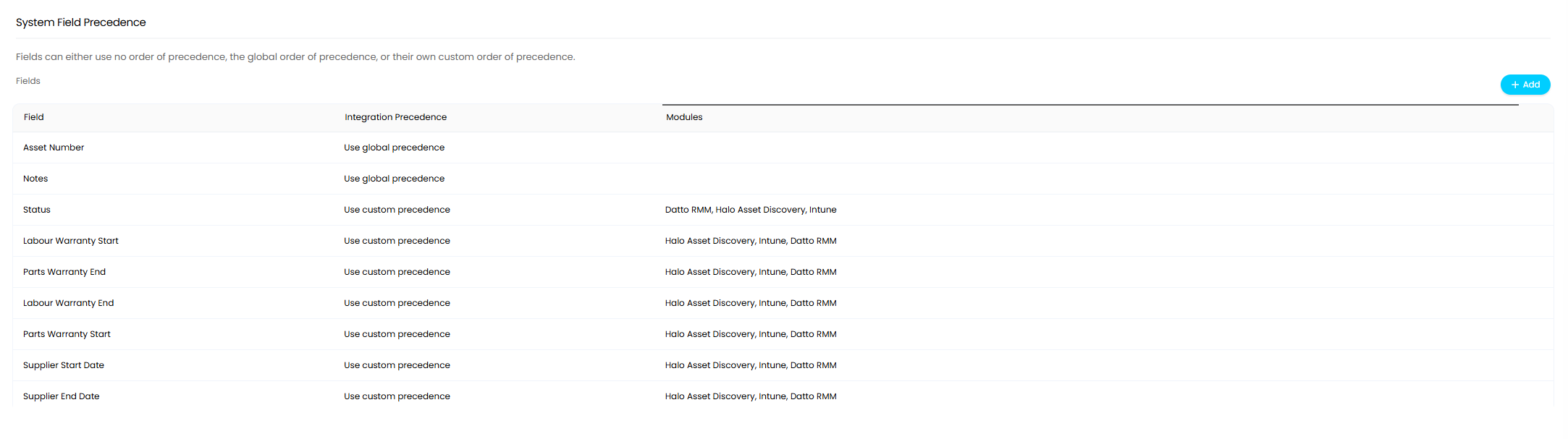
Fig 7. System field precedence overview
Set Custom Field for Assets Integration Precedence
The precedence in which integration data is imported into custom fields for assets is set against each custom field.
If you are unsure on the difference between custom fields for assets and asset fields checkout our guide here.
A shortcut to editing custom fields is shown on the Asset Reconciliation configuration page.
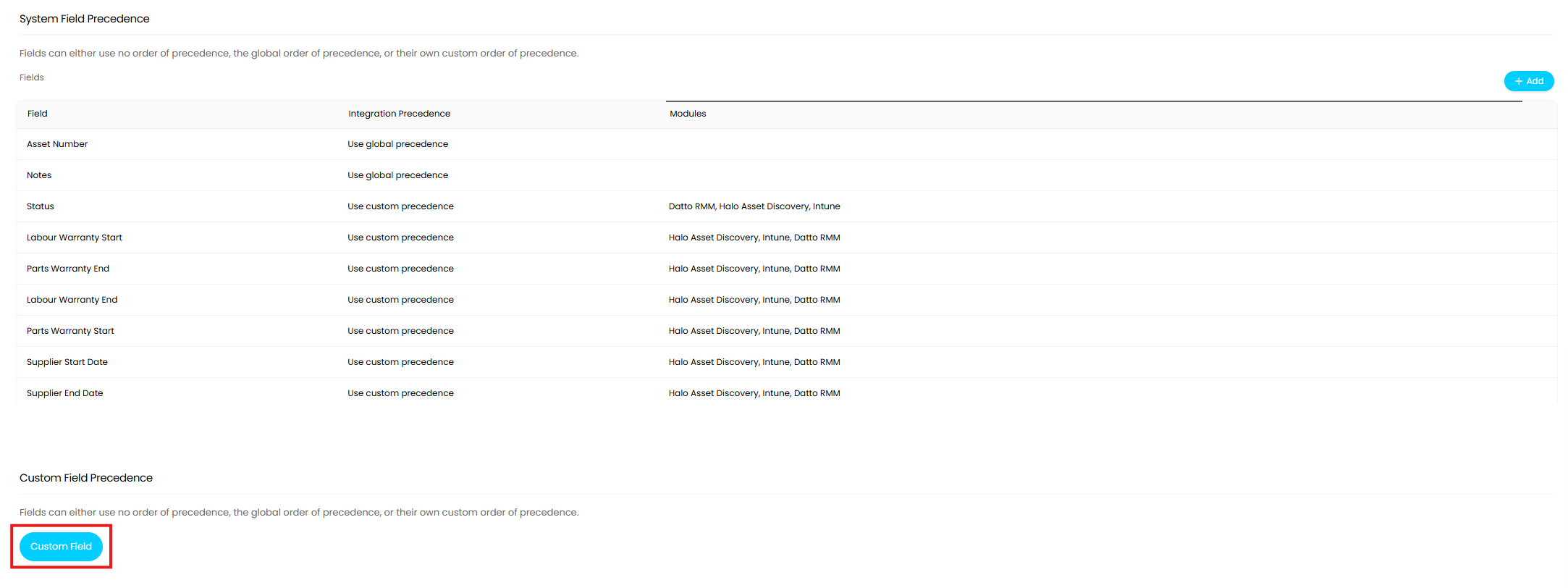
Fig 8. Shortcut to editing custom fields
When editing the field head to the "Integrations" tab to set the precedence the field uses.
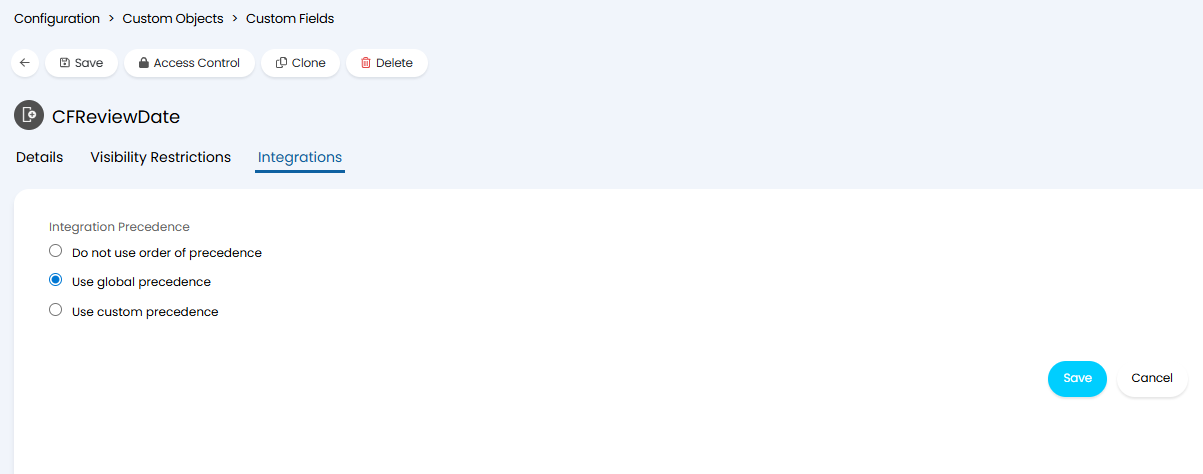
Fig 9. Set Integration Precedence of Custom Field for Assets
Set Asset Field Integration Precedence
The precedence in which integration data is imported into custom fields for assets is set against each asset field.
If you are unsure on the difference between custom fields for assets and asset fields checkout our guide here.
A shortcut to editing asset fields is shown on the Asset Reconciliation configuration page.
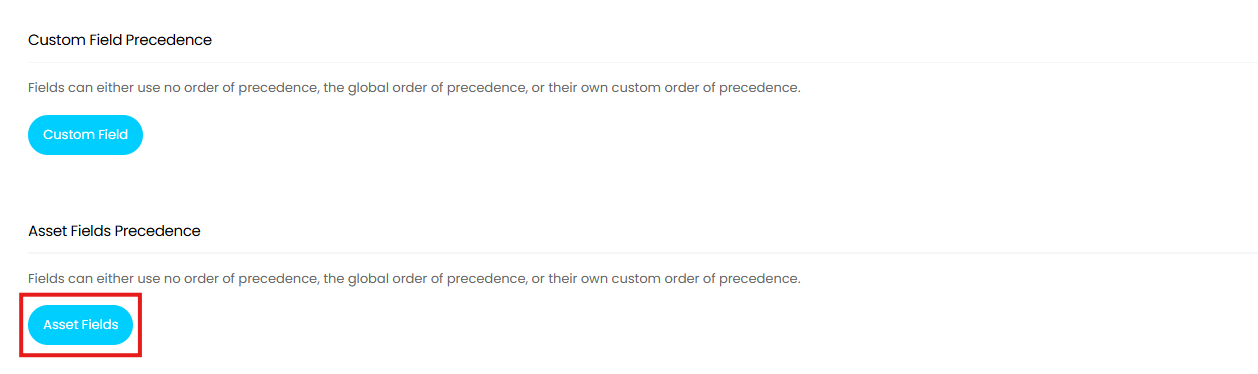
Fig 10. Shortcut to editing Asset Fields
When editing the field head to the "Integrations" section to set the precedence the field uses.
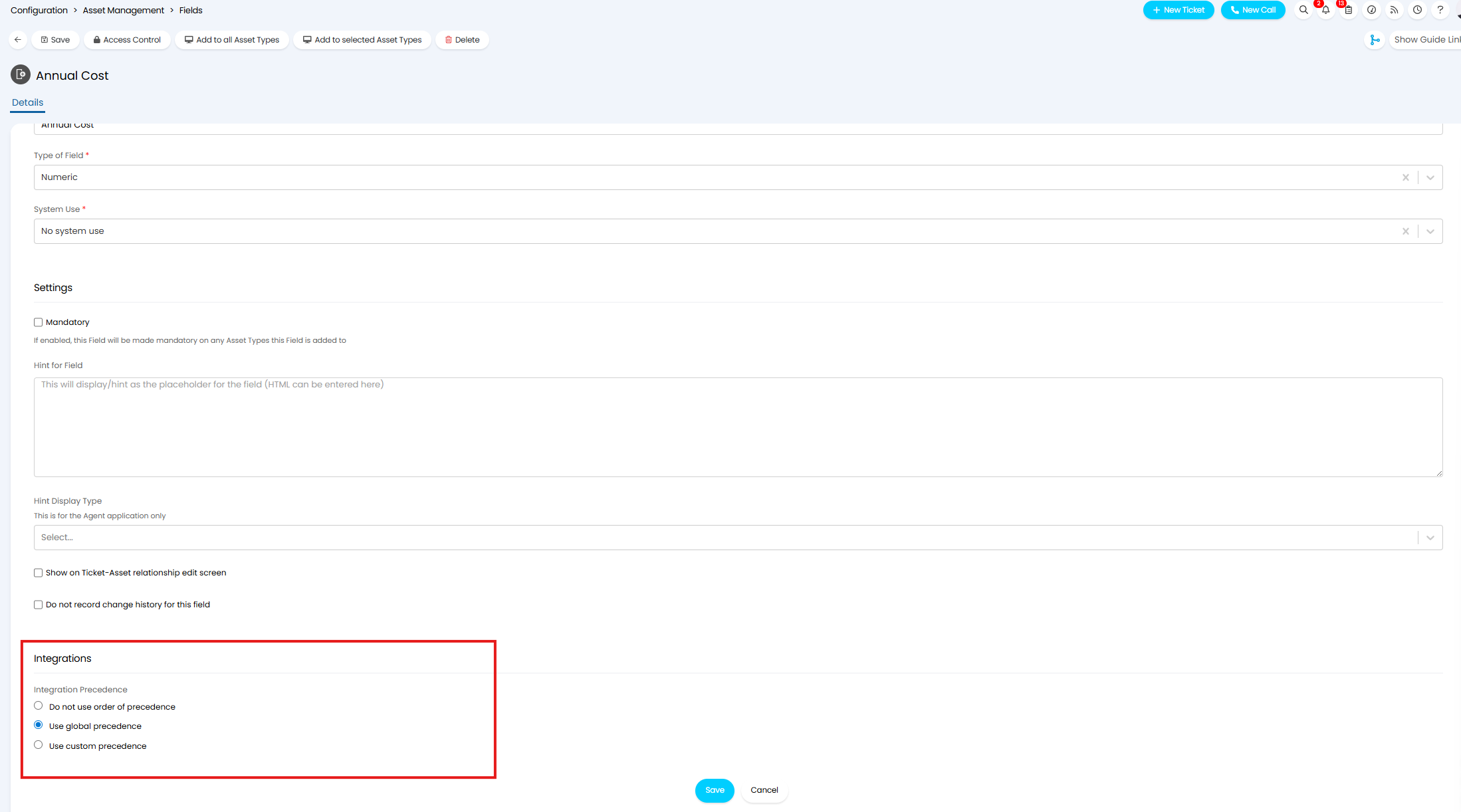
Fig 11. Set Integration Precedence for Asset Fields