Round Robin
In this guide we will cover:
- What is Round Robin?
- Determining who to include in Round Robin
- Assigning Tickets via Round Robin
What is Round Robin?
Round Robin is a method of distributing Tickets which cycles through Agents based on their ID. The Round Robin feature will assign to agents based on their ID number in their Team. This means that the system will give a Ticket to each member of the team list and then loop back through the list of Agents again, there is no logic behind it, the Agents will just be assigned based off of their number on the team list (this is not configurable any other way).
Determining who to include in Round Robin
You can determine which Agents are included in the Round Robin calculation based on their Agent profile, Team, and status. In order for an Agent to be assigned a Ticket via Round Robin they will require the setting "Exclude this Agent from automatic assignment (Load Balance, Round Robin etc)" to be set to "No" in the Details tab of their Agent Configuration. Similar to the Agent level setting, in order for a Team to be included in Round Robin allocated Tickets, they will require the setting "Include in Load Balance Calculations" to be selected in the Details tab of the Team's Configuration.
To prevent Agents being assigned Tickets when they are not available, you can exclude Agents from Round Robin when they have a particular status. In Configuration > Teams & Agents > Agent Status, against each status you can toggle the option "Include Agents with this Status in Load Balance and Round Robin for Tickets not linked to a Chat" for Agents to receive Round Robin Tickets when in this status. If you would like Agents to receive Ticket's linked to a chat while in this status you can also toggle the option "Include Agents with this Status in Load Balance and Round Robin for Tickets not linked to a Chat".
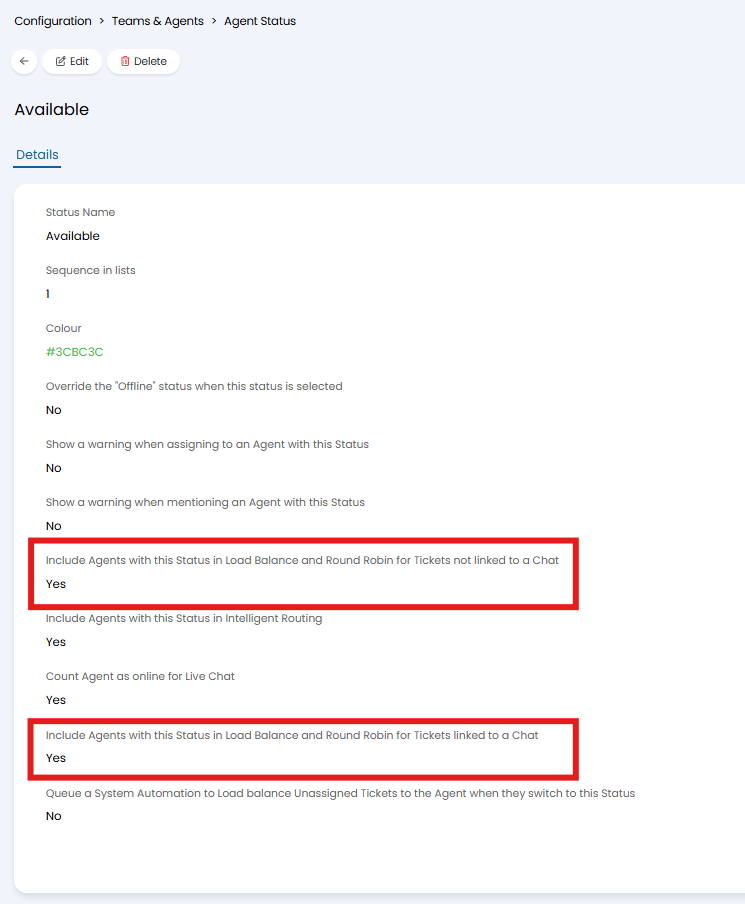
Fig 1. Including a status in Round Robin
In Configuration > Tickets > General Settings, you will also find the option "Only Round Robin and Load Balance to logged in Agents". When selected, assigning Tickets via Round Robin will exclude Agents who are not logged in to Halo from ticket assignment. This is recommended as it will stop agents that are not currently using Halo to be included in Ticket assignment.
Assigning Tickets via Round Robin
Round Robin on new Tickets
If you would like Tickets to be automatically assigned via Round Robin upon creation you can set this per Ticket Type. In Configuration > Tickets > Ticket Types, head to the Defaults tab of your chosen Ticket Type. Select "Round Robin" in the "Agent" dropdown. Once saved, this Ticket Type will be allocated to an Agent based on the next ID in the Round Robin cycle.
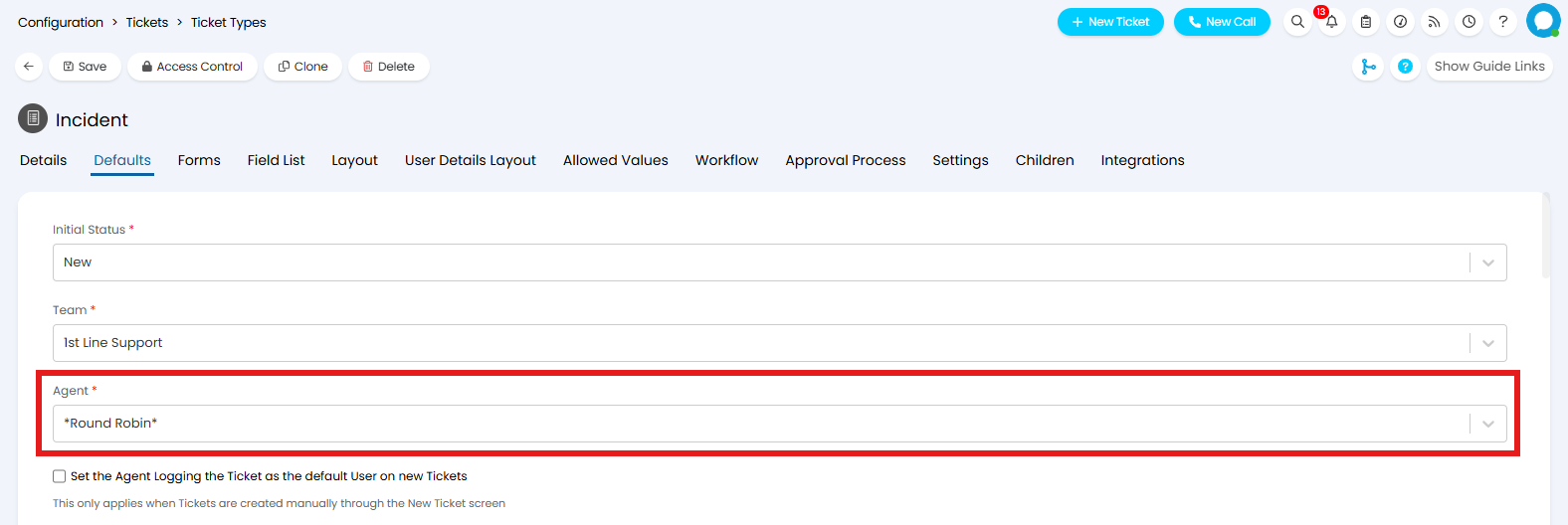
Fig 2. Default Agent
If you would rather only use Round Robin on manually raised Tickets, head back to Configuration > Tickets > General Settings, and enable "Show Round Robin on the New Ticket Screen". Against your Ticket Type you will need to add the field "Agent" to the Field List.
Now when a Ticket is logged manually you will be able to set the "Team/Agent" field to "Round Robin".
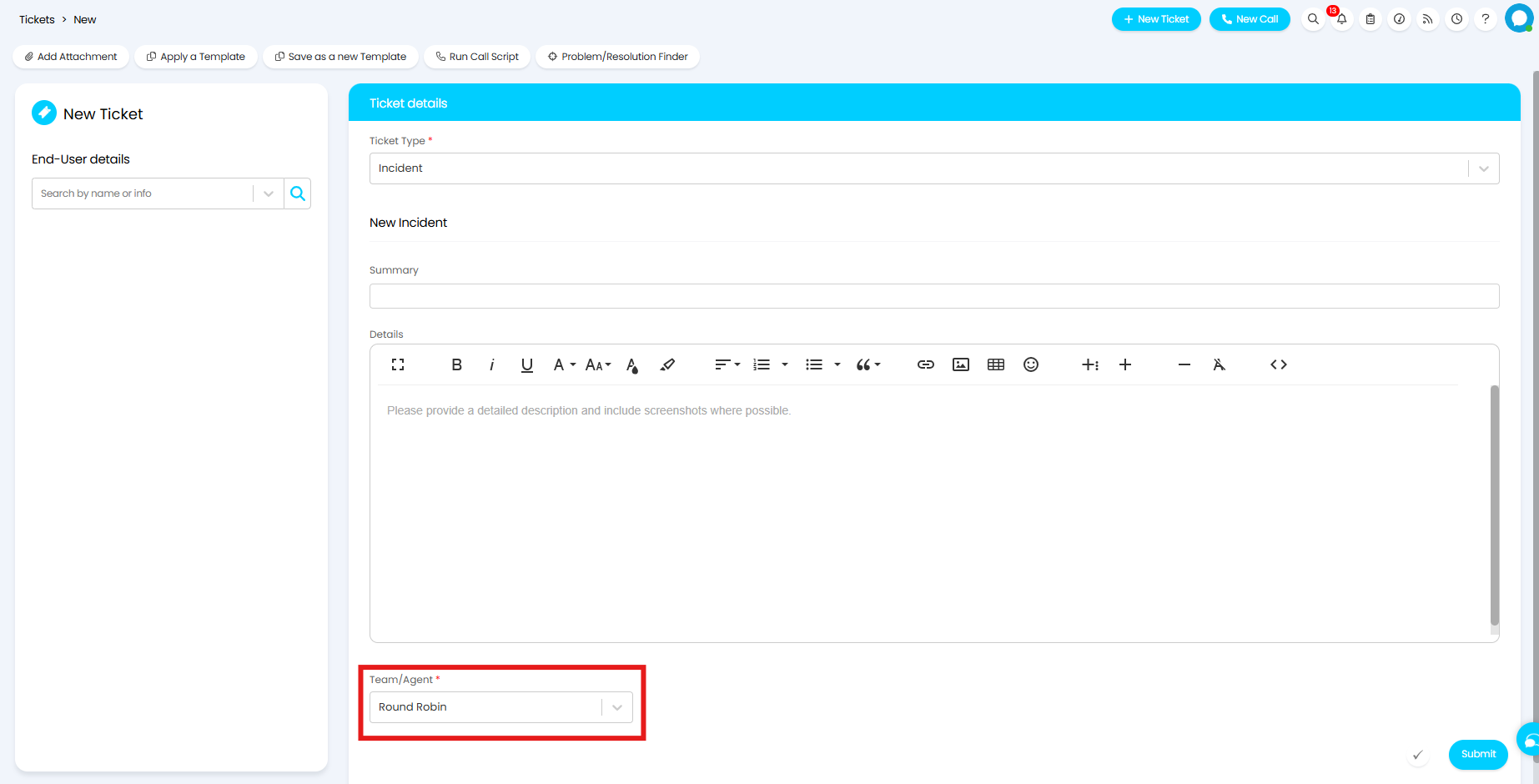
Fig 3. Team/Agent dropdown
Round Robin on an Action
If you would like Tickets to be assigned via Round Robin on a specific Action you can enable "Show Robin on the New Action screen" in Configuration > Tickets > General Settings. This is useful for allowing Agents to use Round Robin to re-assign, or escalate Tickets to another Team.
Against your Action ensure you have added "Re-Assign" to the Field List.
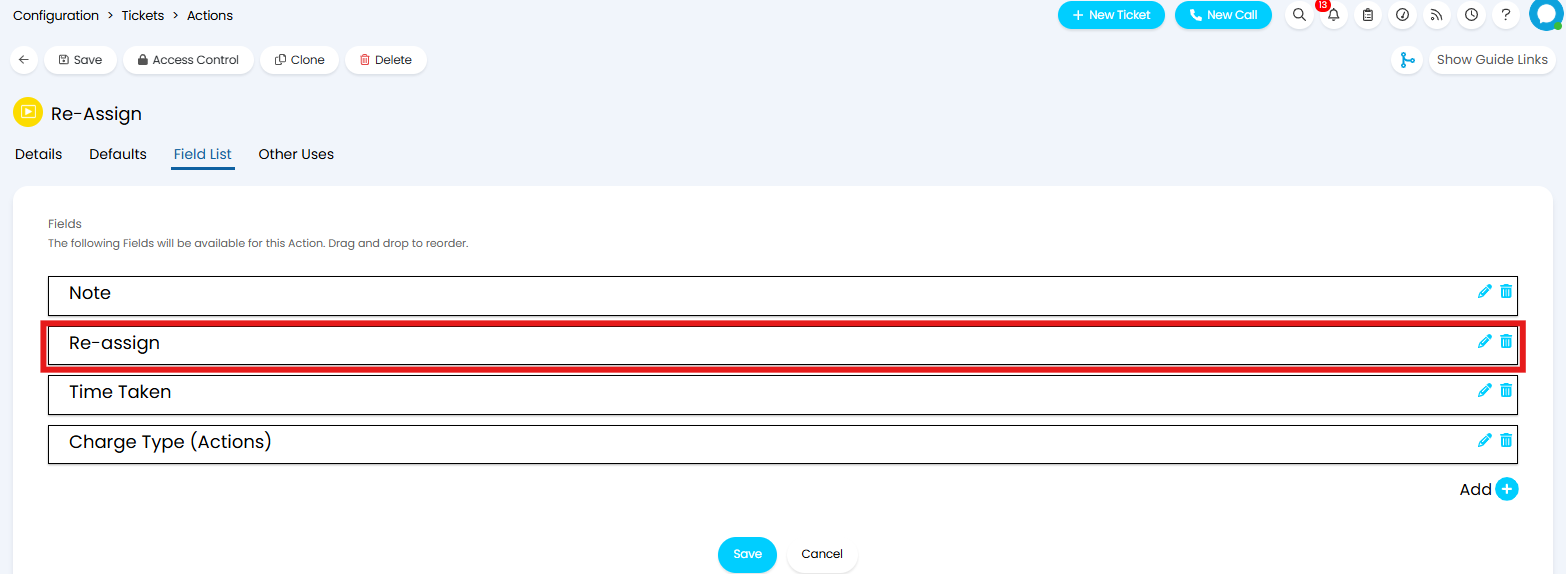
Fig 4. Re-assign field on an Action
Now when this Action is used Round Robin can be selected in the "Team/Agent" dropdown.
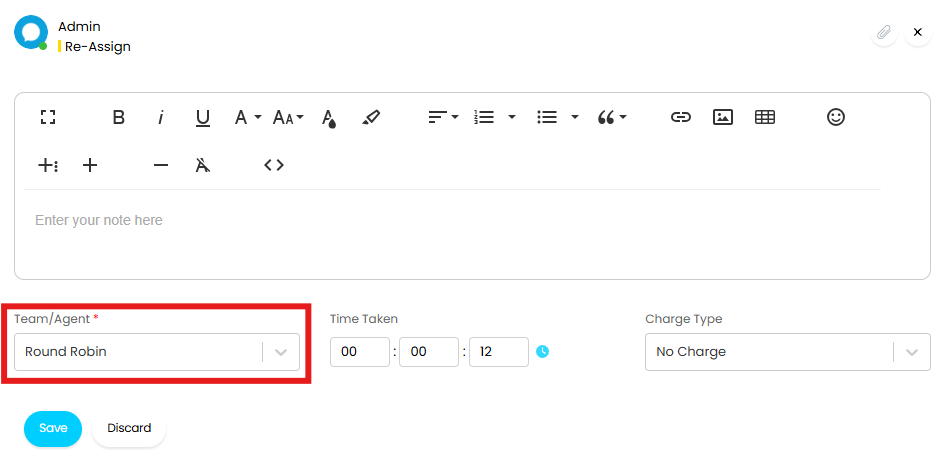
Fig 5. Re-assigning on an Action