Intermedia Contact Centre Integration
In this guide we will cover:
- What is the Intermedia Contact Centre Integration?
- Obtain Connection Details
- Create Webhook in Intermedia
- Enable Intermedia for each Agent
- Integration settings
- User Matching
- Tracking Calls
What is the Intermedia Contact Centre Integration?
The Intermedia Contact Centre Integration allows you to manage and log calls in Halo each time a call is answered in Intermedia. Each time a call is answered in Intermedia, the new call screen can open automatically or show a notification for the agent answering, giving them an option to open the new call screen.
When opened, the new call screen in Halo will then attempt to match to a user based on the phone number of the incoming call.
When a call is complete you can also have a recording of the call added to the ticket or action that was logged as part of the call. Allowing you to manage/review recordings from Halo.
Call logs are also available in Halo, allowing you to review all incoming calls and which agent answered.
Obtain Connection Details
Head to Configuration > Integrations and enable the integration module using the "+" icon.
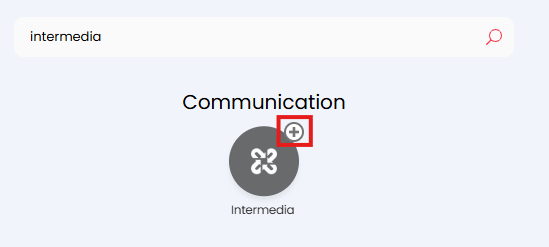
Fig 1. Enable Integration module
Then click into the module to begin configuration.
Make a new connection and give this a name.
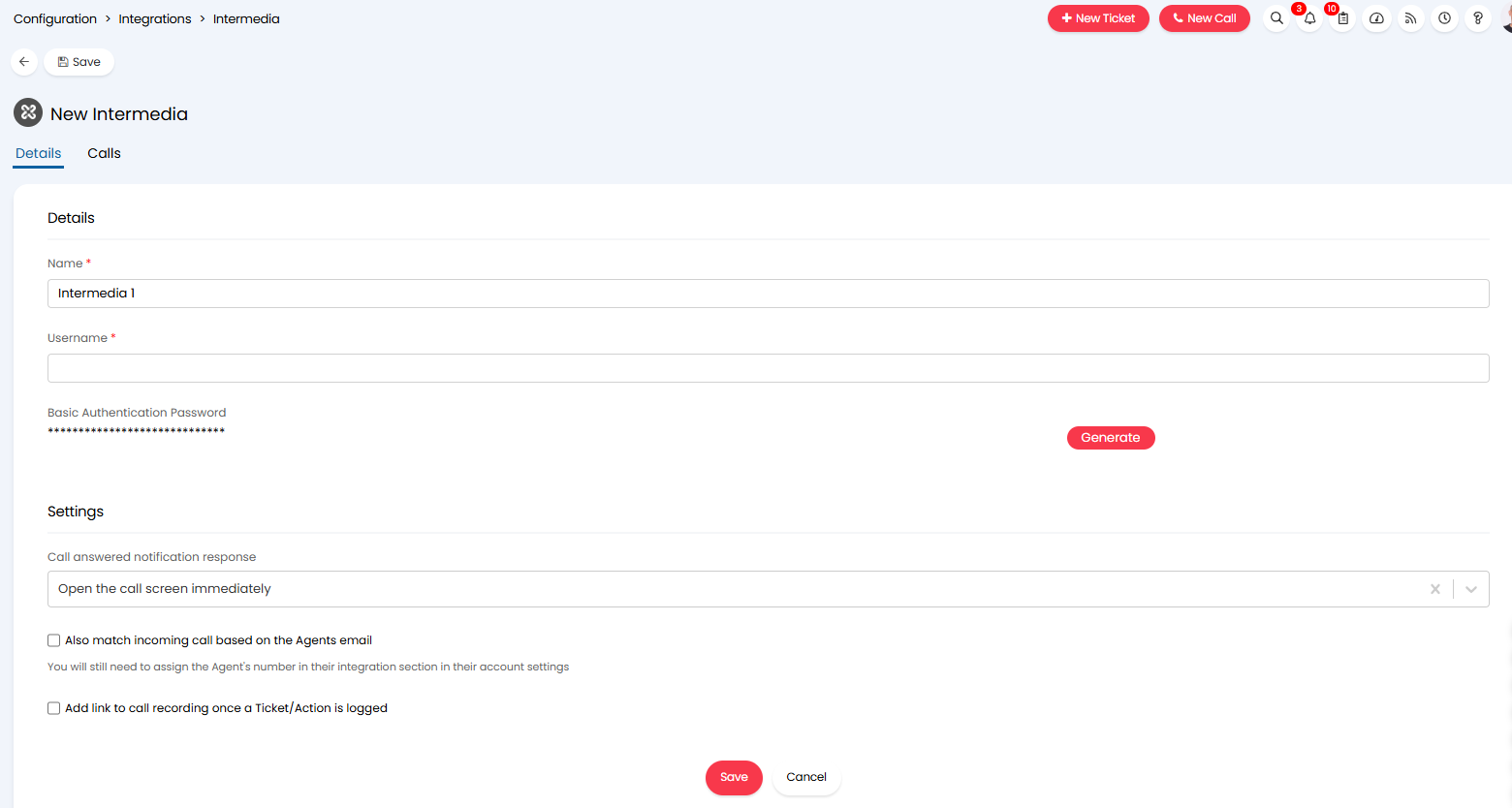
Fig 2. New Intermedia Connection
Next you will need to generate some connection credentials (username and password). These credentials will be used to authenticate requests from a webhook in Intermedia into Halo.
Username - Generate and enter a username of your choice. The username can be anything but we recommend creating a username that reflects the purpose of the webhook.
Password - Use the "Generate" button to generate a password for the webhook, copy this to a clipboard, we will need this shortly.
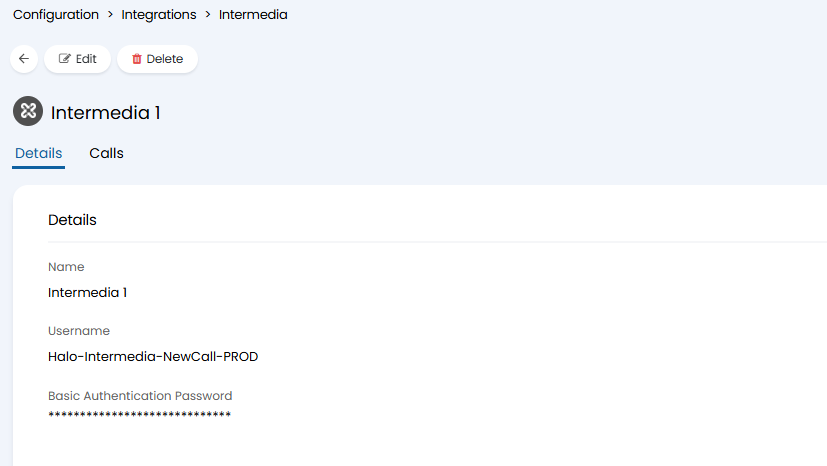
Fig 3. Intermedia Connection Details Example
Now you will need to navigate to your Intermedia instance and create a webhook.
Create Webhook in Intermedia
In Intermedia, head into the IVR studio and select the IVR you would like to use.
Create a new page in the studio. Add a call event "Agent Answers Call".
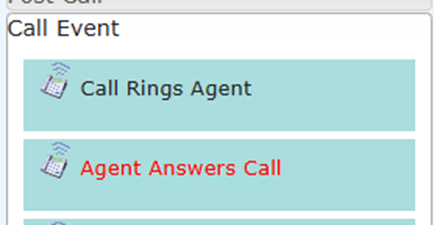
Fig 4. New Call event "Agent Answers Call"
Then you’ll need to set variables for the call. Keep the variable names as the following:
- CallID, AgentEmail, AgentNumber, UserNumber, RecordingUrl
Figure 5 shows how this should look in intermedia.
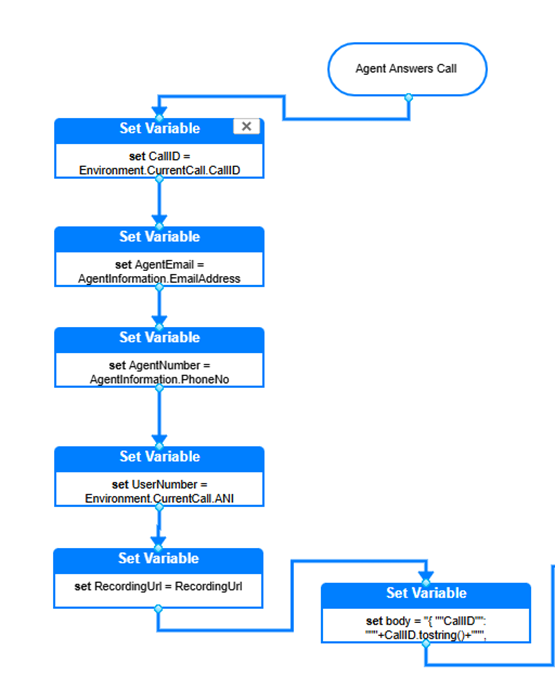
Fig 5. Variables for event in Intermedia
Then create another variable and call it ‘body’. The values of this variable should be the following (exactly, including quote marks):
"{ ""CallID"": """+CallID.tostring()+""", ""AgentNumber"": """+AgentNumber.tostring()+""",""AgentEmail"": """+AgentEmail.tostring()+""", ""UserNumber"": """+UserNumber.tostring()+""", ""RecordingUrl"": """+RecordingUrl.tostring()+""" }"
Finally, add a Rest WSCall event. Configure the event with the following properties:
URL: https://YOURHALOURL/api/notify/intermedia
Method: POST
Authorisation: Basic
Username: Enter the same username entered into the integration setup in Halo.
Password: Paste the password generated in the integration setup in Halo.
Request Params Format: Body Form (Body JSON)
Client Certificate: NO
Parameters: {body}
Response Variable: response
Timeout (in seconds): 40
An example is shown in Figure 6.
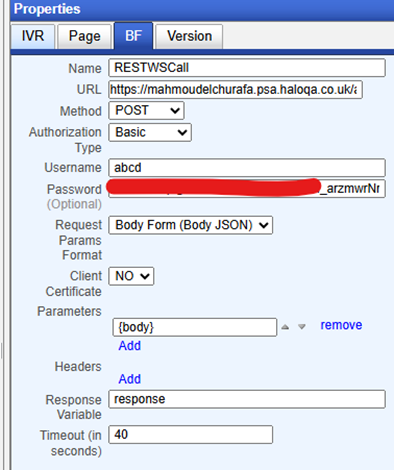
Fig 6. WSCall event
Now the webhook in Intermedia is created, head back to Halo.
Enable Intermedia for each Agent
Now you will need to enable the integration for each agent in Halo that will be answering calls from Intermedia. This is done by adding each agent's Intermediate number to their account in Halo. This will allow the correct agent in Halo to be matched to their associated account in Intermedia when answering calls. Allowing call answer metrics to be tracked in Halo.
You can do this for each of your agents, or have them do this themselves.
Head to the agent's profile (top right) > Integrations tab, here you will see a section "Intermedia".
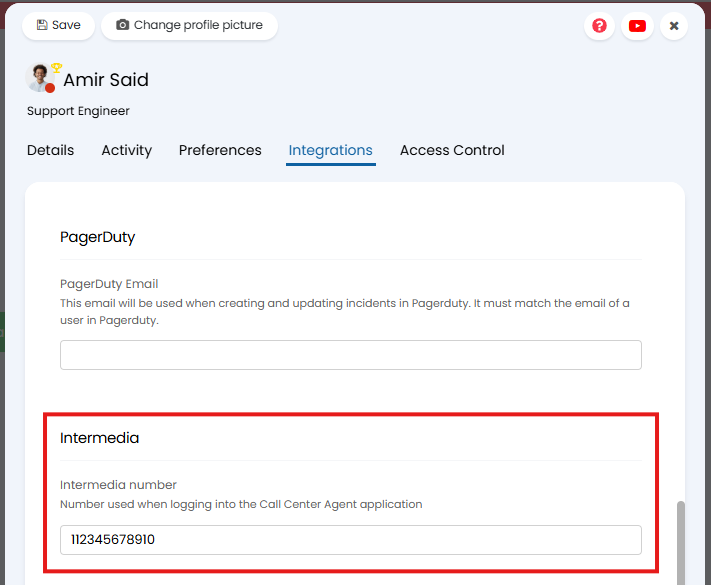
Fig 7. Intermedia Details for this Agent
Intermedia number - Enter this agent's Intermedia phone number.
Now you will need to configure some additional settings for the integration to control how it behaves.
Integration settings
Head to Configuration > Integrations > Intermedia > Details tab > Settings section. Here you will need to configure some additional settings to control the behaviour of the integration.
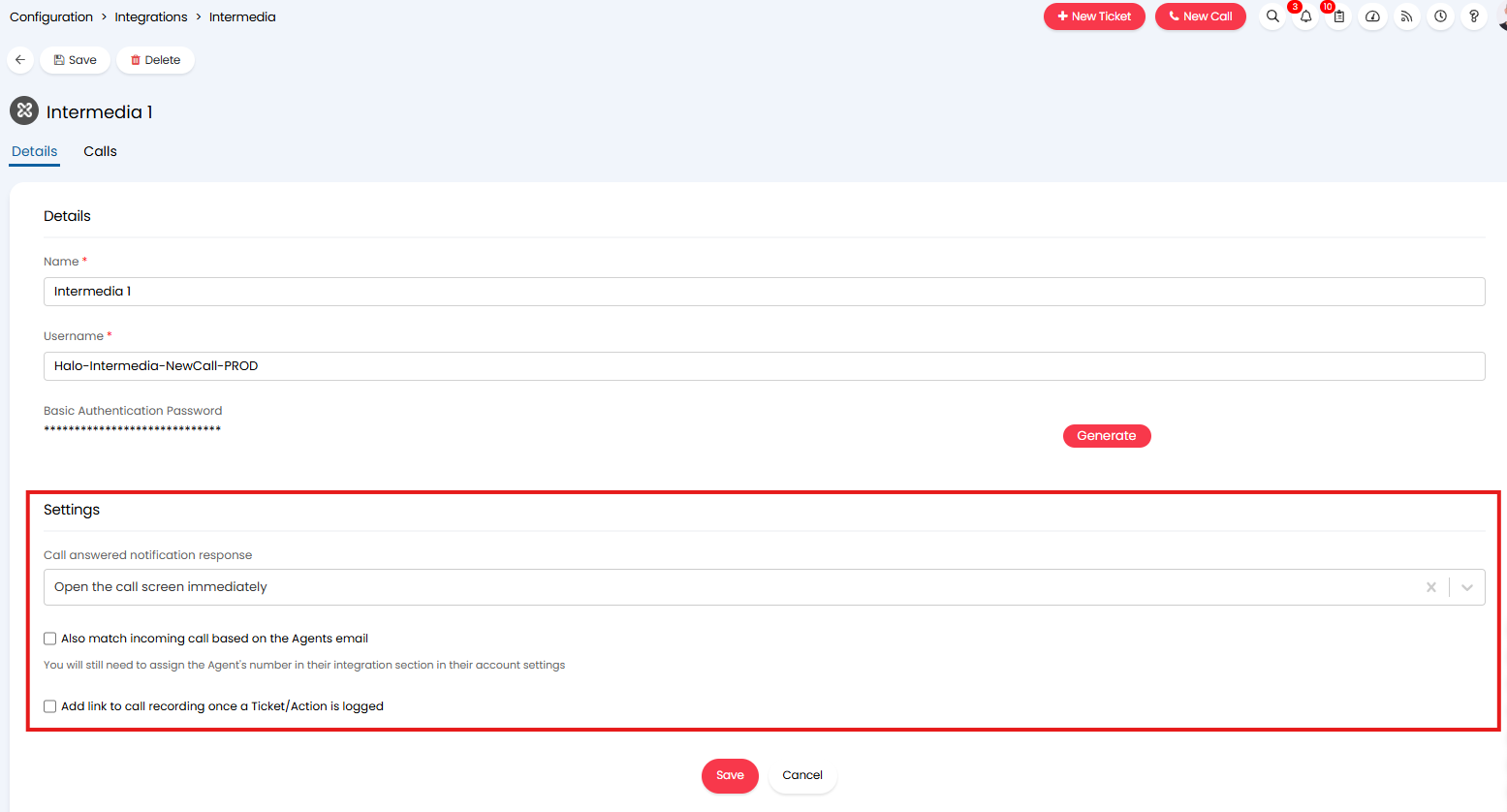
Fig 8. Integration Settings
Call answered notification response - Controls what happens in Halo when a call is answered in Intermedia.
- Open the call screen immediately - When chosen, the new call screen in Halo will open automatically when the agent answers a call in Intermedia.
- Trigger a notification - When chosen, a pop-up notification will show to the agent in Halo when they answer a call in Intermedia. Clicking this notification will open the new call screen in Halo.
Also match incoming call based on the Agents email - When enabled, the agent that answers the call in Intermedia will be matched to an agent in Halo based on their email address as well as their phone number. Phone numbers will be checked first, if no number can be matched email addresses will be checked.
Add link to call recording once a Ticket/Action is logged - When enabled, the call recording will be added to the ticket or action that was logged as part of the incoming call. Allowing you to listen to the call recording from Halo. For information on logging tickets and actions from calls checkout: Call Management.
User Matching
When the new call screen in Halo is opened by the integration the end user of the call will be assigned based on the incoming call number. If the number can be matched to a user in Halo, this user will be assigned.
For this to work you need to ensure end users in Halo have any applicable phone numbers assigned to their account. All Phone numbers will be checked.
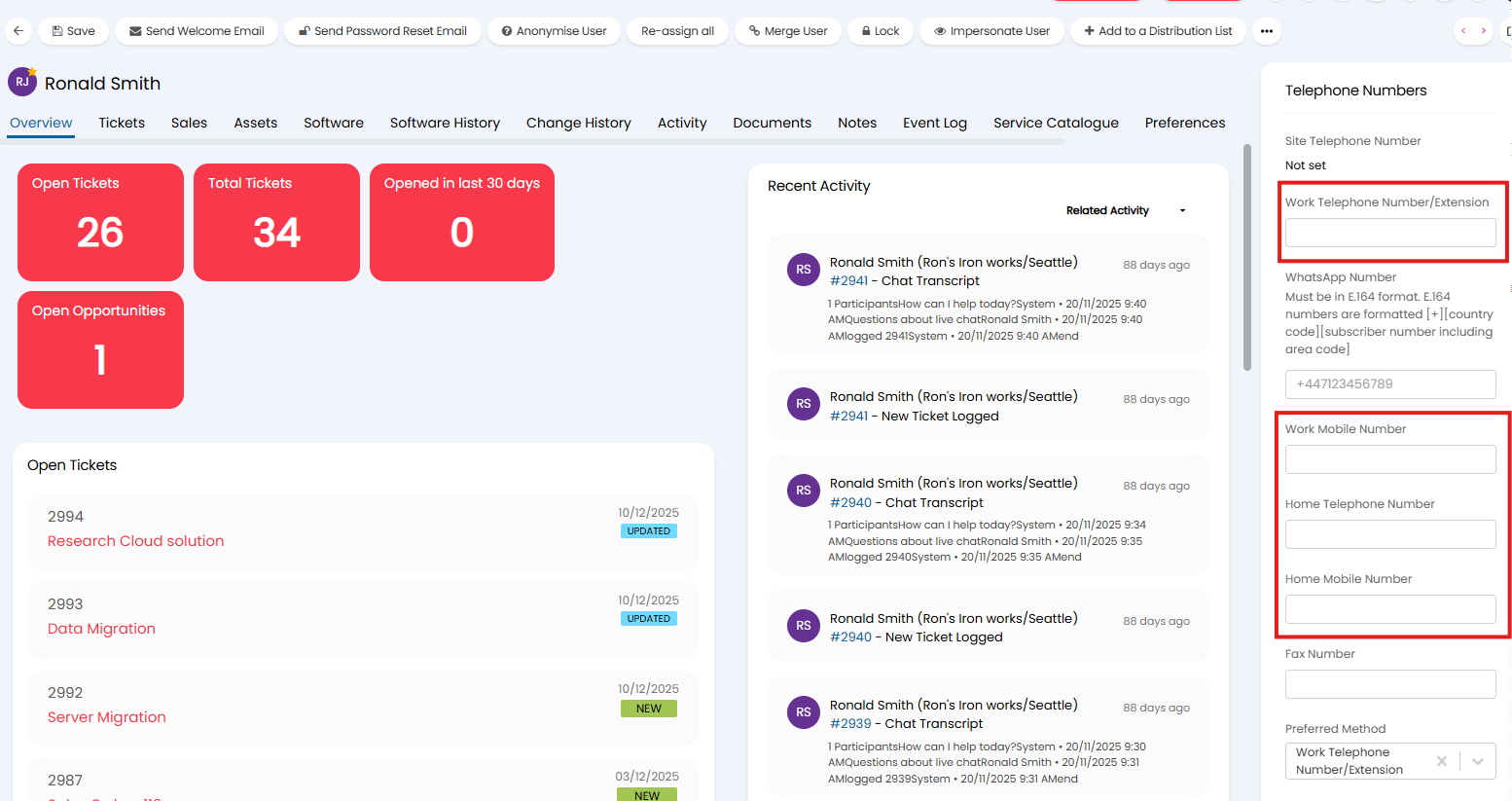
Fig 9. User Phone Number Fields
Phone numbers must be entered in the exact format as they appear in Intermedia, including any country codes.
Tracking Calls
Once the integration is in use you can track/review incoming calls from Halo. This is done under the "Calls" tab of the integration setup.
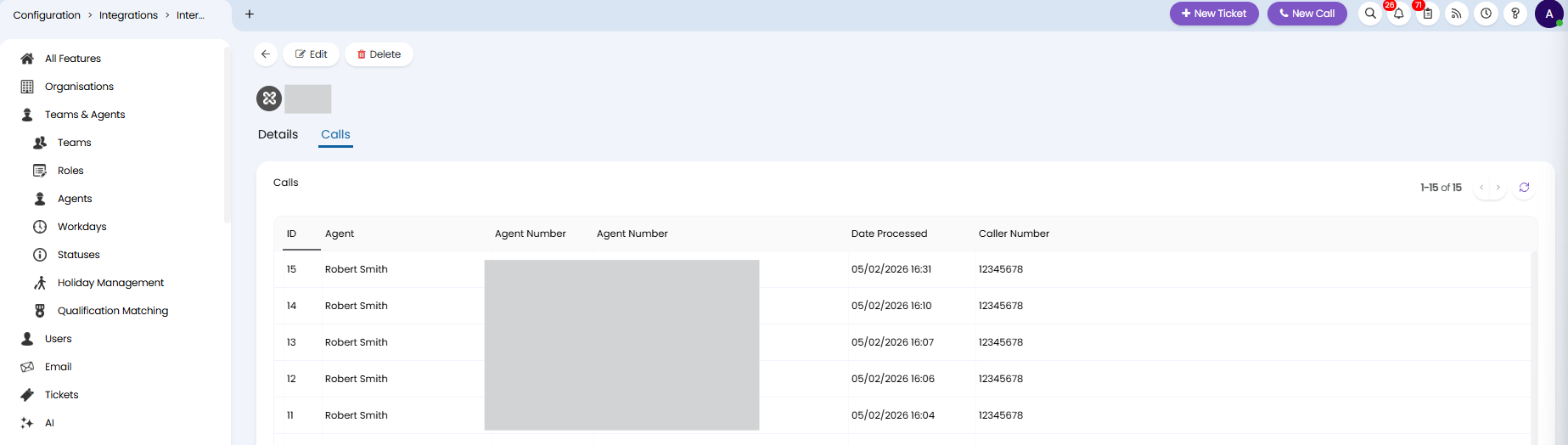
Fig 10. Calls Tab
Here, you can see when an incoming call came in and from what number. You can also see the agent that answered this call. The "Agent Number" columns show the telephone number and email address of the agent.