Acknowledgement Email Hierarchy
- acknowledgements
- why arent email acknowledgements sending
- new ticket logged email
- acknowledgement emails
In this guide we will cover:
- Acknowledgement Email Flow
- Setting locations
- Additional Settings to Consider
There are various places in Halo to set whether an acknowledgement email is sent out to a user. This allows you to automate who receives an acknowledgement email.
Acknowledgement Email - An email sent out to user(s) automatically when a ticket is logged for them in Halo. This email is a confirmation that a ticket has been logged.
As this can be set in various places, in this guide we will outline each level (location) acknowledgement emails can be set to send in Halo as well as how these settings interact.
Acknowledgement Email Flow
The following diagram outlines how each setting in Halo interacts to determine if an acknowledgement will be sent to a user.
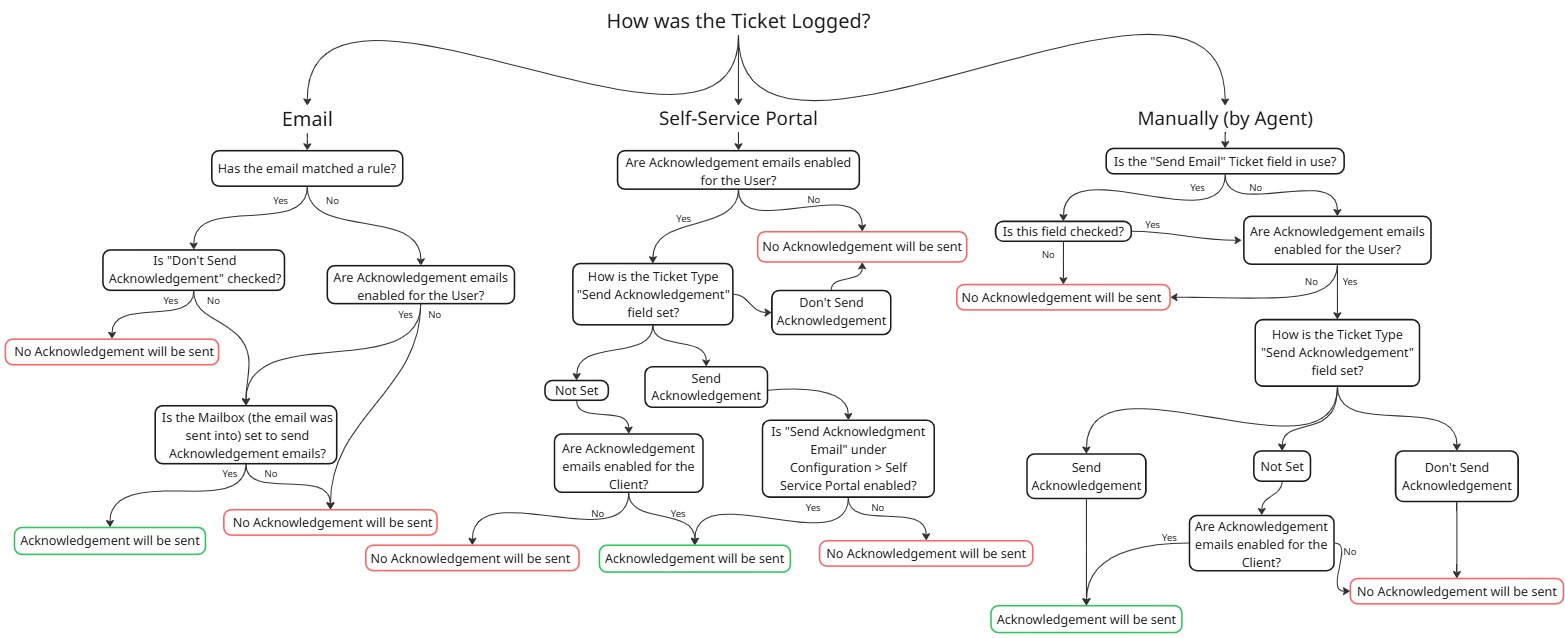
Fig 1. Acknowledgement email flow.
Tickets logged via the chatbot follow the same flow as tickets logged manually (by Agent).
Automated and scheduled tickets follow the same flow as tickets logged manually (by Agent).
Setting locations
In this section we will run through each location/level email acknowledgements can be set to send on.
Email Rules
Under Configuration > Email > Email Rules > select a rule, you will see the setting "Don't Send Acknowledgement".
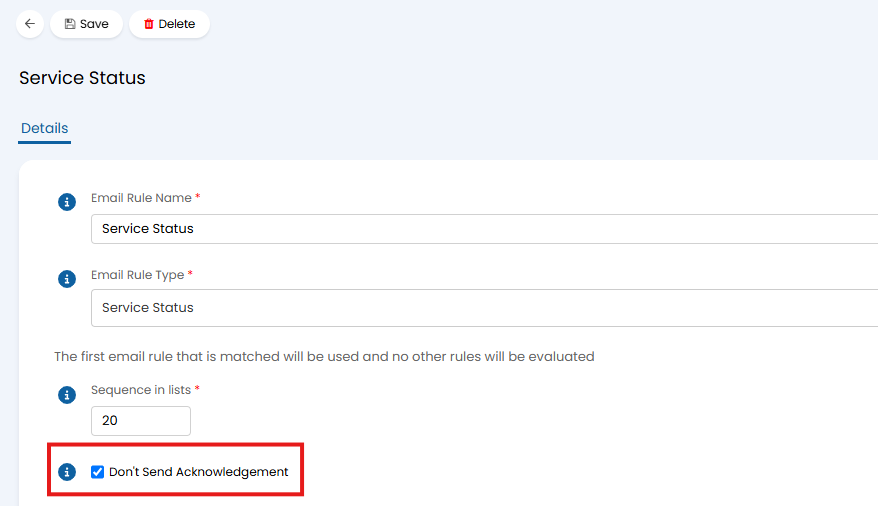
Fig 2. "Don't Send Acknowledgement" against email rule.
When this is checked, any emails that match this rule, that log a ticket, will not be sent an acknowledgement email.
Users
Under Organisations/Customers > Users > select a user > Preferences > Email/Marketing Settings, you will see the setting "Send new Ticket Acknowledgement Emails to this User".
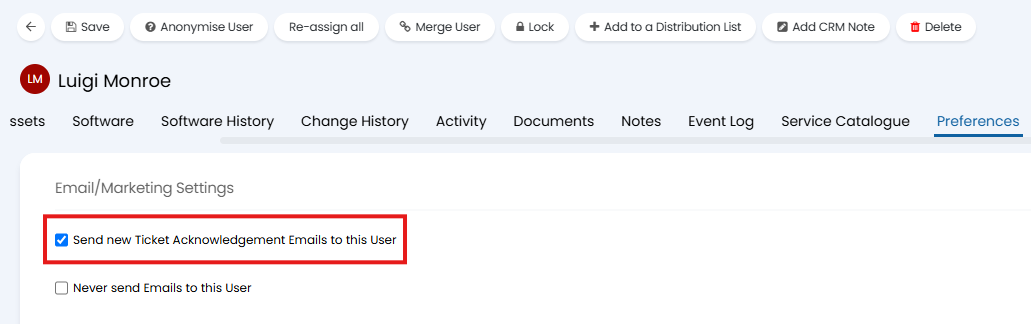
Fig 3. "Send new Ticket Acknowledgement Emails to this User" against a user profile.
When this is checked, the user might receive an acknowledgement email when a ticket is logged for them, but other acknowledgement settings (outlined in figure 1) will also impact this. If set to no the user will never receive acknowledgement emails.
Ticket Field
Note: If you are using HaloPSA this field will be named "Send Acknowledgement Email".
This field will only be visible to agents when they log a new ticket manually.
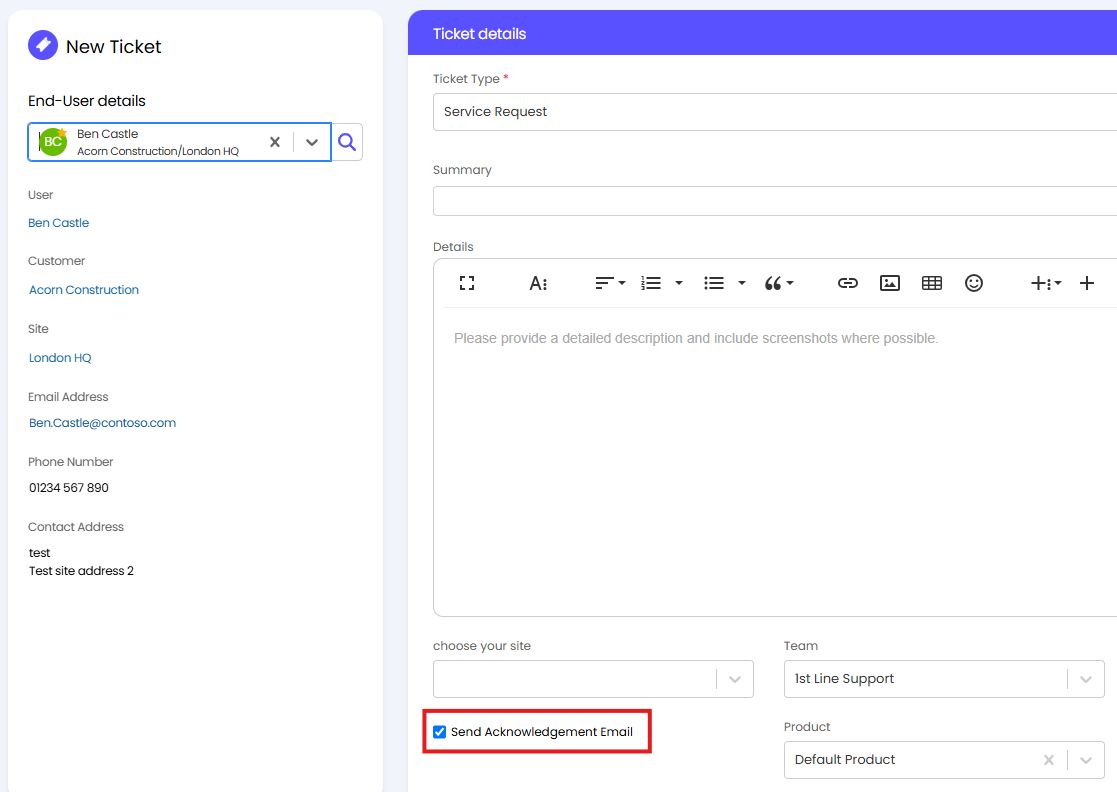
Fig 4. Field to toggle if an acknowledgement email is sent for the ticket being logged.
To add this to a ticket type head to Configuration > Tickets > Ticket Types > Field List > add the field "Send Email" or "Send Acknowledgement Email".
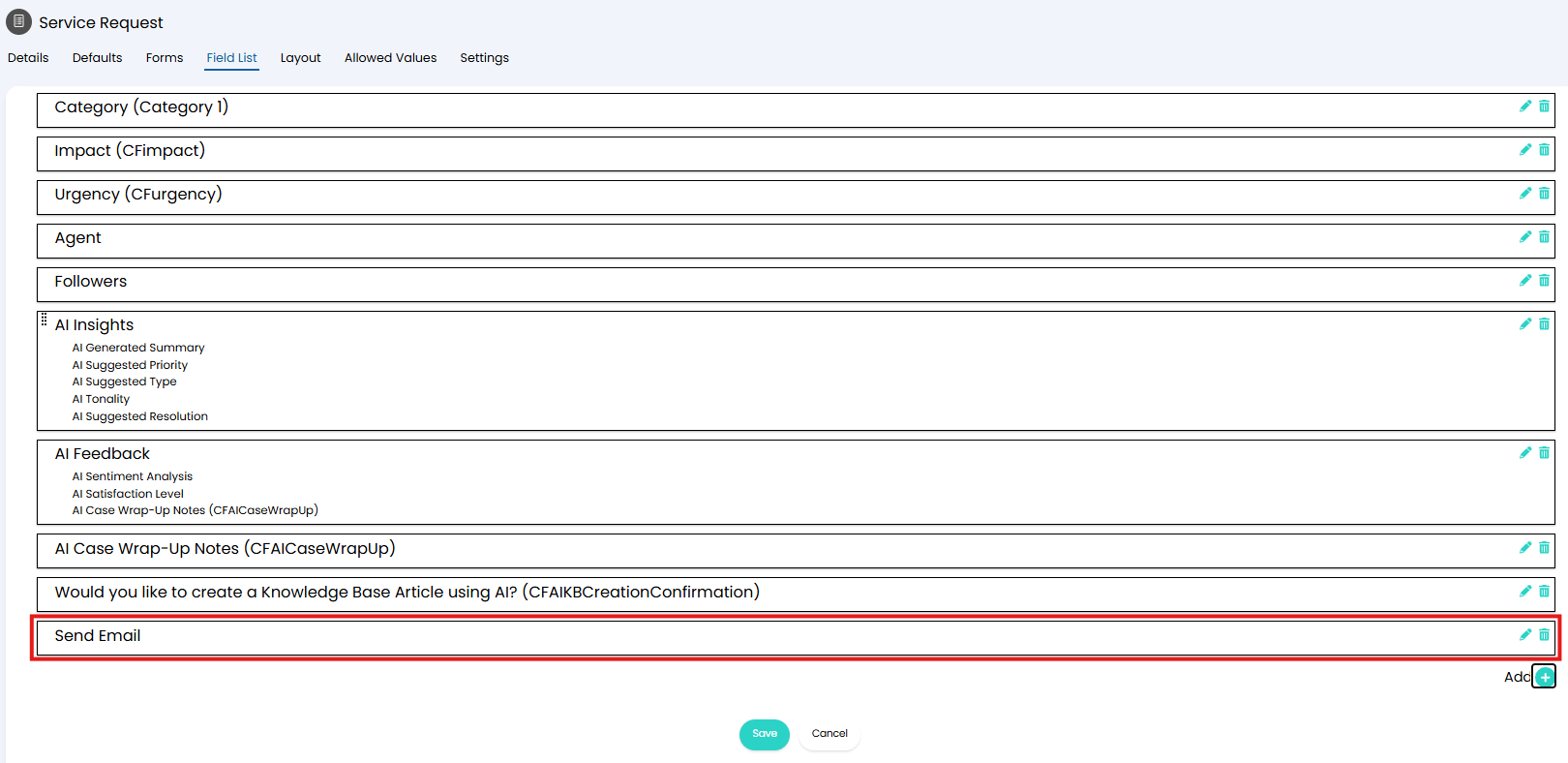
Fig 5. "Send Email" field on ticket type.
When this field is checked the user of the ticket being logged will not receive an acknowledgement email. When it is checked, he user might receive an acknowledgement email when a ticket is logged for them, but other acknowledgement settings (outlined in figure 1) will also impact this.
Note: If the user is set to not receive acknowledgement emails this field will be greyed out and agents will not be able to toggle this when logging a ticket.
Mailbox
Under Configuration > Email > Mailbox > select a mailbox > Incoming, you will see the setting "Send New Ticket Acknowledgement Emails".
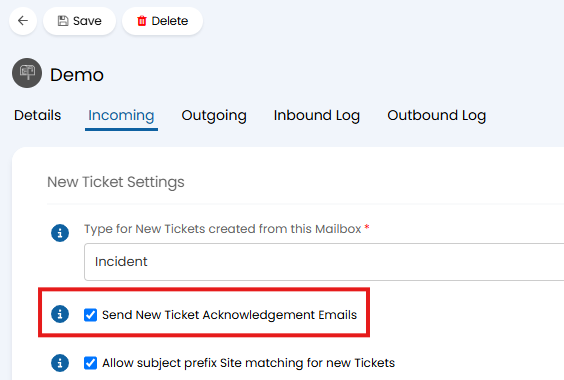
Fig 6. "Send New Ticket Acknowledgement Emails" against Mailbox.
When this is checked, emails sent to this mailbox that log tickets will have an acknowledgement email sent out. However, email rule and user preference settings can override this.
Ticket Type
Under Configuration > Tickets > Ticket Types > select a ticket type > Defaults tab, you will see the setting "Send Acknowledgement".
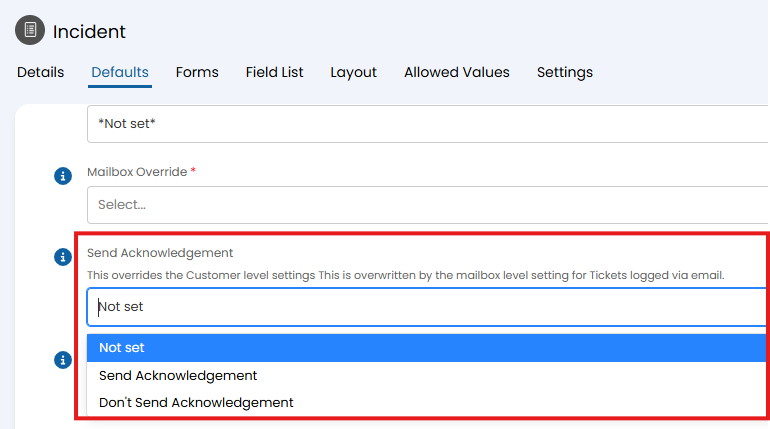
Fig 7. "Send Acknowledgement" setting against ticket type.
There are a few ways this can be set.
Note Set - When this is chosen other settings will determine if the user is sent an acknowledgement email (as outlined in figure 1).
Send Acknowledgement - When this is chosen the user might receive an acknowledgement email when a ticket is logged for them, but other acknowledgement settings (outlined in figure 1) will also impact this
Don't Send Acknowledgement - When this is chosen, when a ticket of this type is logged the user will not be sent an acknowledgement email.
Client (Customer/Organisation)
Head to Organisations/Customers > select a client > Settings > Email Defaults section, here you will see the setting "New Ticket acknowledgement".
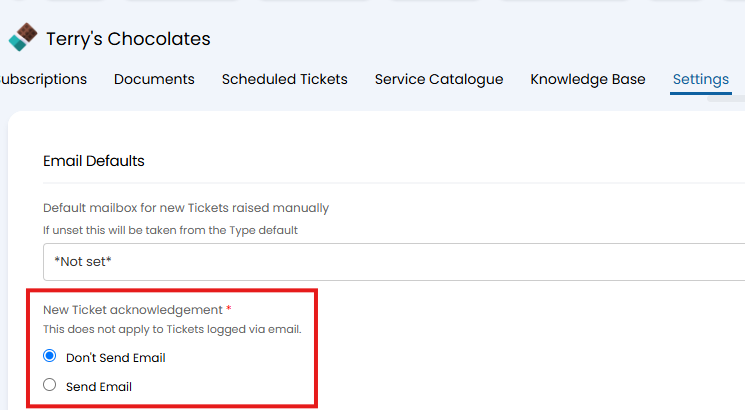
Fig 8. "New Ticket acknowledgement" setting at Client level.
When this is set to "Send Email", users under this client may have acknowledgement emails sent to them when they log a ticket, but other settings will determine if the user is send an acknowledgement email (as outlined in figure 1)
When this is set to "Don't Send Email", users under this client may still have acknowledgement emails sent to them in certain scenarios, refer to figure 1 to see when this setting takes precedence.
Additional Settings to Consider
Never Send emails to this User
Under Organisations/Customers > Users > select a user > Preferences tab > Email/Marketing Settings, you will see the setting "Never send Emails to this User".
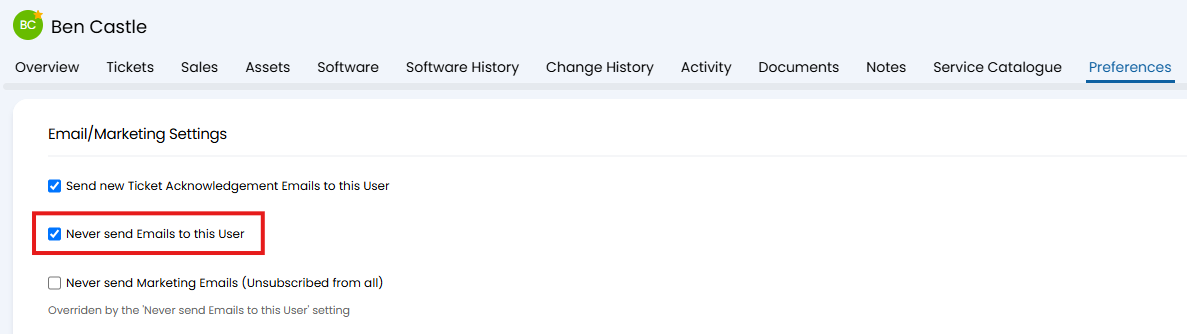
Fig 9. "Never send Emails to this User" setting against a user.
When this is enabled the user will never receive acknowledgement emails.
Only send acknowledgements to email addresses that match a Site's domain name
Under Configuration > Email > General Settings, you will see the setting "Only send acknowledgements to email addresses that match a Site's domain name".
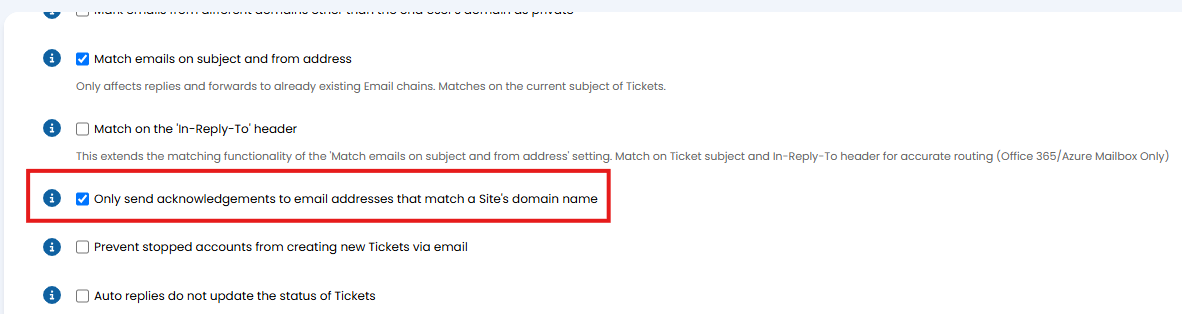
Fig 10. Only send acknowledgements to email addresses that match a Site's domain name.
When this is enabled, when a ticket is logged via email, only email addresses that match the site's domain name will receive acknowledgements. The site domain can be set against the site under the "Settings" tab, as shown in figure 1.
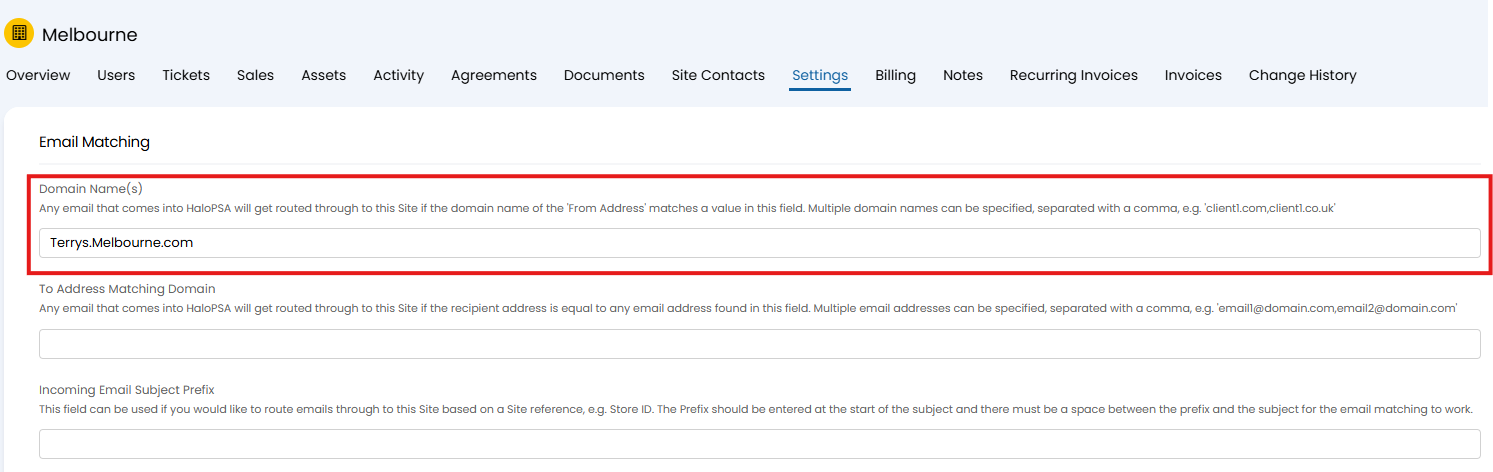
Fig 11. Domain name against site.
Other settings will still determine if an acknowledgement is sent, but site domain matching will also be evaluated after all other conditions have been checked to determine if an acknowledgement should still be sent.
Send Acknowledgement Emails to To addresses
Under Configuration > Email > General Settings, you will see the setting "Send Acknowledgement Emails to To addresses".
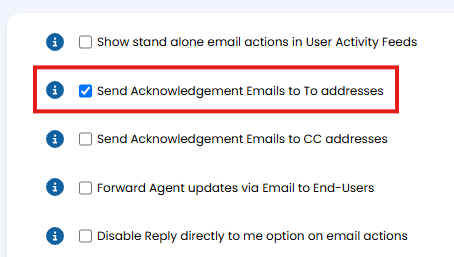
Fig 12. Send Acknowledgement Emails to To addresses.
This setting controls who is sent an acknowledgement when a ticket is logged via email. When this is enabled, all addresses the initial email was addressed to will be sent an acknowledgement email.
When disabled, only the end user of the ticket will be sent an acknowledgement email.
For example, a user emails in to log a ticket, but this email is addressed to both you (the service desk) and the user's manager). If this setting is enabled, the acknowledgement email will be sent to both the user and their manager. If disabled it will only be sent to the user.
"Alert via Email" Email Rule
If matching an email rule with an "Email Rule Type" of "Alert via Email", acknowledgement emails will not be sent.
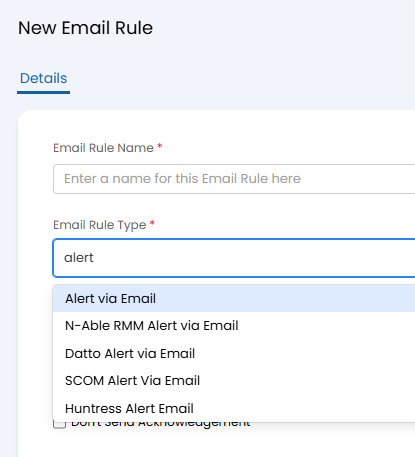
Fig 13. Alert email rules.
Auto Reply Headers
If an email is deemed as an auto-reply, an acknowledgement email will not be sent. This is based off of headers in the email and the following options in Configuration > Email > General Settings.
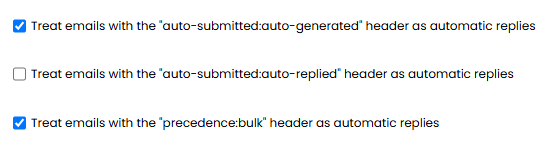
Fig 14. Auto-reply headers.
Monitored Service
Tickets from monitored services will not send acknowledgement emails.