Redact Sensitive Audit Logs on a Ticket
- tickets
- Sensitive
- audit
- sensitive information
- auditing
- audit log
- redacting information
In this guide we will cover:
- Enabling the Audit Log Tab
- Redacting Sensitive Information from Logs
Audit logs can be redacted from view, allowing sensitive information such as password or HR fields to be hidden from audit logs and reports.
Enabling the Audit Log Tab
The auditing tab can be enabled per ticket type in Configuration > Tickets > Ticket Types > Forms tab.
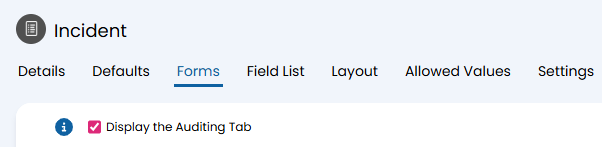
Fig 1. Enabling the audit log tab.
This will show a tab on the ticket type titled "Audit Log" with a table that shows all changes made to that ticket. For example below, the ticket was first logged by the agent, and that same agent then changed the category assigned to that ticket.
This is a useful feature to see what was done on the ticket at each point, and by who.
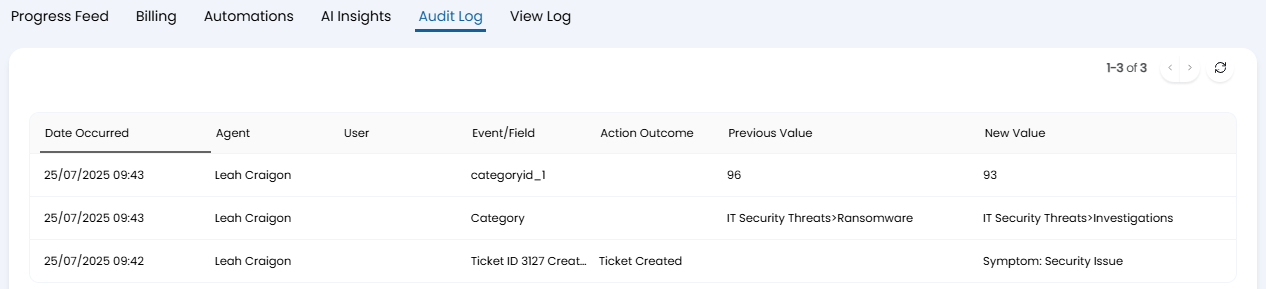
Fig 2. Auditing tab.
Redacting Sensitive Information from Logs
If you wish to utilise the audit log but hide sensitive information, such as changes made to password fields during onboarding, this can be redacted from the table by an administrator.
Enable the below option in Configuration > Tickets > General Settings.

Fig 3. Enable audit redaction.
When viewing the auditing tab on a ticket, an administrator will then be able to double click an entry on the table. In this example, we will redact both entries from the category change. On each one, click the "Redact" button in the top left.
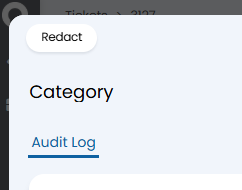
Fig 4. Redact button.
A popup will then show to warn that this is a permanent change. Click "Yes" to confirm.
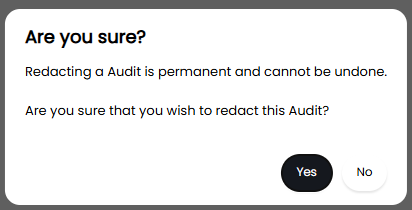
Fig 5. Popup to confirm redaction.
When viewing the tab now, the category values shown in Fig 2 now show as "REDACTED". Additionally, an entry is added as a record for each redaction and which agent did this.
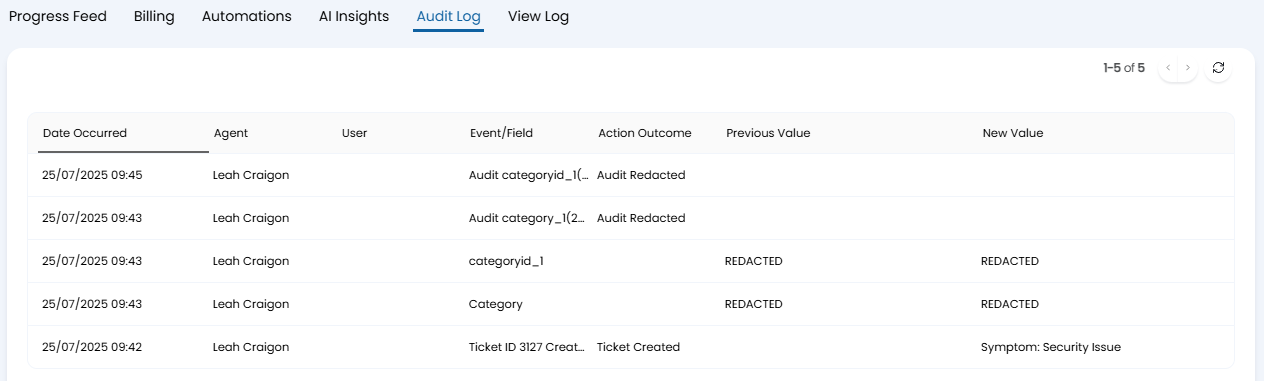
Fig 6. Audit log with redacted entries.
The same information will be contained within the "Audit" table when reporting on the ticket, so the information is no longer accessible.
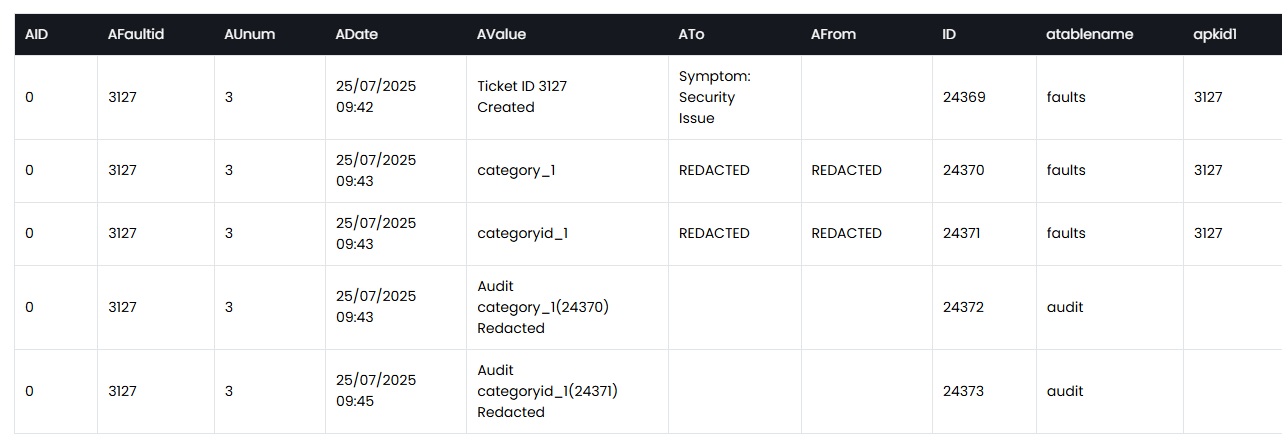
Fig 7. Audit table for the same ticket.