Forethought AI Solve Integration
- Forethought
- Forethought AI
- Solve widget
- Forethought integration
- Forethought chat
- Chatbot integration
In this guide we will cover:
- What is the Forethought Integration?
- How to connect the Forethought integration
-Customising the widget
-Embedding the widget to your portal
-Setting which widget is used in each portal
- Choose Which Pages of the Portal the Widget Appears On
-Using Forethought widgets with Chat profiles
What is the Forethought Integration?
The Forethought integration allows you to embed Forethought AI Solve widgets into your Halo self service portal, if you are using multiple self-service portals a different widget can be embedded for each of your portals. Overrides for the widget attributes can also be configured in Halo, this allows you to override the properties of the widget when it is being used in your Halo portal. With this functionality your customers can use/access Forethought's solve widget capabilities from within your Self-service portal.
How to connect the Forethought integration
To start head to Configuration > Integrations and enable the 'Forethought' integration module.
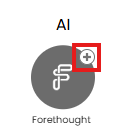
Fig 1. Enable integration module
Once enabled click into the module. Here you can add each of your Forethought solve widgets, each widget is added/configured individually. Click 'New' in the top right to add a new widget.
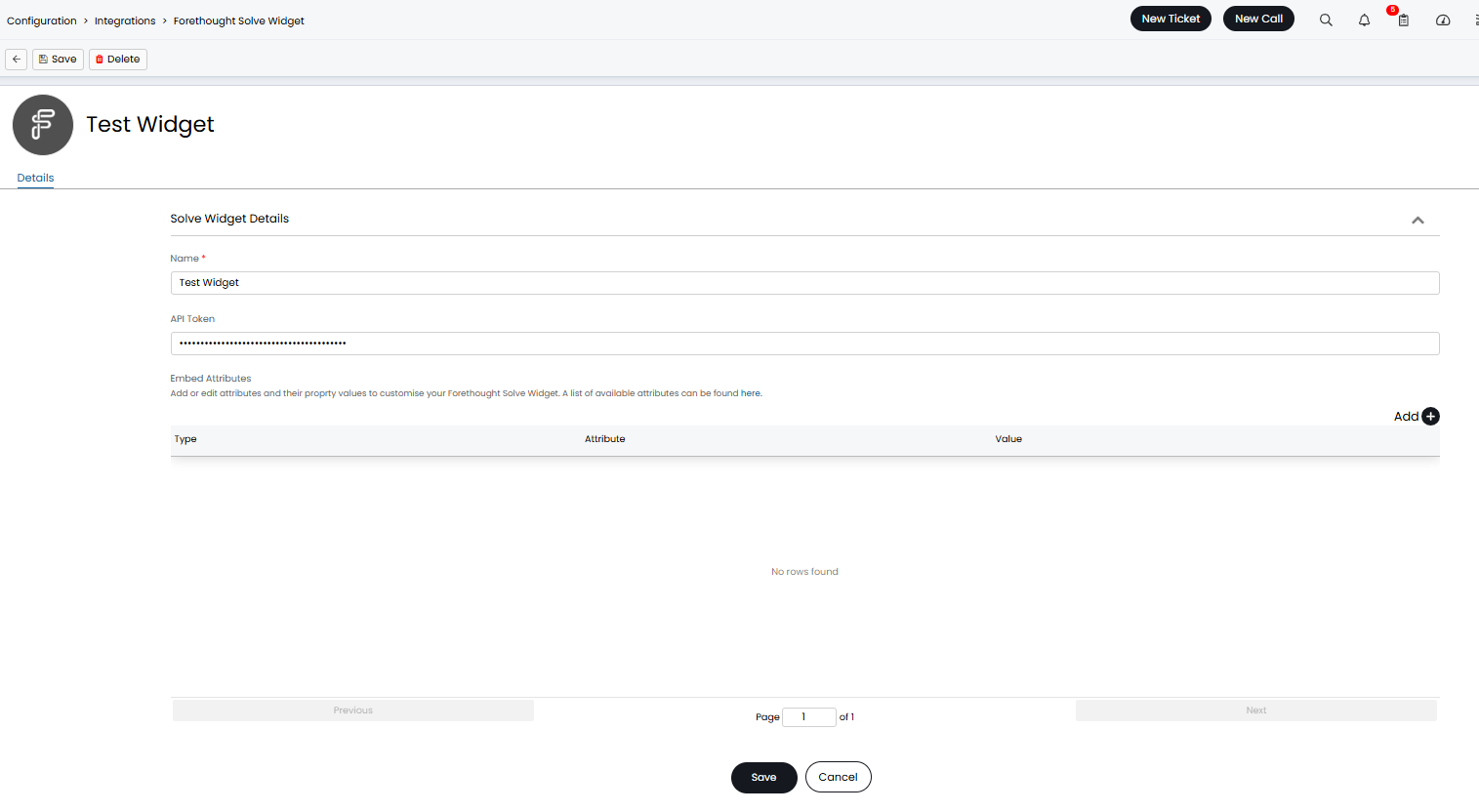
Fig 2. Integration setup page
In the 'Name' field give the widget a name. In the 'API Token' field you will need to enter an API token for this widget.
Obtain API token for widget
To Obtain the API token for the widget head into Forethought, go to Forethought dashboard > Solve > Widget Configuration tab > Embed. Here in the 'code snippet' you will need to enable 'Show API key in code snippet', once this is visible you can copy and paste this into Halo.
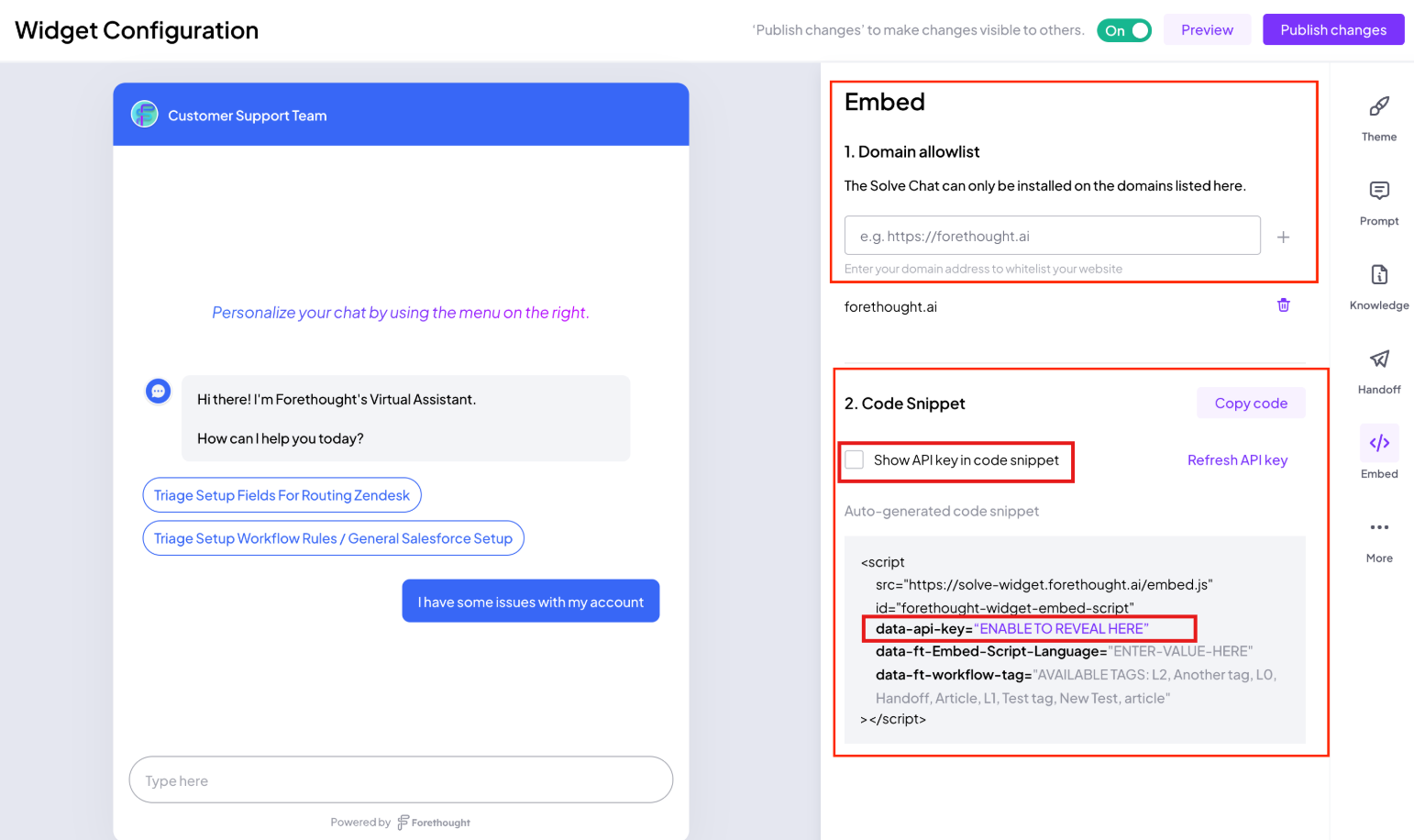
Fig 3. API key for widget (image taken from Forethought's documentation)
Once you have connected you can configure how this widget appears/functions on your portal.
Customising the widget
The widget is customised using the 'Embed Attributes' in the integration setup page in Halo. If no entries are added to the table here the widget will appear as it does in Forethought.
When adding an entry to the table you will need to choose which attribute you would like to customise/override and what value you would like to override it with.
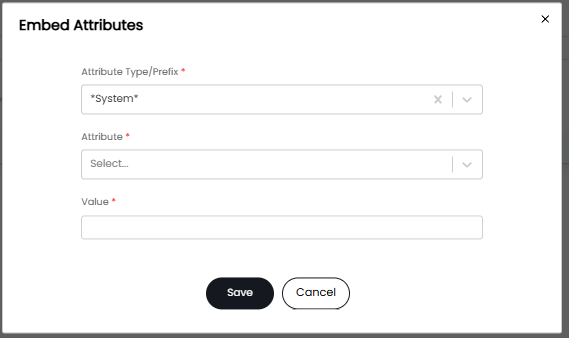
Fig 4. Attribute customisation
Attribute Type/Prefix - Here, choose the type of attribute you would like to override.
- The attribute type 'system' will allow you to choose an attribute from a pre-configured list, system attributes typically allow you to configure how the widget is oriented on the page.
- The attribute type 'data-ft-' is used for attributes that change the functionality of the widget.
- The attribute type 'config-ft-' is used for attributes that change the appearance of the widget.
Attribute - Here, choose which attribute you would like to customise.
Value - Here, choose what you would like the value of the attribute to be. This will be the value this attribute has when this widget is used in the Halo portal.
In the figure 5 example I have added an entry that will result in the header image used for the widget being overridden to another image. This will allow me to to choose the branding I would like to use on the widget.
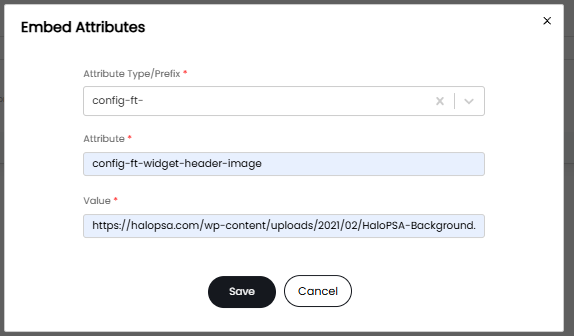
Fig 5. Entry to override widget header image attribute
For more information on widget attributes and a list of attributes that can be customised, check out Forethought's article here: https://support.forethought.ai/hc/en-us/articles/14239088125459-Solve-Widget-UI-Guide-for-Developers#h_01HXJGY8N0WTT6BAC7KJ9G3S66.
Embedding the widget to your portal
In order to have the widget appear on your self-service portal in Halo you will need to embed this into your Halo self-service portal.
To obtain the code you will need to embed the widget into your portal check out Forethought's article here: https://support.forethought.ai/hc/en-us/articles/1500002917301-Guide-to-Embedding-the-Solve-Widget-on-a-Web-Page
If you have multiple Forethought widgets to be embedded into different self-service portals in Halo you will need to embed all widgets into the main portal HTML, then you can set restrictions to determine which widget will appear in each portal. This is because each of your Halo portals will use the same base HTML.
Setting which widget is used in each portal
The widget that appears on the portal can be overridden based on the organisation that the portal is using the branding of.
Head to Configuration > Organisations > select an organisation > Details tab, see 'Forethought Solve Widget Override'.
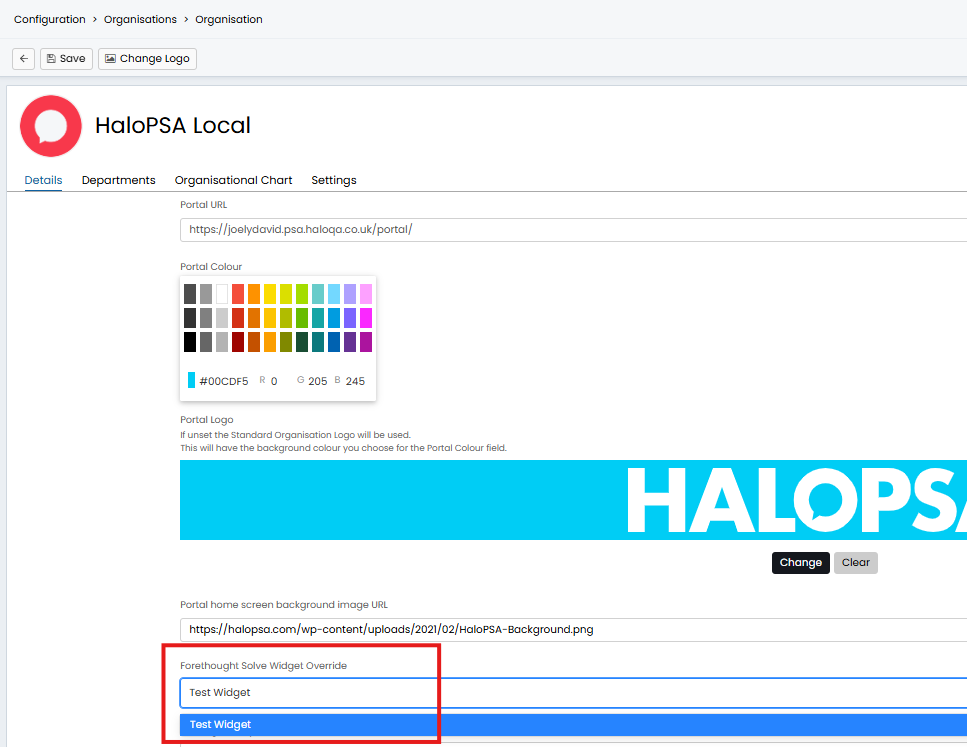
Fig 6. Forethought Solve Widget Override
Here, you can choose the Forethought widget that is used for the portal associated to this organisation. To check which portal is associated to this organisation head to the custom application for the portal under configuration > integrations > Halo API > view applications > select application for second portal. The 'Branding' field here will determine which organisation's branding the portal is using.
Choose Which Pages of the Portal the Widget Appears On
You can choose which pages of the portal each widget appears on. Useful when you have widgets that are only applicable to certain sections of the portal, such as a widget that only assists with ticket logging.
To do this, enter the URLs of the portal pages you would like the widget to show on in the "Allowed URLs" field of the integration setup.
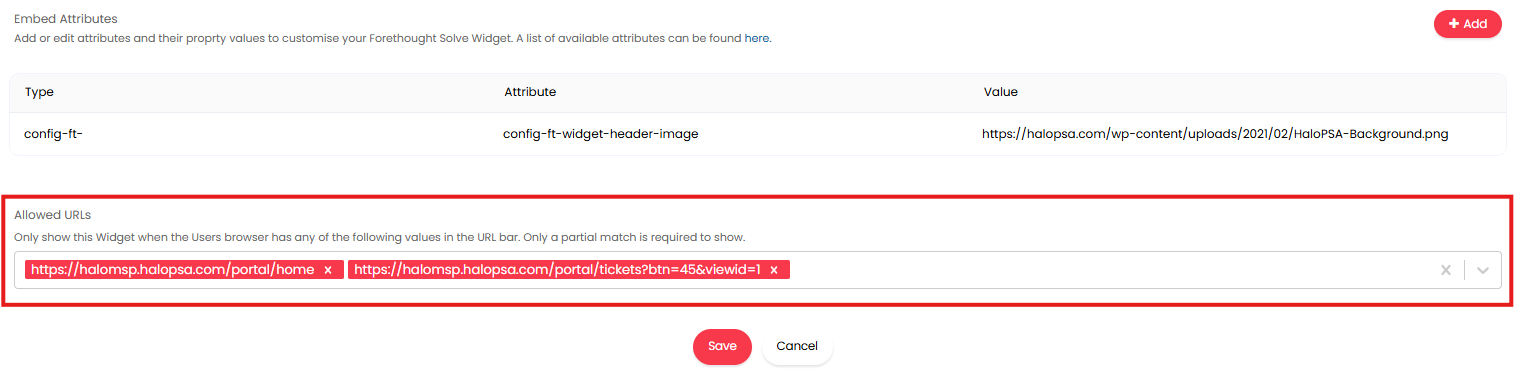
Fig 7. Allowed URLs for a Forethought widget
In the figure 7 example the widget will only show on the homepage and the "My Tickets" page of the portal. If this field is blank the widget will show on all pages.
You can find the URLs you need by navigating to the page in the portal you would like the widget to show on and grabbing the URL. If you have multiple portals, ensure you use the URL for the portal the widget is shown on.
Using Forethought widgets with Chat profiles
If you are using Forethought AI solve widgets to handle your customer support you will likely not want the Halo chatbot to appear on your self-service portal. To disable the Halochatbot on the portal head to Configuration > Chat and disable 'Enable Chat for End-Users on the Self-Service Portal'.
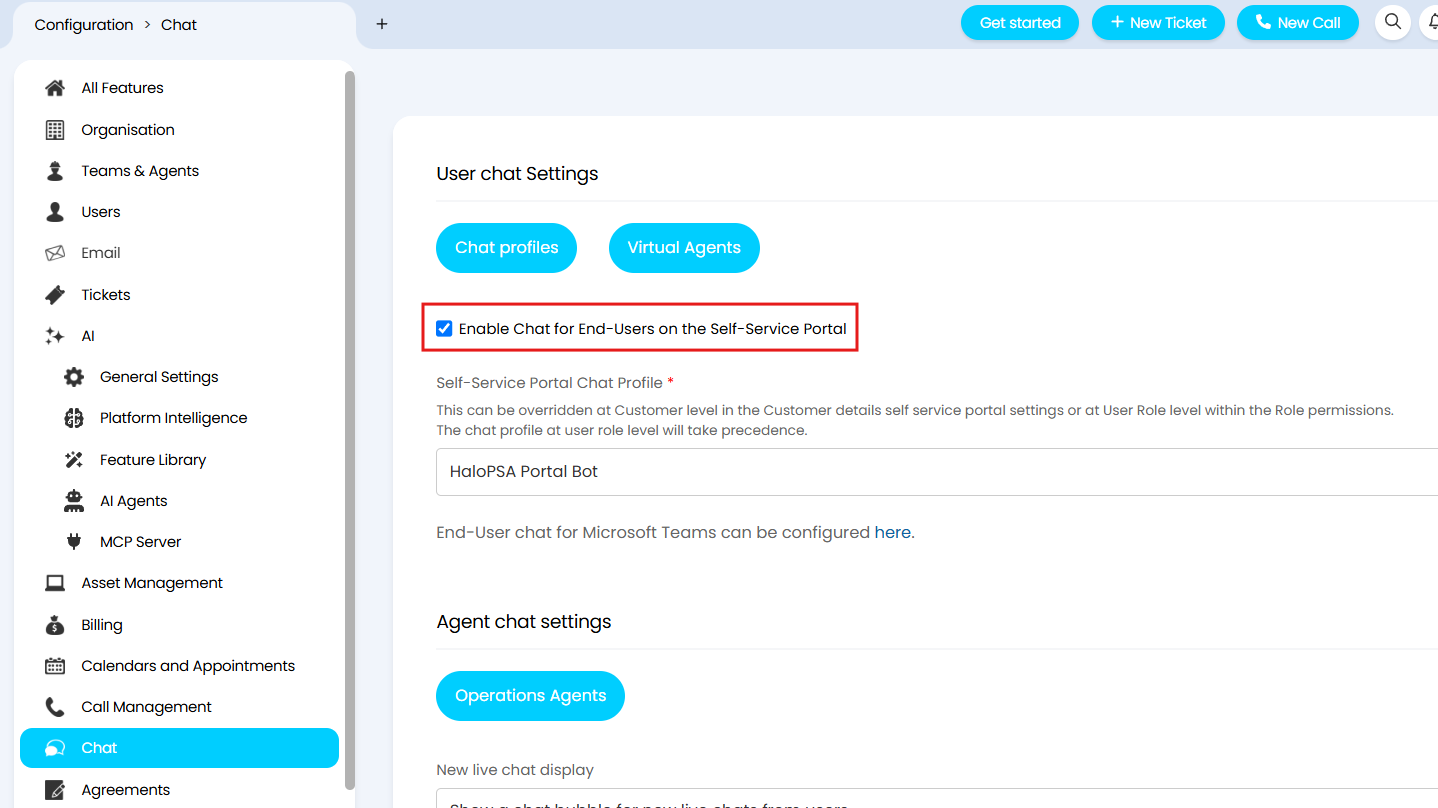
Fig 8. Setting to enable/disable chat for the self-service portal
If you would like to use your Halo chatbot in conjunction with the Forethought AI solve widget you will just need to ensure the two widgets do not overlap on the portal page. You can adjust the orientation of the Forethought widget (where it appears on the portal page) using the '*system*' attributes.