Dynamically Updating Email Lists
- To and CC
In this guide we will cover:
- The use case of dynamic email lists
- Configuring dynamic email lists
- Adding and removing from your lists within a ticket
Dynamic Email lists can be used to change the recipients of the emails in your ticket. For example when using the "Email User" action (found in the HaloPSA trial), if adding to the To or CC fields of the email, this will dynamically update the email recipients list associated to the ticket. Meaning I can change the recipients of the email list directly from the action screen when communicating with the user of the ticket.
When enabled, the To/CC fields on emails sent from Tickets will be inherited from the previous correspondence on a Ticket. When disabled, the end-user email will always be the default for outgoing emails.
To enable this, navigate to Configuration > Email > General Settings and turn on the following setting:

Fig 1. Global Setting for Dynamic Email Lists
If you would like to update the email list after each inbound email, i.e. a different user emails in and they are required to be added to the list, this can be achieved by enabling the setting just below the one shown in figure 1:

Fig 2. Dynamically Update Email Lists for Inbound Emails
In order to use the outbound feature of dynamic email lists, you must enable the following setting per action:
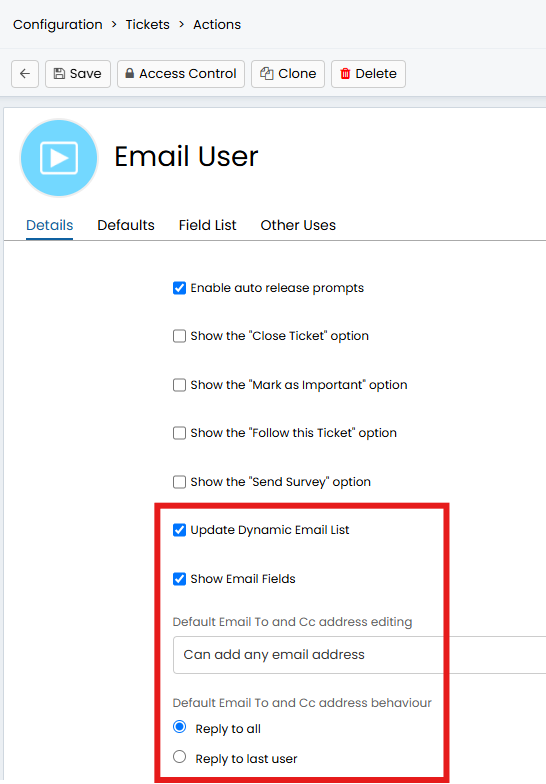
Fig 3. Email Settings on The Details Tab of an Action
The first action level setting highlighted in figure 3 is used to enable dynamic email lists for this action. The second option is referring to the email To, CC, Bcc fields shown on an action:
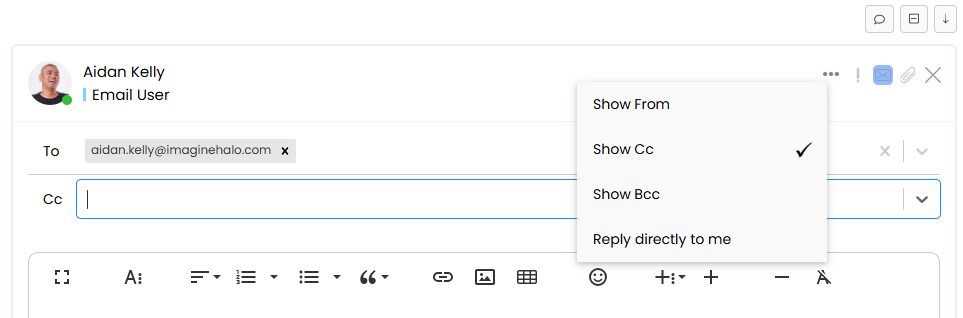
Fig 4. Email User Action Email Field Options
The setting on action level "Default Email To and Cc address editing" refers to the email addresses that can be added to the email fields of this action. There are 3 different options to choose from:
- Can add any email address - There will be no restrictions associated with the email domains you are trying to add
- Can only add known email addresses - This will refer to emails within the domain of your organisation or domains associated to your customers accounts
- Cannot Edit - This will remove the ability to edit the email fields on this action
The final setting highlighted in figure 3 will dictate whether all users on the email recipients list are emailed, or only the last user to reply to the ticket.
Example
Looking at an action on a ticket we can see that adding users to the list via the action: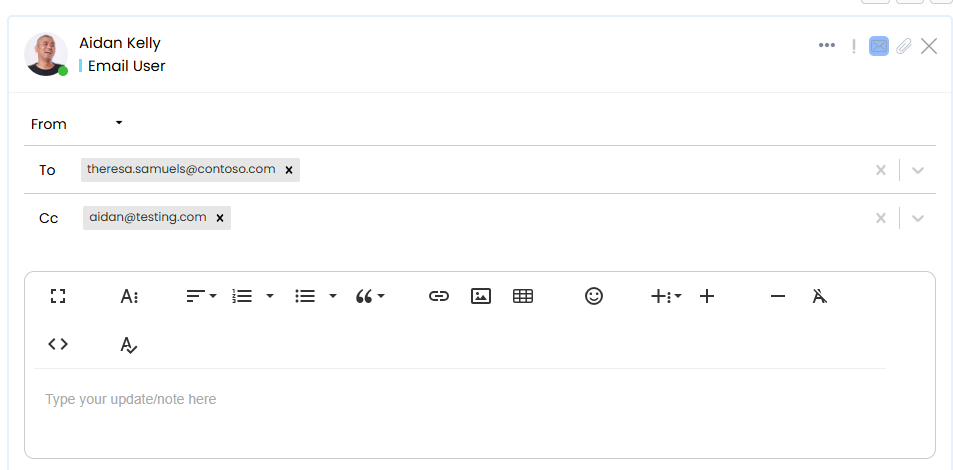
Fig 5. Adding Emails to the Email Fields on an Action
The email recipients list also updates:
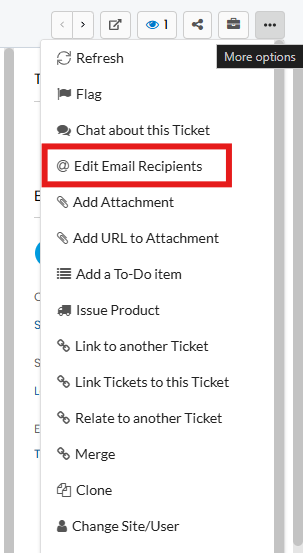
Fig 6. The Edit Email Recipients Button
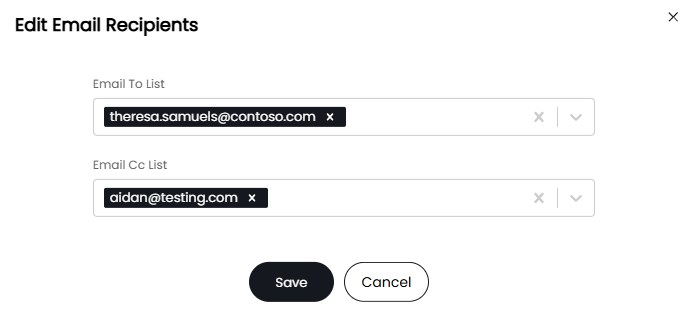
Fig 7. The Email Recipients Edit Screen