Meter Billing
- billing
- meter billing
- usage billing
- meter readings
- import invoice lines as meters
- import meter readings
In this guide we will cover:
- What is Meter billing and when is it used
- How to configure an invoice to bill using meter readings
- Logging and Viewing Meter readings
- Importing invoice lines as meters
- Importing Meter Readings
What is Meter Billing and when is it used?
Meter Billing in Halo allows you to bill customers for a product/service based on their usage of it. Readings of the product/service usage can be taken and logged (meter readings), the quantity of units that has been used is automatically calculated based on these readings and the customer can be billed accordingly.
The meter billing functionality in Halo includes the following functionality, we will cover how to use and configure each meter billing functionality in this guide.
- Periodic and continuous readings
- Tiered pricing
- Minimum quantity pricing
- Accounting for units covered by a contract
How to configure an invoice to bill using meter readings
To use meter billing the product you are billing for will need to be added a recurring invoice for the customer. This line can then be marked as a a 'Meter', you will then be able to to add readings to this invoice line. The quantity of this line will then be calculated automatically based on the meter readings entered.
To mark an invoice line as a meter add the product you are billing for to the recurring invoice then edit this line (by selecting the pencil icon). Then check the setting 'Is a meter'. Once this is enabled some additional options will be available.
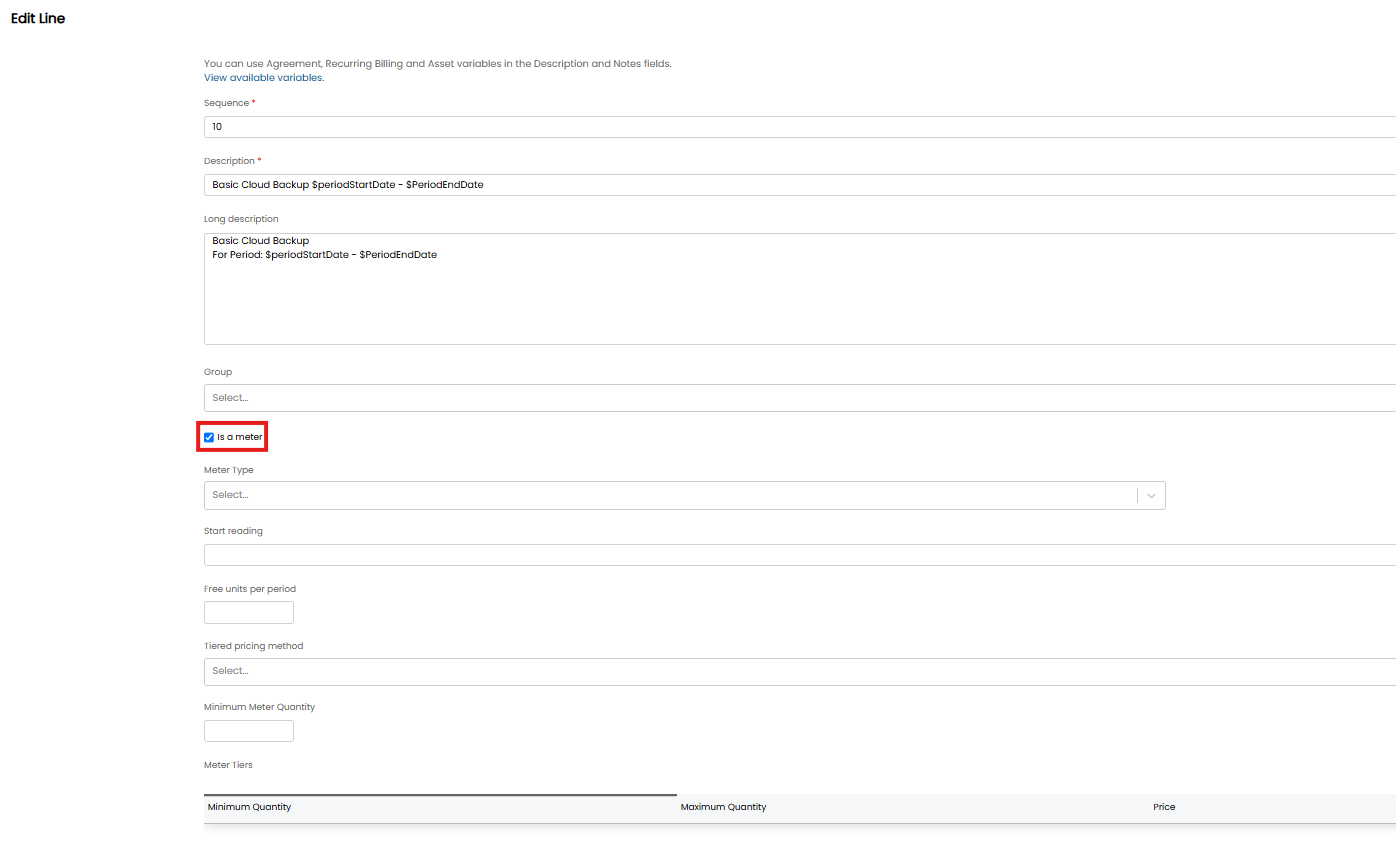
Fig 1. Marking an invoice line as a meter
Once an invoice line has been marked as a meter and has been saved it cannot be un-marked as a meter, if a line is marked as a meter mistakenly the line will need to be deleted from the recurring invoice and re-added. From v2.258+ pre-existing recurring invoice lines can be marked as meters but lines that are marked as meters cannot be unmarked as meters in the UI to prevent historic readings being lost.
Note: Consignable items will not be able to be metered items. If the 'Is a meter' setting does not appear for your product ensure the item is not set to be consignable (under the products module).
Choosing a Meter Type
In the 'Meter Type' field against the invoice line there are two meter type options to choose from.
Continuous reading - Units (quantities) are calculated by taking the difference between the last invoiced and current reading. This should be used when the reading for the product/service does not get re-set each billing period.
Periodic reading - Units (quantities) are calculated using the most recent reading, there is no difference calculation, the last meter reading will be used a the units (quantity) for this line. Multiple readings can still be entered each period, with a record of these being held, but only the most recent reading will be used to calculate the quantity of units to be billed. This should be used when the reading for the product/service is re-set each billing period.
Tiered Pricing
In the 'Tiered pricing method' field you can choose how the price of each unit is calculated. They type of pricing you choose here will depend on the agreement you have with your customer.
Volume based pricing - Units will all be charged at the same price, but the price will change based on the total quantity of units. Units will be charged at the price of the tier they fall into. This allows you to apply a discounted/increased prices when customers use more than a certain amount of units. When using this type of pricing you will need to set up meter tiers to determine what price is used.
Tiered based pricing – Units will be charged at a price based on the tier they fall into. For example, the first 100 units that are used can be charged at price A but any units used after this will be charged at price B. This allows you to apply a price discount/increase when customers use a certain amount of units, but only apply this price to the number of units in the next tier.
Setting up Meter Tiers
Meter tiers are set in the 'Meter Tiers' table against the invoice line, these can also be set against the product and a default can be set globally.
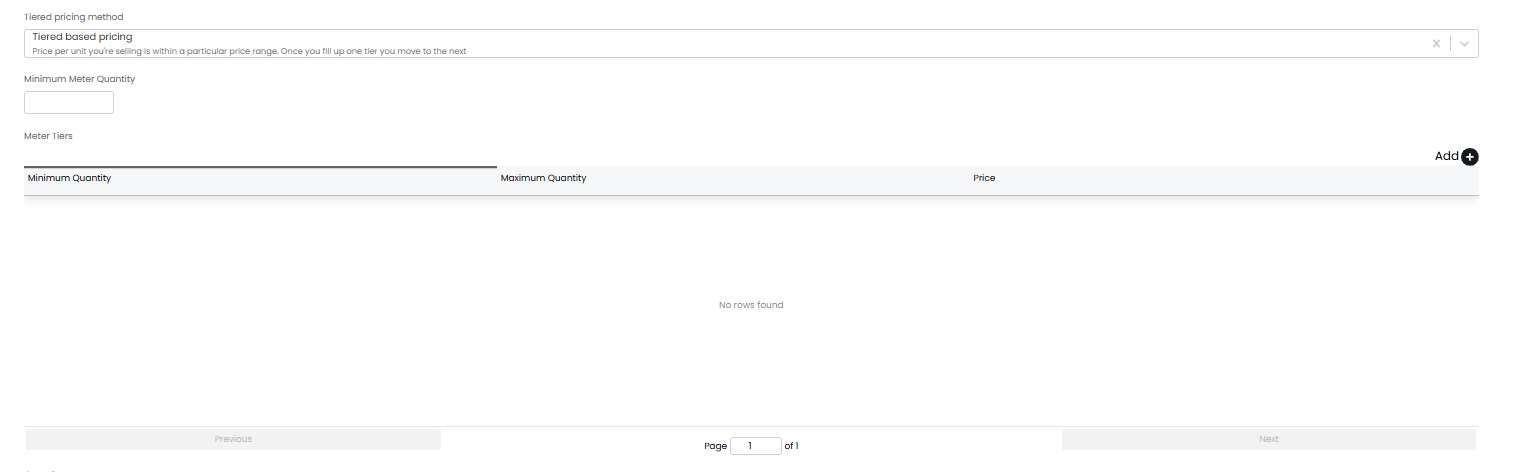
Fig 2. Meter tiers table
When adding a meter tier you will need to specify a price with the minimum and maximum quantity of units that usage needs to be between to be charged at this price. Tiers can be left opened ended (by not completing the min or max quantity field) to allow you to have anything above/below this quantity to be charged at this set price. Tiers must have overlap to account for all quantities. In the figure 3 example I have selected 'Tiered base pricing' and created some tiers, if the customer has used <100 units this billing period each unit will be charged at £0.04. If they use 250 units the first 100 units will be charged at £0.04 and the subsequent 150 units will be charged at £0.03.
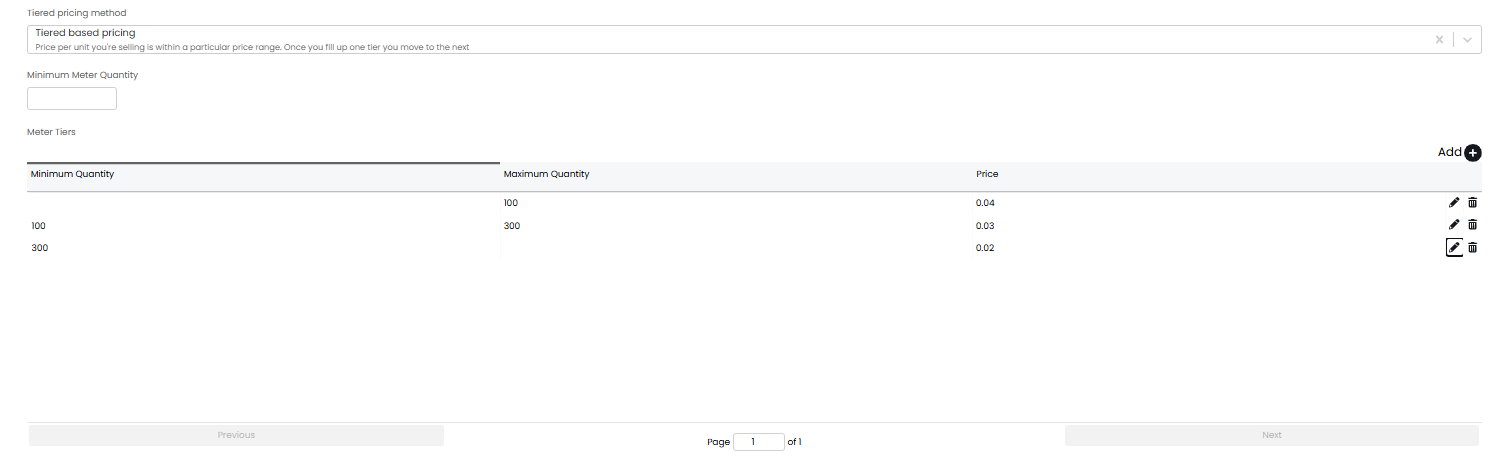
Fig 3. Meter Tier example
If all your metered product use the same tiered pricing you can also set global default tiers under configuration > billing > recurring invoices. In order for tier defaults to apply the product will need to be added to the invoice, marked as a meter and then saved. When the line is the edited again you will see the pricing tier defaults will have applied.
Accounting for units covered by a contract
The field 'Free units per period' allows you to allocate the customer some free units for this product per period. This is used if the customer has some units included in the price of a contract, an recurring invoice can then bill them for anything over this quantity.
Minimum quantity pricing
The field 'Minimum Meter Quantity' can be used to set the minimum quantity of units that will be billed for. If the customer uses less than this minimum quantity they will be billed for the number of units in this field. This is based on the billable units the customer has used, a customer may have used more than the minimum units but if they are allocated free units per period not all these units will be billable. Therefore, the quantity of units used will be determined by the billable units the customer has used, if they have used less billable units than the value in the 'Minimum Meter Quantity' field they will be billed for the minimum quantity. This ensures a minimum revenue for this product is met and can help encourage customers to use more resources.
Additional fields
Start reading - This field is used to log the starting reading for this product/service. If this is a new product/service this will likely be 0 but if you are creating a new recurring invoice for an existing product/service that uses continuous readings you will need to enter the starting reading here.
Quantity - This field usually sets the quantity of products on this line. On metered lines the value entered here will override calculated meter quantities. This should not be adjusted after the invoice has been set up and is in use.
Logging and Viewing Meter readings
Once an invoice line has been marked as being a meter you will have some action buttons against the invoice line to 'Add reading' and see 'Reading History'.
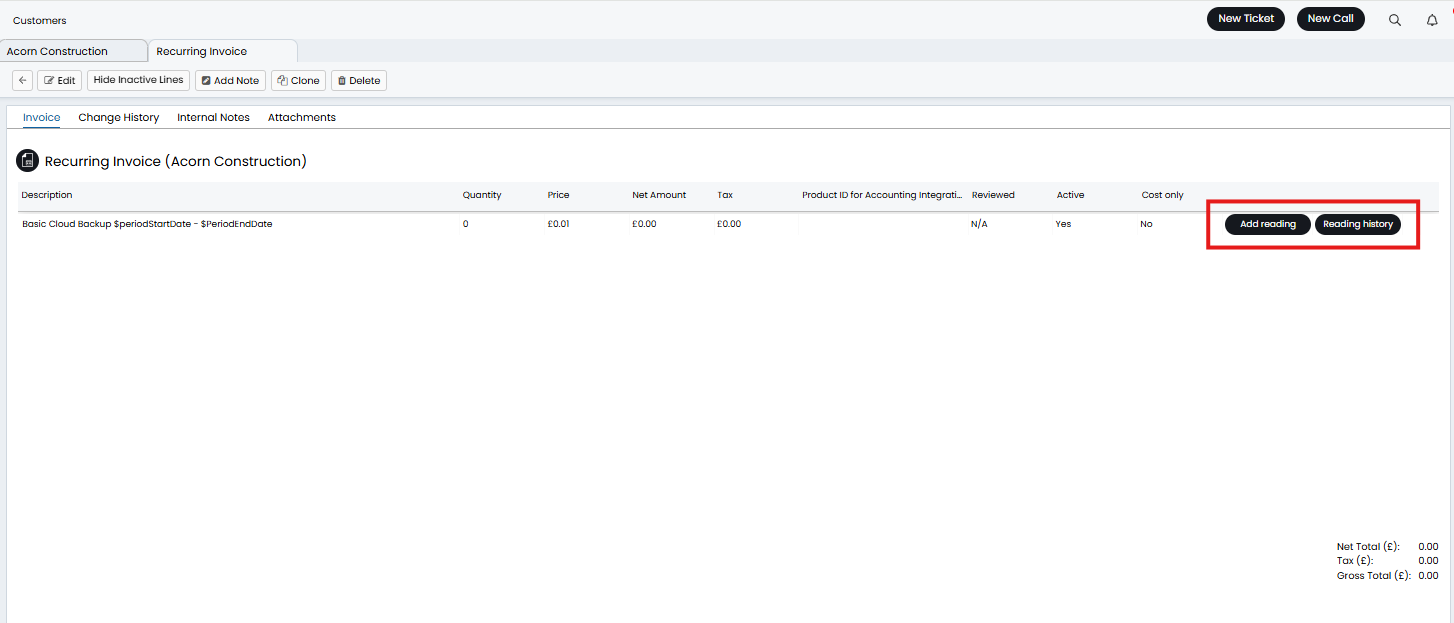
Fig 6. Meter reading actions
The reading history button will show all the previously logged readings in list view, with the date and time of the reading and who logged the reading.
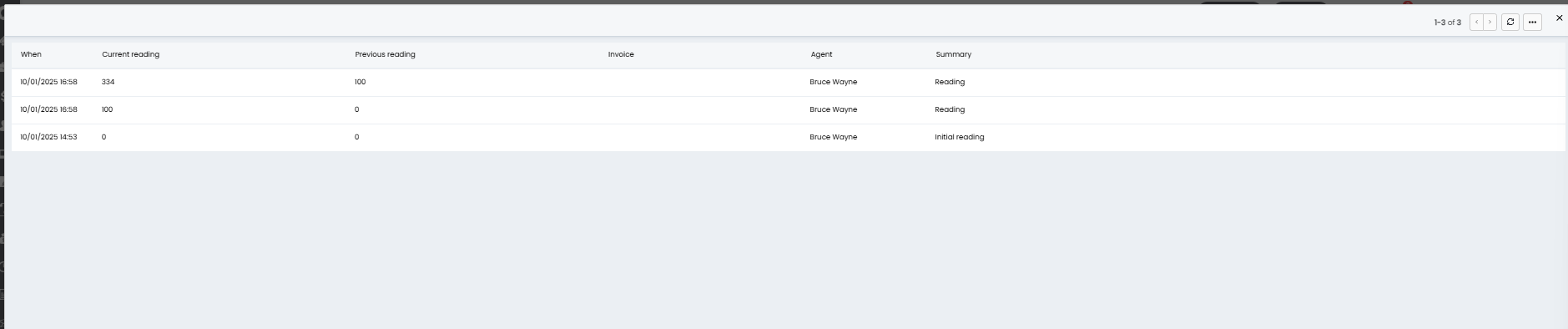
Fig 7. Reading history
Editing Readings
Readings can be edited after they are logged up until an invoice for the period has been created.
To be able to edit readings, you will need to enable "Allow meter readings to be edited" under Configuration > Billing > General Settings.
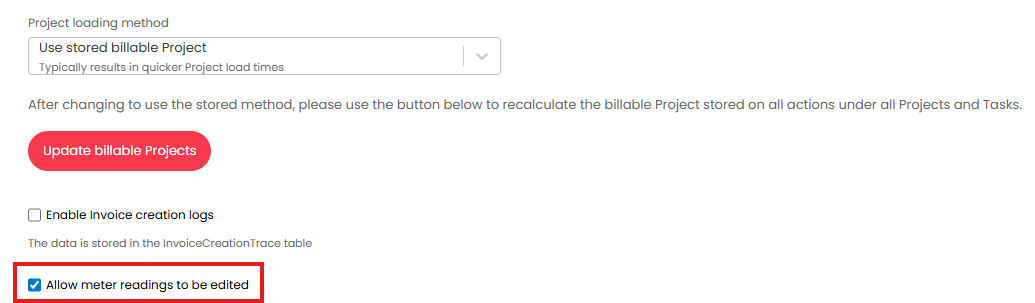
Fig 8. Allow meter readings to be edited
Readings are edited by selecting a reading entry when viewing reading history. Here you can edit the summary of the reading, the reading value, the date/time of the reading, and the "Previous Reading".
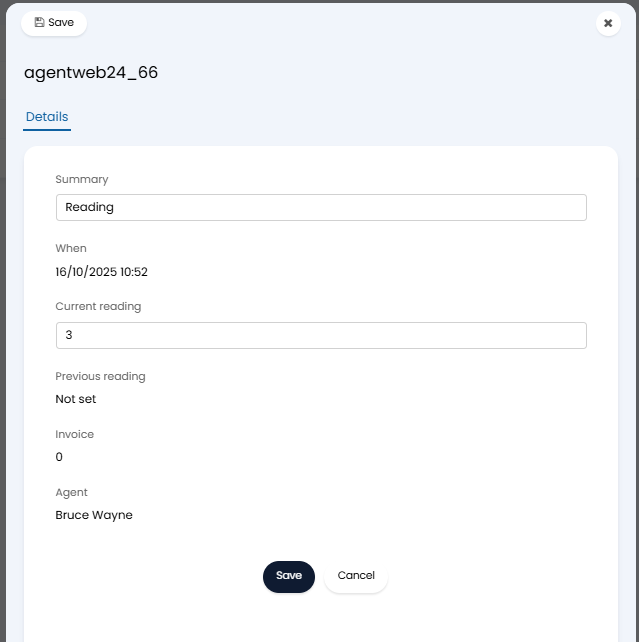
Fig 9. Editing meter reading
Note: If editing the "Previous reading" value the previous reading record will not be updated, this record will need to be updated too.
If the reading has already been invoiced the pop-out will be read-only.
Agents will need at to have their 'Invoices Access Level' permission set to at least 'Read and Create' to be able to edit meter readings.
Importing Invoice lines as meters
If you are importing your recurring invoices using a csv/excel template you will need to ensure any invoice lines are marked as meters.
For information on how to import recurring invoice lines using csv/excel, see our guide here. Once you have set up your XLS profile and spreadsheet for import reference back to this guide.
Now you have your XLS import profile(s) you will need to ensure you have added a mapping for the fields 'Is a meter' and 'Meter ID'. In the figure 10 example I have mapped these fields to the column headers 'Meter' and 'Meter ID' respectively.
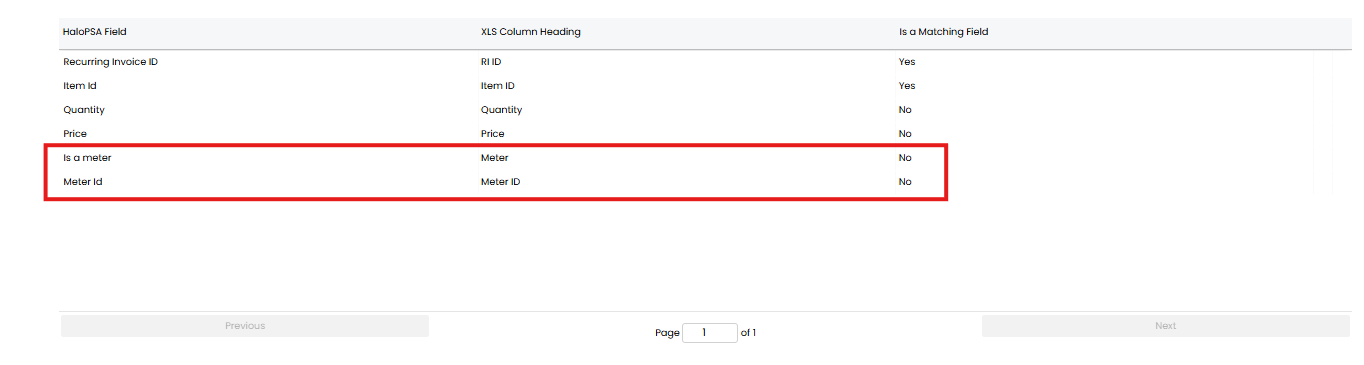
Fig 10. Fields to mark invoice line as meter
Is a meter = Will determine if the line is marked as a meter or not, enter the string 'TRUE' in this column for lines you would like to be marked as meters. Any lines that are not meters can have this cell left blank.
Meter Id = Will determine the Meter type the line is imported in as. This uses the values 0 and 1 to determine what meter type the line is imported as.
- 0 = Continuous reading
- 1 = Periodic reading
Now, these lines will be created/updated to be meters on the recurring invoice.
Importing Meter Readings
The XLS Import method can also be used to import meter readings. To do this first import or create a Recurring Invoice with the meter on a Recurring Invoice Line.
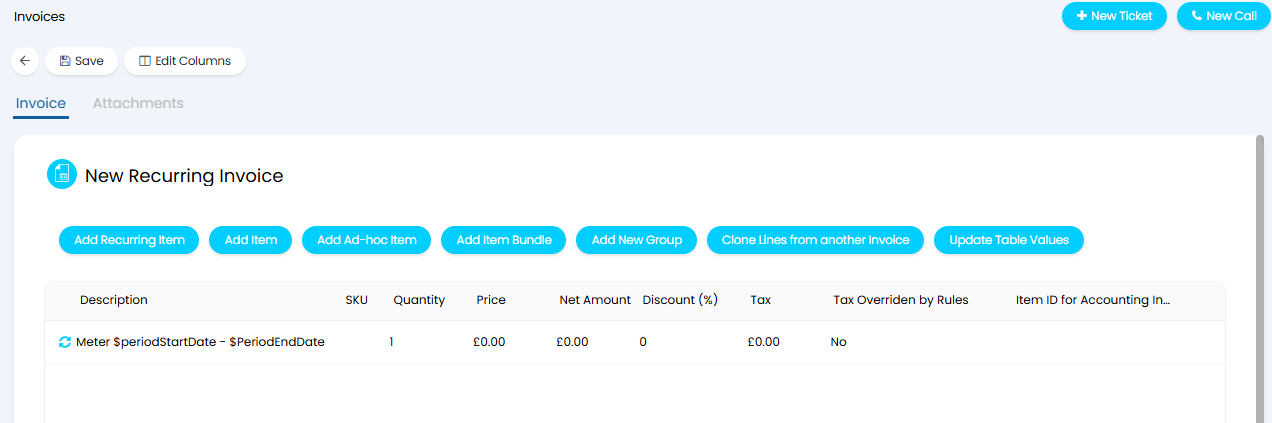
Fig 11. Recurring Invoice with an invoice line as meter
Create a new XLS Import Profile and add the fields "Recurring Invoice ID", "Item ID", and "Quantity". Set the "Recurring Invoice ID" as a matching field.
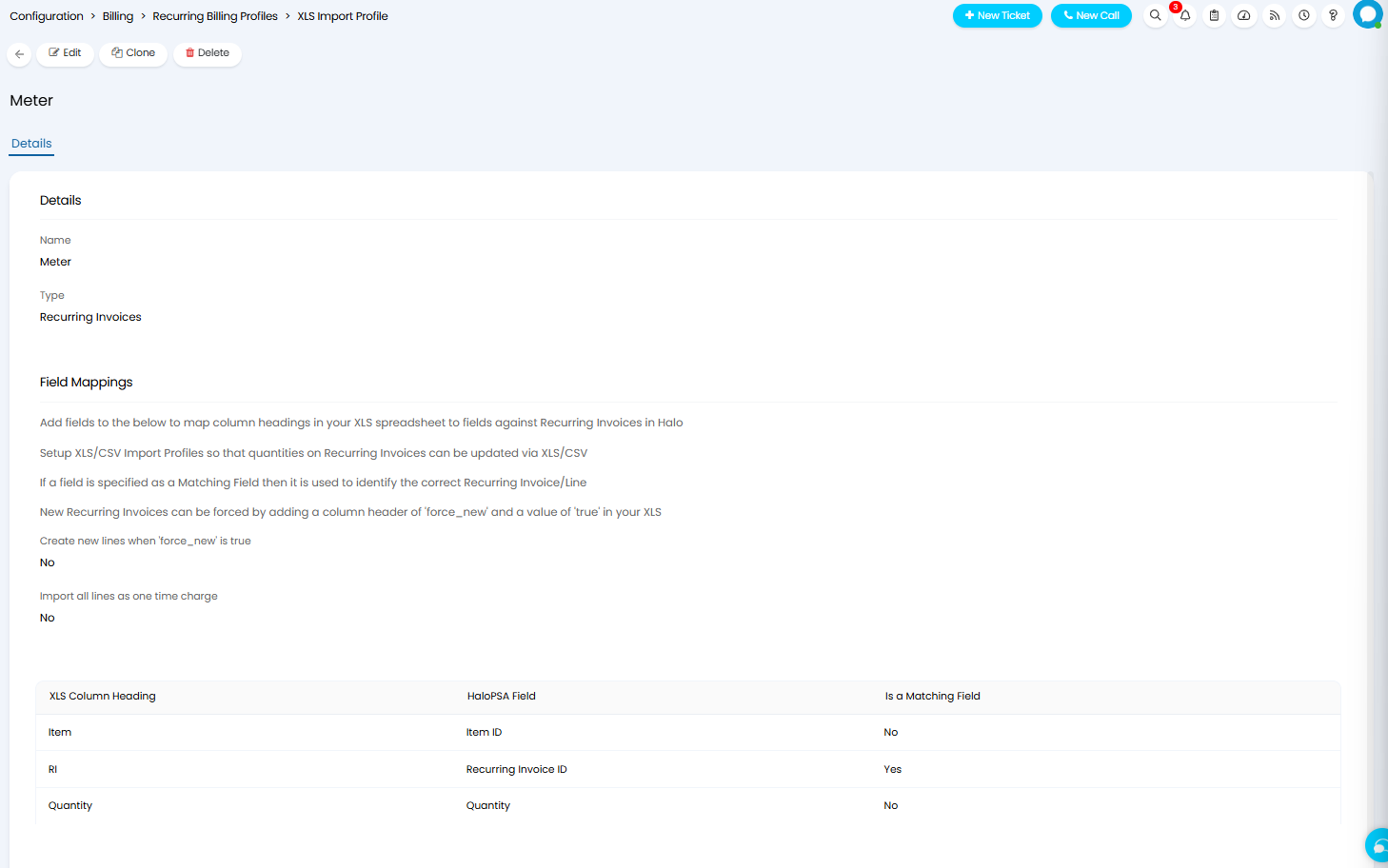
Fig 12. XLS Import Profile
Now in an XLS file, add the XLS Column Headings specified in the Import Profile, and set the values accordingly:
Recurring Invoice ID - The ID of the Recurring invoice.
Item ID - The ID of the Meter Product added to the Recurring Invoice Line.
Quanity - The reading value
Note: This import will take the Reading Date from the date of import.
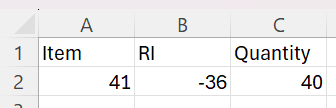
Fig 13. XLS file
Head into Configuration > Billing > Recurring Billing Profiles, and click "Import Recurring Invoice Lines". Select your file and start the import.

Fig 14. Importing Meter Readings
Against the Recurring Invoice the Quantity will now be set.

Fig 15. Updated Quantity
In the Reading History you can view the details of the reading.
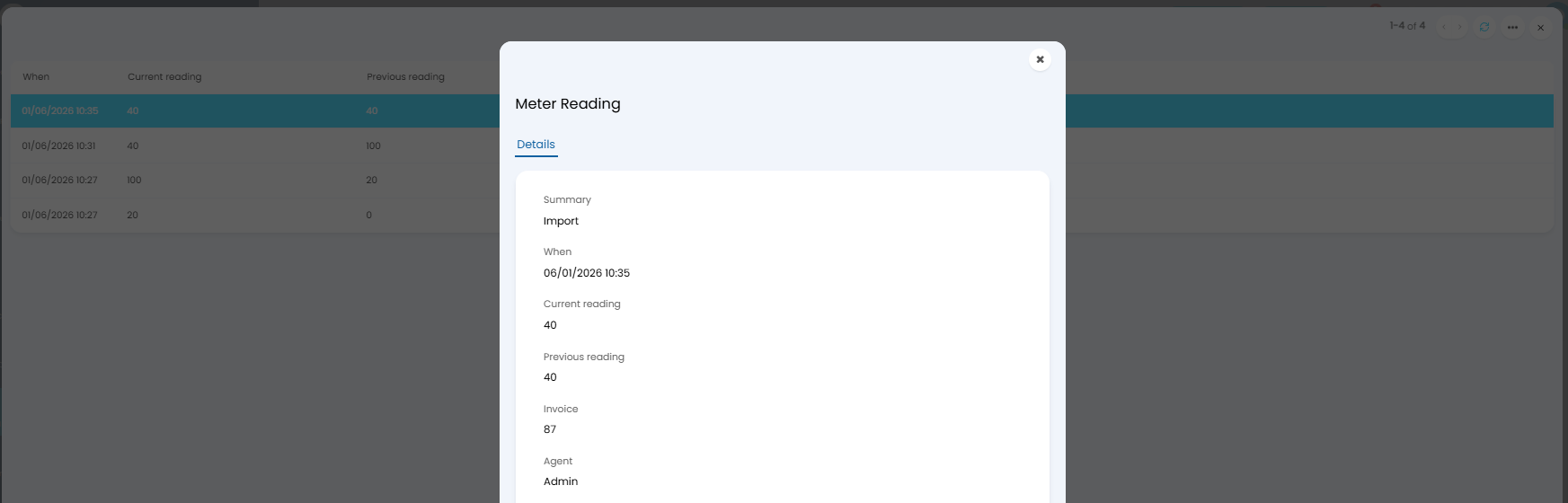
Fig 16. Reading History