Recurring Billing Profiles (Import Recurring Invoice Lines)
- recurring invoice profiles
- import recurring invoice lines
- import profiles for recurring invoices
- import invoice
In this guide we will cover:
- What are Recurring Billing Profiles?
- How to create a billing profile
- Importing Recurring Invoice Lines
- Worked Example
What are Recurring Billing Profiles?
Recurring Billing Profiles are used when importing recurring invoices lines into Halo from a csv file (spreadsheet). When importing lines each row in the csv will represent an invoice line and each column will represent which recurring invoice field the data needs to be imported into. Recurring Billing Profiles allow you to map the names of the columns in your csv file (spreadsheet) to the corresponding fields in Halo. This is useful when exporting recurring invoice lines from one platform, and importing them into Halo.
How to create a Billing profile
In this example, we will look at how Billing Profiles are configured & how they allow you to update existing recurring invoices. Your recurring invoice must already exist in order for you to be able to import lines into it. The first step is to configure a Billing Profile that will be used to map XLS columns to fields in Halo.
Navigate to Configuration > Billing > Recurring Billing Profiles.
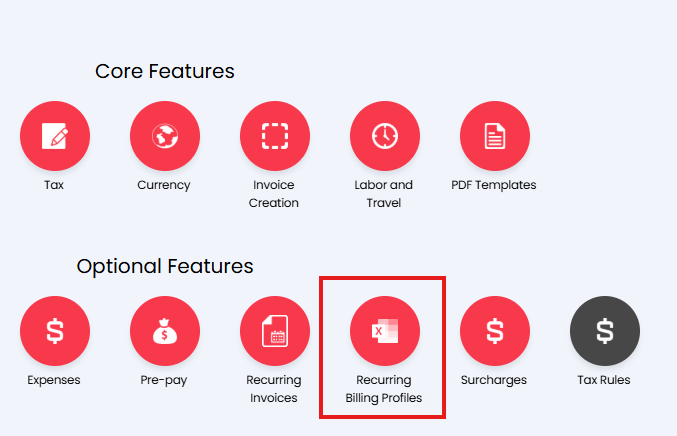
Fig 1. Billing Profile Configuration Option.
In here, you will have an option to View/Edit XLS/CSV Profiles for Recurring Invoice Lines- this is where you set up your import profiles (via the 'New' button in the top RHS).
When creating a billing profile, you will be presented with a 'mappings table':
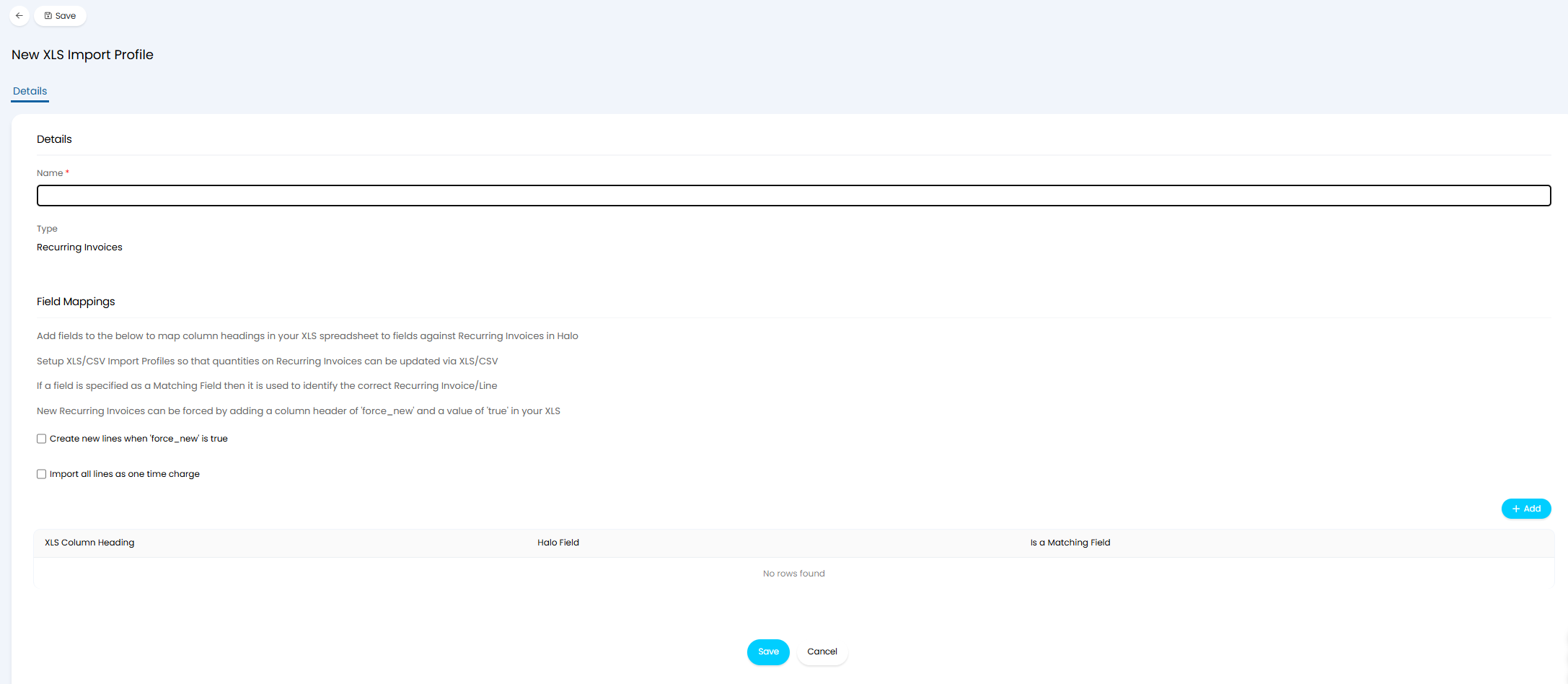
Fig 2. Creating a new Billing Profile.
The profiles will be explained further below. The two settings that are displayed above the field mappings table are important to understand. The setting "Create new lines when 'force_new' is true" is enabled when you would like the line import to be able to create new lines, rather than only update existing. To have new lines created the column header "force_new" needs to be included in your import sheet, if the line (row) should create a new line populate this column with TRUE, otherwise leave blank or enter FALSE. Rows on the import sheet with this property will make a new line for the row on your import, regardless of matching. This column heading does not need to be added to the mappings table.
Each import profiles can be set to "Import all lines as one time charge". This is for the lines added to the recurring invoice that are to be invoiced for that period and then made inactive in the next period.
The idea of this mapping table is to add a series of records into the table, where each record details the column header of the import spreadsheet you will be using & the data that the column contains.
For example, perhaps I would like to update the quantity of certain recurring invoice lines on respective recurring invoices. For this, I would be concerned with the following data:
- Who's Invoice needs updating?
- What line needs updating?
Assuming the combination of Invoice + Invoice line is unique, you may well find a similar output to:
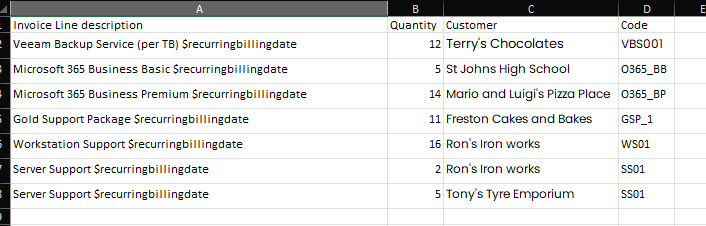
Fig 3. Import spreadsheet.
With the import sheet formatted similar to Fig 3, you would want a Billing profile in Halo as:
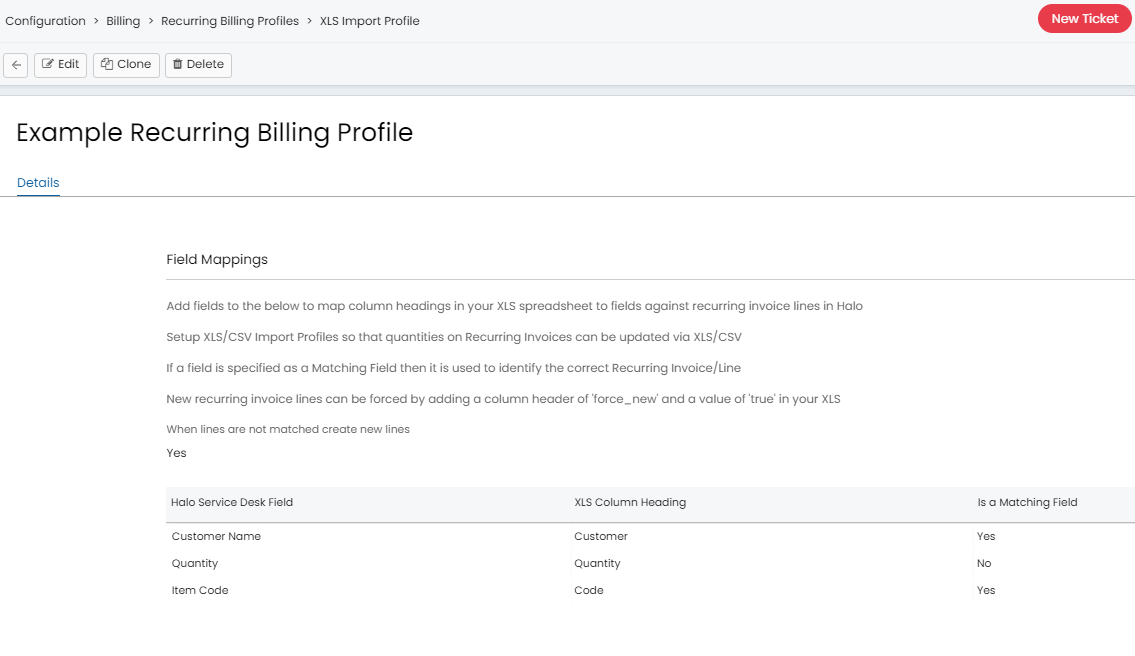
Fig 4. Billing Profile, to match that of Fig 3.
Notice how 'Customer Name' and 'Product Code' are specified as Matching Fields - this means that, upon importing, Halo will check to see if it can find a Recurring Invoice for the specified customer, with said Recurring Invoice containing a line with the Given Product Code. If found, the quantity for the matched line will be updated accordingly. If a line cannot be matched, a line will not be created or updated, unless "force_new" is set to TRUE for the line (and the associated setting is enabled).
Importing Recurring Invoice Lines
Now you have created your Billing Profile, you can use this to update Recurring Invoice line quantities.
In Configuration > Billing > Recurring Billing Profiles, you'll find a button to 'Import Recurring Invoice Lines'.
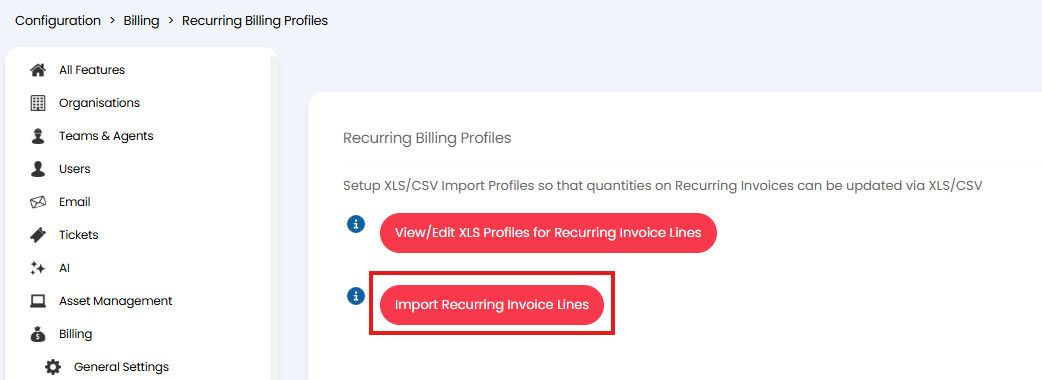
Fig 5. Import Recurring Invoice Lines.
You can also import recurring invoice lines from the recurring invoice section of the 'Invoices' module, using the menu in the top right hand side of the page.
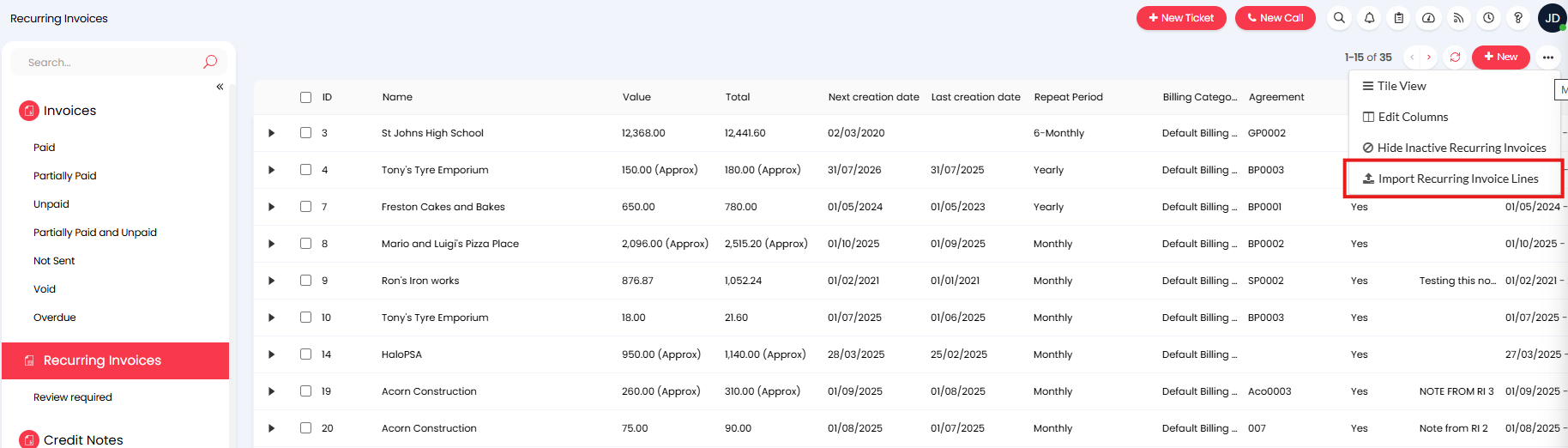
Fig 6. Import recurring invoice lines from the invoicing module.
Upon clicking this, you are presented with the option to select from the relevant billing profile (you may get spreadsheets from different systems, which use different naming conventions for similar columns: Client Vs Customer, for example. In this case, you would create multiple billing profiles for these different systems and use the relevant profile per import):
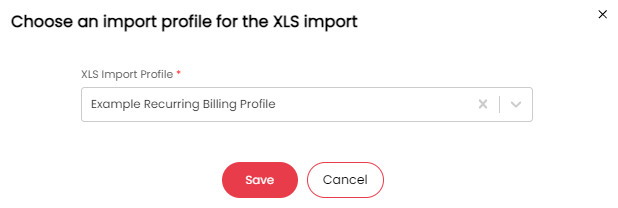
Fig 7. Selecting your billing profile to use when importing Recurring Invoice Lines.
Once you have selected the relevant Billing Profile, you will be presented with the Import Preview screen, where you can select the import spreadsheet you will be using.
You may find that some of your import rows fail.
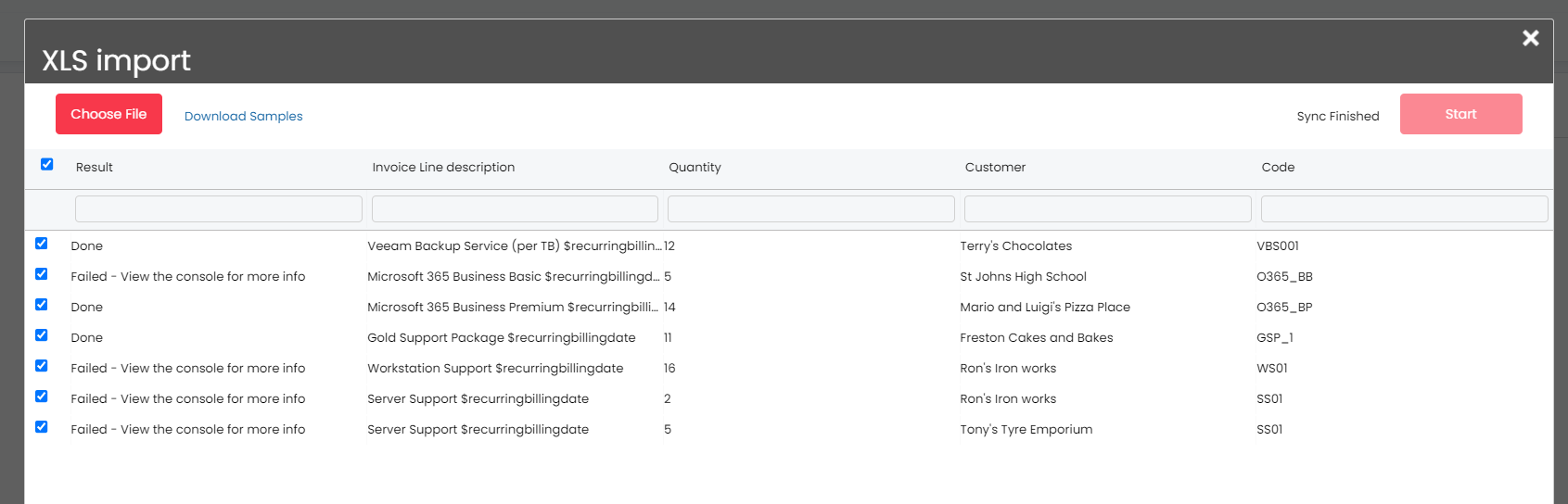
Fig 8. Result of importing Recurring Invoice Lines, based on our Example Billing Profile.
If lines fail, then the 'failure message' will be returned in the browsers developer tools, which you can access via pressing f12 in the browser:
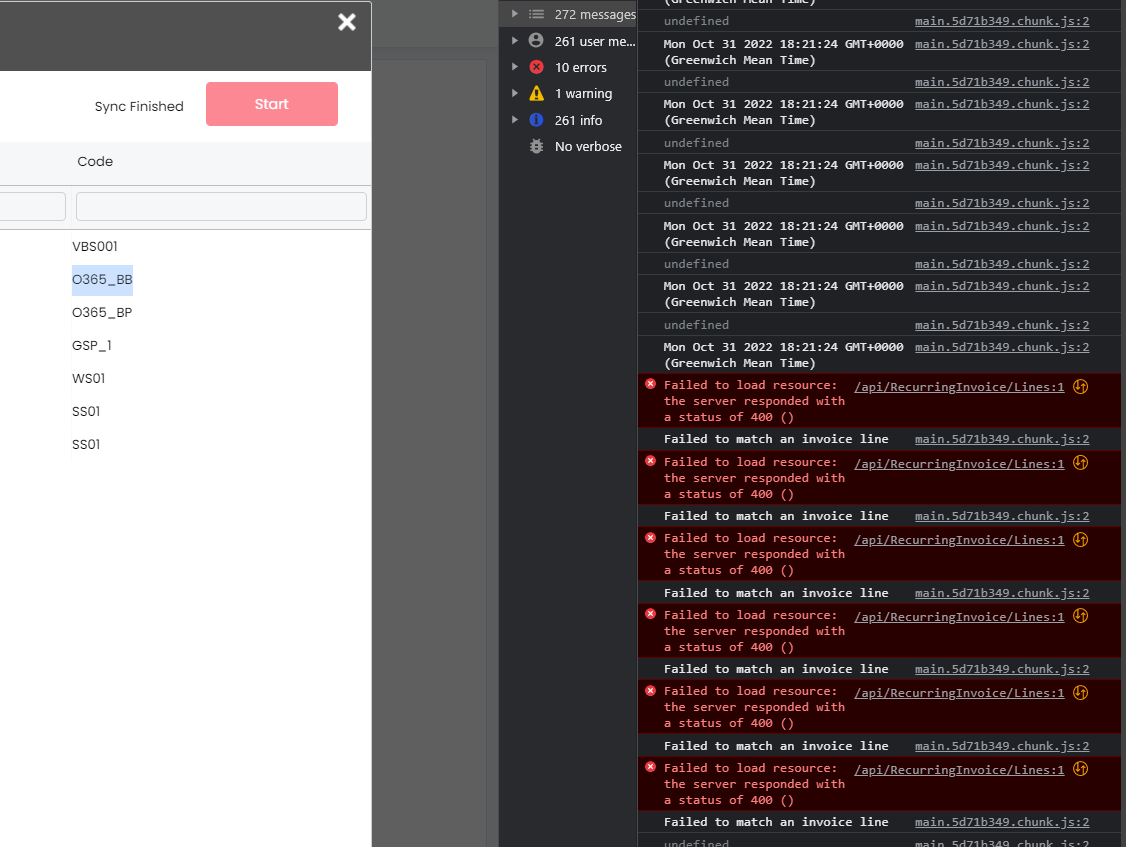
Fig 9. Viewing the console in your browser.
Worked example- Import for a Recurring Invoice Line
As an example, the following columns have been added to the billing profile:
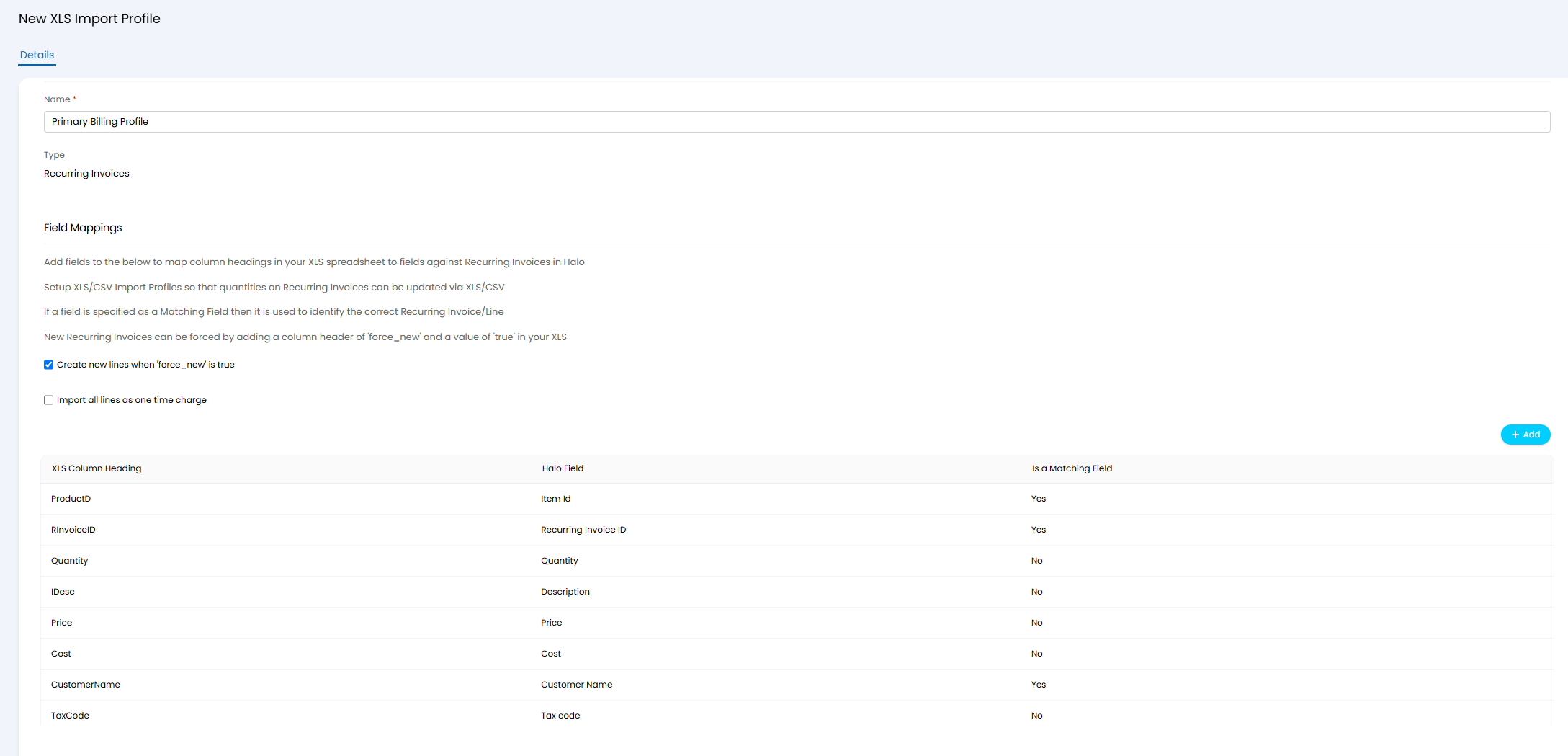
Fig 10. Example billing profile.
The Recurring Invoice ID can be found in the URL of the browser's page. The import spreadsheet included the following:
 Fig 11. Import spreadsheet with relevant columns.
The Recurring Invoice now has a new line on it for the line that has been added via the import spreadsheet.
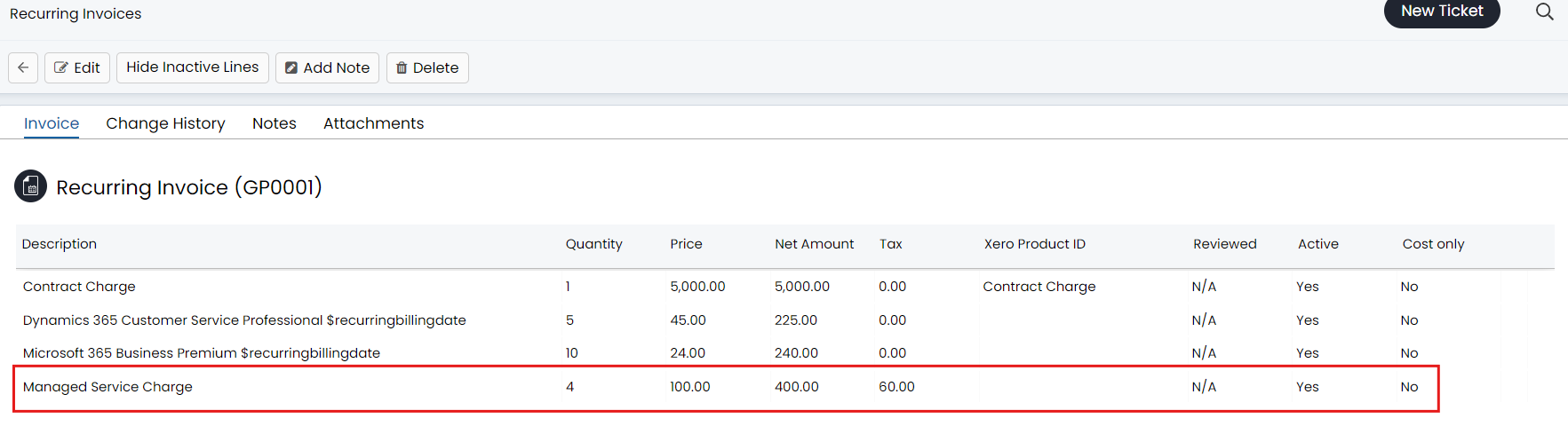
Fig 12. Invoice following import.