Dashboard Publishing Guide
In this guide we will cover:
- Publishing in app dashboards to external sources
Related Guides:
Configuration Settings Guides:
Publishing in app dashboards to external sources
By default, in app dashboards are only accessible from within Halo but there are multiple options for how you can publish them.
Publishing with Authentication
You can publish a dashboard that is accessed by authentication from a User account. To begin with, you will need to create a User within Halo. We recommend creating a specific 'Dashboard' User.
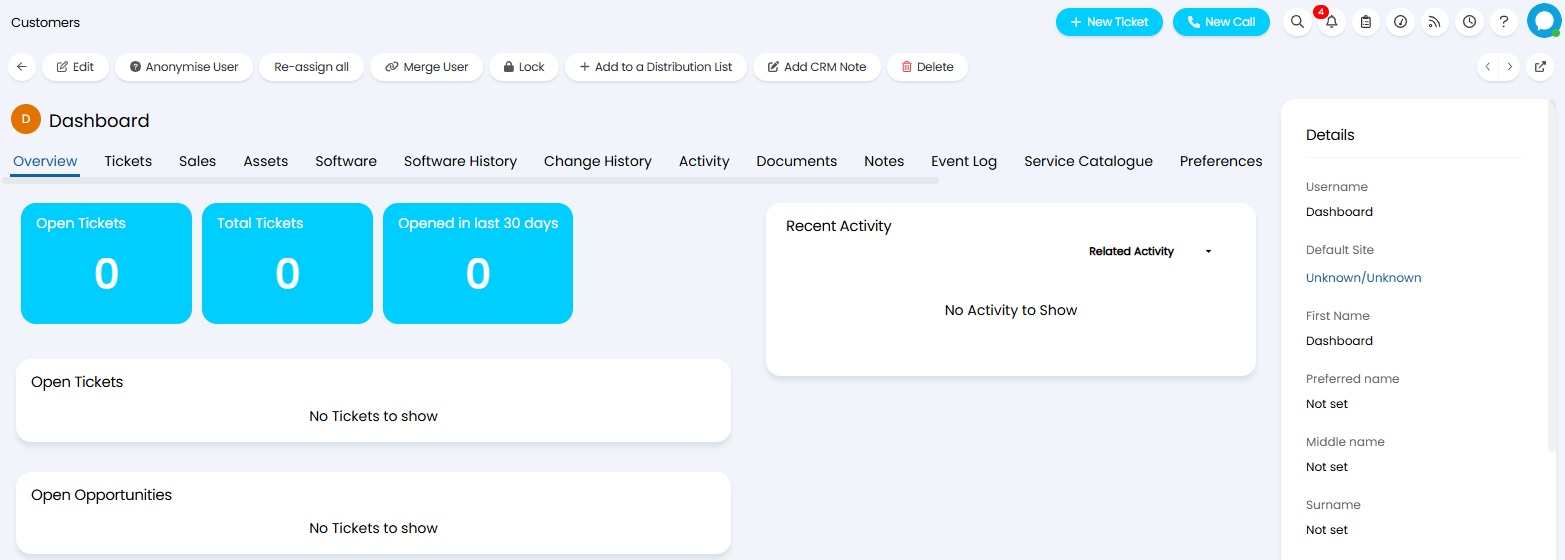
Fig 1. Dashboard User
You can then publish the dashboard by going to Configuration > Reporting > Dashboards > Selecting the dashboard you'd like to publish > User Access. From there, define the Users you want to have access in the "User Access" table.
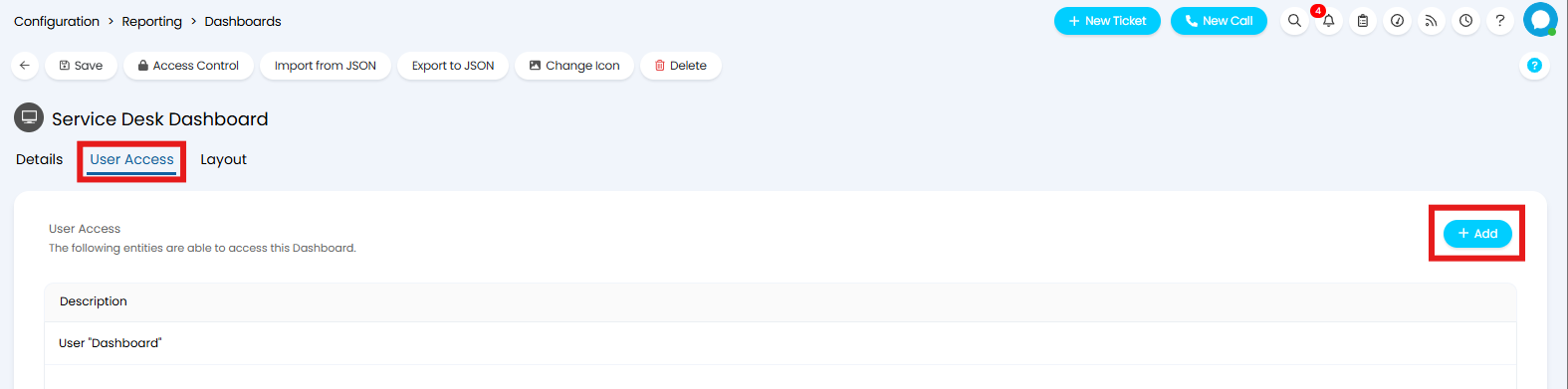
Fig 2. Dashboard User Access
The Users with access defined within the "User Access" section will be able to sign into their account on the Portal and will be able to access the Dashboard from the Dashboards Menu Button. To enable this Menu Button, head to Configuration > Self Service Portal, and add the "My Dashboards" Menu Button.
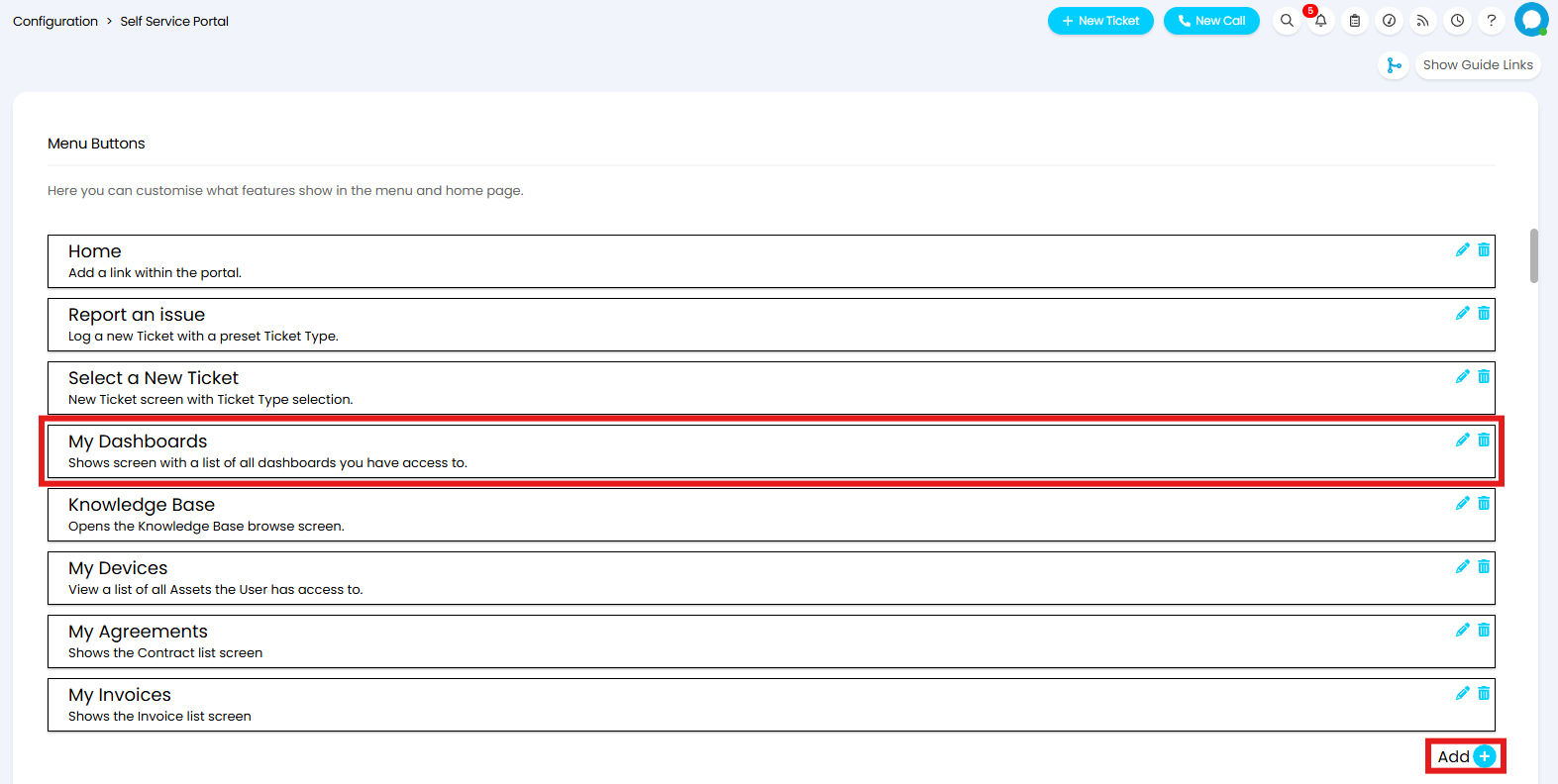
Fig 3. Dashboard Menu Button
When this User account is impersonated, or someone signs in as this User, they can view this Dashboard under the "My Dashboards" button.
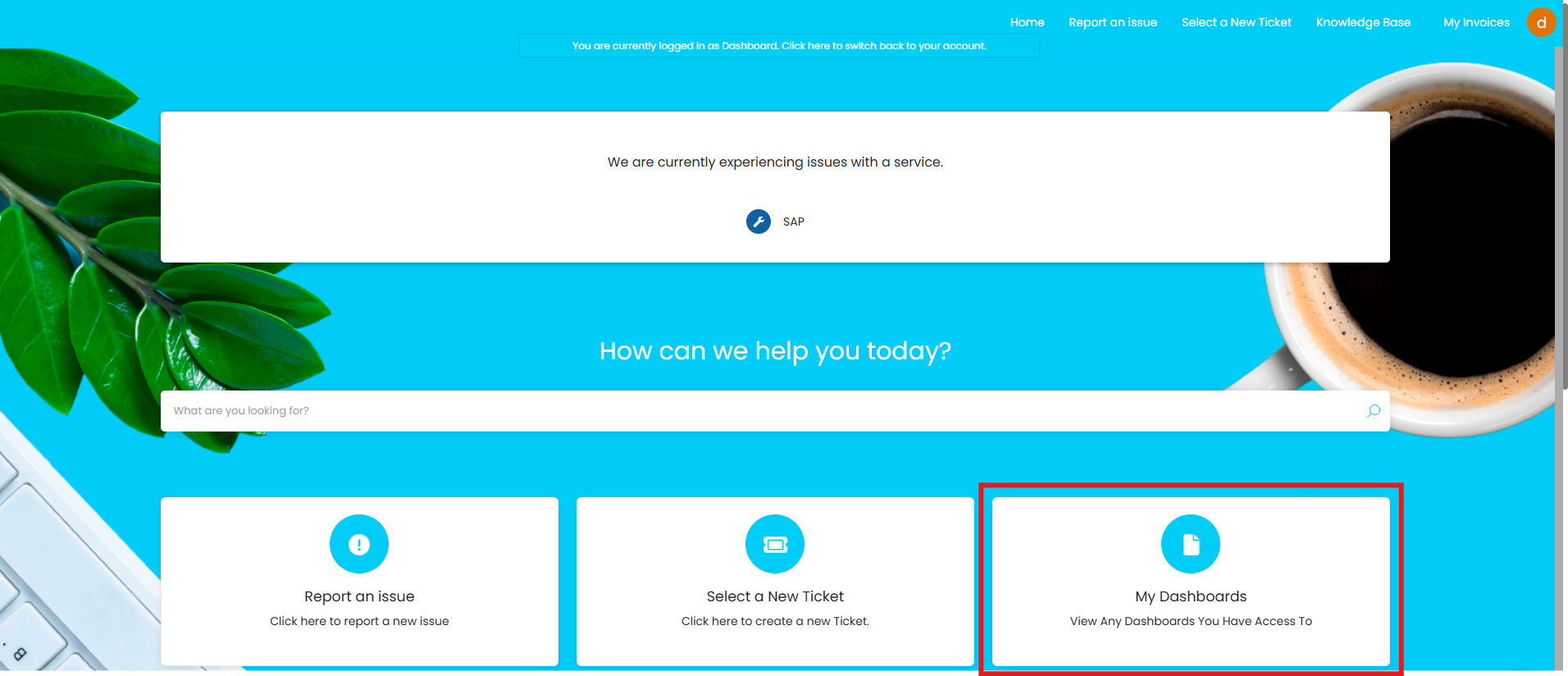
Fig 4. Dashboard Button
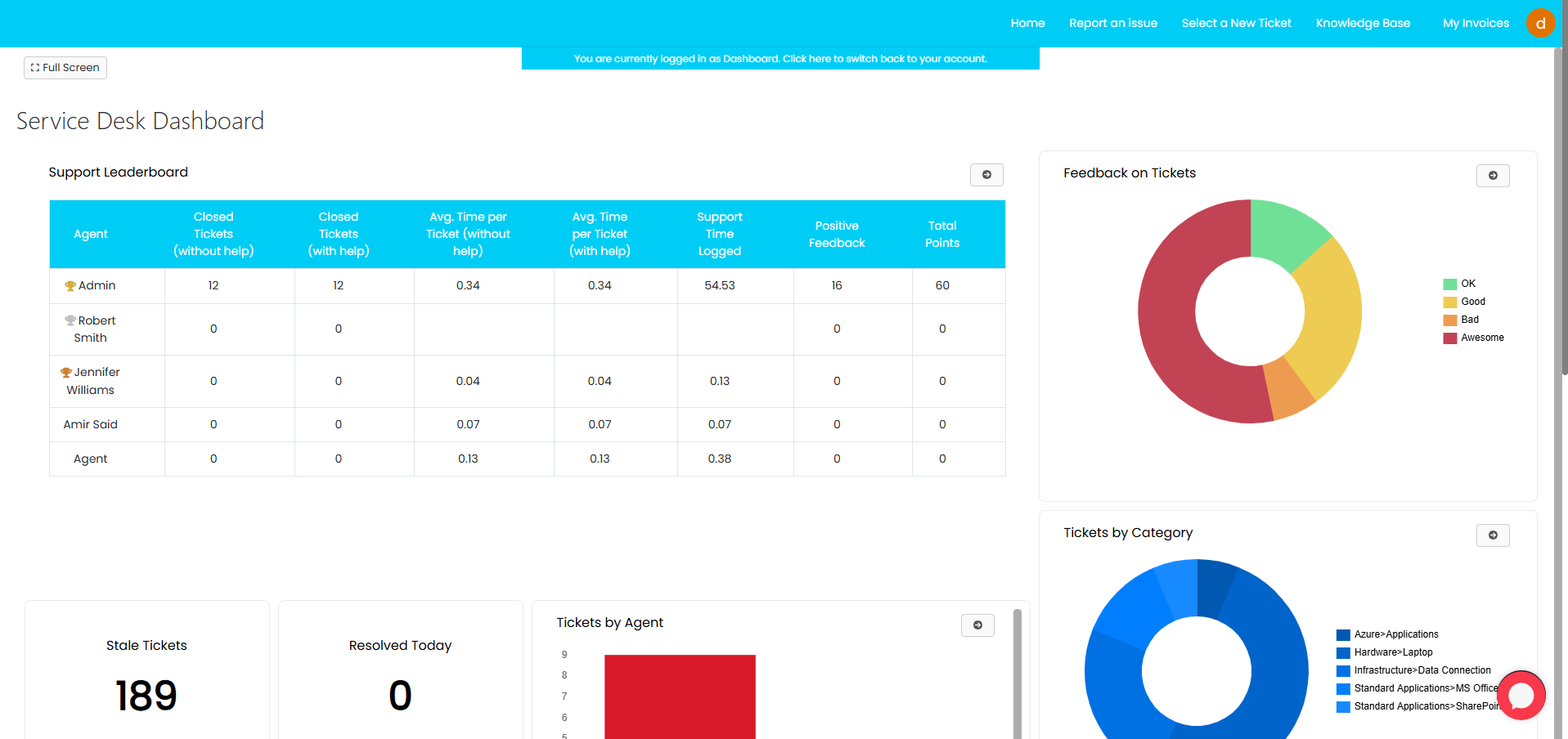
Fig 5. Viewing a Dashboard in the Portal
Alternatively, If you check the "Publish this Dashboard" option when setting User access, without enabling "Allow anonymous access', the User will be able to access the dashboard by going to the link and it will be required to login.
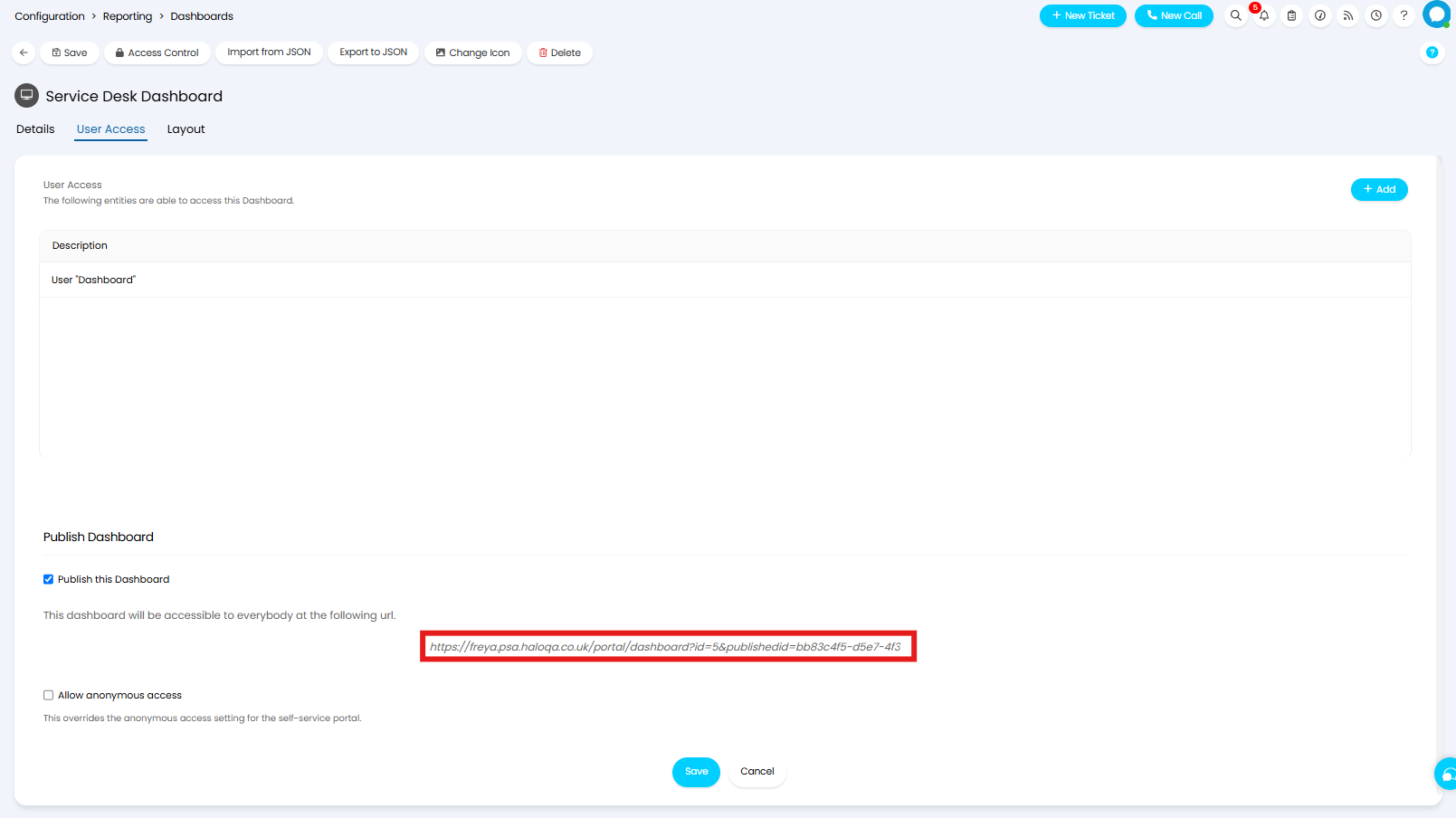
Fig 6. Dashboard link
Publishing Anonymously
You can publish a dashboard publicly by going to Configuration > Reporting > Dashboards, selecting the dashboard you'd like to publish, and heading to the "User Access" tab. From here, you can check "Publish this Dashboard" and 'Allow anonymous access', which will allow anyone with the presented link to access the dashboard.
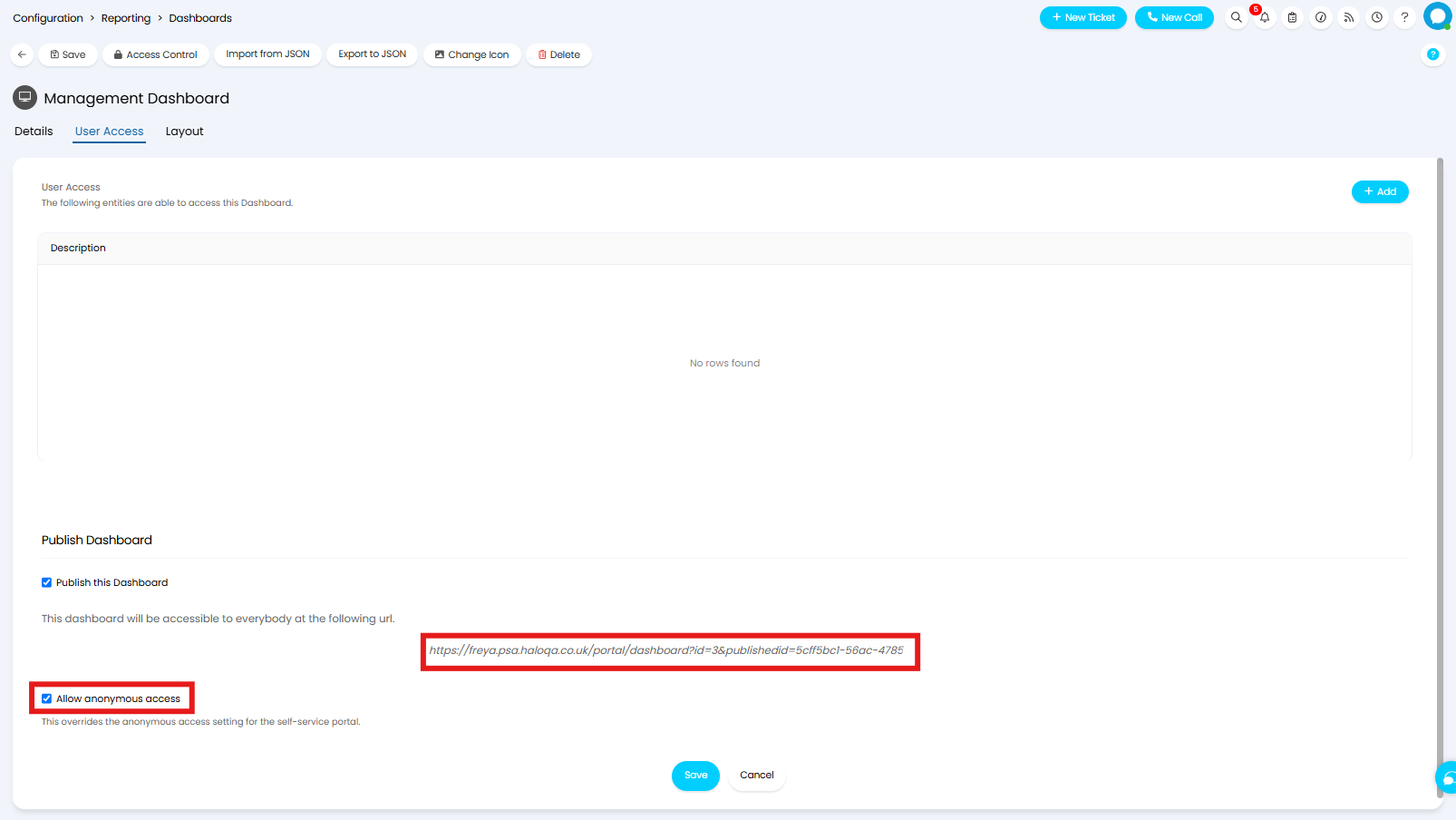
Fig 7. Public Dashboard link