Connecting Halo to BI Tools: Publish Profiles & Direct Database Access
In this guide we will cover:
- Creating a Publish Profile
- Adding the Report
- Connecting to Postman
- Connecting to Power BI
- Upload Scheduled Reports to SharePoint
Creating a Publish Profile
On the "Availability" tab of reports there is a checkbox for publishing reports. The "Scheduled Emails" tab will eventually include a section for sending report data on a recurring schedule to your BI tools.
Publish Profiles have been added to Halo in order for large quantities of report data to be sent to BI tools without the use of read only access to your database, which will be slowly phased out. This set up will require authentication in order for the data to be accessed at the given report endpoint.
First navigate to Configuration > Integrations > Halo API:
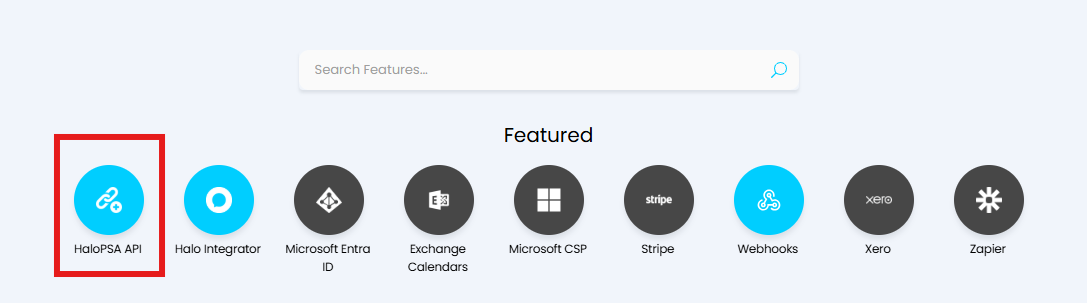
Fig 1. Halo's API Module
Then scroll to the Publish Profiles section and click the "View Publish Profiles" Button.

Fig 2. Publish Profiles Button
Create a new profile by clicking new in the top right of the screen. The Profile Name must be alphanumeric, no spaces or special characters. There are two authentication methods, either can be used, it is likely that your BI tool is going to require basic authentication.
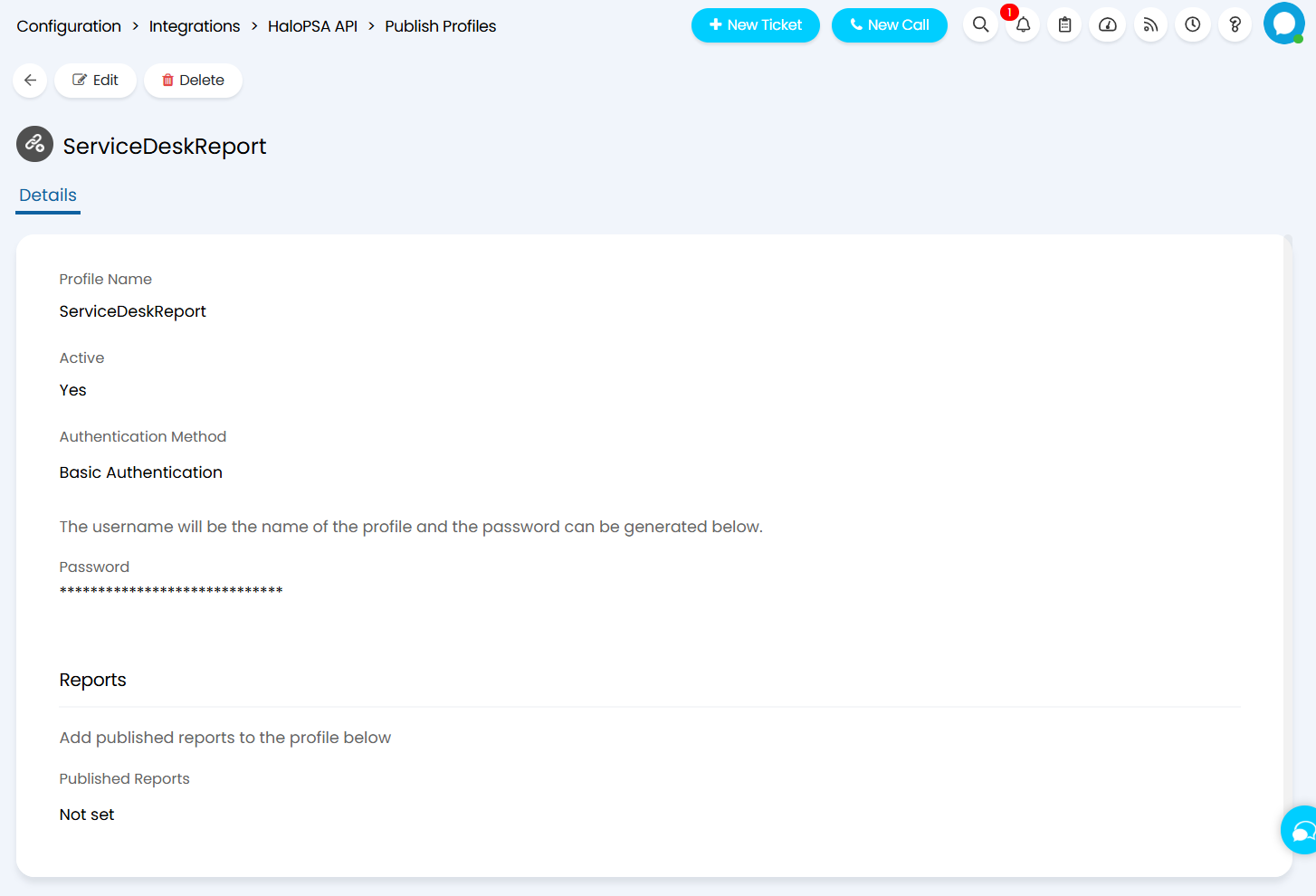
Fig 3. Publish Profile Creation Screen
The "Published Reports" dropdown requires the Report to have been marked as published in order to populate this field. Once a report is published and associated to the Publish Profile this field will automatically populate.
In order to publish a report you can navigate to the reporting section of Halo.
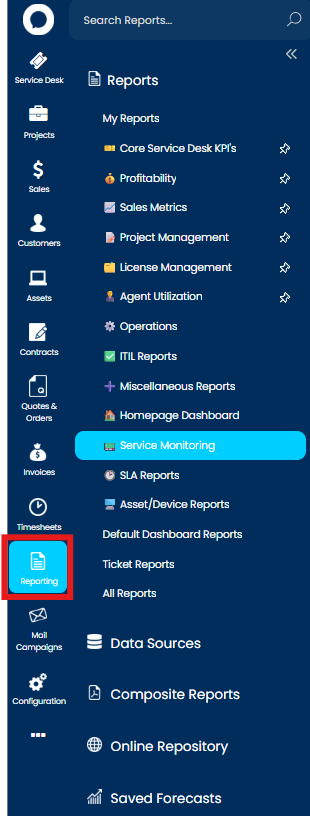
Fig 4. The Reporting Section of Halo
Adding the Report
Then click into a report and navigate to the "Availability" tab. After checking "Publish this report", an endpoint will show at the bottom of the page. Take note of this endpoint as it will be needed later.
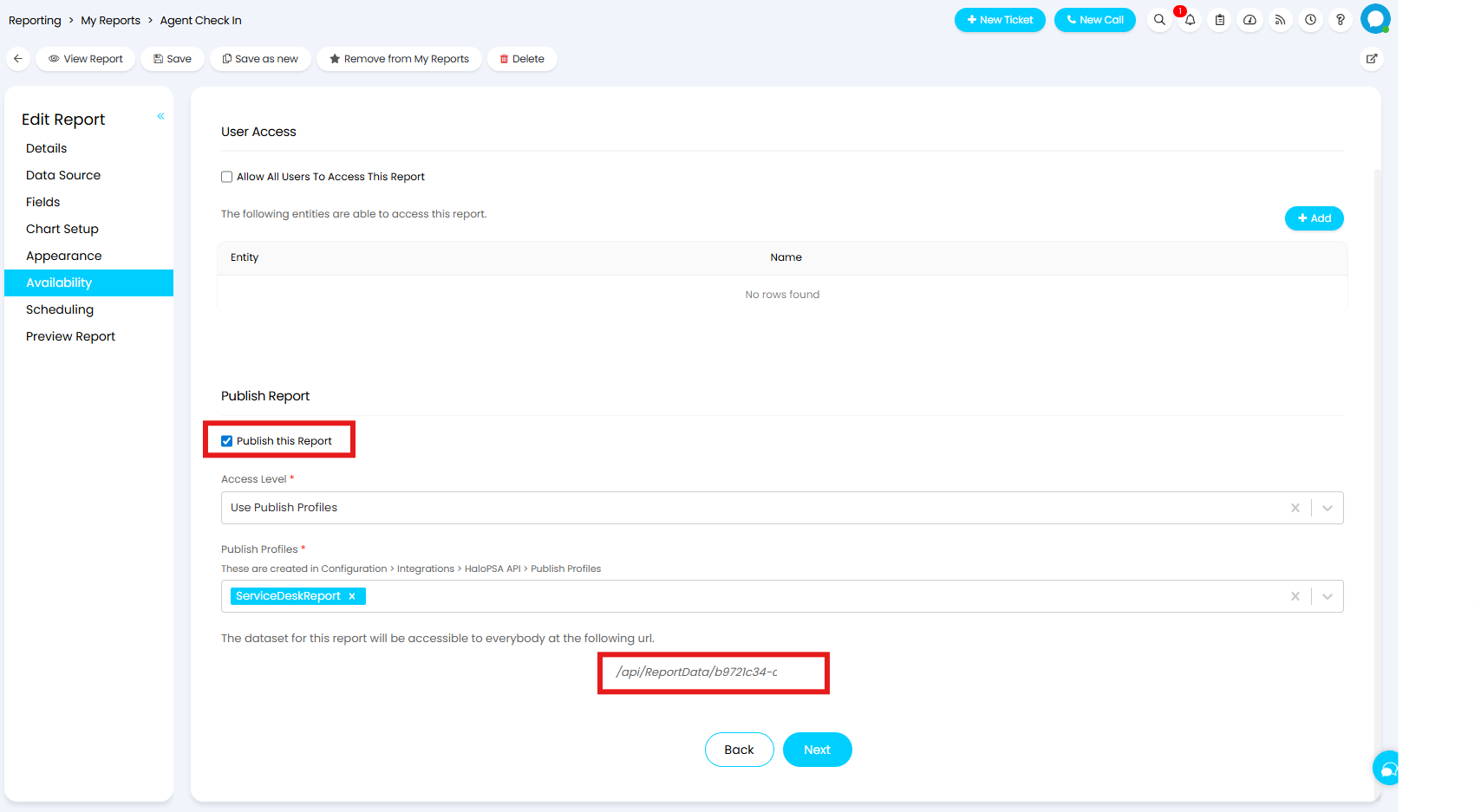
Fig 5. Adding the Report to the Publish Profile
Now the report has been made available for publishing published, the access level needs to be set to "Use Publish Profiles". When selected an additional dropdown will show for the Publish Profile to use.
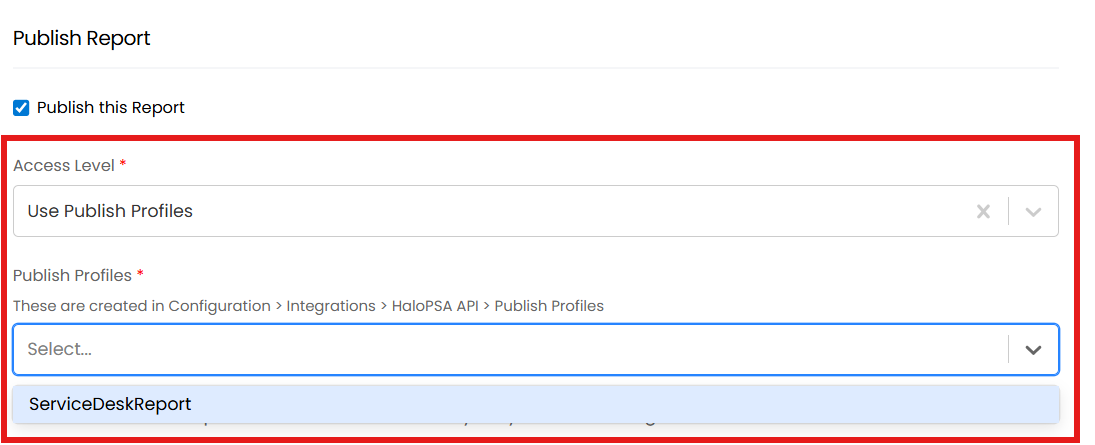
Fig 6. Access Level required
Multiple reports can be added to the same Publish Profile by following the same process for each.
After the profile has been added, when going into BI tools or Postman, you can use a bearer or basic auth to authenticate the API request and then get back the data of the report by using the endpoint given for the dataset as shown in Fig 5. To obtain this token or password, head back into your Publish profile, set the authentication method, and click the "generate" button. Copy this as it will be required later.
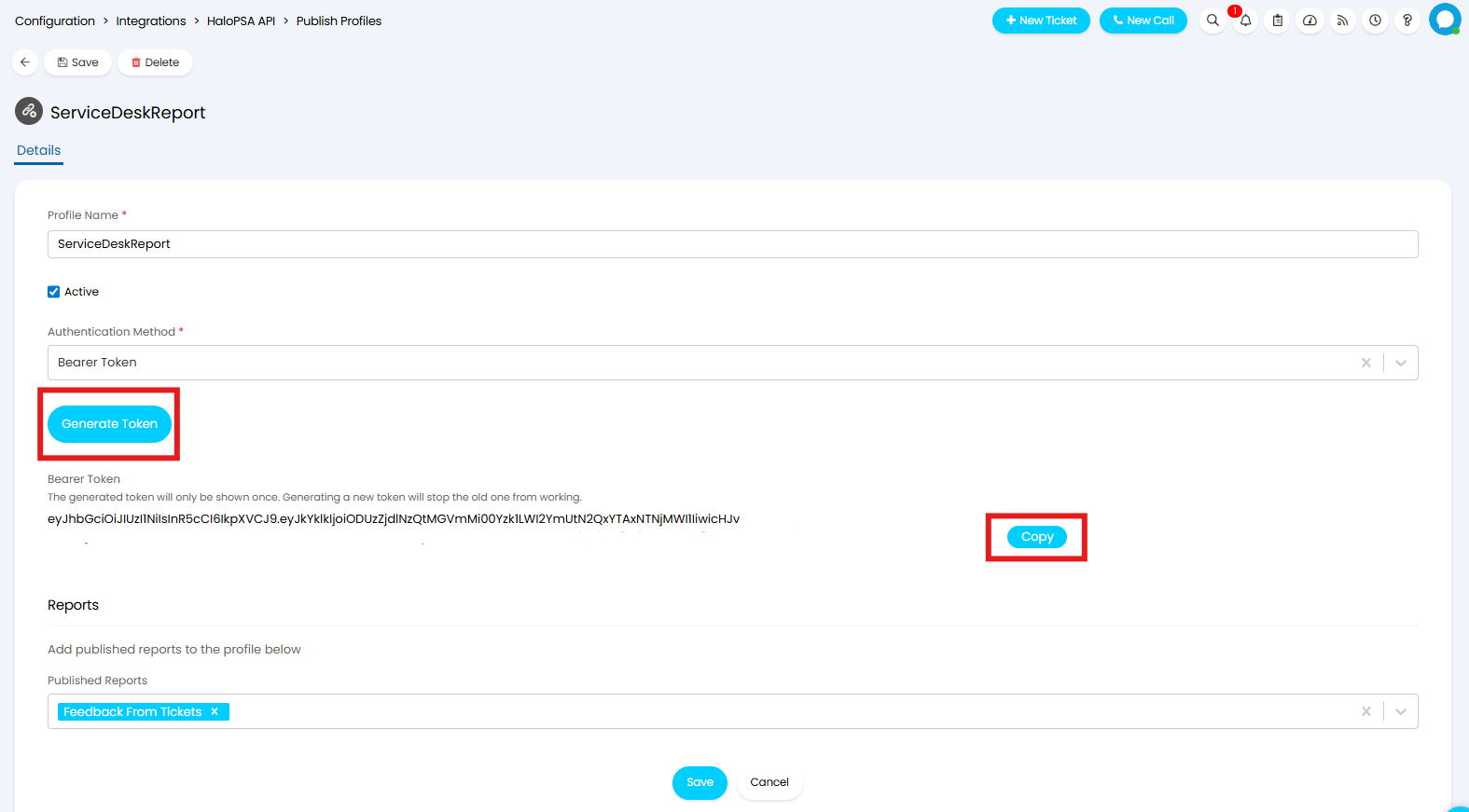 Fig 7. Using the Bearer Token Method
Connecting to Postman
Note this is an example of connecting to Postman to call a report. Please refer to the PowerBI section below for connecting to PowerBI.
In Postman I can add in the credentials in order to return the report data. Set the URl to your instance URL appeneded with the report endpoint.
For Bearer Tokens you will need to set the Auth Type to "Bearer Token" and paste your token in the Token field.
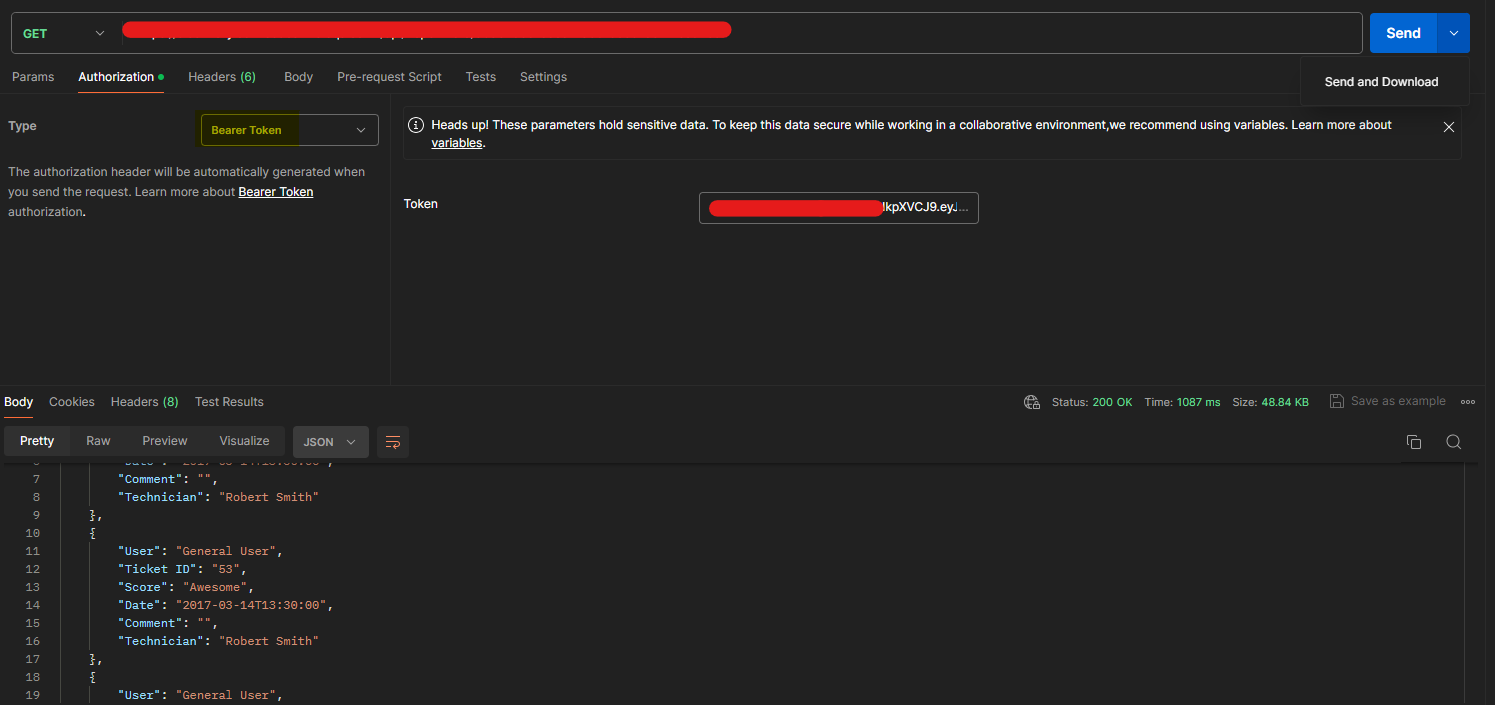
Fig 8. Authentication using the Bearer Token in Postman
Alternatively for Basic Auth you will need to set the Auth Type to "Basic Auth", set the Username as the name given to the publish profile in Halo, and paste your password in the password field.
Note: The username will be the name given to the publish profile on Halo, and the password should be generated and then copied from the publish profile in Halo.
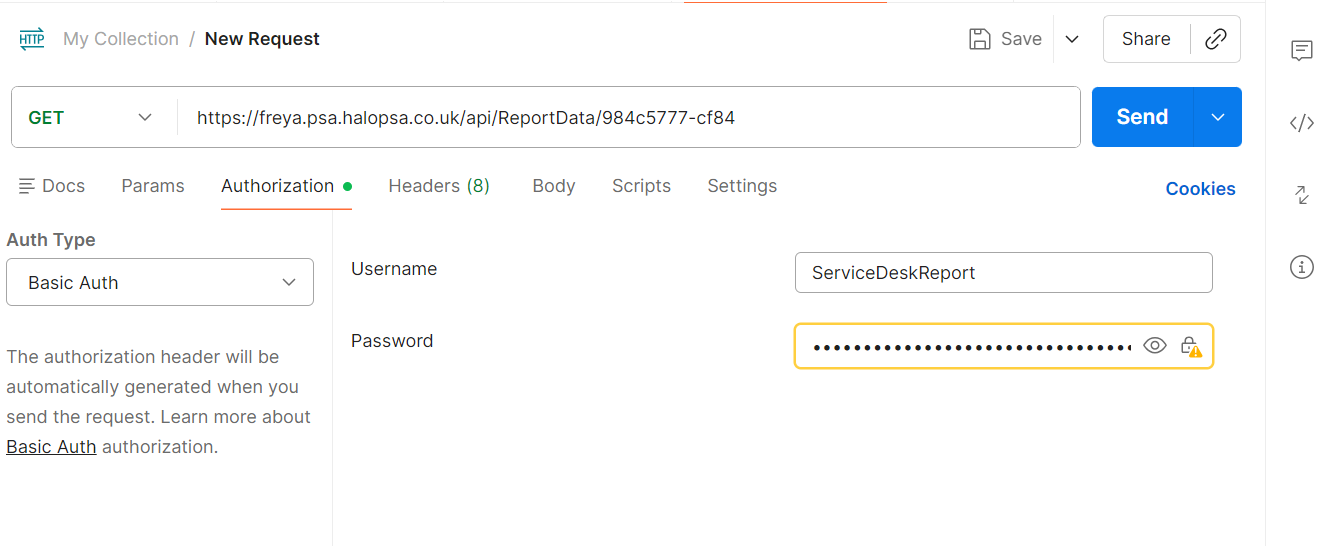
Fig 9. Authentication using the Basic Authentication Method in Postman
Connecting to Power BI
You can send data to your BI tools, this is achieved using the basic authentication method in Power BI. After creating your publish profile and connecting your report (detailed explanation is above), you can then connect this report to i.e. Power BI and send the data into the tool. Once you connect to Power BI, the next time you authenticate, you will only need to give the endpoint, you don't need to enter the credentials again.
First navigate to "File".

Fig 10. File section of Power BI
Then we will get data from the web, as shown below. Go to "Get data" and then "Web".
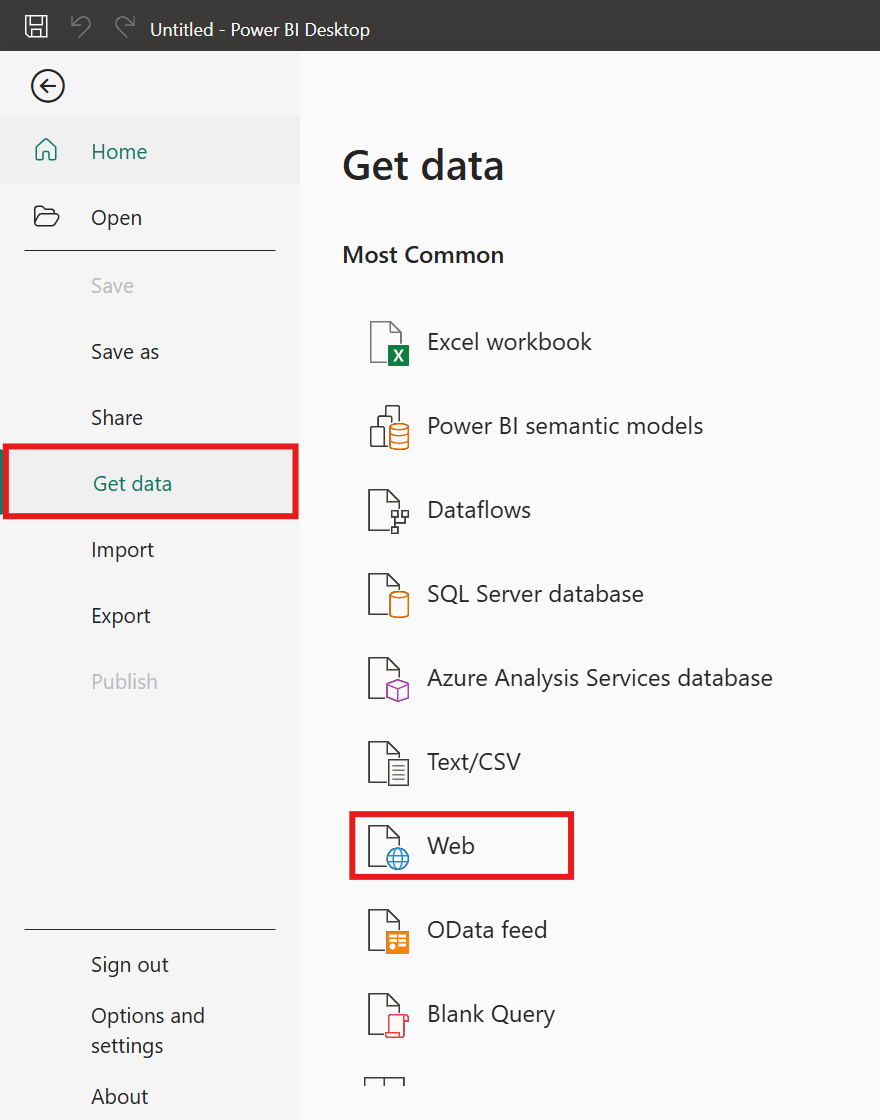
Fig 11. Getting Data from the Web
Basic Auth
To get the URL for the report you will need to have your halo instance URL appended with the report endpoint i.e. https://www.myhaloexample.halopsa.com/api/ReportData/3h53c7b-4f8gtg...
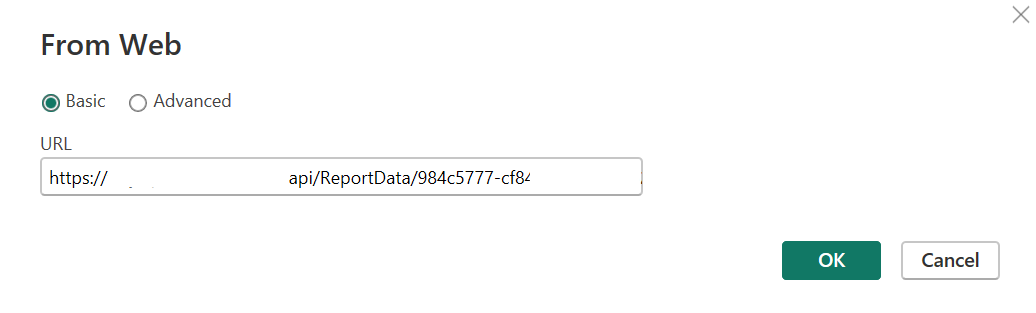
Fig 12. Add the URL for the report
You can then select the Basic method and add in your credentials that you created on the Publish Profile (Your Username will be the Profile Name).
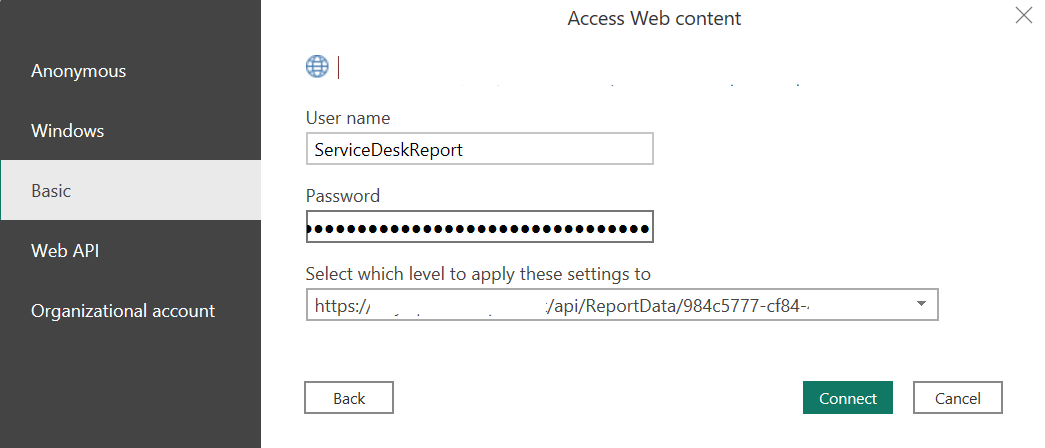
Fig 13. Connecting using the Basic Method
Click Connect, and your data will then appear in a new window of Power BI.
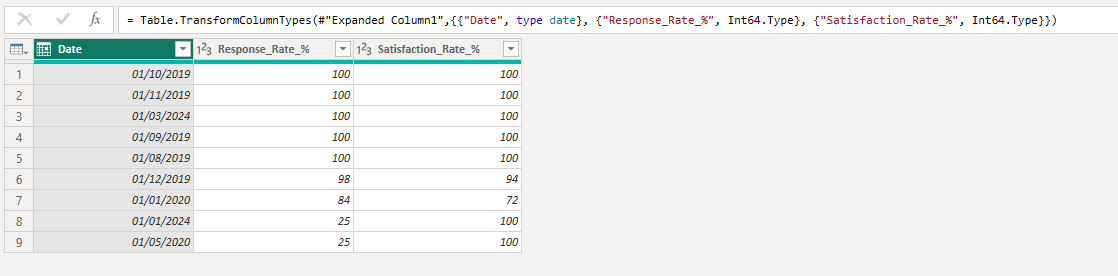
Fig 14. Your Data in Power BI
While Power BI is used as the example throughout this guide, the same Basic Authentication approach works with all major BI tools. Any platform that supports web-based data sources with Basic or Bearer Token authentication, including Tableau, Qlik, Looker, and others can connect to Halo report data using the same Publish Profile endpoint and credentials.
Bearer Token
If you are using the Bearer Token method, once you have selected to "Get Data" from "Web", you will need to switch to the Advanced connection method. Here enter your URL appended with the report endpoint, and add the Headers "Authorization" and "Content-Type".
Against your "Authorization" Header set the value "Bearer" followed by your Bearer Token.
Against the "Content-Type" Header, set the value "Application/json".
Note: These Headers may not be available in the dropdown so may need to be entered manually.
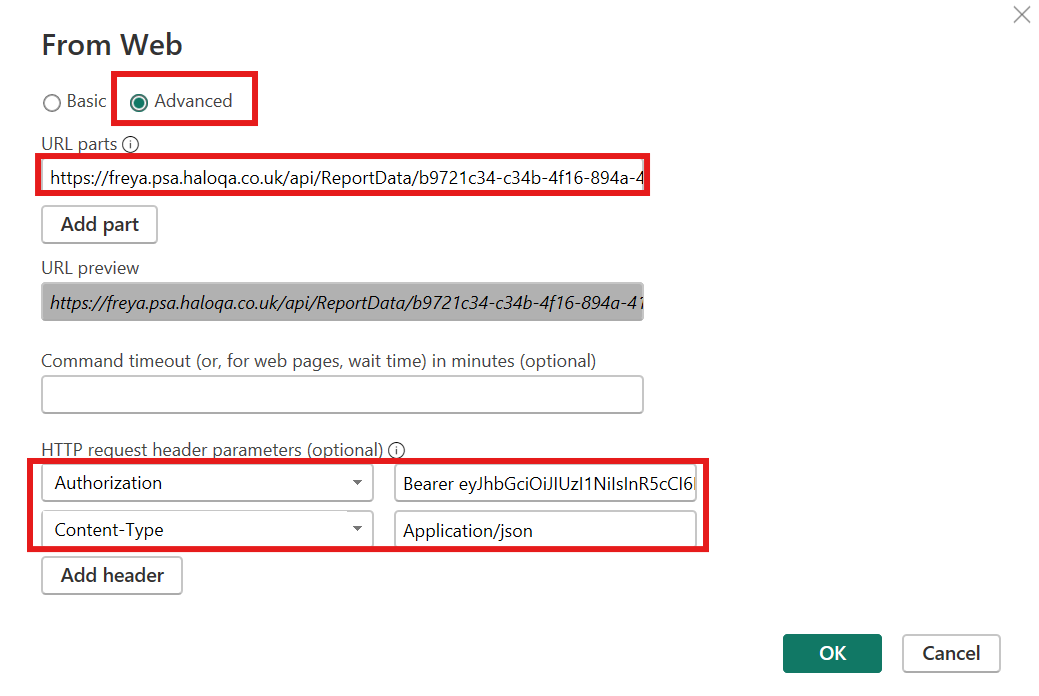
Fig 15. Connecting using the Bearer Token Method
Click "OK", and your data will then appear in a new window of Power BI.
Fig 16. Your Data in Power BI
Upload Scheduled Reports to SharePoint
This feature requires a folder that allows document uploads. You must configure at least one folder mapping that allows document uploads.
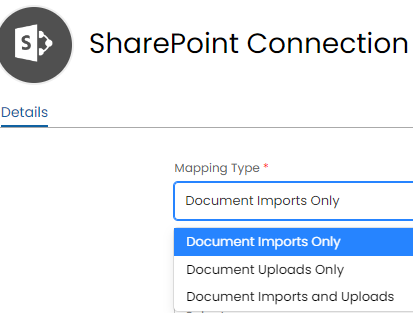
Fig 17. Mapping Types
Once this is done, you can configure the upload by adding a schedule in the scheduling tab of a report.
This now allows you to specify an export type of either "Email", the existing scheduled reports functionality, or "Upload to SharePoint".
With the latter selected you can pick one of your mappings as the upload destination for the reports. The reports can either be uploaded with the current date append to the file name to create a new file each time or replace the existing file.
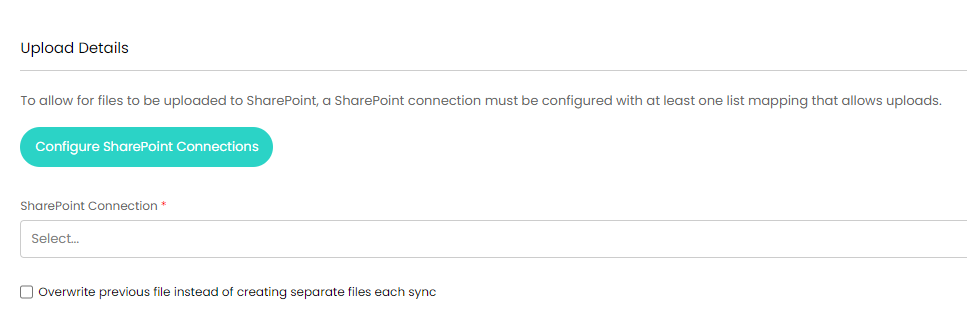
Fig 18. Configuring the SharePoint Connection
Additionally, there is now an @lastrundate variable that can be used in reports. This can be used to filter the reports to just the data since the report last ran. The report will not be filtered during the first run. For example, this could be used:
select faultid, ..., etc from faults where flastupdate > @lastrundate
Now when bringing data from Halo, we can send it to SharePoint (only the relevant data which hasn't synced over yet) then from SharePoint it can go to PowerBI via a SharePoint folder that is found in PowerBI as a data source, when connecting the report from SharePoint.
When it first runs it brings back all data. When it next runs it only brings back data after the last runs run date.