Action buttons for quick access
This article describes the functionality of the action buttons you will see in your Major Incident Console, which provide quick access to essential features such as Updating Impacted Customers, Sending out Communications, Raising Problems, Adding Contributors, and the ability to create tasks. These buttons are designed to streamline the workflow by allowing agents to perform critical actions directly from the major incident console.
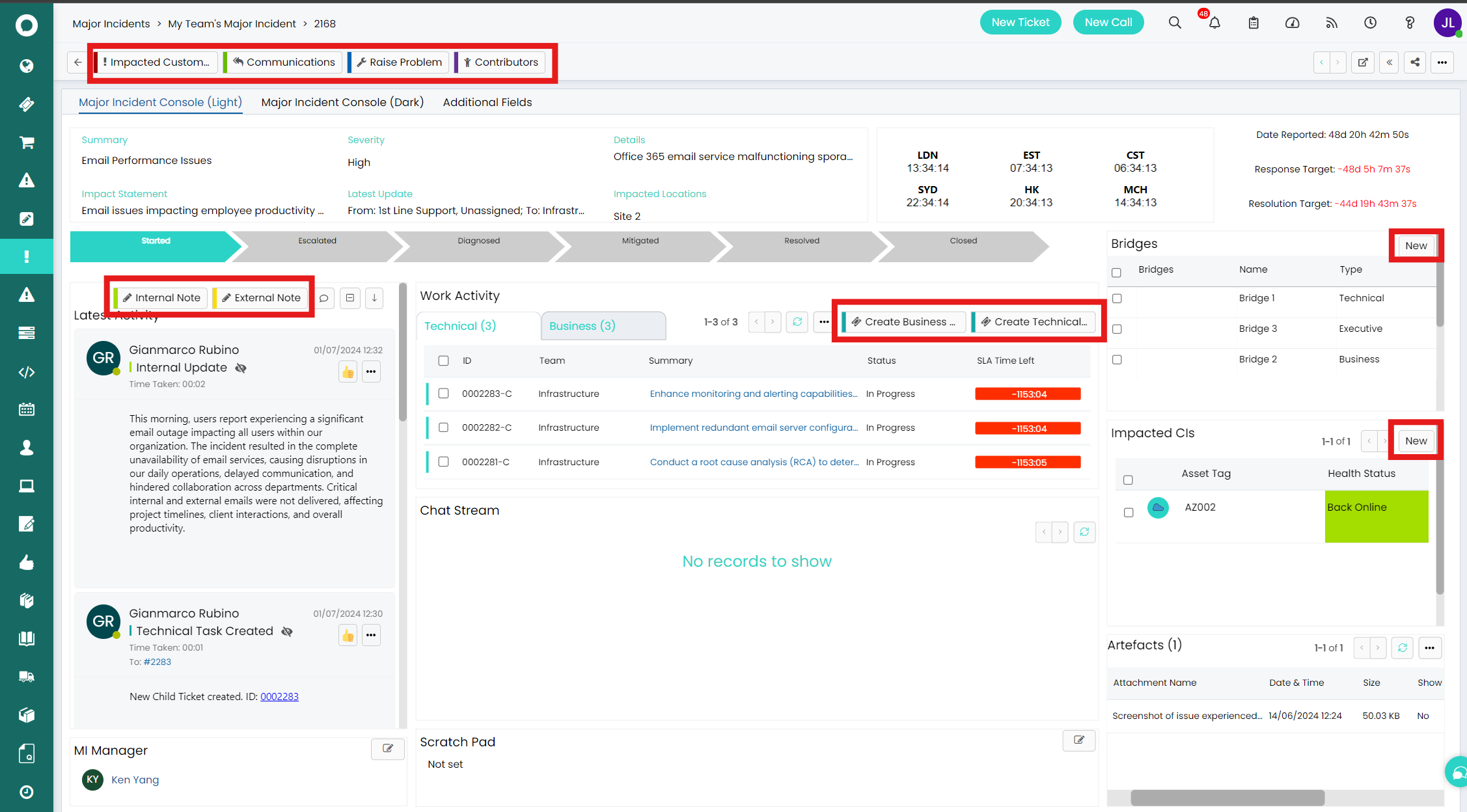
The action buttons are prominently displayed at the top of the major incident console and the top of all console widgets. Each button serves a specific purpose:
Impacted Customers: Clicking this button allows you to view, manage, and update the customers affected by the Major Incident. You can add new impacted customers, update their impact statement and impact type, or remove them as needed.
Communications: This button opens a dialogue box where we can enter communications an agent would like to send out, you can document the type of communication the specific communication is for. It's crucial to maintain regular and concise interactions with both internal and external stakeholders.
Raise Problem: Use this button to escalate the incident to a problem record if the issue requires further investigation. This ensures that recurring incidents are addressed at their root cause.
Contributors: Clicking here allows you to manage the list of individuals or teams contributing to the Major Incident resolution. You can add new contributors or adjust roles as necessary to ensure that all required expertise is involved. Additionally, you can add a note and provide a score on the quality of contribution against a contributor for future Major Incident references.
Create Business Tasks and Create Technical Tasks: These buttons enable you to create and assign specific tasks related to the incident. Whether it’s a business-related action or a technical fix, these tasks help in breaking down the resolution process into manageable steps.
These action buttons are designed to save time by reducing the number of clicks and navigation needed to perform key functions. By utilizing these buttons, teams can streamline their workflow, ensuring that all necessary actions are taken promptly and efficiently.