How To Bulk Update Tickets, Drag and Drop Tickets Into Different Queues and an Explanation of Ticket Symbols
In this guide we will cover:
- Bulk Updating Tickets
- Ticket Symbols
- Drag and Drop Tickets to Re-assign
Bulk Updating Tickets
To bulk select tickets simply select multiple checkboxes at once when viewing tickets in tile or table view.
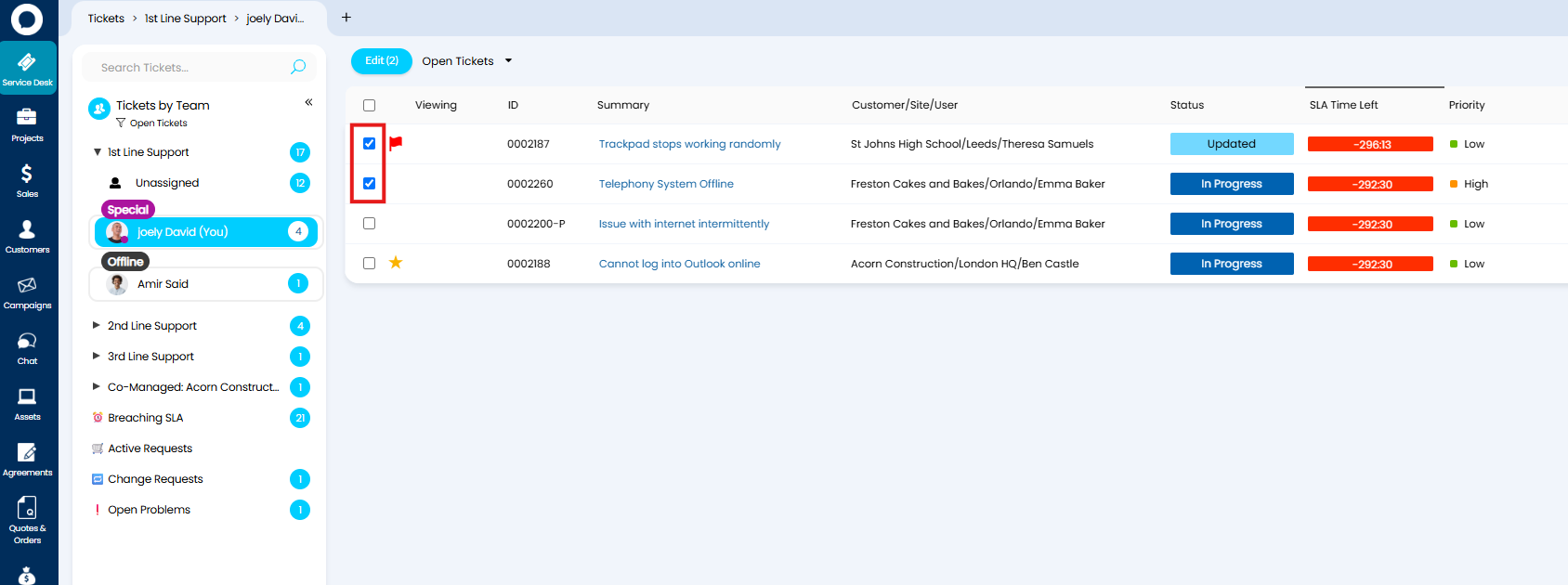
Fig 1. Select multiple tickets in a list
We can now bulk update all selected tickets by hovering over the "Edit" button. Notice the setting "Unflag" is available because we have selected a ticket that is already flagged. If none of the bulk selected tickets had been flagged, then we can mass update them to all be flagged.
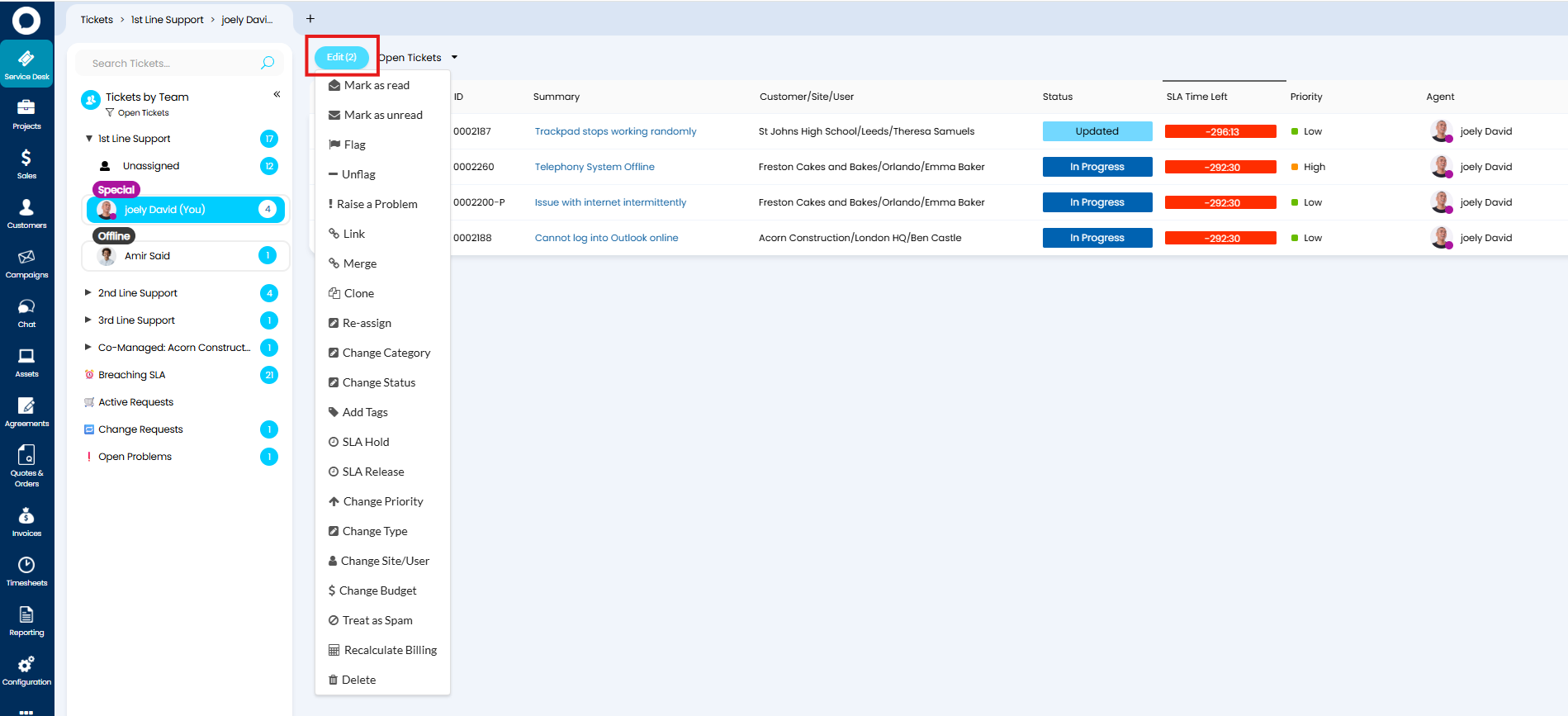
Fig 2. Bulk edit menu
For more information on bulk updating tickets including how to customise the update menu, see our guide here.
Ticket Symbols
When viewing tickets you will notice some symbols against them.
The Flag acts as a reminder for agents and represents that the ticket has been 'flagged'. Tickets can be flagged by choosing the "Flag" option when selected (this setting is shown later on in this guide).
You will notice a star symbol against some of the tickets. This represents that the user has been marked as important. The red 'no entry' symbol represents that the user of the ticket has been made inactive
User's can be marked as important using the permission shown in Figure 3.
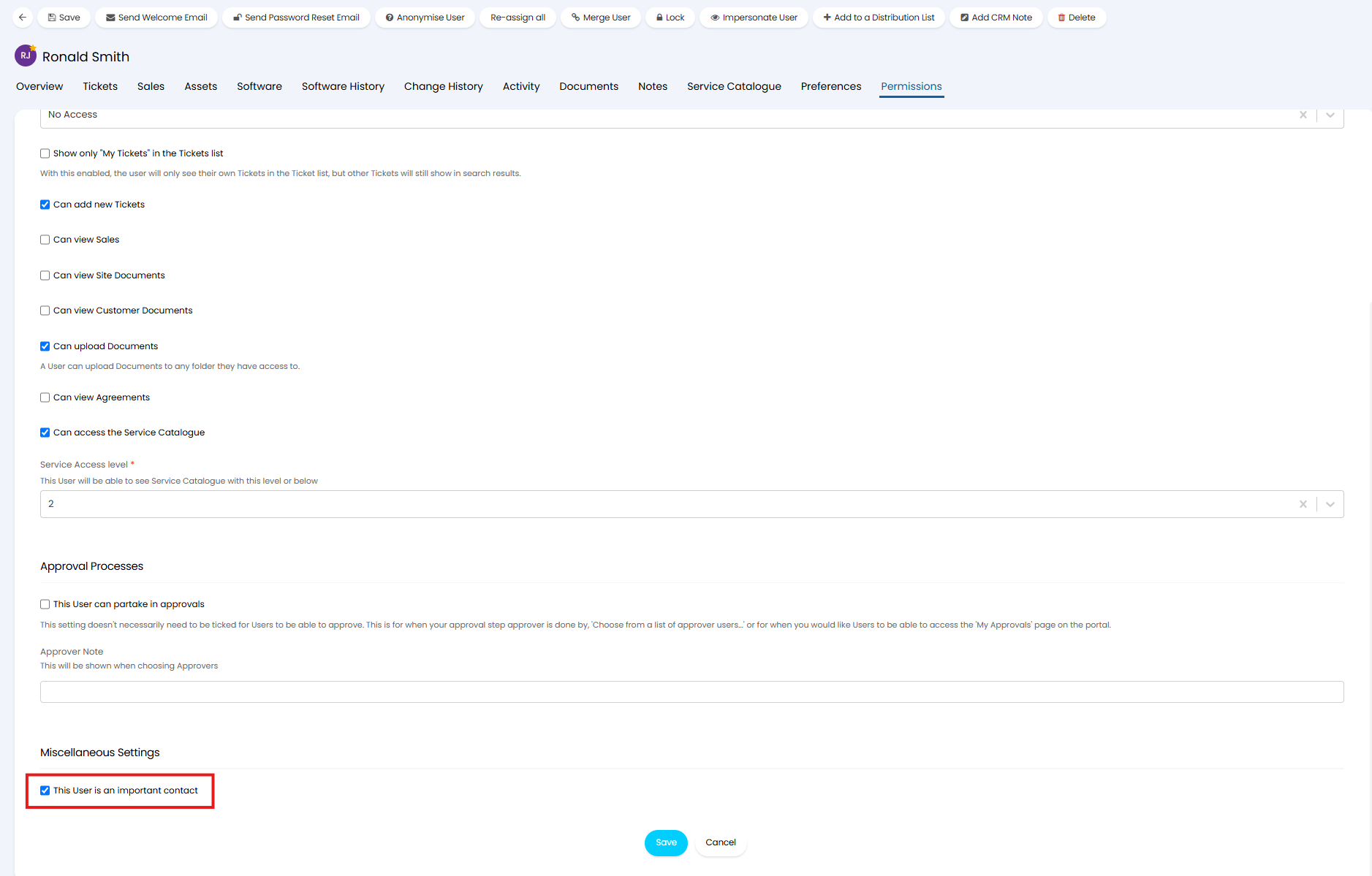
Fig 3. Permission to mark user as important
Users can be made inactive from the details tab, shown in Figure 4.
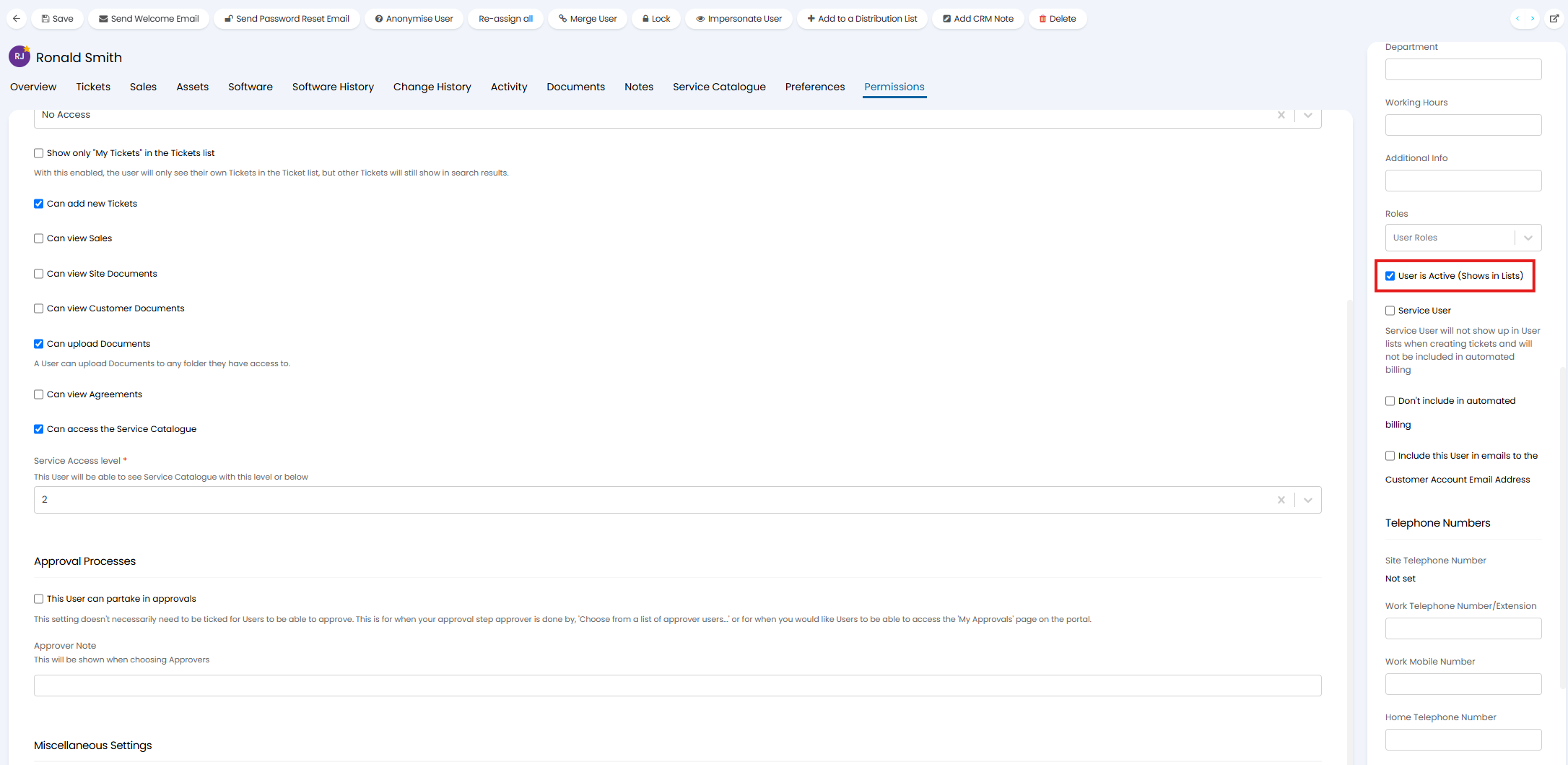
Fig 4. Setting to mark user as active/inactive
Drag and Drop Tickets to Re-assign
When tickets are bulk selected they can be dragged and dropped to re-assign them to another agent/team, as shown in Figure 5.
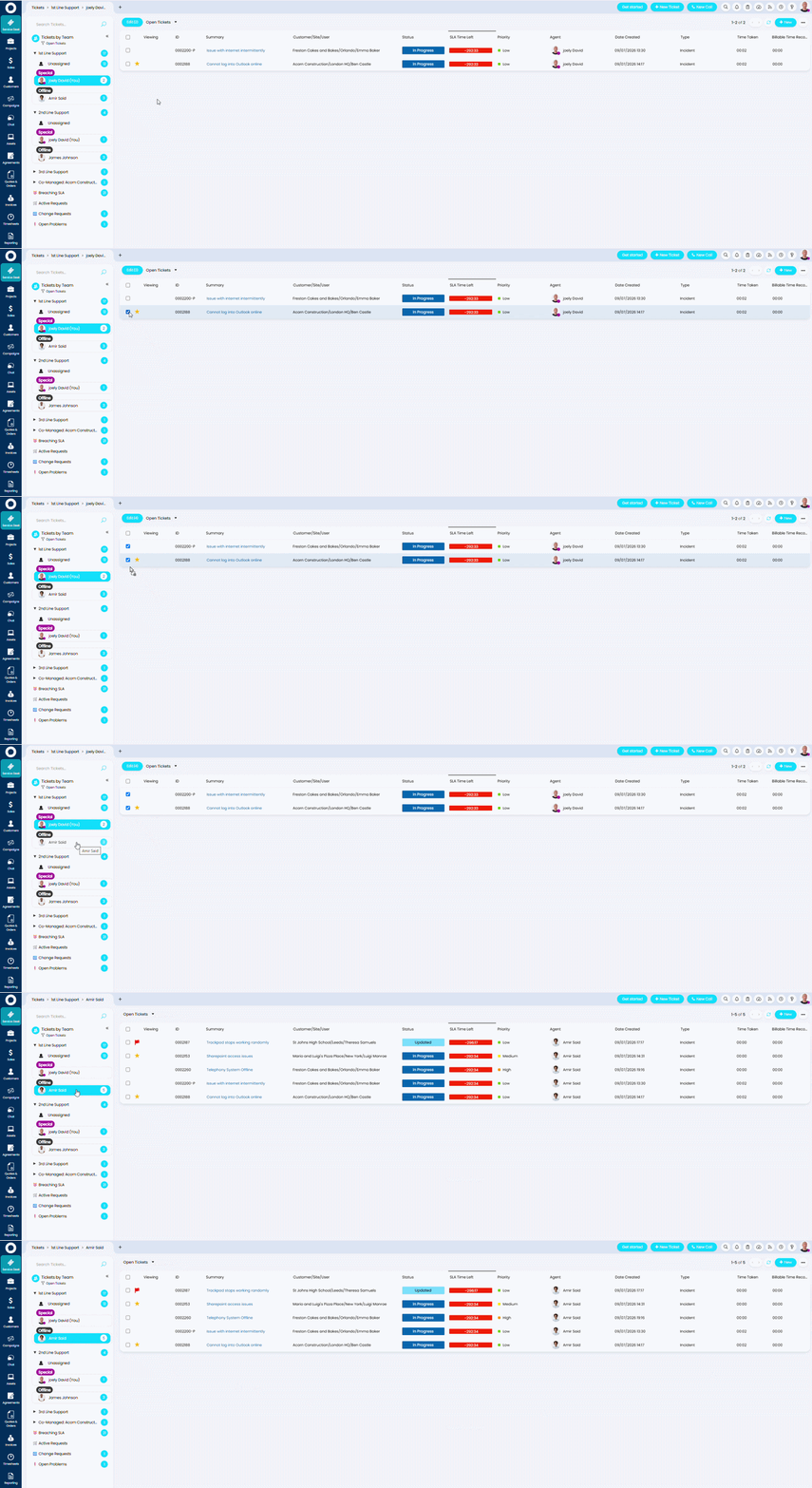
Fig 5. Drag and Drop to re-assign