Drag and Drop Tickets Onto a Calendar to Create Appointments
- appointment
- assign
In this guide we will cover:
- Creating the Dashboard
- Configure the Appointment Action
Halo can be configured to allow you to drag and drop tickets onto a calendar to schedule an appointment for the ticket with the chosen agent. This is a sea level operation of the Pax8 Academy, making it a known and proven way to deal with appointment scheduling. This feature can be used to automatically create appointments based on the agent assigned to the ticket, the end-user of the ticket, and the estimated time set on the ticket.
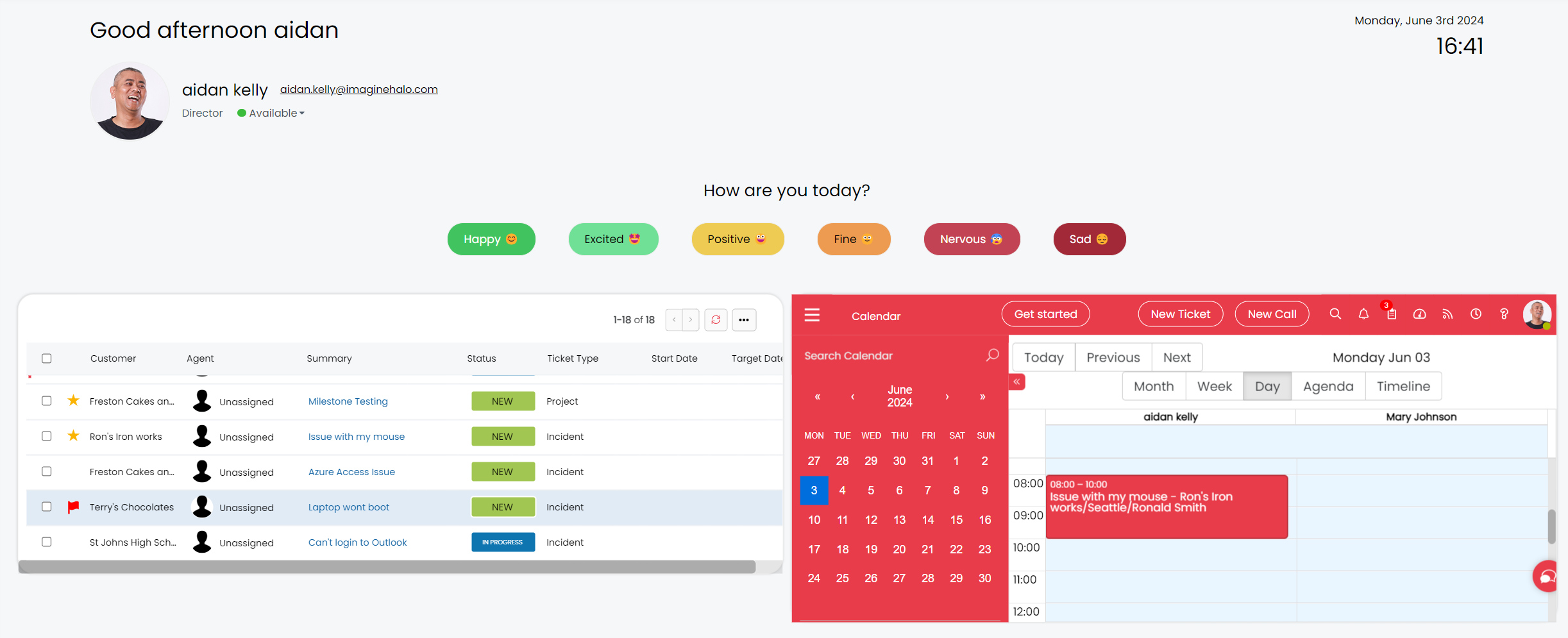
Fig 1. Calendar and ticket list on a dashboard
To set this up you will need to create a dashboard with the appropriate widgets, agents can then use this dashboard to drag and drop tickets onto the calendar.
Creating the Dashboard
To configure the general drag and drop list and calendar, first navigate to Configuration > Reporting > Dashboards.
Create a new dashboard with Dashboard Type - In-App, and the Calendar can be Iframed by creating the following Widget on the Layout tab of the Dashboard:
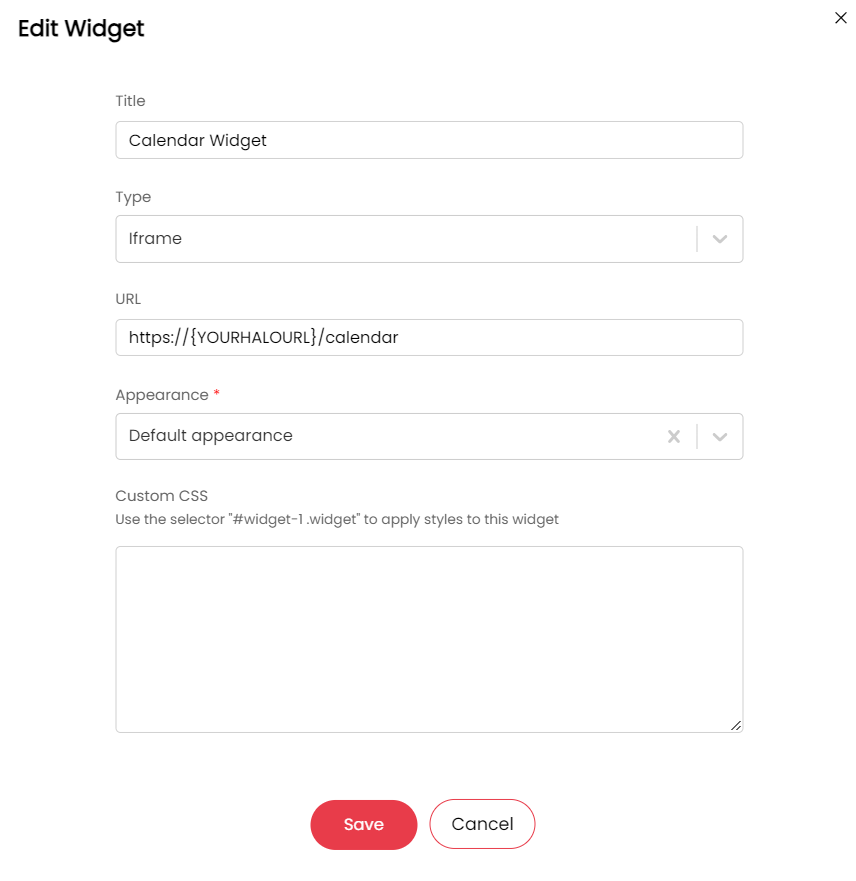 Fig 2. Creating the Calendar widget
Then create a ticket list widget. You can create a list based on a view (You could use a list view, so that each agent with access to this dashboard has a unique list of i.e. their own tasks, which can be dragged and dropped onto the calendar: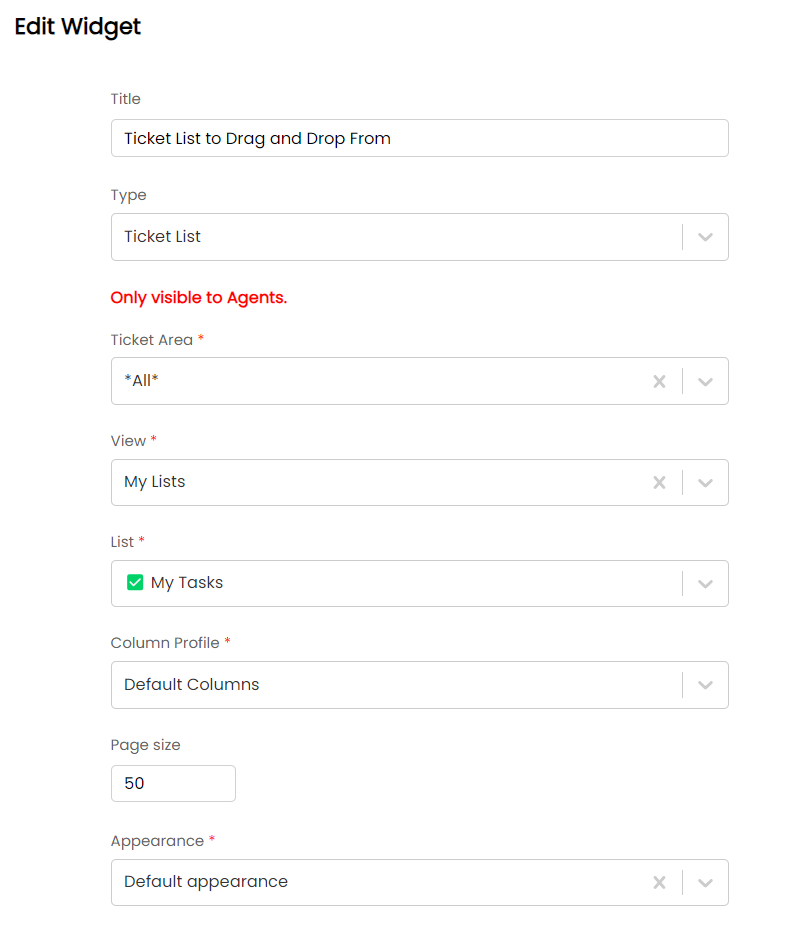
Fig 3. Creating the Ticket list widget
Determine the duration of the Appointment
Within Configuration > Calendars & Appointments you can set a checkbox for appointments created via drag and drop being, which will set the estimated time assigned to the ticket as the length of the appointment.

Fig 4. When creating appointments with drag and drop from a Ticket list use the estimate for the appointment length
Now when you drag and drop tickets onto the calendar, the appointment will be created for the duration of the 'estimated time' of the ticket.
To make sure your ticket type has the estimated time field, you can enable the option shown in Figure 5 from within Configuration > Tickets > Ticket Types.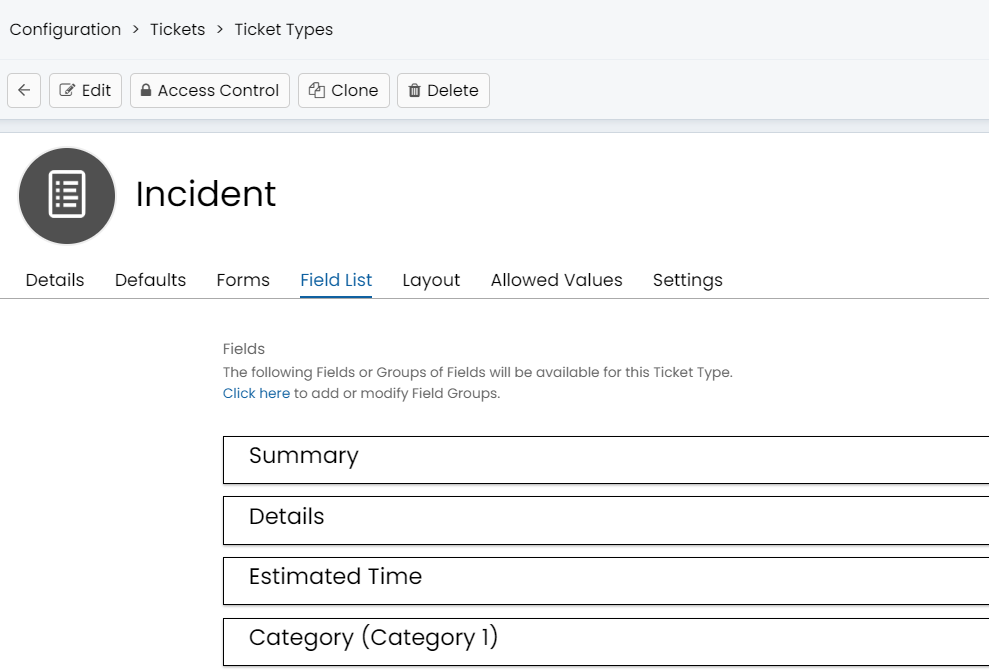 Fig 5. Estimated Time field in the Field List of the Ticket Type
You can also edit the estimated time field within the ticket type to make it visible and mandatory on the agents new ticket screen: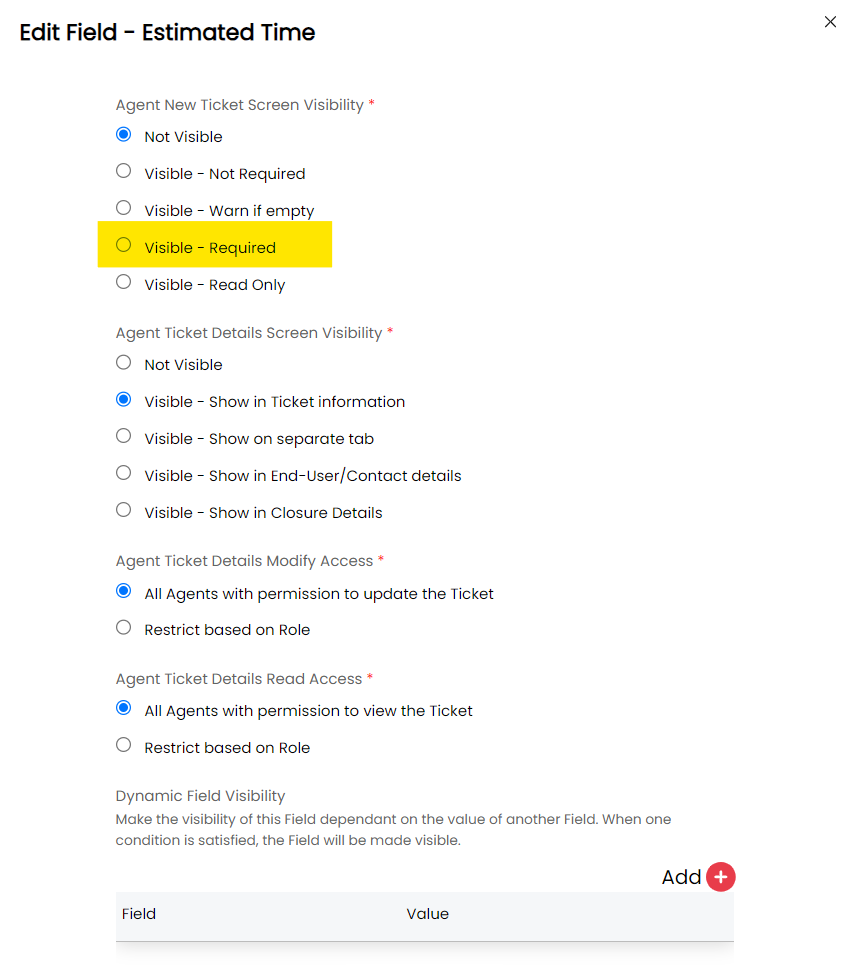
Fig 6. Making the Estimated Time field mandatory
Configure the Appointment Action
When setting up the appointment actions, which will be visible on the ticket, another useful setting is to have the "Default Completion Duration" be set to the appointment duration:
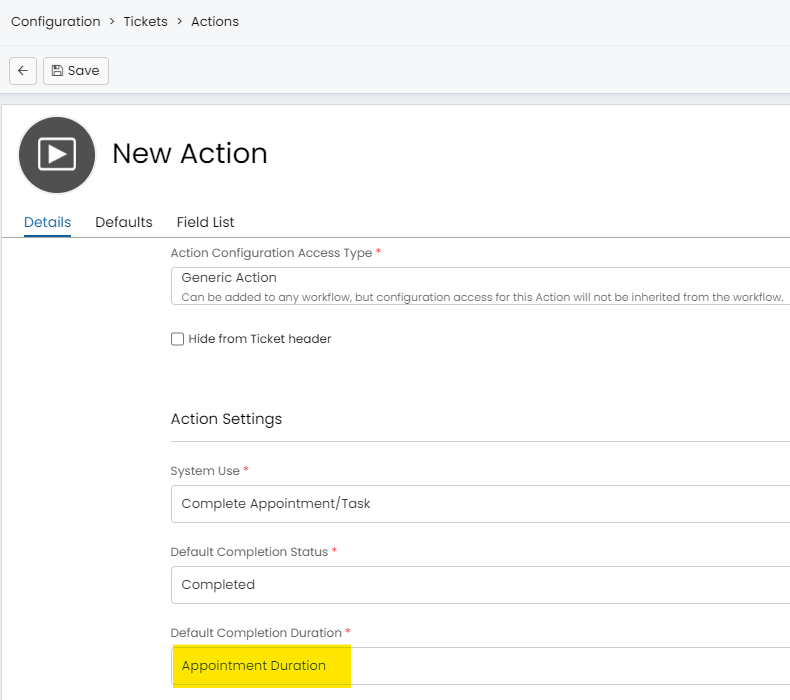
Fig 7. Setting the Default Completion Duration on the action as the length of the appointment
This means when the appointment is completed from the ticket, the entire duration of the appointment is set as the time taken for the action.
Now, when agents navigate to this dashboard they will be able to select a ticket and drag it onto the calendar to create an appointment.