Connected Instances
- instance
- connecting Halo instances
- ticket list
- connected instance
In this guide we will cover:
- Creating an Application
- Linking a Connected Instance
- Creating a Linked Ticket List
- Using a Linked Ticket List
- Email identification
Connected instances can be used to allow agents from two separate Halo instances to work on the same ticket list. In this example, we are joining a PSA instance to an ITSM instance, although the type of Halo product does not matter here.
Note: Agents in the secondary instance will need login credentials to the primary instance.
Creating an Application
The first thing is to create an API application in instance A (PSA). Go to Configuration > Integrations > Halo API > Applications. Give it a name, and set the authentication method to "Client ID and Secret (Services)". Make note of the client ID and secret, as the secret will be hidden upon leaving the page.
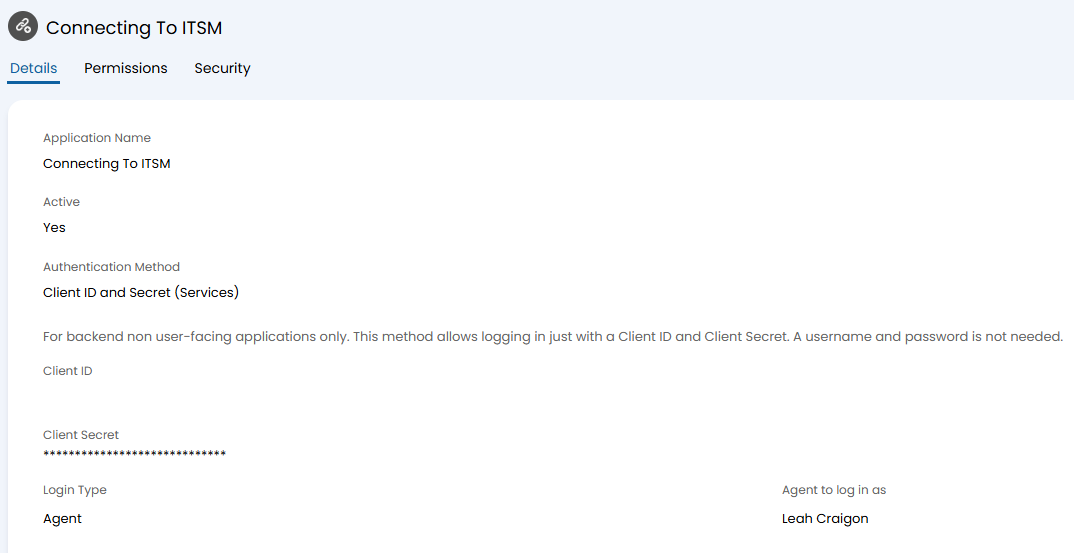
Fig 1. Creating the API application
In the "Permissions" tab, set the permissions. The below is recommended/required.
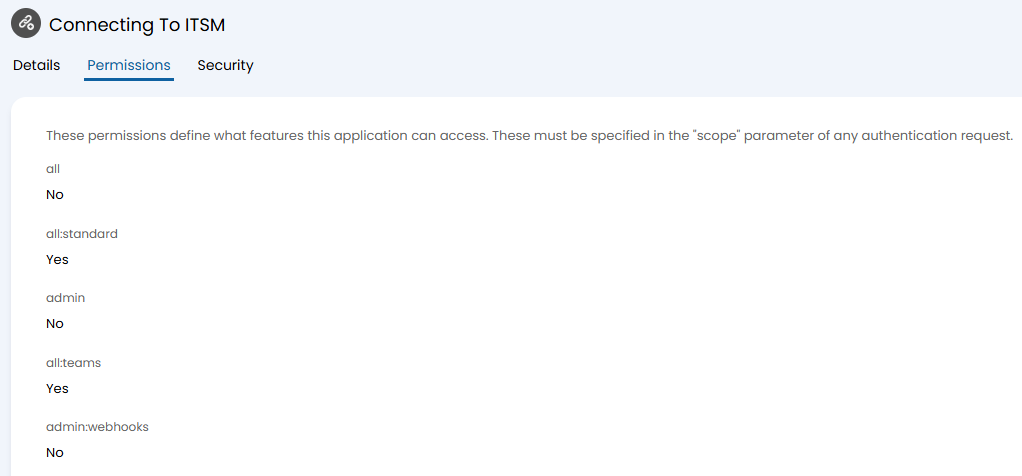
Fig 2. Setting permissions on the application
Save the application.
Linking a Connected Instance
Now we can go to instance B (ITSM). In Configuration > Integrations > Halo API > Connected Instances, create a new connected instance. Name this, and paste the client ID and secret from instance A here.
You will also need to enter a API and an authorisation URL. For the API URL, enter instance A's URL with "/api" at the end. For the authorisation URL, enter instance A's URL with "/auth" at the end.
The Halo tenant ID can be obtained by going to the URL with "/api/instanceinfo" at the end. Click the "Pretty print" checkbox for easier reading, and you can find "tenant_id" in the list here.
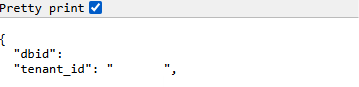
Fig 3. Obtaining the tenant ID
Save the connected instance. To test if the instances are connected correctly, click the "Test" button at the top to check the configuration.
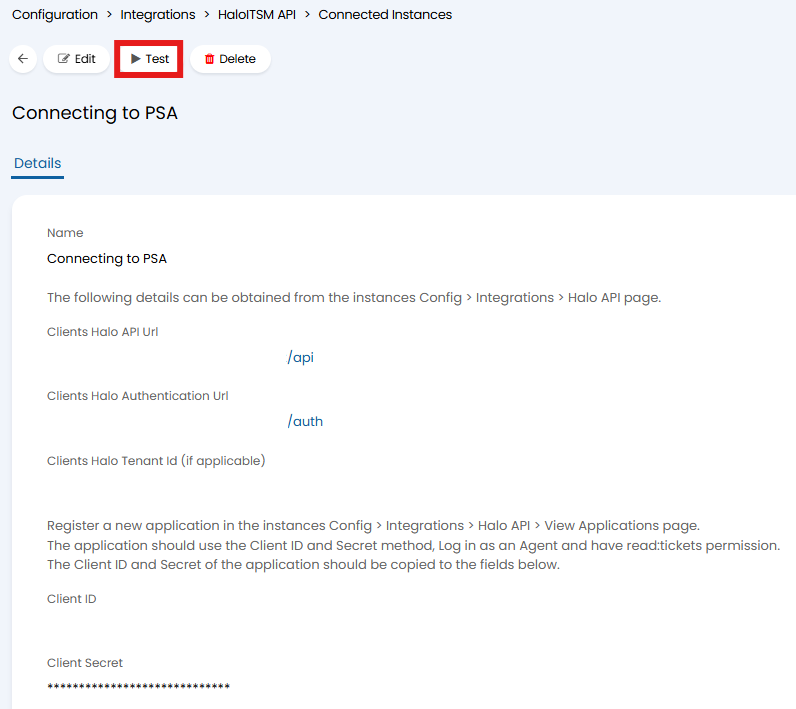
Fig 4. Setting up a connected instance
This will then show a popup indicating it has succeeded. If not, follow the instructions on the error popup to troubleshoot.
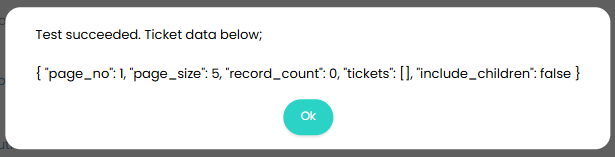
Fig 5. Testing popup
Creating a Linked Ticket List
Upon successful configuration, you can now create the ticket list to show between both instances. In instance A, create a standard ticket list, and set the filters of what should appear within it.
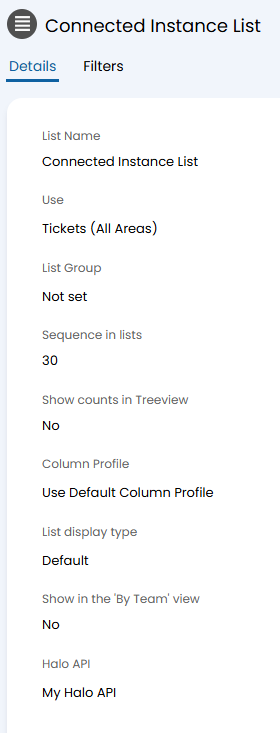
Fig 6. Creating a ticket list in instance A
In instance B, create a ticket list. Set the "Halo API" field to the connection with instance A, and then select the list ID/name in the field dropdown.
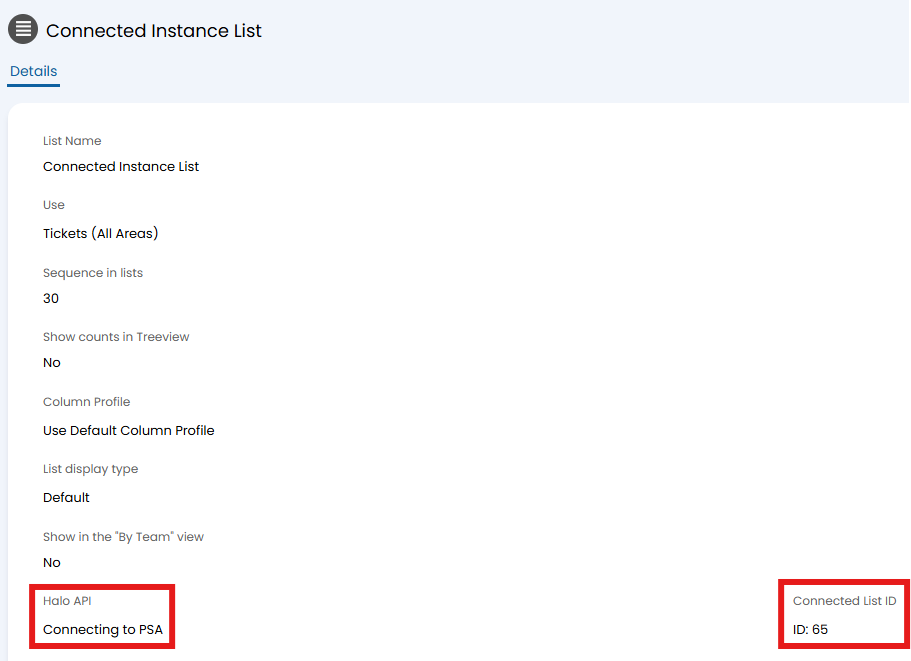
Fig 7. Linking a ticket list in instance B
Using the Linked Ticket List
You have now created the ticket list. It will appear in both instances within the "My Lists" view.
It will appear like normal in instance A.
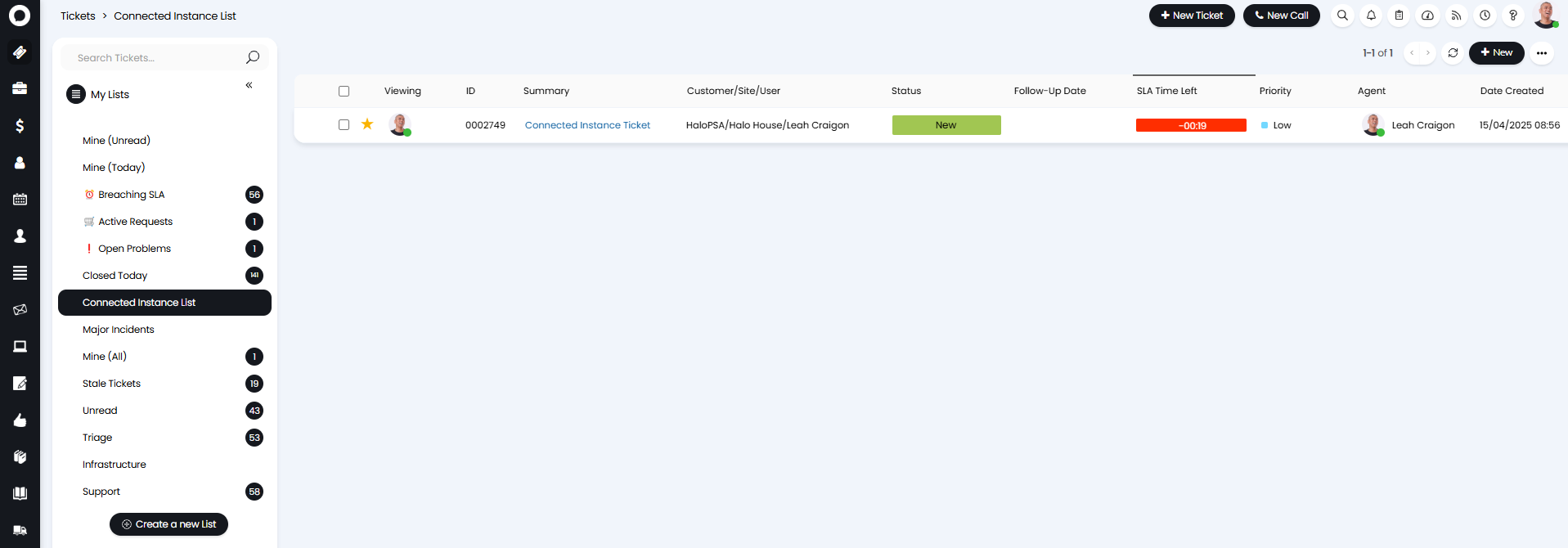
Fig 8. Ticket list in instance A
Within instance B, you will also see the same ticket list.
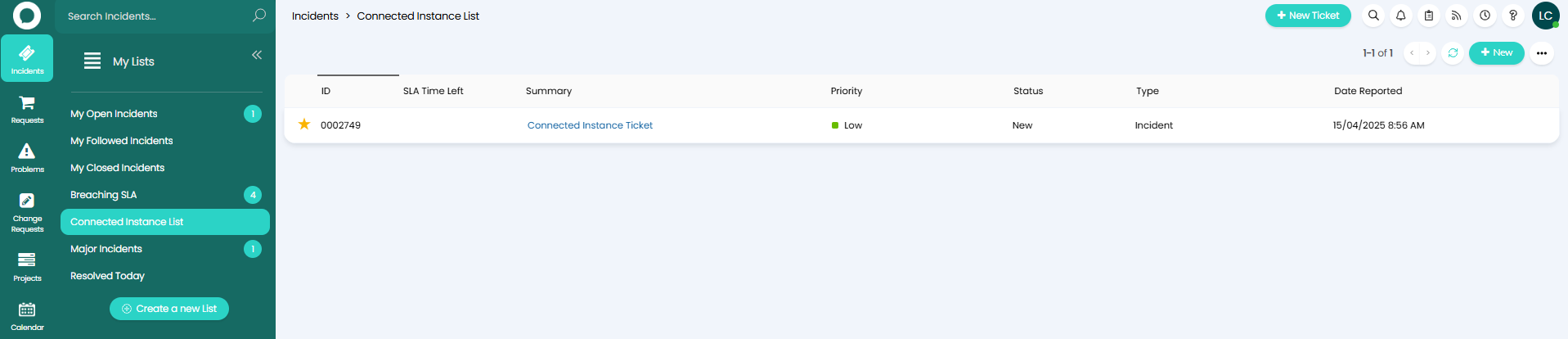
Fig 9. Ticket list in instance B
Upon clicking on a ticket within the list in instance B, the login screen will open in a new tab.
Agents in instance B will need logins for instance A, and upon logging in, the ticket will open in instance A.
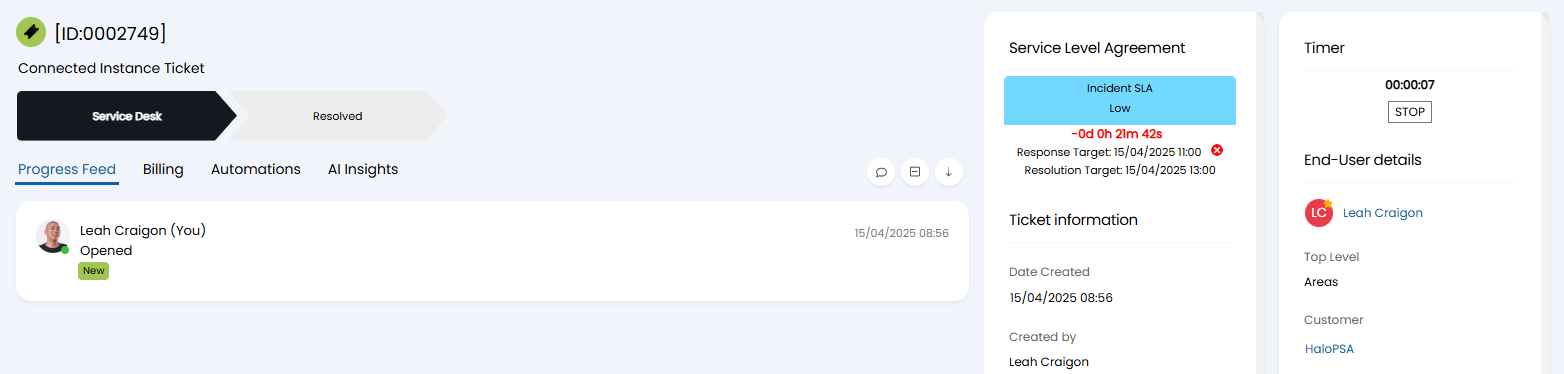
Fig 10. Clicking into ticket
Email identification
An identifier can be set for each of your connected instances which will be included in outgoing emails. To enable this, head to Configuration>Email>General Settings, and select the "Add an instance identifier to the subject of Outgoing Emails". Once enabled, a text field will show allowing you to set your identifier for the instance. This allows you to identify and control where emails are sent and received from.
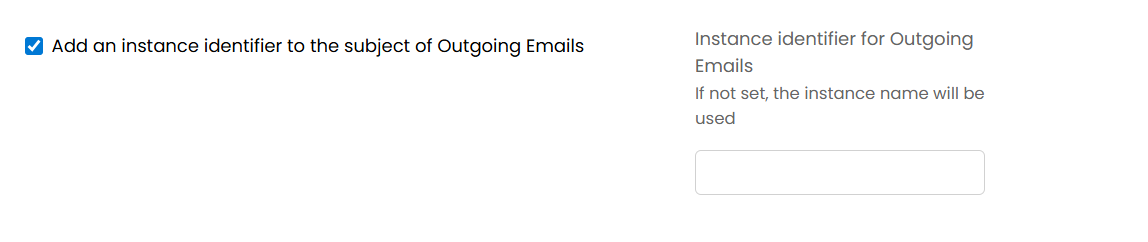
Fig 11. Adding an instance identifier