Billing Templates
- billing rules
- automatically create agreement
In this guide we will cover:
- What are Billing Templates?
- Creating Billing Templates
- Apply a Billing Template to a Customer
- Updating Billing Templates
Admin Guides:
What are Billing Templates?
Billing Templates are used to easily apply a set of billing rules to multiple customers. If you have multiple customers that follow the same billing rules a single billing template can be created and applied to all applicable customers, rather than having to add all the rules to each customer one by one.
Billing templates can also be leveraged to apply a baseline of rules customers should be billed in line with, then customer specific rules can be applied on top of this. Making the billing rule setup process faster. This is also useful when customer billing rules need updating, as you will only need to update the billing templates rather than update bulling rules for every customer.
Creating Billing Templates
The video below covers how to create billing templates. Skip to 18:00 to see this.
Disclaimer - We cannot guarantee video content uses the most up to date version of Halo. Please ensure to check the publish dates of videos. For the most up to date information please refer to the information in this guide.
To create a new billing template head to Configuration > Billing > Billing Templates > New.
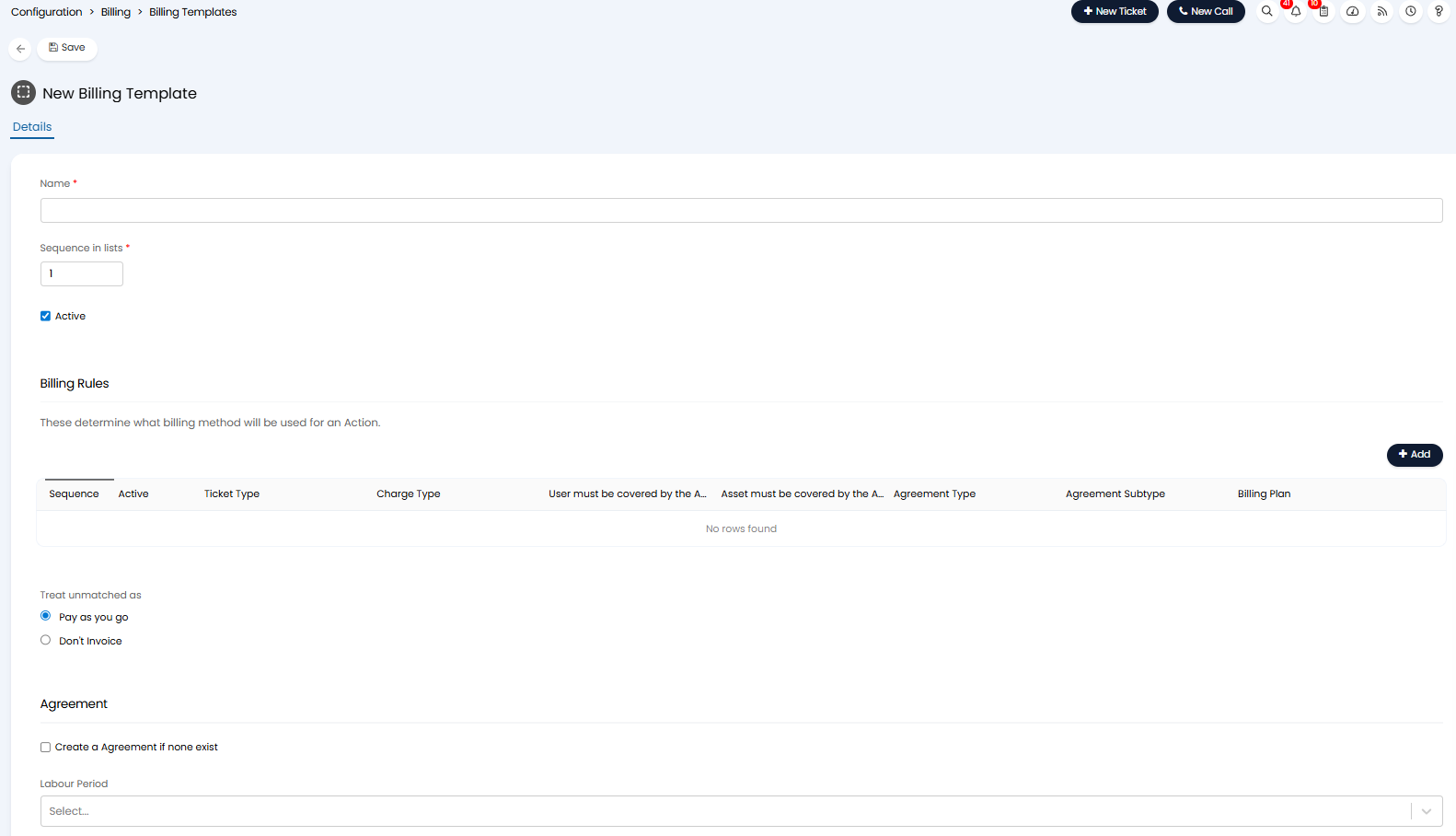
Fig 1. New Billing Template
First, give the template a name and mark if it is active or inactive.
Note: Marking templates as inactive allows you to import/store billing templates that are no longer in use so you can keep the legacy data in your database without having to delete the template. Useful for auditing.
Then you can add in the billing rules that are applied as part of this template. The billing rules added here will be added to all clients that this billing template is added to.
In the figure 2 example billing rules are added to the template such that all remote support is not charged, all other work is charged at a pay as you go rate.
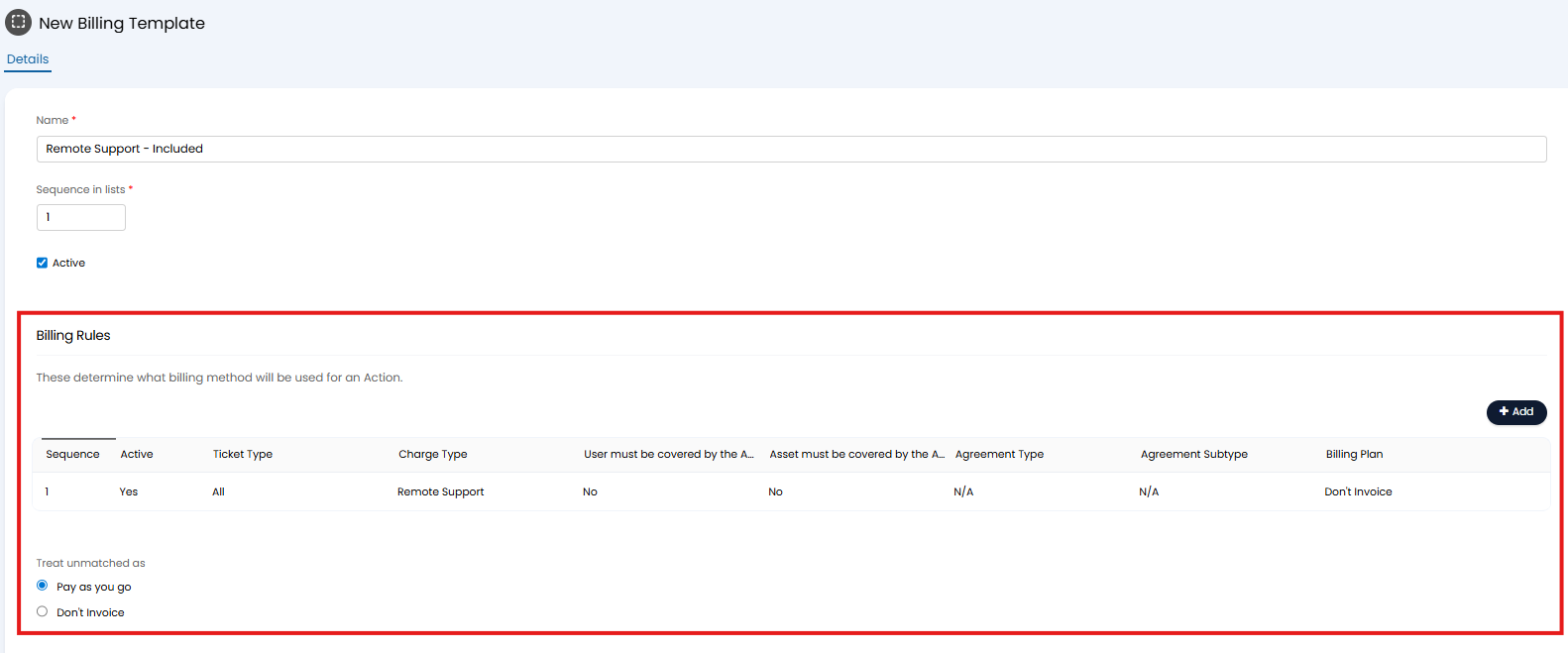
Fig 2. Billing Rules added to billing template
There are some additional configuration options available for the template. The options will be applicable based on the billing rules you are using.
Agreement
Settings here control which agreement billing rules (rules with Billing plan set to "Contract") are added to clients.
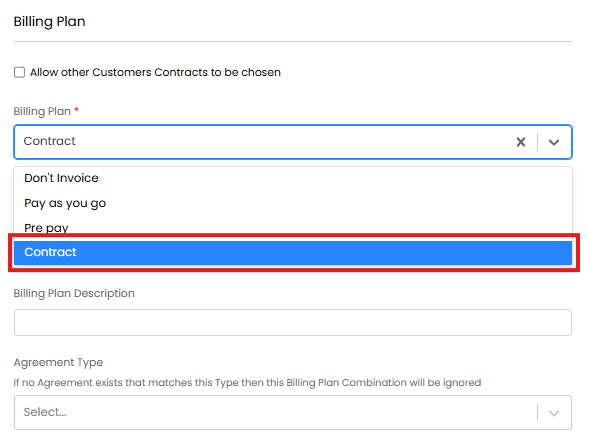
Fig 3. Agreement billing rule
In the figure 4 example, a billing rule has been added to the template that specifies all "On site Support" will be covered by a contract with the "Gold Package" type.
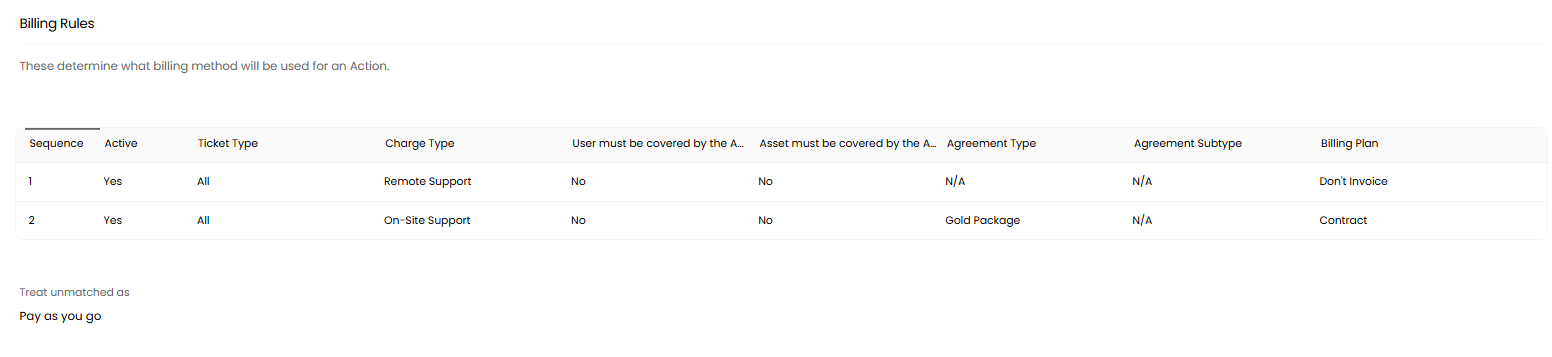
Fig 4. Billing rules on Billing Template
However, as not all clients will have agreements of this type. Clients that have agreements, but those agreements are not of this type, will not have this billing rule added, as it does not apply to them.
The setting "Create a Agreement if none exist" can be enabled to automatically create agreements for Clients that do not have any agreements. Allowing you to bulk create standardised agreements for clients that do not yet have any agreements created.
Note: Only enable this if all clients this billing template is being applied to should have at least one agreement.
Create a Agreement if none exist - When enabled agreements will automatically be created for clients that have no agreements. Clients that have agreements already will not have an agreement created, even if this agreement does not match the type/subtype specified in a billing rule.
Configure the Auto Created Agreements
When "Create a Agreement if none exist" is enabled, some additional configuration options will be available. These options will determine the configuration auto-created agreements will have.
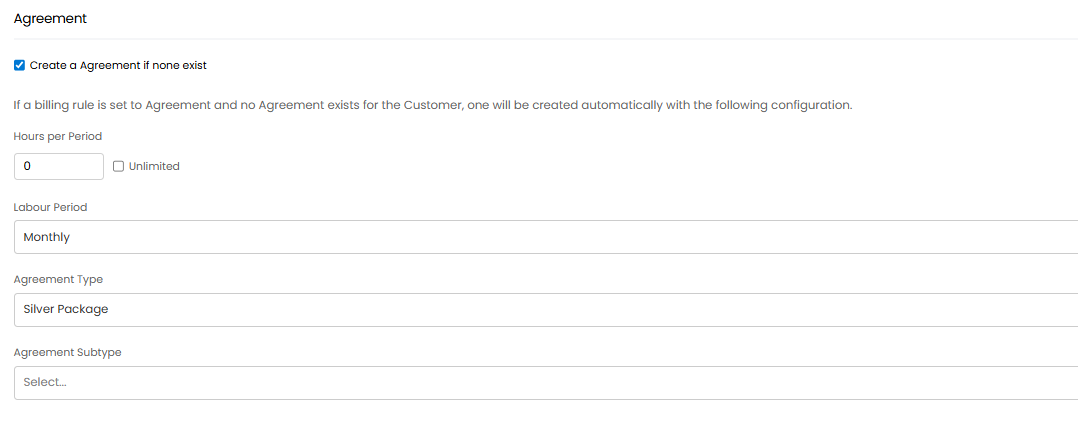
Fig 5. Configuration for Auto-Created Agreements
Hours per Period - Here, choose the number of hours per period the agreement will have.
Labour Period - Here, choose the labour/billing period that the agreement will have.
Agreement Type - Here, choose the agreement type that the agreement will have.
Agreement Subtype - Here, choose the agreement type that the agreement will have.
Recurring Pre-pay
Here, you can configure recurring pre-pay to be automatically added to clients who are using this billing template. Allowing you to apply recurring pre-pay to clients quickly in bulk. Recurring pre-pay will only be added to clients if a pre-pay billing plan is included in the billing rules for this template.
The settings here mirror the recurring pre-pay settings against clients. For details on configuring these settings checkout our pre-pay guide.
Pre-pay Auto Top-up
Here, you can configure pre-pay auto top-up to be automatically added to customer who are using this billing template. Allowing you to apply pre-pay auto top-up to clients quickly in bulk. Auto top-up pre-pay will only be added to clients if a pre-pay billing plan is included in the billing rules for this template.
The settings here mirror the pre-pay auto top-up settings against customers. For details on configuring these settings checkout our pre-pay guide.
Apply a Billing Template to a Customer
Once you have created your billing template, you will need to add this to each customer.
To add a template to a single customer, navigate to Customers > select a customer > Billing tab > Billing rules, in the "Billing Template" select the template you would like to apply.
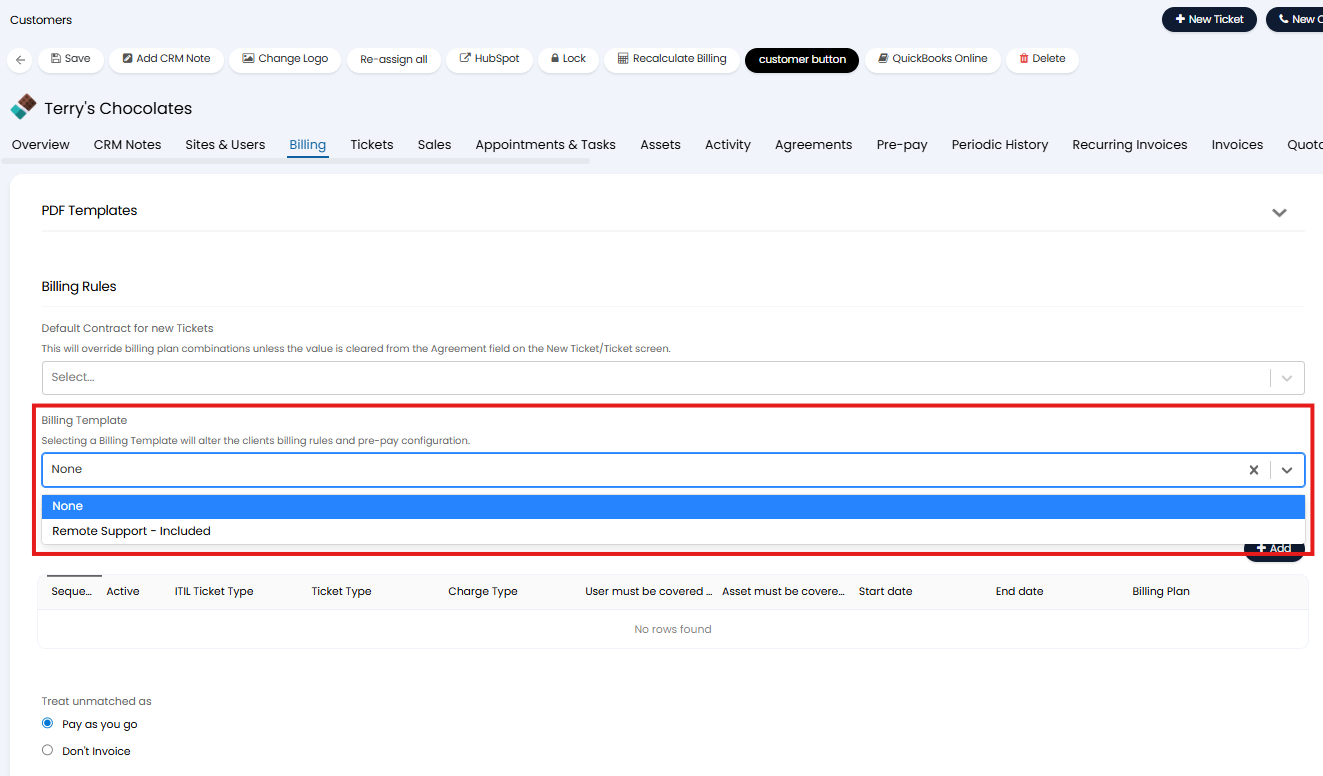
Fig 6. Applying the Billing Template to a Client
After the billing template is selected, it will automatically refresh that section of the page and add the new billing rules and any other configuration added to the template. You will see these rules right away. Make sure to save the page after applying.
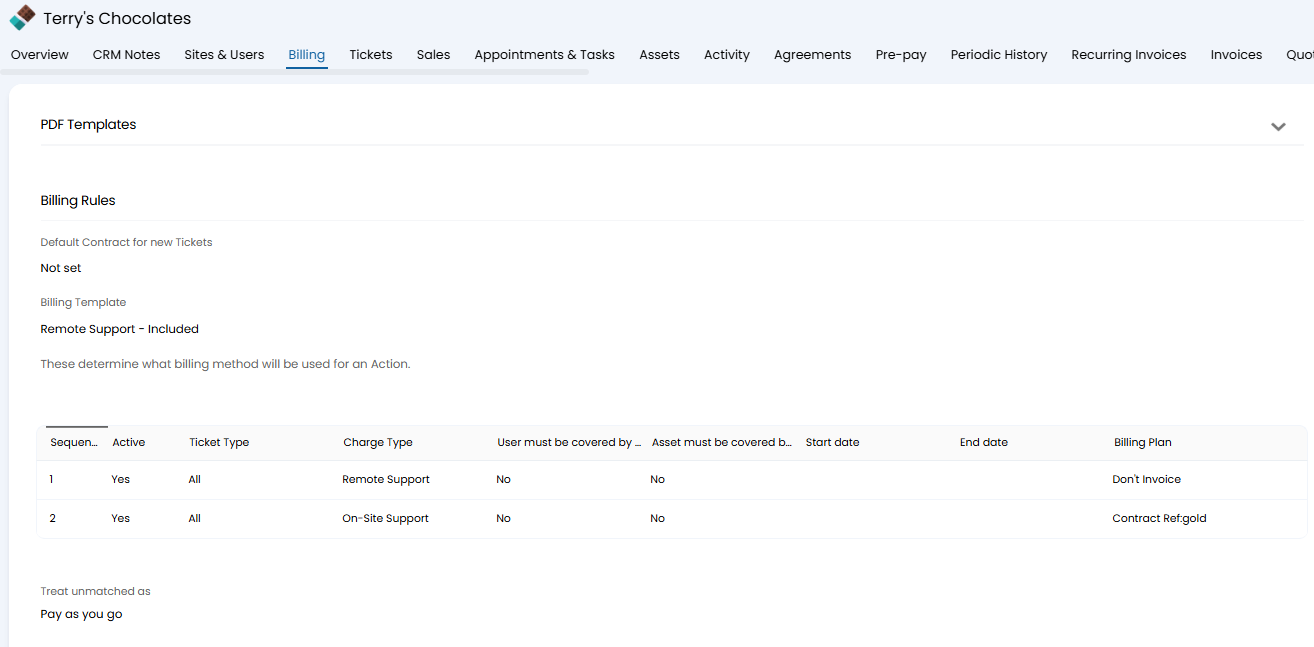
Fig 7. Applying the Billing Template
How rules are applied on versions prior to v2.246
When a billing template is applied to a customer existing billing rules will be removed, the template will overwrite these.
Once you have applied the billing template you can add additional billing rules for the client, however, keep in mind if you later update the billing template, and apply this update to all customers, any ad-hoc billing rules added to customer will be removed. More information on this in the section "Updating Billing Templates".
Once a template is applied this will save the billing configuration to the customer. Removing the template from the customer will not remove the configuration provided by the template.
Note: If you apply a billing template by mistake you can remove the billing configuration by creating a new billing template with no configuration and applying this to the customer.
Applying Templates on v2.246+
From v2.246+ you can choose if existing billing rules for a customer are kept or not when a billing template is applied.
To control how templates are applied head to Configuration > Agreements > toggle "Billing template apply mode".
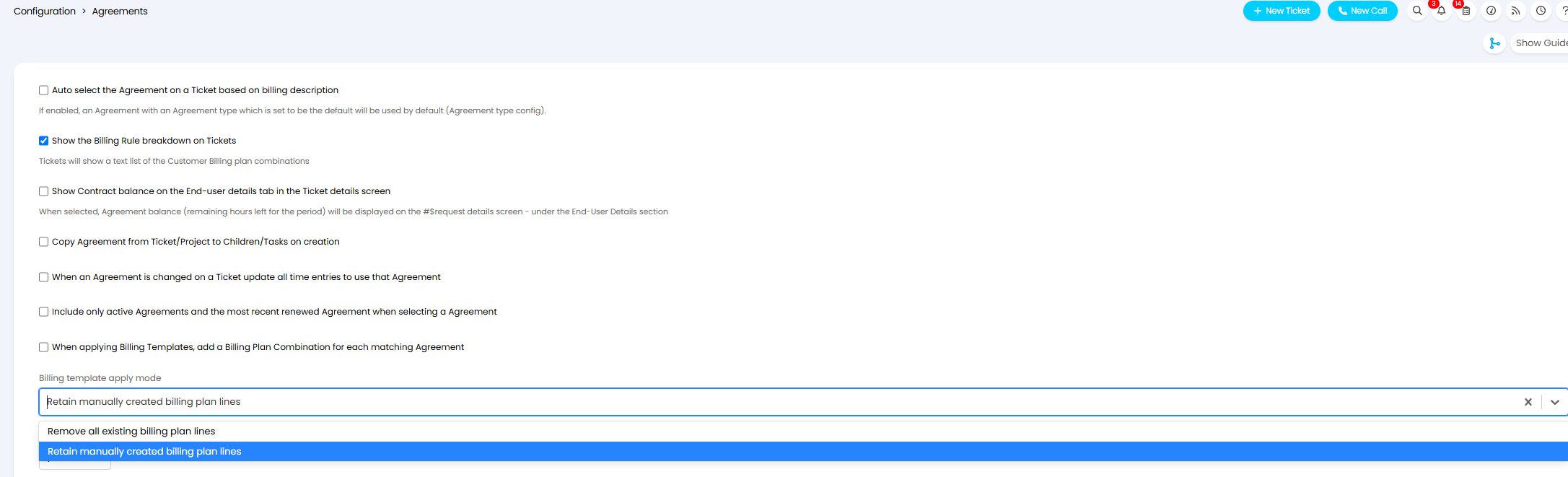
Fig 8. Billing Template apply mode
Remove all existing billing plan lines - When billing templates are applied, existing billing rule lines will be removed and replaced with those on the billing template, so the customer's billing lines will directly reflect those on the billing template. This is the behaviour used on versions prior to v2.246+. Used when the billing template is used as the source of truth for the customers billing rules.
Retain manually created billing plan lines - When billing templates are applied, existing billing rule lines will be kept, lines from the billing template will be applied on top of (in addition to) the existing lines. Useful for bulk additions to customers' billing rules, without wiping their existing rules e.g. when adding a single new rule. When using this method, the sequence of the rules will be determined by the sequence of the existing billing rules and the sequence of the rules within the billing template. New rules will be added in line with their sequence on the billing template.
Use the first option if billing templates will directly reflect the billing rules a customer should have. And you only need to add ad-hoc rules to a customer after the template is applied.
Use the second option if billing rules are already configured for your customers and you would like to add new rules in bulk without impacting existing rules.
Keep in mind if "Treat unmatched as" is set on the template, this will always override the same billing setting on the customer regardless of the billing template apply mode chosen.
Once a template is applied this will save the billing configuration to the customer. Removing the template from the customer will not remove the configuration provided by the template.
Note: If you apply a billing template by mistake you can remove the billing configuration by creating a new billing template with no configuration and applying this to the customer.
Set a Default Billing Template
You can choose a billing template to use as the default billing template in your instance. This template will be applied to all newly created customers automatically when new customers are created. Useful when all/the majority of your customers use the same billing template as this provides a quick and easy way to apply billing rules to customers.
To set the default billing template, head to Configuration > Users > General Settings, 'Customer Default Billing Template'.
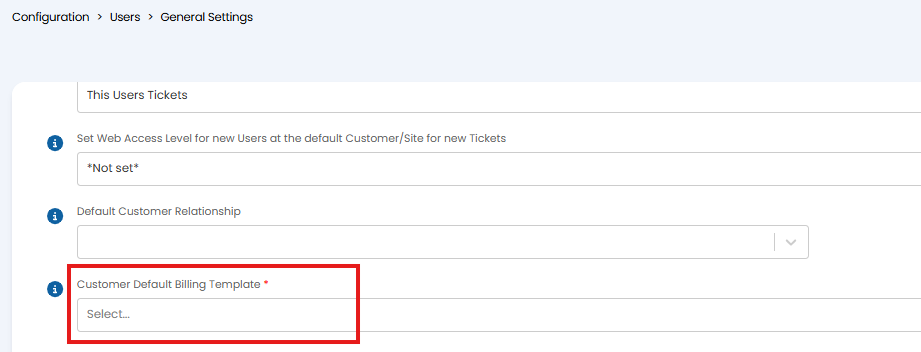
Fig 9. Customer Default Billing Template
Bulk Apply Billing Templates
Billing templates can be applied to customers in bulk using a csv import. Useful if all clients are already created and you have a large number of clients that require a billing template to be applied. For information on how to do this see our dedicated guide Bulk Applying Billing Templates.
Updating Billing Templates
Updates to billing templates can be applied to customers after they have already been assigned the template. Allowing you to easily make updates to the billing rules of customers using this template.
Once a billing template has been assigned to at least one customer, and changes have been made to the template since assigning the template, an "Update Customers" button will be available against the template.
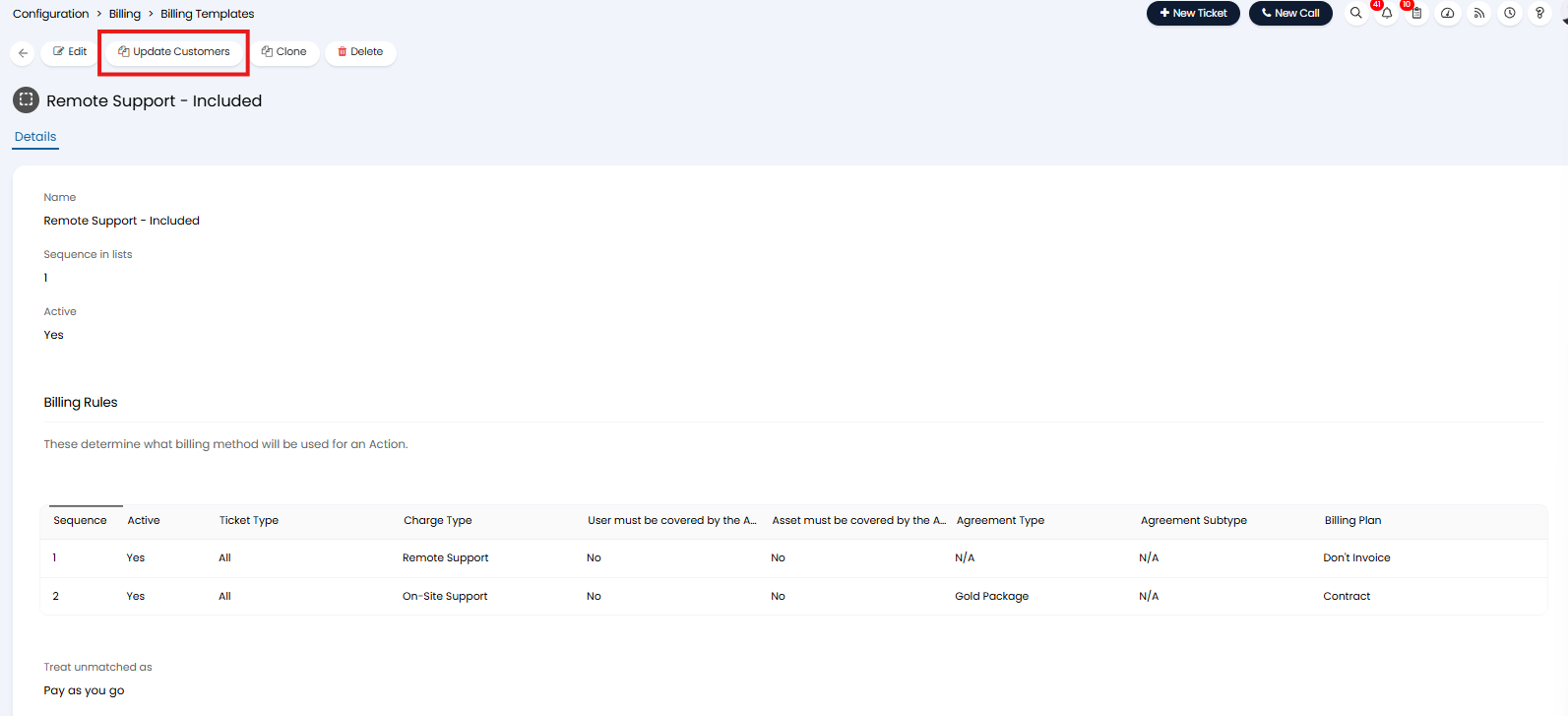
Fig 10. Update Customers Button
When this is used, this will update all the billing rules (and other template configuration) for customers that are assigned this template.
This will override any existing billing configuration for the customer, rather than applying the changes on top of existing configuration. This means if you have made any ad-hoc changes to a customer's billing rules after applying the template, these will be removed and replaced when the update is run.
If you would like to keep the billing configuration of chosen customers, remove the "Billing Template" assigned to the customer, then when the update runs this customer will not be updated. Removing the billing template from a customer will not remove the configuration provided by the template.