Bulk Applying Billing Templates
- Billing Plan Combinations
- Billing Templates
- Bulk Update
- billing rules
In this guide we will cover:
- What are Billing Templates?
- How to Bulk Apply Billing Templates to Customers
Related Guides:
What are Billing Templates?
Billing Templates are used to easily apply a set of billing rules to multiple customers. If you have multiple customers that follow the same billing rules a single billing template can be created and applied to all applicable customers, rather than having to add all the rules to each customer one by one.
In this guide we will cover how to apply billing templates to your customers in bulk once the template is created. For information on creating the template itself, checkout Billing Templates.
Billing templates can be applied to customers in bulk using a csv import. Useful if you have a large number of clients that require a billing template to be applied.
How to Bulk Apply Billing Templates to Customers
To bulk apply billing templates to customers you will need to complete a csv import to update client information.
First you will need to obtain the customers and sites csv template for the import. Head to Configuration > Users > General Settings > Import Customers and Sites.
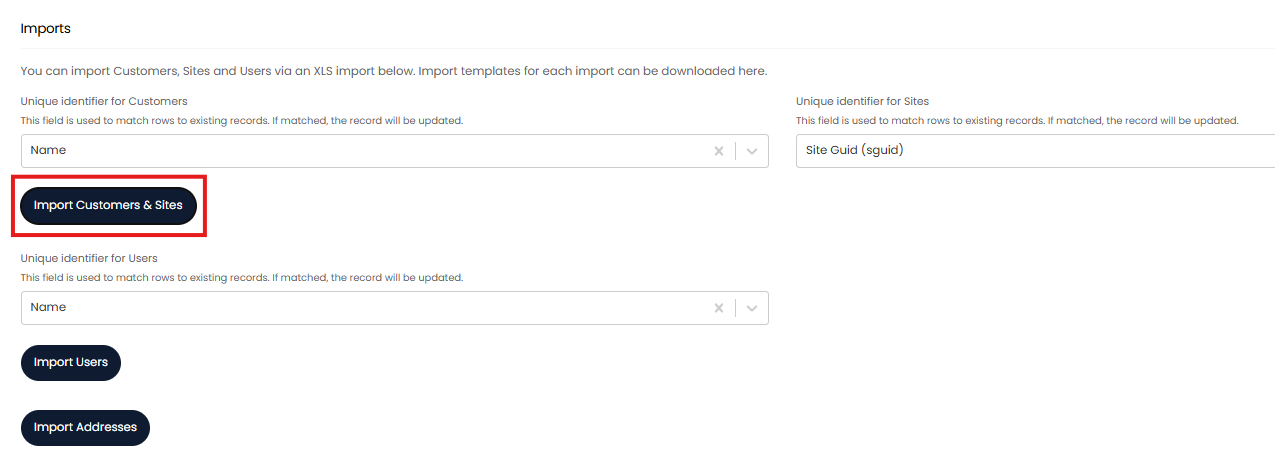
Fig 1. Import Customers and Sites
A pop up will show for you to select a file to import. Cancel out of this pop up and you will be able to select "Download Samples".
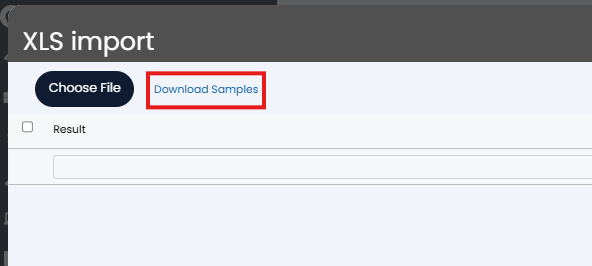
Fig 2. Download Samples
This will download a zip file containing all the templates required for csv imports in Halo. Unzip this file and open up the file called "Clients and Sites".
Here, you will need to populate the template with the unique identifier for each customer that you would like to update. The unique identifier is set under Configuration > Users General settings.
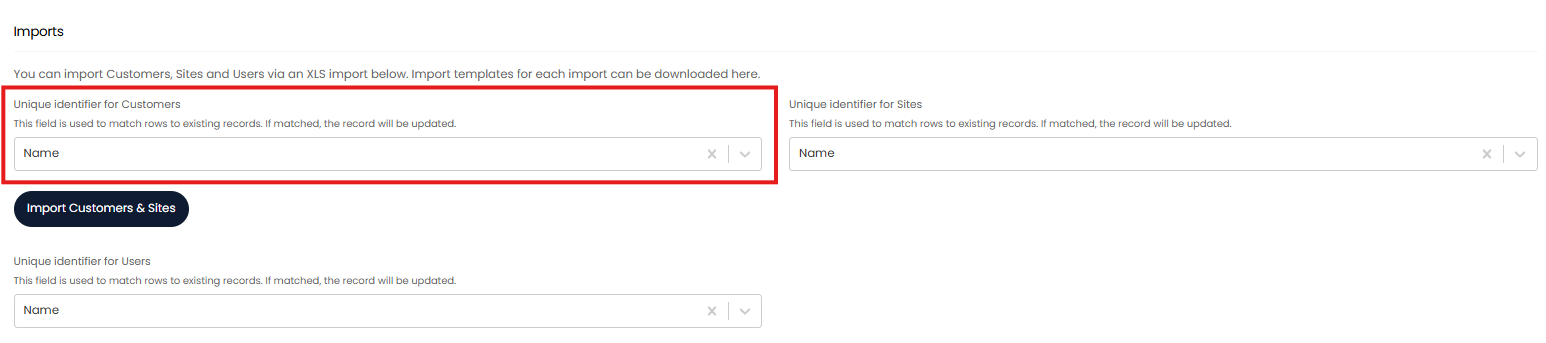
Fig 3. Set unique identifier for customers and sites
Ensure you add the unique identifier on the template under the correct column. If using "Name" as the unique identifiers you will need to enter the customer name in the "CustomerName" column.
Note: Do not change the name of any columns on the template, this direct the data to the correct location in Halo.
Now add a new column to the template called "billingtemplate_id" (this must be exact). Here, enter the ID of the billing template you would like this customer to have.
The id of each billing template can be seen in the URL when editing a billing template.
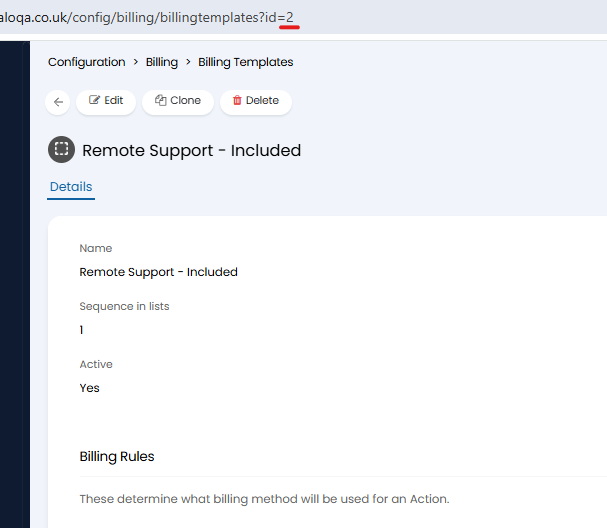
Fig 4. ID of Billing Template
Other columns on the spreadsheet can be deleted or left blank.
Your template will look something like the example in figure 5.
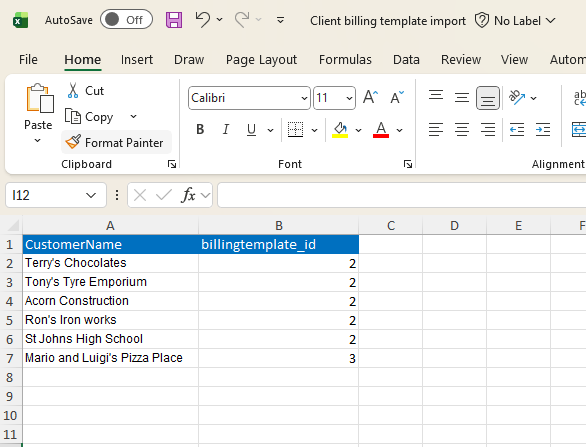
Fig 5. Example template to update billing templates
Now save the template, head back to Configuration > Users > General settings > Import Customers and Sites and select the saved template file. You will see you data pull throguh here, check this is correct and hit "Start" to begin the import.

Fig 6. Completed Customer Update
Once the import is complete head to Configuration > Billing > Billing Templates > select a template > "Update Customers" to have the billing rules of this template added to the customers.
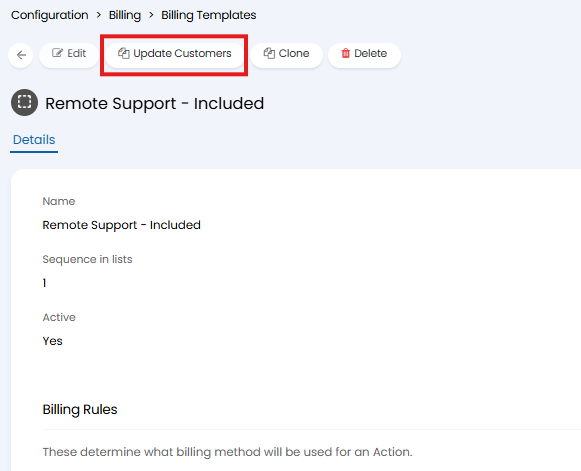
Fig 7. "Update Customers" Button
Now all these customers will have their billing template updated.