Project Views
In this guide we will cover:
- Changing Project List View
- Changing Project Tasks View
- Changing Default Options of Child Tickets i.e. Show Kanban View By Default
- Kanban View
- Setting Kanban Statuses
- Gantt View
- Locked milestones and completed milestones View
- Quick Way to Adjust Projects and Project Tasks (Targets, Milestones, Re-assign)
Admin Guides:
Changing Project List View
The options around how you view your Projects & Project Tasks are similar to those of your Service Desk - however, there are some options that are more applicable to Project Management than to your Service Desk.
All views can be accessed via clicking the '...' next to 'New' in the top RHS of the screen when on the main project screen.
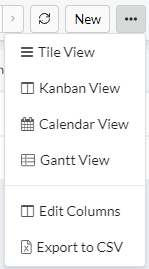
Fig 1. Main Project View Changing
Changing Project Tasks View
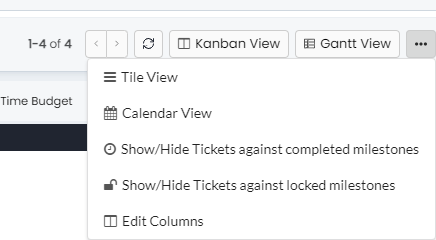
Fig 2. Ticket Viewing Options from the Project Tasks Tab of a Project
Changing Default Options of Child Tickets
The two most commonly used views for Projects/Project Tasks are Kanban/Gantt view.
Generally, the Kanban/Gantt view are selected to better visualise Project Tasks within a given Project - hence, there are some options found at Ticket Type level regarding how Child Tickets are presented (i.e. you can set how Project Tasks are returned within a Project).
If you head to Configuration > Tickets > Ticket Types, you can change the default list type for Child Tickets.
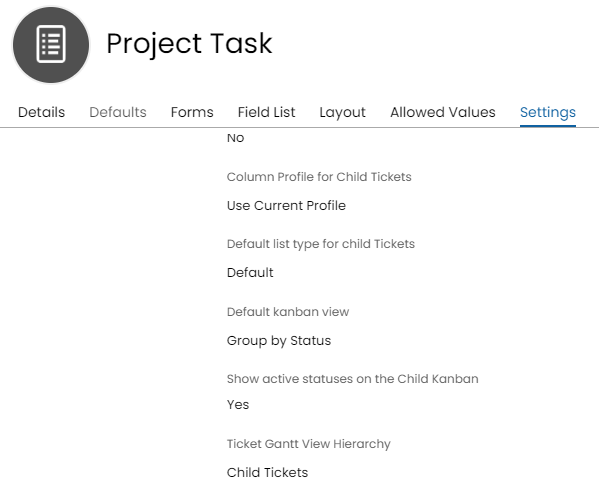
Fig 3. Changing The Default Child Ticket Settings for List Type View and Column Profile for The Child Tickets
And hence use your preferred method of visualising Projects & their component Tasks.
Kanban view
Your Projects can be displayed based on their current status & can display the Project ID/title, the assigned agent & a preview of the Project details.
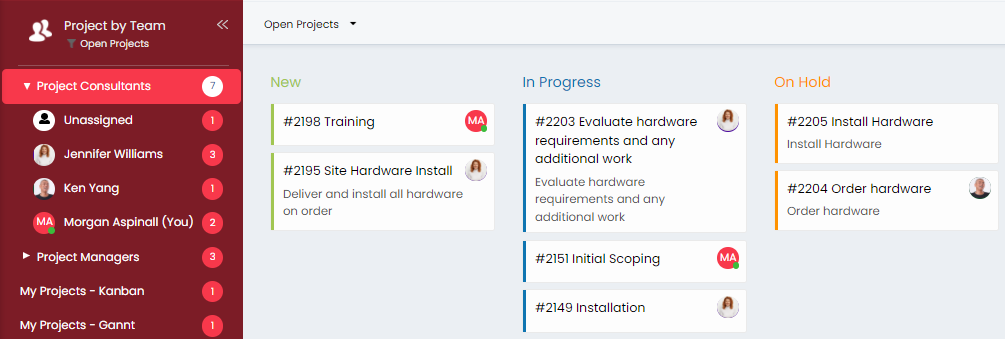
Fig 4. Kanban Ticket View
Note: Drag and drop Kanban cards (Projects) between columns to change their status.
Setting Kanban Statuses
If you are using the Kanban board to view Tasks within a Project, you can 'lock' certain statuses to the Kanban board for child Tickets (Project Tasks). This can be achieved per Ticket type via heading to Configuration > Tickets > Ticket Types, then to your desired Ticket Type and disable the 'Show Active Statuses on the Child Kanban' option, on the 'Settings' tab.
This will then present you with a multiple-select field, where you can pick the statuses to lock on the Child Ticket Kanban board.
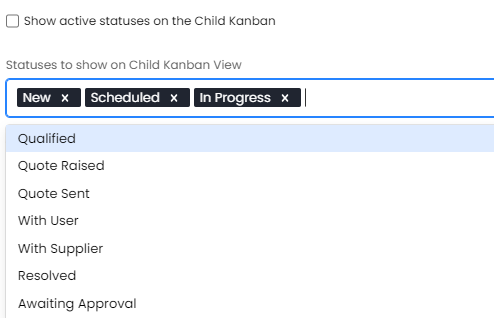
Fig 5. Adding Statuses on The Multi-Select List (Configuration>Tickets>Ticket Types>*Settings Tab*)
This should be done within the Parent Ticket type (Project), as opposed to within the Child Ticket type (Task).
Gantt View
The Gantt view will display a timeline of Projects/Project Tasks based on the Start/Target Date entered when creating your Project & respective Tasks, you can also apply the start and target dates on the parent/ child ticket templates. You can view the projects in Gantt View and when clicking into a project you can view the project tasks in Gantt View within the "Project Tasks" Tab.
Note: This view can also be shown similarly by using the calendar view, the main difference being that you will have to search through your calendar to find the Projects/ Project tasks if they are far in the future or far in the past and overdue. It is important to set the start/ target dates, as they are required for the Gantt view to work.
For more information on Gantt view in projects, see our guide here.
Locked milestones and completed milestones View
You can also view based off of milestones, this is useful to see up and coming milestones or to look at what milestones have already been completed.
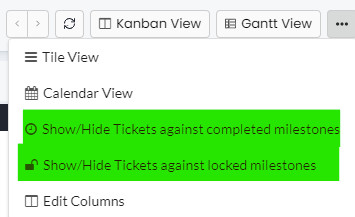
Fig 9. Locked milestones and completed milestones
These are explained further in the milestones guide.
Quick Way to Adjust Projects and Project Tasks (Targets, Milestones, Re-assign)
There are also multiple options to choose from by right clicking on projects or project tasks (Re-assign, Change Milestone, Adjust Target Date). You can change the milestone on the task by right clicking and selecting "Change Milestone".
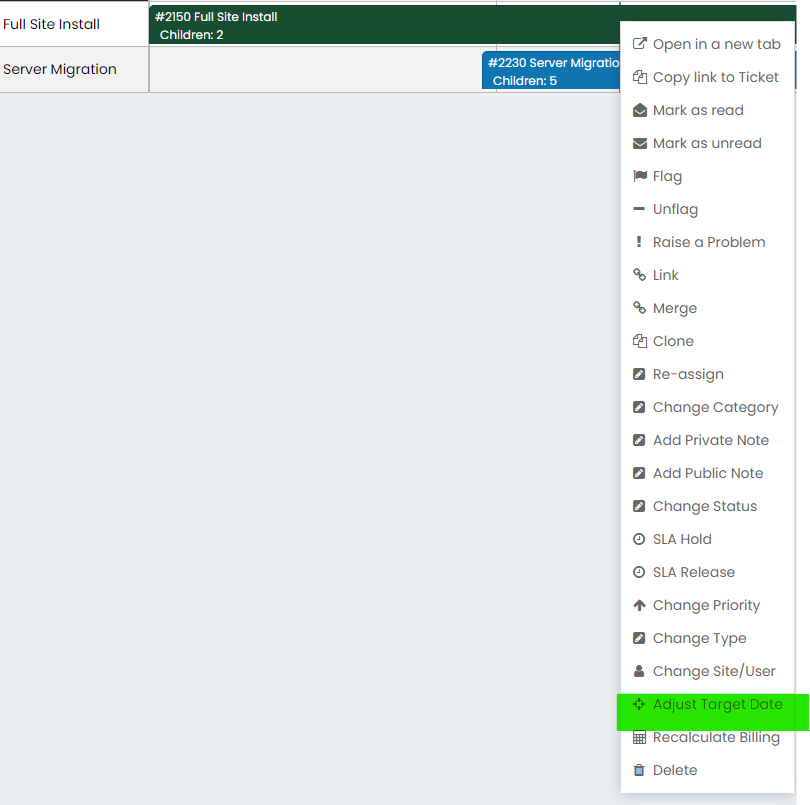
Fig 10. Adjust Target Date on a Project
Sequencing Project Tasks
You can enable the ability to give project tasks a sequence value, enabling you to set the order they appear when viewing the tasks within a project. Useful in creating a visual of the order tasks need to be completed in.
This option can be enabled under configuration > project management > general settings > 'Show an order sequence field on an Projects/Tasks that are children'.
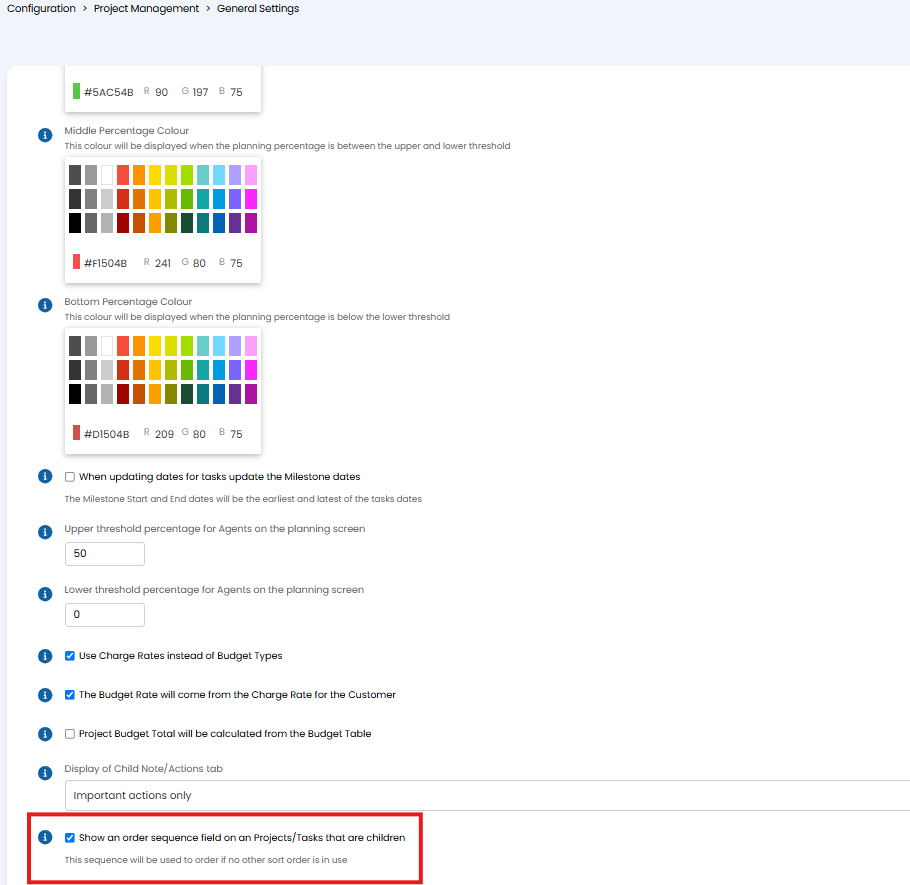
Fig 11. Enable project task sequencing
Once enabled all project task tickets will have the field 'Sequence in lists' visible in the ticket details, here you can set the sequence of the task.
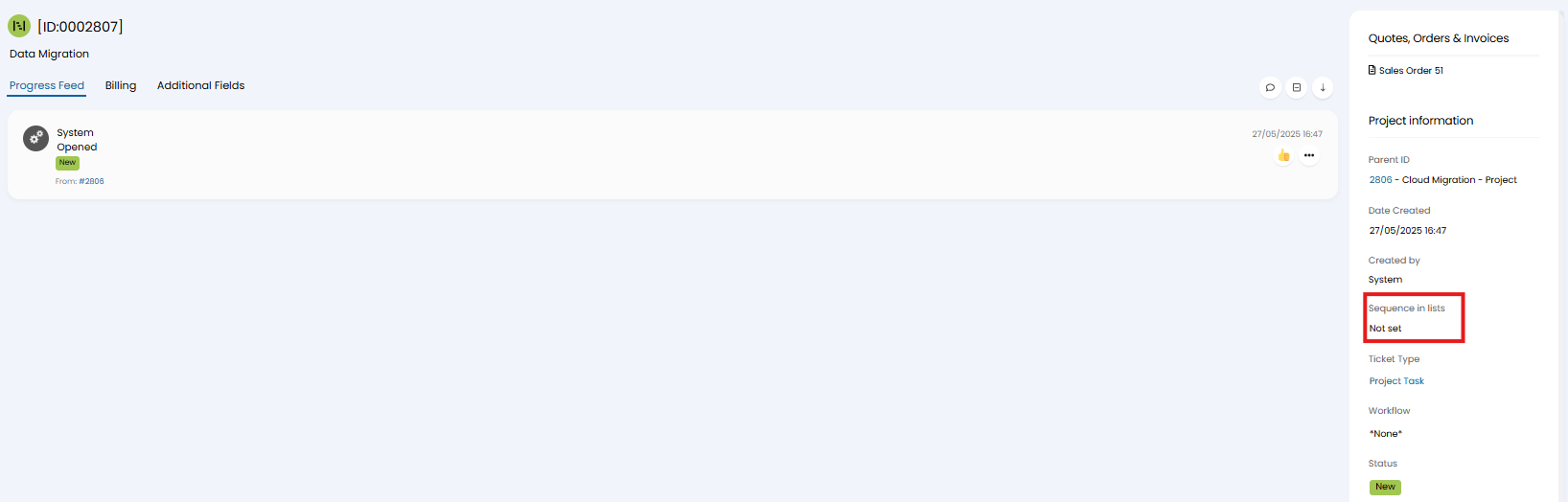
Fig 12. Set sequence of project task
When in use you can also drag and drop the tasks, when viewing the tasks against a project ticket to re-order them.