One-Click Feedback
- survey
- feedback
- single click feedback
In this guide we will cover:
- Ticket Closed Email Template
- Edit link option for image within Email Template
- Setting bounds for feedback variables
- Functionality for an End-User Clicking on an Image
- Feedback Configuration options
- Preventing false feedback (from email link scanners)
- Reporting on Feedback
One-Click Feedback is a simple, fast means of capturing general end-user satisfaction. At it's core, One-Click Feedback is configured via using $_Variables in email templates. Halo provides basic feedback options out of the box when you start your trial.
For a full list of survey settings along with descriptions of their use, checkout this admin guide on Surveys
Ticket Closed Email Template
You can see basic feedback in the 'Ticket Closed' email template (configured via Configuration > Email > Email Templates):
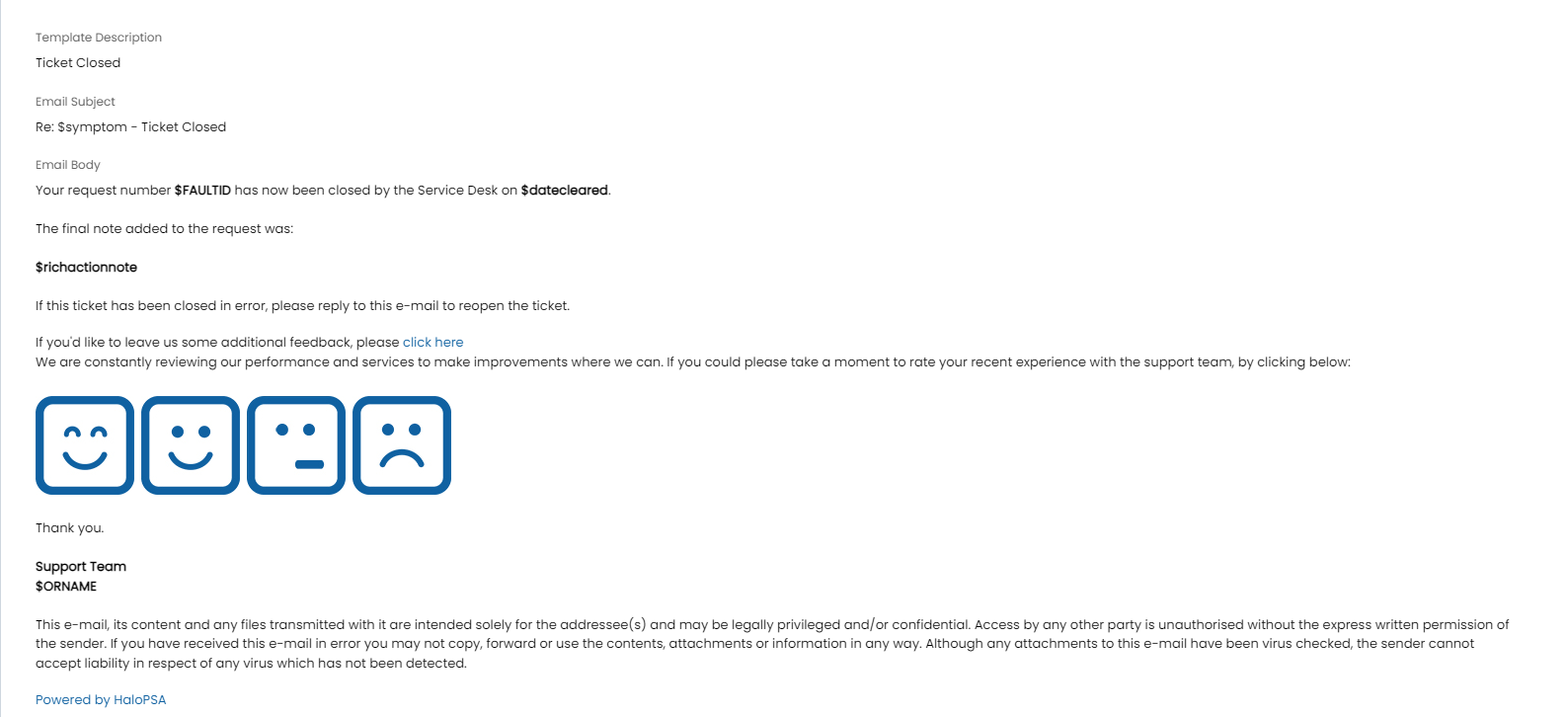
Fig 1. Ticket closed email template
Edit link option for image within Email Template
Behind these images are 4 variables. We can see these variables via editing the email template, then clicking on the image, where you will find an option to edit the link:
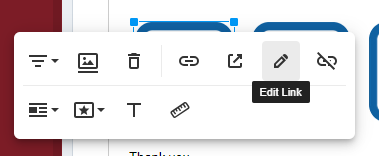 Fig 2. Edit link option for image within Email Template
Setting bounds for feedback variables
Out of the box, we make use of 4 variables: $_Feedback1, $_Feedback2, $_Feedback3 & $_Feedback4. Each variable relates to the value set within a range. These ranges can have values up to 10, allowing you to make use of up to 10 variables.
Establishing your upper/lower bound for each range can be done via Configuration > Tickets > Surveys:

Fig 3. Setting bounds for feedback variables.
In the example provided via Fig 3, 10 variables could be used in your email template (perhaps sitting behind 10 images).
In this example the variables would be as follows:
- $_Feedback1 & $_Feedback2 would both equate to Range 1 (Excellent) service.
- $_Feedback3, $_Feedback4 & $Feedback_5 would equate to Range 2 (Good) service.
- $_Feedback6 & $_Feedback7 would be Range 3 (Okay)
- $_Feedback8,$_Feedback9 & $_Feedback10 would all be in Range 4 (Bad)
This allows HaloPSA's one-click feedback to be aligned with NPS (Net Promoter Score) standards.
Functionality for an End-User Clicking on an Image
When an end-user clicks on one of the images, they will be redirected to the HaloPSA Self-Service Portal, where they can provide further comments, if applicable:
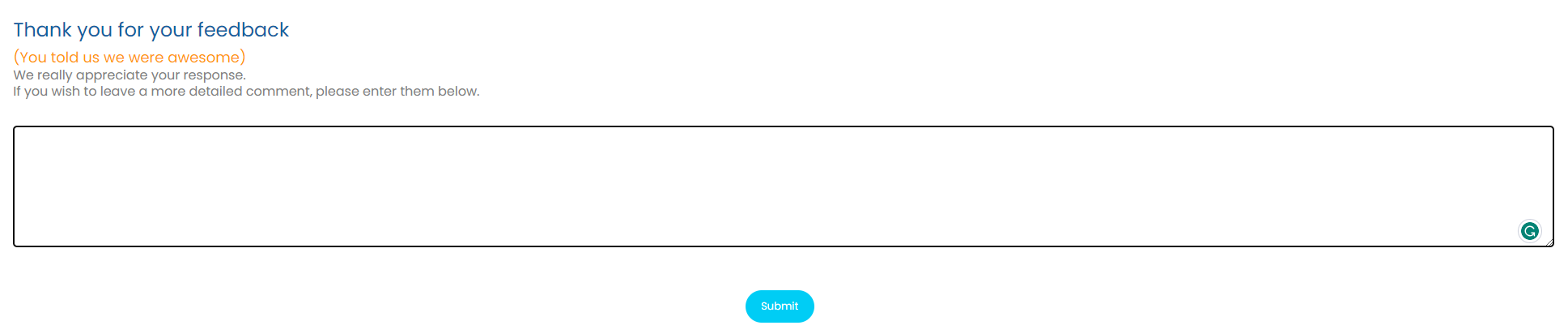 Fig 4. Self-Service Portal, following feedback link being clicked.
You can configure HTML for an additional screen that shows after the above is submitted. Using each of these buttons will customise a different screen for each feedback range. This can be useful to offer alternative support if a bad review is given, or ask for a review on another platform if good feedback is given.

Fig 5. HTML per range.
Feedback Configuration options
The message that you see in Fig 3 is fully customisable, via 'Customise Message' options (Fig 3). Comments can also be made mandatory on the one click feedback, this is achieved via turning on the checkbox called 'When leaving feedback a comment is mandatory'. Once the Ticket has been closed, you will be able to see the satisfaction score (and comments, if provided) via the Ticket's 'closure details':
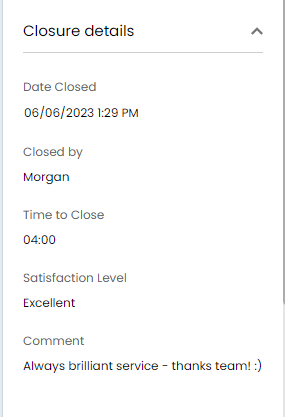 Fig 6. Closure Details on Ticket
Given 'Show Feedback in the Closure details on the Ticket Details screen' is enabled in Configuration > Tickets > Surveys. Below the options returned in Fig 3, you will see the following configuration options:
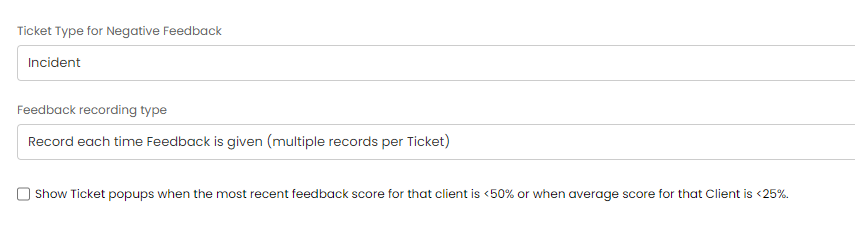 Fig 7. Feedback Configuration options
The first option presented in Fig 7 defines a Ticket type to use if Negative feedback is given. This Ticket will be created in a child of the original Ticket (the ticket the bad feedback was given for). You can then configure this Ticket type & any associated notifications to inform the management team of such Tickets being created.
Feedback recording Type - Here, you have an option to either record every single time feedback was given on a Ticket, or only record the most recent feedback. Recording multiple feedback entries per Ticket can allow for feedback trends to be captured throughout a Ticket's lifecycle (by adding feedback variables to the 'Ticket Update' email template).
Finally, there is an option to show a popup on Tickets where the latest/average feedback for the Client is average/bad, allowing your team to see at a glance any Tickets that need handled with extra care.
Additional options
It is possible to stop feedback from being submitted until after the submit button is clicked by changing the feedback variable to include "&requiresubmit=true" at the end , for example $FEEDBACK1&requiresubmit=true (this can be found within the html of the image icons for the feedback). This is to stop email security software from submitting feedback automatically. This can also be done via the "$-CONFIRMFEEDBACK" variable.
Preventing False Feedback (from email link scanners)
If you are receiving large amounts of feedback from one-click feedback, seemingly false feedback, the feedback may be being logged by email link scanners. If an email containing one-click feedback is sent to a mailbox that uses email link scanners the scanner may automatically log feedback. This is because they will test the links for users, this generates feedback because as soon as the link is clicked feedback is logged.
To avoid this you can add a parameter to the feedback links that enforce the 'submit' button being used to log the feedback, rather than just the image being selected. This will mean users have to complete two clicks to log feedback, rather than one.
To do this head to configuration > email > email templates > select the email template(s) containing feedback > edit the template > select the image used to log feedback > edit link. Here you will see the variable that generates the link for the feedback, simply add the following parameter to the end of the variable, as shown in figure 8.
- &requiresubmit=true
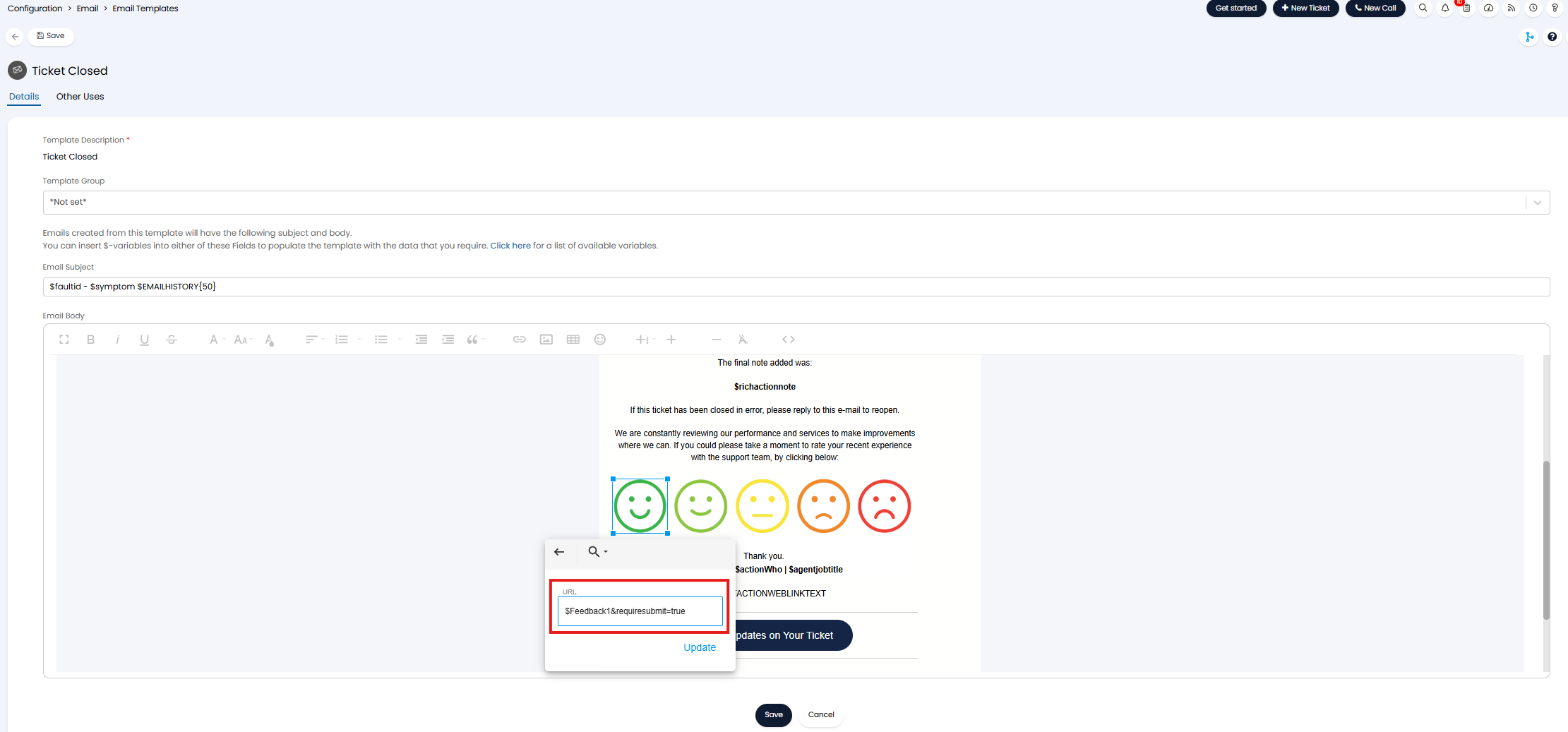
Fig 8. Add parameter to feedback link
Now, when the image is selected to log feedback the user will still be redirected to the portal, but in order for the feedback to count and be logged they must click 'submit'.

Fig 9. Submit feedback after logging
If you have set comments to be mandatory the comment box will appear alongside the submit button and users will not be able to submit until a comment is left. If you have set comments to be non-mandatory the comments box will show after the submit button is selected.
The 'message for range' will show after the submit button has been selected.
Reporting on Feedback
You can find pre-made reports on Feedback in the Online Repository.
For example the "Feedback from Tickets" Report, which will show all feedback in any given date range with the associated comment, score and the end-user who supplied the feedback. This is a great report to start with as it gives you the basic outline for your recent or past customer satisfaction.
You can schedule this report to send out weekly or even daily to keep on top of recent feedback.