Organisations
- Branding
- organization
- organisational chart
In this guide we will cover:
- Configuring your Organisation
- Departments
- Organisational Chart
Related Guides:
Configuration Settings Guides:
Configuring your Organisation
To configure your Organisation go to the Organisation configuration area and click on the "Configure My Organisation" button. If you are using Multi-Tenancy, this button will be called "Configure Organisations". Multi-Tenancy allows you to have multiple organisations within one instance of Halo and as a consequence, multiple sets of departments, you can configure different self service portals per organisation. This allows you to diversify branding and style between each organisation.
Note: To configure a new self service portal please reach out to Halo Support.
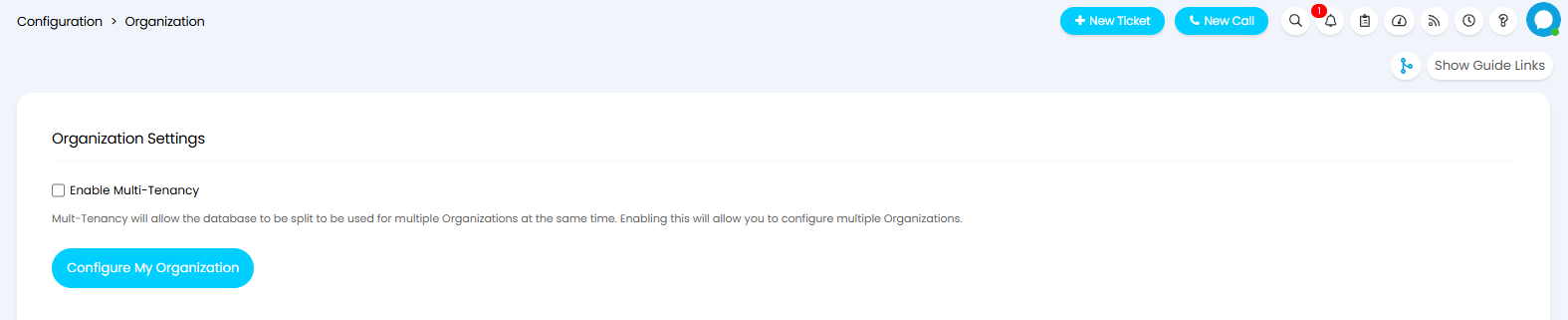
Figure 1. Organisation Configuration
The Details tab contains all of your Organisation information and is used on the Self Service Portal for contact information as well as on certain emails templates or PDF templates (such as a quotation or invoice).
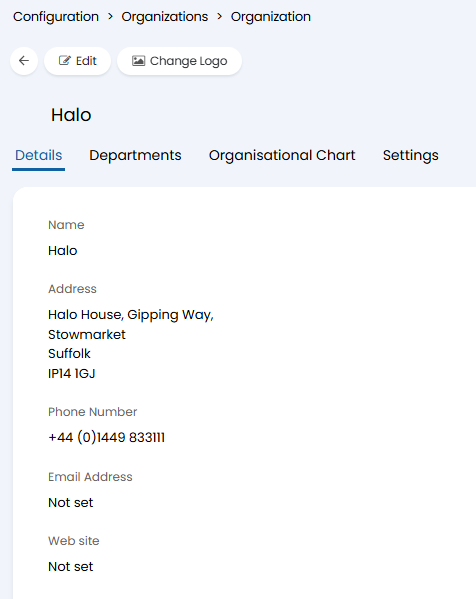 Figure 2. Organisation details
The message group override set on the organisation will decide the group of email templates that are used for this organisation, each message group has it's own set of customisable default templates. (for information on message group hierarchy, check out this guide: Email Configuration (High Level))
The billing section of the details tab is in reference to the specific use case of Swiss and German customers who will be required to add Billing details in their Invoice PDF's.
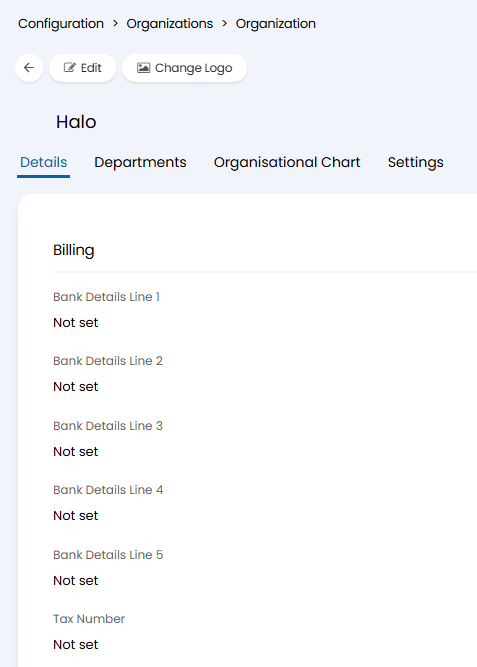
Fig 3. Organisation Billing Details
For more information check out this guide: Using QR Codes on PDF Templates
Additionally there will be a section for Portal branding, this will include the URL which is in use for the organisations portal, the default colour of the portal, the associated message group and the reply address for all emails sent from this Organisation. It is important to ensure the reply address is accurate, as this is the address that all of your emails out of the system will be sent from when working from within the organisation in question.
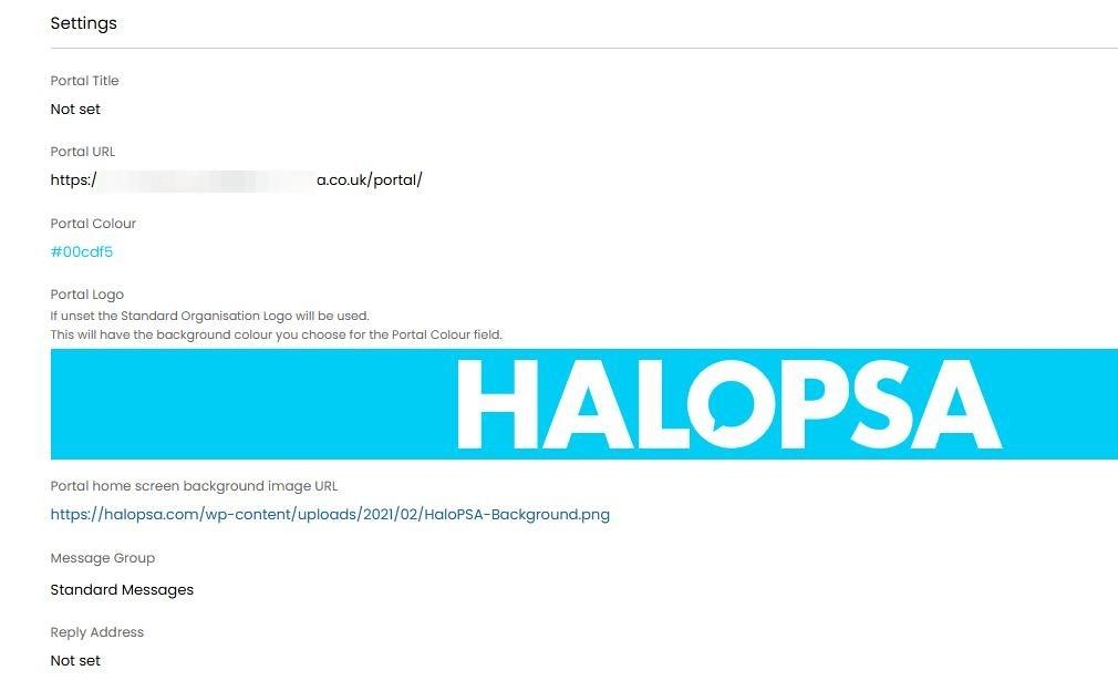
Fig 4. Portal Customisation Settings
For more information on customising and adding more portals, check out this guide: Managing Multiple End User Portals
Departments
The Departments tab lets you configure the departments for your Organisation. More information on configuring Departments, see the guide linked here.
Organisational Chart
The Organisational Chart lets you view and edit your Agents/Teams/Departments all in one place.
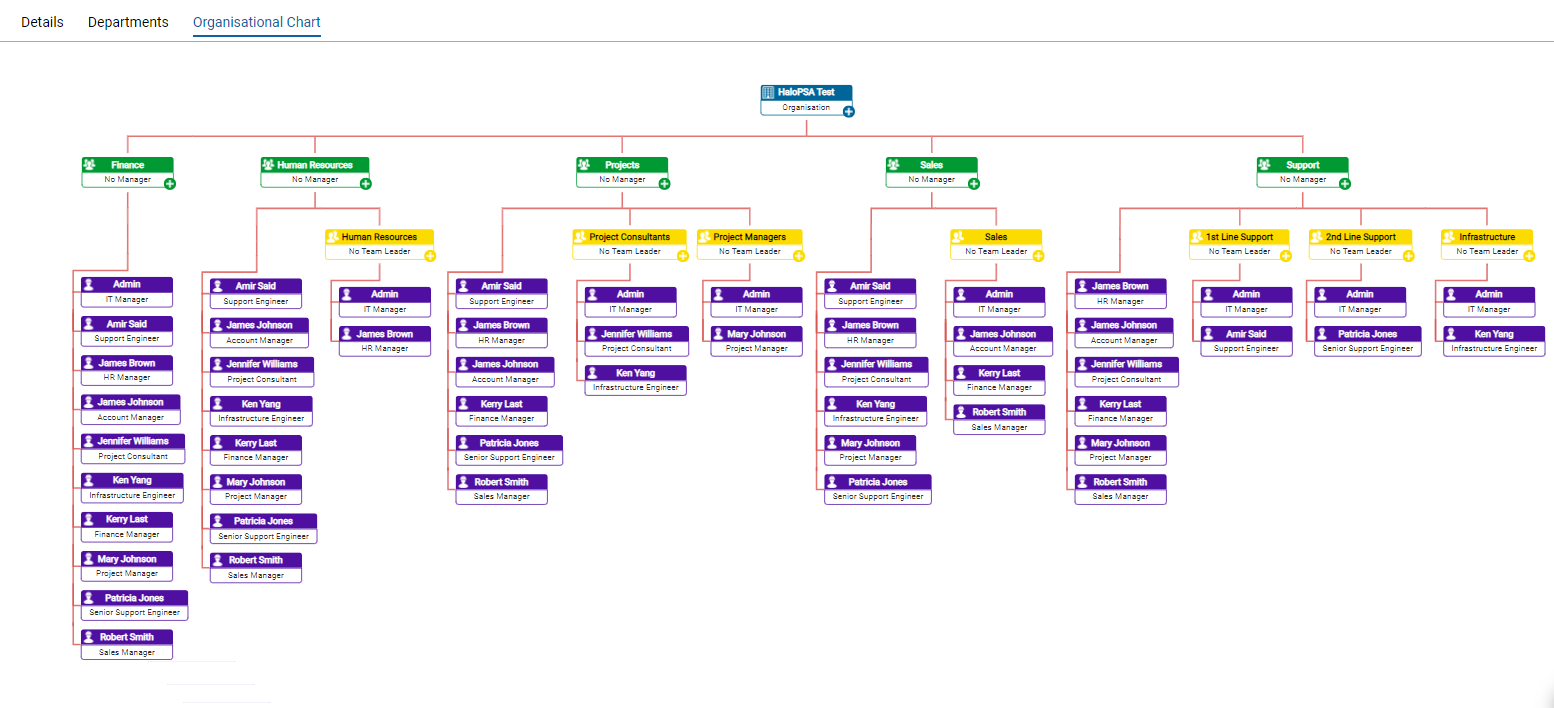 Figure 4. Organisation Chart