Pop-Up Notes For Customers, Sites, & Users
In this guide we will cover:
- What are Pop-up Notes?
- How to create Pop-up Notes
- Ticket Rule Pop-up Notes
What are Pop-up Notes?
It's possible to add Pop-up Notes against Customer, Site,or User records. Pop-up notes can be set to show whenever a Ticket associated to that entity is loaded, or whenever the Customer/Site/User profile is viewed.
How to Create Pop-up Notes
Pop-up notes will need to be created against the specific Customer/Site/User you would like it to display for. Pop-up Notes for each entity are configured in the same way, however the location of this configuration varies.
Customers
To create a pop-up note for a Customer, head to the Settings tab of the relevant Customer record. Find and expand the "Popup Notes" section. Click "+ Add" on the Popup Notes table to create a pop-up note.
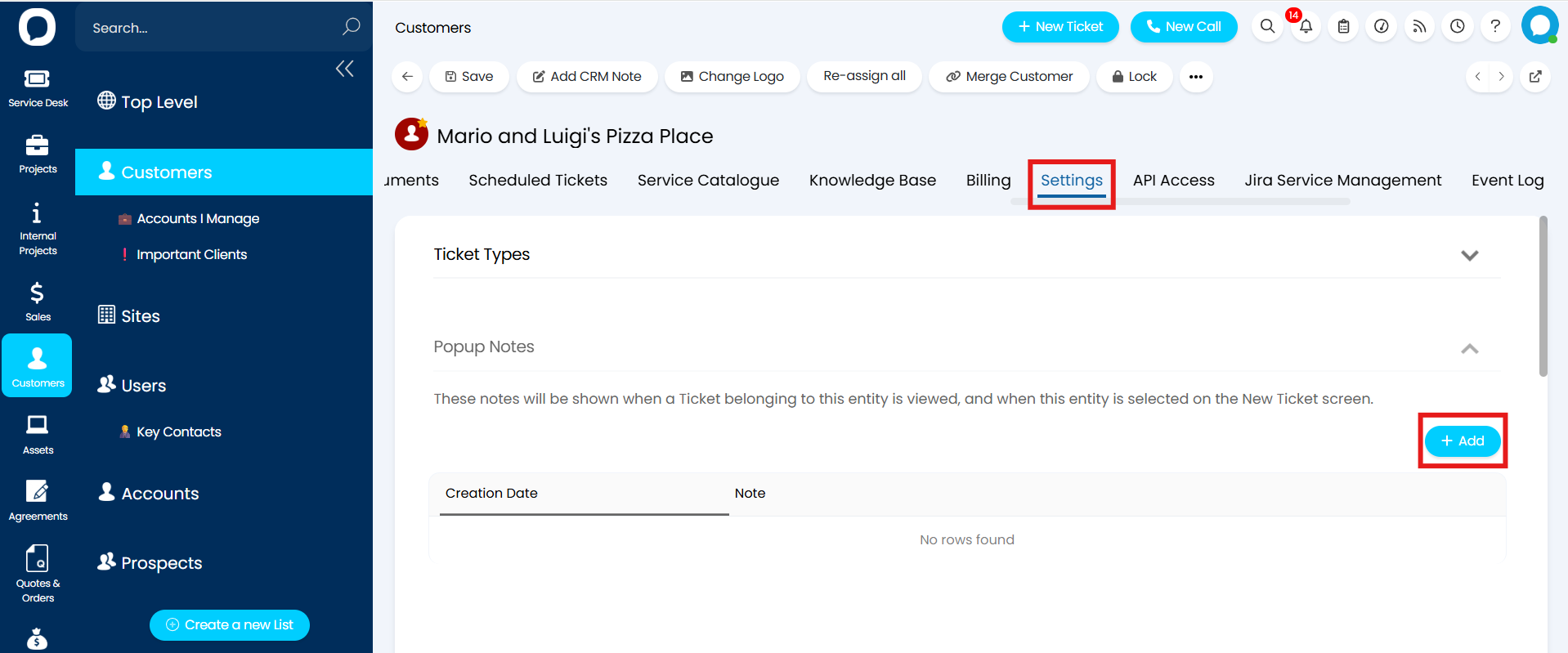
Fig 1. Popup notes against a Customer
Sites
To create a pop-up note for a Site, head to the Settings tab of the relevant Site record. Find and expand the "Popup Notes" section. Click "+ Add" on the Popup Notes table to create a pop-up note.
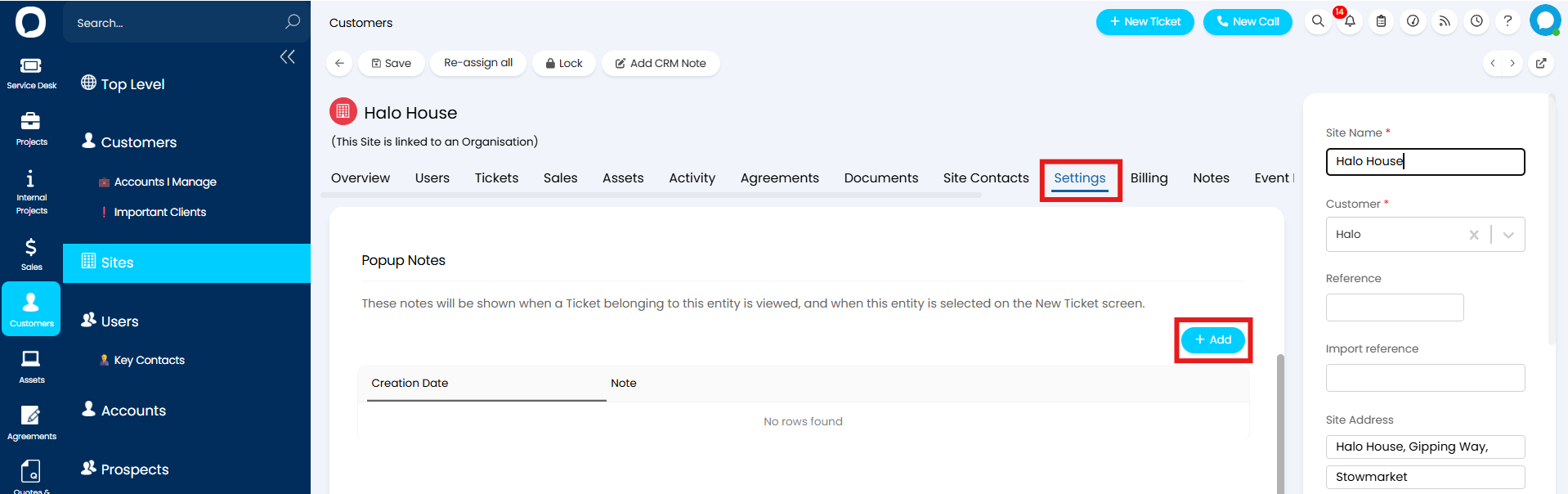
Fig 2. Popup note against a Site
Users
To create a pop-up note for a User or Prospect, head to the Preferences tab of the relevant User/Prospect record. Find and expand the "Popup Notes" section. Click "+ Add" on the Popup Notes table to create a pop-up note.
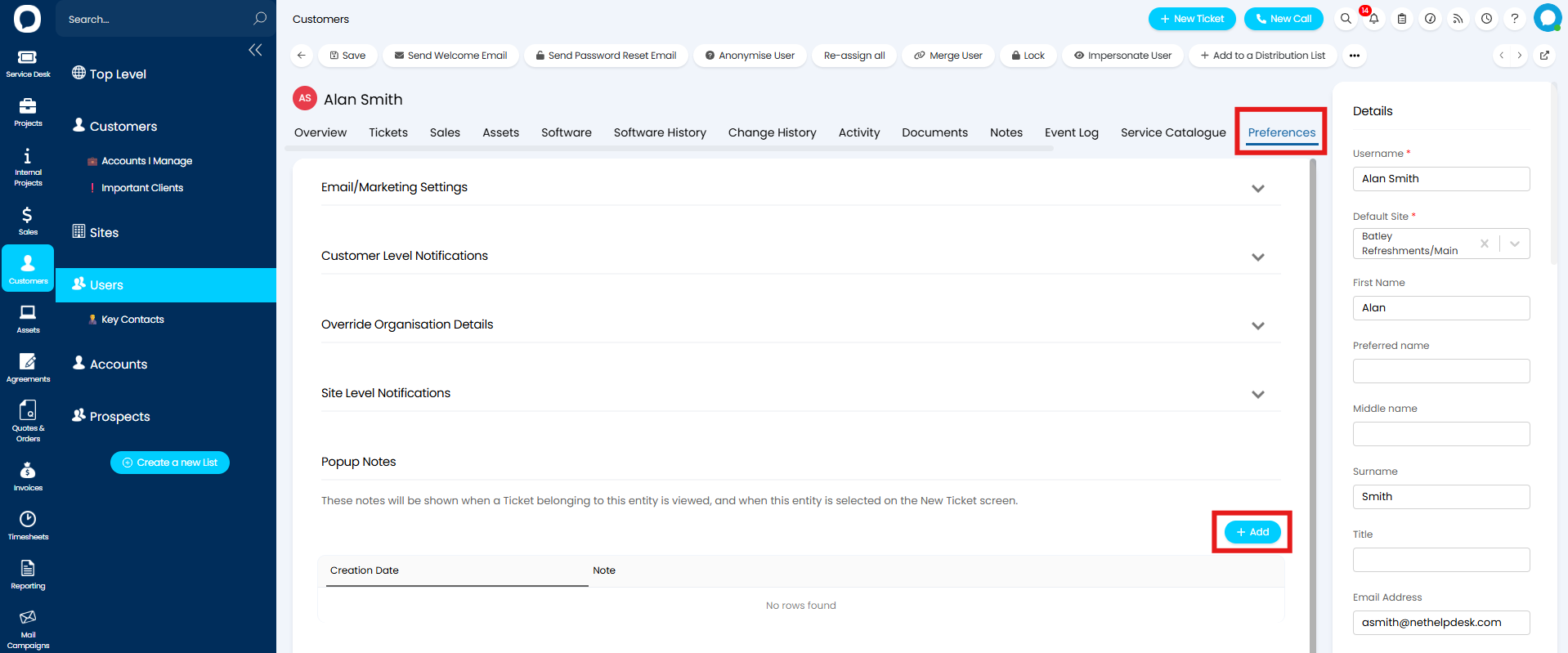
Fig 3. Popup note against a User
Configuring Popup notes
To create a popup note use the "+ Add" button on the Popup Notes table against the chosen record.
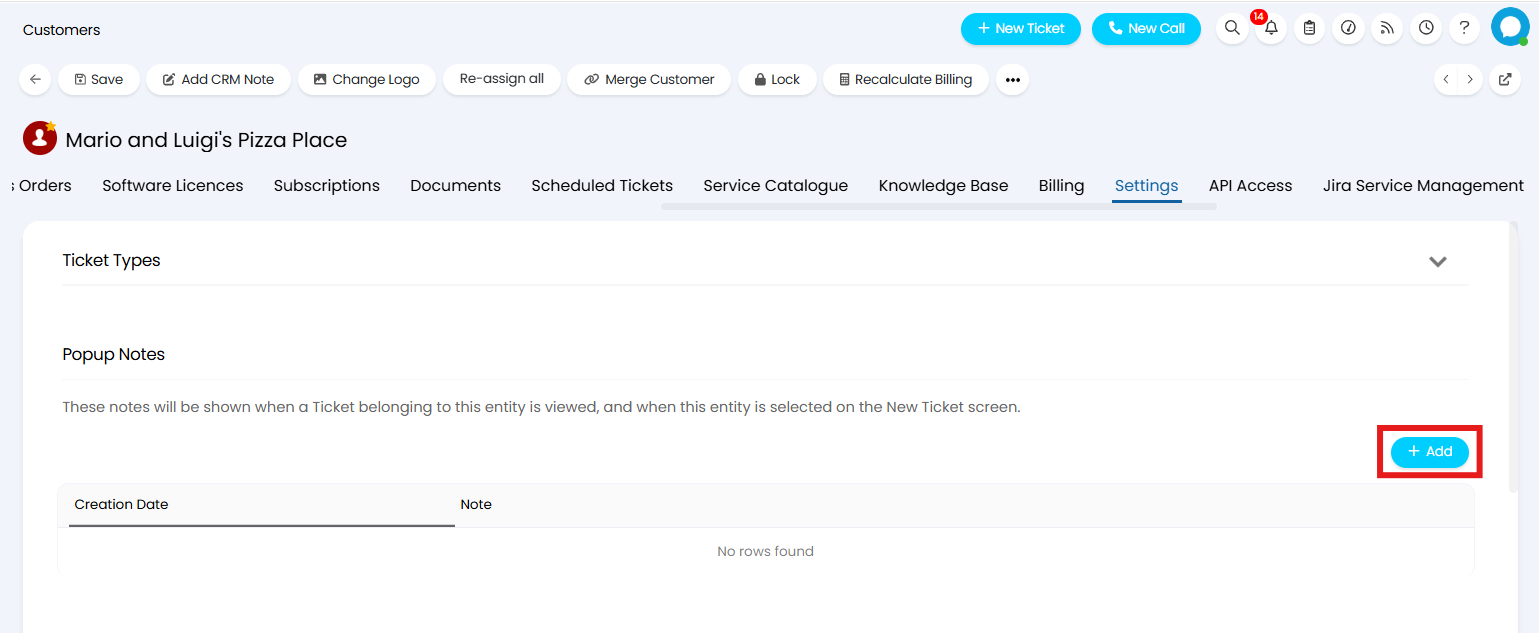
Fig 4. Create new Pop-up Note
This will open a modal window where your Pop-up Note can be created. When adding a Pop-up Note, enter the message you would like to display in the "Note" field. There will also be some additional options available.
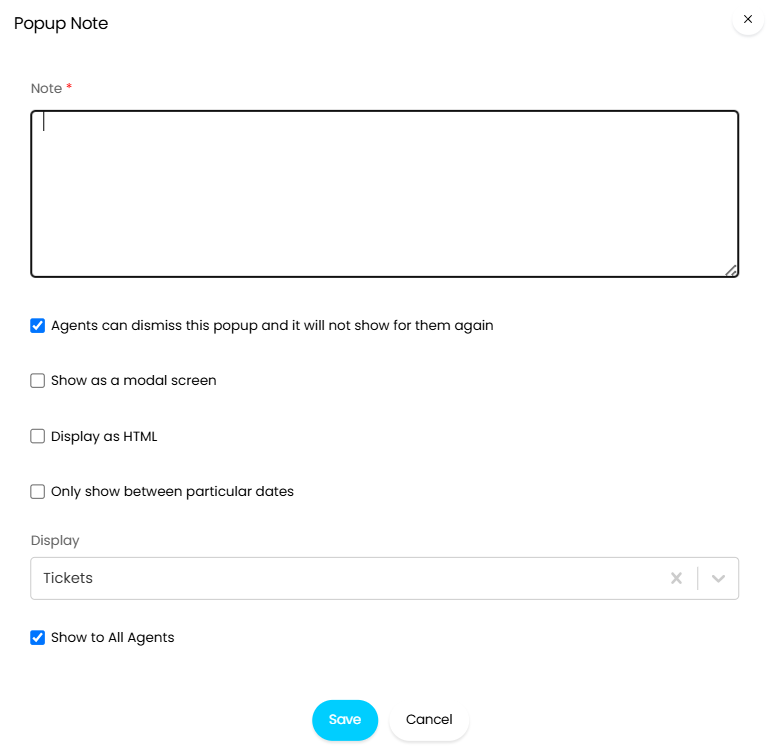
Fig 5. New popup note
Agents can dismiss this popup and it will not show for them again - When checked, this Pop-up will only show for each Agent once. Once it is dismissed it will not show for the Agent again. Otherwise, it will appear every time the Agent opens the Ticket.
Show as a modal screen - This changes how the Pop-up displays. When unchecked the popup will show in the bottom left of the screen and the Agent will be able to work on the Ticket without dismissing it. When checked the Pop-up will show in a modal window, the Agent will not be able to continue until they dismiss the Pop-up.
Display as HTML - Allows you to enter html in the "Note" field, this html will be used to format the note.
Only show between particular dates - When enabled you can set which dates this Pop-up displays between. Useful is a particular event is occurring at a set time for this Customer/Site/User.
Display (v2.238+) - This will control whether the Pop-up shows when viewing the Customer's/Site's/User's Tickets, record or both. When set to show on profiles (Customers/Sites and Users) the note will show for all profiles under the entity it is created for, 'trickling down'. For example, if a Pop-up Note is added to a Site profile, it will appear each time an Agent views the Site, as well as when they view any Users under this Site.
Show for All Agents (2.238+) - Deselecting this will show a multi-select dropdown where you can specify which Agent Roles can the Pop-up will show for.
Standard Pop-up Notes will display against this entities Tickets or records as shown in Figure 6. Pop-up Notes are time and date stamped, so you can see when the note was created.
Multiple notes can be added against an entity which will show stacked vertically to each other.
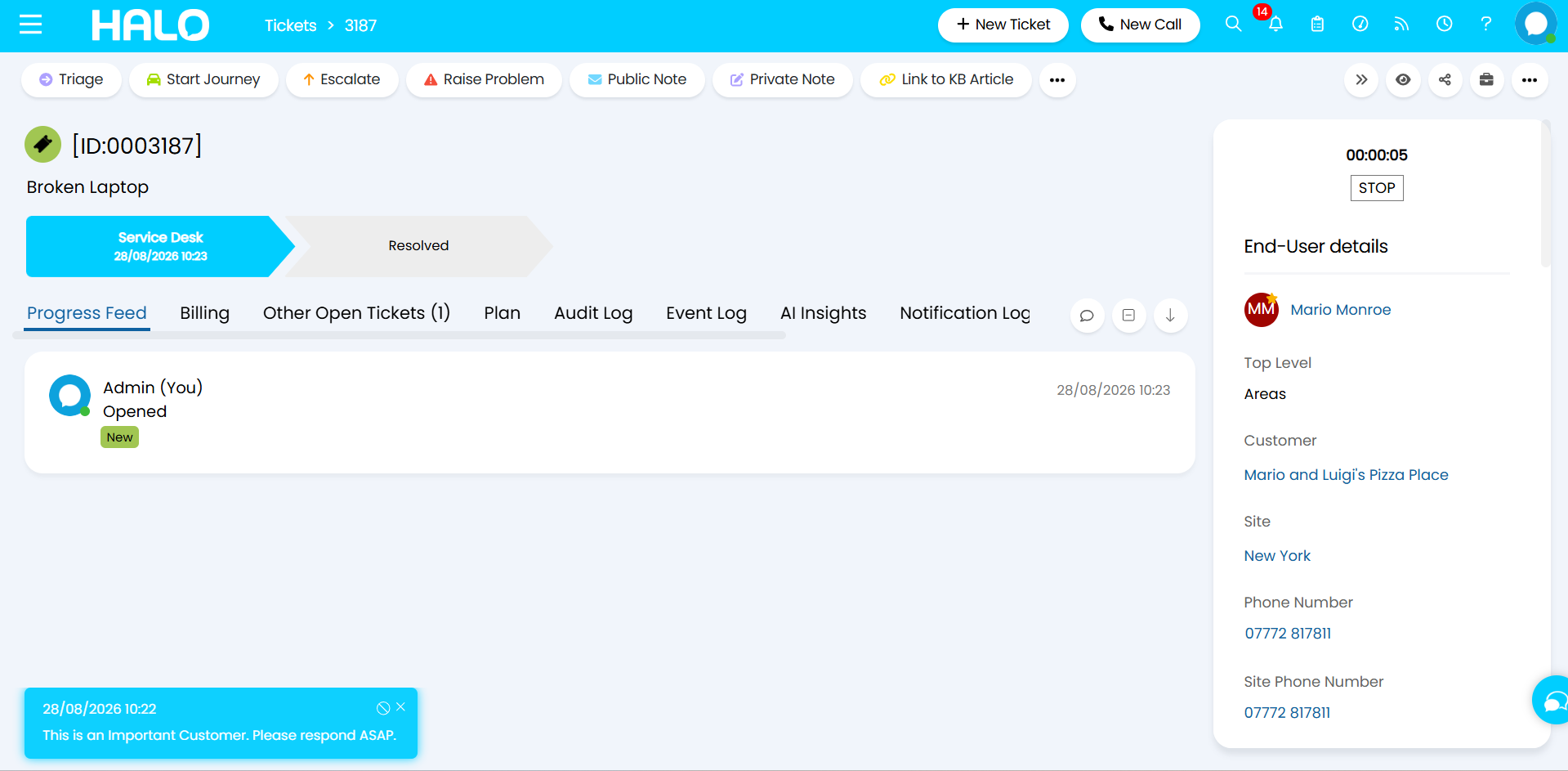
Fig 6. Popup shown in bottom left corner
If the popup is set to be displayed as a modal screen it will instead show in the centre of the screen as shown in Figure 7.
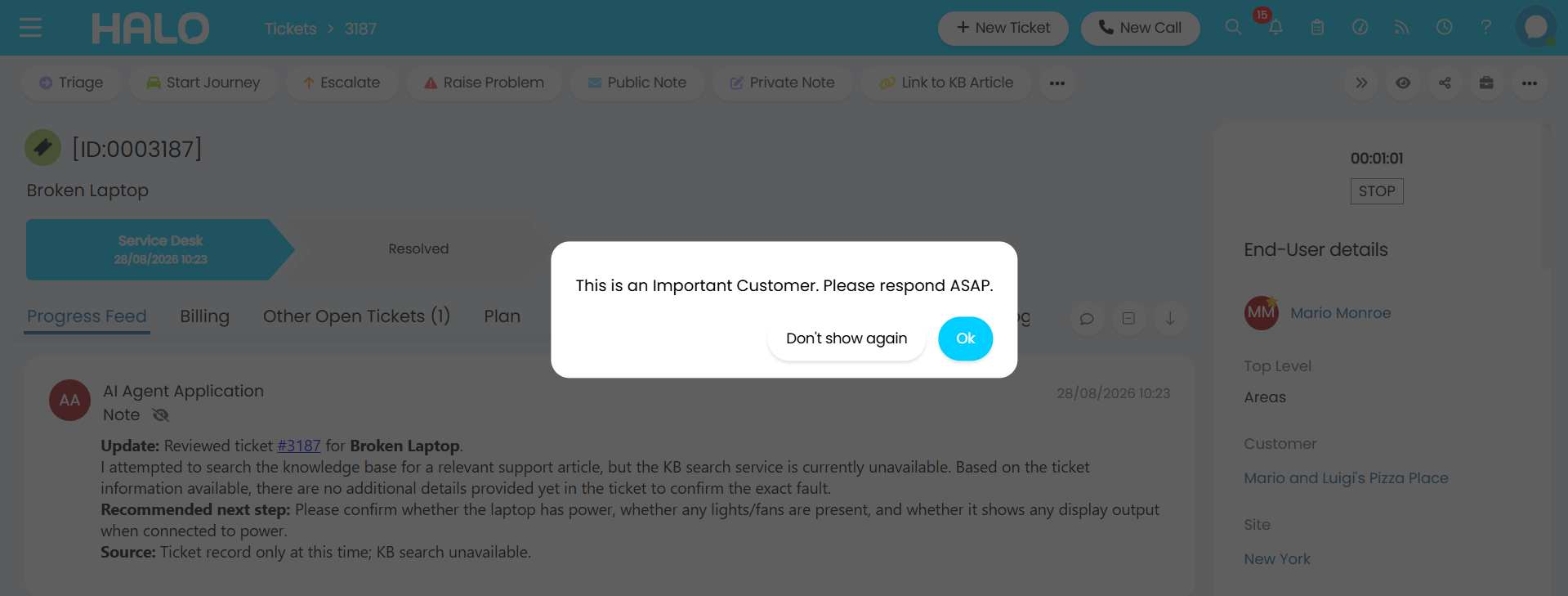
Fig 7. Pop-up as modal screen
Ticket Rule Pop-up Notes
Ticket Rules can be created to trigger a Pop-up Note in response to certain criteria. This is useful for highlighting high priority Tickets in response to particular field values.
In Configuration > Tickets > Ticket Rules, create a new Ticket Rule with your chosen criteria. Once set head to the Outcome section, and set the note you would like to display in the "Popup display message" field.
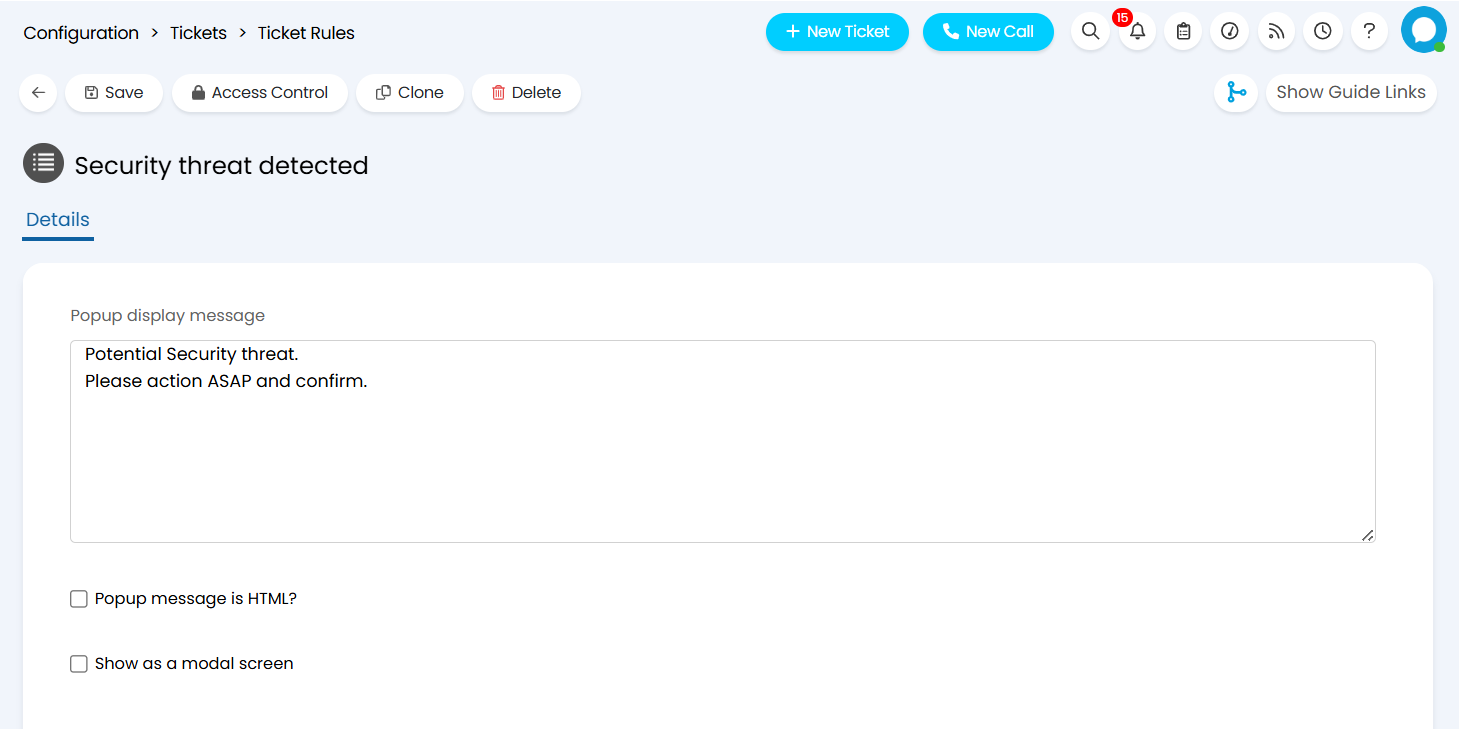
Fig 8. Pop-up message set on a Ticket Rule
Popup message is HTML - Allows you to enter html in the "Popup display message" field, this html will be used to format the note.
Show as a modal screen - This changes how the Pop-up displays. When unchecked the popup will show in the bottom left of the screen and the Agent will be able to work on the Ticket without dismissing it. When checked the Pop-up will show in a modal window, the Agent will not be able to continue until they dismiss the Pop-up.
When a Ticket is logged that meets the specified criteria, the Pop-up Note will display.
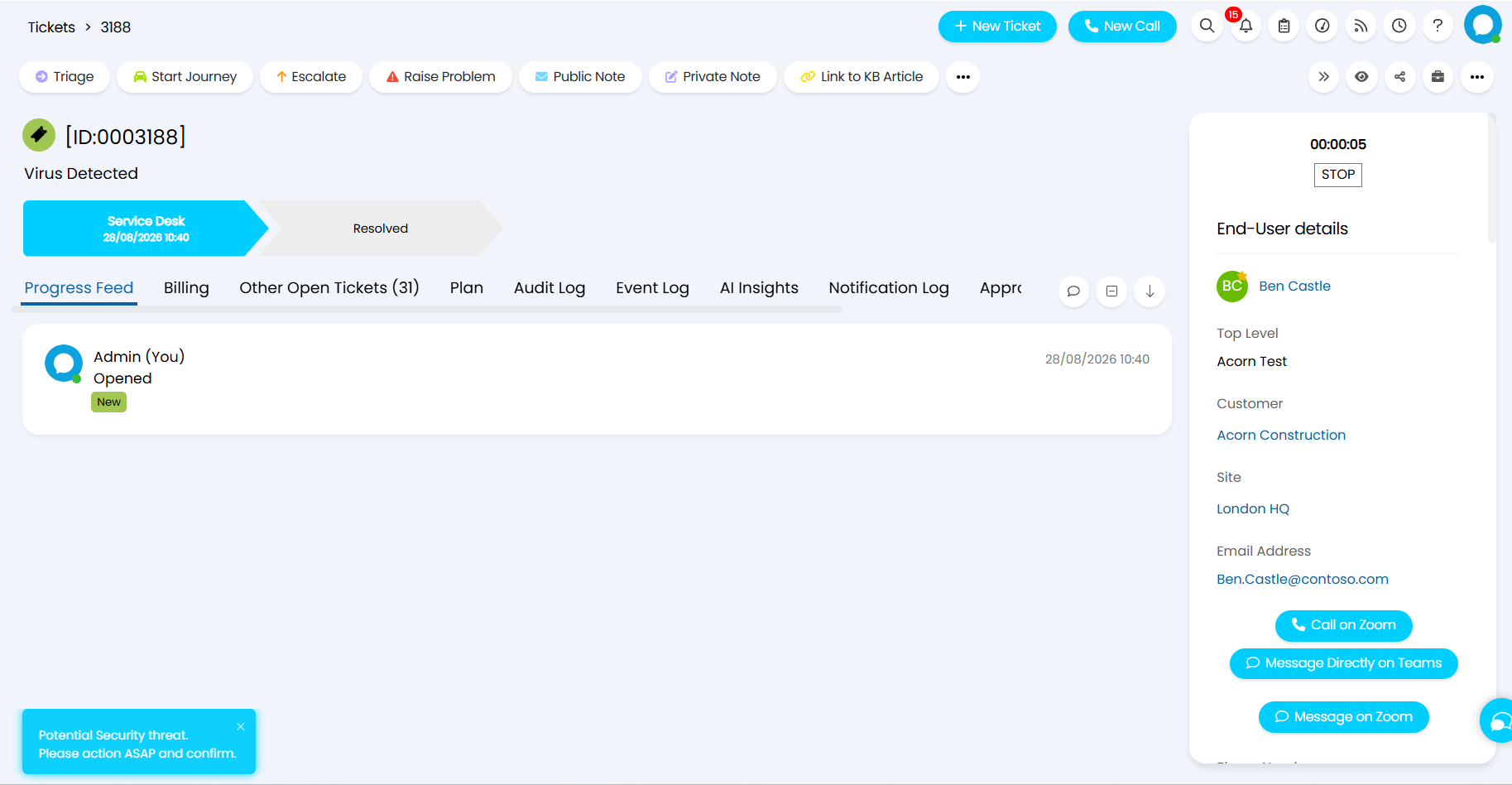
Fig 9. Pop-up applied by a Ticket Rule