Zoom Integration
In this guide we will cover:
- Pre-requisites
- Adding The Halo App To Your Zoom instance
- Configuring & Using The Zoom Integration
- Removing The App
- Troubleshooting
The Zoom integration in Halo can be used to call Users from a Ticket using Zoom phone, to send messages to Users from a Ticket using Zoom, and use shortcuts and slash commands inside of Zoom to carry out actions in Halo.
Pre-requisites
- If you need to use anything other than Call Management, you must ensure that you have Zoom workplace downloaded locally onto your device.
- Any User that you wish to chat with in Halo must be a contact within your Zoom instance.
- If you wish to use the Call Management feature of the Zoom integration then you must also have Zoom Phone.
Disclaimer: On the current stable, only the Call Management feature is available for the current Zoom integration. The new version of the Integration outlined in this guide will be available from version 2.244.1+.
Adding The Halo App To Your Zoom Instance
Before configuring in the integration or using Zoom workplace with Halo, you must first connect your Zoom instance to your Halo instance.
Navigate to Configuration > Integrations > Zoom, and enable the module for the Integration by hovering over the module and selecting the "+" icon.
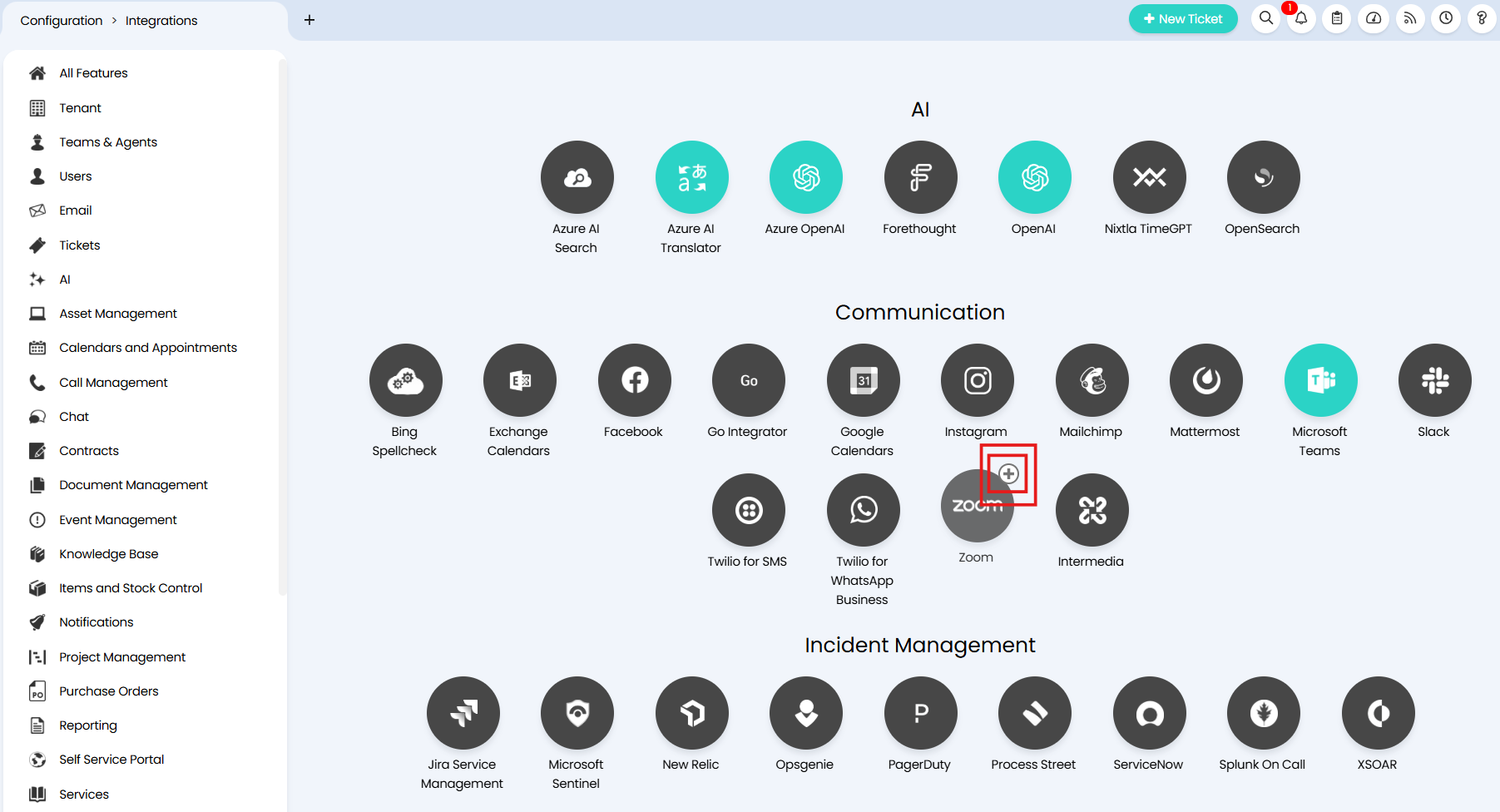
Fig 1. Enabling the Zoom integration module
Once the module is enabled, click into it and you will see the four tabs illustrated in Figure 2. The first tab, Configuration, is where you can connect your Zoom instance to Halo.
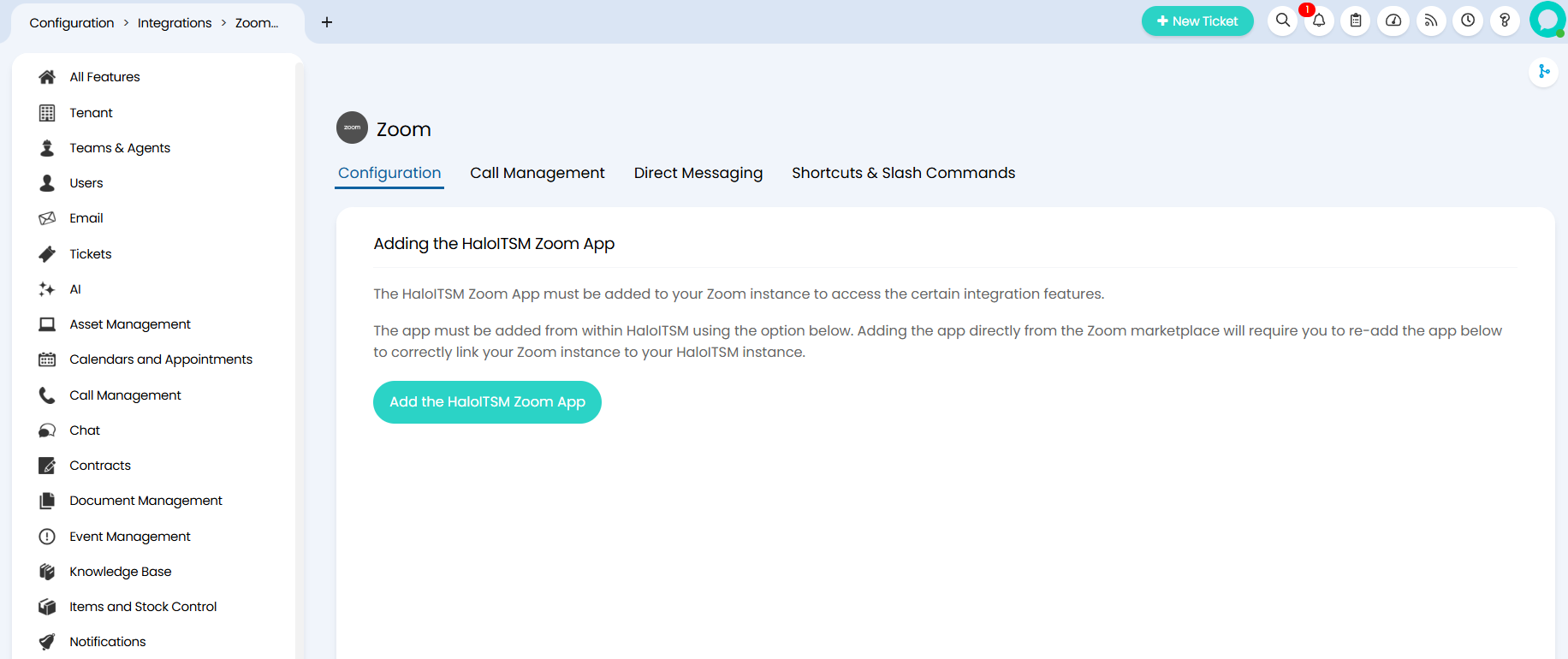
Fig 2. The configuration tabs for the new Zoom integration
Note: If you only wish to use the Call Management functionality, you do not need to add the Halo App to your Zoom instance. If this applies to you please navigate to the next section of this guide, "Configuring The Zoom Integration", where you will find details on setting up Call Management.
Select the "Add the HaloITSM Zoom App" button to connect to your Zoom instance, this will bring up the Zoom login screen illustrated in Figure 3. You should ensure that you are logging in with an account that is able to authorise the connection - either an Owner or an Admin.
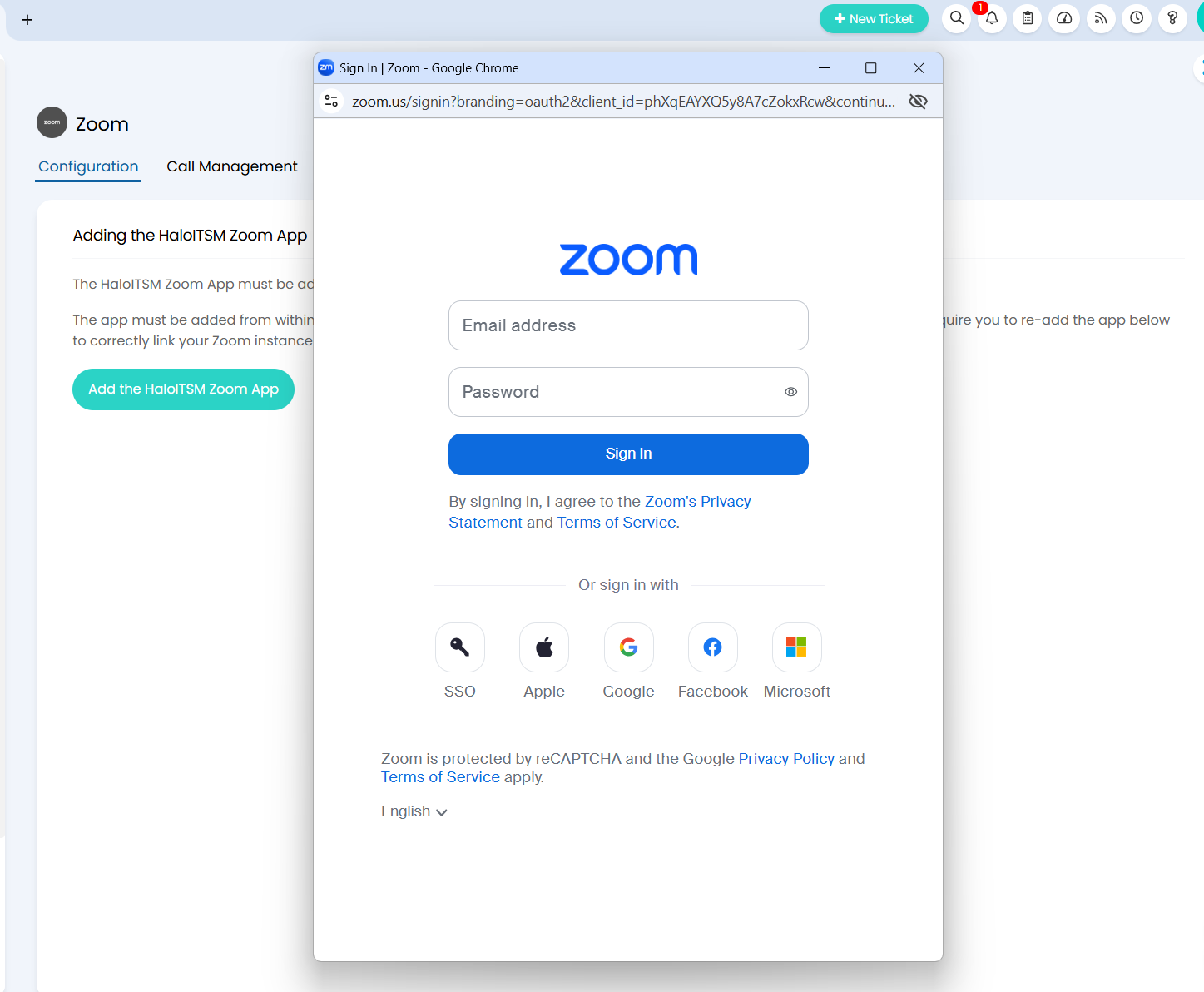
Fig 3. Connecting Zoom to Halo
Once you have successfully connected Zoom, you will see a success message in your Halo integration (Figure 4a), and you will see the Halo app appear within the "Apps" section of your Zoom workplace (Figure 4b).
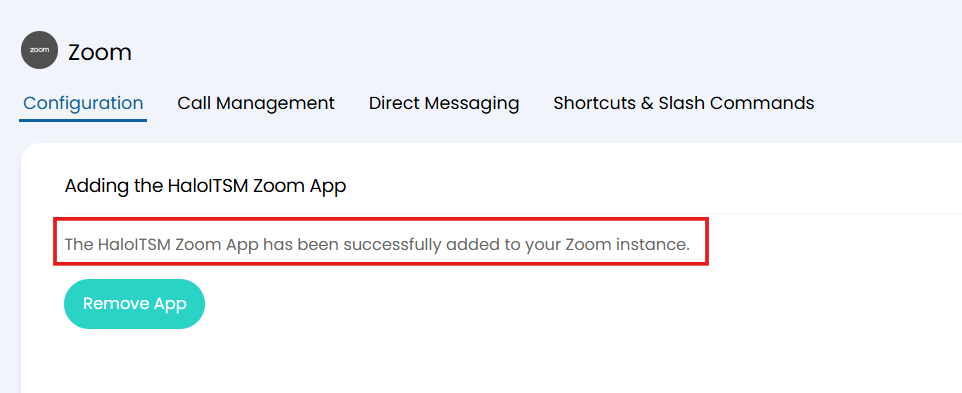
Fig 4a. The connection success message for the Zoom integration
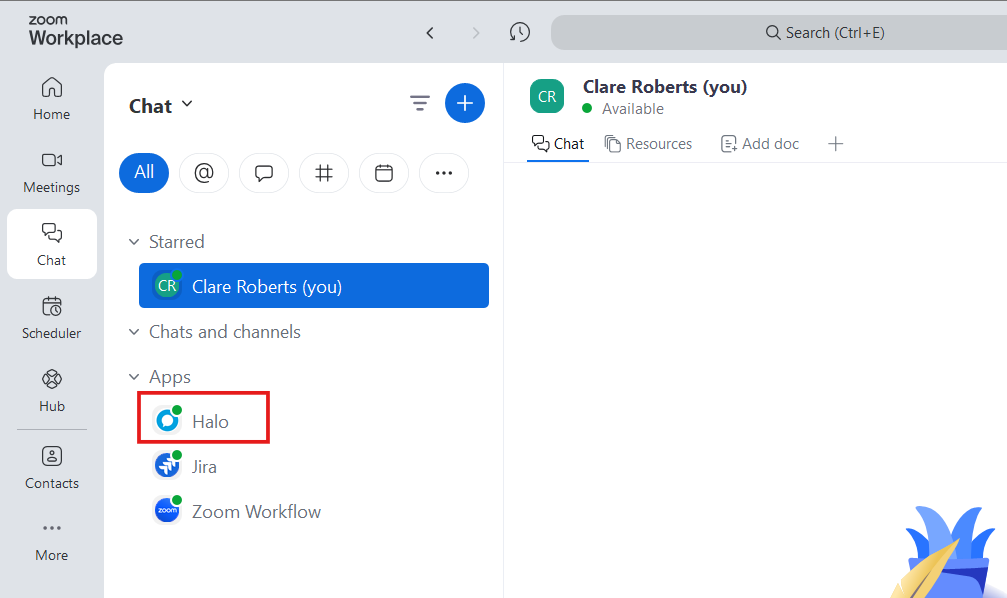
Fig 4b. The Halo app that will appear in Zoom workplace after a successful connection
Once you can see the Halo app in your Zoom instance, you will need to then affirm the connection from the Zoom end. To do this, click into the Halo app shown in Figure 4b and run the slash command "/halo connect" into the message box (Figure 5).
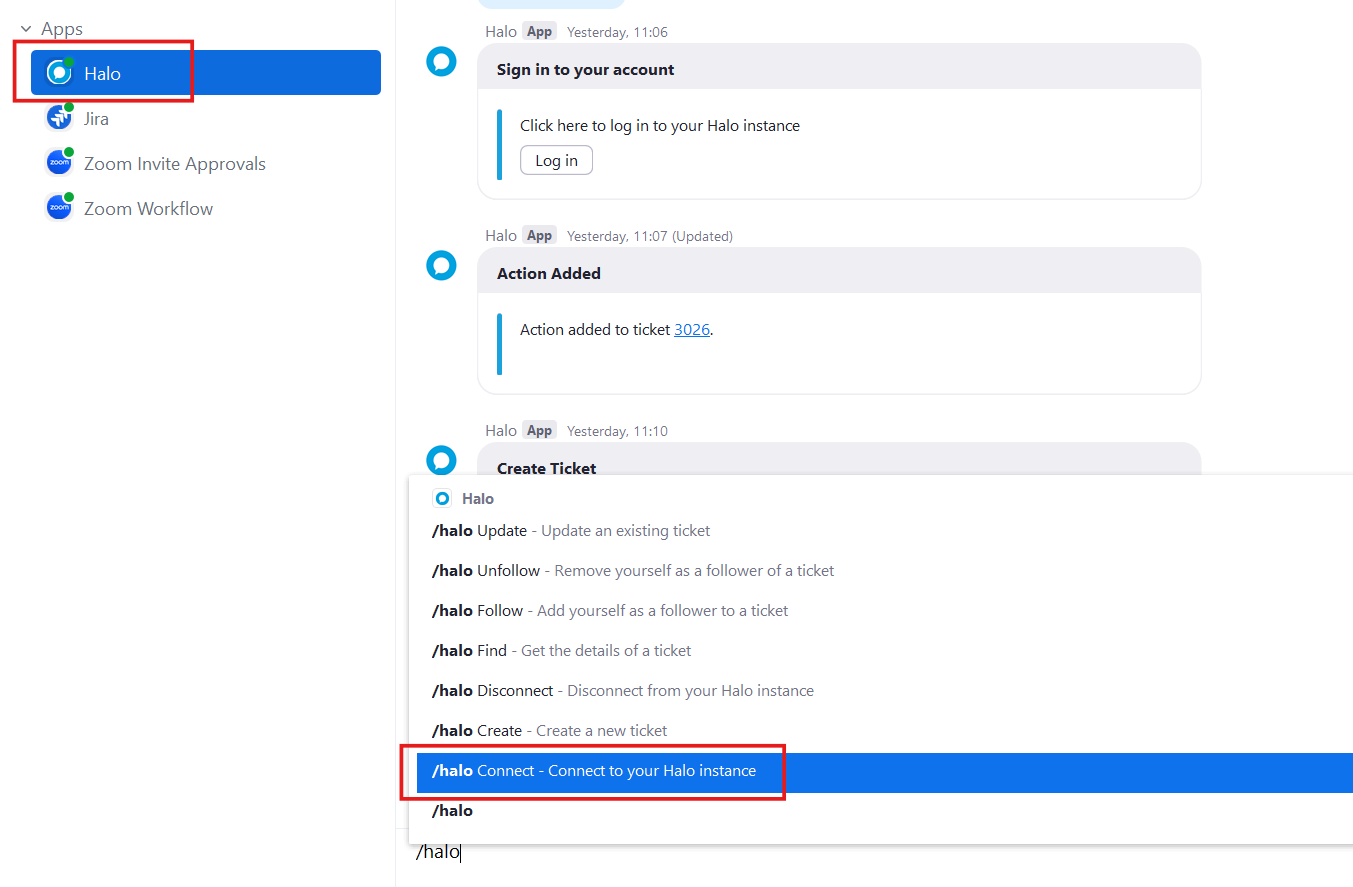
Fig 5. Connecting to Halo from the Zoom end of the integration
Once you run this command, an option will appear prompting you to log in to Halo.
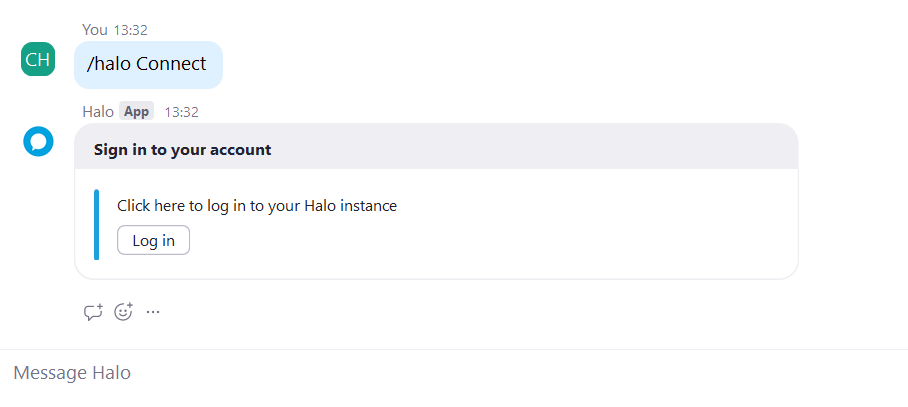
Fig 6. Signing into Halo in Zoom
Select "Log in" and you will be redirected to the Halo login screen. Once successfully logged in, you will be presented with the connection screen show in Figure 7.
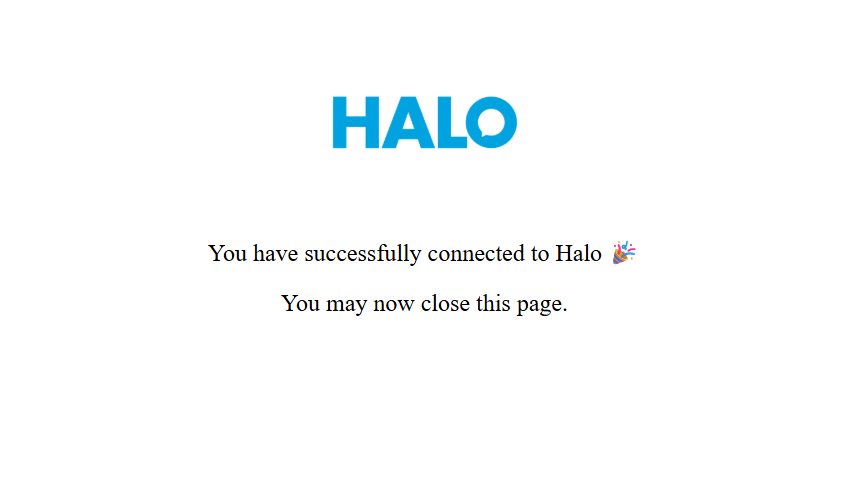
Fig 7. Successful connection message when affirming connection from the Zoom end of the integration
Note: You will only need to complete the "/halo connect" command once - if you ever remove the app, then this command would be necessary as part of re-establishing the connection. Removing the app is detailed in the "Removing The App" section of this guide.
Configuring & Using The Zoom Integration
Once your Zoom instance is successfully connected to your Halo instance, you can configure the three main functionalities of the integration.
Call Management
Within the Call Management tab of the integration you can enable the ability to call Users on Zoom from within Halo.
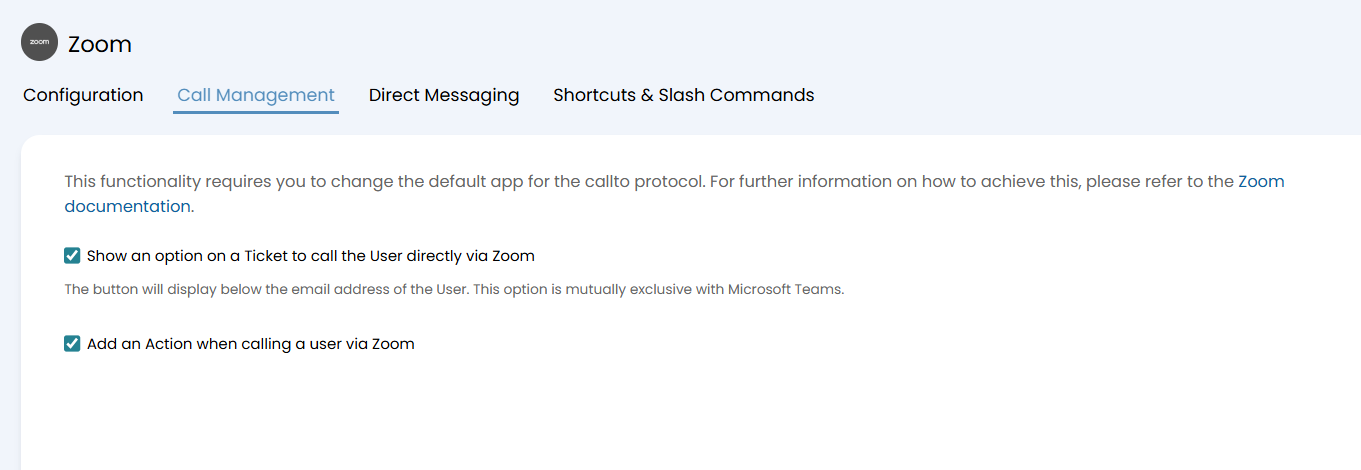
Fig 8. The Call Management Tab of the Zoom Integration
When the setting to "Show an option on a Ticket to call the User directly via Zoom" is enabled, a button will appear on Tickets beneath the User's email address labelled "Call on Zoom".
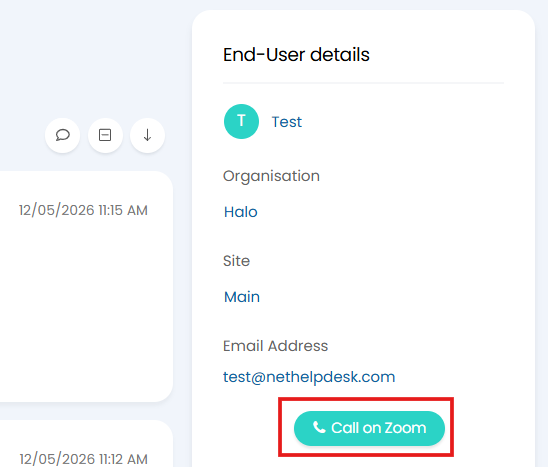
Fig 9. The button for calling Users directly from a Ticket
Note: This button will only appear if the User has an email address set against them.
If you also enable the setting to "add an Action when calling a User via Zoom" (Figure 5), an Action will be added to the Ticket whenever the "Call on Zoom" button is pressed - this provides an automatic record of the call.
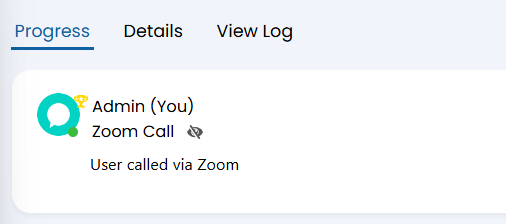
Fig 10. Action added when the "Call on Zoom" button is selected
Next, you will need to change the default app on your device to Zoom. To do this, via your windows search bar, navigate to "Default Apps".
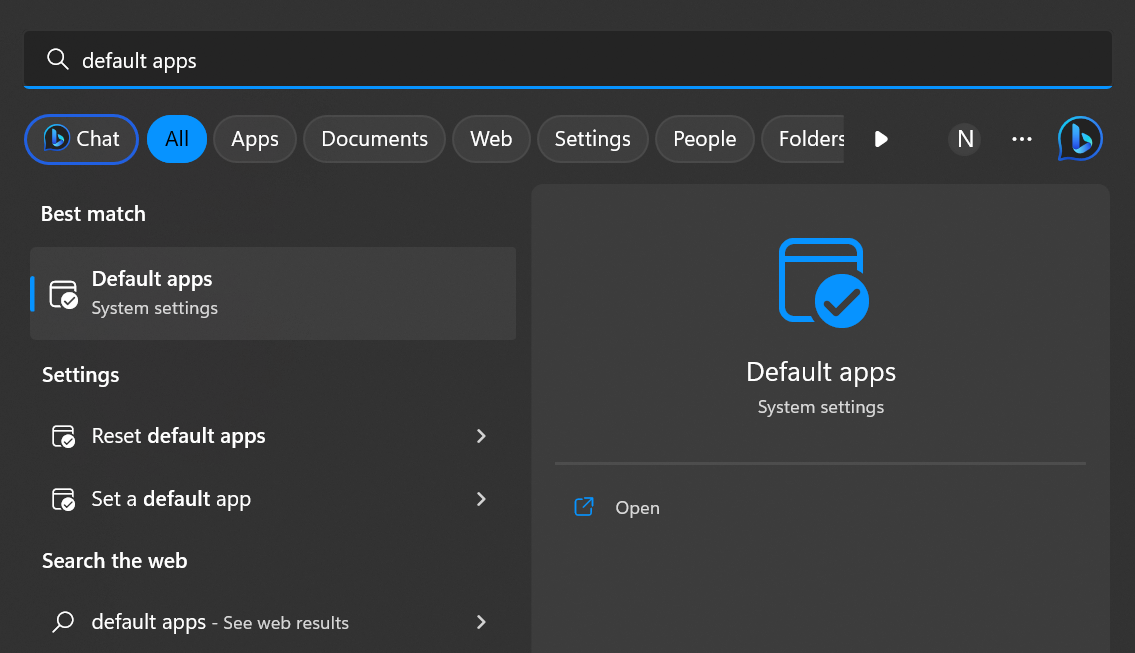
Fig 11. Loading "Default Apps" on your Windows device
In the following box, search 'CALLTO'.
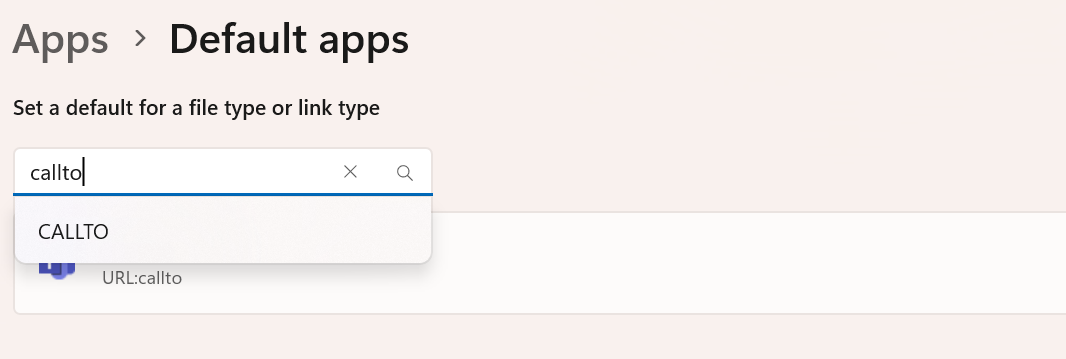
Fig 12. CALLTO app
Here, it will show you your default calling app. If it is not Zoom, you will need to change this. To do this, click onto the existing 'CALLTO' default, select Zoom and press 'select default'.
Next, head to Zoom. You will need to navigate to the 'Phone' settings, then ensure that launching a URL from a call has been enabled.
You will then need to copy the URL that is given in the 'Call Management' set up page, this is your Halo URL followed by /call?callerid=$phonenumber
E.G: https://yourhalourl.halocrm.io/call?showmenu=false&callerid=$phonenumber
You can read the full details on parameters within Zoom by reading their guide here.
Once saved, incoming external calls should now pop-up the Halo new call screen when answered.
Direct Messaging (v2.244+)
The Direct Messaging functionality of the Zoom integration allows Agents to initiate chats with the Ticket's User via the Ticket itself.
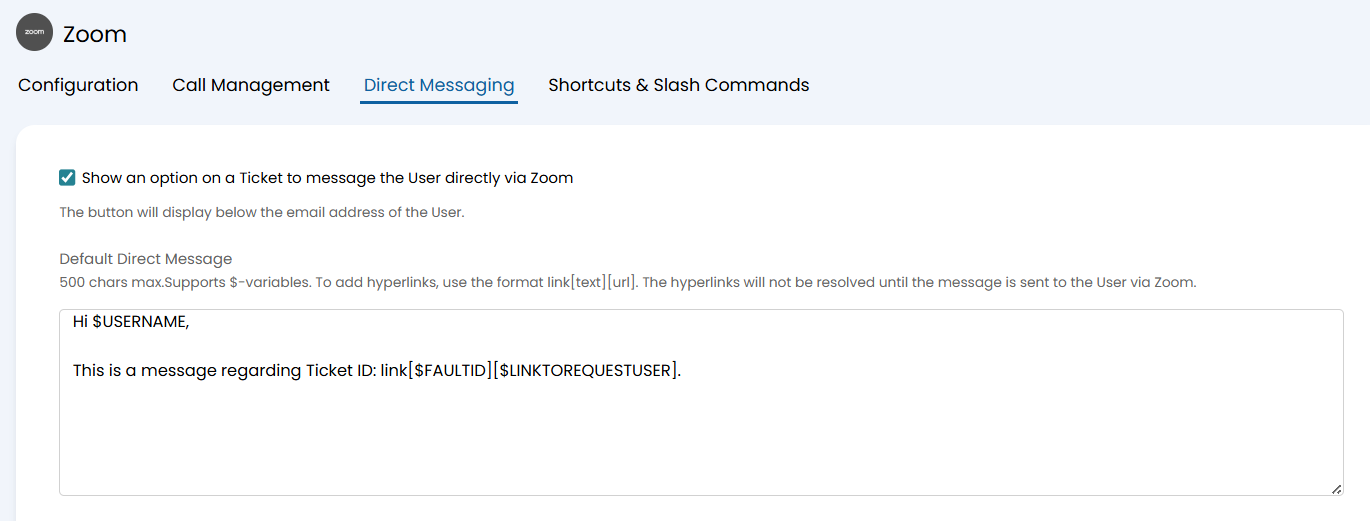
Fig 13. The setting to enable Chats via Zoom to be initiated on Tickets
When you enable the setting to "show an option on a Ticket to message the User directly via Zoom" you are provided with the additional option to default the text for the message - within this field you can use variables to default text such as the initial greeting, the Ticket ID or hyperlinks, Figure 13 shows an example of the type of text you could default here.
With this setting enabled, there will now be a button available on Tickets beneath the User's email address (below the "Call on Zoom" button if enabled) to message the User on Zoom.
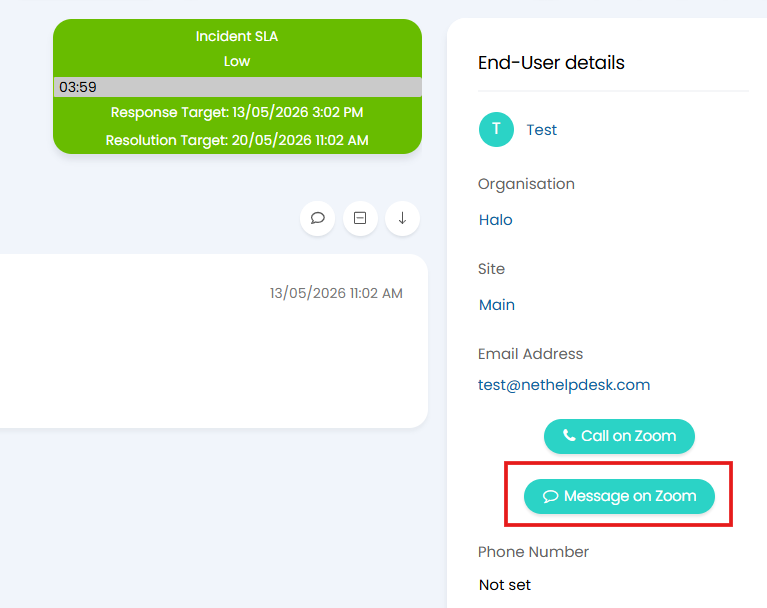
Fig 14. The "Message on Zoom" button that appears once Direct Messaging is enabled
When I select this button, a modal screen pops up with the default text I set in Figure 10 already populated. I can then add any additional text into my message to the User.
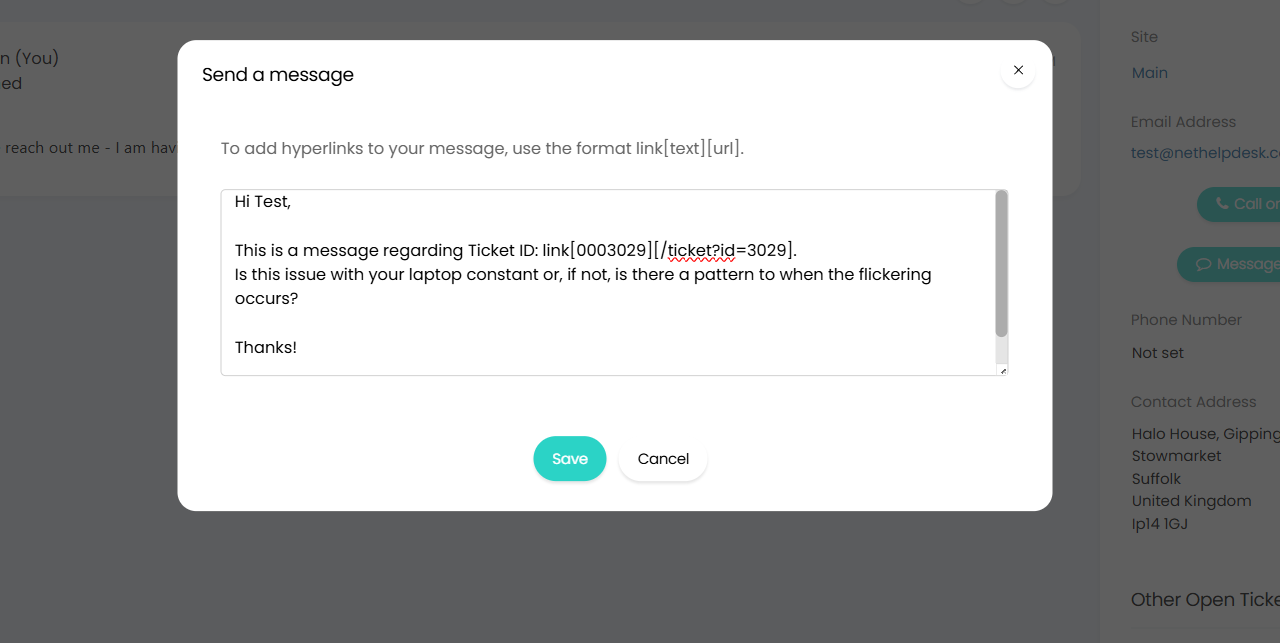
Fig 15. Sending a Zoom message to a User via a Ticket in Halo
Once I hit save, the message sends and I can view the Chat from within my Zoom instance immediately.
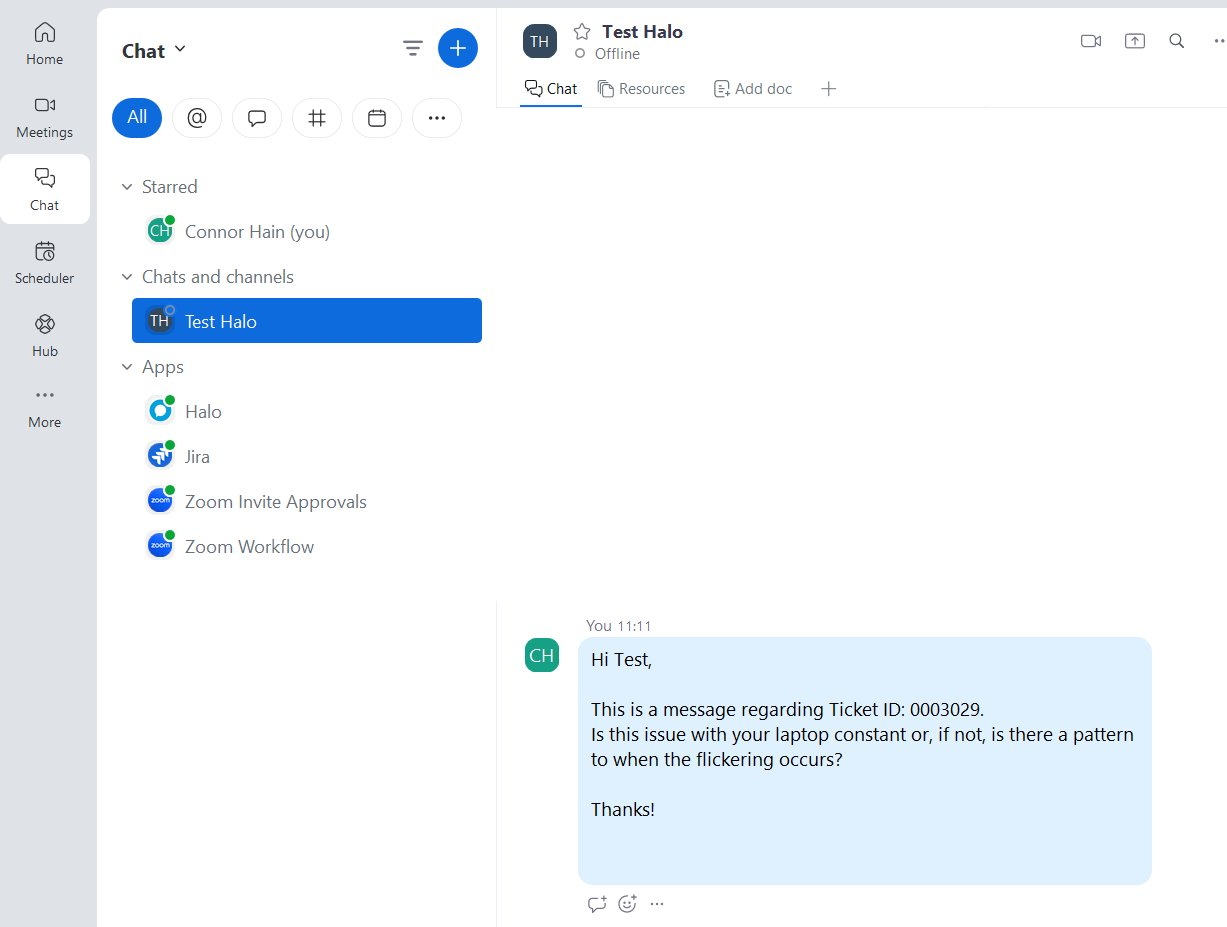
Fig 16. Chat with the Ticket's User in Zoom
Please note that the message to the User will come from the Agent that selected "Message on Zoom", not the account that authorised the integration.
If I want a record to be added to the Ticket whenever I message a User on Zoom, I can also set this up within the Direct Messaging tab of the integration by enabling the setting to show an action when the message is sent (Figure 17).
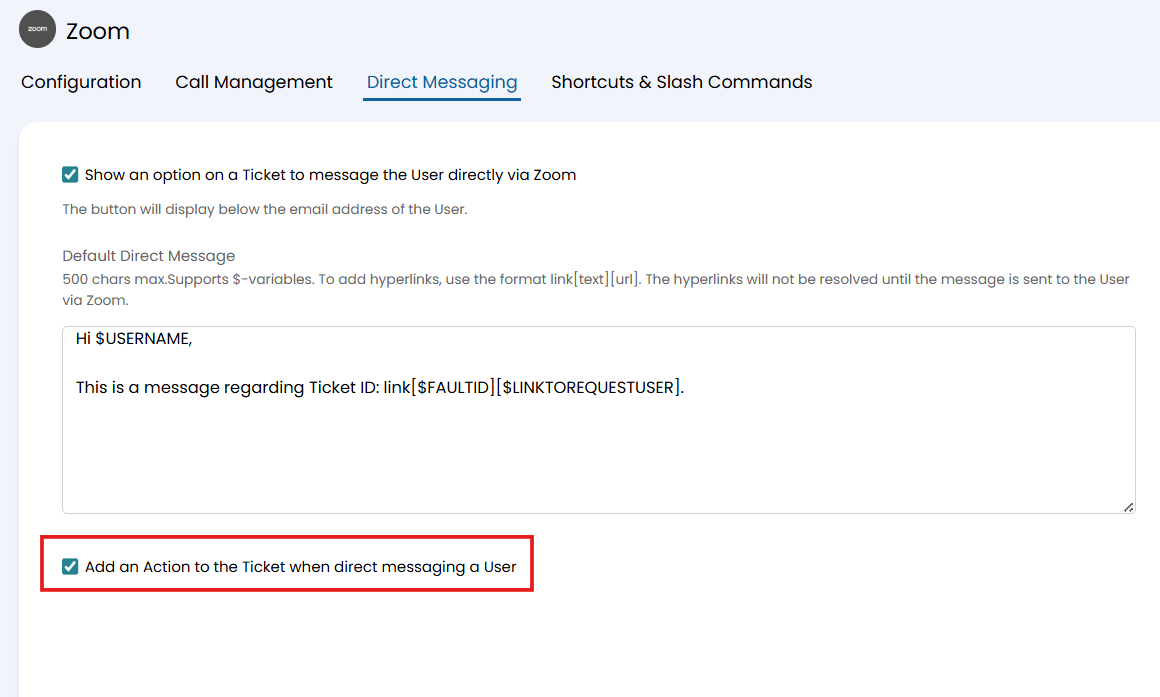
Fig 17. Setting an Action to add to the Ticket when a Zoom message is sent to the User via the Ticket
Now, whenever a Message is sent to the User, an Action will be added to the Ticket:
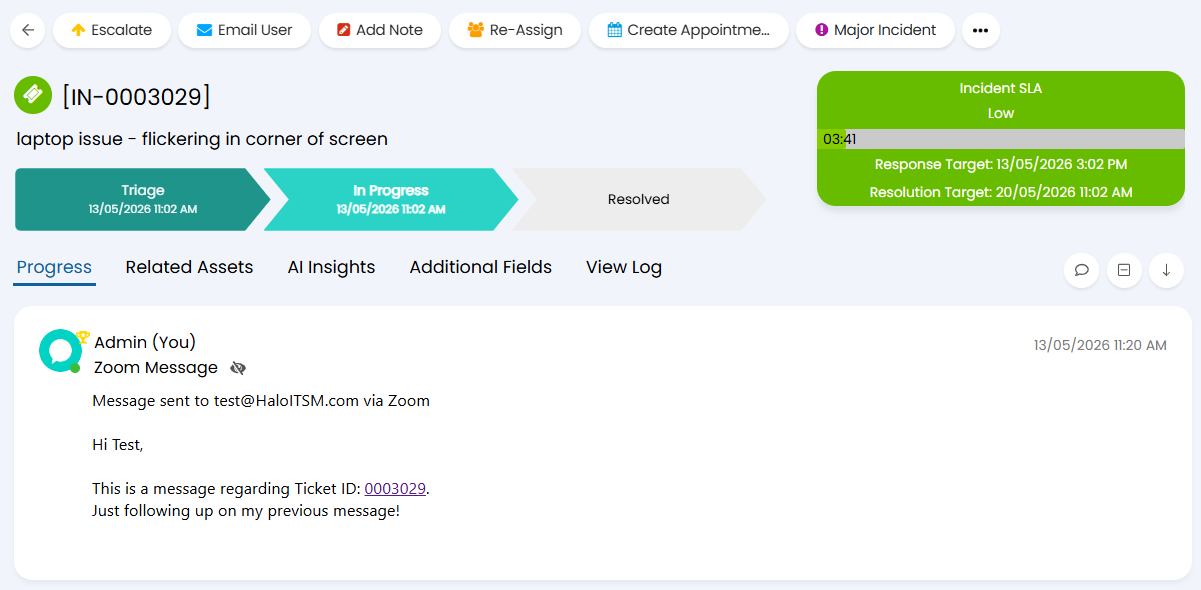
Fig 18. Record of a Zoom message sent via the Ticket
Shortcuts & Slash Commands (v2.244+)
Within this tab of the integration you can set certain defaults for when shortcuts or slash commands are used within Zoom.
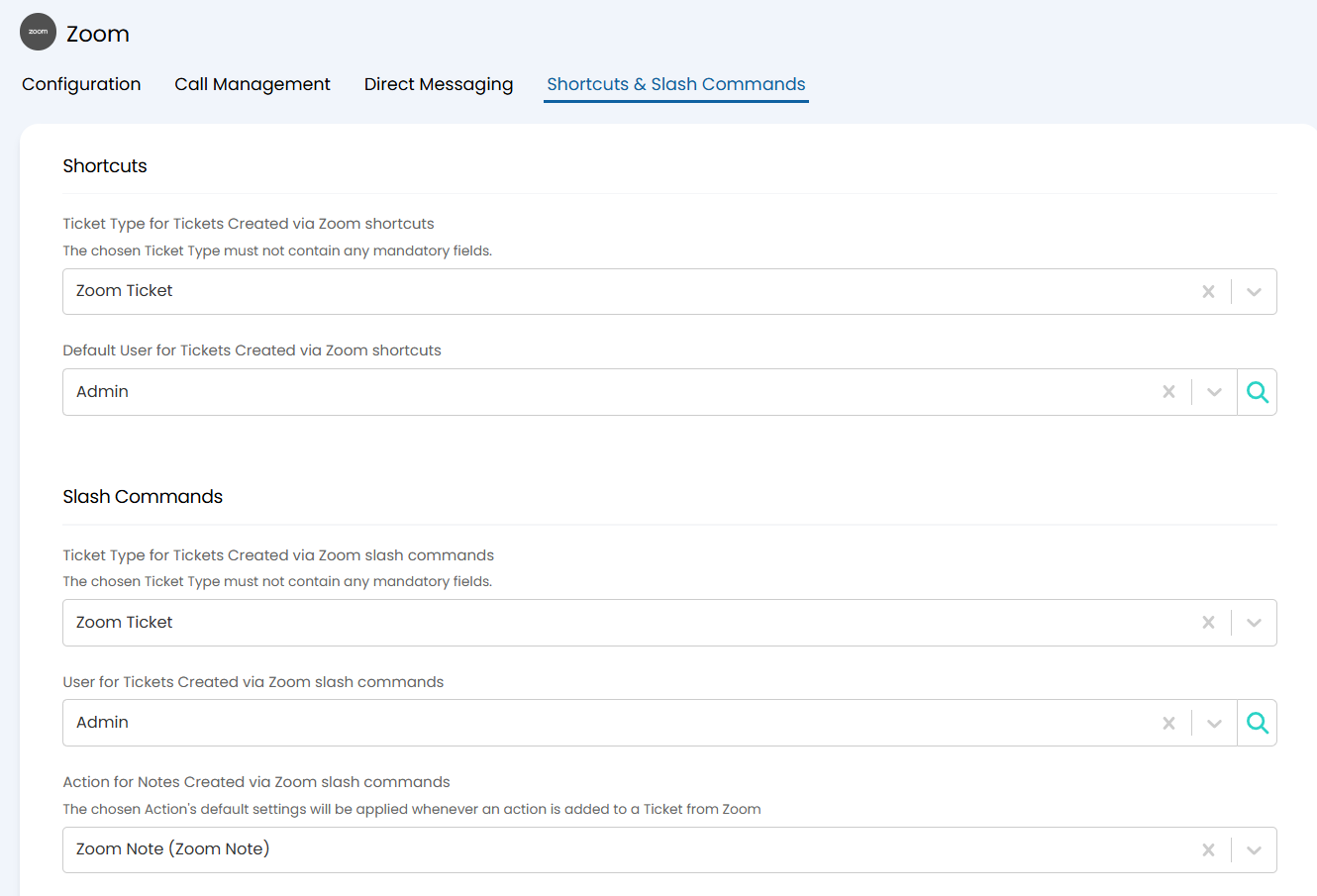
Fig 19. The Shortcuts & Slash Commands of the Zoom integration
Shortcuts
The "shortcut" refers to the method of creating a new Ticket in Halo via the Zoom chat. As you can see in Figure 19, you are able to set what Ticket Type will be used for creating the new Ticket and who the Default User will be.
Note: If you are creating a new Ticket from a User's message then they will be the User of the new Ticket, not the default User. The default applies if you are creating a Ticket from your own message.
The shortcut can be carried out using the 3 dots that appear when you hover over a message (Figure 20a) and select the "Create Ticket" option (Figure 20b).
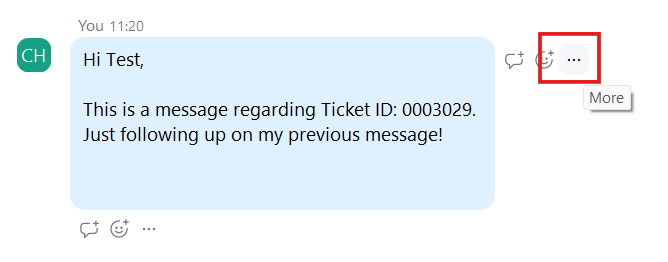
Fig 20a. Options against a message in Zoom
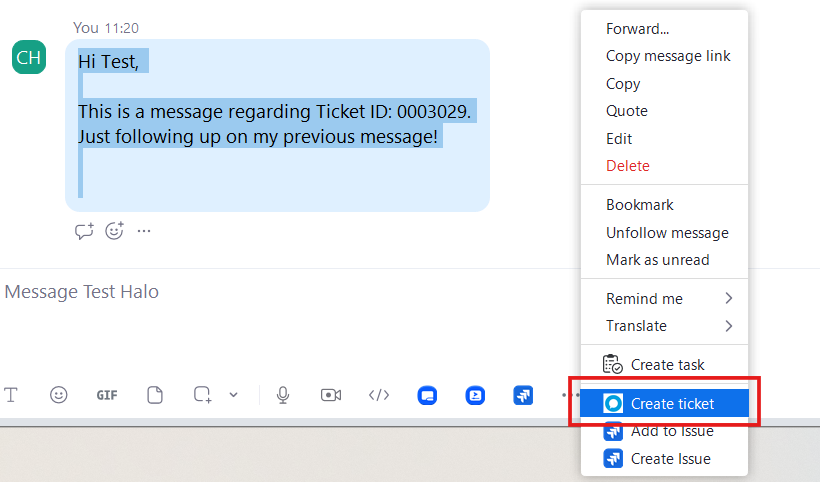
Fig 20b. The shortcut in a Zoom chat to create a new Ticket
Once you select this, a modal screen will appear in which you can enter the summary and details of the Ticket you are logging.
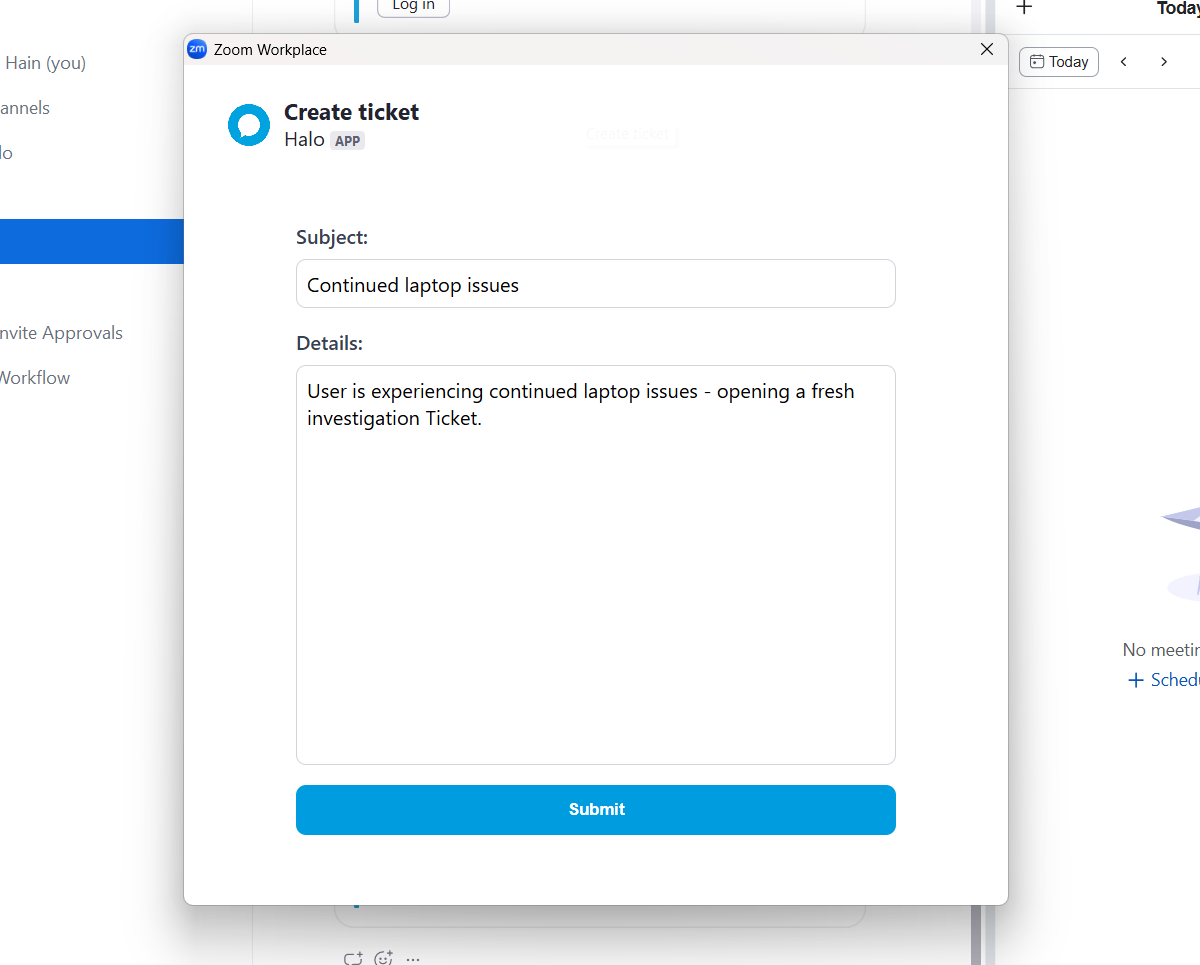
Fig 21. Creating a Ticket using the "Create Ticket" shortcut in a Zoom chat
Once you select "Submit", the Ticket ID will be returned in the success message on the modal screen
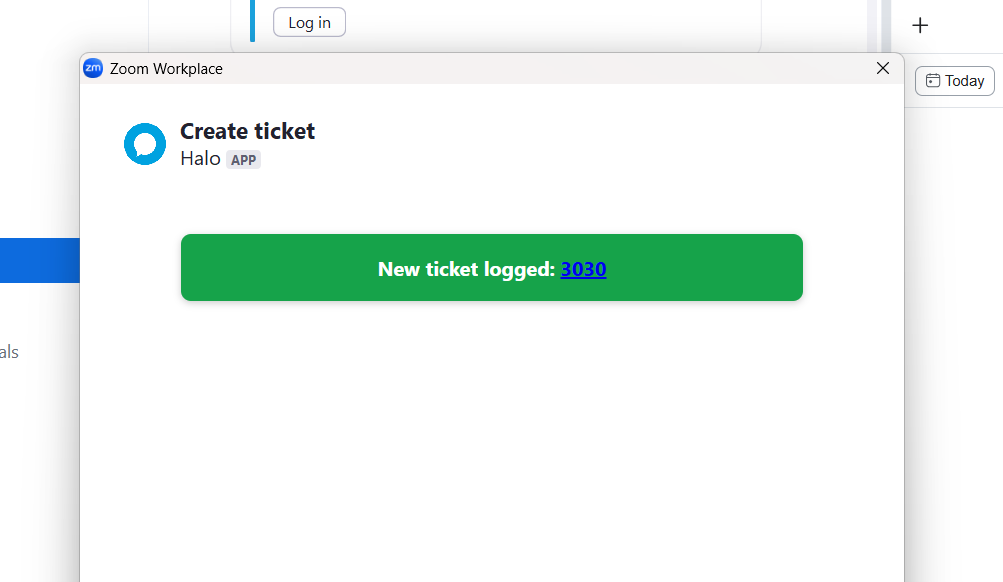
Fig 22. Zoom will return the Ticket ID once a new Ticket is logged
The Ticket will be logged with the summary and details you provided, and any additional defaults set by the Ticket Type set as the "Ticket Type for Tickets Created via Zoom shortcuts" in the shortcuts section in Figure 19.
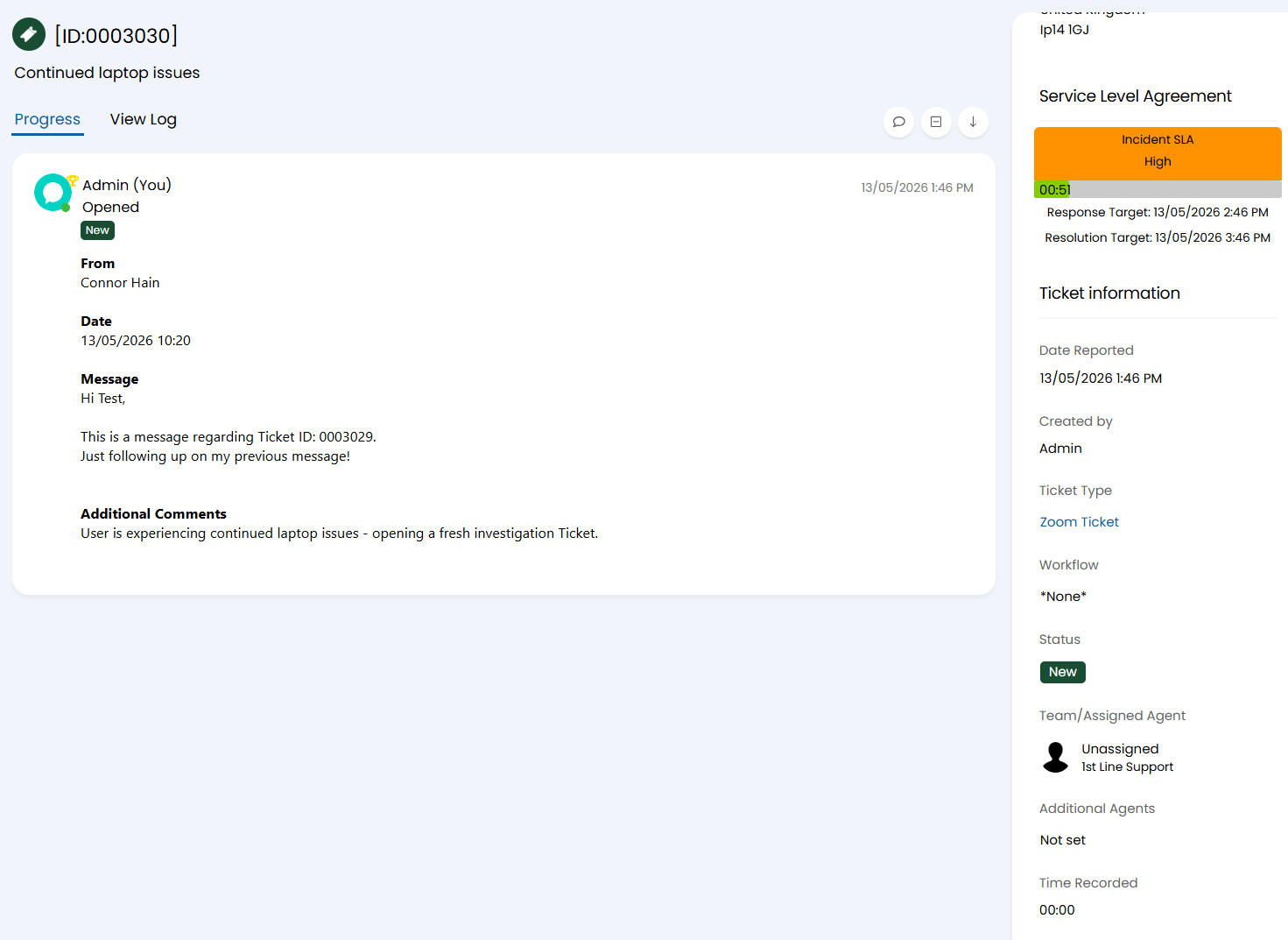
Fig 23. A Ticket logged in Halo via Zoom
Note: The Ticket Type used for this should not have any mandatory fields. Please also be aware that only the summary and details is available to be filled in when creating Tickets using this shortcut.
Slash Commands
Slash commands can be used within your Zoom instance to perform certain functions in the Halo app - these always follow the format of " /halo [command] " and can be performed within any chat in your Zoom instance.
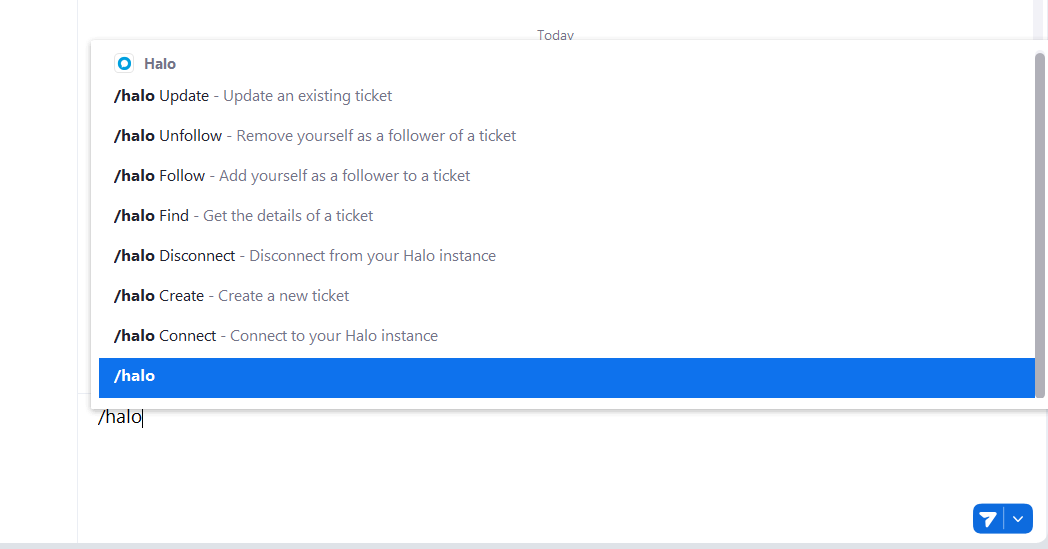
Fig 24. Zoom slash commands for the Halo app
For example, if I run the command "/halo update 3030", I am provided with an option to enter a note and a new status for the Ticket 3030.
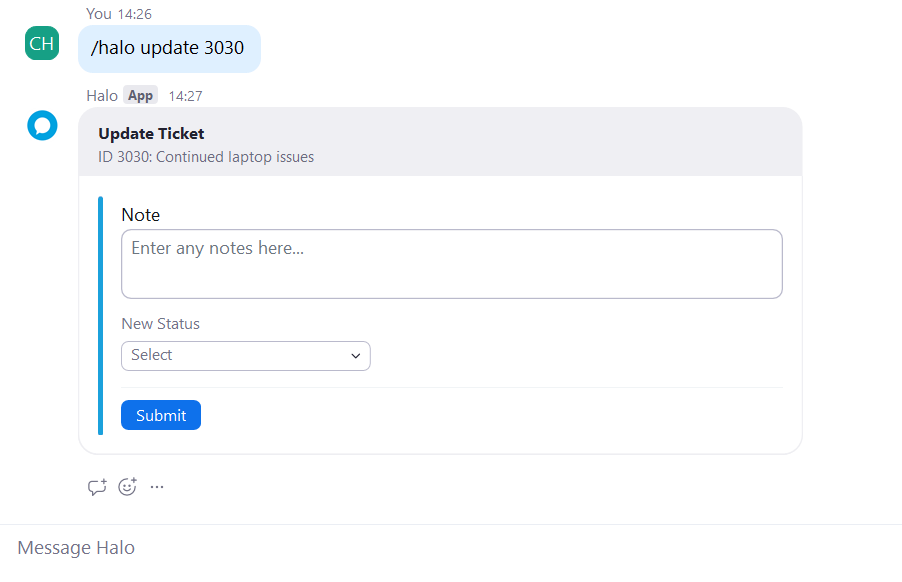
Fig 25. Updating an existing Ticket using the /halo update command in Zoom
Note: The "/halo connect" and /halo disconnect" commands control the connection of your Zoom instance to your Halo instance, as such these should only be used if you wish to affirm your connection or break your connection.
As illustrated in Figure 26, within the Shortcuts & Slash Commands tab of the integration you can default the Ticket Type used when creating Tickets with "/halo create", the User for those new Tickets, and what Action is used when a Ticket is updated using any of the commands that make a change to an existing Ticket.
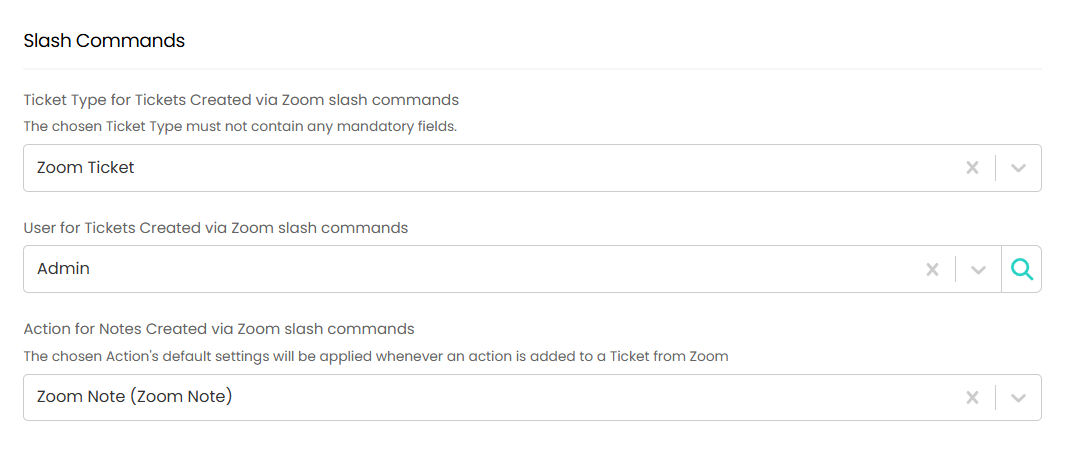
Fig 26. The Slash Commands section of the Zoom integration in Halo
For example, if I run the command "/halo unfollow 3032" then it will remove me as a follower of Ticket 3032 and it will add the "Zoom Note" action set in Figure 26 to the Ticket.
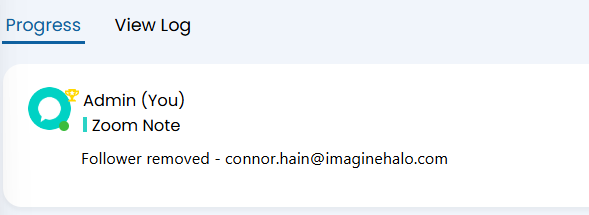
Fig 27. Action added when changing an existing Ticket.
Removing The App
In the event that you need to remove the Halo app from your Zoom instance, there will be an option to do so in the Configuration tab of the integration once the integration is connected.
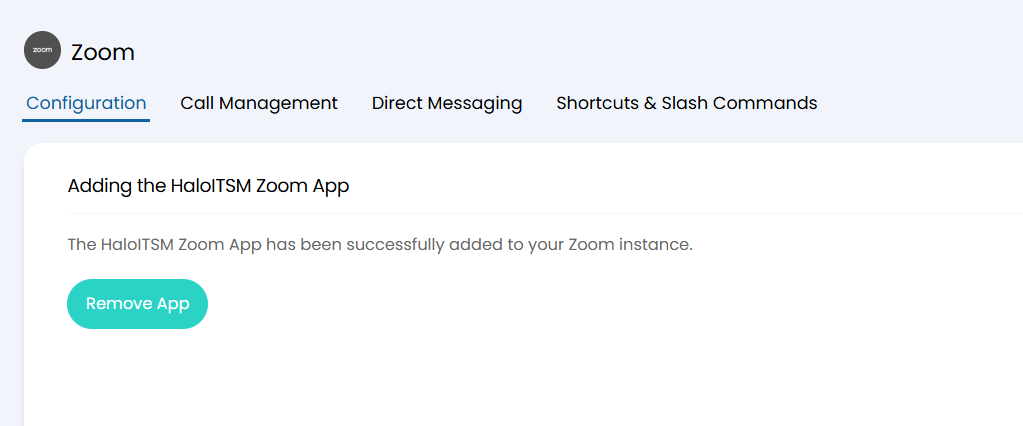
Fig 28. The method of removing the Halo app from your Zoom instance.
Selecting this button resets the configuration of the Direct Messaging and Shortcuts & Slash Commands tabs in the Zoom integration in Halo, it then also removes the Halo app from the Zoom instance.
Note: In the event that the removal of the app fails, you should manually remove all relevant configuration in the integration and then manually remove the app from your Zoom instance.
All chats will remain, even if they were initiated from a Ticket in Halo. However, the shortcut and commands will no longer be available and no action can be taken in Halo via Zoom, nor in Zoom via Halo.
Once the app has been removed, ensure you disable the Zoom integration module within Halo by navigating to Configuration > Integrations, locating the Zoom module and clicking the "x" icon on the module.
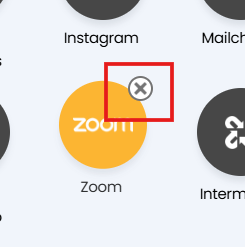
Fig 29. Disabling the Zoom integration module in Halo
Troubleshooting
This section provides some potential errors you may encounter with the Zoom integration, what their cause is, and how to resolve them.
In the event that you encounter an error not documented here and you are unsure how to resolve it, please do reach out to our support team for guidance.
Error | Error image | Resolution |
| Token refresh failed - Error Code: 1001. Message: Invalid request body. Details: View logs for further information. |  | This error can happen if the "Message on Zoom" button is clicked but the integration is not connected. To resolve this error, connect the Zoom integration within Configuration > Integrations > Zoom and perform the "/halo connect" command within Zoom. If you have purposefully disconnected the integration and do not intend on using it, you should either reconnect the integration, disable the settings in the Direct Messaging tab, and then disconnect again, or you can just disable the Zoom integration module. |
| Failed to send message User does not exist: [USER EMAIL] |  | This occurs when you have selected the "Message on Zoom" button on the Ticket, but the User is not a contact in your Zoom instance. To resolve this error, add the User as a contact in your Zoom instance before re-attempting to message them. |
| You cannot authorise Halo | 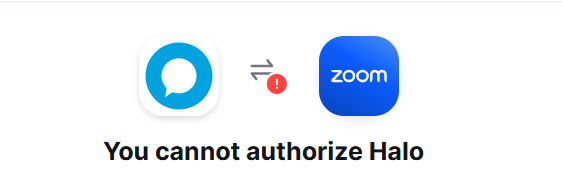 | This can show as the error when attempting to add the Halo app to Zoom. It occurs due to a lack of permissions. To resolve this error you will need to authorise the connection with an Owner or Admin account for Zoom. |