Internal Conversations In Halo
In this guide we will cover:
- How to Loop In Your Colleagues With Mention @ Functionality
- Internal Chat
- Internal Conversations Using Ticket Types
This guide details different ways to loop other agents into tickets in your Halo instance.
How to Loop In Your Colleagues With Mention @ Functionality
In your Halo instance, you have the ability to mention agents or teams using the @ mentioning functionality.
This can be hidden from the user or not depending on the action used and how it has been configured.
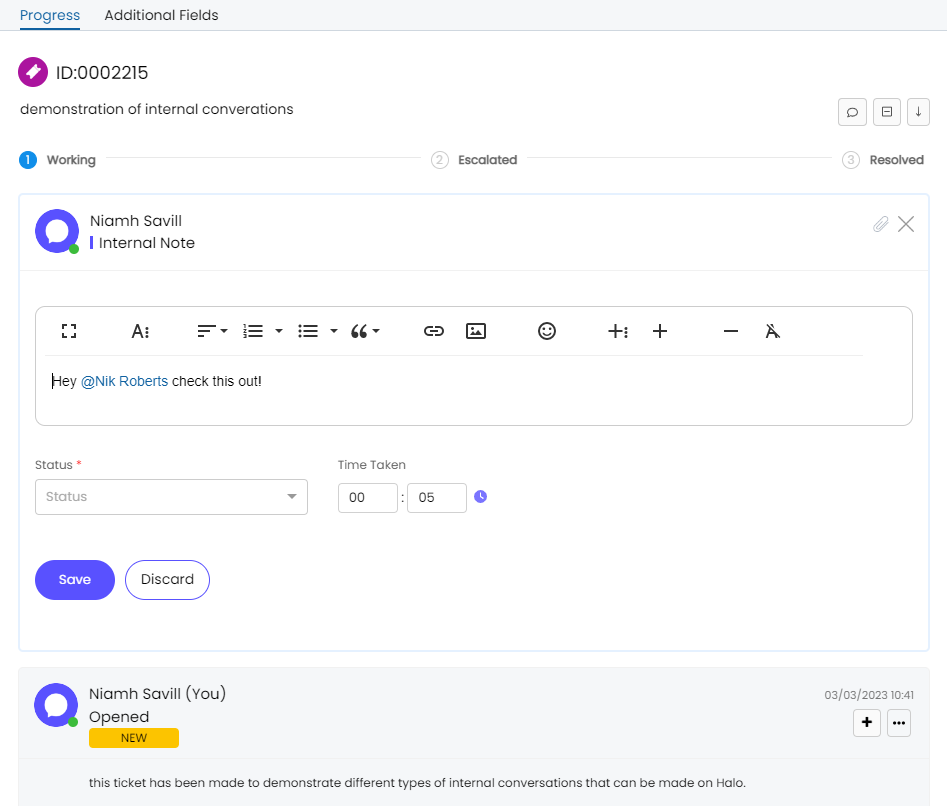
Fig 1. Mentioning an agent from an action
When a team or an agent is mentioned, they will receive a notification to tell them of this.
Note: Please double check in your notification configuration that a notification has been set-up with the event trigger of 'mention'.
Internal Chat
Halo has both an external live chat and an internal chat feature. For the internal chats, agents can talk with other agents in reference to tickets.
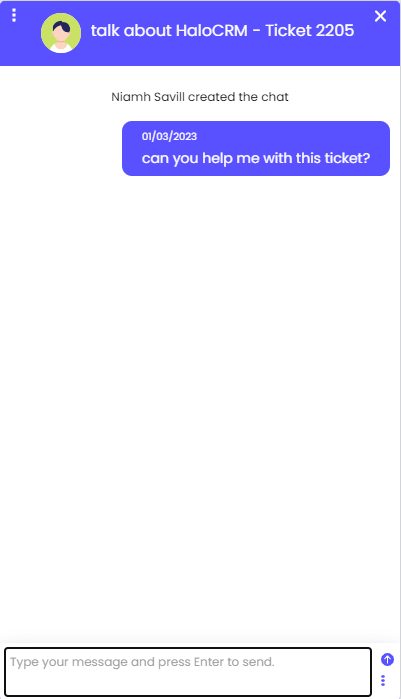
Fig 2. Internal chat window
Simply select the "Start New Chat" icon, select the agent you'd like to talk to, insert the ticket number and a title of the chat - and talk about the ticket.
Once the chat has ended, the transcript will be transferred onto the ticket for further reference.
By default, this is NOT hidden from the end-user. To hide it, click here:
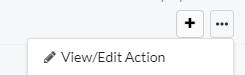
Fig 3. Edit an action
Then ensure the option shown in Figure 4 is ticked.
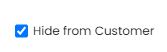
Fig 4. Option to Hide action from user
Internal Conversations Using Ticket Types
You can set-up your Halo instance to have the ability to create a new ticket for internal conversations. This is especially useful if the ticket requires input from several agents from different teams. It keeps the parent ticket clean from internal notes and doesn't cause any confusion to the customer.
To do this, go to Configuration > Tickets > General Settings > Internal Conversations.
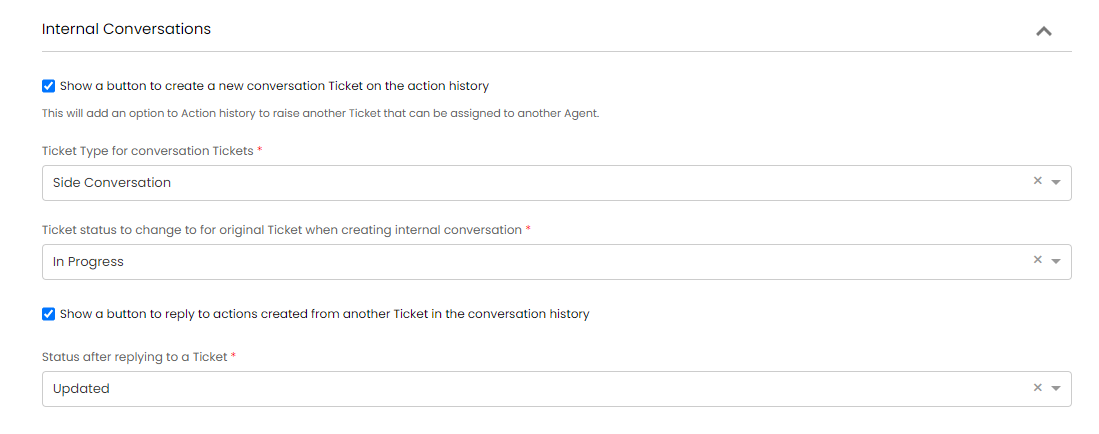
Fig 5. Internal Conversation Options
By default, HaloCSM has internal conversation functionality enabled and has an out-of-the-box ticket type created called 'Side Conversation'.
The entire action of creating the internal conversation ticket is also hidden from the contact.
To create an internal conversation on a ticket, press the '+' on the action history you'd like to pull over into the side conversation.

Fig 6. Button to create new conversation ticket history
This will then pull up the screen shown in Figure 7.
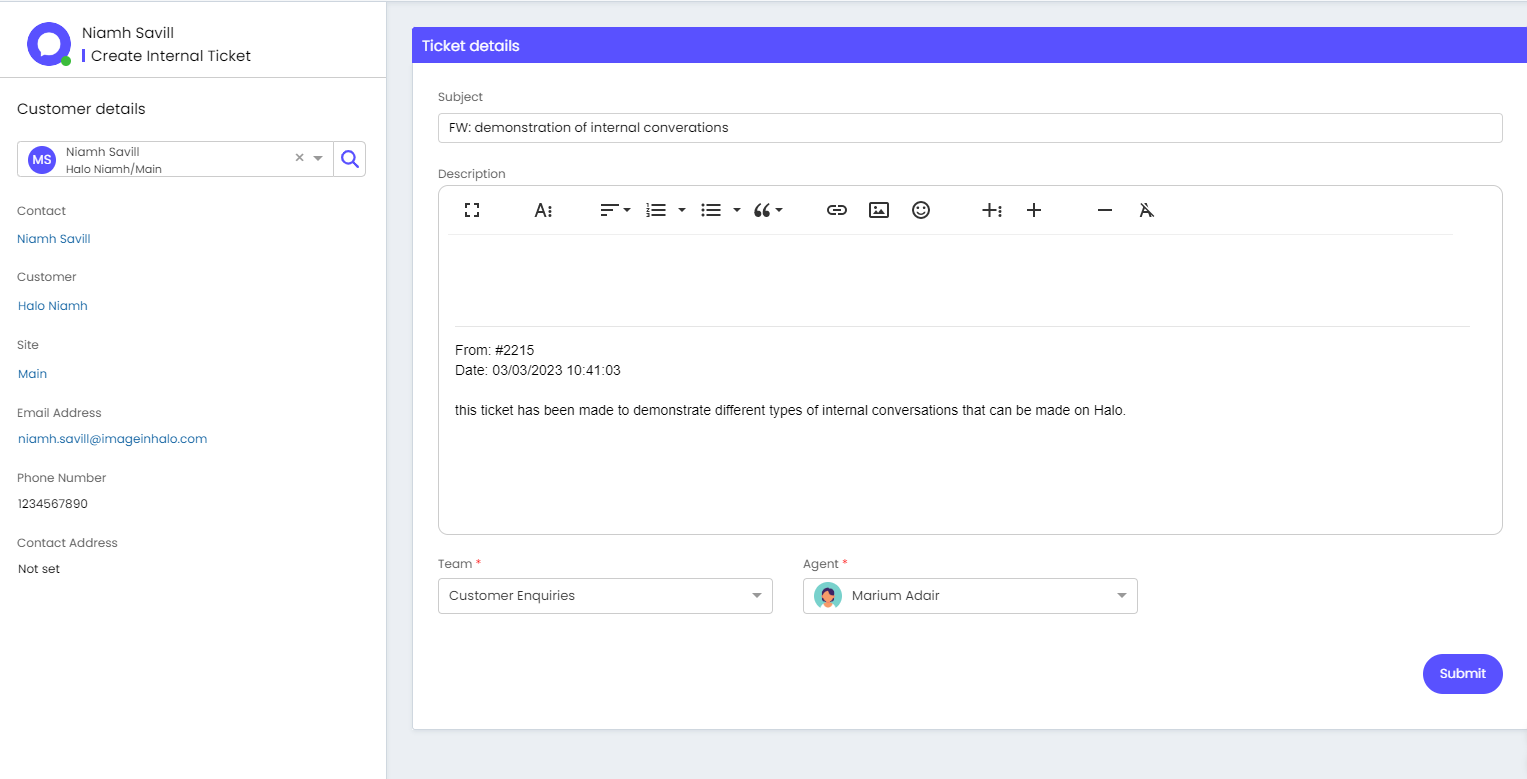
Fig 7.New Ticket Screen
By default, you will be the contact of this ticket.
Here, you are able to assign the ticket to a specific team and/or specific agent. You are able to add any notes in addition to the content that has been pulled over.
All of the information and conversation made on this ticket will of course be hidden from the original contact as they are not the owner of the ticket.
Once submit, the ticket can be found under the 'related tickets' tab on the original ticket.
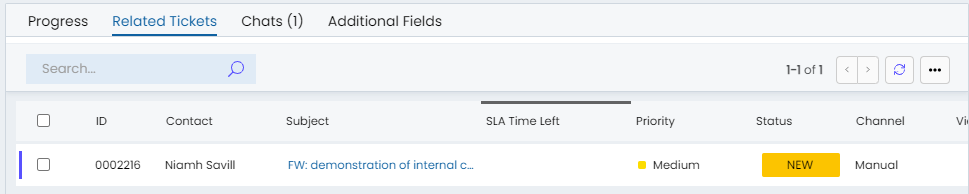
Fig 8. Conversation ticket related to original ticket