Making Use Of Canned Text and $ Variables
In this guide we will cover:
- Using Canned Text
- Creating Canned Text
- Variables
- Canned Text Access Control
- Team Specific Canned Text
- Canned Text Favourites
Note: Any variable written in this guide is written with a hyphen between the $ sign and the word. This is so there is no replacement of them if this guide is shared through any Halo action. When used, they should be used without a hyphen (-). A complete list of variables can be found by going to your Halo instance URL, and adding /variables to the end.
Canned text and $ variables can be used to pre-populate information or text that you send onto your contact - making life easier for the agents. Canned text is a method of quickly pasting relevant information onto a ticket. Canned text is generally created when a phrase or a set of information is repeatedly sent to different customers.
For example: 'Please provide more information.....'.
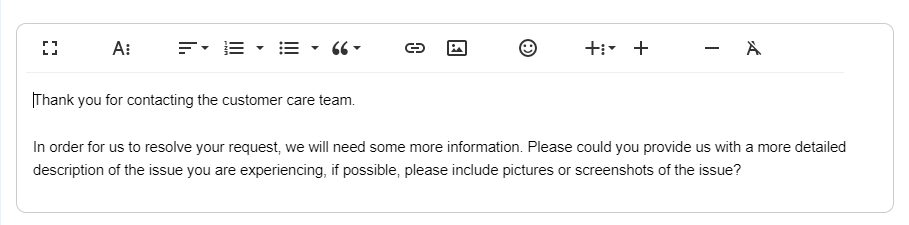
Fig 1. Canned text in the note box.
Using Canned Text
To use canned text, on the 'reply' action, or on any action where there is a text box - click on the '+:' and select the canned text you'd like to use.
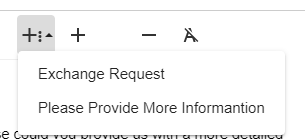
Fig 2. Selecting a canned text.
Canned text can be used by using pre-configured keyboard shortcuts. All shortcuts will be accessible using ALT + SHIFT + [Key] the key required will be dependent on configuration.
Creating Canned Text
If you're wanting to create a new canned text from the information you had just written down to send to a contact, you can do this by pressing the '+' next to the insert canned text button.
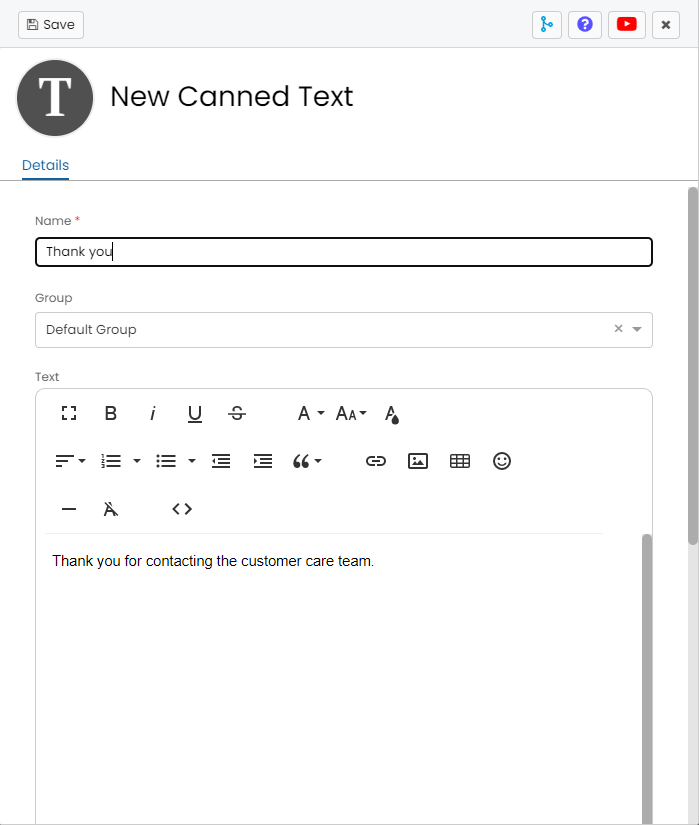
Fig 3. Creating a new canned text.
This will populate the text you have just made into the text box and you will be able to name it and add any necessary restrictions to its use.
If creating from Configuration > Tickets > Canned Text, you will have the additional option to create canned text with default attachments via the "Attachments" tab.
If creating new canned text you will also be able to assign the canned text a shortcut key, allowing you to quickly insert the canned text. The key used must be a letter of the alphabet, meaning 26 canned texts can be assigned shortcuts.
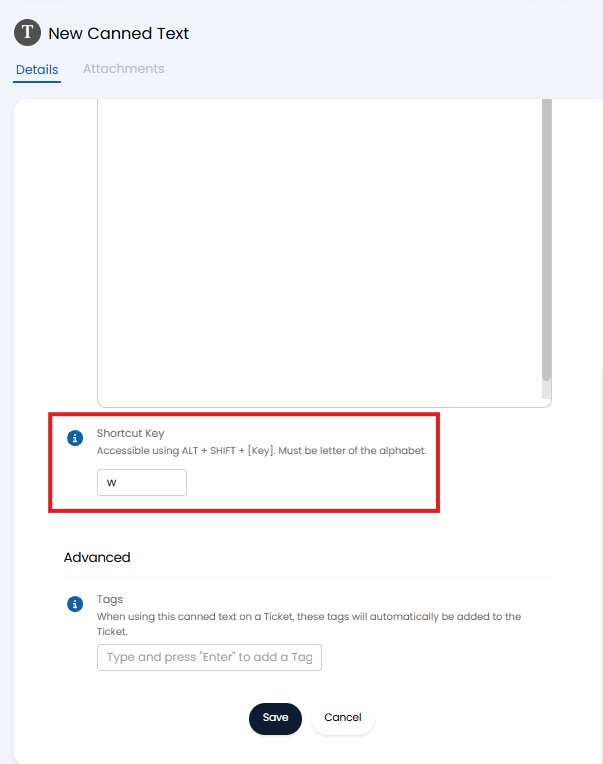
Fig 4. Canned text shortcut key.
In the above example the canned text can be accessed using ALT + SHIFT + W.
Variables
In addition to canned text, you could use $ variables to populate information onto a response.
For example, you could use:
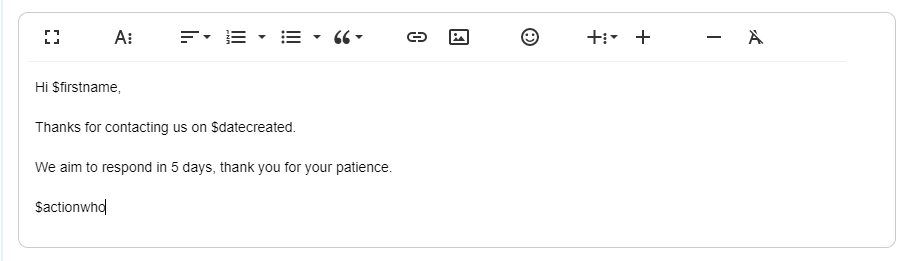
Fig 5. Adding variables.
When this is sent, it would look like this.
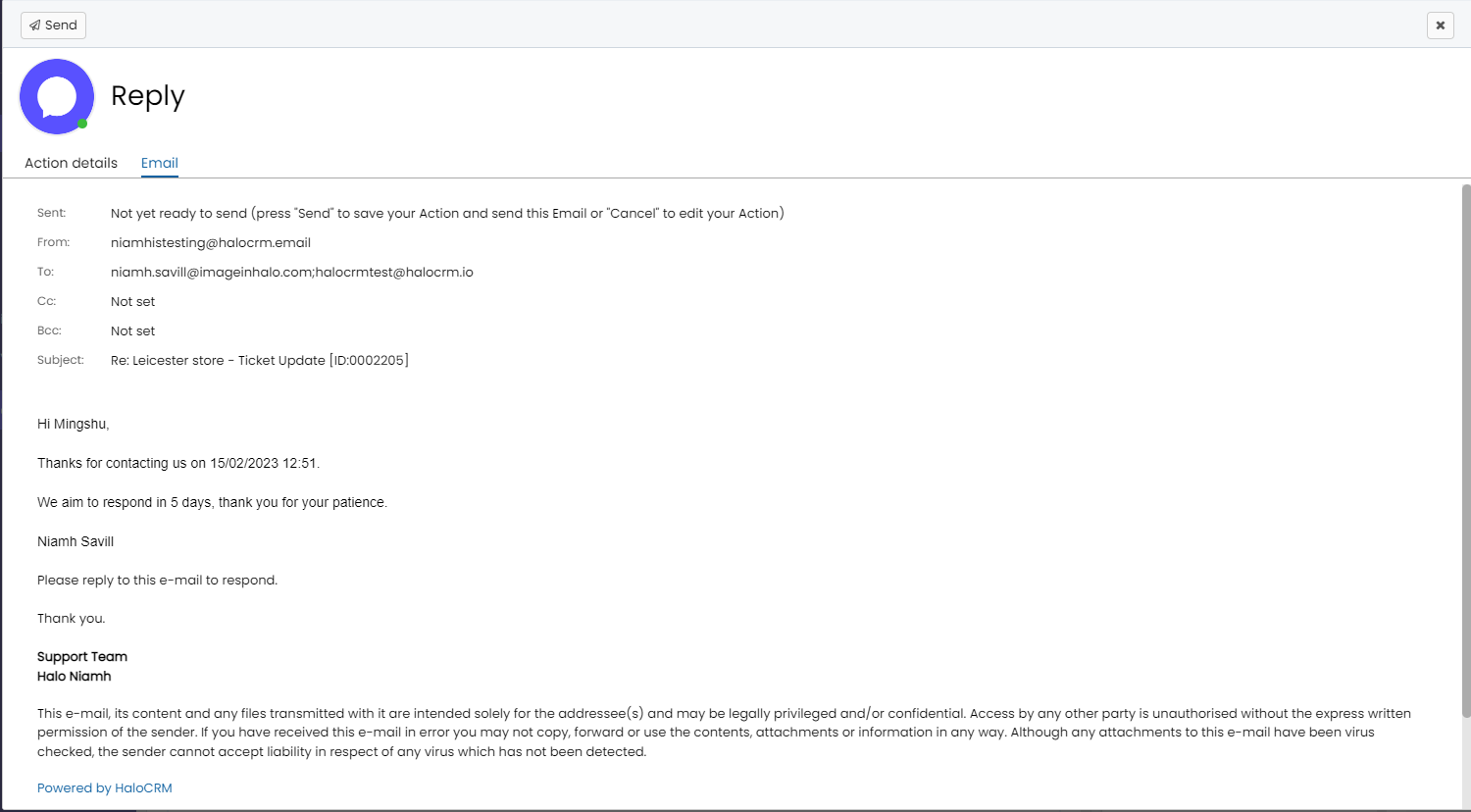
Fig 6. Variables populating on the text.
A complete list of variables can be found by going to your Halo instance URL, and adding /variables to the end.
For example: https://test.halocrm.io/variables
Canned text and $ variables can be used in email templates, macros, chat bot as well in an any actions on tickets that include a text box (e.g. reply, internal note, log to supplier etc.)
Canned Text Access Control
Note: The buttons to assign Access Control or delete the canned text show within Configuration only.
Access control can be set when creating canned text to allow other agents the ability to modify. This button becomes available when the "Can create Canned Text" permission is set to "Yes".
If set to "No", agents will still be able to create their own personal canned texts, they just won't be able to assign access control to other agents.
To allow the canned text to be used globally, set access to "All Agents" to "Read Only" or above.
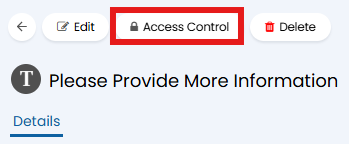
Fig 7. Access Control button on canned text.
Team Specific Canned Text
In Configuration > Teams & Agents > Teams, you can view the "Team Canned Texts" in the "Other" tab of a team. Here you can create an edit canned texts that show to members of that team, allowing you to create more specific canned texts for staff, as well as avoiding overcrowding other agents' lists.
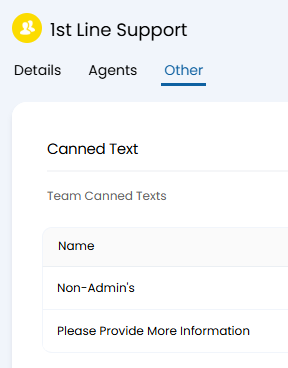
Fig 8. Team Canned Texts.
Canned Text Favourites
Agents can create a group of favourited canned texts for easy access. In Configuration > Tickets > General Settings, enable "Show modal screen for inserting Canned Text". The option for "Allow Agents to create a group of Canned Text favourites" will then show.
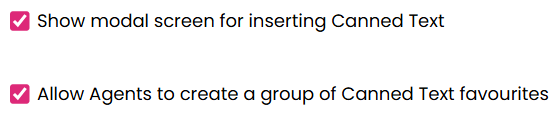
Fig 9. Enabling favourites.
When selecting a canned text, "My Favourites" can be selected as a group, shown with a star icon. Note: At least one custom group with one canned text in it must be set for this "Group" dropdown to show.
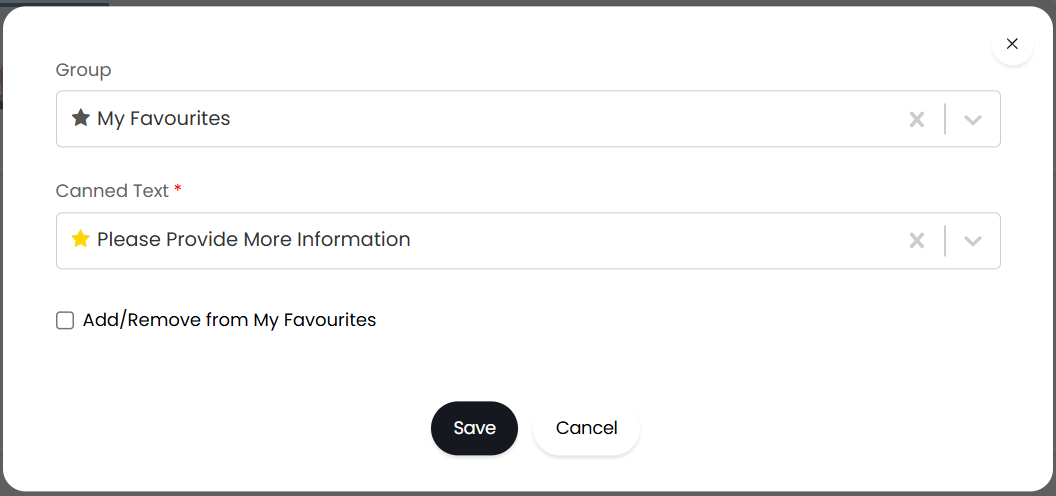
Fig 10. Selecting a canned text.
Canned texts can be added to favourites either by the checkbox shown above, or within the canned text configuration.
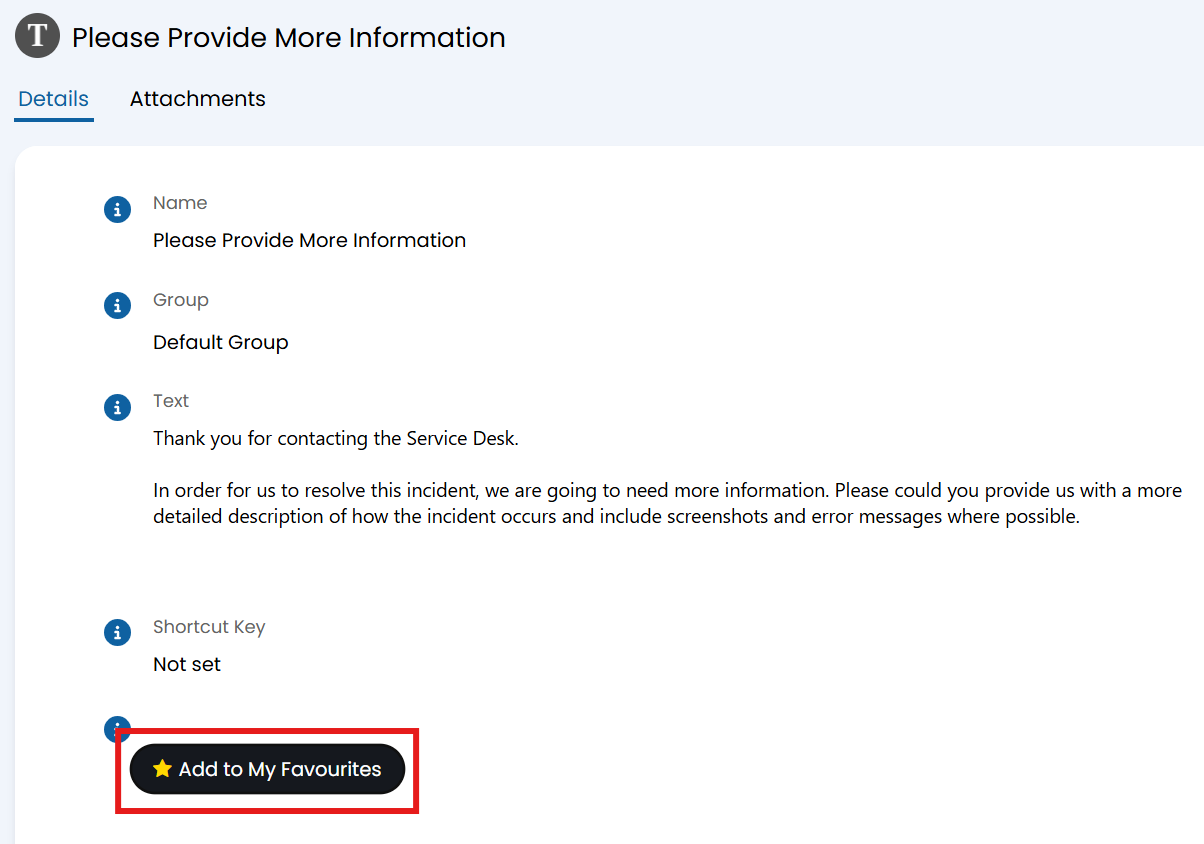
Fig 11. Adding canned text to favourites.