Halo have removed this guide from their knowledge base. This is our last mirrored copy, kept so existing links keep working — it may now be out of date.
Setting Up Multi-Brand In HaloCRM
How to set up multi-brand on your HaloCRM and have multiple brands on one instance.
Setting up multi-brand on HaloCRM is simple. There are a few easy steps you can follow and you'll be up and running in no time.
First, head to Configuration > Organisation. Once here, tick 'Enable Multiple Brands'.
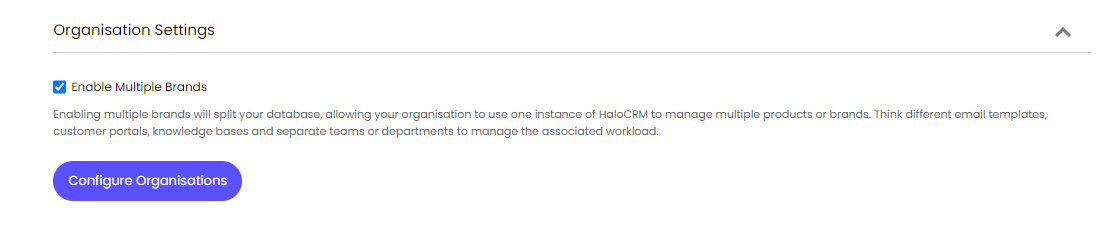
Now, press 'Configure Organisations'.
By default, the organisation you signed up to HaloCRM with will show - however aside from the organisation name, no details will be filled in.
Let's go through an example together on how to add a brand.
Press 'New' in the top right-hand corner on the screen, and you'll be presented with a page as below.
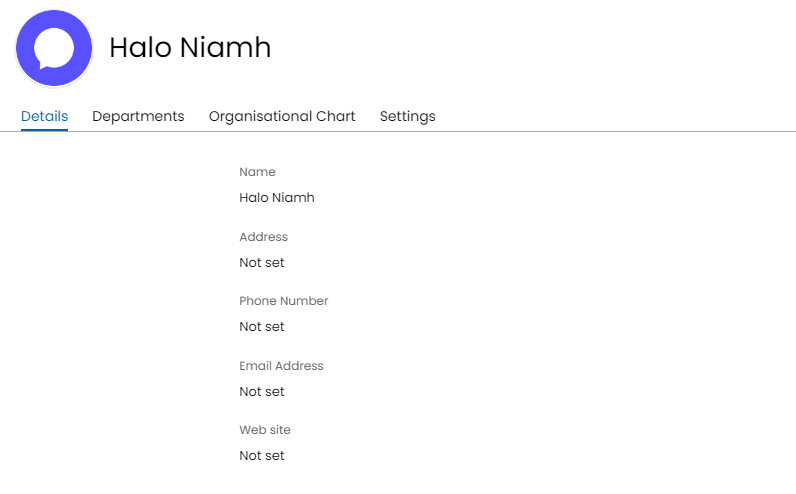
Here, you can input your essential information about the brand, and the information provided can then be used on correspondences made in HaloCRM, should you wish to.
The latter half of the page, is vital when setting up multi-brands in HaloCRM.
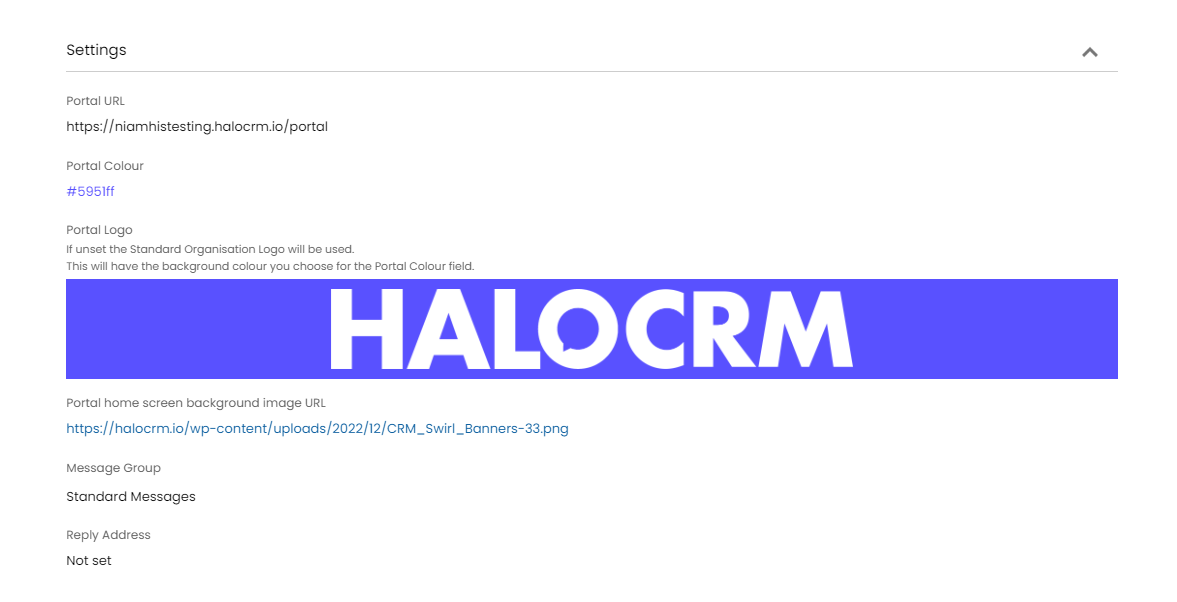
The information here is what will differentiate one brand from another. Meaning, when a customer contacts Brand A in HaloCRM, the brand they will see or receive a response from, will have the branding and reply address as set here. It is vitally important that these are different, otherwise it can cause confusion for the customer.
Once ready, press 'Save' and you have added your first brand! This process can be rinsed and repeated for every brand you add into HaloCRM.
To learn how to add departments to your brand, see the article here.
When setting up multi-brand, it is important to dedicate specific message groups to specific brands as this is ensure that branding in responses such as emails are correct accurate.
Agents will also need to be given permissions, via role restrictions, in order to ensure that they are only dealing with customers from their brand. To find out more about roles and how to set-up restrictions, have a look at this article.