Call Pop-Up for Microsoft Teams
- teams
- phoneintegration
- Microsoft Teams
- Call
In this guide we will cover:
- Configuring the Teams Admin Centre
- Configuring each User
Admin Guides:
Related Guides:
This guide takes you through how to configure Microsoft Teams to launch the Halo call screen when answering inbound calls from Teams.
Configuring the Teams Admin Centre
Within the Microsoft admin centre, you can navigate to the Teams Admin Centre. Go to Voice > Calling Policies.
Select the relevant policy/policies.
Note: Ensure this calling policy is applied to your users.
Enable "Open apps in browser for incoming PSTN calls", then set the “URL to open apps in browser for incoming PSTN calls” to https://YourHaloURL/call?callerid={phone}&inboundactive=true. The URL will work with or without the "inboundactive=true" parameter, as Microsoft Teams will always open calls in a new tab by default.
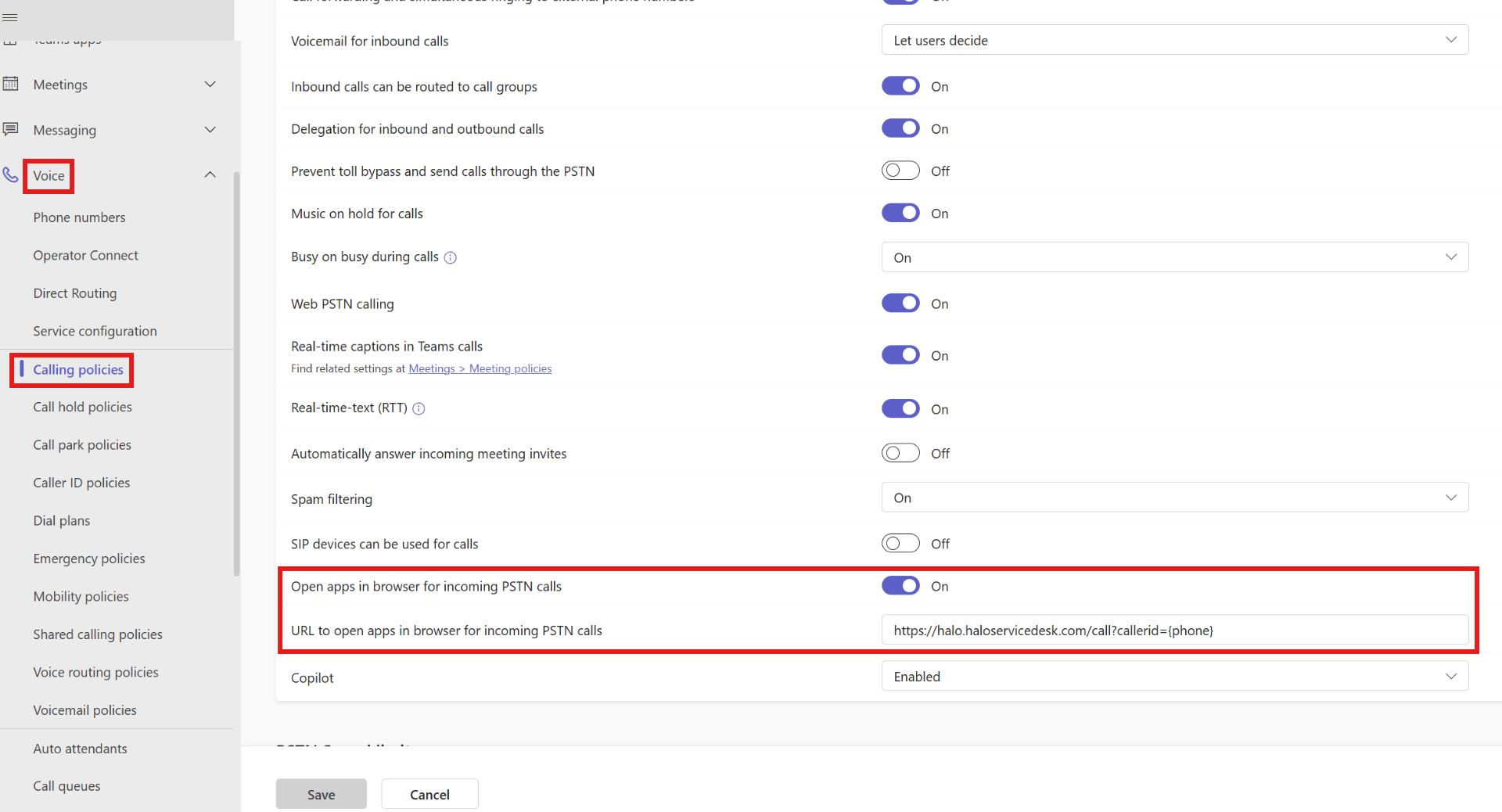
Fig 1. Entering the Halo call screen URL.
Configuring each User
On each user account, click into the ellipse beside the user's profile picture, and then click into settings.
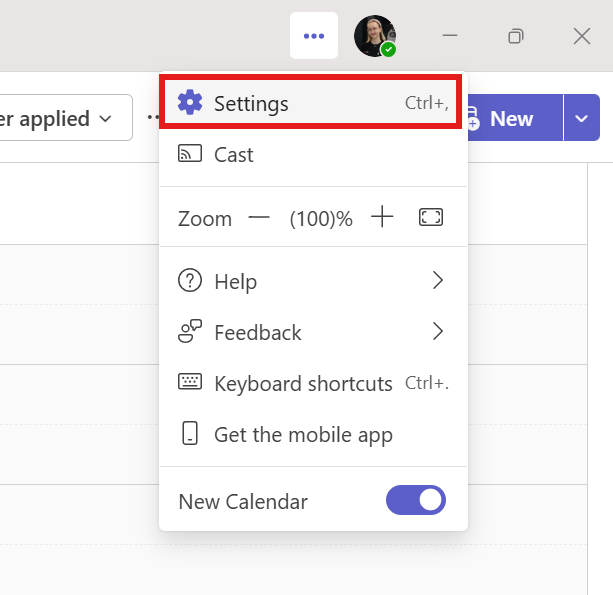
Fig 2. Going to settings.
Click into "Calls" on the right hand side. Scroll down to "Open apps in browser" and enable third party apps.
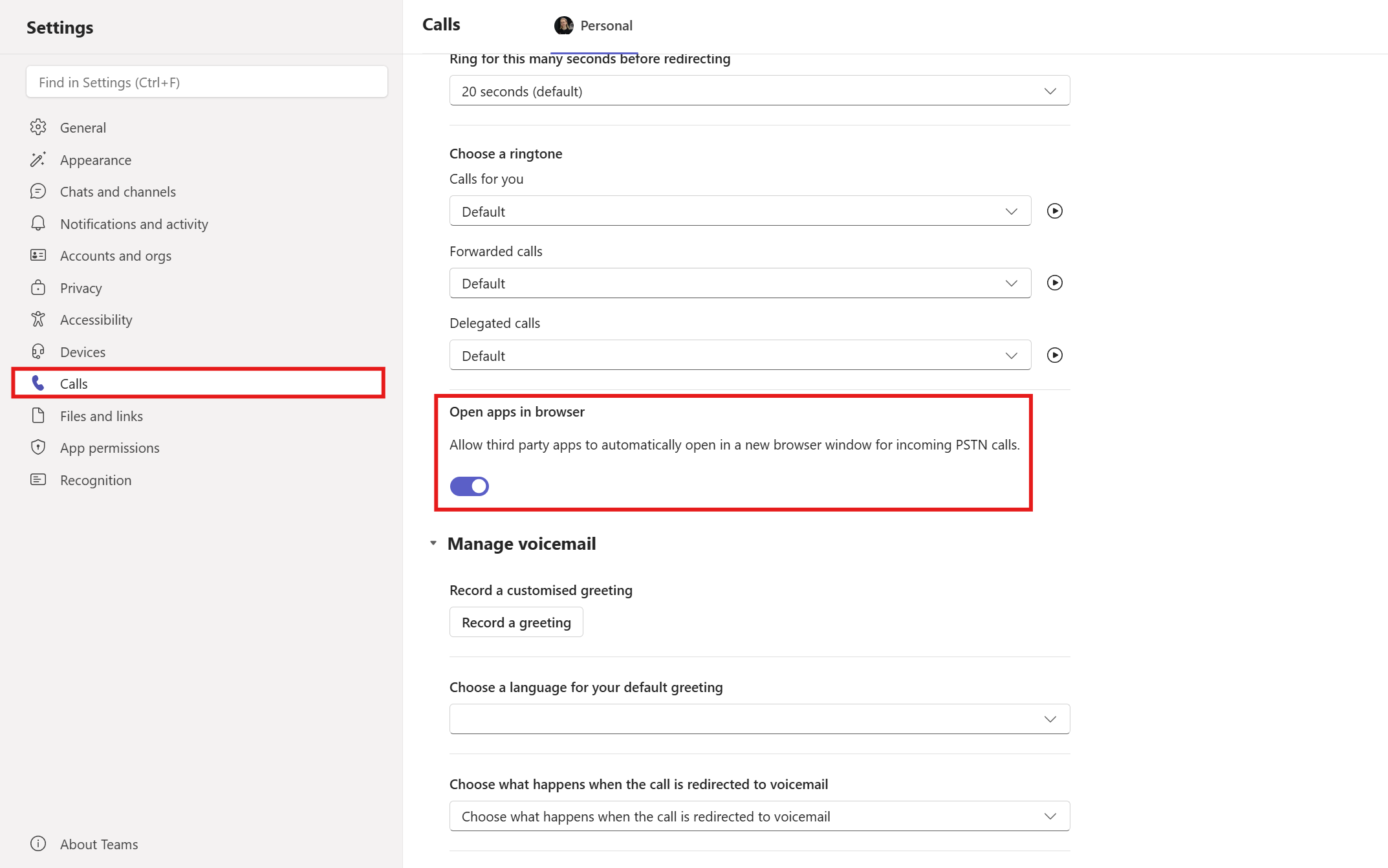
Fig 3. Allow third party apps.