Using Category Group as Ticket Rule Criteria
- tickets
- Ticket
- rules
- rule
- ticket rule
- ticket rules
- category
- category group
- category groups
- criteria
In this guide we will cover:
- What is a Category Group?
- Creating Category Groups
- Creating a Ticket Rule
Related Guides:
What is a Category Group?
A category group is a way of grouping category values with common themes, and this can then be used to trigger ticket rules.
Creating Category Groups
To create a category group, navigate to Configuration > Advanced Settings, and scroll down to find the "Lookup Codes" button.

Fig 1. Lookup Codes button
At the top left of the page, a dropdown will show to select which lookup code to edit. Click the small arrow and scroll down until you see "Category Group". Select this, which will show the list of any existing category groups you have, then click "New" in the top right to create one.
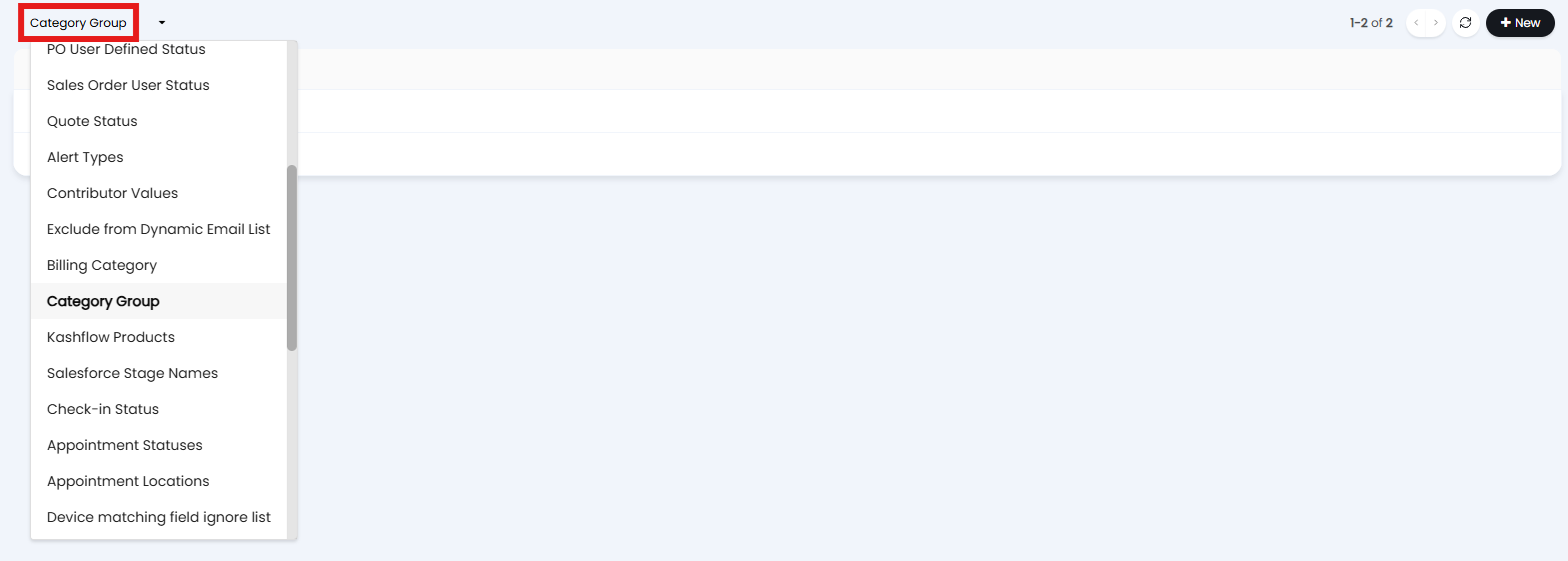
Fig 2. Finding the Category Group lookup code
A screen will show to create a new lookup code, and here enter your category group name.
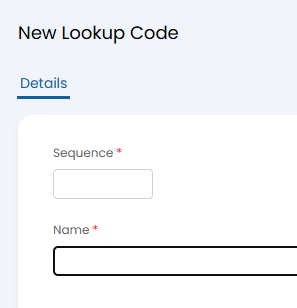
Fig 3. Creating a new category group
These category groups can then be set against category values in Configuration > Tickets > Categorisation.
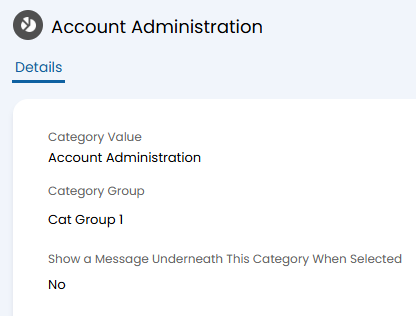
Fig 4. Assigning a category group to a category value
Creating a Ticket Rule
Category Group can all be selected as criteria when creating a ticket rule.
Navigate to Configuration > Tickets > Ticket Rules. Create a rule and click "Add" on the criteria table. Here you can set one of the following options.
- Category Group
- Category 2 Group
- Category 3 Group
- Category 4 Group
Note: If you have customised the category label(s) in Configuration > Tickets > Categorisation, they will appear in the dropdown selection as "[Label] Group" - i.e. "Resolution Code Group" for Category 2 Group.
You can then select either "Includes" or "Does not include" for the group that you choose.
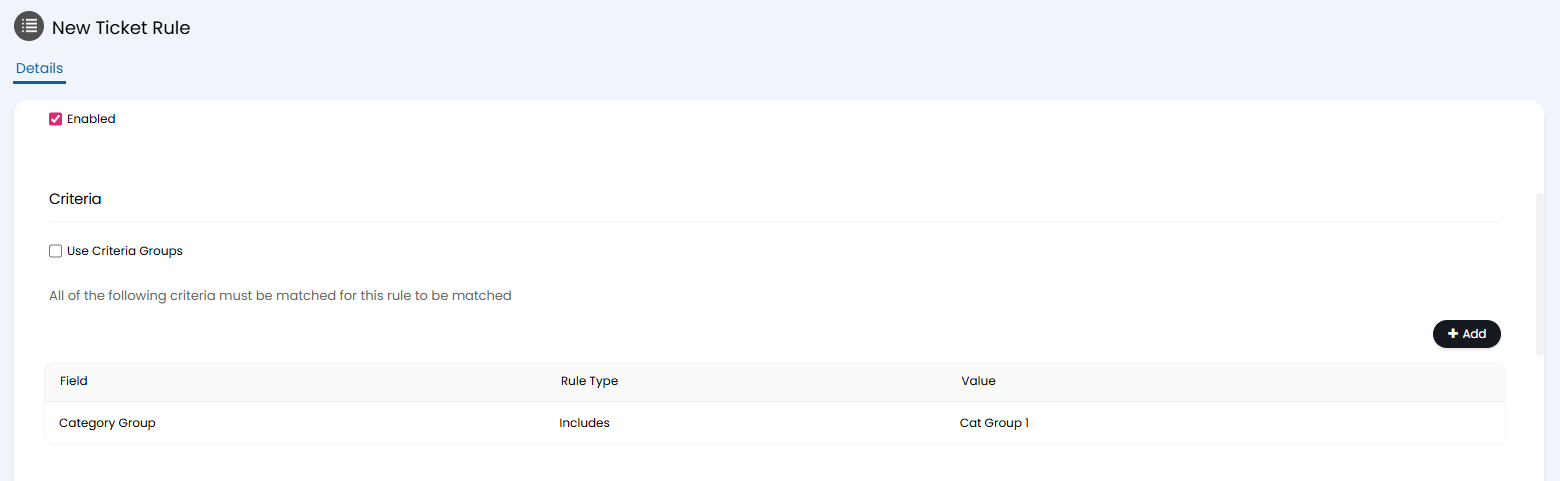
Fig 5. Creating a ticket rule based on category group