Asset Resource Booking
- Asset
- Resource
- Booking
- Asset Resource
- device booking
In this guide we will cover:
- Asset Resource Booking Configuration
- Ticket Type Configuration
Resource booking for assets is a feature of Halo that enables your end-users to book shared resources themselves, such as laptops or desk areas, via the self-service portal.
The resource booking feature also allows for end-users to book appointments with agents, this is known as Agent Resource Booking. This guide will focus only on resource booking for assets, to find out more information on agent resource booking, please refer to this guide: Agent Resource Booking.
Asset Resource Booking Configuration
Activate the Resource Booking module in Configuration > Asset Management.
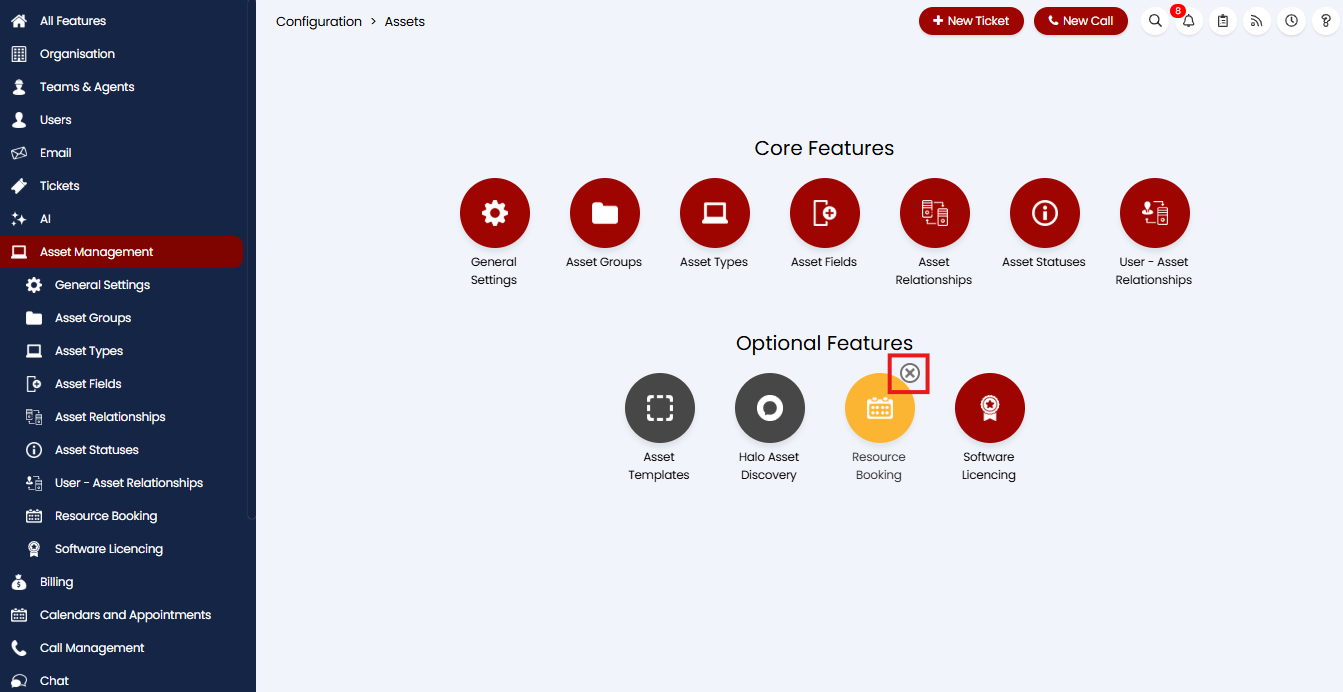
Fig 1. Enabling the Resource Booking module
Now head to Configuration > Asset Management > Asset Types, and choose an Asset Type for which you want to allow bookings. A new tab called "Resource Booking" will display within the Asset Type configuration now that you have turned on the module. This tab will allow you to activate resource booking for the individual Asset type, and configure the resource booking behaviour.
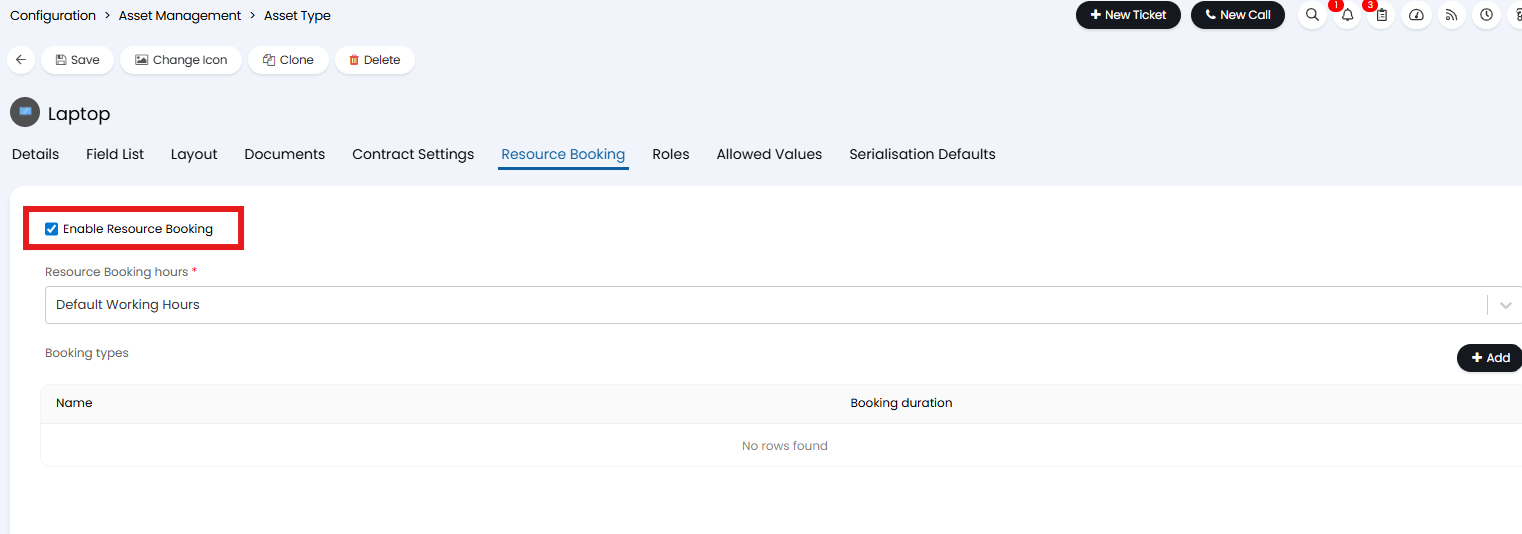
Fig 2. Enabling Resource Booking for an Asset
When adding a booking type to this tab you can define the duration.
This can be set as follows:
- Minutes: This will make the timeslots available every hour within the working hours.
- Days: This will make it so you only select a start date of the booking instead of a particular time slot.
- Custom Timeslots: These allow you to specify the slots you want to be available within the working hours and these can be spaced however and at different intervals.
- Custom Date Range: Assets can be booked for multiple days, using the working hours as the start and end times.
- Custom Date and Time Range: Assets can be booked for multiple days, and the start and end times can be set by the user.
From v2.250+, you can set the "Maximum number of Assets to book". The number set here determines how many Assets can be booked per booking. This is particularly useful for situations where one individual needs to book out a large number of Assets on behalf of others, i.e computer bookings for Universities. With this setting enabled, if "Allow selection of an available Asset/resource" is disabled against your Asset Type, only slots with at least the maximum number of Assets available will be shown. Upon selecting a slot, the user will be allocated the maximum number of Assets configured. If Asset selection is allowed, an additional option will show below the "Maximum number of Assets to book", where the minimum required number of Assets can be set.
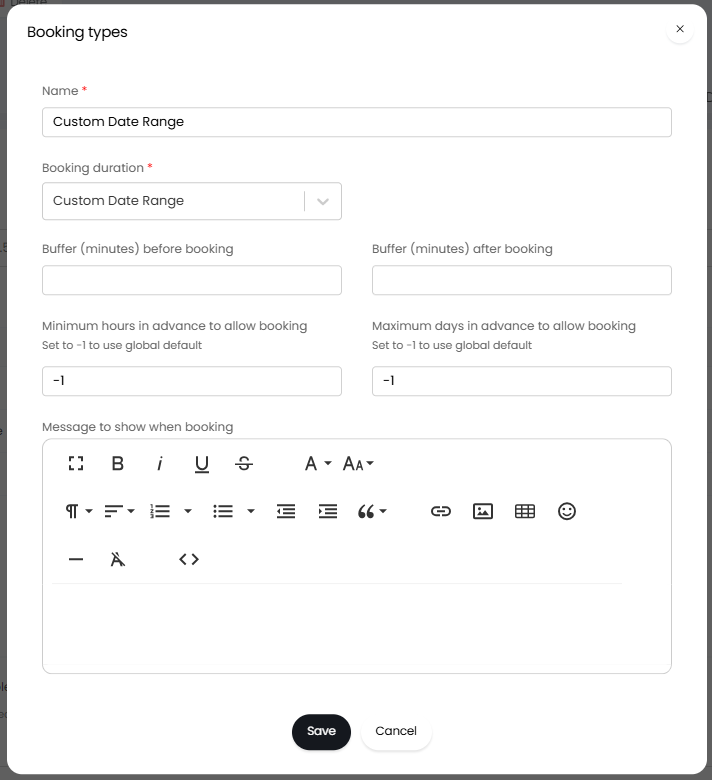
Fig 3. Creating a booking type.
In the 'Settings' section of this tab you can set restrictions and the minimum hours/maximum days in advance to allow booking.
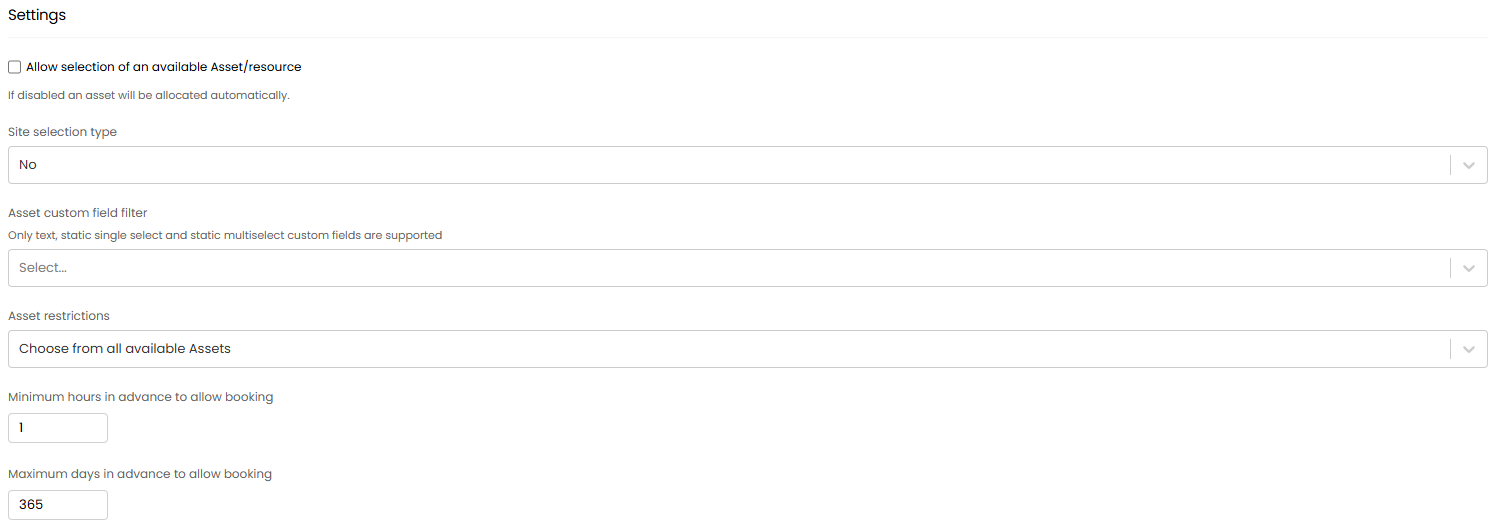
Fig 4. Resource Booking settings
When the "Minimum hours in advance to allow booking" is set to '0', you will be able to enable the checkbox setting "Allow ongoing slots to be booked". This will allow Agents to book a slot which has already started.
From this version you will also have the option to "Allow selection of an available Asset/resource" When selected a new setting will appear at the bottom to enable custom fields to show on the booking screen once an asset has been selected.
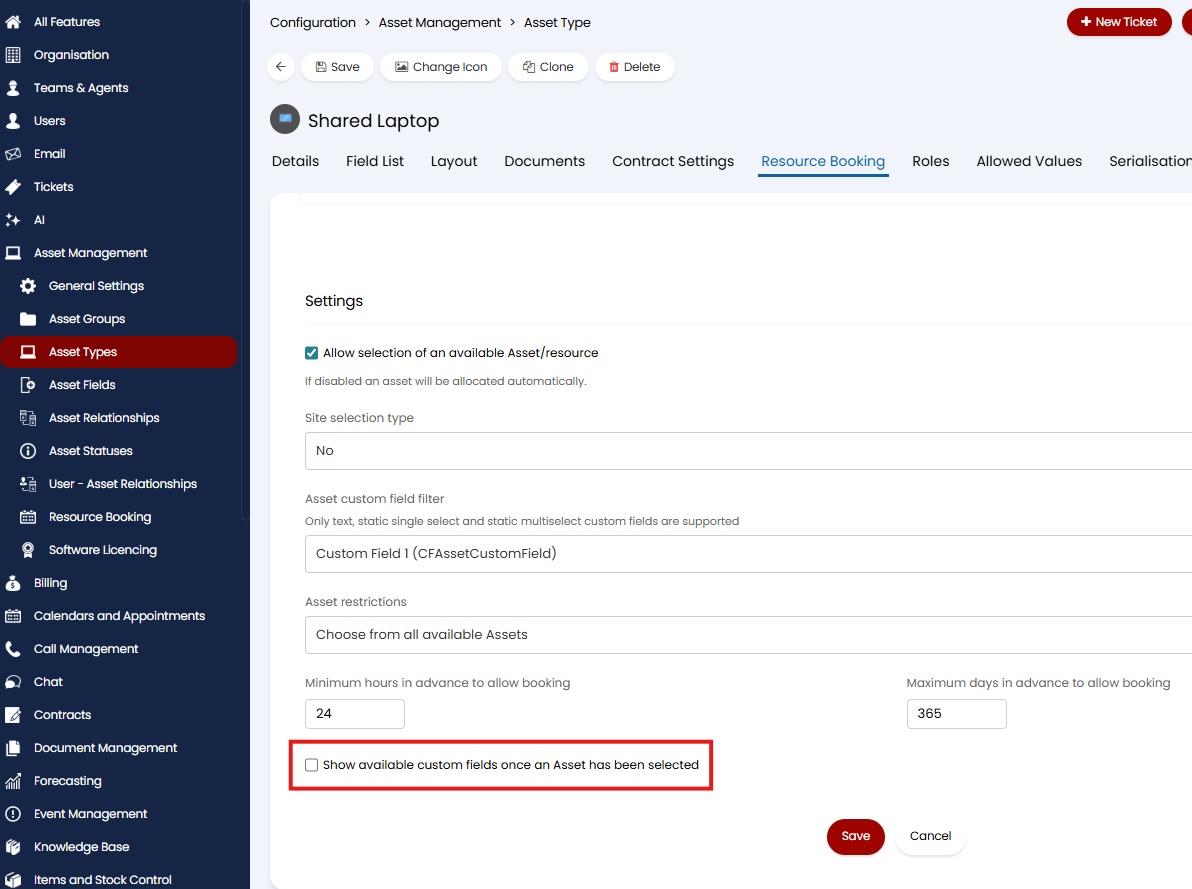
Fig 5. The new setting for opting to show custom fields on the asset booking screen (2.228.1+)
To ensure that a custom field will show on the booking screen, first ensure that your custom field(s) is of the entity type 'Asset' (Figure 6a). Then ensure that the checkbox for showing the custom field in resource booking is checked on at the bottom of the field configuration page (Figure 6b).
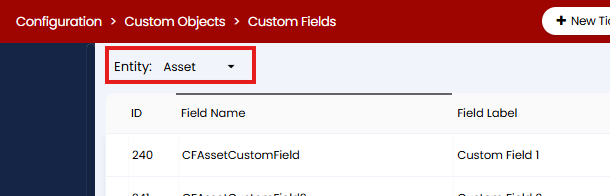
Fig 6a. The entity type for asset resource booking custom fields
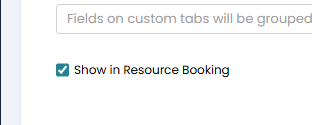
Fig 6b. The checkbox in custom field config to enable to show asset level custom fields on the resource booking screen
You can then fill in the relevant information in the custom fields against the bookable assets, see example in Figure 7.
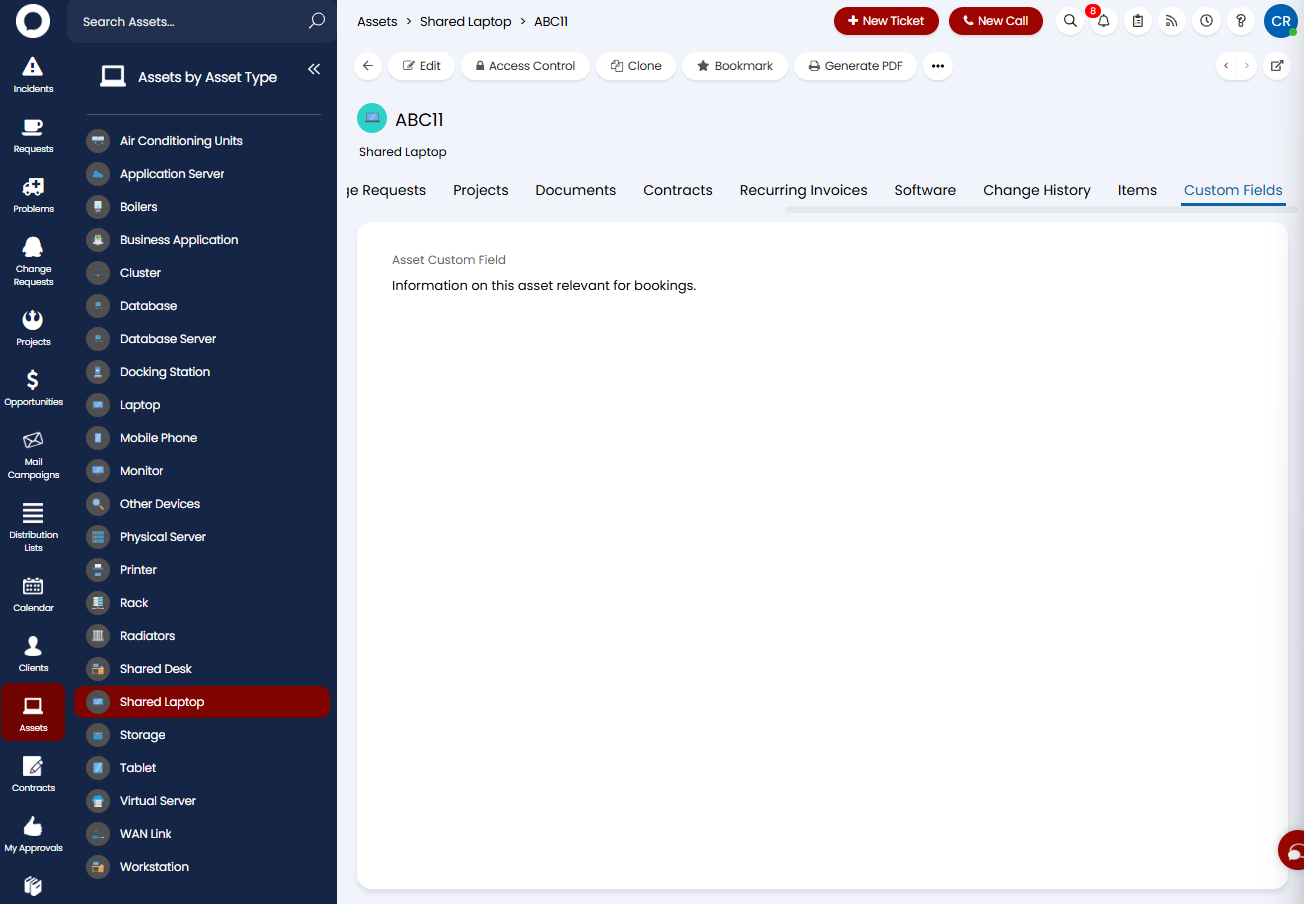
Fig 7. Fill in the resource booking custom fields with information for the bookable assets at the asset level
Note: The use case for custom fields now showing on the resource booking screen is to provide useful information about the asset/booking to the user making the booking. As such, the fields are read-only on the booking screen and will not show by default unless populated.
Ticket Type Configuration
The resource booking itself is done via the new ticket screen on the end-user portal or agent application.
In order to use it, a "Resource Type" must first be chosen by the agent/user doing the booking - this links to the Asset types for which resource booking is enabled. In Configuration > Tickets > Ticket Types, choose the desired ticket type, and add the "Resource Booking" and "Resource Type" fields to the field list.
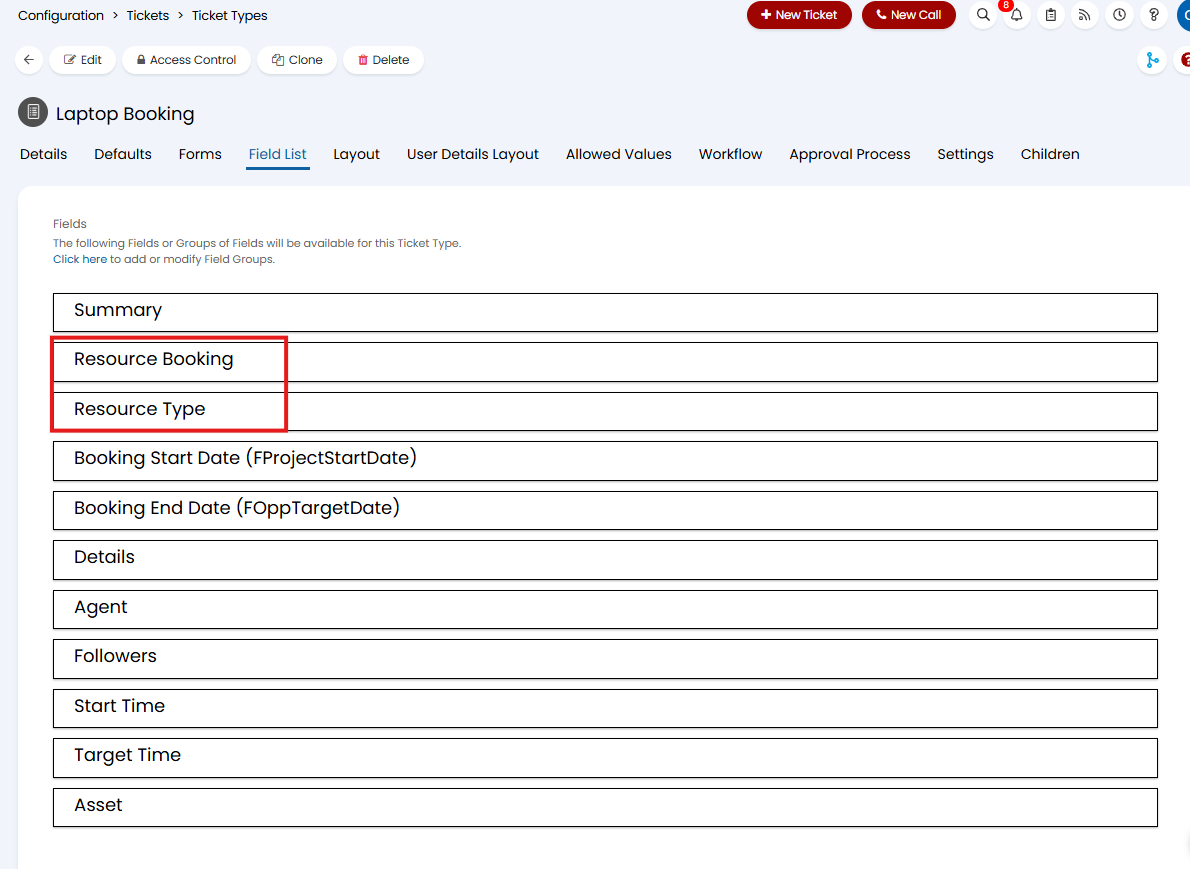
Fig 8. Adding the resource booking fields to the ticket field list
Now, when a user goes to raise a resource booking ticket, for example a Laptop booking, they will be presented with the booking screen captured in Figure 9.
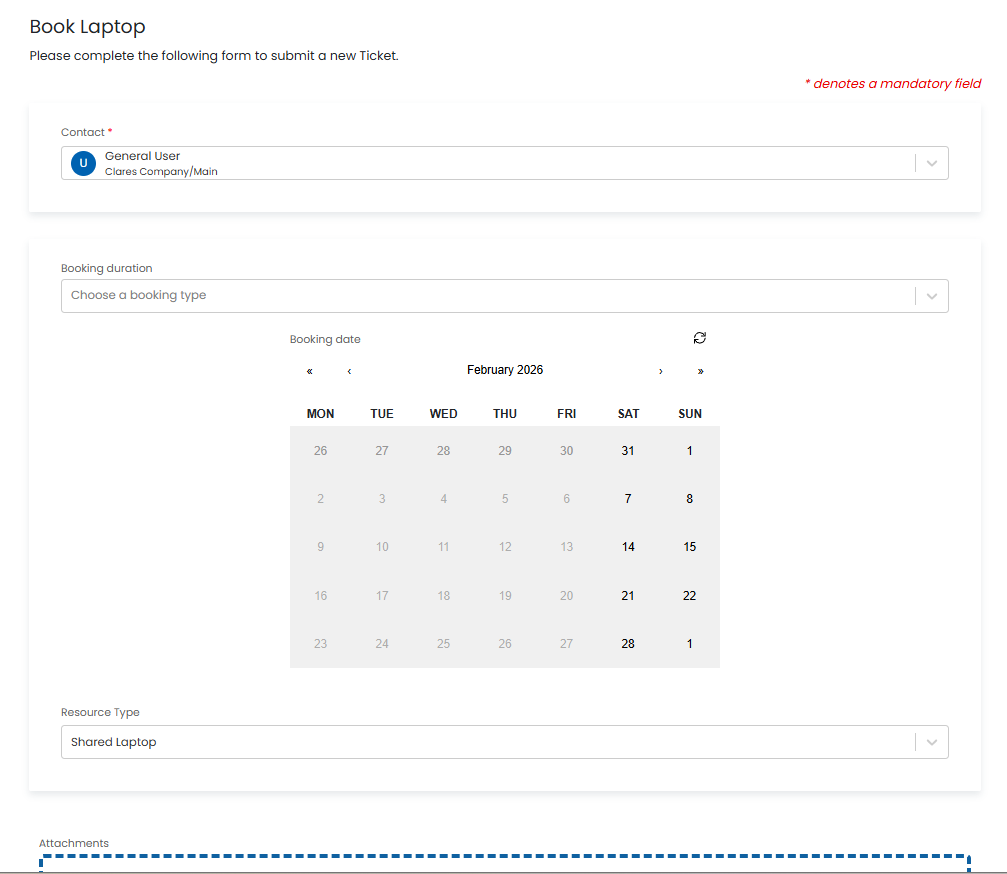
Fig 9. The resource booking page for a new laptop booking
The booking fields show as follows:
- Booking Duration - Selection of a booking type that determines the timeslots to choose from
- Booking Date/Booking start date - A calendar that shows which days have available timeslots based on the chosen booking type. Selecting a date will show the available booking timeslots
- Booking Timeslot - Lists all timeslots which are available on the chosen day.
- Resource Type - If the selection of an asset is enabled this will show after choosing a timeslot, and allow you to pick from the available resources in that timeslot.
If you have enabled custom fields to show on the resource booking screen (2.228.1+), then these will show after selection of an asset with populated custom fields, as illustrated in Figure 10.
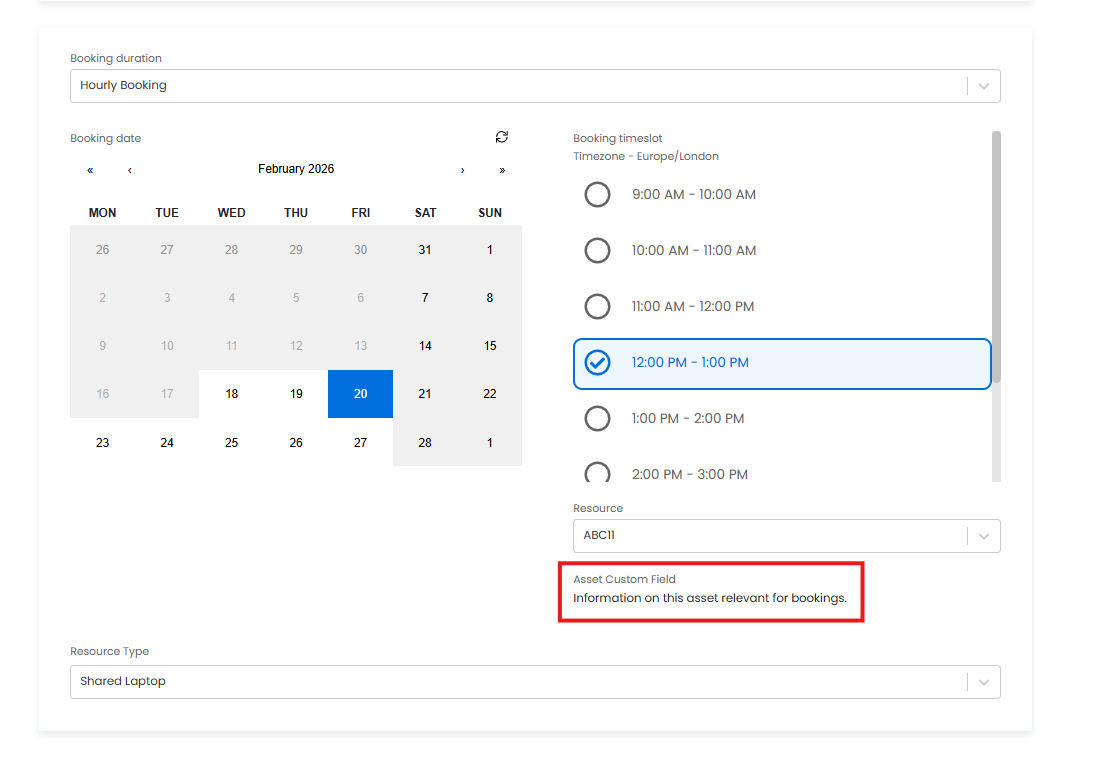
Fig 10. Asset level custom field showing on the resource booking screen, available in versions 2.228.1+
The Resource Booking field determines the value of the Start Date/Time, Target Date/Time, and Asset fields. These fields should not be used on the same New ticket form as the Resource Booking field.
Availability of a date/timeslot/asset is determined by if it's within the specified working hours, minimum and maximum hours/days in advance, and tickets for the Asset with a Start Date/Time and Target Date/Time that overlaps with the timeslot.
Within the "Tickets" tab on an asset, you can also hover over the three dots in the corner to toggle the "Calendar View". This will show the booking times based on the start and target dates.