3CX Integration
- 3cx
- phoneintegration
In this guide we will cover:
- What is the 3CX Integration?
- Web Client Method
- CRM Template Method
- Desktop Softphone Method
What is the 3CX Integration?
Halo can display incoming call pop-ups, place outgoing calls, and display the call handling screen when a call is accepted in 3CX.
Note: The below methods only work on Pro and Ent (Professional and Enterprise) versions of 3CX.
Method 1: Web Client
In the overflow section on the left, go to "Settings" > "Integration".
The Open Contact URL would be https:// followed by your Halo Web App URL followed by the /call?inboundactive=true&callerid=%CallerNumber% as seen in the below screenshot.
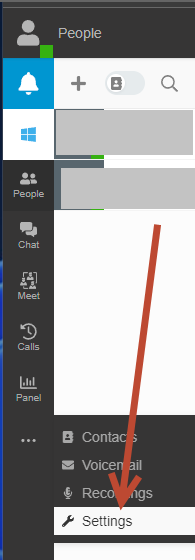
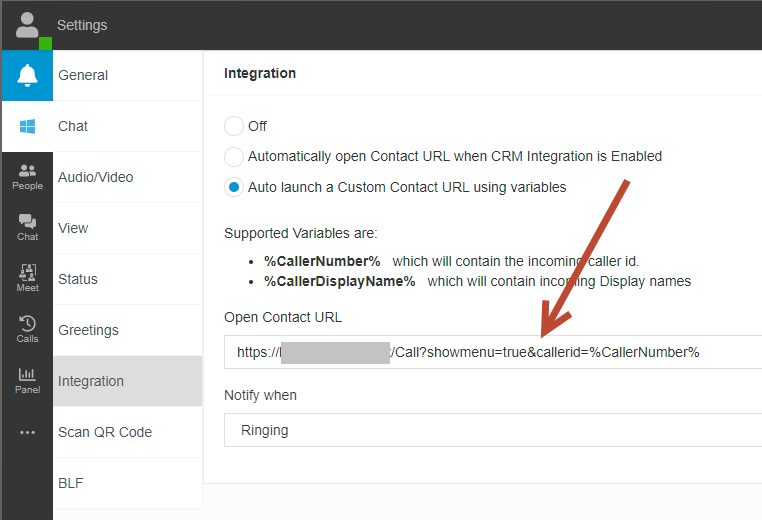 Fig 1. Setting the URL.
Method 2: Using the CRM Template for 3CX (3CX v20+)
Template Generator Information
This method shows a contact card when a call is incoming and uses the Halo API to get the caller's information to display a link to open the call screen.
An example XML for this is attached, please log in to the self-service portal to view the attachment here: Portal Link. The below screenshot shows the parts of the XML you will need to change.
You may also need to change the below depending on other configuration in 3CX
<Number Prefix="Off" MaxLength="20" />
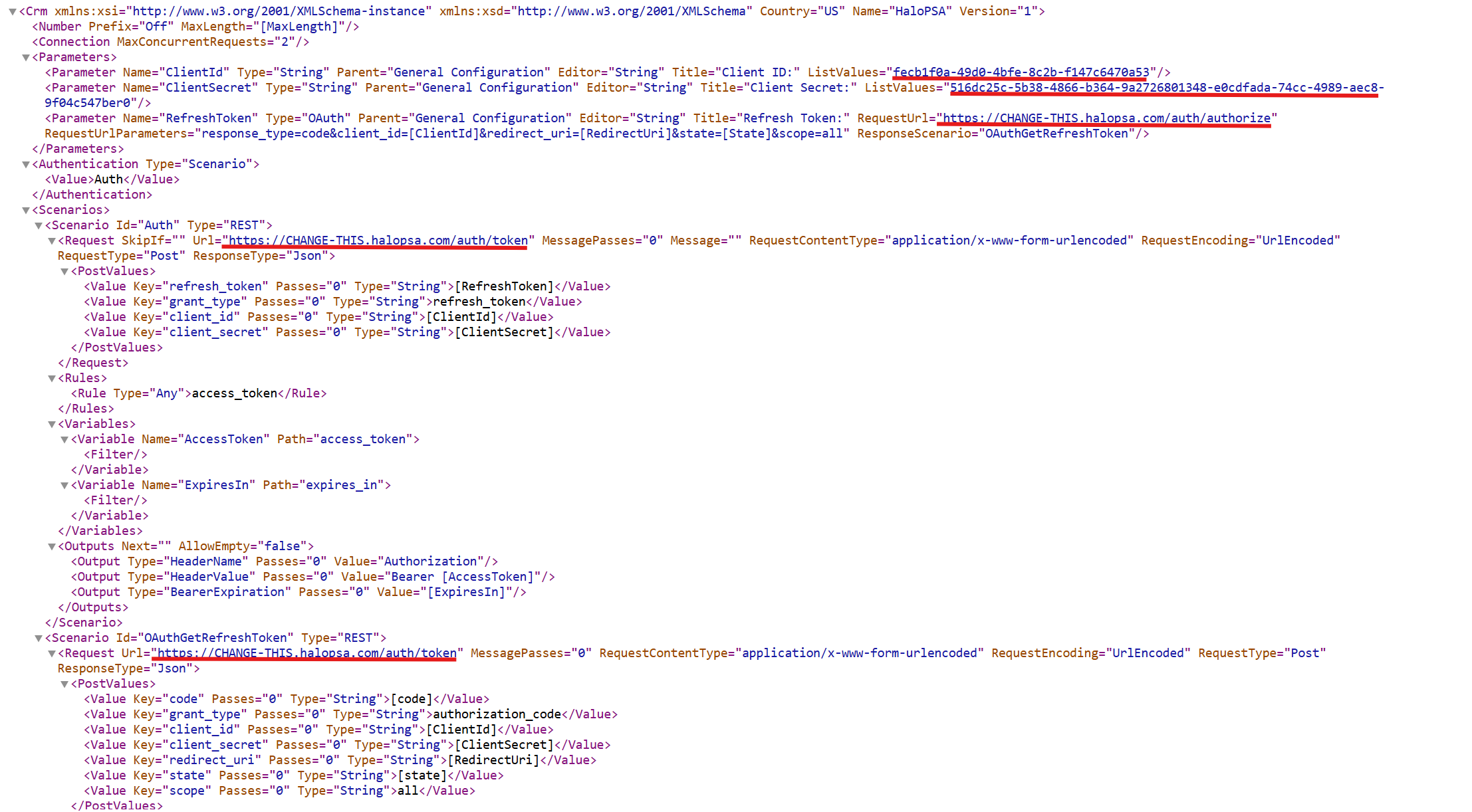
Fig 2. XML file to edit
Navigate to Configuration > Integrations > Halo API > View Applications, and create a new API application. Set the "Authentication Methos" to "Authorisation Code (Native Application), and set the "Login Redirect URL" field to "https://[YOUR3CXURL]/api/oauth2crm".
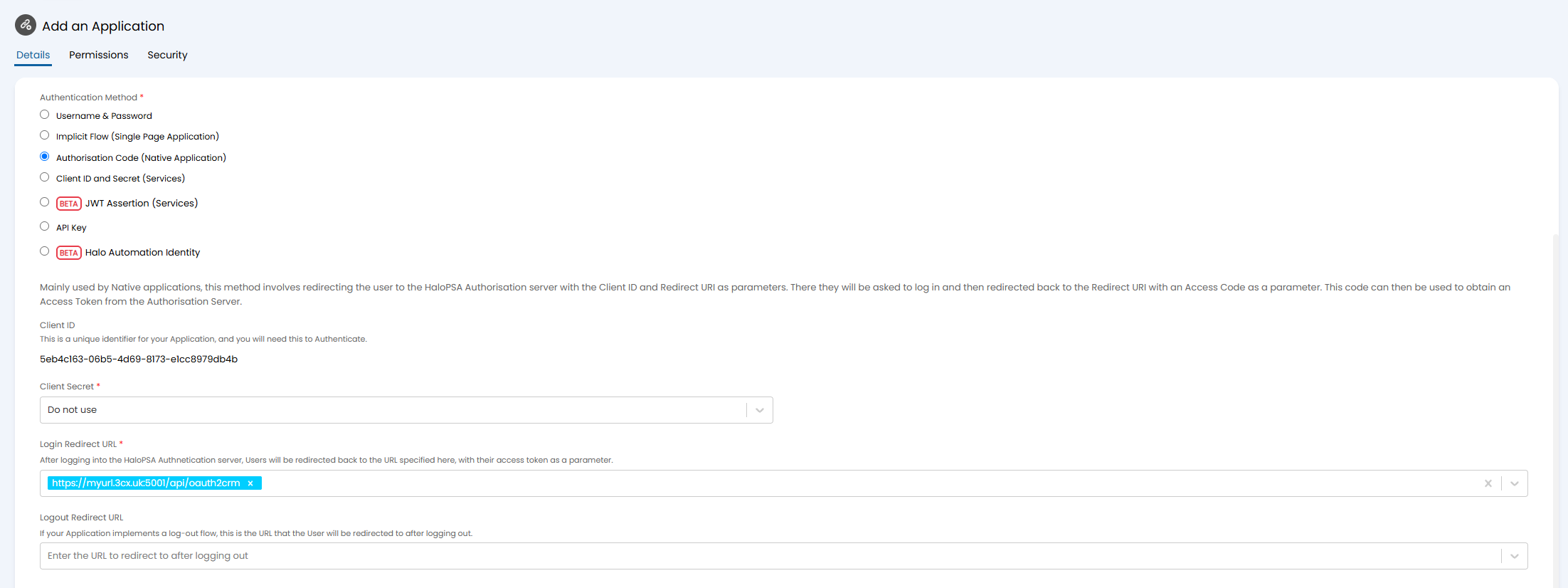
Fig 3. Creating the API application with redirect URL.
In the "Permissions" tab, the scope of the API Application can be set to "All".
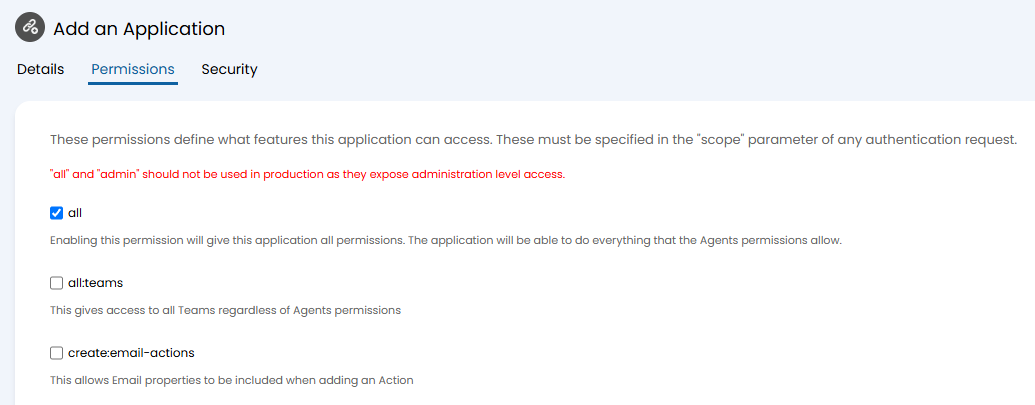 Fig 4. Adding permissions to the application
In the "Security" tab, whitelist your 3CX URL.
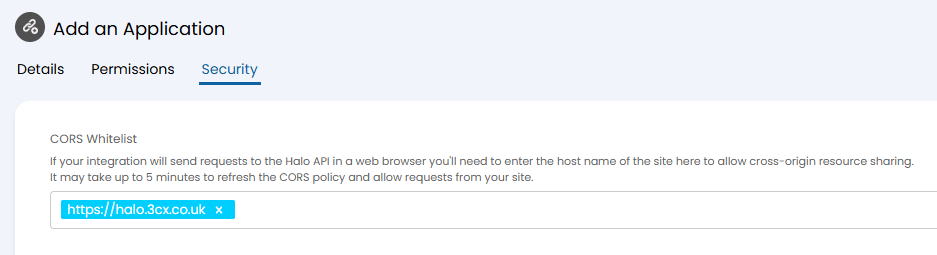
Fig 5. Whitelisting the 3CX URL
Note: An alternative template, created by the Halo customer community, can be found here.
The template can then be uploaded into 3CX. Log in to your 3CX Web Client using a System Owner or System Administrator account. Click the Admin icon located in the bottom-left corner of the screen to open the 3CX Admin Console. Select "Integrations" > "CRM" on the left side, then select your XML file to upload.
Method 3: Desktop Softphone Client
Open the desktop client. In the overflow section on the left, go to "Settings" > "Integration".
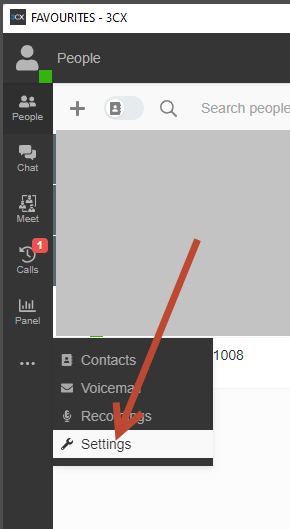
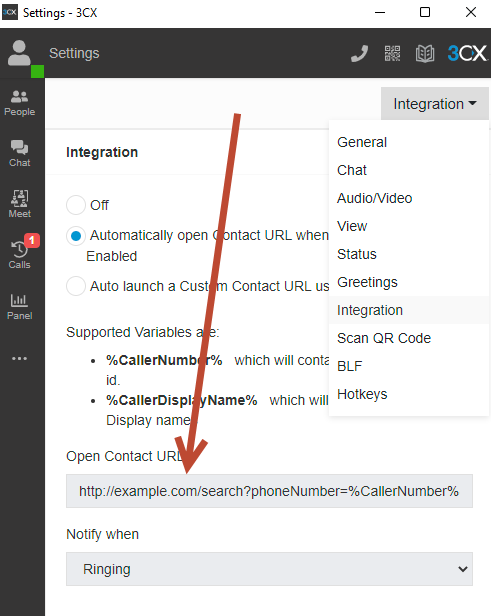
Fig 6. Setting the URL
The 3CX Softphone Windows Desktop app downloaded from the Windows App Store only accepts a link to an executable when receiving a phone call. You can therefore create a bat script that can be run to open your browser of choice with the Halo call link. Please find an example below:

start msedge "https://<<your-halo-url>>/call?showmenu=true&callerid=%1"
You can then specify a link in the new 3CX app.
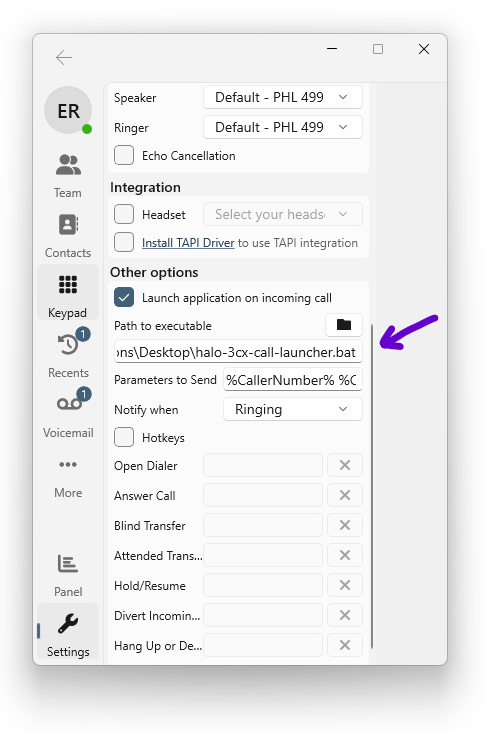
Fig 7. Setting a link
You may also find that it is possible to use the full URL as an argument in the 3CX desktop client, meaning you can have:
Path to executable: C:\Program Files\Google\Chrome\Application\chrome.exe (for example; replace with browser of your choice)
Parameters to Send: https://myurl.halopsa.com/call?inboundactive=true&callerid=%CallerNumber%
This then calls the browser with the correct URL, without needing to create or launch and ‘external’ application or bat file.