Canned Text
- canned
- text
- stock
- answer
In this guide we will cover:
- What is Canned Text?
- Using Canned Text
- Adding new Canned Text From an Action
- Managing Canned Text
- Importing Canned Text
Admin Guides:
What is Canned Text?
Canned text is pre-written, easily accessible content designed to allow speed and consistency in your actions. Canned Text is useful if you regularly write the same sentences, or for keeping text consistent between Agents.
Using Canned Text
In a text or memo box, you will be given the option to insert canned text.
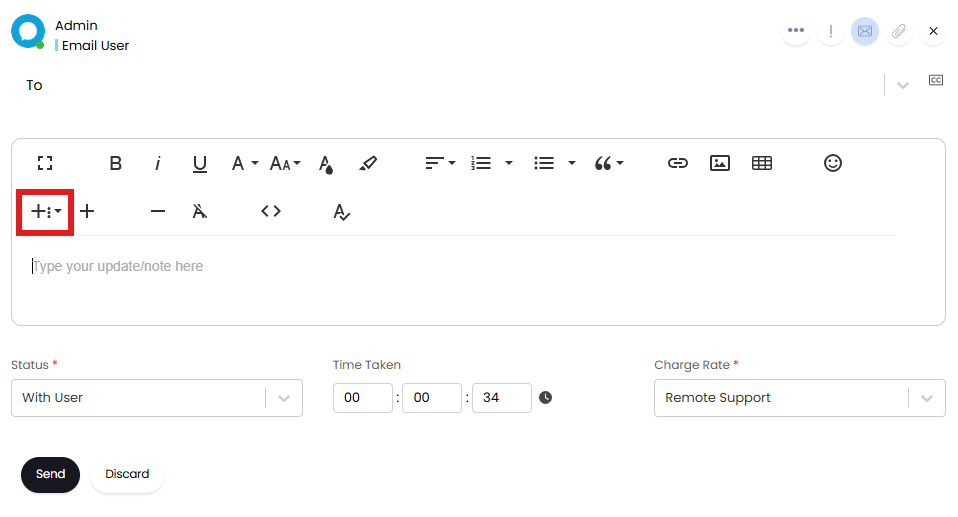
Fig 1. Selecting Canned Text
- Clicking this will first bring up the default group, if no other groups are present, or the list of groups.
- Navigate to the selection you wish to insert.
- Click the relevant summary to insert.

Fig 2. Choosing Canned Text
This will insert the canned text at the cursor position, or over any highlighted text.
In Configuration > Tickets > General Settings you can determine how Canned Text behaves for Agents.
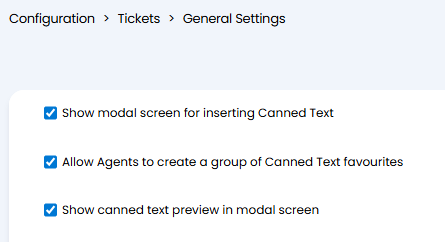
Fig 3. Canned Text options
Selecting "Show modal screen" will open a modal window when the canned text button is clicked where you can select the canned text you would like to insert.
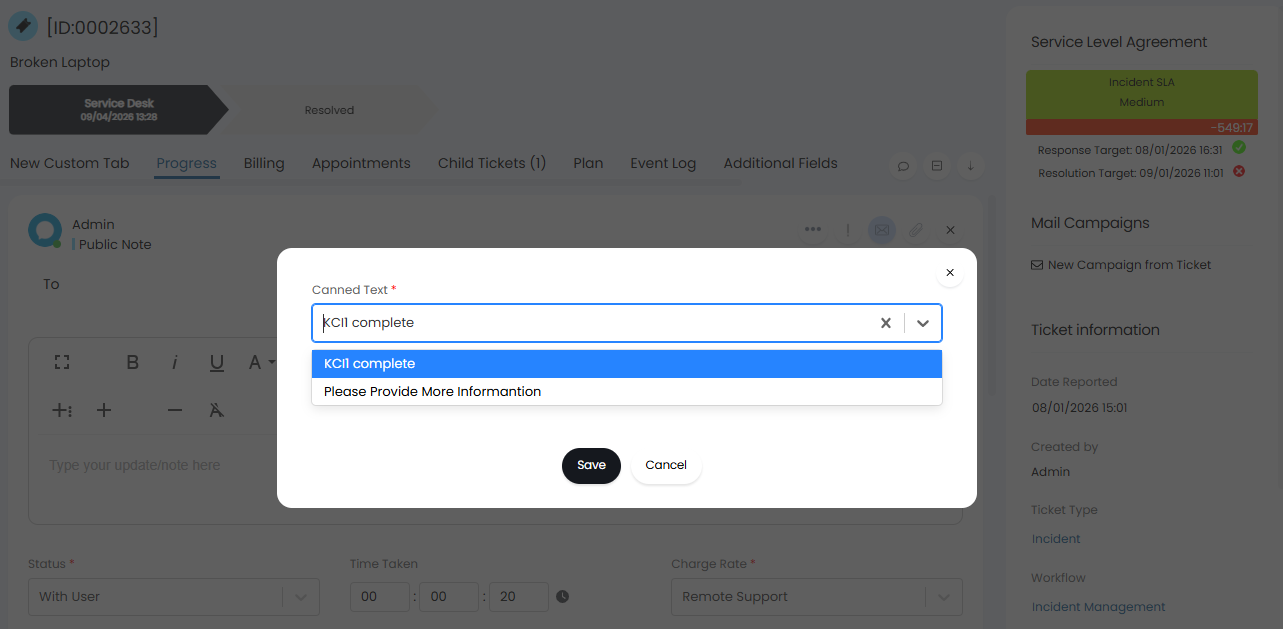
Fig 4. Canned Text modal window
With this enabled a setting will show to "Allow Agents to create a group of Canned Text favourites". This will show a checkbox on the modal screen allowing Agents to mark a Canned Text as a favourite. Canned Texts marked as a favourite will show a star next to them in the selection dropdown.
Enabling the option "Show canned text preview in modal screen" allows Agents to preview the Canned Text before inserting it into an action.
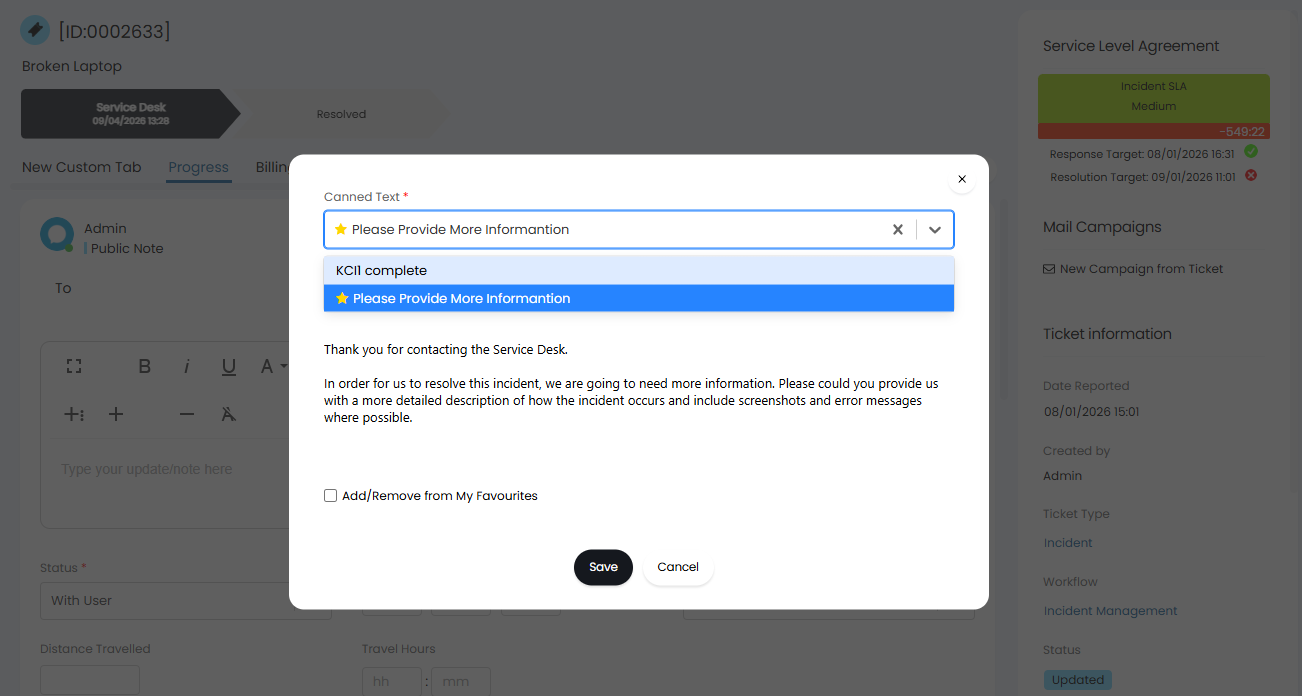
Fig 5. Canned Text preview
Adding new Canned Text From an Action
If you have just written something that you will have to write again, it is possible to capture it for use as canned text. This is done in 3 easy steps:
- In the text box, press the ⊕ button within the formatting ribbon.
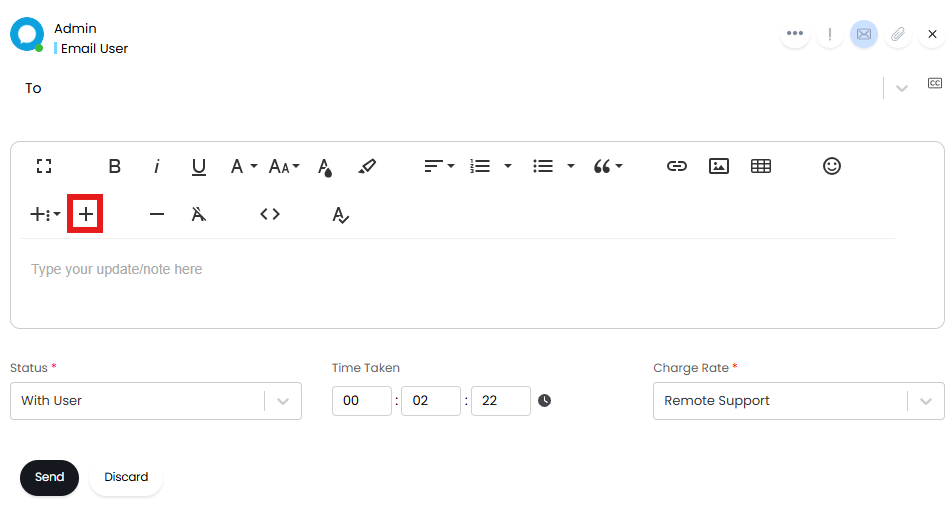
Fig 6. Making new Canned Text
- Give the new canned text a name and specify the group it should belong to.
- Press "Save".
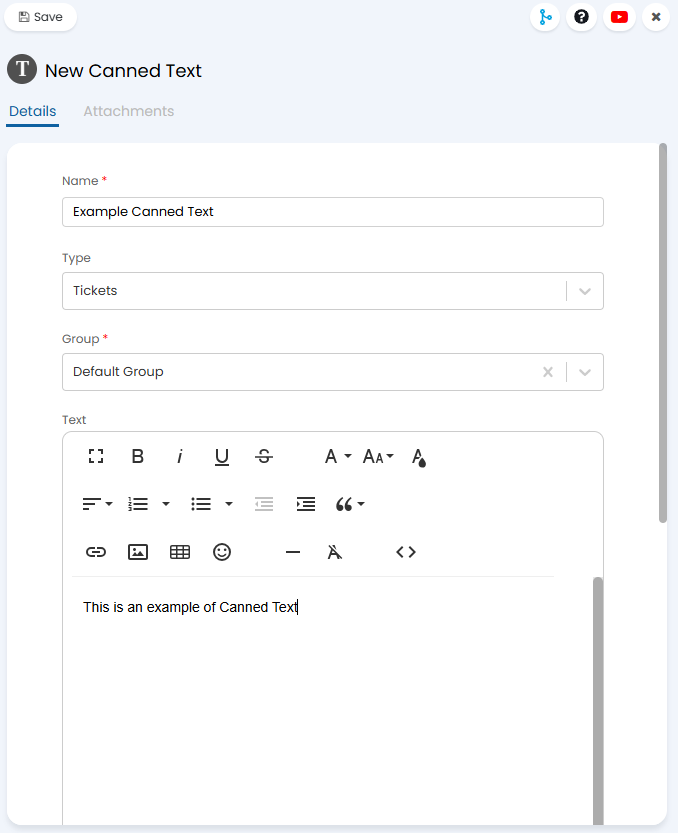
Fig 7. New Canned Text
Managing Canned Text
- Head to Configuration > Tickets > Canned Text, this takes you to the complete list of canned text selections.
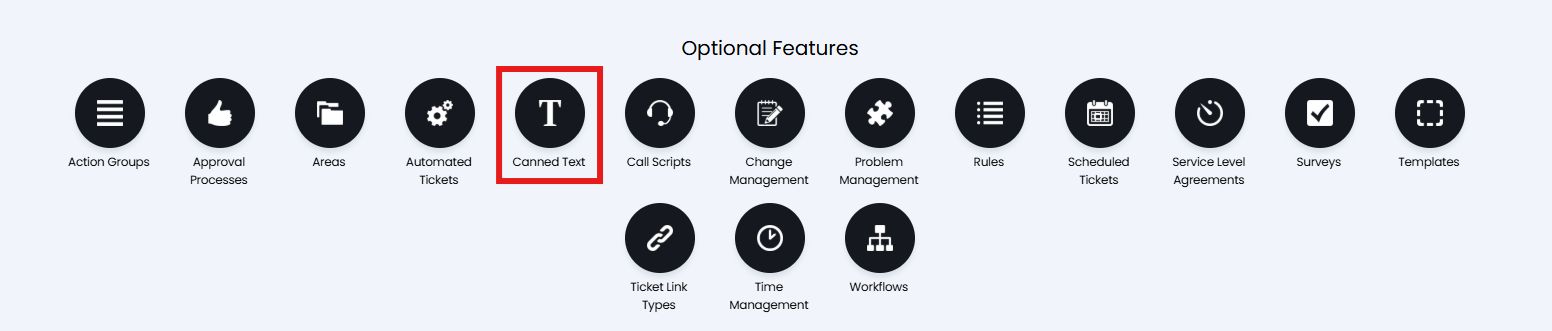
Fig 8. Canned Text Module
- You can filter by group by hovering over the group heading, clicking the funnel and typing a group name in here.

Fig 9. Filtering by group
- You can edit the groups by clicking the "Edit canned text groups" in the top left. You will be able to set Access Control against a Canned Text Group here. This will control who can edit this Group, and who can choose this Group when creating a new Canned Text. In order to see a Canned Text within a Group the Agent will still require Access Control set on the Canned Text.

Fig 10. Editing Canned Text Groups
Editing any one of the canned text selections takes you to a screen with the same options and the restrictions options. For any canned text selection you can set the restriction using Access Control to:
- A Role
- An Agent
- A Team
- A Department
- All Agents (Global)
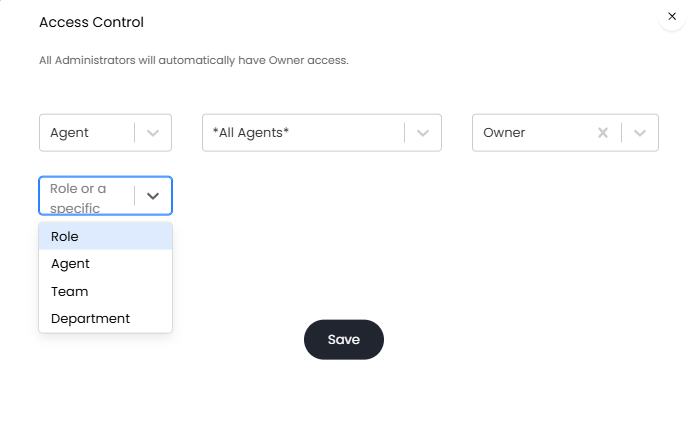
Fig 11. Access Control
From v2.238+, available Canned Texts can be restricted on a Ticket type level in the Allowed Values tab.
Importing Canned Text
In Configuration > Tickets > Canned Text, you will see the option to Import Canned Text via a Spreadsheet.

Fig 12. Import Canned Text via Spreadsheet
When you click the button in Fig 9, you will see the option to "Choose File". It is essential the spreadsheet you upload contains the correct headers for the import to be successful. To ensure you follow the correct format you can download and edit the sample.
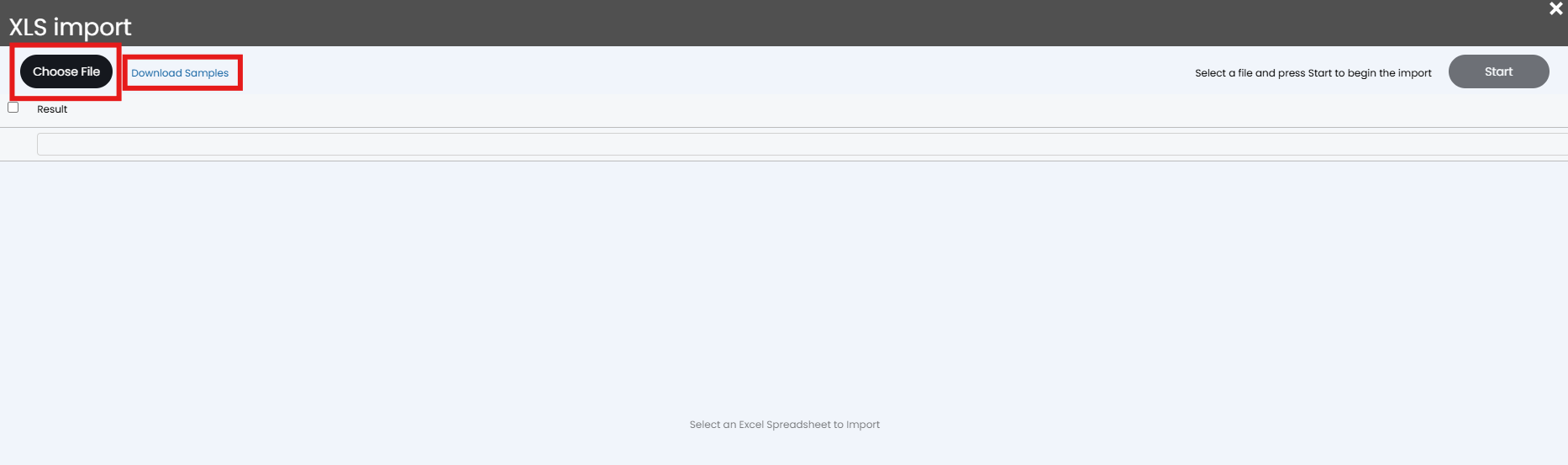
Fig 13. Choosing a file to import