Followers and Following Tickets
- follow
- followers
In this guide we will cover:
- What is following a ticket
- How Agents can follow a ticket
- How End Users can follow a ticket
What is following a ticket?
Following a ticket BCCs your agent email address onto any email correspondence from the ticket. This was originally created to ensure that when any ticket is escalated from someone less experienced to someone more experienced, the less experienced individual then learns how to resolve the ticket themselves in the future by being BCC'd into the resolution emails.
How Agents can follow a ticket
You can follow any ticket you wish to, provided you have added the "Followers" field onto the ticket type in question and you have permission to view the ticket in question.
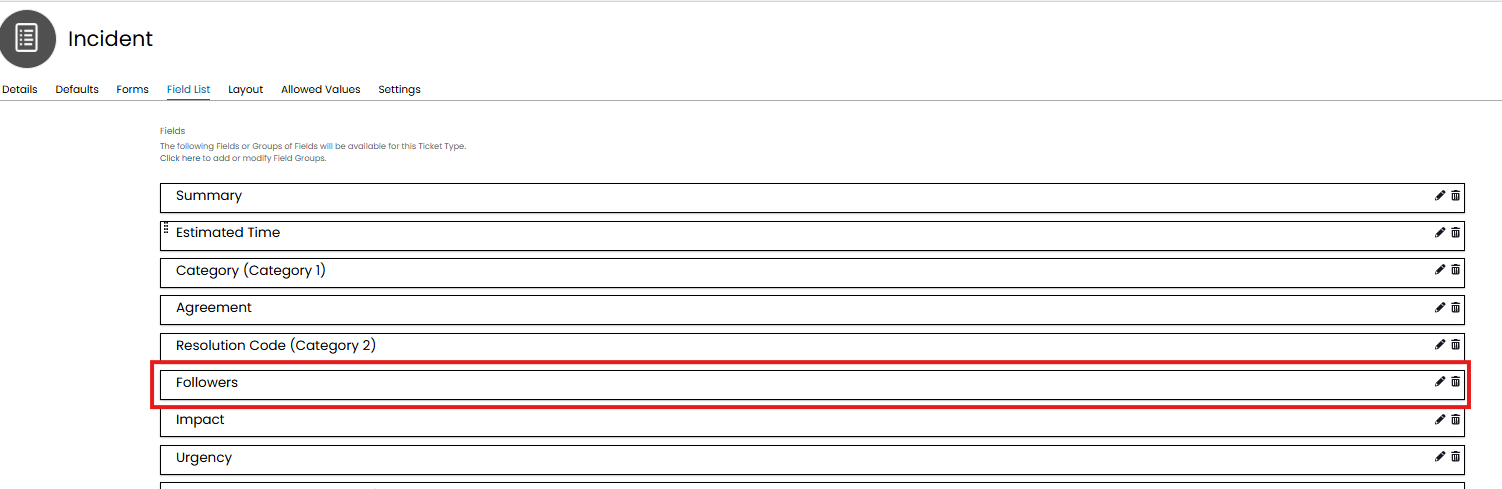
Fig 1. Followers field against ticket type
To follow a ticket, press the Eye icon in the top right of the inner ticket window and clicking 'Follow this Ticket'. You can also view other followers of the ticket here too:
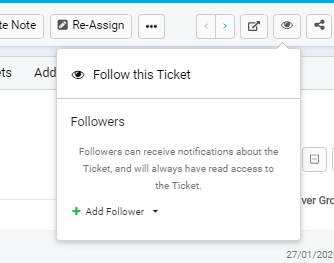
Fig 2. Follow ticket button
Clicking 'Add Follower' will open a new menu allowing you to search users, agents and site's users and add them to the followers list.
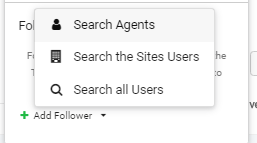
Fig 3. Search agents/users to be a follower
From v2.250+, notifications can be configured to send to the follower of a Ticket, or to inform Agents/Users when a follower is added or removed.
How End Users can follow a ticket
If an end user raises a ticket in the self-service portal they can choose other users to be followers of this ticket. This is useful if the end user wants another user, such as their manager, to keep updated on the progress of this ticket, saving each end user having to subscribe themselves.
To use this functionality ensure the 'followers' field is added to the ticket type's field list. Also ensure this field is visible to users in the portal.
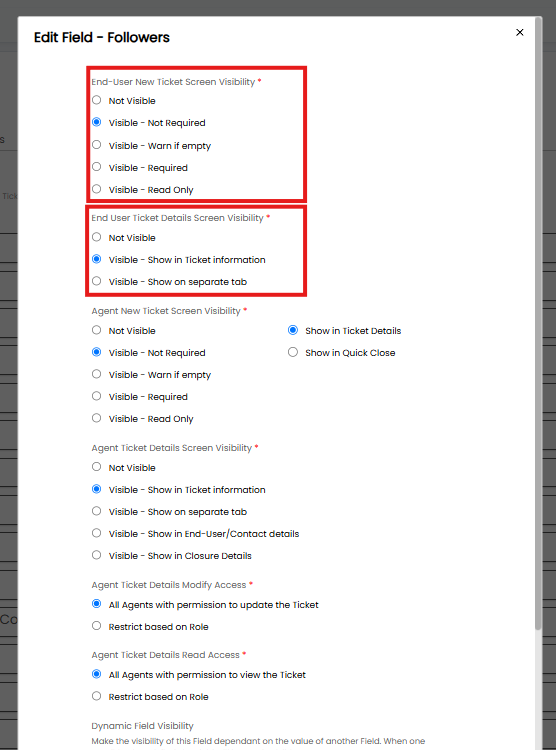
Fig 4. Set visibility of followers field
Then you will need to set who users will be able to add as followers to their ticket. Head to Configuration > Self Service Portal, see 'Followers Field and Delegate Approvers Scope' .
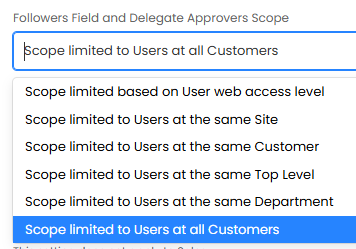
Fig 5. 'Followers Field and Delegate Approvers Scope' setting
Choose an option from the dropdown here to determine who users will be able to add as followers to their tickets. For example, if the option 'Scope limited to Users at the same Customer' is chosen, users will be able to choose a ticket followers from a list of users who are under the same customer.
If a user has been added as a follower of a ticket that they do not have access to, they will still not be able to access this ticket in the portal but they will receive ticket correspondence via email.
Figure 6 below shows the followers field being used in the end user portal.
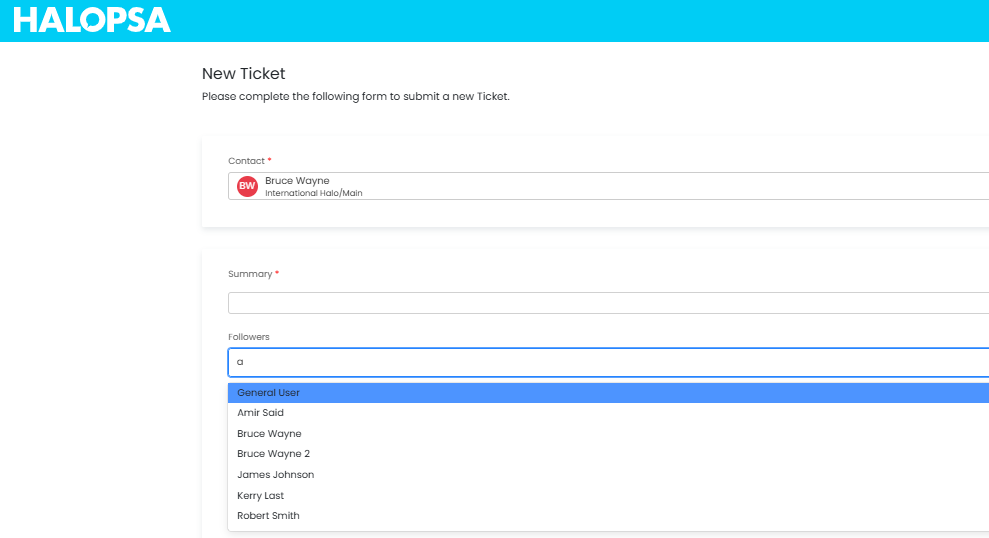
Fig 6. Followers field in use
Note: Users will need to begin typing before a list of options will appear
Two values can be selected to search this field by. This can be useful for larger organisations where multiple users may have the same names.
Here you can see although there is two users with the same name, they are specified by the customer and site that they are associated with for easier reference.
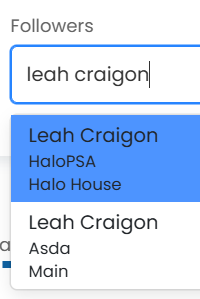
Fig 7. Improved followers field search.
The defaults for this will be set to "Customer Name" and "Site Name" and appear like above, but this can be changed to different variations. This is found in Configuration > Self Service Portal within the "New Ticket Settings" section.
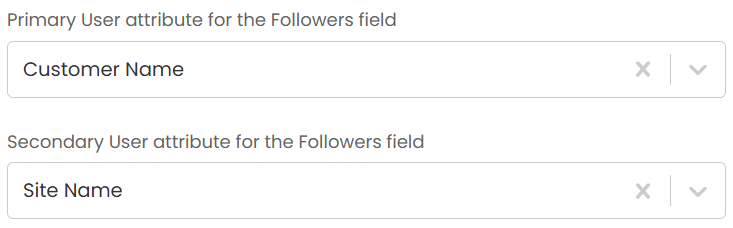
Fig 8. User attribute search fields.