Site Fields
In this guide we will cover:
- What are Site Fields?
- Creating Site Fields
- Comparing Site and Custom Fields
Configuration Settings:
What are Site Fields?
Site fields are a way of creating your own fields to store information, similar to custom fields. They will show in the "Details" tab on the site, within an "Additional Details" section at the bottom.
Creating Site Fields
To create a site field, head to Configuration > Users > Site Fields. Click the "New" button in the top right corner.

Fig 1. List of site fields
A screen will then show to create the site field.
- Field Label: Sets the label shown on the field.
- Sequence: Sets the order the fields show within the "Details" tab of a site.
- Type of Field: Sets the input type of the field, i.e. plain text.
- System Use: Sets the option to use the field for select system functionality.
- RDP Address: Values will appear as a link to download an RDP file to connect to the address.
- Anydesk: Values will be added to an "Anydesk" button on the site/any tickets logged to connect to Anydesk.
- Account Number: Values will appear on invoice lines linked to an asset if the "$-ACCOUNTNUMBER" variable is used. The value will be taken from the site the asset is linked to
- Mandatory: Makes the field mandatory. This will be enforced when creating a new site or editing an existing one, but will not be enforced when creating a site automatically via creating a customer.
- Display this field on the Site & User Overview screens: Shows the field as a widget on the "Overview" tab.
- Hint for Field: Displays a hint as the placeholder for the field (HTML can be entered here).
- Hint Display Type: Sets how the hint will display.
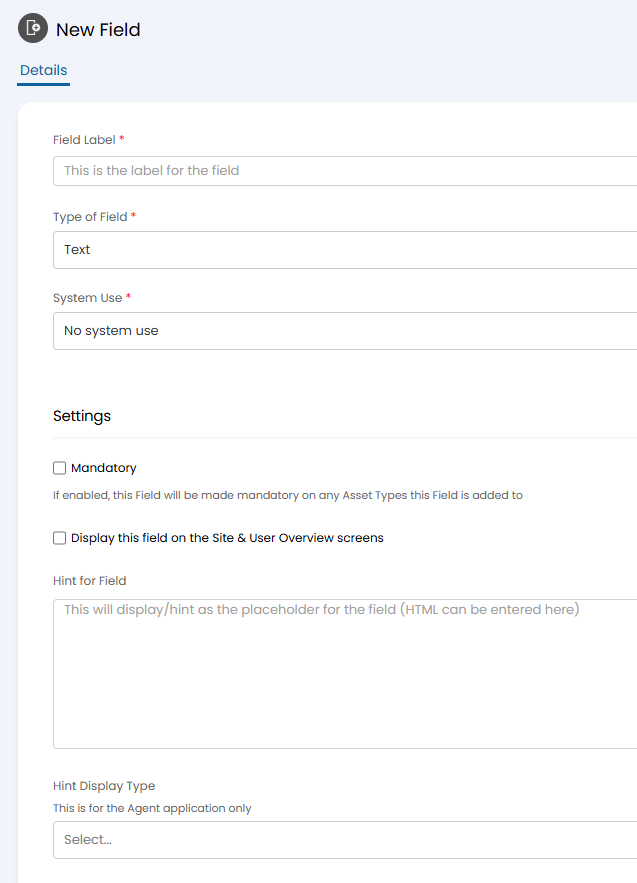
Fig 2. Site field configuration
Comparing Site and Custom Fields
Functionality available for site fields differs slightly from custom fields, but both have the same use-case of creating your own fields.
| Functionality | Site Fields | "Site" Custom Fields |
| Can have a system use | ✓ | ❌ |
| Can be made mandatory | ✓ | ❌ |
| Can be shown on the site and user overview screens | ✓ | ❌ |
| Can choose the tab the fields show on | ❌ | ✓ |
| Can be shown in column profiles | ✓ | ✓ |
| Values can be searched on | ❌ | ✓ |
| Changes are audited | ✓ | ✓ |
| Values stored in | "Field" table where ykind='S' | "Site" table where column name is the field name |