Supplier Import - CSV/XLS/Spreadsheet Method
- vendor import
In this guide we will cover:
- How to Import Suppliers using CSV/XLS/Spreadsheet Method
- Finding additional fields to Import
Configuration Settings Guides:
How to Import Suppliers using CSV/XLS/Spreadsheet Method
This guide covers how to import Suppliers using an XLS Template. This spreadsheet is used for creating new, or updating existing Supplier Records .
Navigate to Configuration > Suppliers. Head to the Imports section and set the "Unique identifier for Suppliers". The fields specified here will be used to match imported records to existing records, allowing existing Suppliers to be updated rather than duplicated.
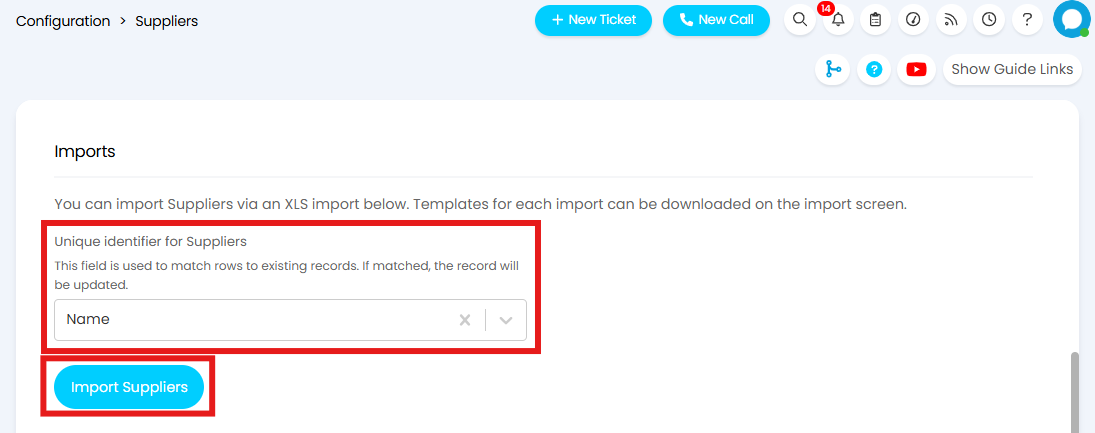
Fig 1. Unique Identifier for Suppliers
Next you will need to configure your XLS file ready to be imported. Click the "Import Suppliers" button shown in Figure 1 to open the import screen. If open, close the File Explorer, and click "Download Samples" to download the XLS templates.
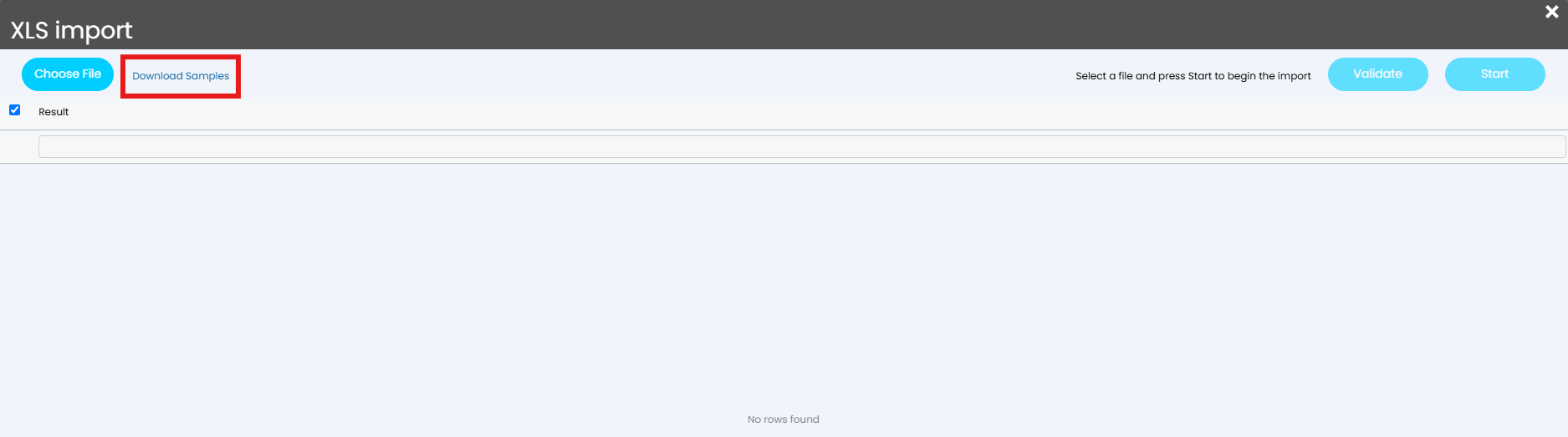
Fig 2. Download Samples option
This will download a folder called "importspreadsheetsweb".
Opening this folder will show the sub-folder "ExampleSpreadsheets" which when opened will show all available XLS templates.
Within this folder locate and open the XLS file titled "Suppliers".
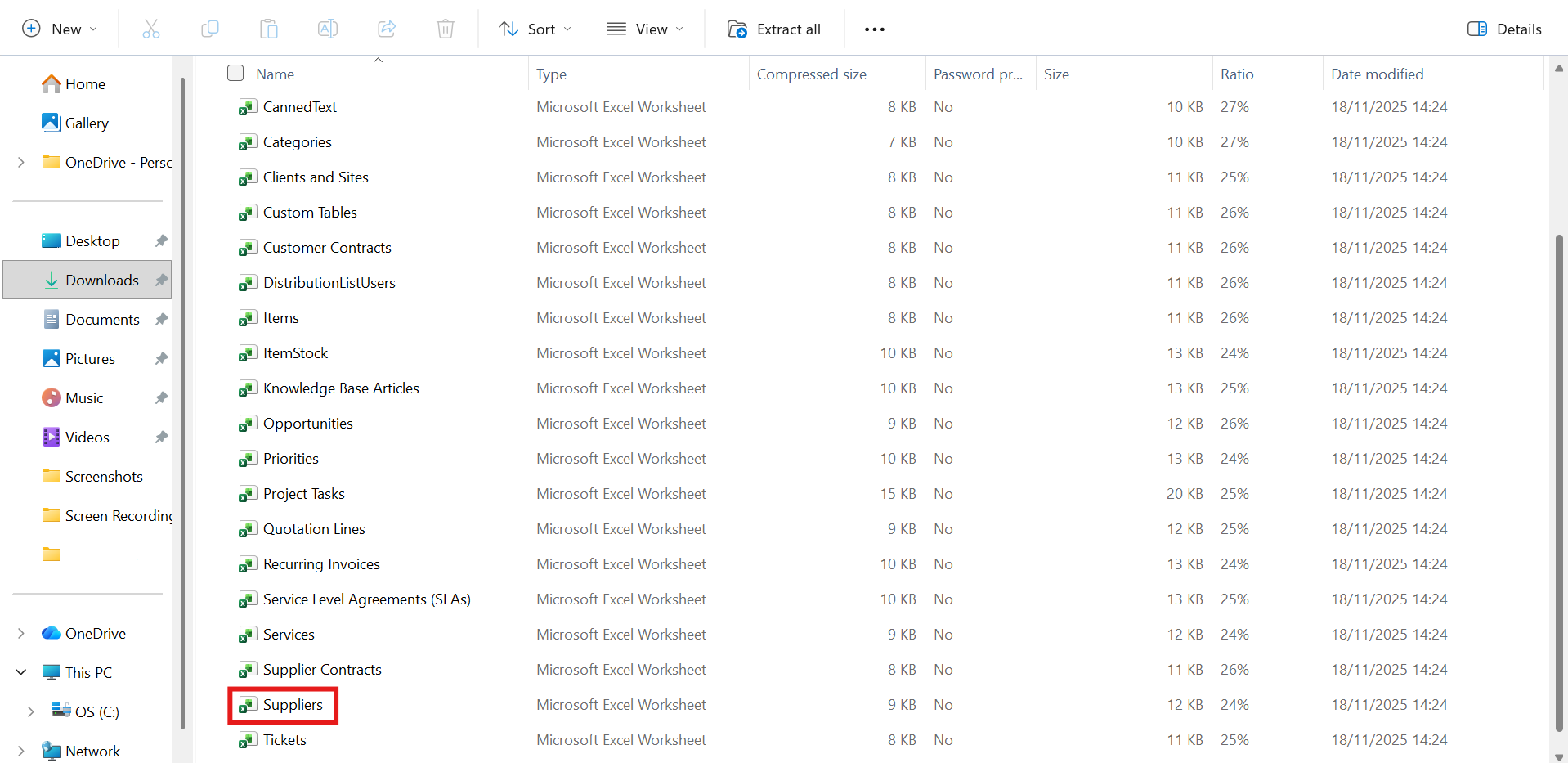
Fig 3. Supplier XLS template
Click into the "IMPORT DATA" sheet and, without changing the blue column headings, remove the example data.

Fig 4. Import Data sheet
You can now enter your Supplier data in the relevant column.
Important! You must ensure the Unique identifier for your Supplier is included in this file in order for existing records to be matched. If the unique identifier is not present a new record will be created for every Supplier.
Once you have entered all the Supplier data, save your spreadsheet with an identifiable name.
In Halo, return to Configuration > Suppliers, and click "Import Suppliers".
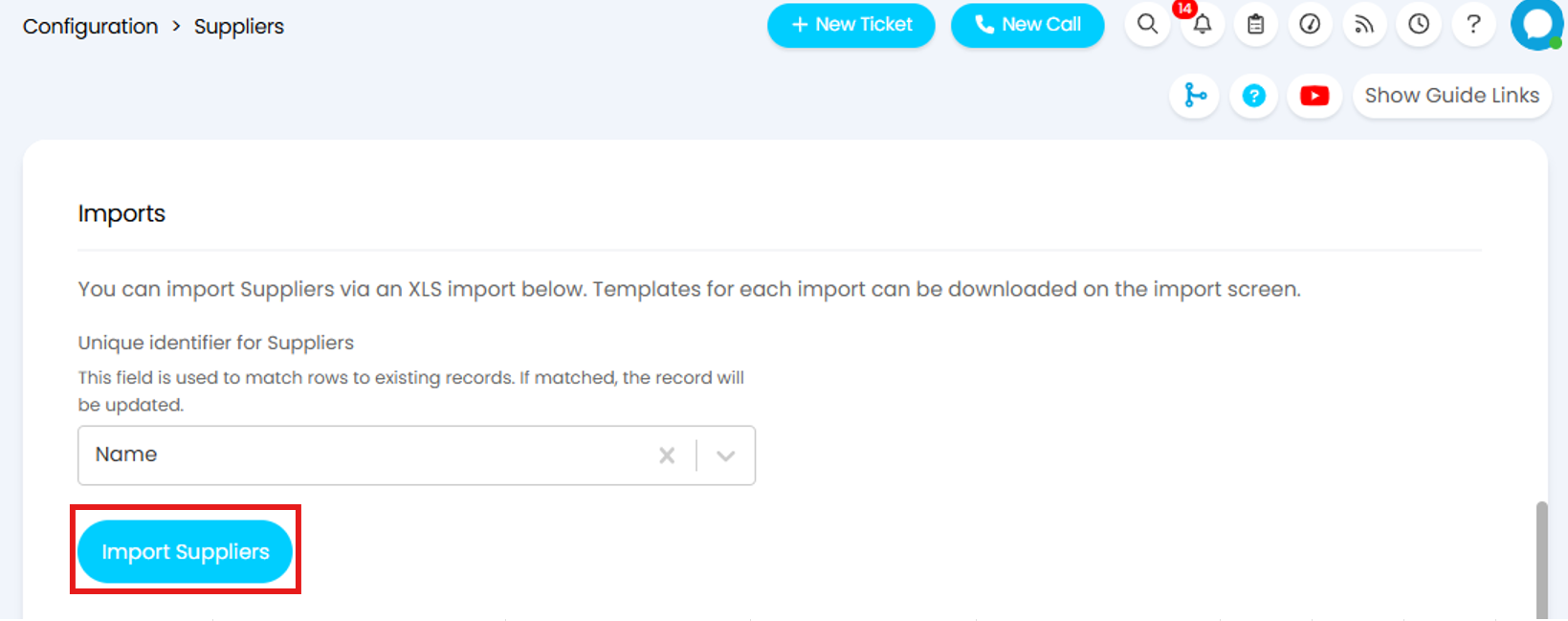
Fig 5. Import Suppliers button
If your File Explorer does not open automatically, click "Choose File".
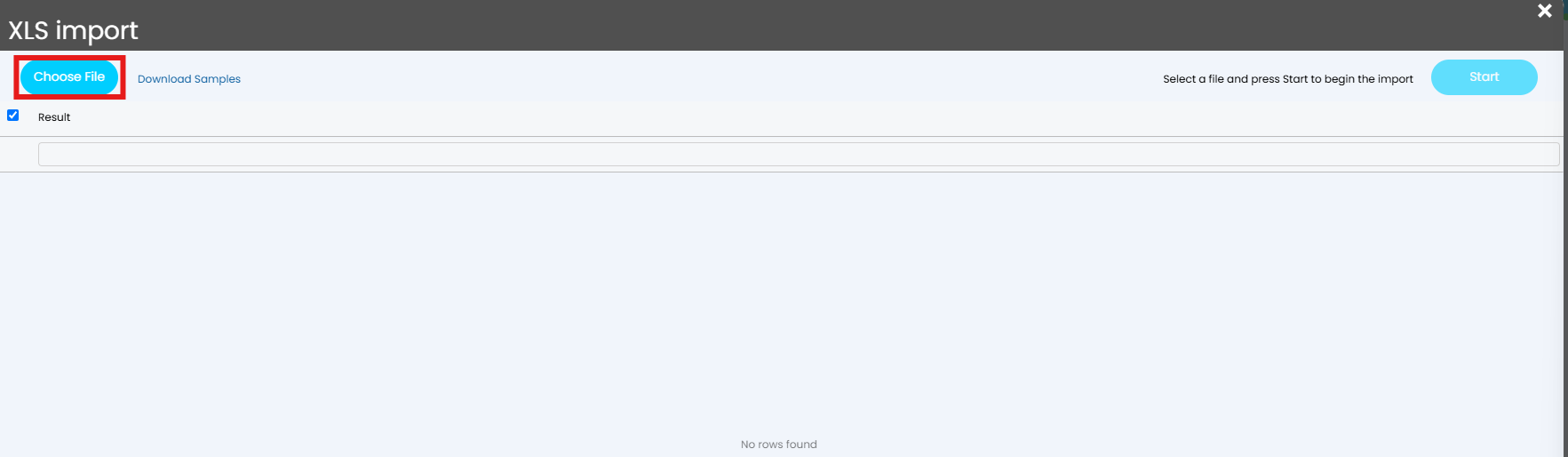
Fig 6. Choosing a file
Once you select your file, the data will show on the import screen. Check you are happy with the data, then select the rows you would like to import using the checkboxes, or select them all using the checkbox on the top left. Then click "Start" to run the import.

Fig 7. Importing values
You will now see any new records in the Suppliers Area.
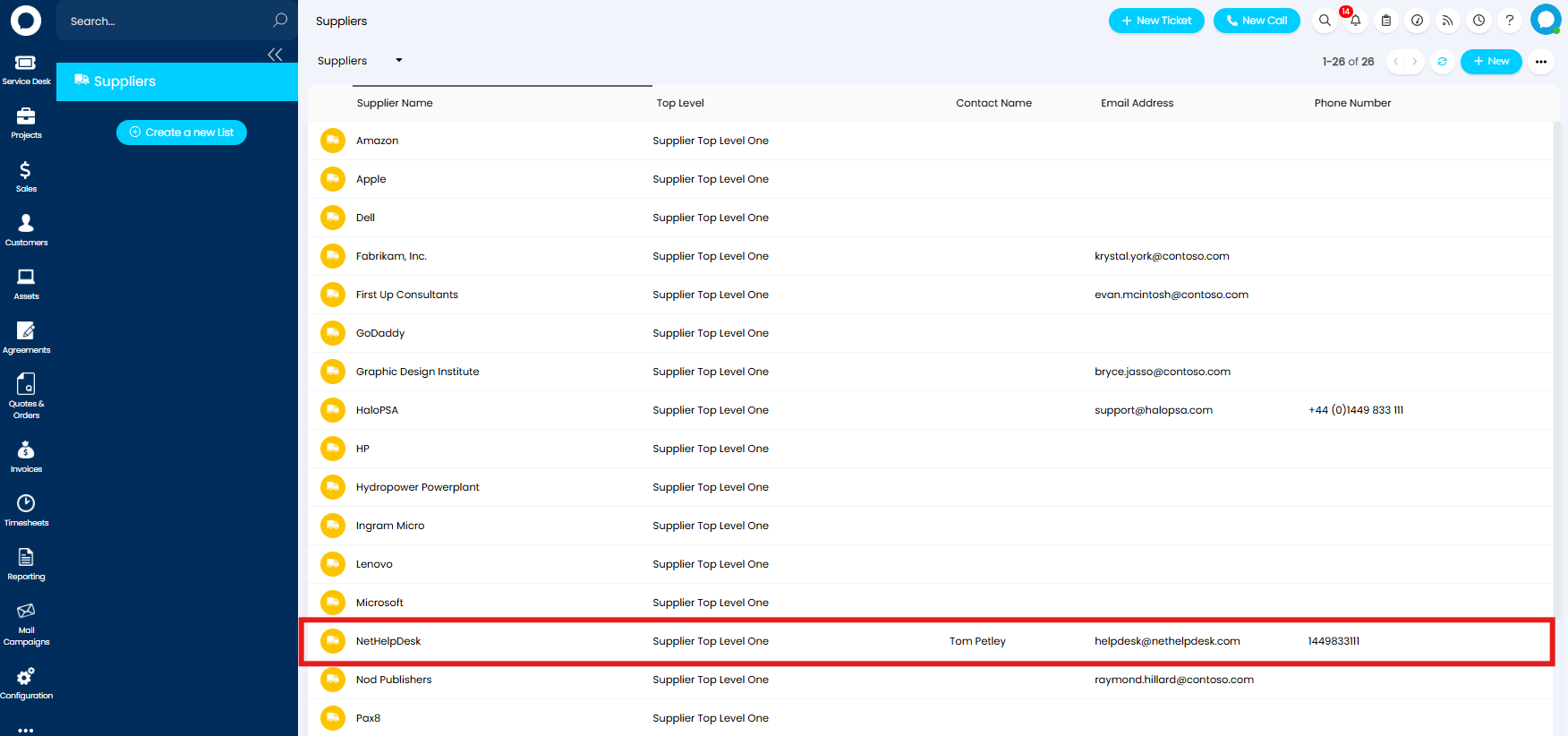
Fig 8. Imported Suppliers
Finding additional fields to Import
Custom Fields
Custom Fields can be imported via the Spreadsheet. To do this add the Custom Field name to import, prefixed with "CF" as the Column Header. For example, "CFProductType" (As custom fields do not contain spaces):

Fig 9. Custom Field on spreadsheet
System Fields
If there is a particular field you would like to populate upon import you can add this to the spreadsheet. To find the correct header name for this field you will need the JSON name of the field. To find this, simply append "&showfieldnames=true" on your URL. This will display your instance with the JSON field names in braces (curly brackets) above the field.
Note: This method may not work for all fields. If you are unable to import to a certain field in Halo please contact Support for assistance.
In the below example I am looking to set the "Reference" for my Supplier.
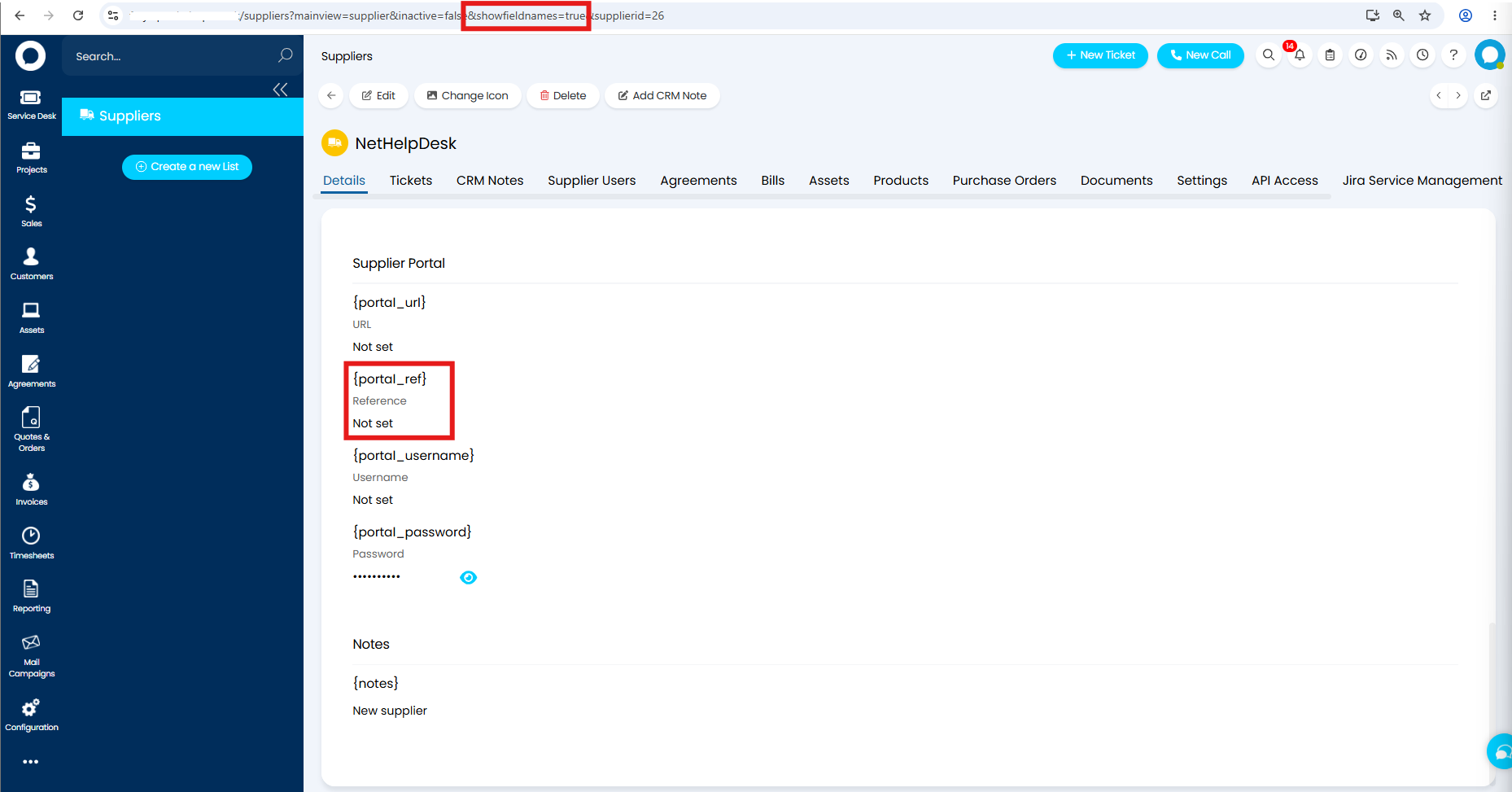
Fig 10. JSON field name
Copy the value between the brackets and paste this as a column header.

Fig 11. Adding the Reference field to the import spreadsheet
Run the import as normal, and the field will update to the specified value.
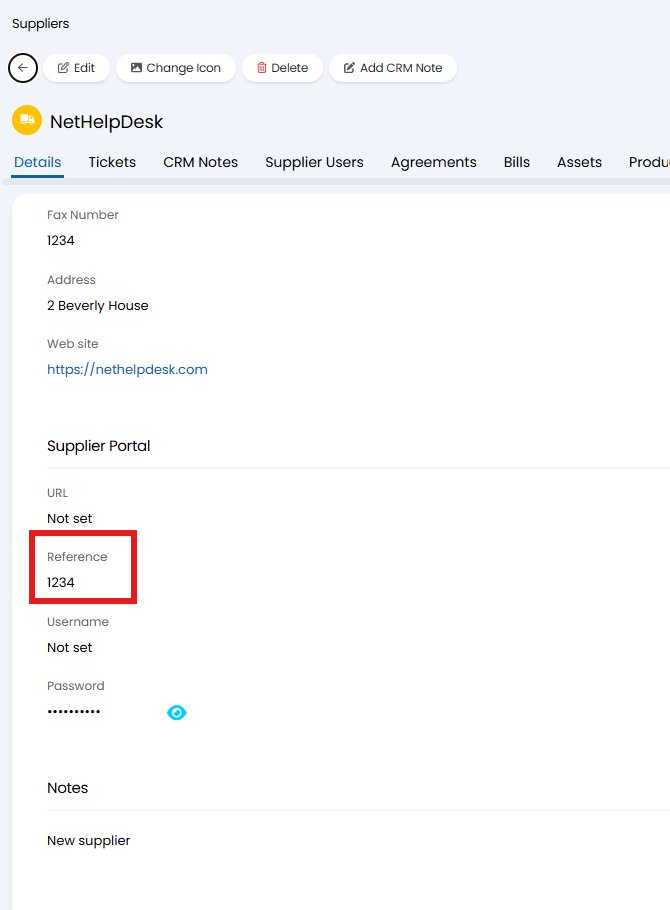
Fig 12. Imported Reference field
Alternative method for finding System Fields and Field Values
If using the JSON name does not successfully import the values to the field, or if you need to know the format for the value you are importing into a field, you can use the Developer Console to find the correct header name. First locate the field in Halo, before editing the field you will need to open the Developer Console which can be accessed by clicking function (fn) and f12. Now edit the field setting the value to the value you would like to import, and view the changes in the Network tab of the Developer Console.
In the below example I am looking to set the Supplier to not be a Manufacturer.
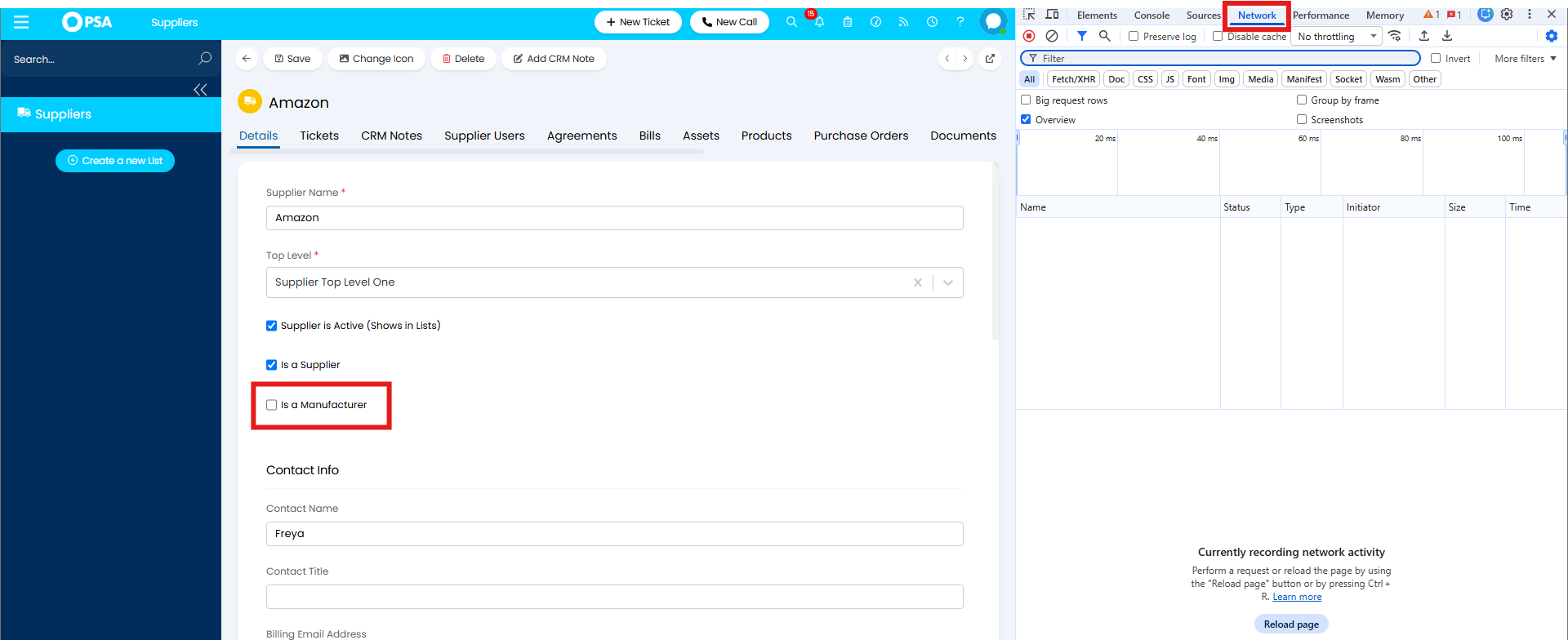
Fig 13. Network tab
When I click "Save" additional entries will show. Select the entry with the entity name, in this case "Supplier", as this is the entity being updated. Click the "Payload" tab and expand the section.
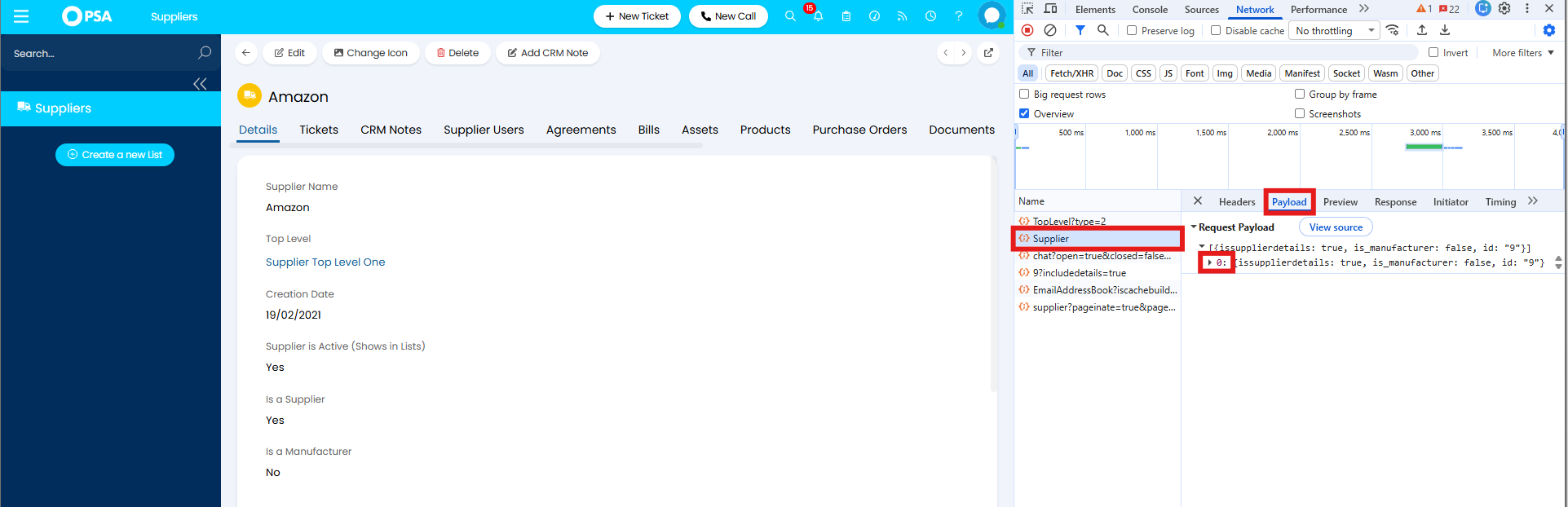
Fig 14. Payload from editing the "Is a Manufacturer" field
Extract the name of the field that has changed. This will be the column header in your spreadsheet.
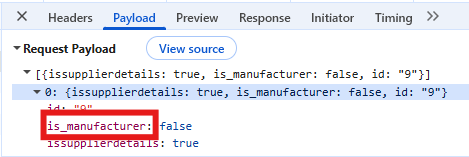
Fig 15. "Is a Manufacturer" field in the Dev Tools
To work out the value you need to enter under this column, look for the value shown in the payload after the field name.
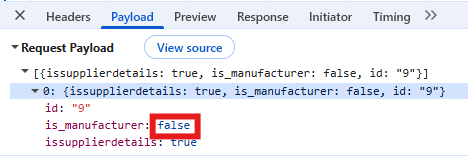
Fig 16."Is a Manufacturer" set to "false" in the Dev Tools
Add the field name as a new column header on your spreadsheet, and fill in the values accordingly.

Fig 17. Adding the "Is a Manufacturer" field to the spreadsheet
Run the import as normal, and the field will update to the specified value.
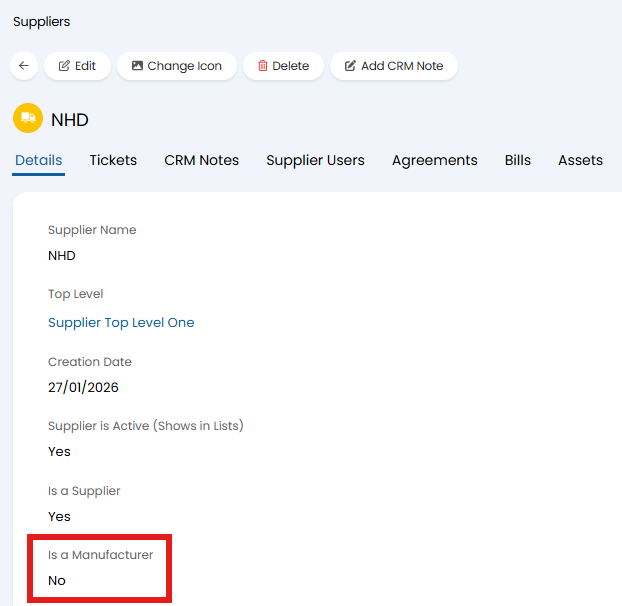
Fig 18. Imported "Is a Manufacturer"