Pre-Pay V2
- billing
- labour
- Pre-Pay
In this guide we will cover:
- What Is Pre-Pay V2?
- Switching To Pre-Pay V2
- Enabling Pre-pay v2
- Enabling Ready For Expiry
- Recalculate Pre-pay Expiry Records
- Recalculate Billing
- Re-expire Pre-pay
- Using Pre-Pay V2
Related Guides:
This guide should be used if you have been advised to switch your pre-pay calculation method to v2.
This article is a guide on switching your pre-pay calculation method, it is not a guide for setting up pre-pay. The process for configuring pre-pay has not been changed, so setting up pre-pay for a customer is the same process regardless of whether you are using pre-pay calculation method v1 or v2. Therefore, for details on how to set up pre-pay, please do refer to the Pre-Pay guide.
Important: when performing your recalculations for switching to this method, it is important to recalculate as far back as your records go.
Pre-pay V2 is available from version 2.238+.
What Is Pre-Pay v2?
A second calculation method has been added as an option for pre-pay calculations. This calculation method locks actions against specific buckets of pre-pay when that pre-pay has been expired so that, post-expiry, it cannot change from the bucket of hours it was deducted from and is fully locked in the event of billing recalculation.
An area called "Ready For Expiry" has also been added that allows for manual control of expiration of pre-pay records, if you do not want to control this then you can leave this area disabled and continue to use automatic expiry. However, as pre-pay v2 locks actions once pre-pay has expired, it is advised to enable the ready for expiry area so that you can ensure all pre-pay actions are correct prior to locking.
Switching To Pre-Pay V2
Enabling Pre-pay v2
You must first enable the new calculation method for pre-pay. To do this, navigate to Configuration > Billing > Pre-pay and switch your "prepay calculation method" to "v2".
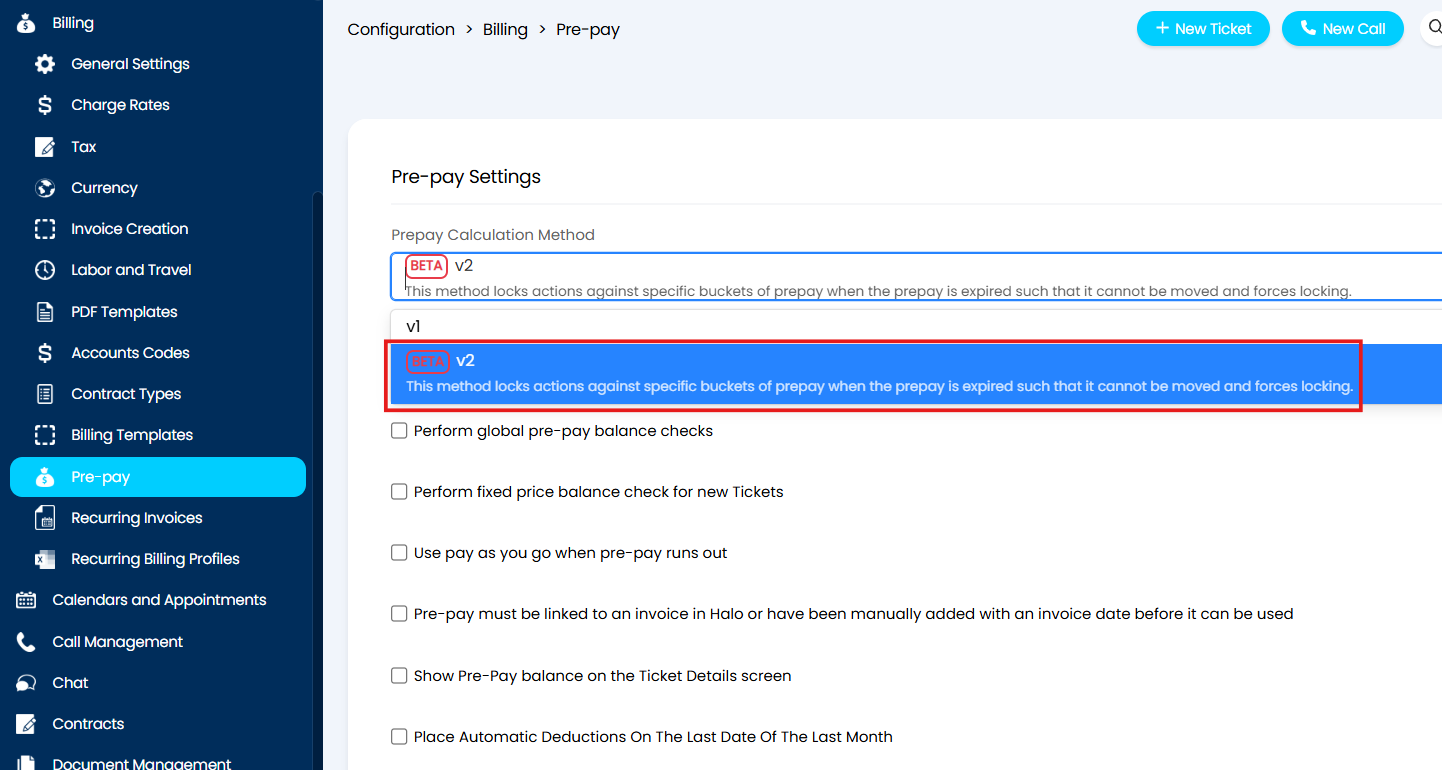
Fig 1. Switching to the new pre-pay calculation method
This calculation method locks actions against specific buckets of pre-pay when that pre-pay has been expired so that it cannot change post-expiry in the event of billing recalculation.
Enabling Ready For Expiry
A new area called "Ready For Expiry" has also been created for pre-pay records. When enabled, this new area prevents automatic expiry of pre-pay records and instead places them in a holding area similar to the awaiting review area for labour invoicing. Although this area is optional, we strongly encourage it as it allows for you to check and amend any pre-pay actions for that period prior to the pre-pay being expired and the associated actions locked.
To enable this area, navigate to Configuration > Billing > Pre-pay and enable the setting to "use Ready For Expiry for expiring prepay".
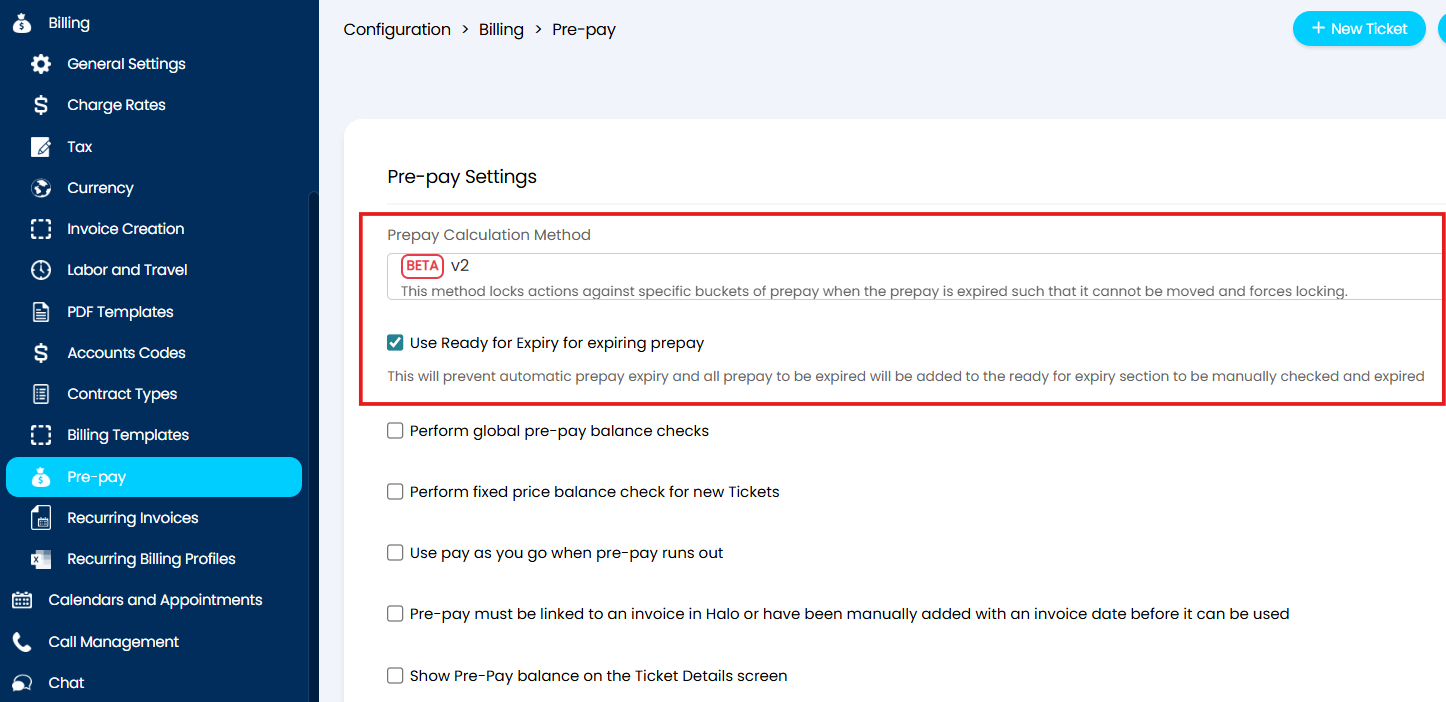
Fig 2. Enabling the "Ready For Expiry" area that prevents automatic expiry of pre-pay
This area will then appear in both the customers and contracts areas of your Halo, this is to account for both customer level pre-pay and contract level pre-pay. Customer level pre-pay will only show in the customer level ready for expiry area, contract level pre-pay will only show in the contract level ready for expiry area.
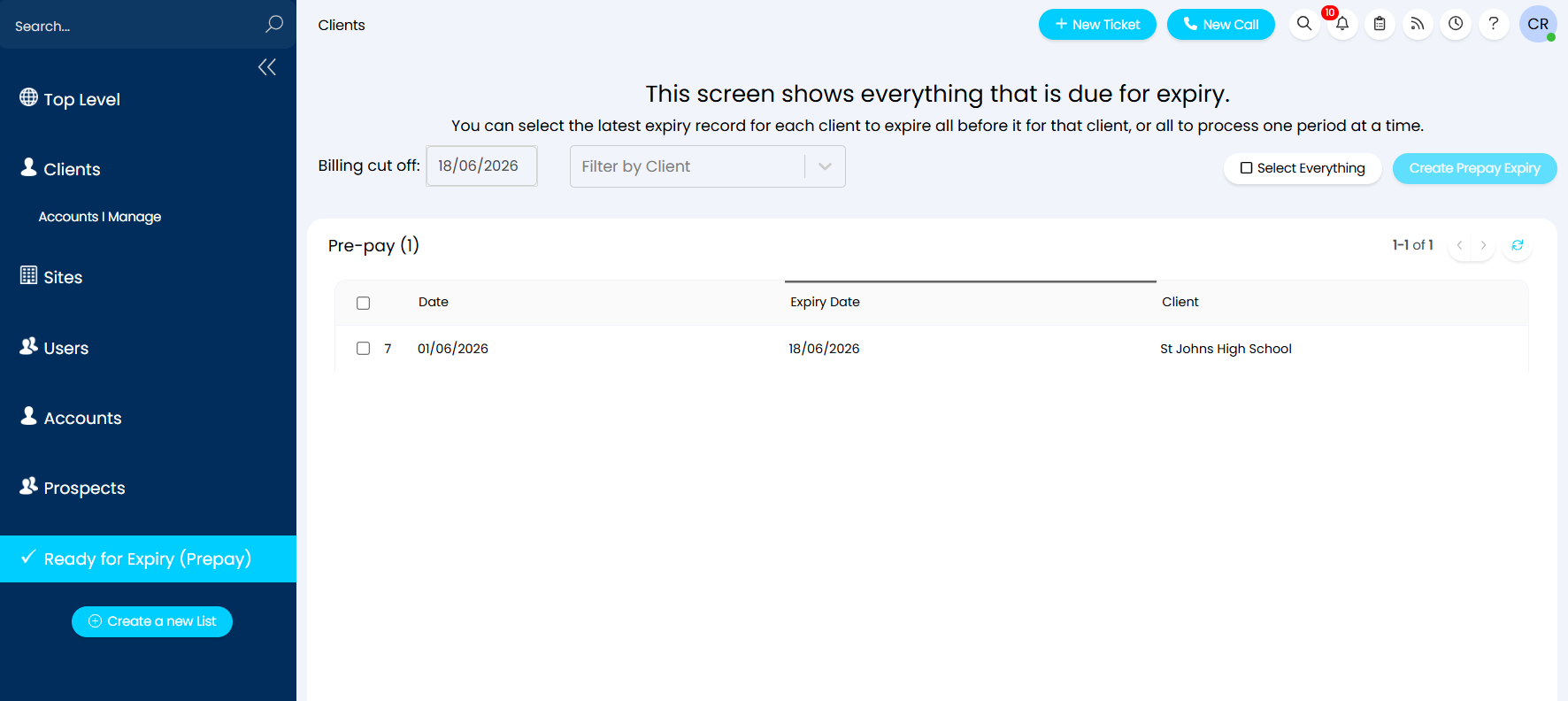
Fig 3. The ready for expiry area in the customers area of Halo
Note: The date that you create the expiry record will not impact the actual date of expiry for that pre-pay record nor will it impact the length of that pre-pay period. Being able to manually create the expiry record simply gives you time to edit actions before they are officially locked.
Recalculate Pre-pay Expiry Records
Now that pre-pay v2 has been enabled, you can begin recalculations.
First you should recalculate your pre-pay expiry records. To do this, navigate to a relevant customer or contract and click into the pre-pay tab. At the bottom of this page there is the "Pre-Pay Records" section, edit the page and you can then edit the records using the pencil icon on the record.
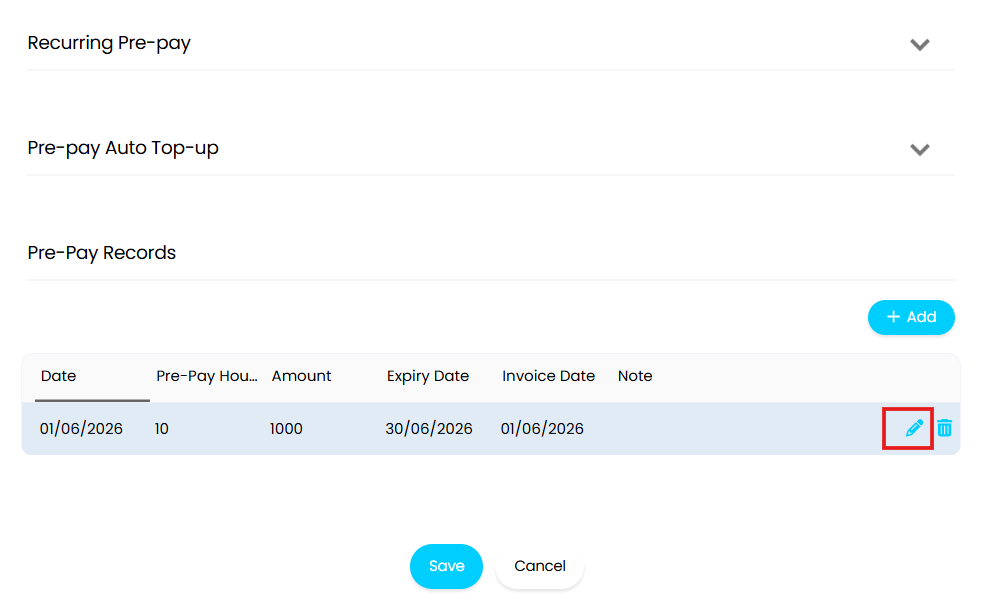
Fig 4. Editing a pre-pay record in the pre-pay tab
Selecting this icon brings up the modal screen for editing the pre-pay record. Make any amendments to the record if necessary and then select "recalculate expiry records" before saving.
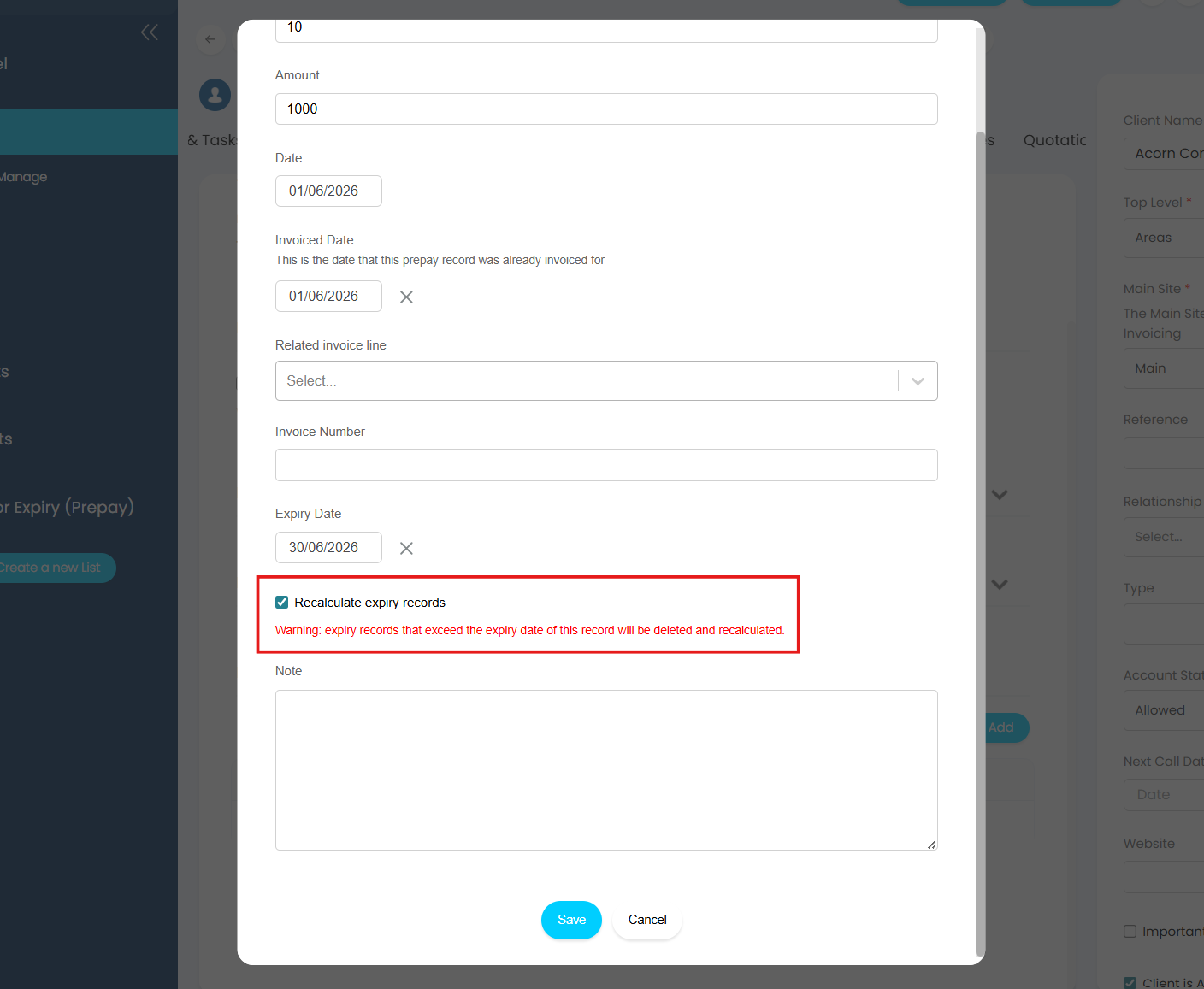
Fig 5. The setting to recalculate pre-pay expiry records
You should recalculate all records as far back as your records go, you should do this regardless of whether you have made edits to your actions or not. It is important to align the calculation method used for all pre-pay records, issues can arise from different methods being used for different periods.
Recalculate Billing
Once the pre-pay expiry records have been recalculated, you can then recalculate billing for any relevant tickets or time periods. This can be done at ticket level or at customer level.
To recalculate billing at an individual ticket level, navigate to a relevant ticket and hover over the three dots in the top right corner.
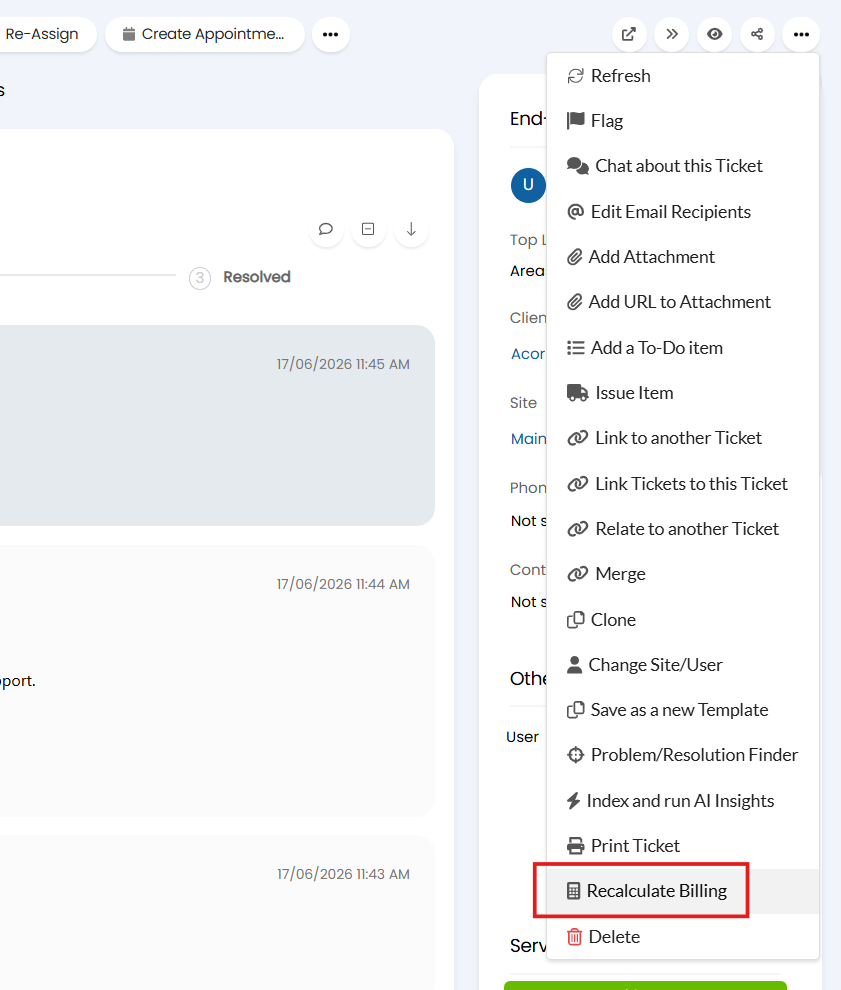
Fig 6. Recalculating billing at ticket level
To recalculate billing for multiple tickets at once, select all relevant tickets in a ticket list, hover over the "Edit" that appears and select "Recalculate Billing".
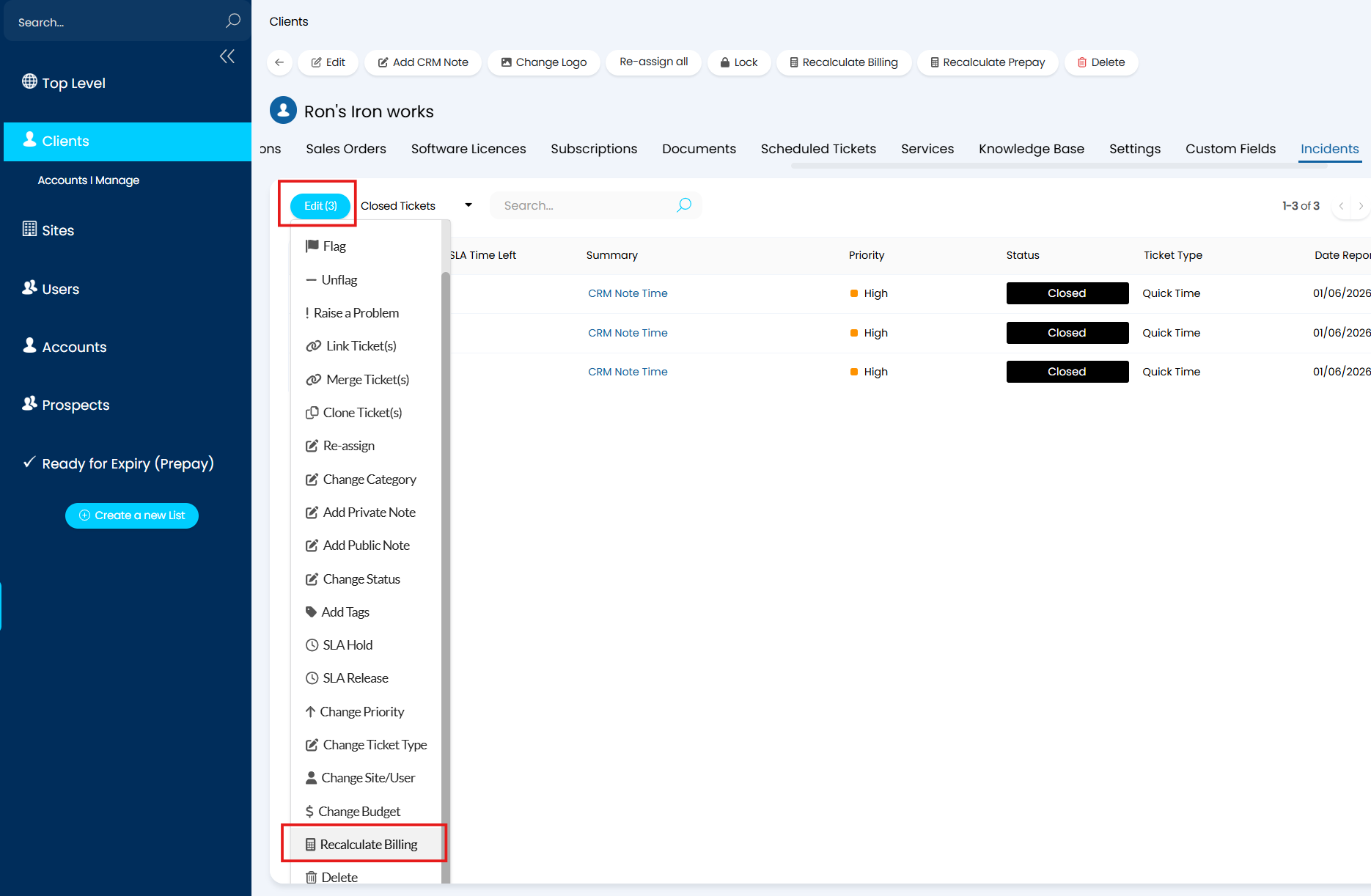
Fig 7. Recalculating billing for multiple tickets in bulk
To recalculate billing at customer level, navigate to the relevant customer and select the "Recalculate Billing" button at the top. Using this button will allow you to recalculate billing for all Tickets within a chosen time period.
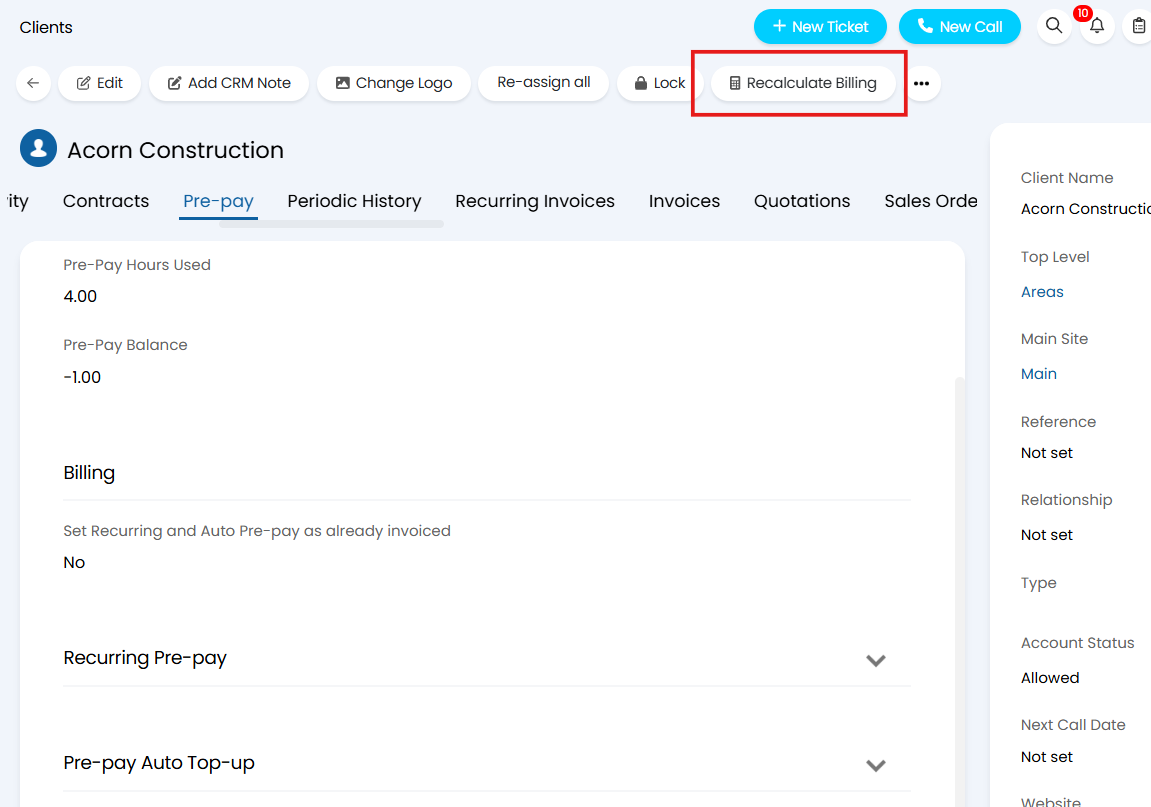
Fig 8. The button to recalculate billing at customer level
Note: only administrators have access to the 'recalculate billing' button at customer level.
Re-expire Pre-pay
Once all recalculations have taken place and you are happy with the corrected data, you can then re-expire the relevant pre-pay records if needed.
To do this, depending on whether you are working with customer level pre-pay or contract level pre-pay, navigate to the relevant ready for expiry area.
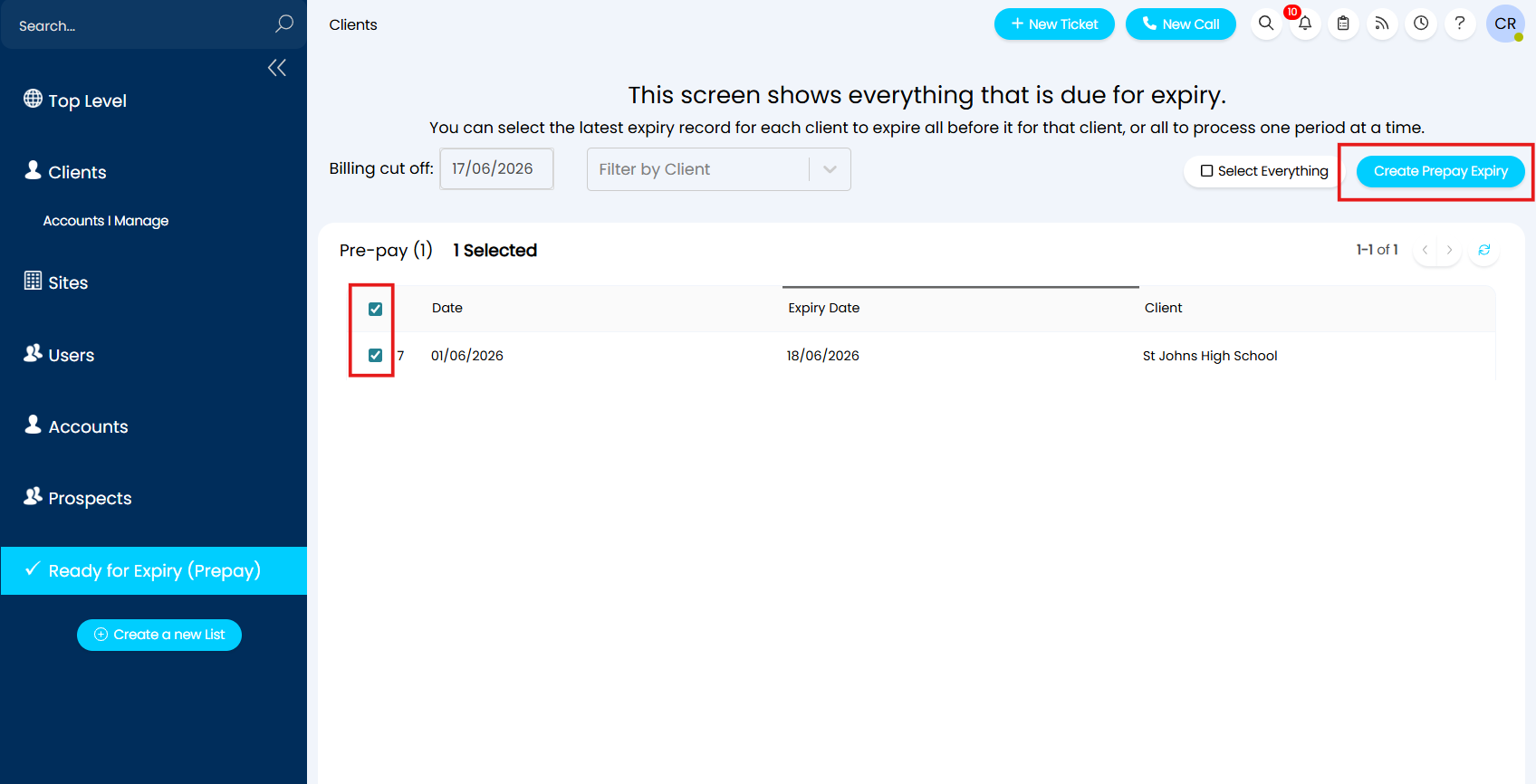
Fig 9. Re-expiring any relevant pre-pay records
Select any relevant pre-pay records and select the "create prepay expiry" button in the top right to expire the records and lock all actions against them.
Note: when a pre-pay record is expired, any pre-pay records for periods before that one will also be expired. For example, if the pre-pay record for May is expired but April's has not been, then April's will also be expired.
If you have not chosen to enable the ready for expiry area and are still using automatic expiry instead, then you can use the "recalculate prepay" button against the client to recalculate all pre-pay records and expire all relevant records that are ready for expiry.
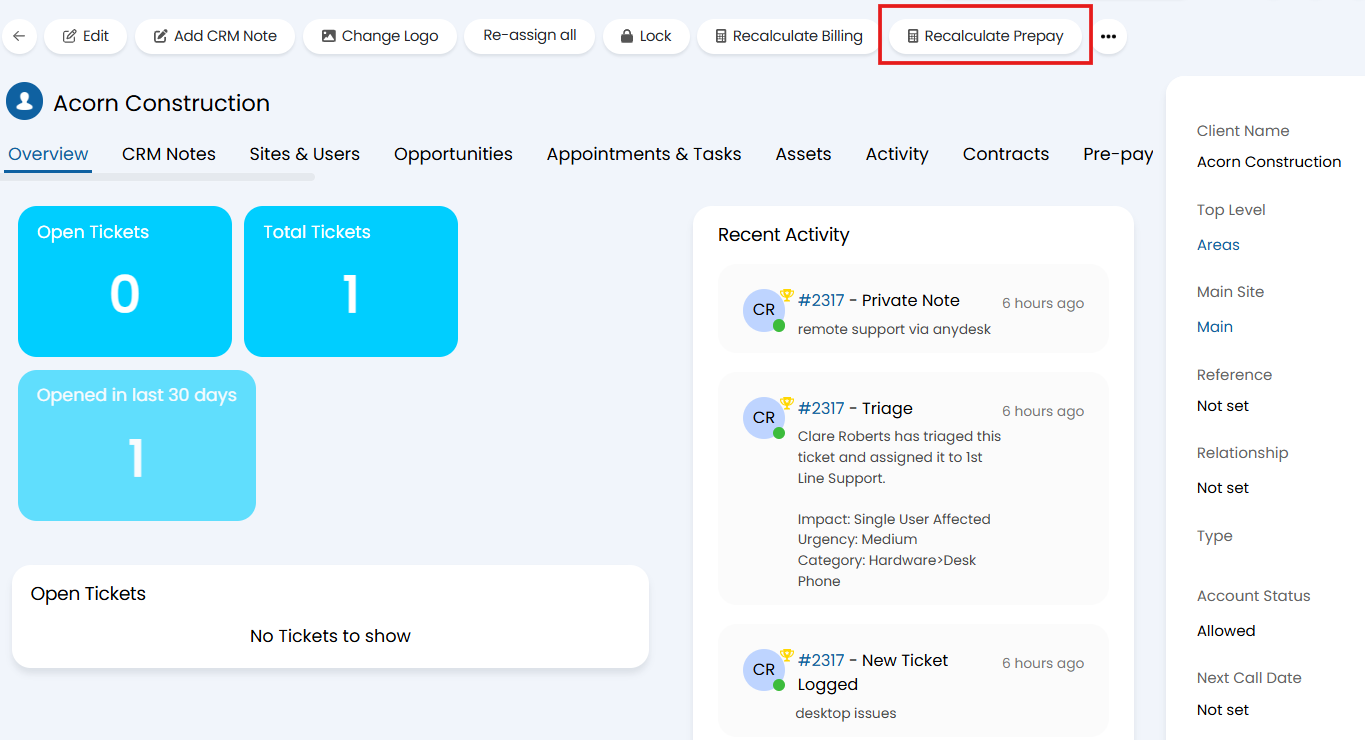
Fig 10. The option to recalculate prepay at client level
Note: only administrators have access to the 'recalculate prepay' button at customer level.
Using Pre-Pay With V2 Calculation Method
As mentioned at the top of this guide, setting up pre-pay has not changed with this calculation method. However, you will notice that, when actively using pre-pay, there are some changes.
In this section below is a worked example using pre-pay with the v2 calculation method, and an outline of the changes that have been added in to the pre-pay functionality.
In this example, as illustrated in Figure 11, Acorn Construction has 10 hours of pre-pay per month and those 10 hours expire at the end of each month.
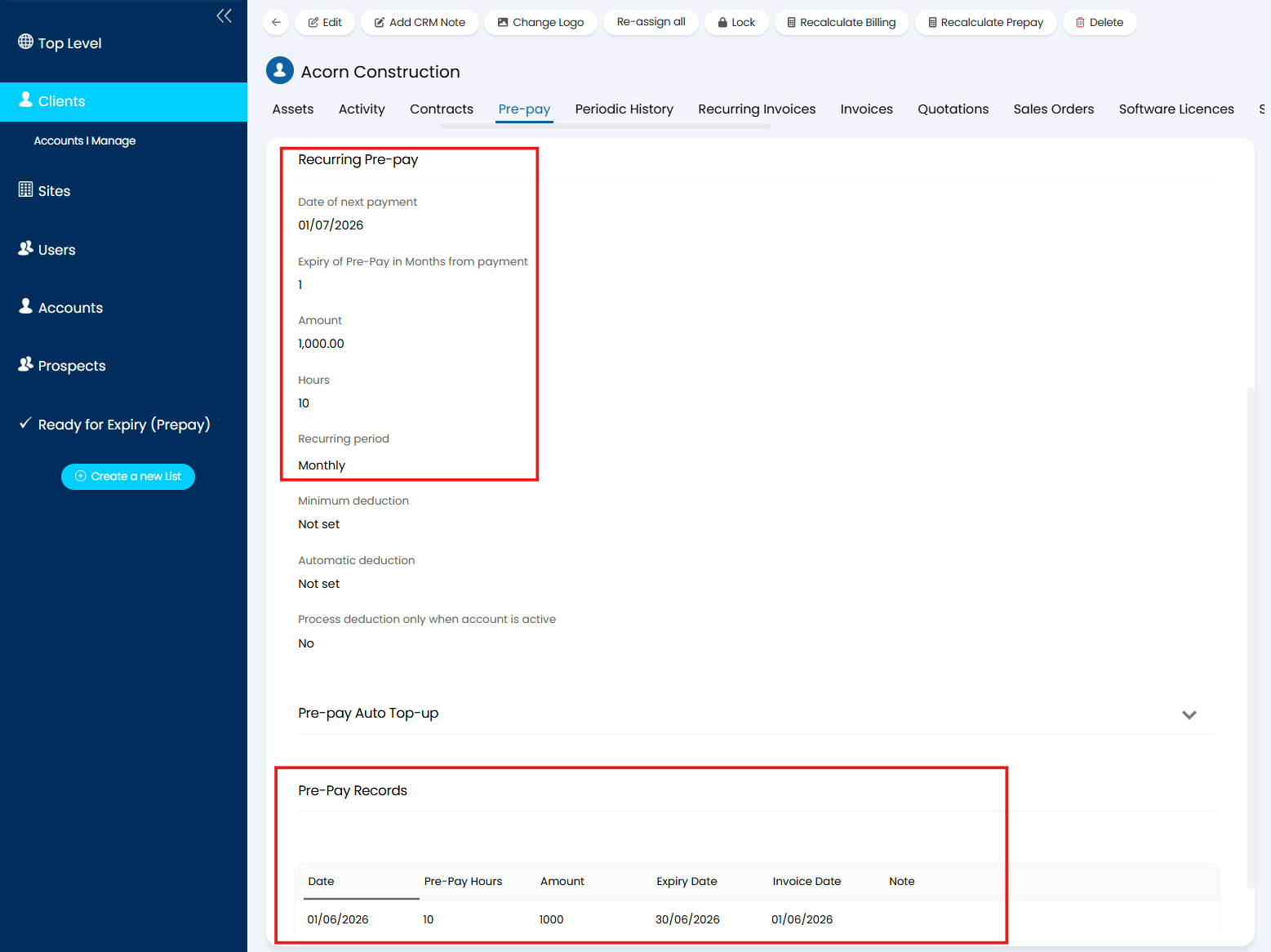
Fig 11. Pre-pay setup for a Customer in their pre-pay tab
As you can see in Figure 11, the current bucket of pre-pay for Acorn Construction is set to expire on 30/06/2026. When it reaches the expiry date, it will appear in the ready for expiry area where you can manually expire the pre-pay and lock down the actions associated with that pre-pay.
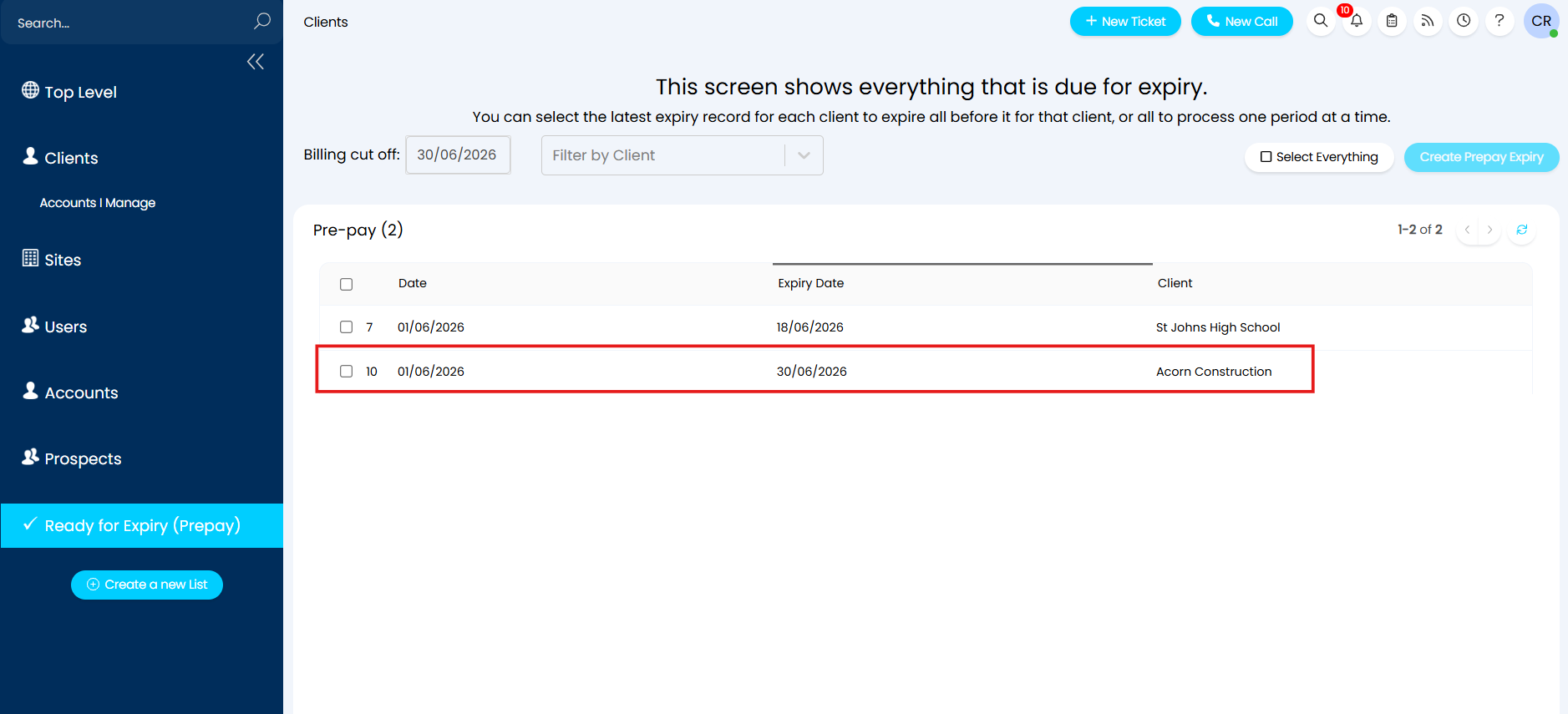
Fig 12. Pre-pay appearing in ready for expiry on its expiration date
As such, any changes to the actions associated with the pre-pay that would affect billing should take place prior to expiration.
Once I am happy for the pre-pay to expire, I can select the relevant pre-pay records in ready for expiry and select the "create prepay expiry" button in the top right of the screen.
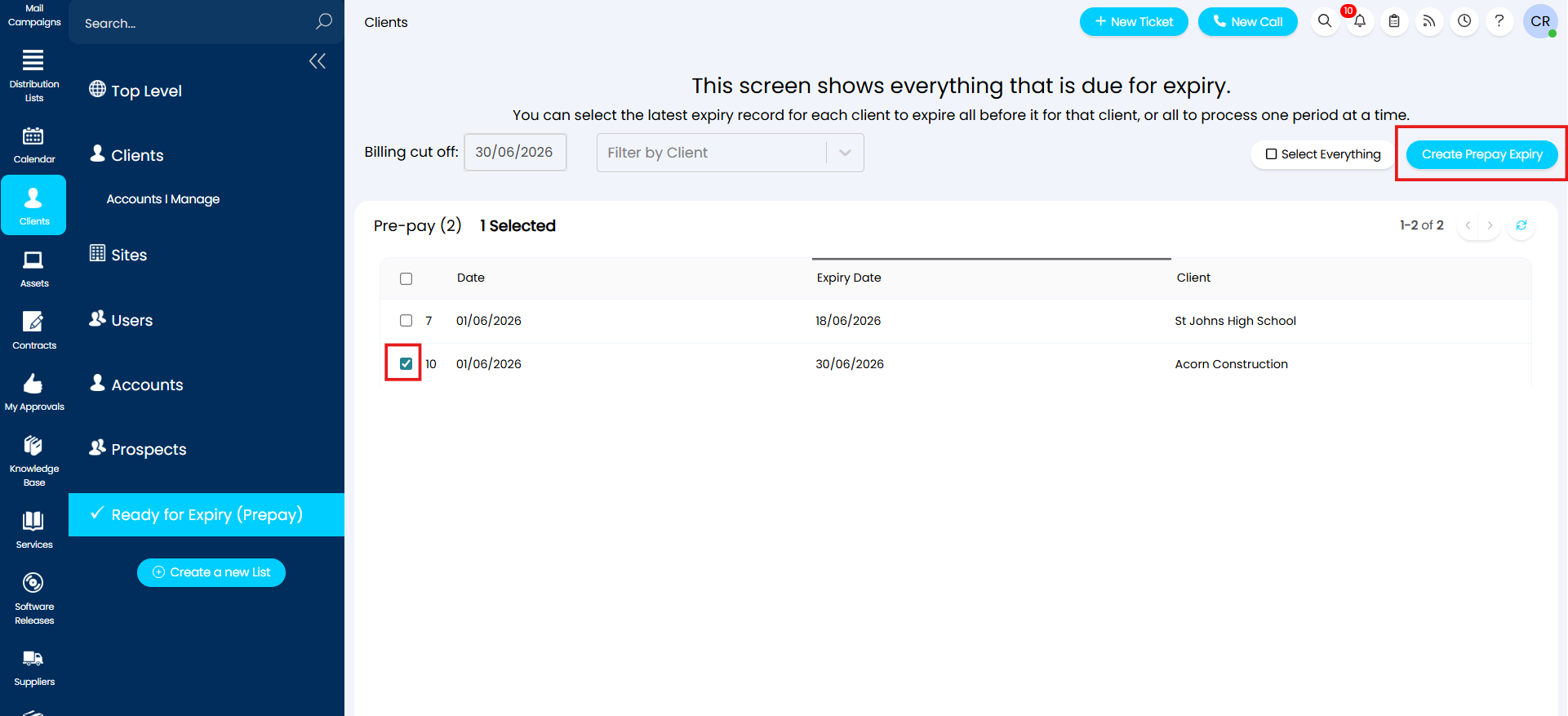
Fig 13. Creating expiry for a pre-pay record
Once you select this button it will ask for confirmation (Figure 14a) and then expire the pre-pay once you confirm (Figure 14b).
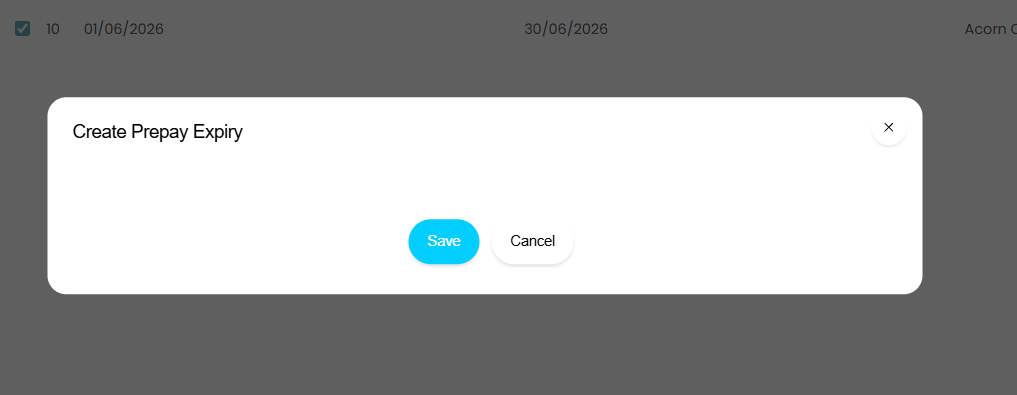
Fig 14a. Confirming pre-pay expiry
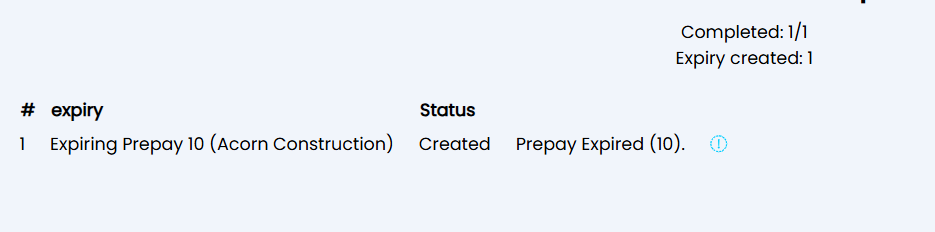
Fig 14b. Confirmation that will show once pre-pay has successfully expired
The expiry will show as normal in periodic history in the "units expired" column of the table.
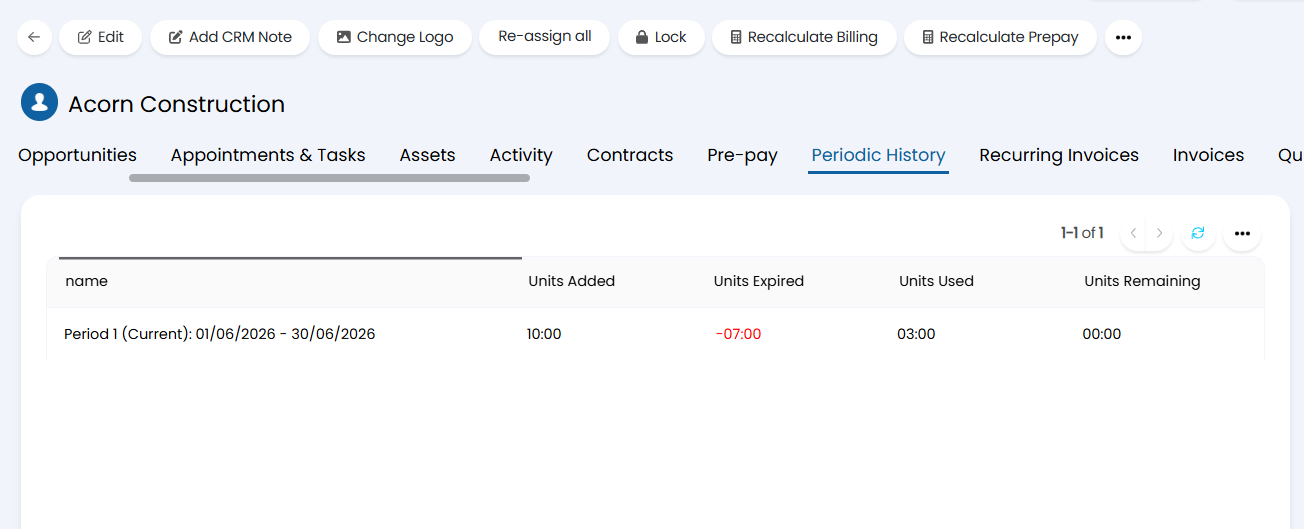
Fig 15. Periodic history table for a customer with expired pre-pay
Note: Periodic history is now paginated for performance improvements.
Against the actions linked to this pre-pay record, some additional features have been added.
When editing an action linked to an expired pre-pay record, you will notice that the setting to "lock time entry and do not recalculate" has been automatically enabled in the "Time Tracking" tab, and that there is no longer an option to recalculate billing against that action (Figure 16).
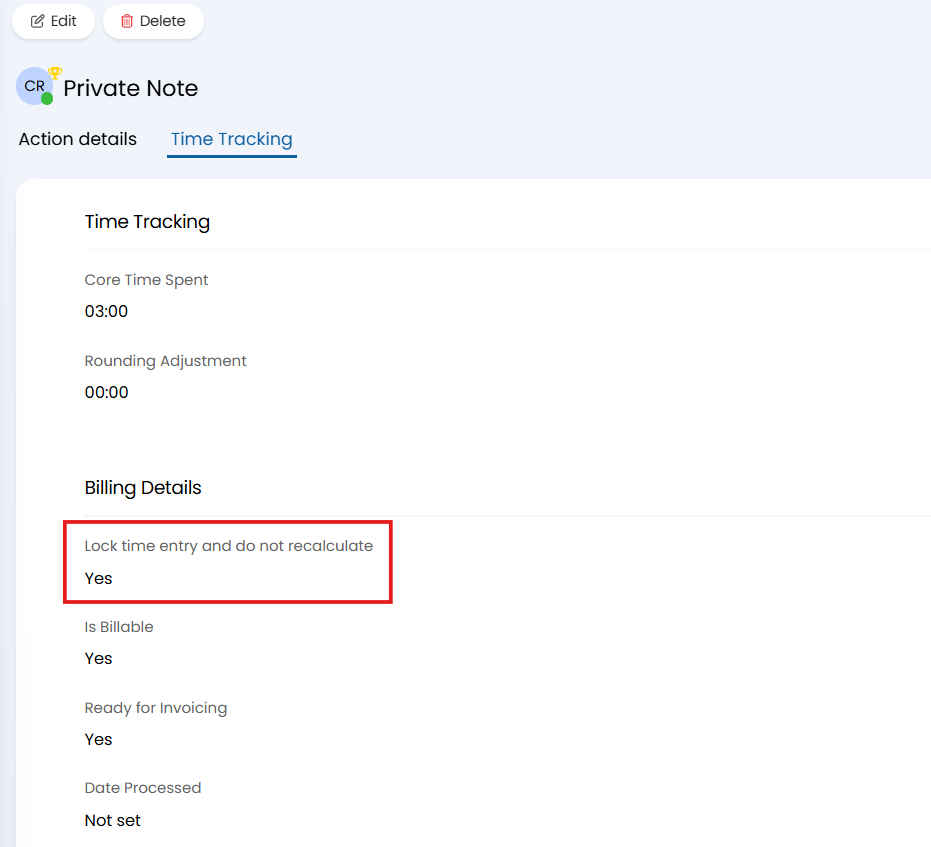
Fig 16. Once a pre-pay record is expired, the associated time entries are 'locked'
With this setting enabled, billing for this action has been 'locked' and any changes made to the action that would usually affect the billing of that action will not affect it. For example, if I change the time spent for the action illustrated in Figure 16 from 3 hours to 4, it will not affect the number of pre-pay hours used even if I recalculate billing for the Ticket or Client (Figure 17).
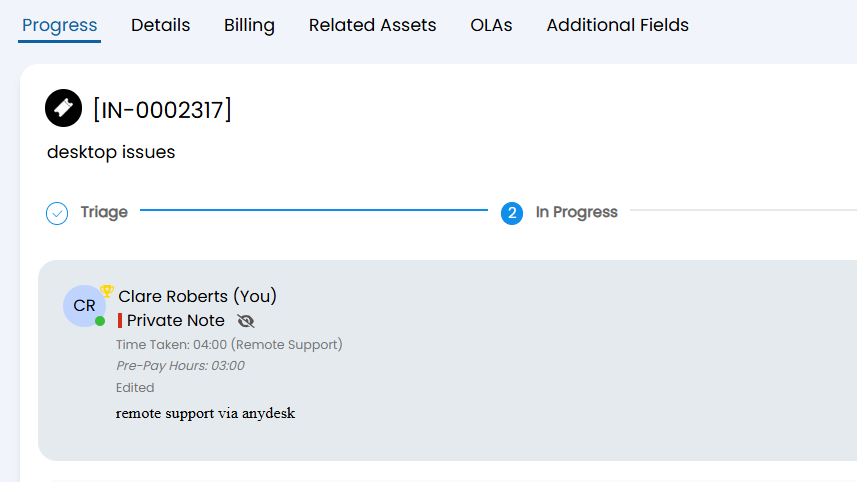
Fig 17. A locked time entry against an expired pre-pay record will not change at all once locked
Note: This setting is only enabled once the associated pre-pay record has been expired. Until that point, any billing aspect of the action, such as time taken, can be changed and this will affect the pre-pay hours deducted. It is possible to toggle off the setting if you need to edit a locked action linked to an expired record. In the event that this is needed, after making your edits, you must select "Recalculate Prepay" at customer level in order to correct the calculations for that period.
Additionally, there is now a "Pre-pay Links" table against actions that can be found in the time tracking tab of the action at the bottom of the page.
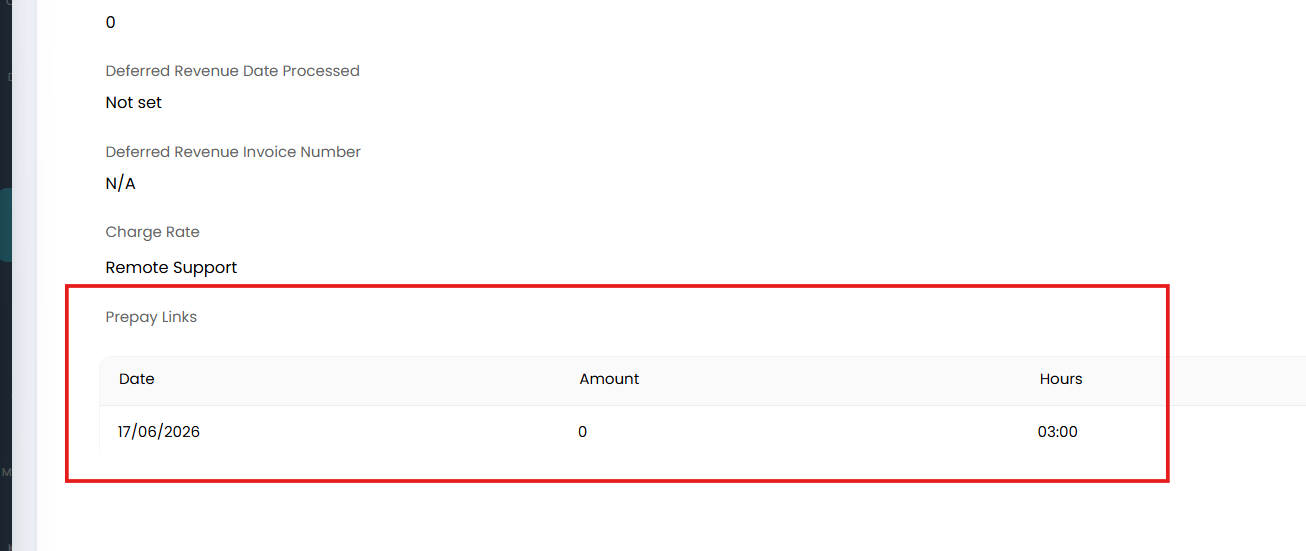
Fig 18. The Prepay Links table now against actions
This table will populate with the expired pre-pay record that the action is linked to - the date column refers to the expiry date of the linked pre-pay.