Redacting Personal Information on Tickets - PII Data Flagging
In this guide we will cover:
What is PII Data Flagging?
Setting up PII Data Flagging
Scanning Tickets for PII
Viewing Detected PII for a Particular Ticket
Redacting Data
See all Active PII Detections and Redact/Ignore History
What does Redacting Data Do?
The functionality in this guide is available from v2.238+.
What is PII Data Flagging?
PII data flagging allows you to scan tickets for personally identifiable information, review this data and redact this from your database. Tickets can be scanned both automatically after certain events, and manually by agents. Making it easier for you to remove personal data from your database, aiding security and compliance.
Setting up PII Data Flagging
To enable this functionality in your instance head to Configuration > Users > General Settings > PII Data Flagging Section > enable "Enable PII data flagging".
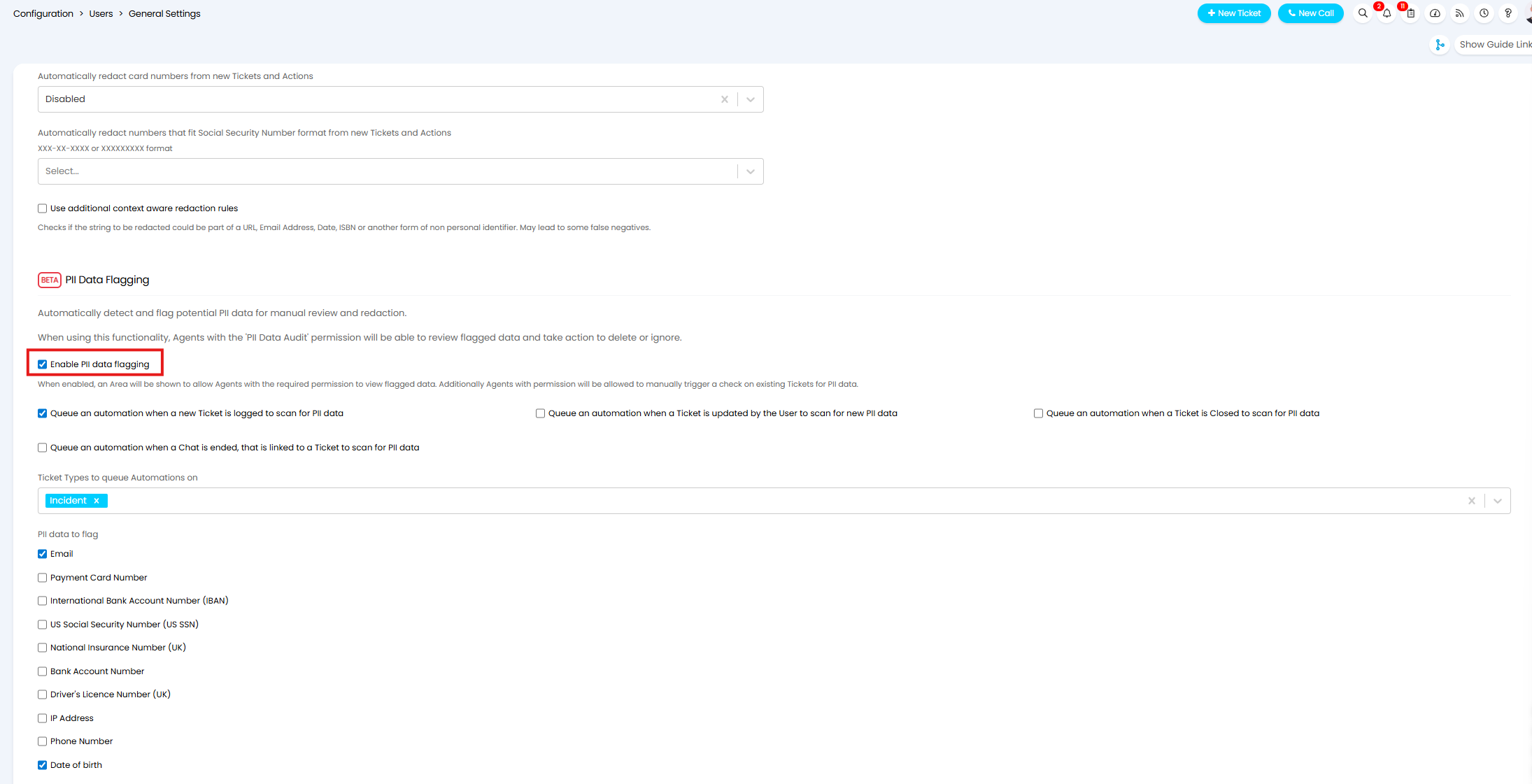
Fig 1. Enable PII Data Flagging
Once enabled, additional configuration options will become available to configure how PII is flagged.
Choose Which Data is Flagged
You will need to pick which types of personal data you would like to scan for, only the data types selected will be checked for when a ticket is scanned. Use the fields highlighted in Figure 2 to do this.
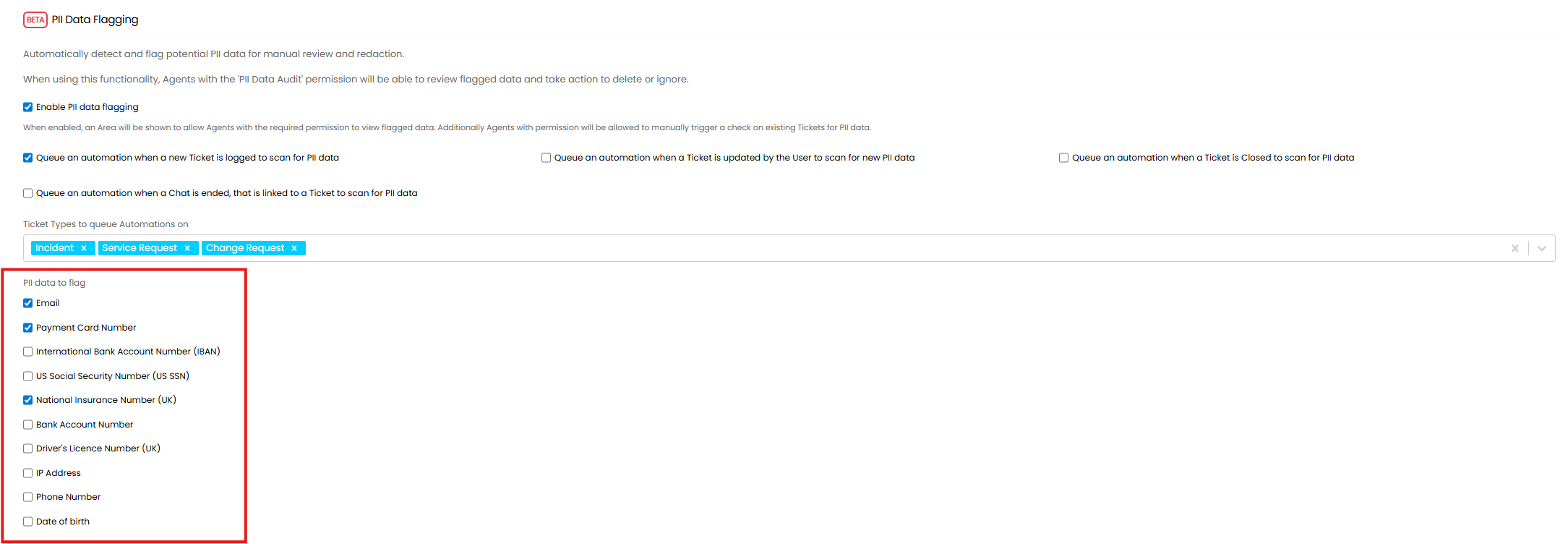
Fig 2. Fields to pick the ticket types and data types to flag
Using the Figure 2 example, when tickets are scanned they will be checked for email addresses, payment card numbers, and national insurance numbers, only data of these types will be flagged.
At present, regex, along with other algorithms and checks, are used to detect each data type. For details on the expressions used, and the format information would need to be in to be identified as one of the personal data types, see Figure A1 in the Appendix.
Custom Detectors (v2.250+)
From v2.250+ you can configure 'Custom Detectors' which will flag data as PII based on custom criteria you set. Allowing you to customise the criteria for flagged data and have more personal information data types flagged. For example, you could create a Custom Detector to flag driving licence numbers for each of the states/countries you service.
You can also use custom detectors exclude data that meets set criteria from PII flagging. Useful when you would like your internal team's data, such as employee's email addresses or internal reference numbers (assets/quotes numbers) to be excluded from redaction.
Custom Detectors are configured under Configuration > Users > General Settings > PII Data Flagging.
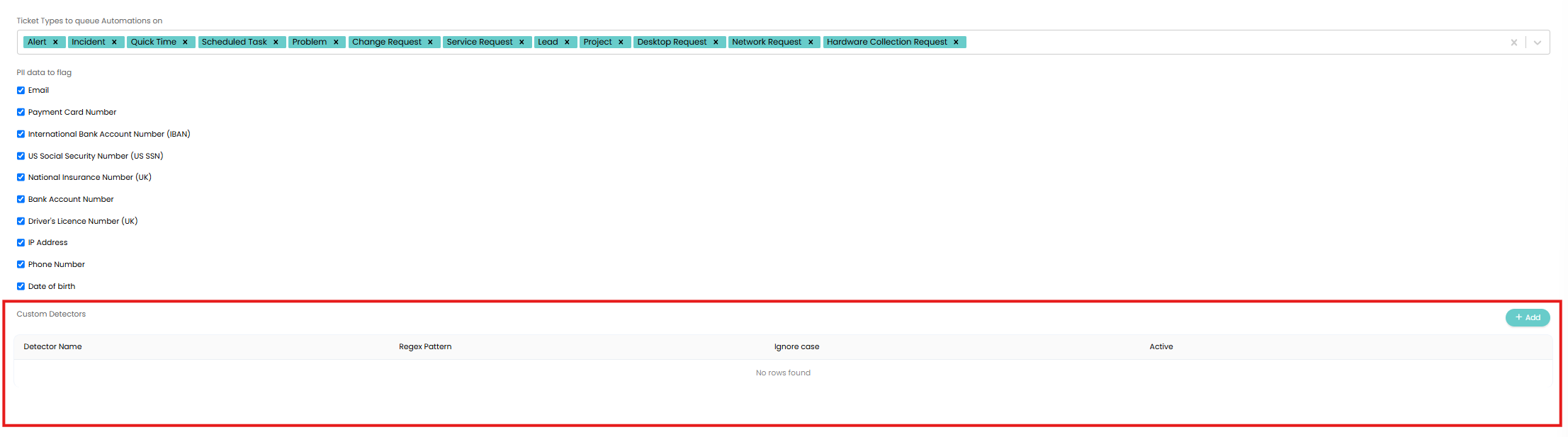
Fig 3. Custom Detectors
To configure, simply give the detector a name and enter the regex pattern to set the criteria a string needs to meet to be flagged as personal data.
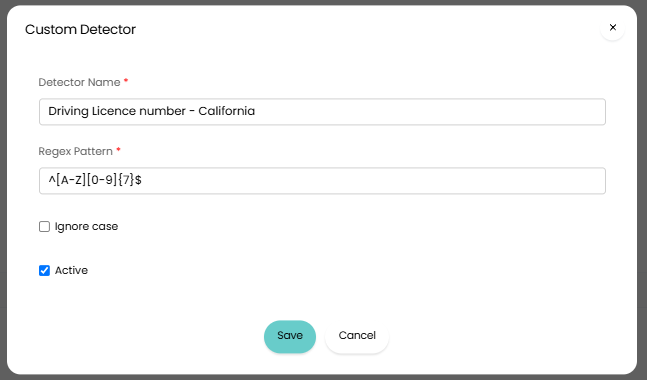
Fig 4. Custom PII Detector Example
In the Figure 4 example, this detector will flag any string that follows the given regex pattern as a driving licence number. Allowing agents to redact the data if needed.
If you would like particular strings to be excluded from flagging, enable "Ignore case" against the Detector.
In the Figure 5 example a detector has been configured that will result in any emails addresses that contain 'imaginehalo.com' as their email domain being excluded from flagging. This will prevent PII flags from being clogged up with internal email addresses, as this is internal information it does not need to be redacted.
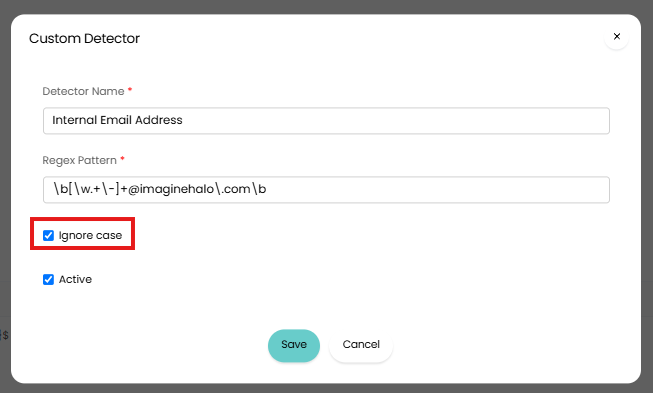
Fig 5. Custom Exclusionary PII Detector
The "Active" checkbox can be used to toggle whether each detector is inactive.
Choose who can Scan for and Review PII
Agent permissions are used to control who trigger a scan on tickets for PII (manually) and who can view and redact the potential PII picked up by the scan. The following agent permission is used for this:
- PII Data Access Level
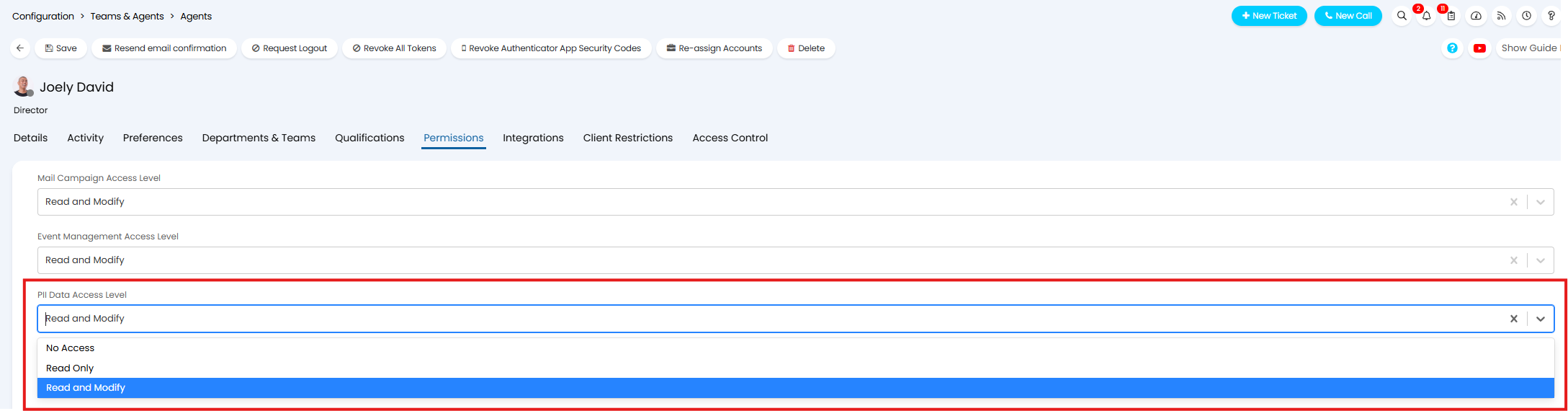
Fig 6. PII Data Access Level Permission
Note: For information on setting agent permissions checkout our guide here.
No Access - The agent will not be able to trigger scans, or view/redact any potential PII picked up by scans.
Read Only - The agent will be able to trigger scans manually. The agent will be able to view potential PII picked up by scans, but they will not be able to redact or ignore this.
Read and Modify - The agent will be able to trigger scans manually. The agent will be able to view potential PII picked up by scans and redact this information.
Scanning Tickets for PII
Tickets can be scanned for PII either automatically, or manually by an agent when they are viewing the ticket.
Scan Tickets Automatically
Tickets can be scanned automatically after the following events:
- When a ticket is logged
- When a ticket is updated by the user
- When a ticket is closed
- When the chat linked to the ticket is ended
To enable this, head to Configuration > Users > General Settings > enable the setting shown in Figure 4 based on when you would like tickets to be automatically scanned.
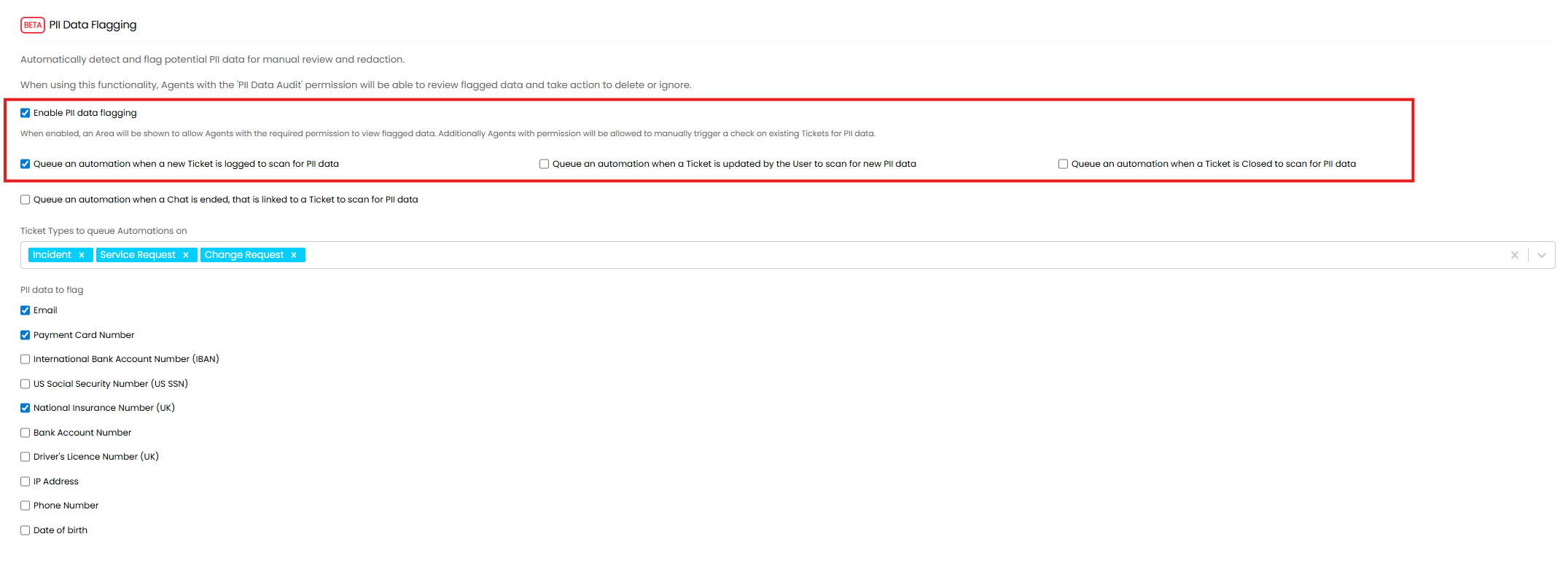
Fig 7. Enable Tickets to be scanned automatically
Then, pick which ticket types you would like to be automatically scanned and flag PII on. This applies to automatic scanning only, all ticket types will be able to be scanned manually. Use the field highlighted in Figure 8 to do this.
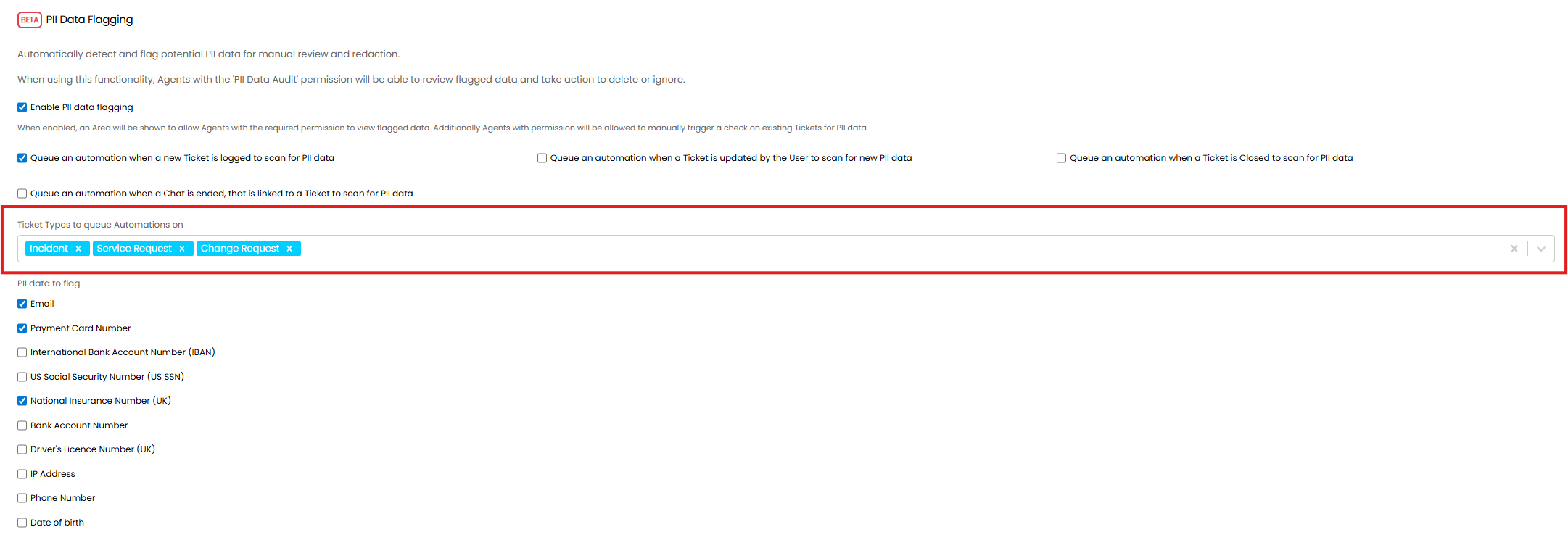
Fig 8. Ticket Types to scan for PII automatically
Using the Figure 8 example, only tickets with the types 'Incident', 'Service Request' or 'Change Request' will be scanned for PII automatically.
Scan Ticket Manually
Agents who have the permission "PII Data Access Level - Read" will see a shield icon in the top right when viewing a ticket. Hovering over this will bring up the option to "Scan for PII Data". Clicking this will scan the ticket for PII.
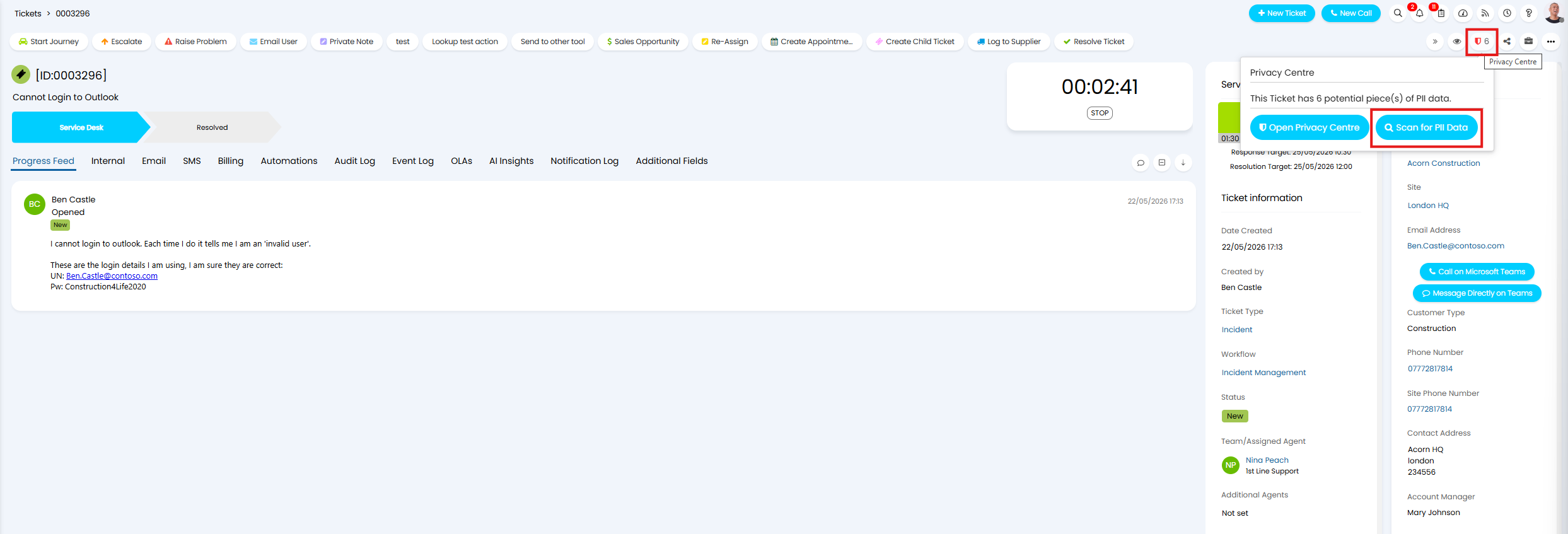
Fig 9. Manually Scan a Ticket for PII
Which Ticket Fields are Scanned?
The following fields will be checked when scanning a ticket for PII.
Tickets Fields:
- Details
- Details HTML
- Actions
Note Fields:
- Note HTML
- Email Body
- Email Body HTML
Chat Fields:
- Chat Message
- Chat Message HTML
Viewing Detected PII for a Particular Ticket
Following a scan, potential cases of PII can be viewed for a ticket by hovering over the shield icon and selecting "Open Privacy Centre".
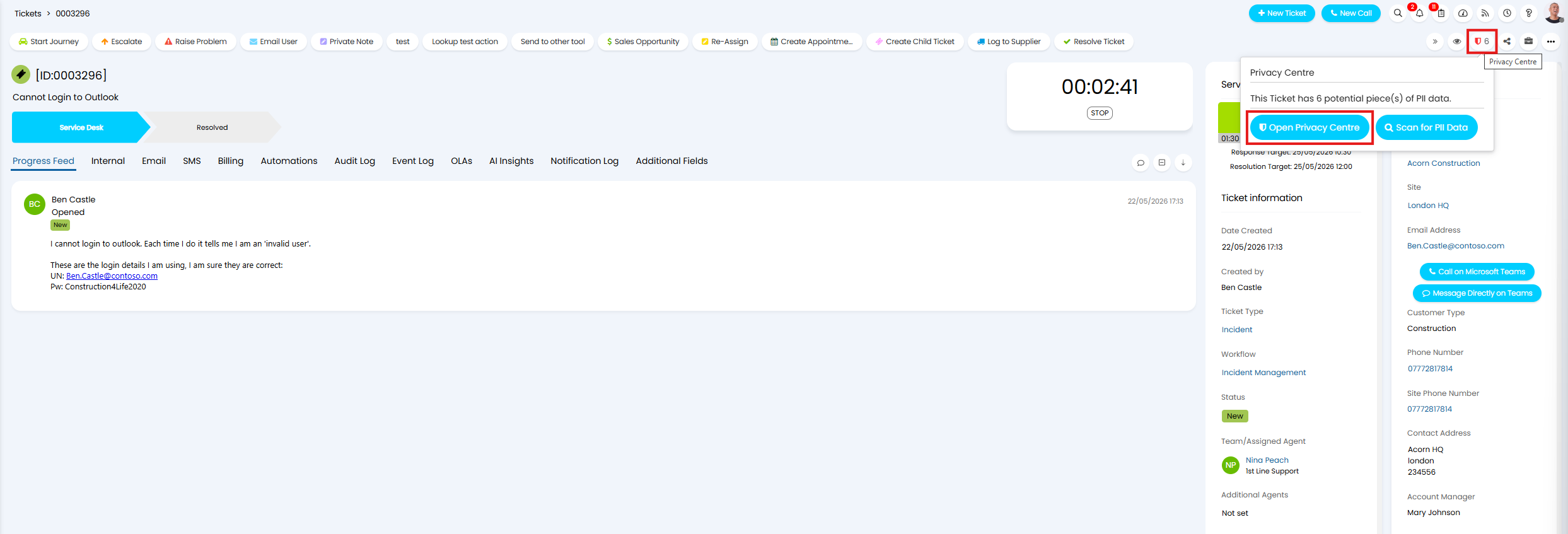
Fig 10. View PII for a Ticket
This will bring up a modal window showing all detected PII in this ticket (that you have set to flag).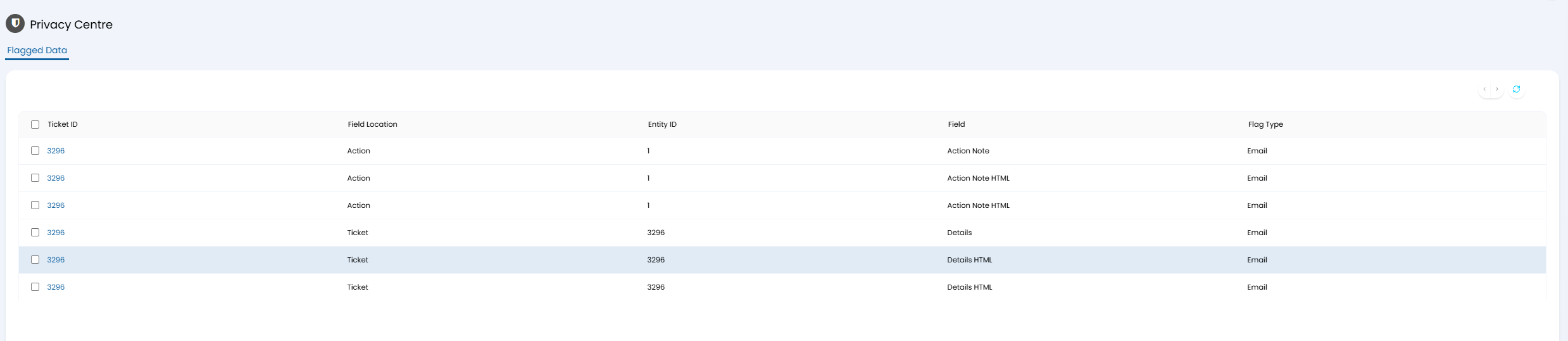
Fig 11. Flagged Data for a Ticket
You will notice even though there is one action logged on the example ticket shown in Figure 10, there are six entries for flagged data. This is because an entry will show for each field in the database potential PII has been found in. As this one action populates multiple fields, multiple flags have been raised.
Click into an entry to see more detail about the information flagged.
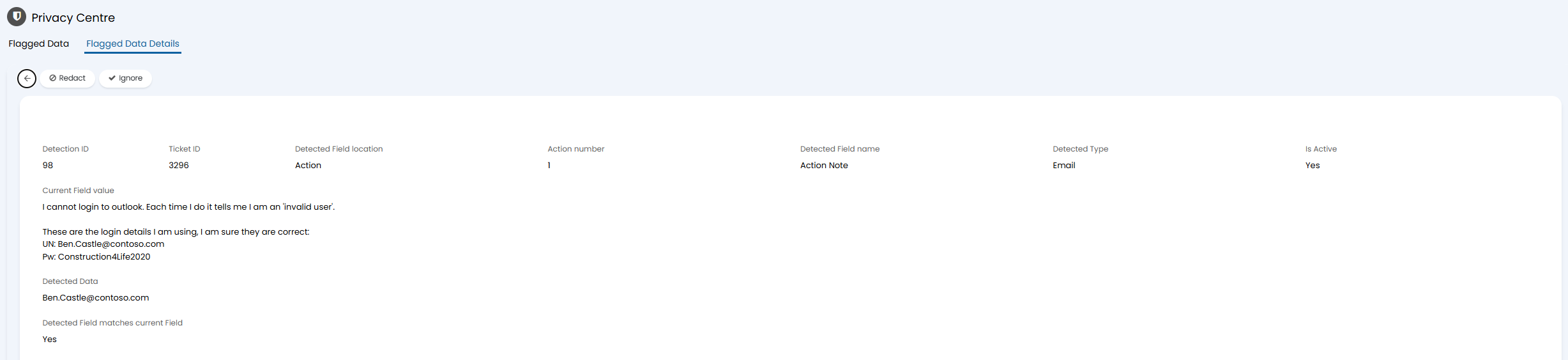
Fig 12. Flagged Data Details
The "Detected Data" field here will contain the data the system has flagged as potentially being personal information. In the Figure 12 example, this is an email address.
This allows you to review the data that has been flagged and check if this is indeed personal information or not.
Redacting Data
Once you have reviewed flagged data you can redact this using the "Redact" action against the flagged data details.
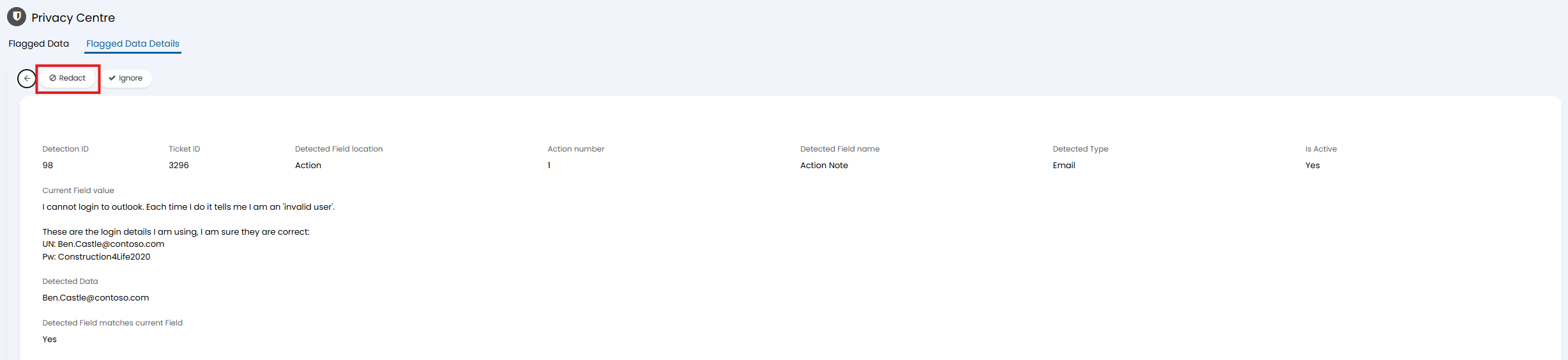
Fig 13. Redact Data
Important: Redaction is permanent and cannot be reversed.
Once an entry is redacted the data in the field will be replaced with '[Redacted Data Type]' where the data once was.
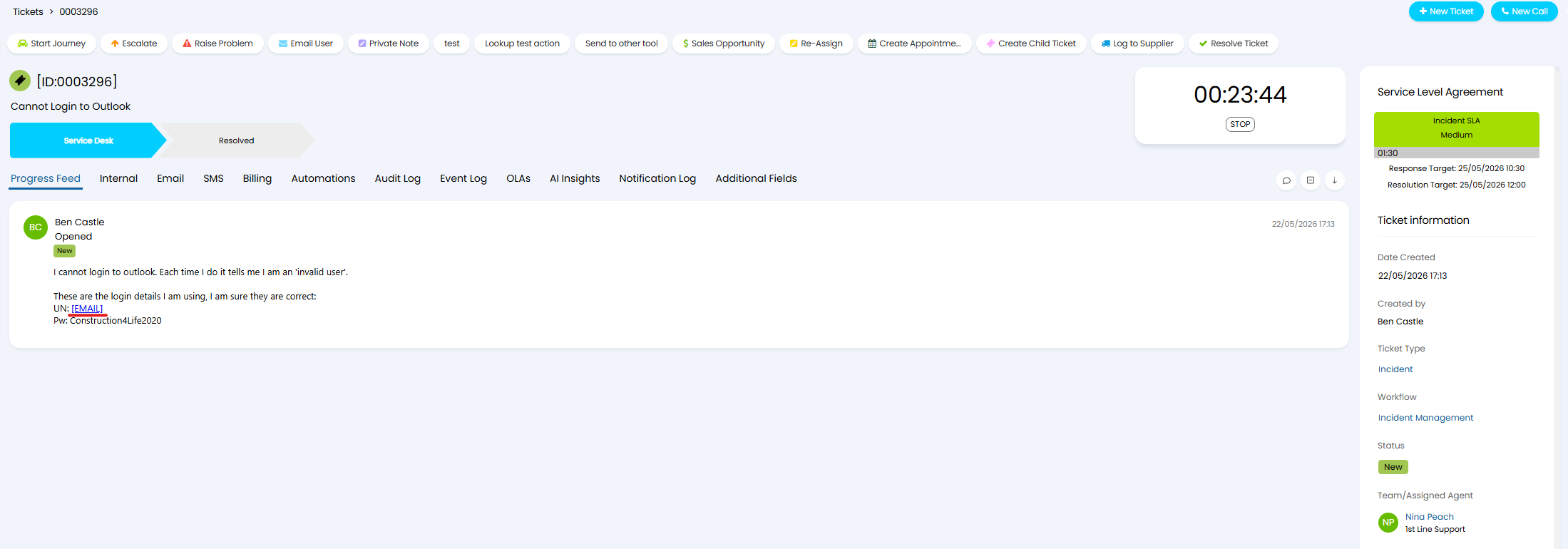
Fig 14. Field Data after being redacted
The data flag entry will be also be removed from the 'Privacy Centre'.
If you deem the flagged data as not personal information you can use the "ignore" action to remove this from the Privacy Centre.
Redacting in Bulk
Data can also be redacted/ignored in bulk by selecting multiple entries at once in the Privacy Centre. 
Fig 15. Redact Multiple entries at once
See all Active PII Detections and the Redaction History
Once PII data flagging is enabled, agents who have the PII Data Access Level permission will have access to the Privacy Centre module.
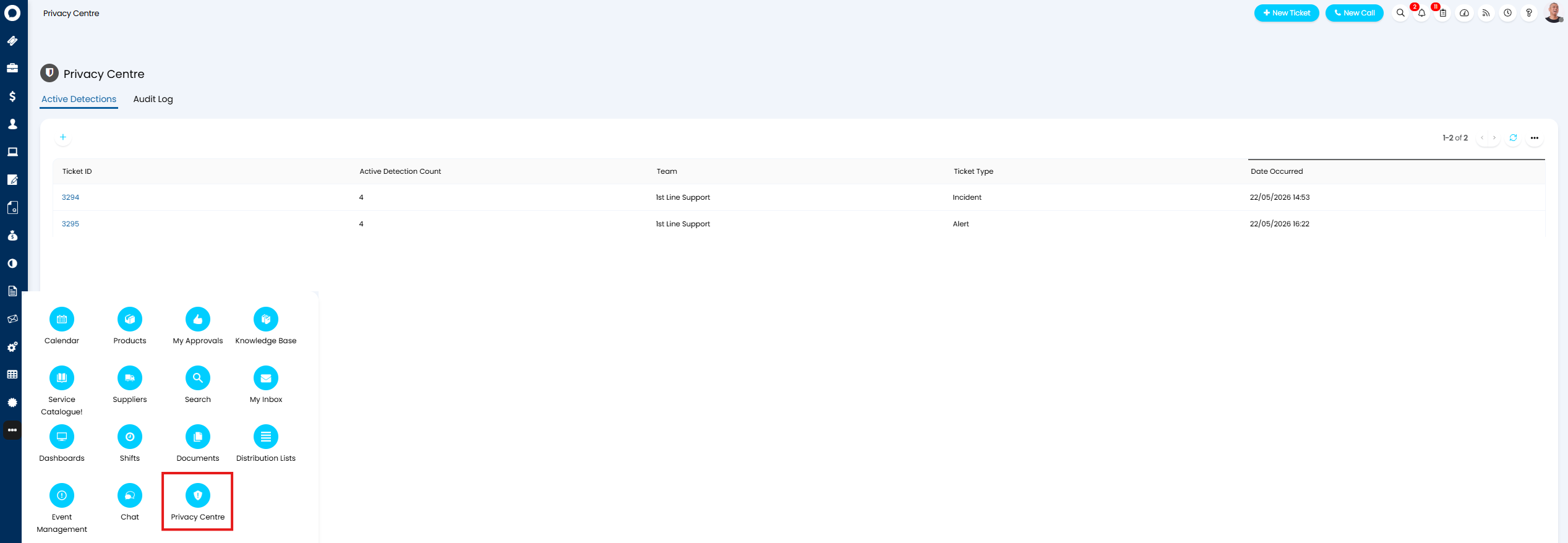
Fig 16. Privacy Centre Module
Here, you will be able to see every ticket that has flags for potential PII. Clicking into an entry here will show you each field that has been flagged for containing PII for that ticket (the same screen as Figure 11).
Data can be viewed and redacted from here.
View History for Redacting and Ignoring
The "Audit Log" tab of the Privacy Centre will show redact/ignore history, an entry will show for each field an agent has redacted/ignored. You will be able to see:
- The date the redaction/ignore took place
- The ID of the Ticket that had PII redacted/ignored
- The Agent who did the reaction/Ignore
- Which Field was redacted/ignored
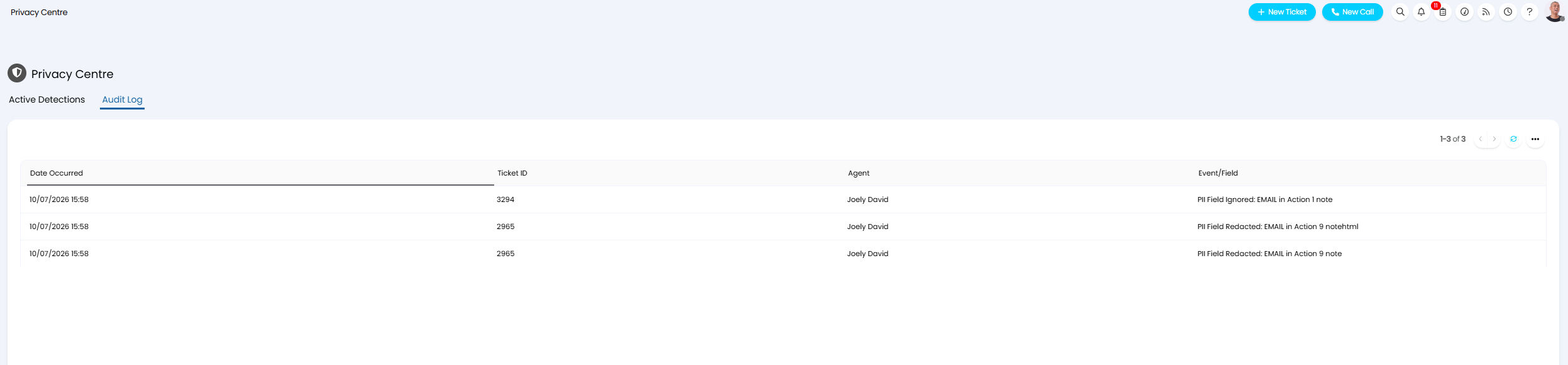
Fig 17. Privacy Centre Audit Log
Only administrator agents will be access the Audit Log within the Privacy Centre.
What does Redacting Data Do?
When data it redacted it is removed from your database replaced with the name of the data type that was redacted surrounded by square brackets. For example Ben.Castle@contoso.com -> [EMAIL]. To show data here was redacted and the type of data that was removed.
To ensure data is fully redacted from the database ensure you redact it from all fields it is flagged to appear in. Redacting it from one field may make it no longer visible when viewing the ticket in the UI, but it may be stored elsewhere in the database so it is important you redact it from all fields.
Redacting is irreversible, no one will be able to access the previous value of a field once redacted.
Appendix
Figure A1 - Format required for PII Detection
- Must contain one "@" sign.
- Must have at least one character before the @ sign.
- Must have one or more characters after the @ sign.
- A dot must be found at least one character after the @ sign, followed by two letters.
The regex expression used to validate this is:
\b[\w.+\-]+@[\w\-]+(?:\.[\w\-]+)*\.[a-zA-Z]{2,}\b
Payment Card number
- Must consist of digits only.
- Digits can be separated by single spaces or hyphens.
- Must be between 13 and 19 digits long.
- The number must pass the Luhn algorithm — this is a mathematical checksum validation that all legitimate payment card numbers must satisfy. This is what distinguishes a real card number from a random string of digits of the right length
The regex expression used to validate this (along with the Luhn algorithm and length check) is:
\b(?:\d[ \-]?){12,18}\d\b
International Bank Account Number (IBAN)
- Must start with 2 uppercase letters, followed by 2 digits, followed by letters or digit that are grouped into 'blocks' of up to 4 characters each.
- Blocks can be separated by a single space.
- There must be between 2 and 7 blocks of exactly 4 characters.
- Then a final block of 1 to 4 characters.
- There can be no lowercase letters.
- The total length must be between 15 and 34 characters.
- Must pass the MOD-97 checksum algorithm — this is the mathematical validation used by the IBAN standard to confirm the number is legitimate.
The regex expression used to validate this (along with the MOD-97 checksum algorithm and length check) is:
\b[A-Z]{2}\d{2}(?:[ ]?[A-Z0-9]{4}){2,7}(?:[ ]?[A-Z0-9]{1,4})?\b
US Social Security Number (US SSN)
- Have the pattern: 3 digits, separator, 2 digits, separator, 4 digits.
- - The separator can be a hyphen or space.
- The first group of digits cannot be 000, 666 or any number starting with 9.
- The second group of digits cannot be 00.
- The third group of digits cannot be all zeros 0000.
The regex expression used to validate this is:
\b(?!000|666|9\d\d)\d{3}[-\s](?!00)\d{2}[-\s](?!0000)\d{4}\b
National Insurance Number (UK)
- Must follow the pattern: 2 letters, 6 digits, 1 letter.
- This is case insensitive.
- The first two letters (prefix) must not be: BG, GB, NK, KN, TN, NT, or ZZ (these are explicitly excluded per HMRC rules as they are not valid NI number prefixes).
- The first two letters must each be in the ranges: A-C, E, G, H, J-P, R-T, W-Z.
- The final letter must be: A, B, C, or D.
The regex expression used to validate this is:
\b(?!BG|GB|NK|KN|TN|NT|ZZ)[A-CEGHJ-PR-TW-Z]{2}\d{6}[A-D]\b
Bank Account Number
- A sort code and account number must be identified within 20 characters of each other.
- A sort code is identified as: 3 pairs of 2 digits - pairs can be separated by hyphen or space or not separated.
- An account number is identified as: a number of exactly 8 digits.
The regex expression used to validate this is:
\b(\d{2}[-\s]?\d{2}[-\s]?\d{2})\b.{0,20}\b(\d{8})\b
Driver's Licence Number (UK)
- Must have 16 characters in total.
- The first 5 characters must contain letters a-z OR the digit 0.
- Characters 6-11 can be any characters.
- Characters 12-13 must be A-Z OR the digit 9.
- Character 14 must be a digit.
- Characters 15-16 must be letters only no digits.
The regex expression used to validate this is:
\b[A-Z9]{5}\d{6}[A-Z9]{2}\d[A-Z]{2}\b
IP Address
- Must have 4 groups of numbers separated by a ".".
- Each group must be a number between 0 and 255.
- Numbers starting with 25 can only end in 0-5.
- Numbers starting with 2 can only have 0-4 as the second digit.
OR
- Must have 8 groups of characters separated by colons.
- Each group must contain between 1 and 4 hexadecimal characters.
- Must be full format, shorthand using :: is not recognised
The regex expression used to validate this is (respectively):
\b(?:(?:25[0-5]|2[0-4]\d|[01]?\d\d?)\.){3}(?:25[0-5]|2[0-4]\d|[01]?\d\d?)\b
OR
\b(?:[0-9a-fA-F]{1,4}:){7}[0-9a-fA-F]{1,4}\b
Phone Number
- Must start with (have a prefix of) +44, 44 or 0.
- Must contain between 9 and 10 digits after the initial prefix.
- Between each digit there can be a single space, hyphen or dot as a separator.
- Separators are optional and can be mixed.
The regex expression used to validate this is:
\b(?:\+?44|0)(?:[\s\-\.]?\d){9,10}\b
Date of birth
- The date must be prepended by one of the following strings (case insensitive):
- dob
- date of birth
- born
- born on
- d.o.b
- d.o.b.
- Colon or hyphen separators are allowed between this string and the date.
- Spaces are also allowed around this separator
- The date format must follow one of the following formats:
- Day/Month/Year
- The day and/or month are 1 or 2 digits.
- Separators (space, forward slash, hyphen, or dot) are used between the day month and year.
- The year is 2 or 4 digits.
- ISO style (Year/Month/Day):
- The year is 4 digits
- Separators (space, forward slash, hyphen, or dot) are used between the day month and year.
- The day and/or month are 1 or 2 digits.
The regex expression used to validate this is:
(?:dob|date\s+of\s+birth|born(?:\s+on)?|d\.o\.b\.?)\s*[:\-]?\s*(\d{1,2}[\s/\-\.]\d{1,2}[\s/\-\.]\d{2,4}|\d{4}[\-/]\d{2}[\-/]\d{2})