Security Questions
In this guide we will cover:
- What are Security Questions
- Setting up Security Questions
- Setting answers to Security Questions
- Using Security Questions on a call
Admin Guides:
Related Guides:
The functionality outlined in this guide is available from v2.236+.
What are Security Questions
Security Questions allow an additional level of verification for Users when they call in.
To enable the use of Security Questions, you will first need to enable the module. To do this, head to Configuration > Users, and hover over the Security Questions button. Click the plus (+) icon to turn on the module.
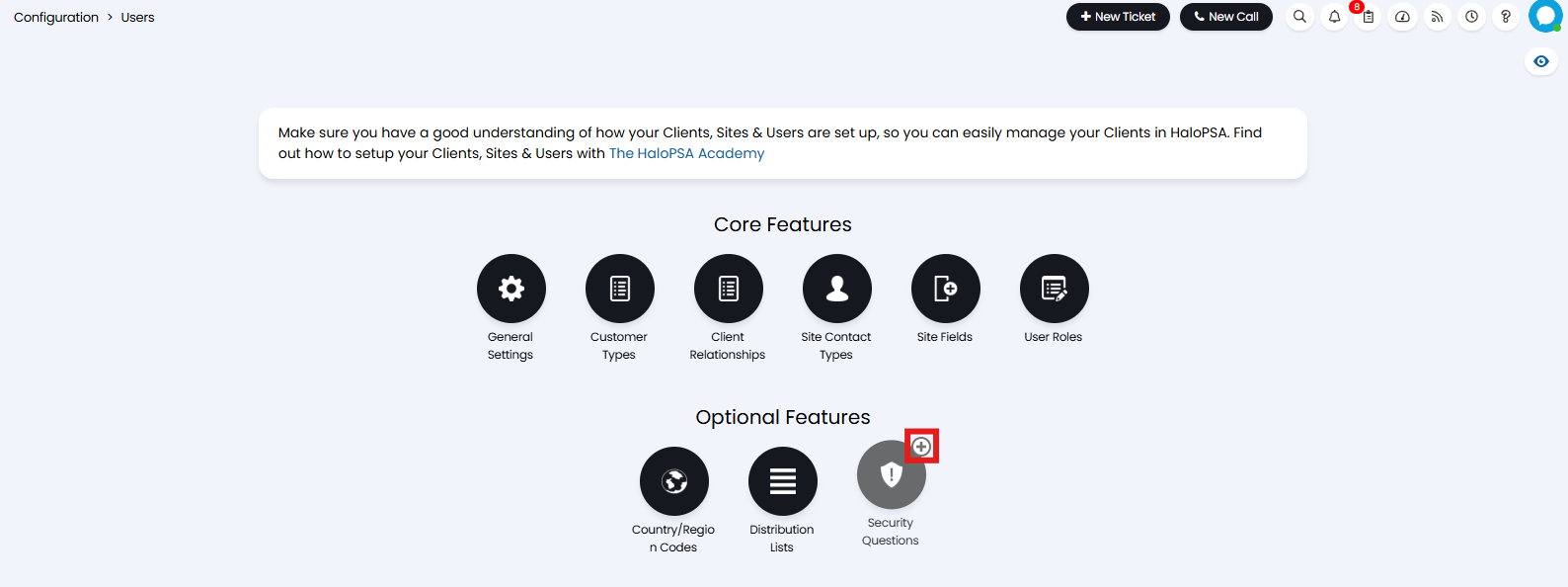
Fig 1. Security Questions module
Once enabled, click into the module to configure the questions.
Setting up Security Questions
In Configuration > Users > Security Questions you can determine the number of questions a User will need to answer to prove their identity.
The value set in the "Number of security questions Users are required to answer" determines how many questions the User will need to provide answers for on call to prove their identity. Setting this to "0" will disable this feature.
Next you can set the number of questions the User needs to answer correctly, and how many answers they can get wrong before they will have failed to prove their identity.
To hide the Users answers as they input them, select "Make answer inputs password fields". This will hide each character behind a bullet character as they are entered. This is useful for preventing others seeing the User's answers as they enter them or when viewing the User's Settings and Preferences.
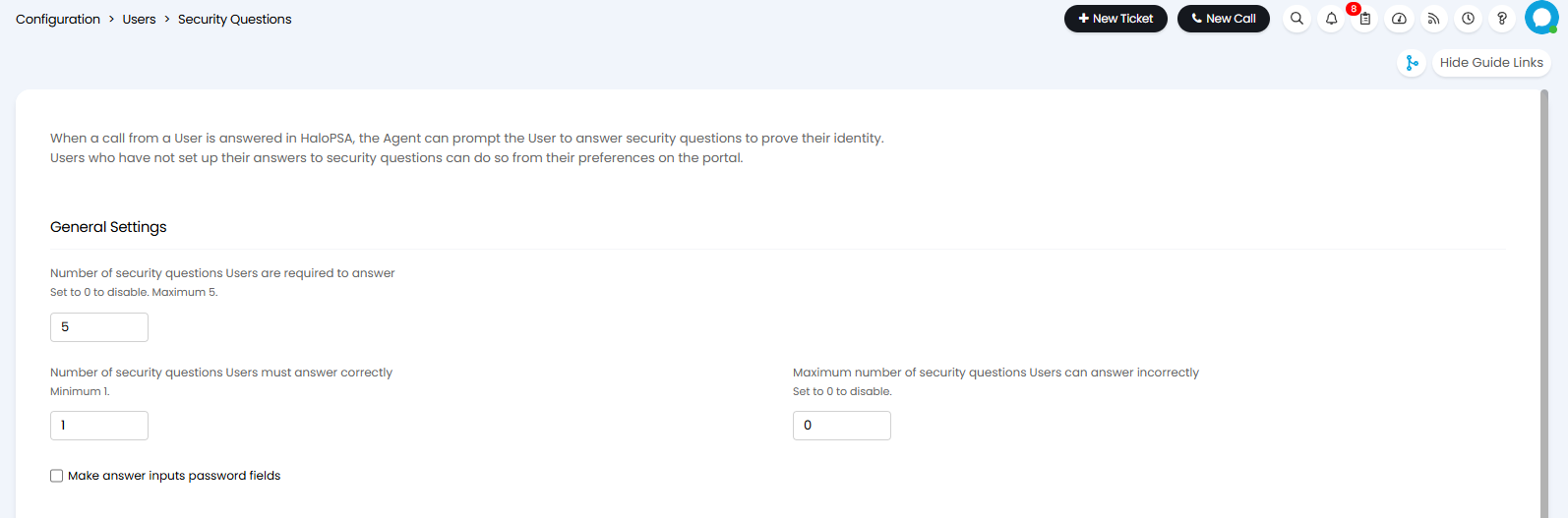
Fig 2. Security Questions settings
Next you need to configure the questions to ask Users. In Configuration > Users > Security Questions, below the previously mentioned settings, you can use the Security Questions table to add, edit, and delete, questions to ask the User.
To delete a question, hover over the line you would like to remove and click the bin icon.
To edit an existing question, hover over the line you would like to remove and click the pencil icon.
To add a new question, click the "Add" button on the top left of the table.
Note: Deleting, disabling, or editing any questions will reset User answers to these questions.
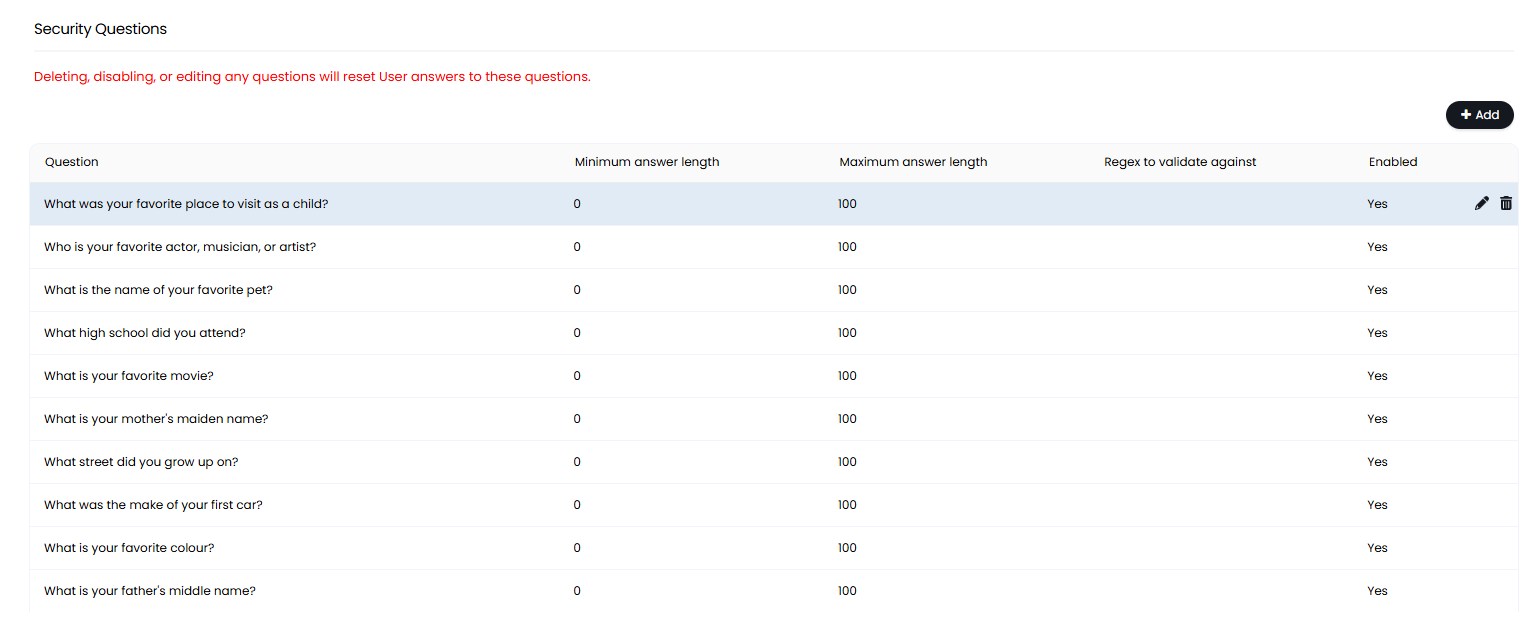
Fig 3. Creating Security Questions
When adding or editing a line you will be able to set the question to ask, minimum and maximum length for the answer, Regex to validate against, and if the question is enabled for use. Using Regex to validate is useful as it allows you to force a particular format for the User's answer. For example if asking the question "What what the make of your first car?", you may want to ensure the response only contains letters.
Setting answers to Security Questions
In the Portal Users will be able to set the answers to Security Questions. If the user has not answered the required number of questions, they will be prompted to do so upon logging in.
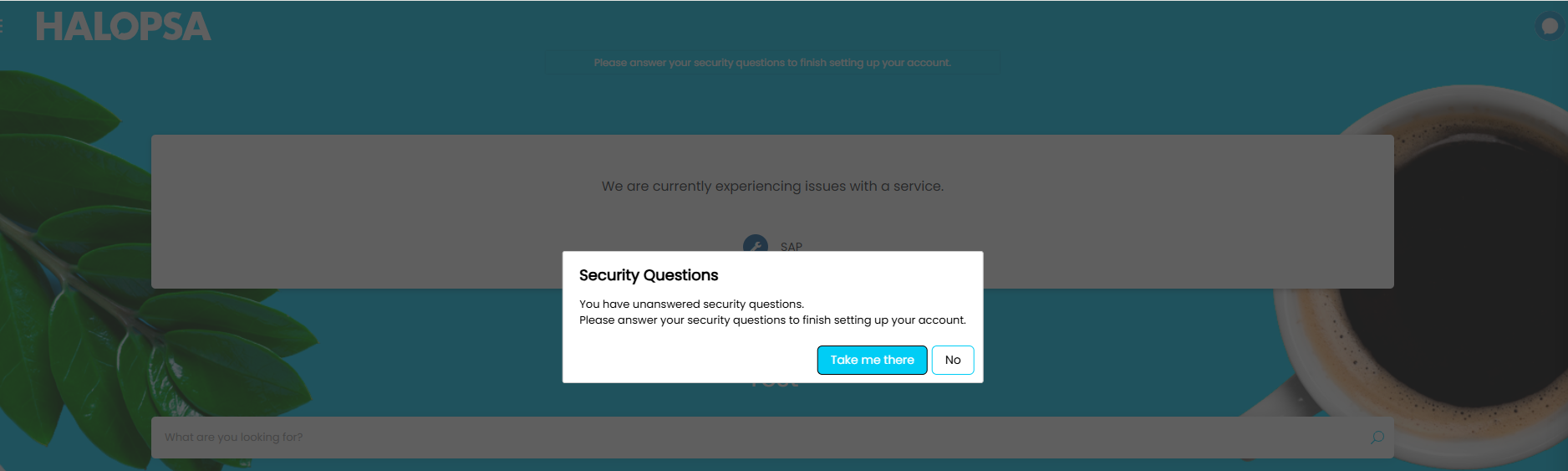
Fig 4. Unanswered Security Questions popup
Users can use the "Take me there" button on this popup to get to the Security Questions page, or they can access this in their Settings and Preferences. On this page the User will need to provide answers to 5 questions (If fewer than 5 questions are enabled in the Security Questions table, only this number will need to be answered).
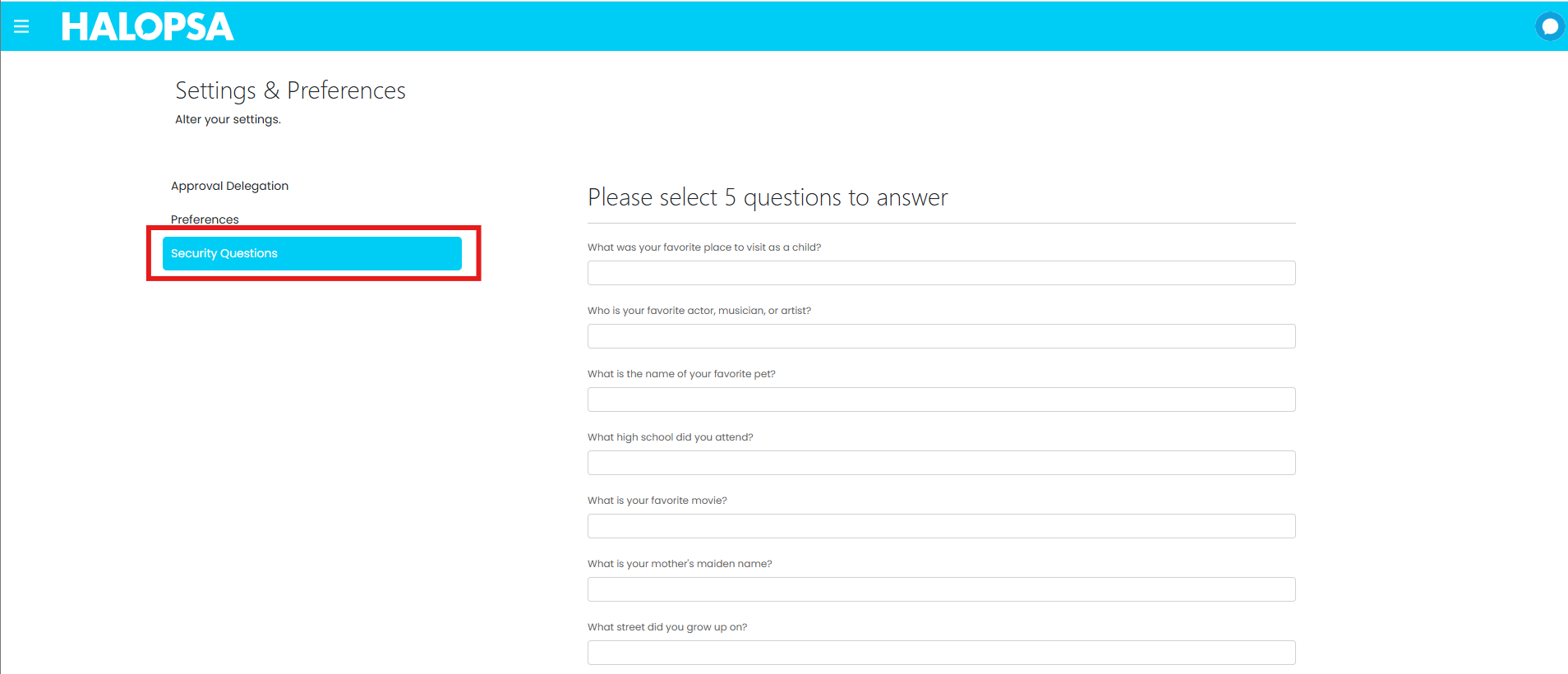
Fig 5. Answering Security Questions
Once all 5 (or all the questions if fewer than 5 are enabled), the User will be unable to input answers in any other question fields unless they remove an answer that they have already set. Once the User is happy with their answers they can press "save" to confirm their responses.
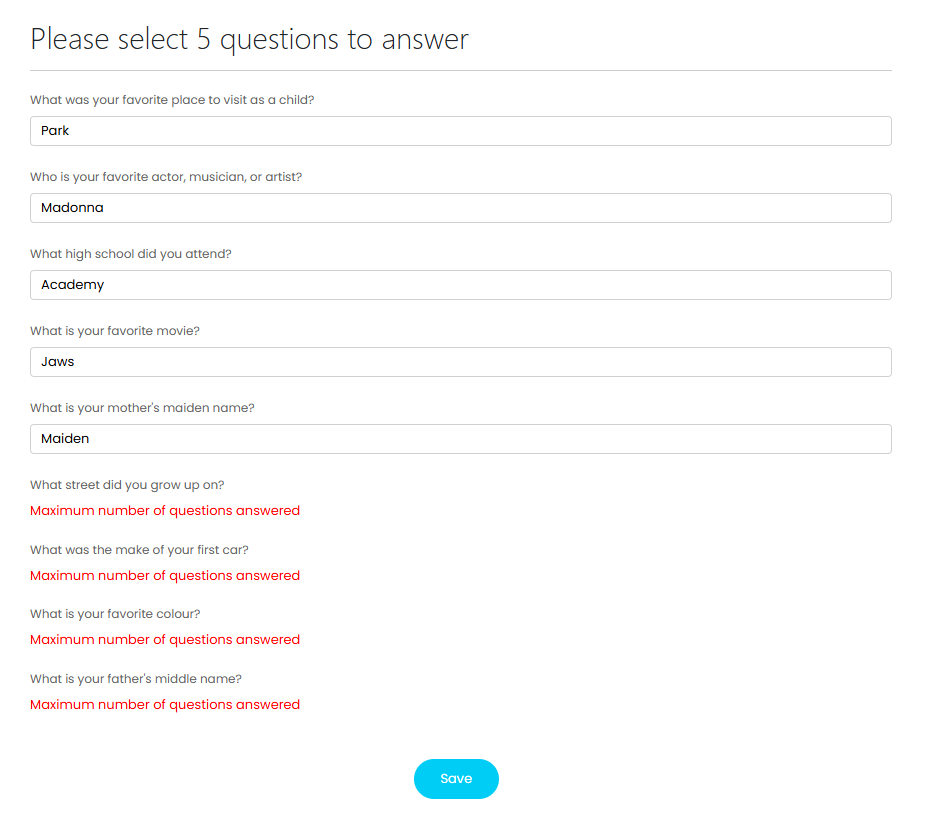
Fig 6. Completing Security Question answers
Using Security Questions on a call
When selecting or editing the User who has called in, you will see the option to "Authenticate the User with their security questions". Selecting this, and pressing "Save" will open the Security Questions to ask the User.
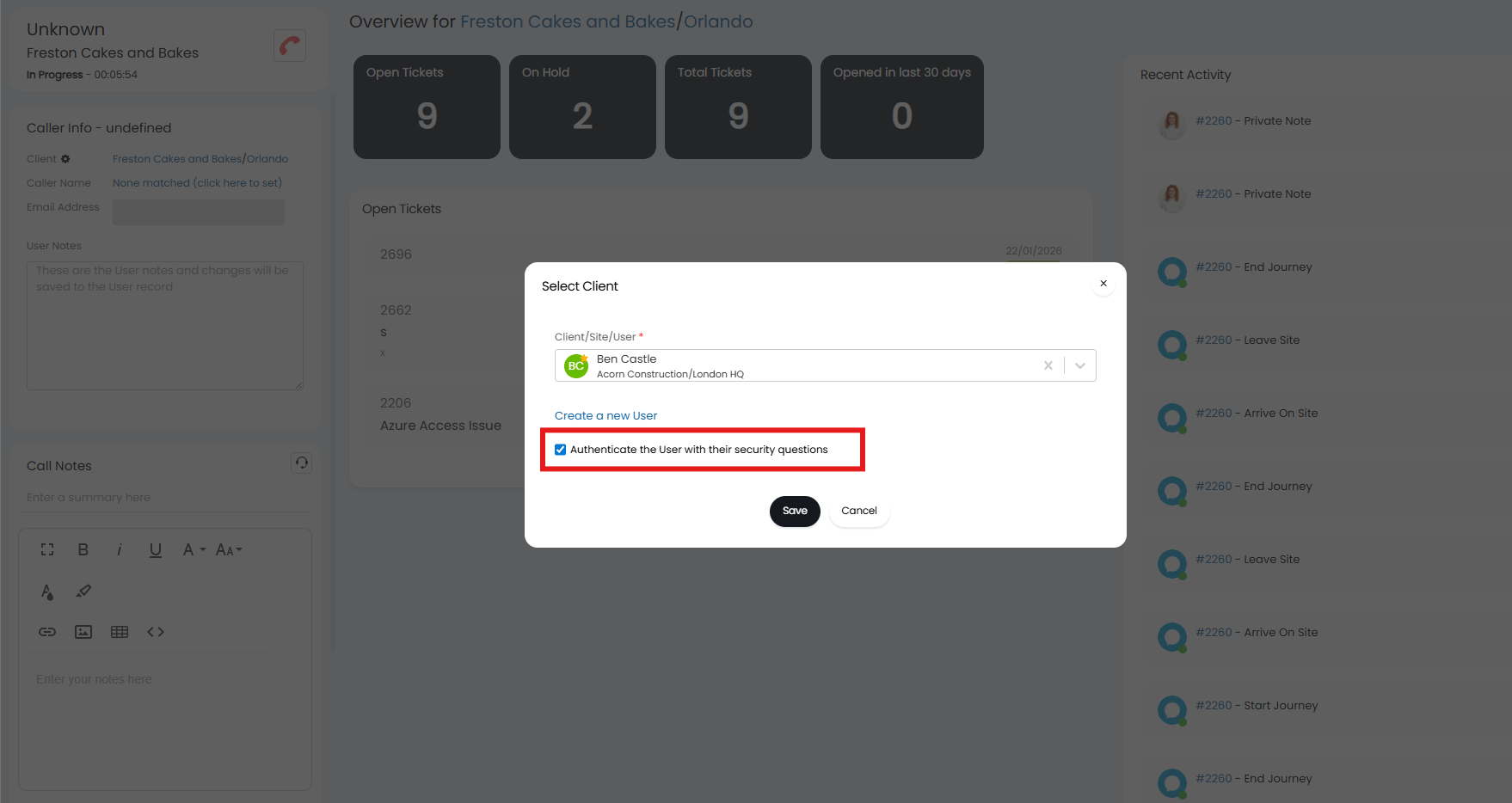
Fig 7. Authenticating Users on the call screen
The questions the User has provided answers to will then show, the number of these that require answering depends on the number set in the "Number of security questions Users are required to answer" field (Configuration > Users > Security Questions).
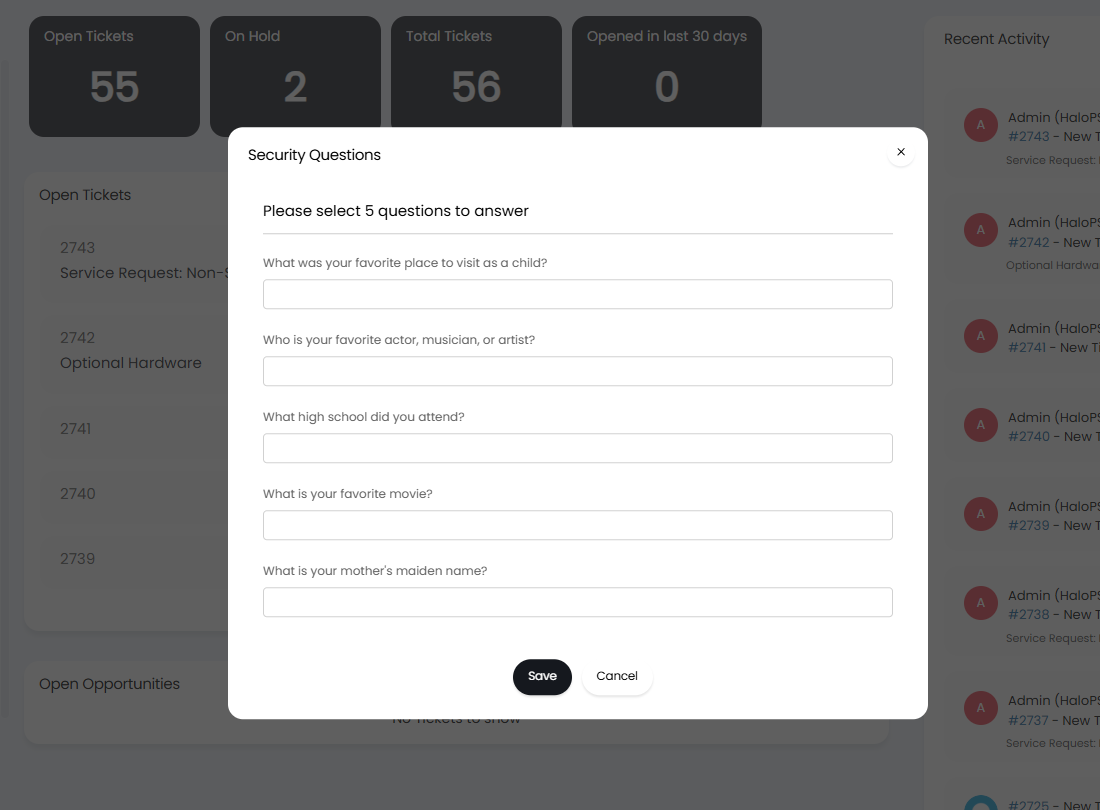
Fig 8. Security Questions on a call screen
If the User answers the questions correctly, the User will be set against the call.