SailPoint Identity Now Integration
In this guide we will cover:
- What is the SailPoint Identity Now Integration?
- Enabling the SailPoint Module
- Connecting to SailPoint
- Role Mappings
- User Mappings
- Map User and Agent Fields
- Import Users/Agents
- Import Users/Agents on a Schedule
What is the SailPoint Identity Now Integration?
The SailPoint Identity Now integration allows you to import users and agents into Halo from SailPoint Identity Now. Once imported users and agent can be imported into Halo on a daily sync. Multiple SailPoint instances can be connected to Halo. If you have multiple Halo instances, you will also be able to choose which Halo instance each SailPoint Identity Now instance you are connecting is linked to. Allowing you to integrate a sandbox SailPoint Identity Now instance with a Sandbox Halo instance. This integration supports a one way sync only.
If you using SailPoint IIQ we have a separate integration guide available for this here.
Enabling the SailPoint Module
In Configuration > Integrations > Identity Management, you will find the SailPoint module. Hover over it, and click the plus (+) icon to enable it.
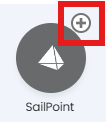
Fig 1. Enabling the SailPoint module
Once enabled, click into the integration module to begin configuration.
Connecting to SailPoint
Start by giving the connection a name and choose the "Instance Type" to be "SailPoint Identity Now".
Note: If you have multiple Halo instances, at this point you will also need to choose the instance this SailPoint connection is linked to using the "Instance" field.
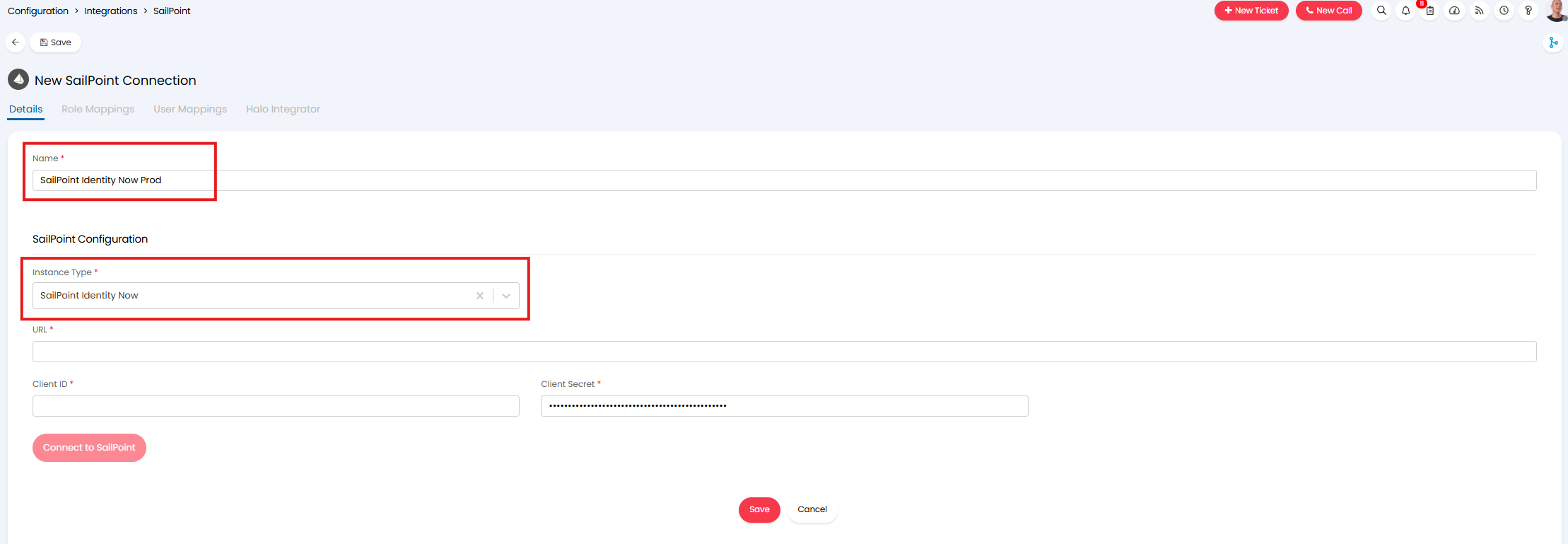
Fig 2. Set name and instance type for SailPoint connection
Once set you will need to enter the URL of your SailPoint Identity Now instance, along with a client ID and secret. The client ID and secret will need to be generated in SailPoint Identity Now.
Once you have entered the connection credentials you can test the connection using the "Connect to SailPoint" button. Once this returns a successful test the additional tabs of integration setup will be available to you.
Role Mappings
Role mappings can be created under the "Role Mappings" tab, these allow you to automatically assign users and agents roles in Halo based on fields in SailPoint Identity Now.
Create a new role mapping by adding an entry to the "Role Mappings" table.
When adding a mapping use the "HaloPSA Entity" field to choose if this mapping should apply to agents or users then give it a description and sequence. The sequence will determine the order in which the mapping is checked. When users and agents are imported they will be assigned a role in line with the first mapping they match. Mappings with lower sequence values will be checked first.
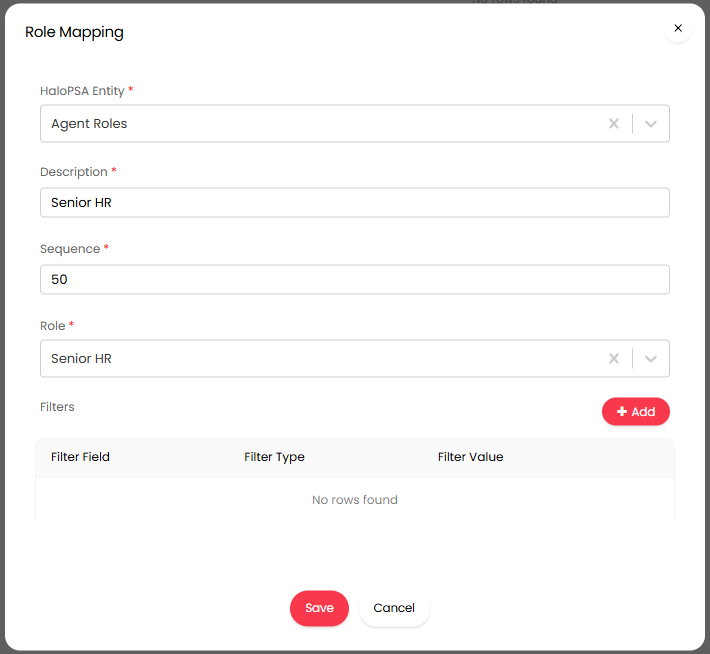
Fig 3. Role mapping
Then, add filters to the mapping to set criteria for who should have this role.
When creating a filter you will need to choose whether this is based on a core or custom SailPoint Identity Now field, then choose the field and set the filter type and value. When entering the field name ensure you enter the API field name, as it is returned by SailPoint's API, similarly the filter value should be the value as it is returned by SailPoint's API.
In the below example a filter is set so users that have the Department "HR Management" will be assigned this role.
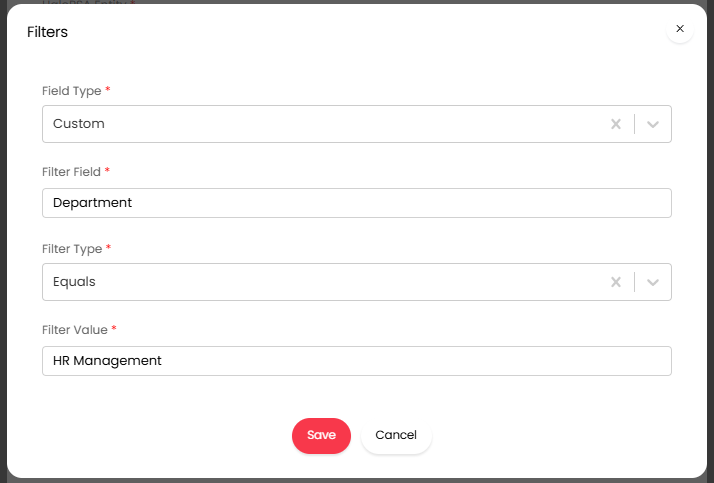
Fig 4. Example filter
Once you have added any required role mappings you will need to configure User Mappings.
User Mappings
Under the "User Mappings" tab you can configure mappings to control which agents and users are imported into Halo and how they are imported. Each mapping will contain filters to control which users in SailPoint Identity Now will be imported using this mapping.
To create a new mapping add an entry to the user mappings table.
When adding a mapping you will need to use the "HaloPSA Entity" field to choose whether the users who meet the filter criteria in this mapping will be imported as agents or users in Halo. Then give it a description and sequence. The sequence will determine the order in which the mapping is checked. When users and agents are imported they will be imported in line with the first mapping they match. Mappings with lower sequence values will be checked first.
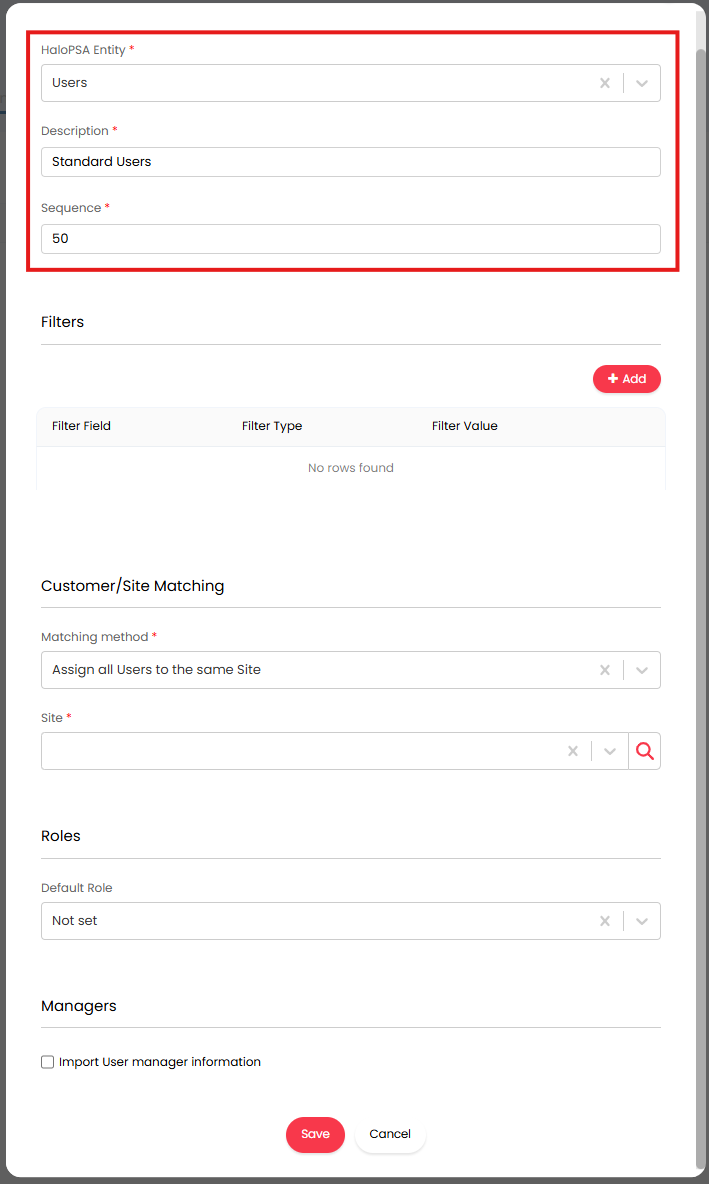
Fig 5. New User mapping
Then you will need to set filter criteria for this mapping, based on user properties. Only users that meet the criteria in the filters will be imported with the attributes outlined in this mapping.
When creating a filter you will need to choose whether this is based on a core or custom SailPoint Identity Now field, then choose the field and set the filter type and value. When entering the field name ensure you enter the API field name, as it is returned by SailPoint's API. Similarly the filter value should be the value as it is returned by SailPoint's API.
In the Figure 6 example a filter is set so users that have the manager.name "Joe DaSilva" will be imported with this mapping.
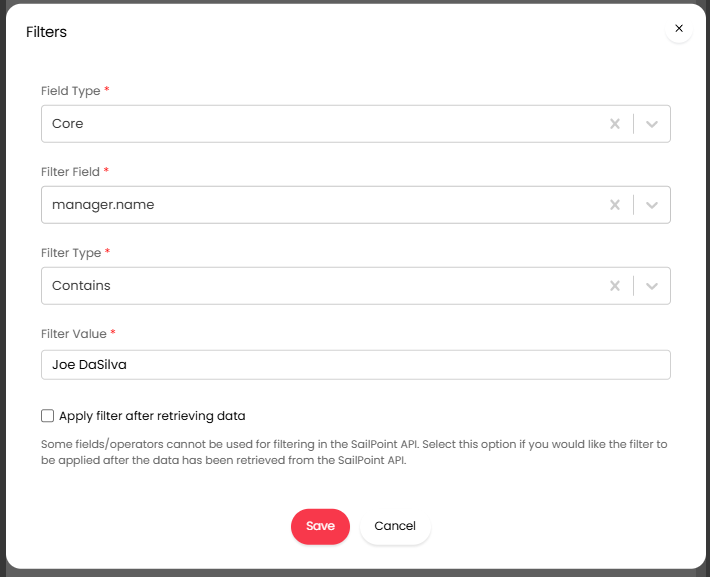 Fig 6. Example filter for user import mapping
Apply filer after retrieving data - Check this if you would like to filter users using SailPoint Identity Now fields that are not filterable in the SailPoint Identity Now API. This will filter users after user data has been retrieved (client side filtering).
Determine the Customer and Site Users are Created Under
When creating a mapping for importing users, you will have a section called "Customer/Site Matching". Here you will need to configure the customer and site the users imported using this mapping are created under.
This option is not available when creating agent mappings as agents will have a linked user created for them automatically upon creation. The linked user created will be imported under the main site of the customer linked with the organisation the agent is under. If you would like to control the sites agents' linked users are under you will need to configure a separate user mapping for this.
Note: If using multi tenancy (so you have multiple Halo Organisations), users will not be created for agents until the agent is assigned a department.
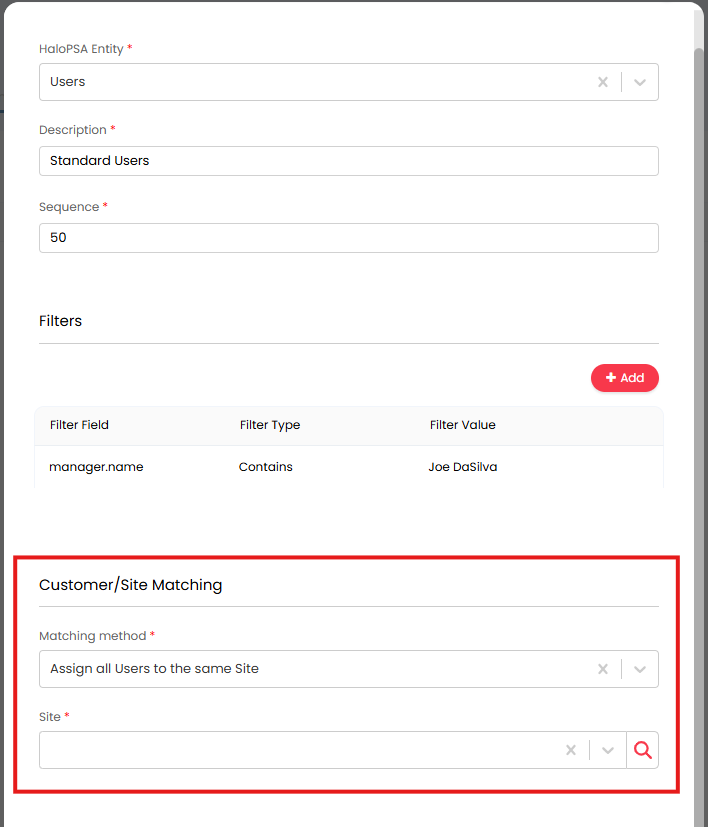
Fig 7. Customer/Site Matching Configuration
There are three methods you can use to determine which customer/site users are created under:
Assign all Users to the same Site - Use this when you would like all users matching this mapping to be created under the same customer/site. Simply choose a customer and site users should be created under.
Use a field to identify the correct Customer - Use this when you have a field in SailPoint Identity Now that contains the customer the user is under and you would like all users to be created under the main site of this customer. You will need to select the SailPoint Identity Now field that contains this information. You will also need to choose a Halo Customer custom field to map this to. Users will be created under the Halo customer that shares the same value in the Halo custom field as the chosen SailPoint field.
Use a field to identify the correct Site - Use this when you have a field in SailPoint Identity Now that contains the site the user is under. You will need to select the SailPoint field that contains this information. You will also need to choose a Halo site custom field to map this to. Users will be created under the Halo site that shares the same value in the Halo custom field as the chosen SailPoint field.
Assign Roles to Users on Import
When setting up agent/user mappings you can also choose a role to assign all the users/agents that are imported using this mapping. Choose a role in the "Default Role" field.
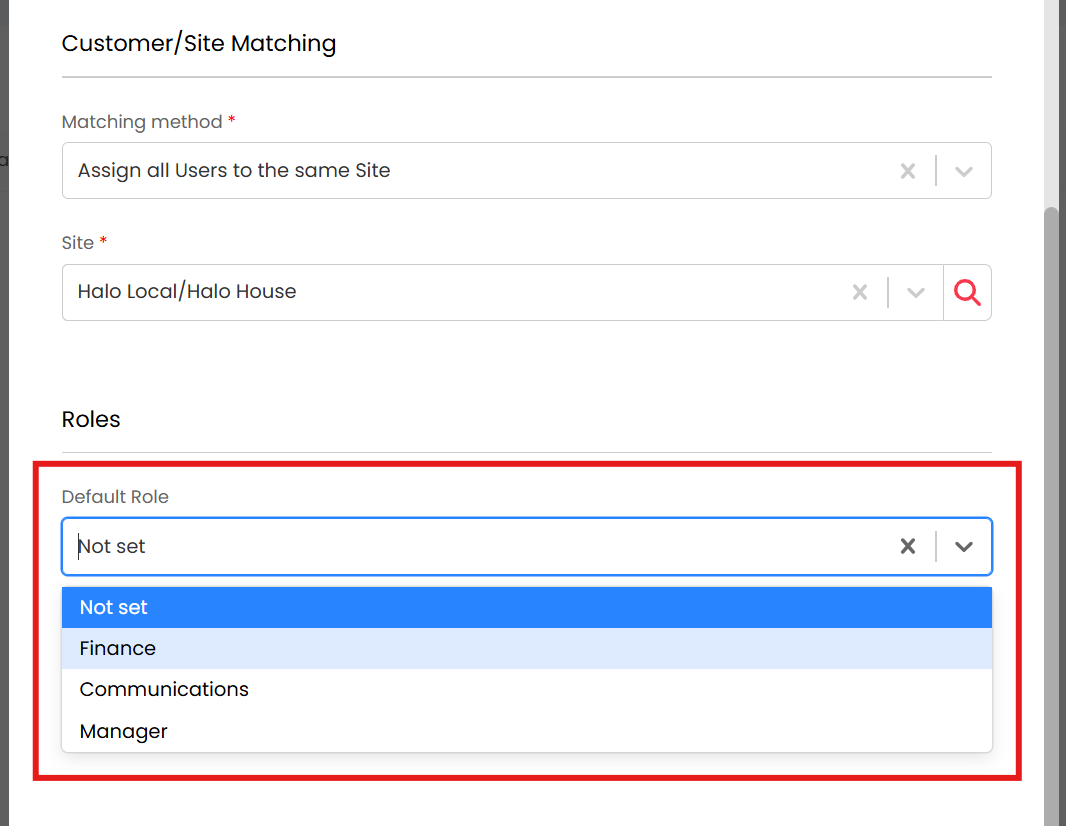
Fig 8. Default role field
Agents/users will be assigned this role in addition the any roles setup in the "Role Mappings" tab.
Set the Type of Halo Licence Agents have
When creating a mapping for importing agents, you can set which type of Halo licence agents imported with this mapping are assigned. The type of Halo licence chosen will impact the type of licence they use to login to Halo.
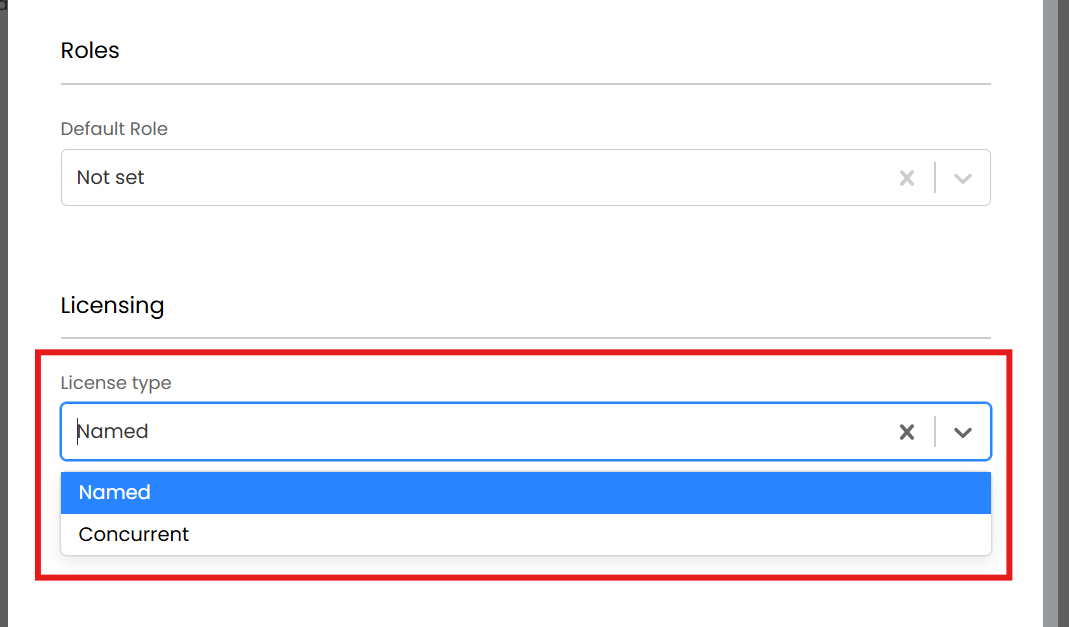
Fig 8. Set Licence type
Note: For information on the different licence types, reach out to your account manager or our support team.
Import User manager Information
When creating a mapping for importing agents/users, you can choose whether manager information about the user is also imported from SailPoint Identity Now.
Users will have the email of their manager imported into the AD manager field in Halo.
When importing agents, this will populate the "Manager" field for the agent. The agent set here will be matched to an agent in Halo using the email of the manager in SailPoint Identity Now.
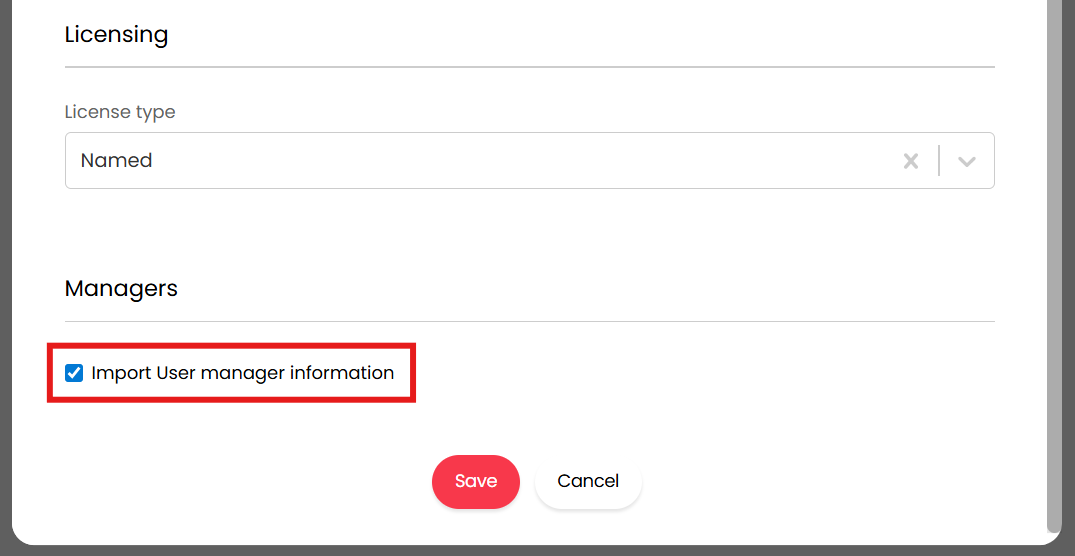
Fig 9. Import User manager information
Save the mapping once you have completed the setup.
Ensure you create mappings for each group of agents and users you would like to import. Only users in SailPoint Identity Now that meet the criteria of at least one of the mappings will be imported into Halo.
Note: If you would like to ensure all users from SailPoint are imported you could create a catchall mapping, with no filters and the highest sequence.
Map User and Agent Fields
Once a user mapping for users has been created a new "Users" tab will appear. Once an agent mapping for agents has been created a new "Agents" tab will appear. Here you can map fields in SailPoint Identity Now to Halo fields to control where data is imported, fields mapping are setup in the tabs for the respective entity. You can also create 'static field mappings' to automatically set values in fields for all users/agents imported from SailPoint Identity Now.
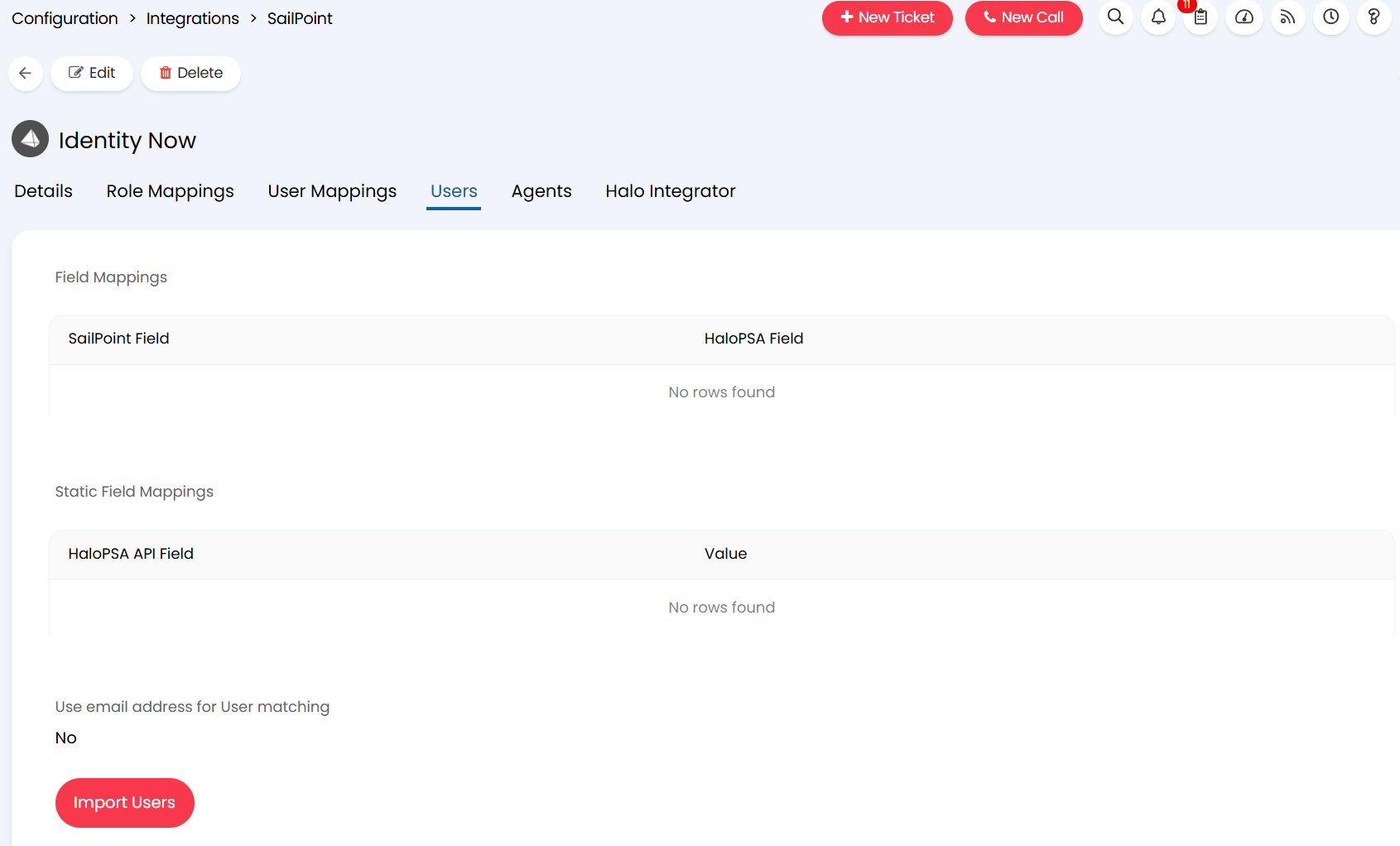
Fig 10. Users Tab
Create a new field mapping by adding an entry to the "Field Mappings" table. When creating a mapping simply choose the type of SailPoint Identity Now field to map, choose the field and the Halo field to map it to.
Note: From v2.244+ the 'Title' and 'Login' fields for users will be available to map/import data from.
Static Field Mappings
Create a new static field mapping by adding an entry to the "Static Field Mappings" table. When adding you will need to specify which Halo field to update and the value you would like to update it with. You will need to specify the API field name of the field. Similarly, when entering the value this should be the value as returned by the API. To find the API name of a field in Halo check our API documentation, this can be found in your Halo instance under Configuration > Integrations > HaloAPI > API Documentation.
In the Figure 11 example a static field mapping has been setup so that all imported users have their web access level set to 0 (this users tickets).
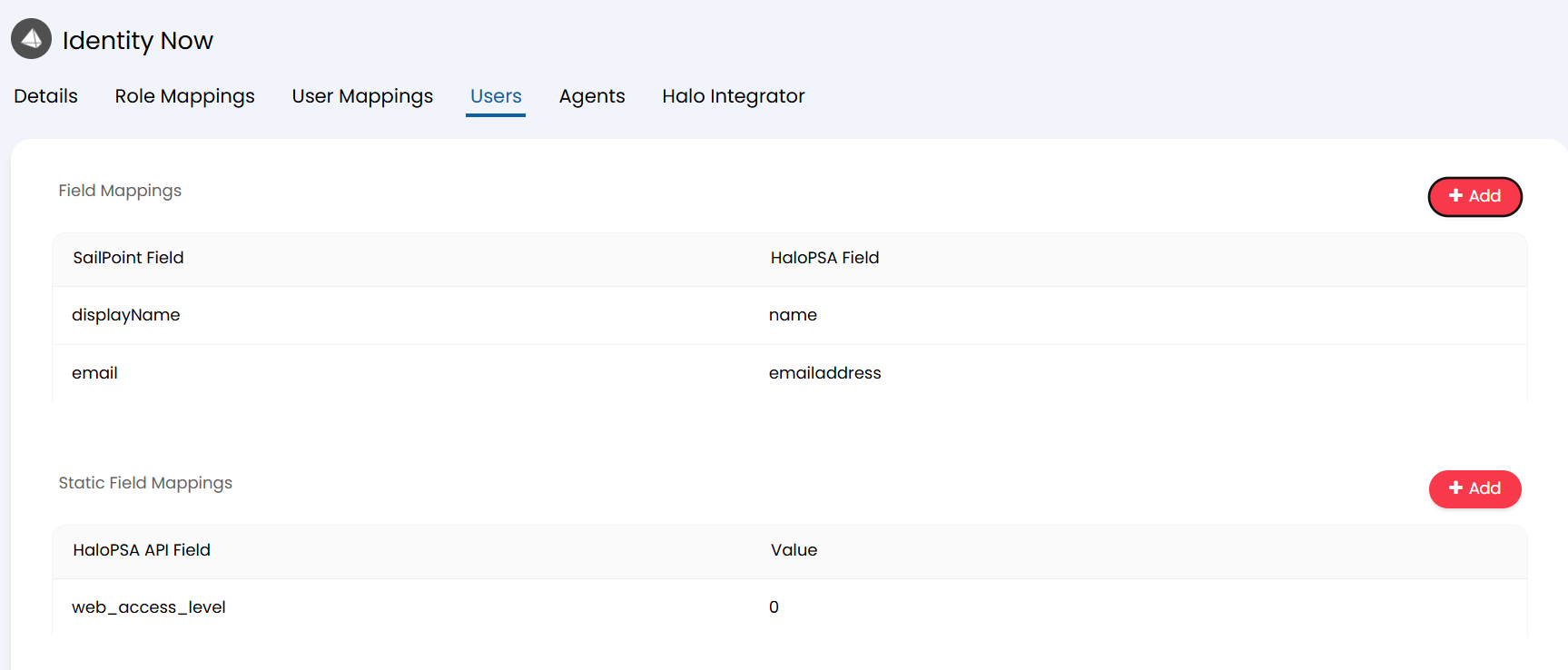
Fig 11. Example Field Mappings
Use email address for User/Agent matching - Enable this when you would like users in SailPoint Identity Now to be matched to users in Halo using their email address. This only applies if they cannot be matched using their SailPointID. Each user will be assigned a SailPoint ID after being imported from SailPoint Identity Now.
Import Users/Agents
Once you have completed the import mappings and field mappings for agents and users you can run an import manually.
Do this using the "Import Agents/Users" button found in the Agents/Users tabs (respectively).
Import Users/Agents on a Schedule
Once all your import setup is complete and you have carried out an initial manual import, you can enable the Halo Integrator to have agent and user information imported from SailPoint Identity Now automatically on a schedule. This ensures when users/agents are created or updated in SailPoint Identity Now, changes will reflect in Halo.
To enable the Halo Integrator simply check "Enable the Halo Integrator for the SailPoint integration" and choose which entities to import in the "Entities to Import" field.
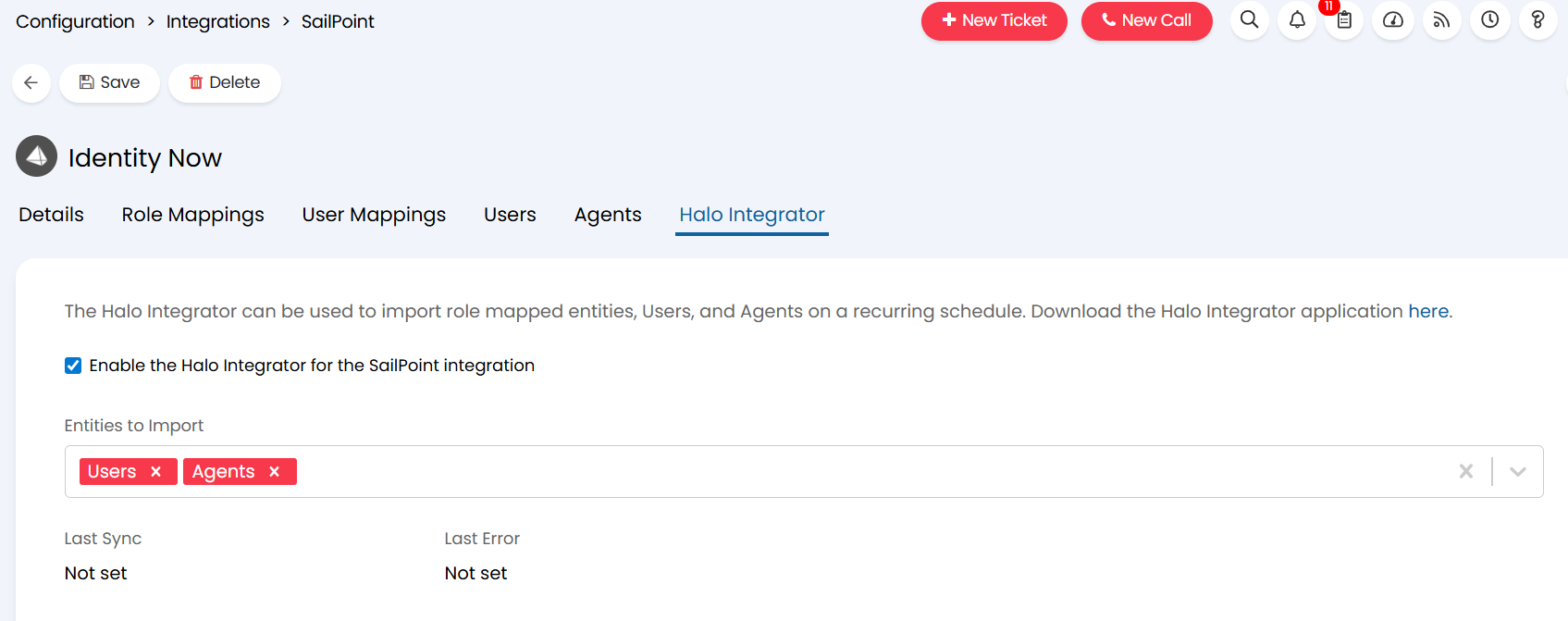
Fig 12. Enable the Halo Integrator for SailPoint
Change how Imports are Processed
The "User Processing Method" will change how imports are processed. Methods for processing are as follows:
Process All Users returned from User Mappings - Each time an import is run every field against all users returned will be checked for updates. This typically results in slower processing.
Only process recently updated Users based on a custom calculated delta - Each time an import is run, only the specified fields against each user will be checked for updates. When chosen you will need to specify which fields to check for updates in the "Delta Fields" table. This typically improves processing time.
Note: Adding or removing a field from the Delta Fields table will cause all Users to be processed on the next sync.
Deactivate Users/Agents when they are Removed from SailPoint Identity Now
To have users/agents in Halo deactivate automatically when the matched user/agent is no longer found in SailPoint Identity Now enable "Deactivate Users/Agents in Halo when they are no longer found in SailPoint" accordingly.
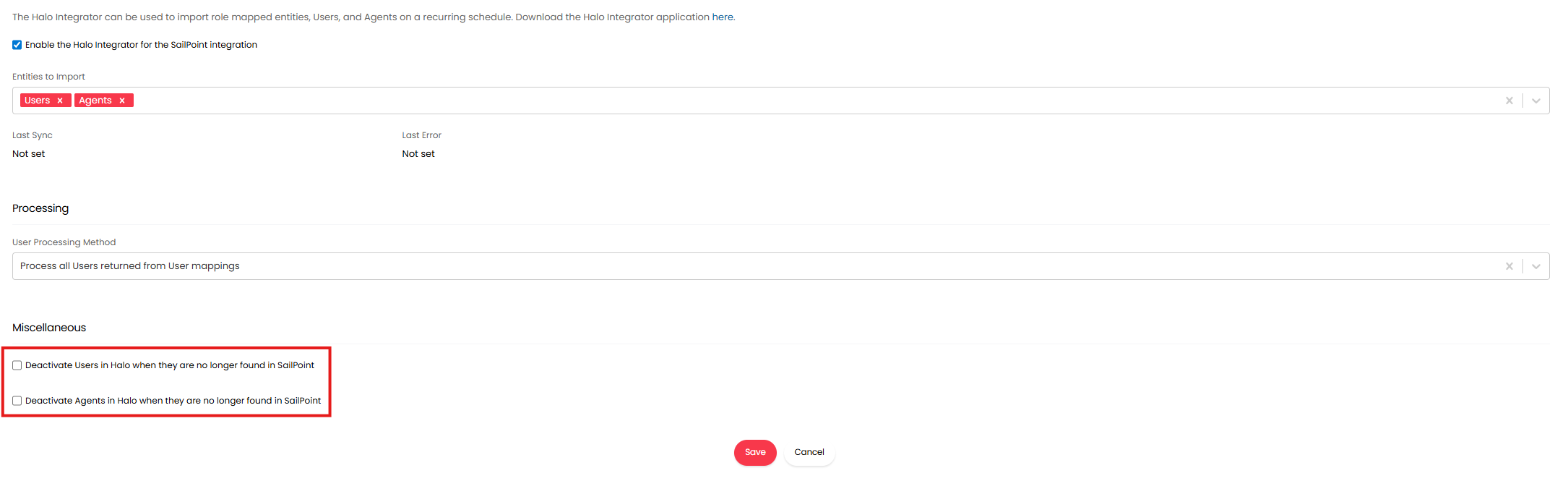
Fig 13. Deactivate Users/Agents in Halo when they are no longer found in SailPoint