SailPoint Integration
- integration
- sailpoint
- iiq
- identityiq
In this guide we will cover:
- What is the SailPoint Integration?
- Enabling the SailPoint Module - Connecting to SailPoint
- Role Mappings
- User Mappings
- Halo Integrator
What is the SailPoint Integration?
The SailPoint integration allows you to import users and roles from SailPoint as various Halo entities.
Enabling the SailPoint Module
In Configuration > Integrations > Identity Management, you will find the SailPoint module. Hover over it, and click the plus (+) icon to enable it.
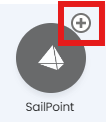
Fig 1. Enabling the SailPoint module.
Connecting to SailPoint
Open the module and set the name for the connection, SailPoint URL, Username and Password. Once this is set you can confirm these using the "Validate" button.
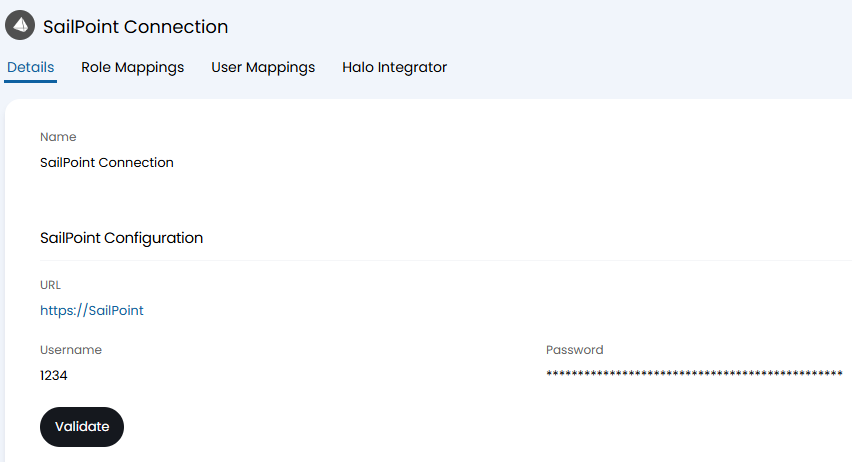
Fig 2. Connecting to SailPoint.
Role Mappings
Role mappings can be created under the "Role Mappings" tab so that roles matching certain criteria in SailPoint can be imported as one of 5 different Halo entities:
- Clients/Customers
- Change Advise Boards
- Teams
- User Roles
- Agent Roles
Click on the "Add" button to add mappings.
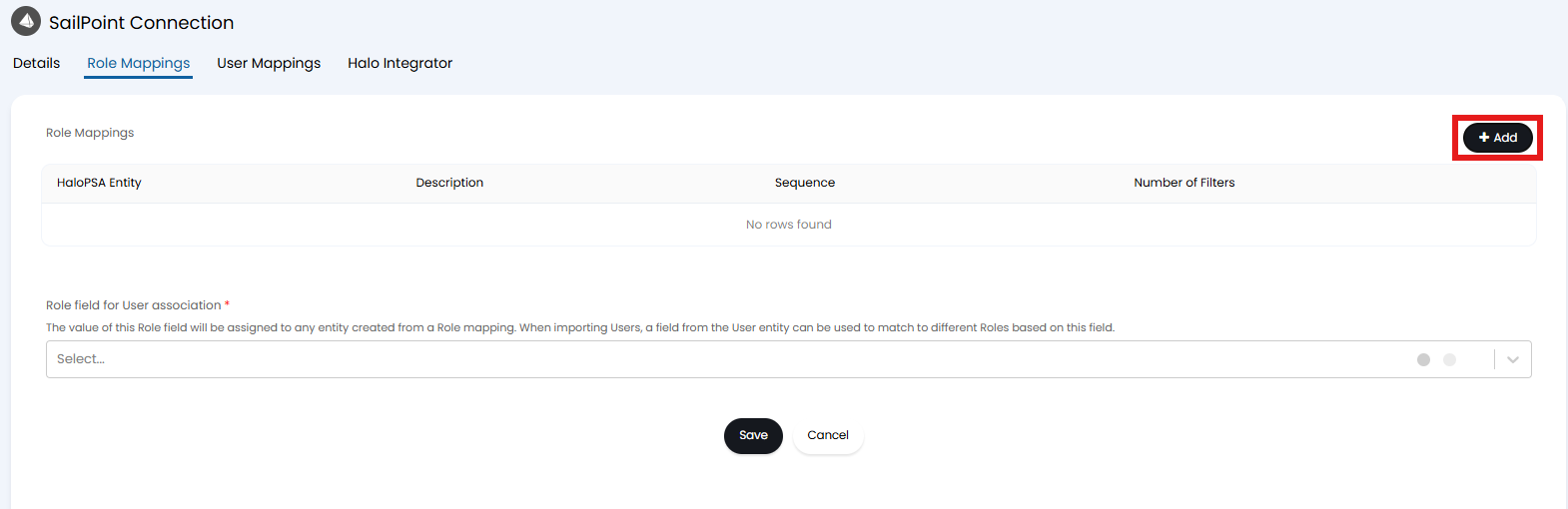
Fig 3. Adding Role Mappings.
When adding a new mapping you can select the entity and description. You can also add a sequence to set what order these mappings are checked by.
Filters can also be created here on SailPoint fields by clicking the "Add" button.
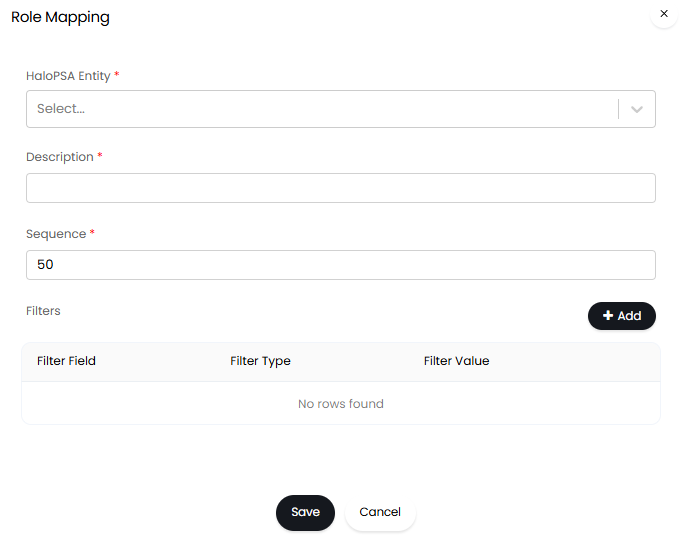
Fig 4. Role Mappings and filters.
If a field is not filterable in the SailPoint API, it is possible to filter the data after it has been retrieved (client-side filtering). You can allow this while adding your filter.
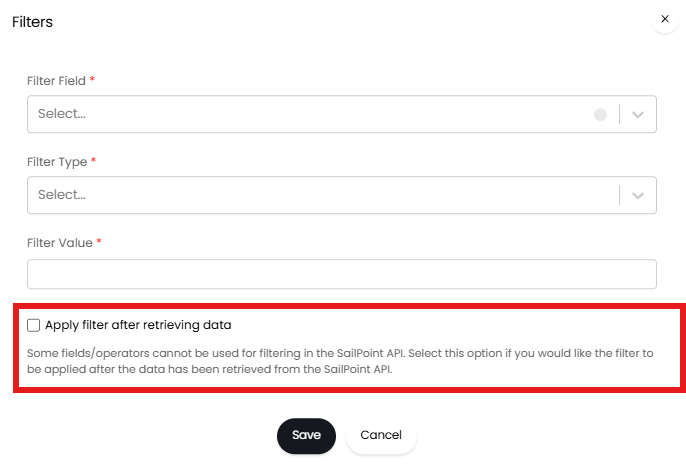
Fig 5. Allowing client-side filtering.
Anything mapped within the role mappings will show additional configuration for future mappings. For example, mapping to the "Change Advise Boards" entity in the "Role Mappings" tab will show a new "Change Advise Boards" tab. Here, you can map fields from SailPoint to Halo fields.
"Static Field Mappings" are used to set a specific value for a particular Halo property. When specifying which Halo field to update here you will need to use the field name that is returned by the API.
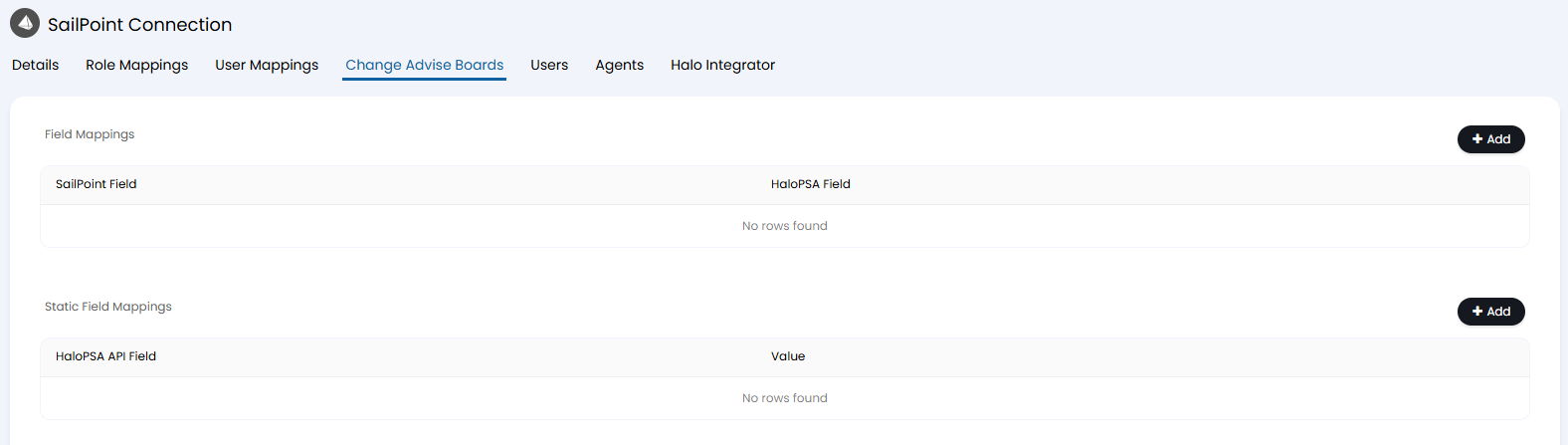
Fig 6. Change Advise Boards tab.
Role field for User association - The value in the Role field chosen here will be assigned to any entity created from a Role mapping. When importing Users, a field from the User entity can be used to match to different Roles based on this field.
Role for ID field - Here, choose the field in SailPoint to use to match roles together. This should be the field that contains the unique identifier for each entity.
User Mappings
Similar to roles, mappings can also be created so that users who meet certain criteria can be imported as one of the following Halo entities:
- Users
- Agents
If mapping to users, there are options available to configure client/site matching, as well as a default role, and whether or not to import a user's manager information.
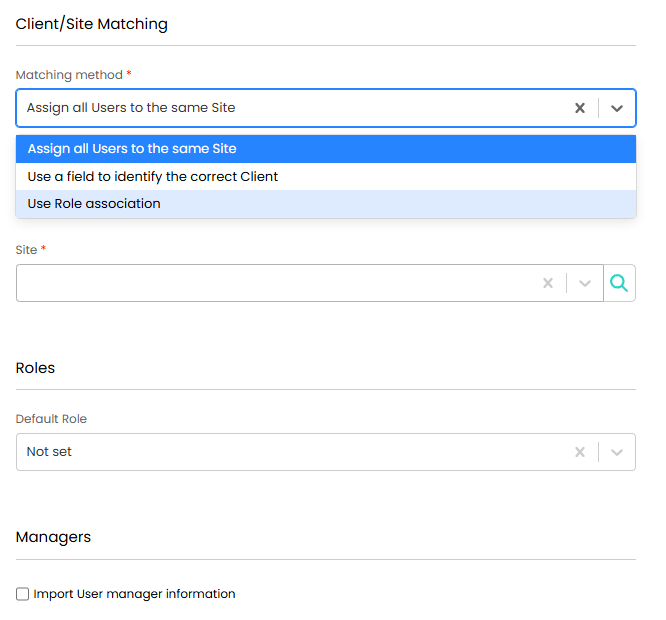
Fig 7. Defaults for User import.
User ID field - Here, choose the SailPoint field that contains the unique identifier for users. This field will be used to match users together.
User field for Role association - Users can be linked to the Halo entities that are mapped to roles by using role association. For example, when a user is imported, if they belong to a role which has been mapped and imported as as a Team, the user will be added as a member of that Team. Here, you will need to select the field in SailPoint that contains the roles a user has. This field must contain a comma separated list of the roles and each role must have a mapping set in the "Role Mappings" tab.

Fig 8. Set User Identifier/Role Fields.
Anything mapped within the user mappings will show additional configuration for field mappings. Once a user mapping for users has been created a new "Users" tab will appear. Once an agent mapping for agents has been created a new "Agents" tab will appear. Here you can map fields in SailPoint Identity Now to Halo fields to control where data is imported, field mappings are setup in the tabs for the respective entity.
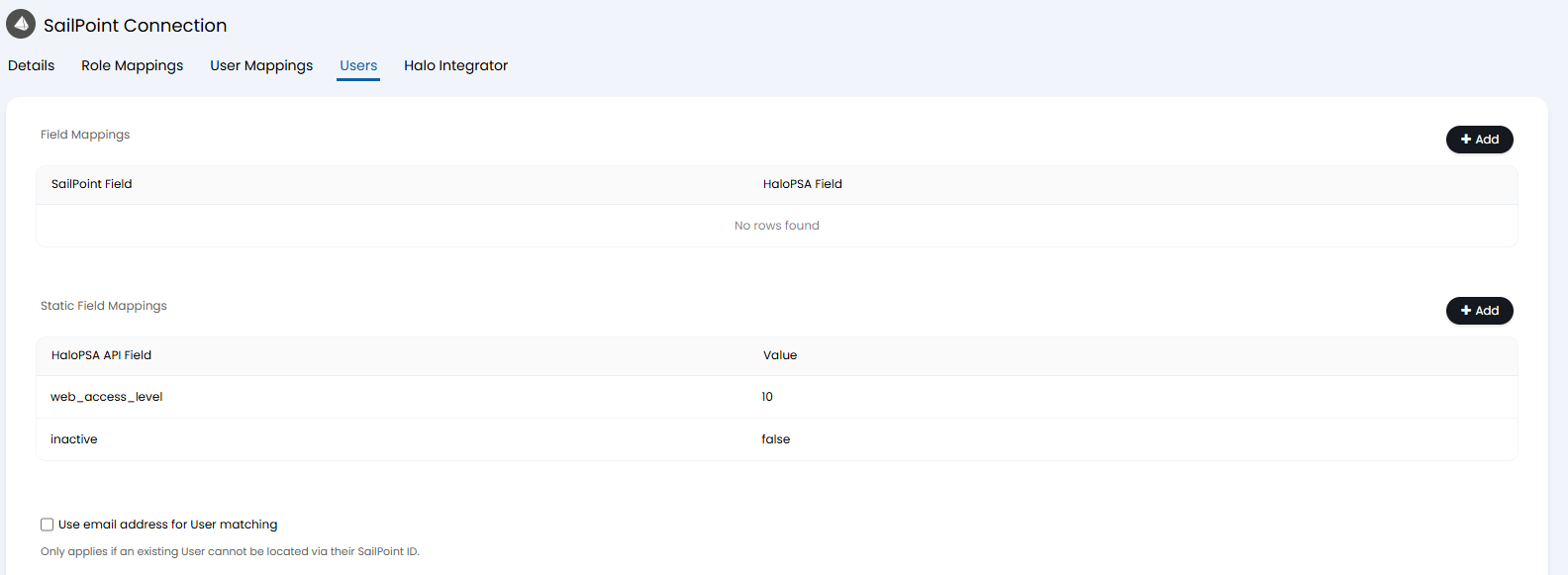 Fig 9. Users tab.
Note: From v2.244+ the 'Title' and 'Login' fields for users will be available to map/import data from.
You will also be able to set "Static Field Mappings". These mappings are used to set a specific value for a particular Halo property. When specifying which Halo field to update here you will need to use the field name that is returned by the API. The Figure 9 example sets all imported users' web access level to '10' and their status to active.
Halo Integrator
All imports can be imported on a schedule via the Halo Integrator. To improve the performance of the imports, it is possible to use faster processing methods for both the role and user imports.
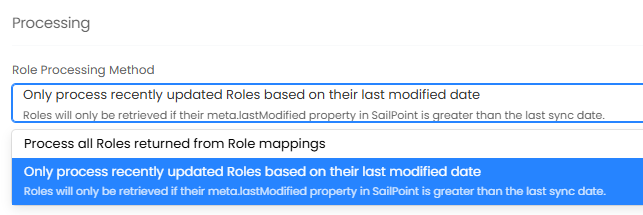
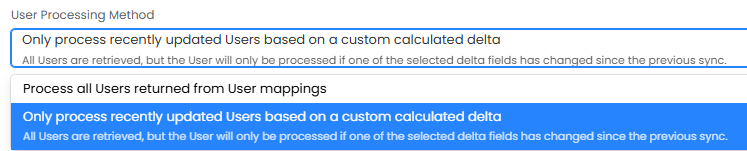
Fig 10. Setting the processing method.
When using the custom calculated delta for users, you must specify all fields for which you wish to track changes.
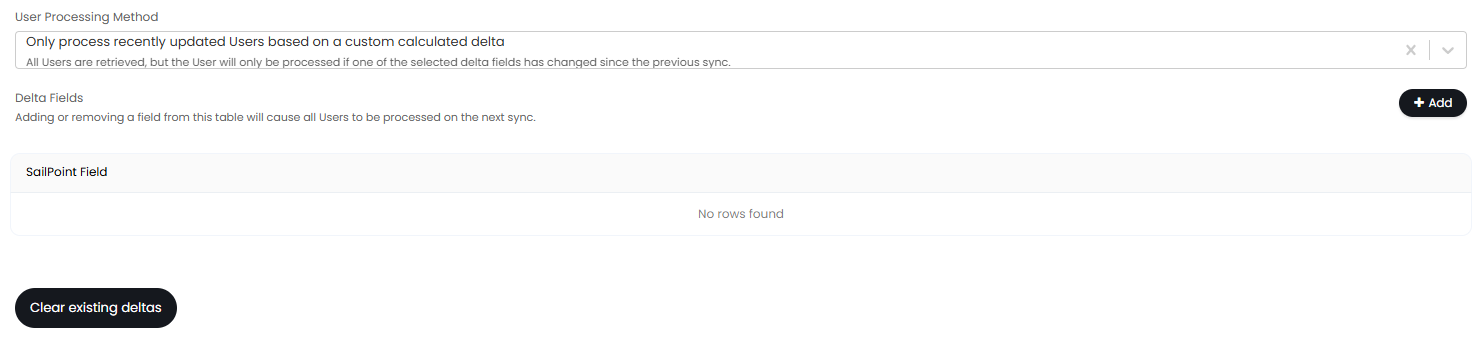
Fig 11. Adding Delta fields
There is also an option to automatically deactivate users and/or agents when they are no longer found in SailPoint IIQ.
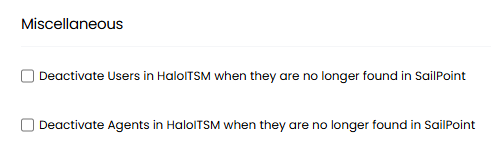
Fig 12. User/Agent deactivation setting