Using Apidog
- API
- Bulk Update
- apidog
In this guide we will cover:
- Navigating Apidog
- Uploading Test Data (CSV)
- Creating a Test Scenario
- Authorising the Request
- Linking Dynamic Values to Test Data
- Running the Request
Related Guides:
Apidog is a tool which can be used to make direct API calls and view the response returned from such calls.
Download here.
Navigating Apidog
Open https://app.apidog.com/ where you will see any teams you are a part of, as well as projects within that team. Click into an existing project, or click "New Project" on the right to create one.
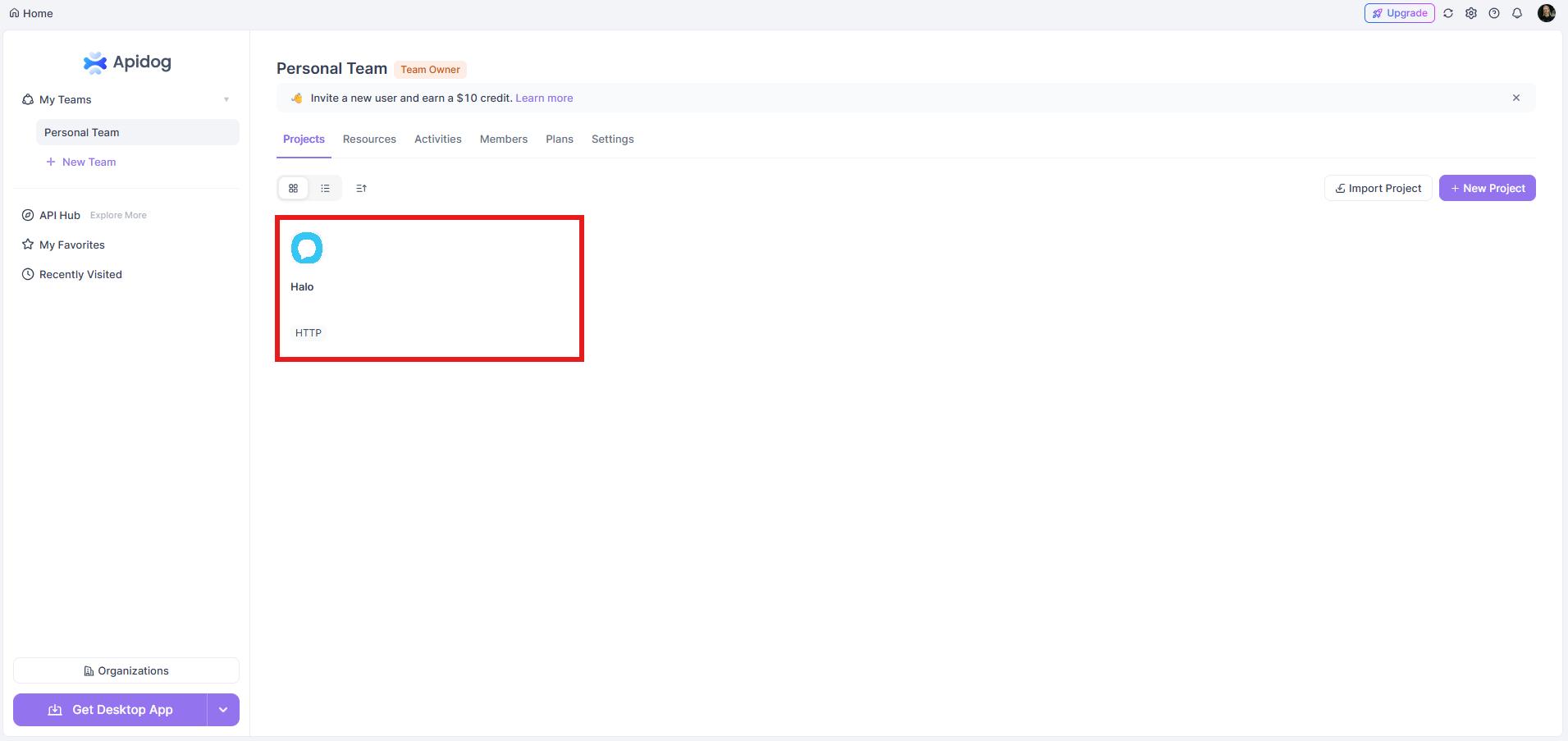
Fig 1. Choosing a project
After opening the project, navigate to the "Tests" area on the left hand side.
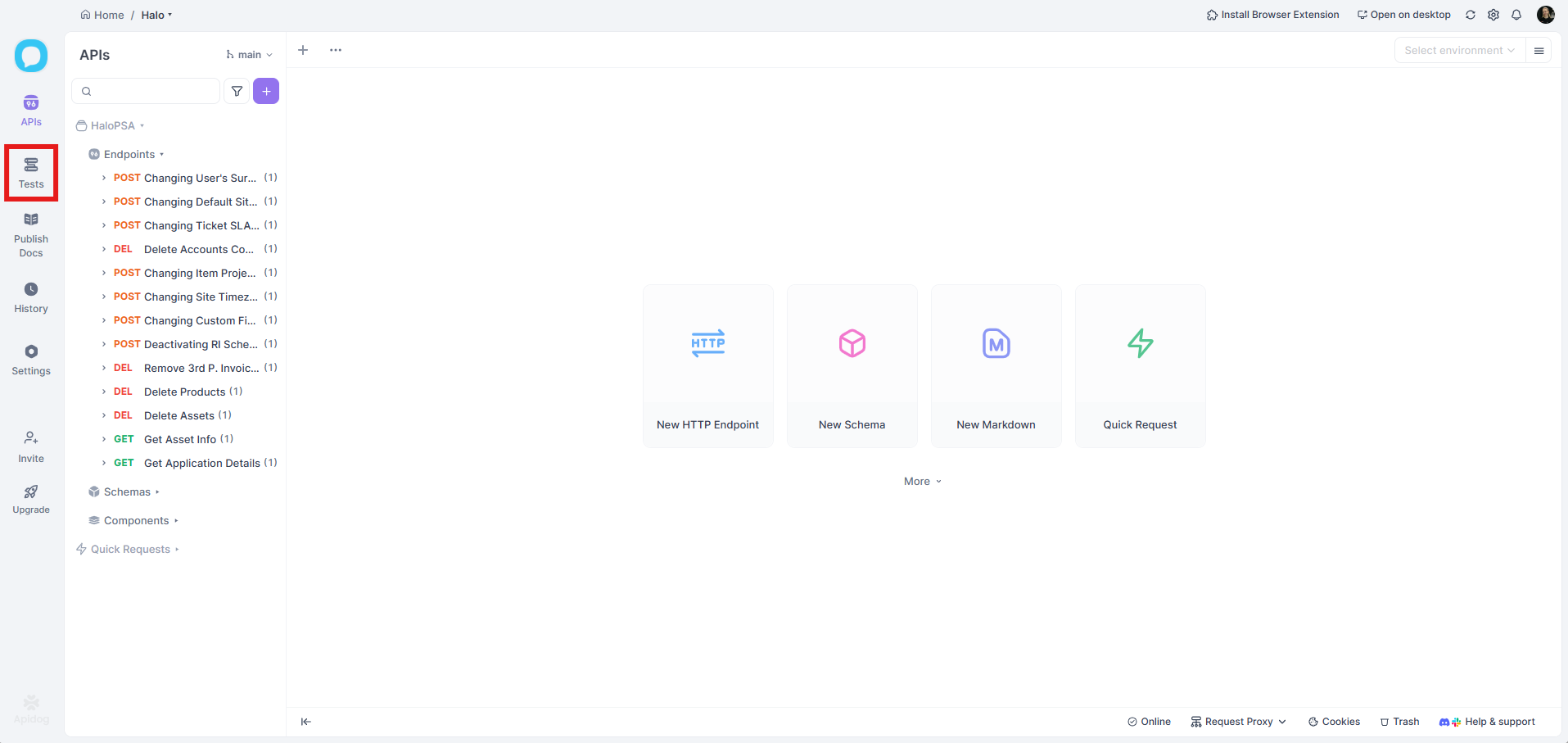
Fig 2. Opening the Tests area
Uploading Test Data (CSV)
Within the "Tests" area, you will see a list of your existing tests on the left side, as well as shortcuts to create new ones in the middle.
If you wish to use a CSV file to create, update or delete entities within Halo, you can upload this here. These CSV files can also be made via reports in Halo, and then exported with the "Export to CSV" button on the report.
Once you have your file, click "New Test Data (Static)" to upload it.
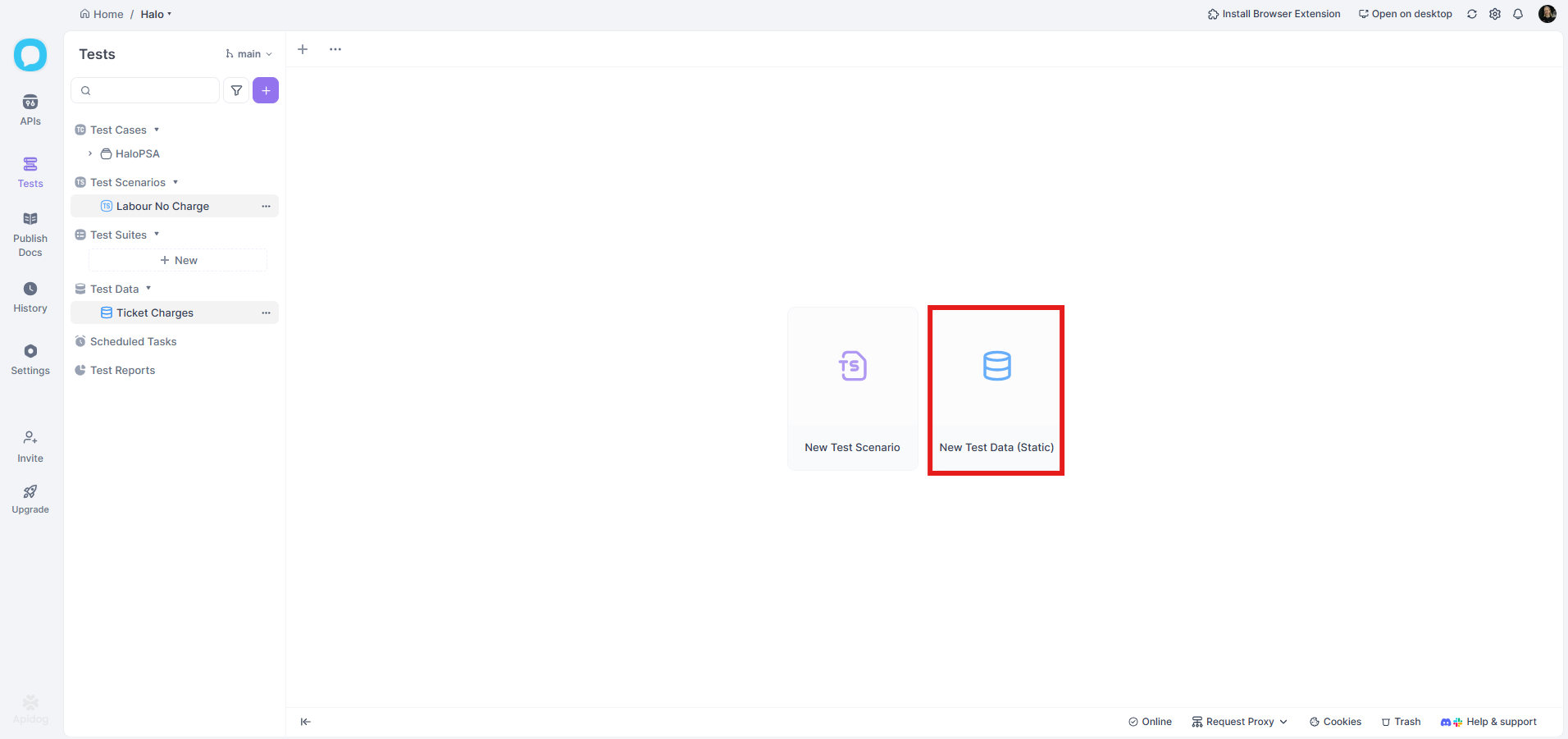
Fig 3. Creating a new Test Data
You will then see the below screen. Hover over "Import/Export" and choose "Import CSV".
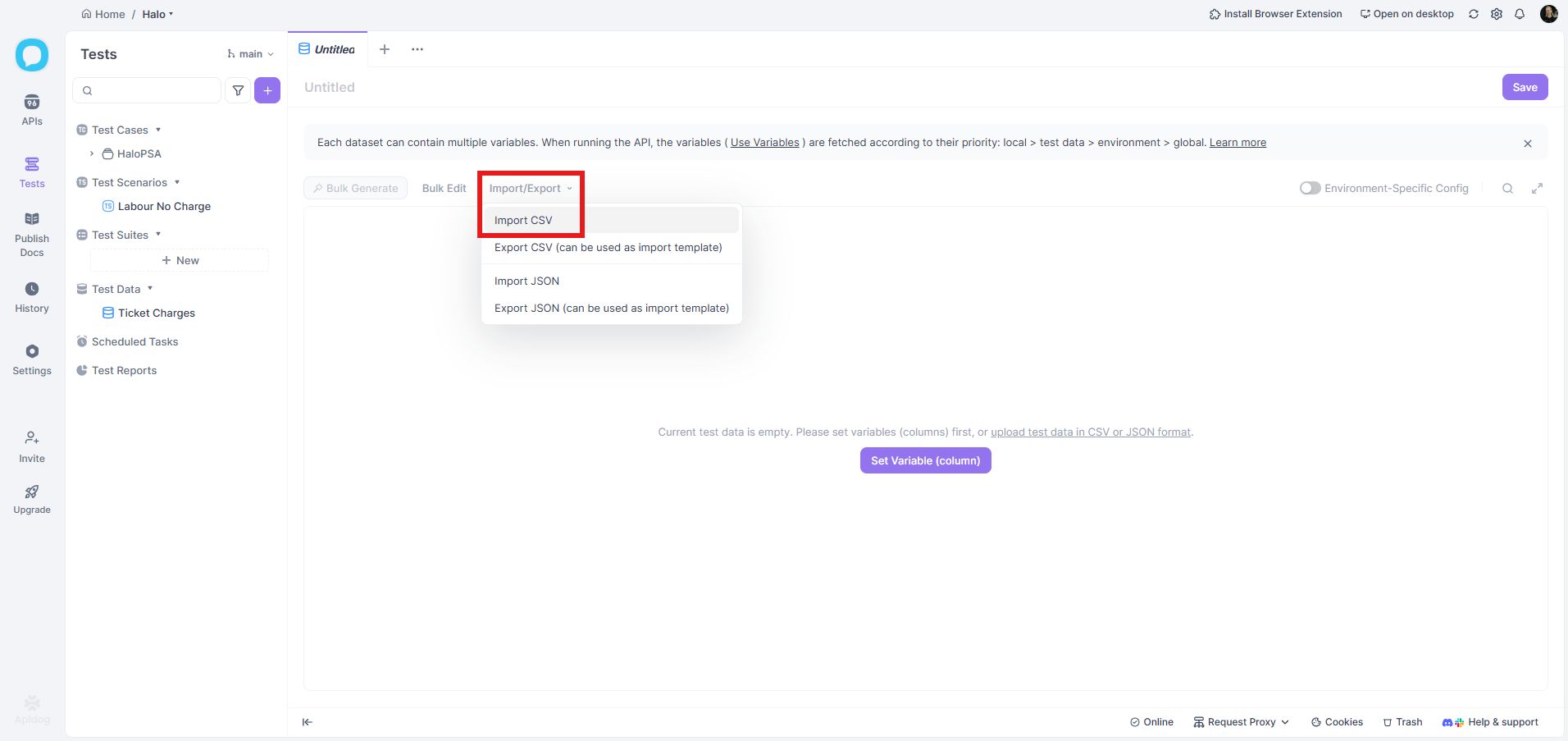
Fig 4. Import CSV option
A popup will show to choose the file to upload. Upon upload, the data in the CSV will show in a table format like below. Once uploaded, give the Test Data a relevant name and save.
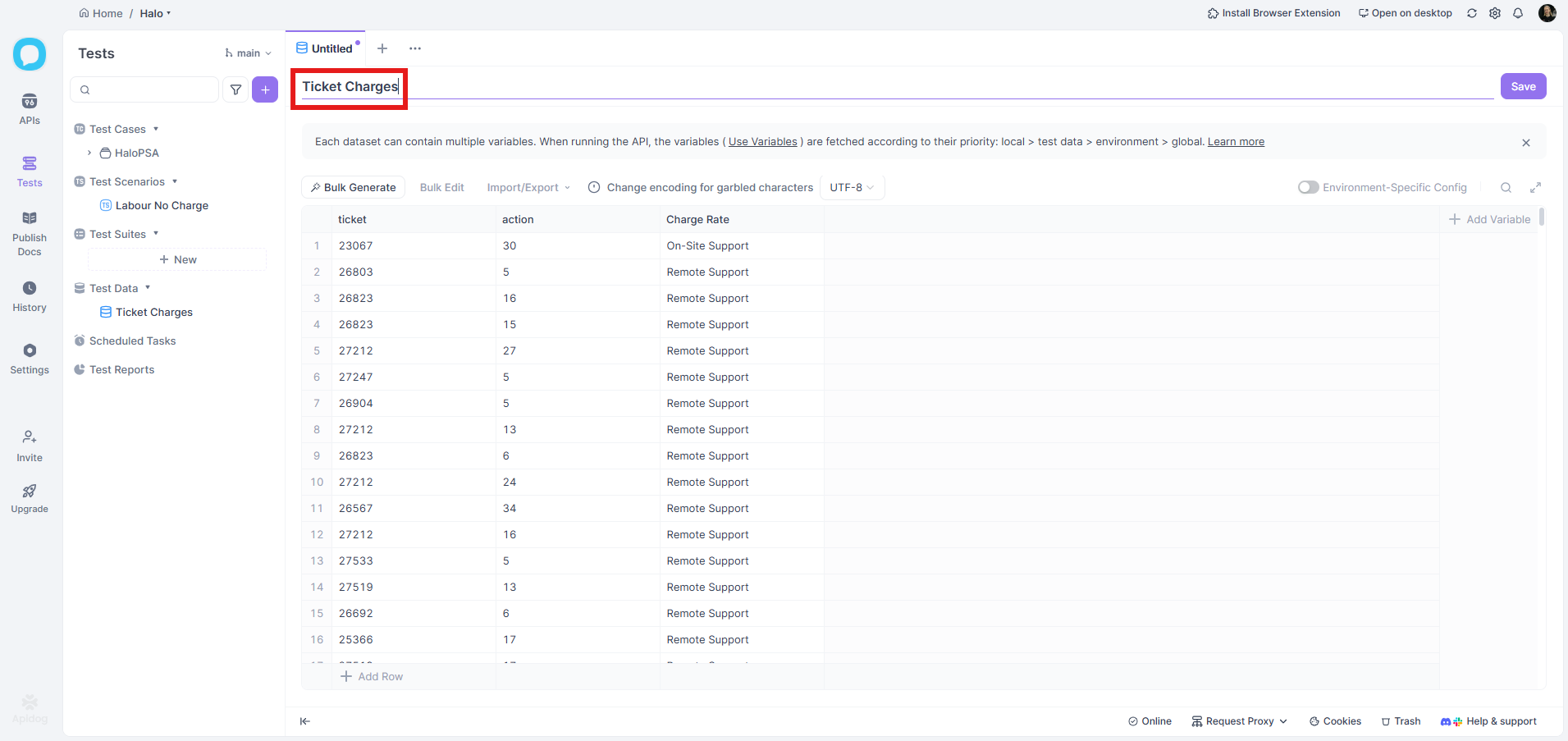
Fig 5. Naming the Test Data
Creating a Test Scenario
Now that we have uploaded our Test Data file, we can create a request to run it. Click either the three dots next to "Test Scenarios" on the left, or the shortcut in the middle.
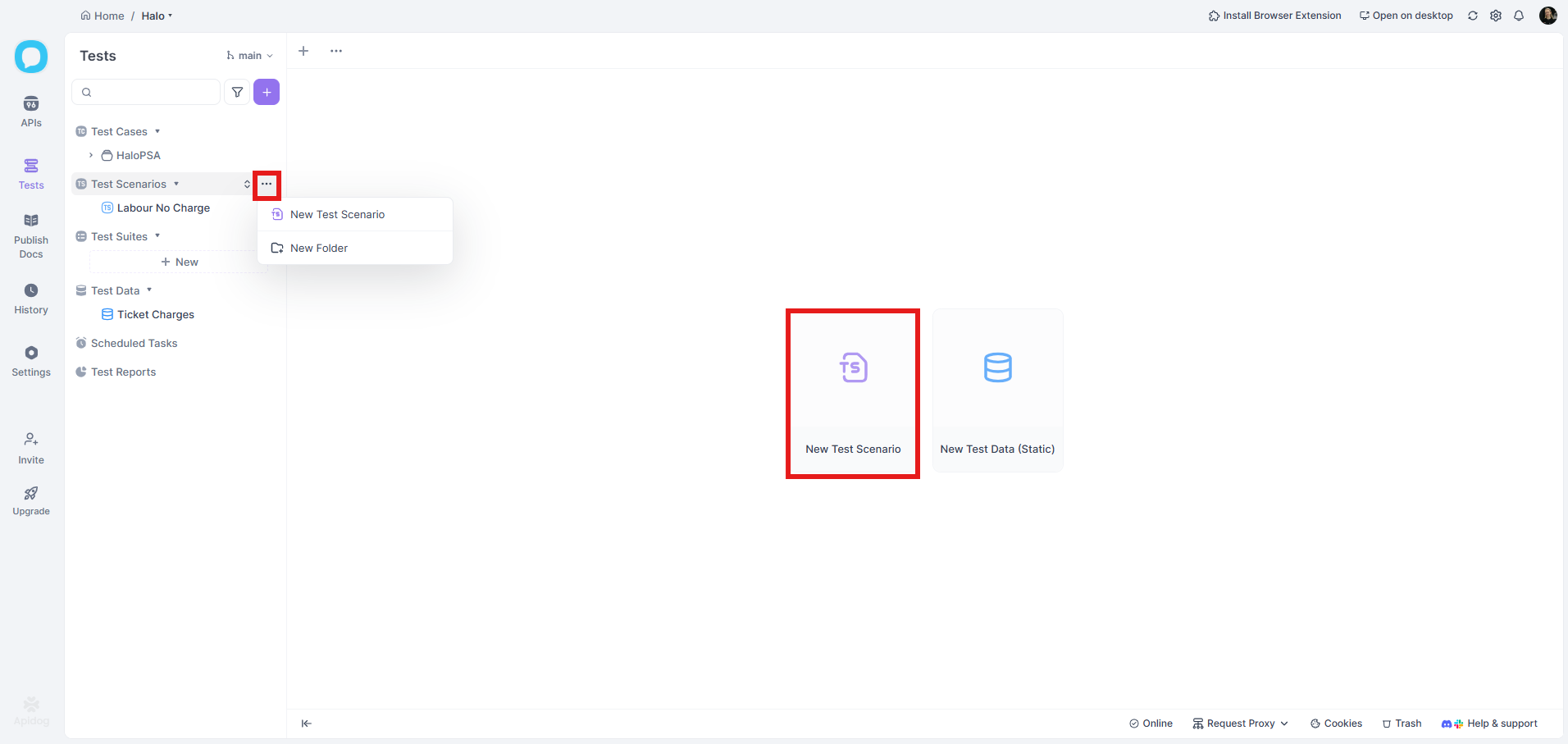
Fig 6. Creating a new Test Scenario
A popup will show to set a name for the Test Scenario, then save.
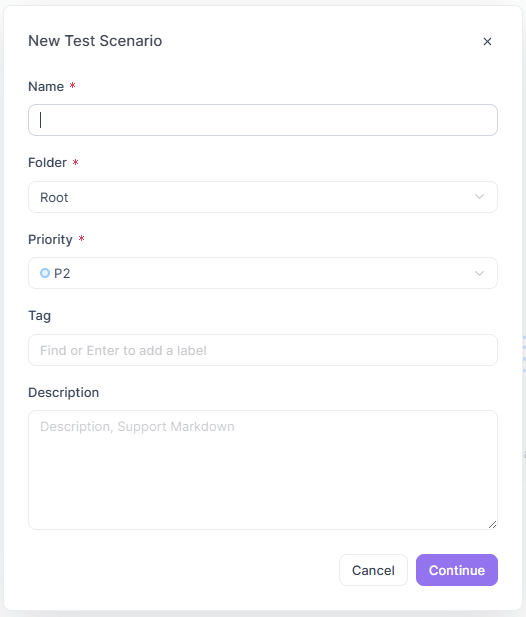
Fig 7. Naming the Test Scenario
The screen below will show to create your Test Scenario. If using a Test Data file, choose the file on the right hand side.
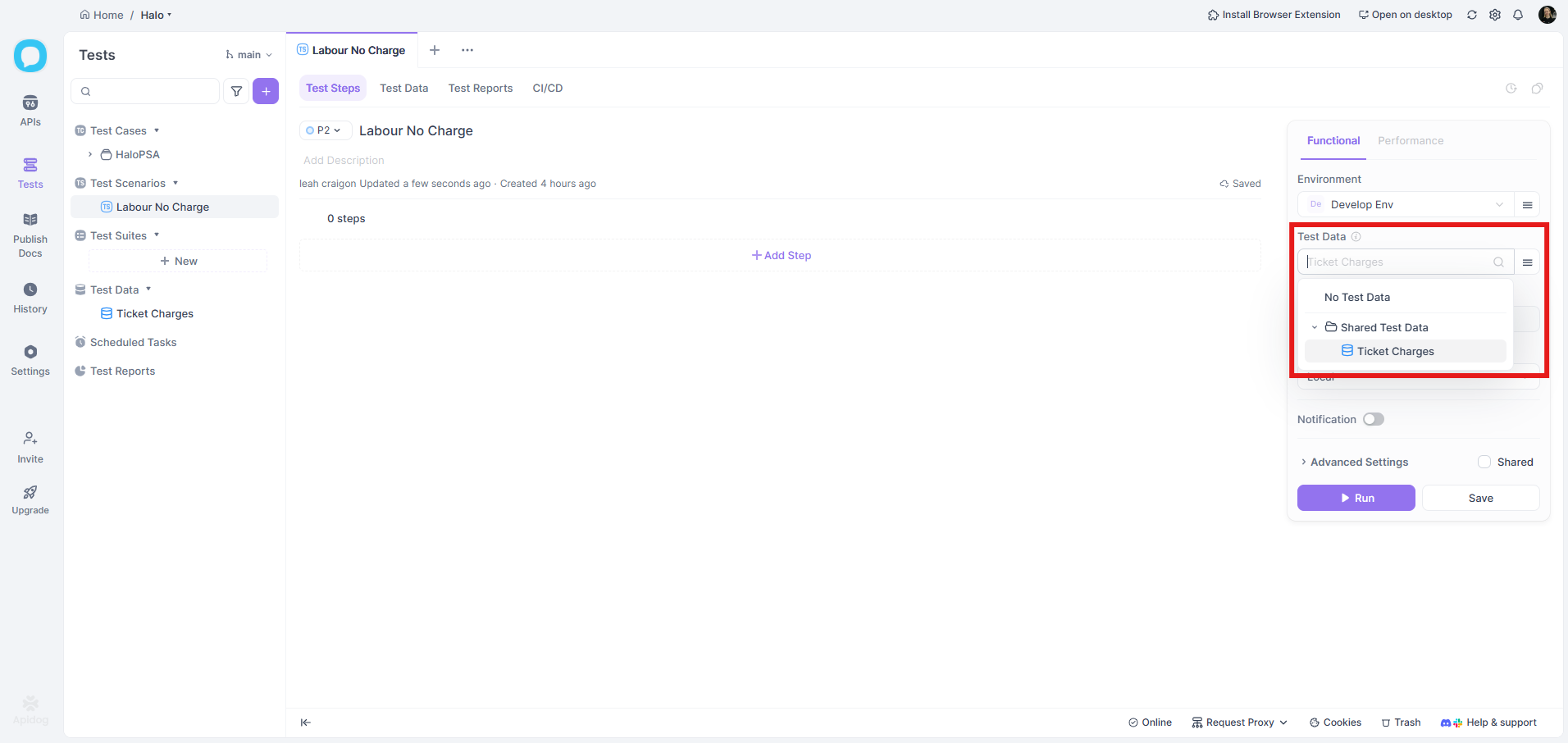
Fig 8. Adding the Test Data to the Test Scenario
Next, we can add a step to the Test Scenario. Click "Add Step" in the middle.
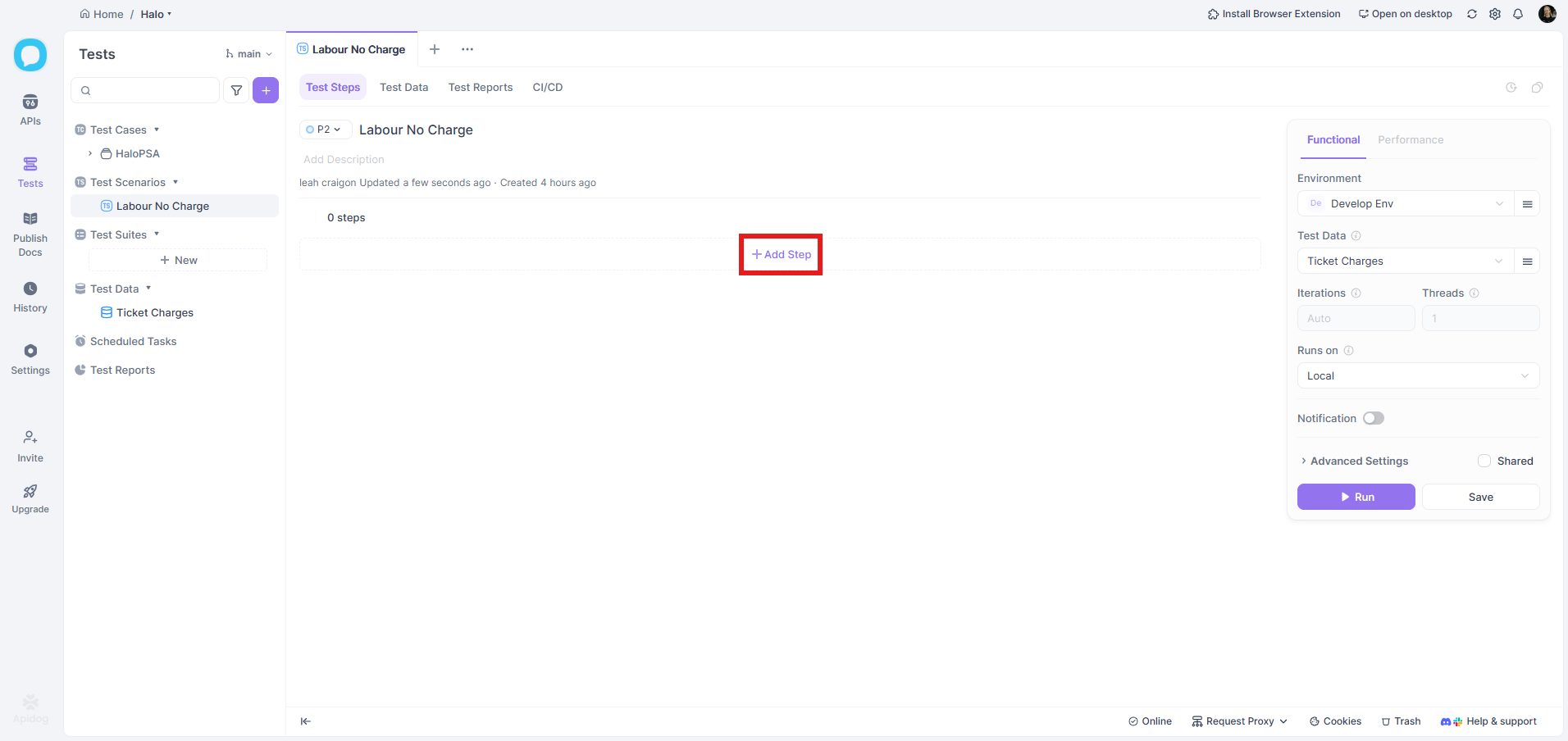
Fig 9. Adding a step
You can then choose what kind of step you want to add. Choose "Add HTTP request".
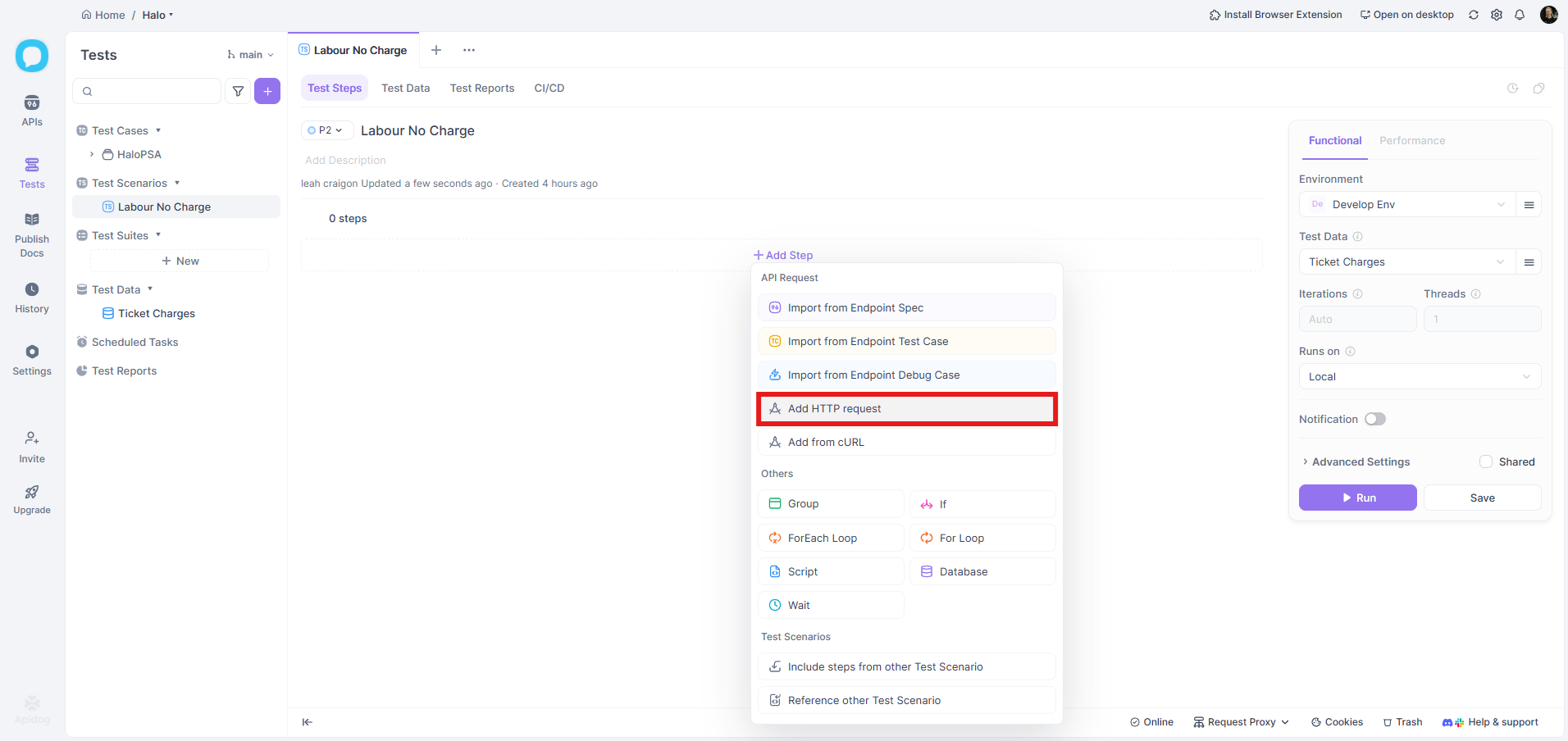
Fig 10. Choosing the step type
This is the screen that will show to configure your API request.
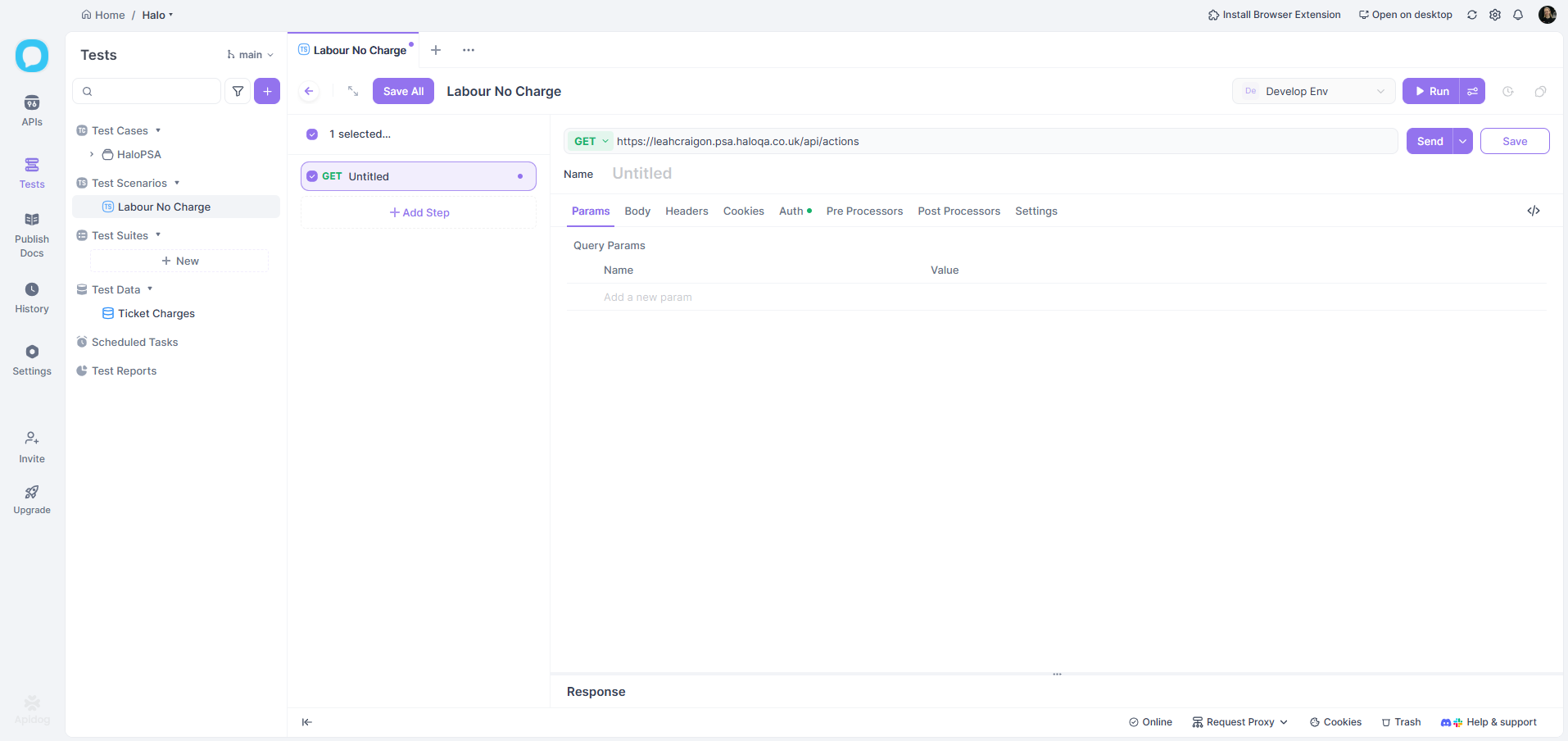
Fig 11. API request screen
First, we need to work out what endpoint to send the request to. Open the developer console with F12 on your keyboard, and complete the action/field you want to do with the API. The developer console will show a "POST" action. Click on this.
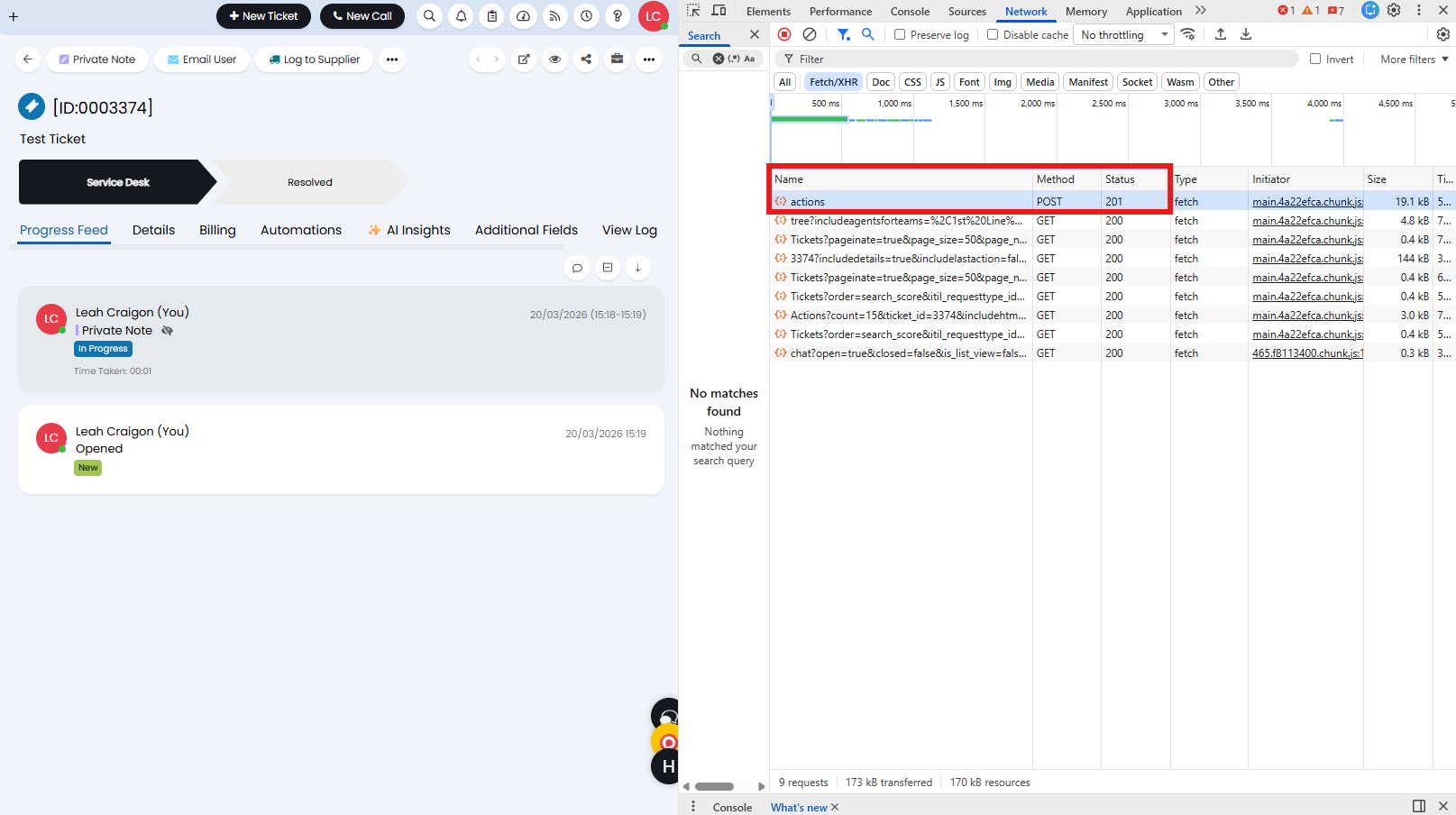
Fig 12. Creating a POST request
The "Headers" tab of the console will show the "Request URL" you need to use for the request. If you wish to use a Bearer token to authorise your request, this can also be retrieved this way. We will also cover how to use OAuth 2.0 with Client Credentials further into this guide.
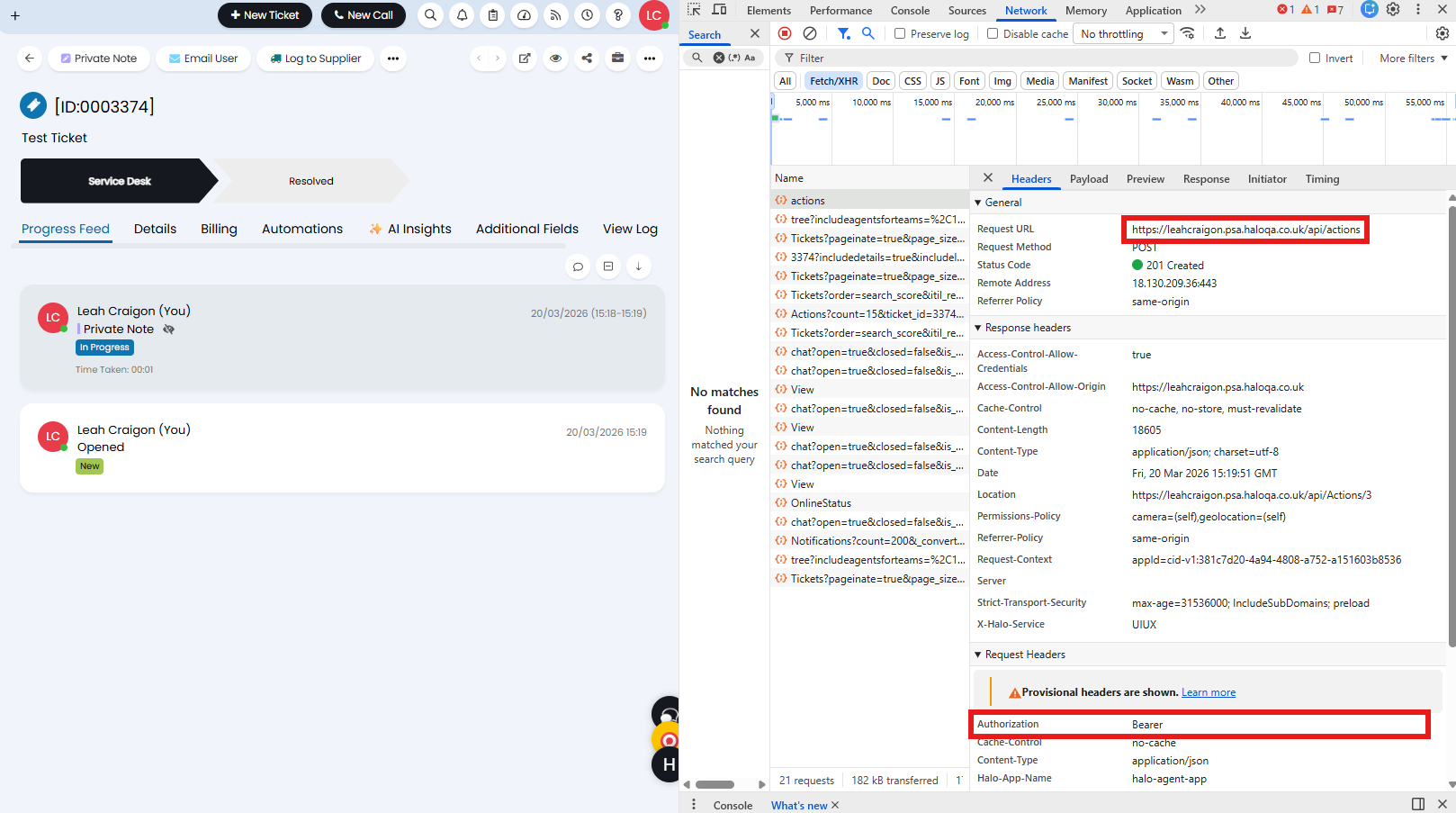
Fig 13. Finding the request URL
Copy and paste this URL into the highlighted field.
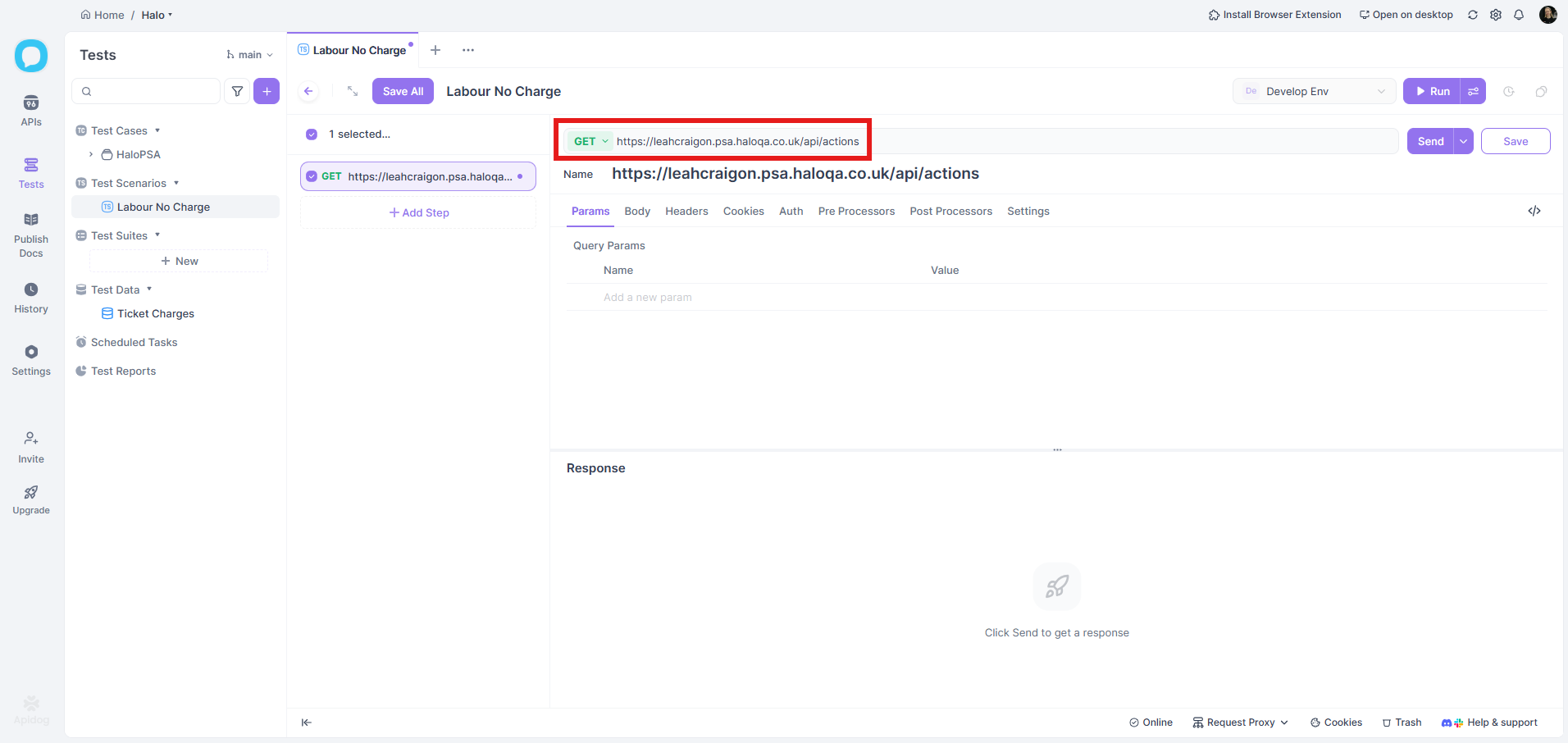
Fig 14. Adding the URL
Next, we need to format the JSON body of the request. This is needed for POST requests and some GET requests, but DELETE will not need these.
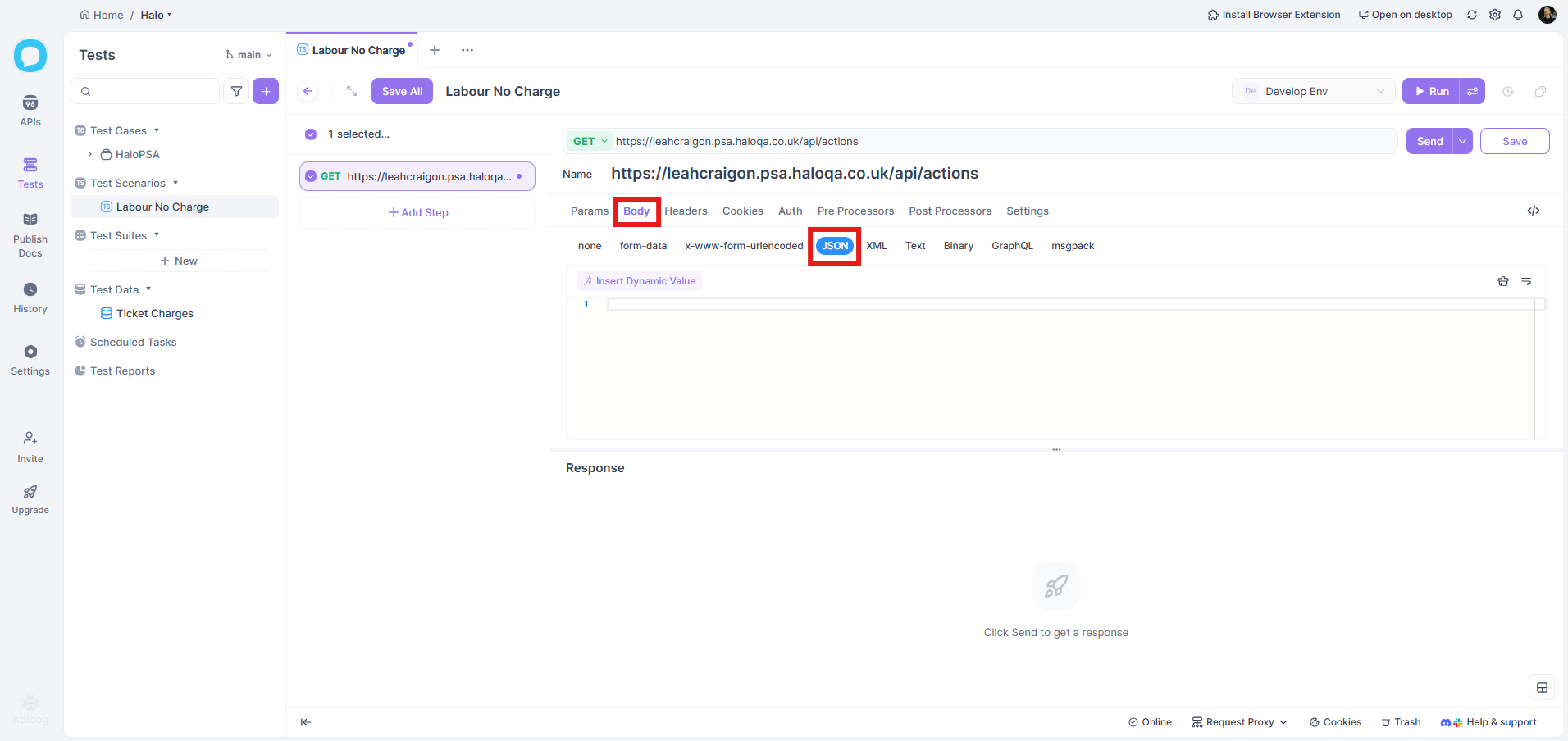
Fig 15. Setting the Body as JSON
We can also reference the developer console to format the JSON body. The "Response" tab will show the post that was made within Halo when completing the relevant action to help format your body.
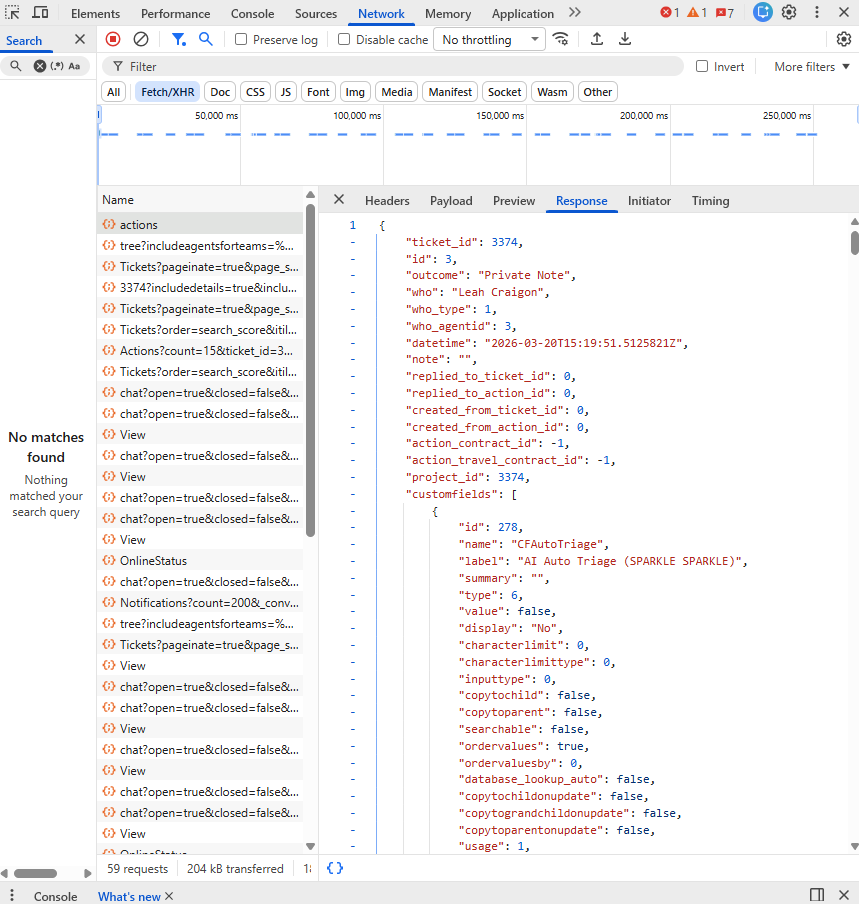
Fig 16. Finding the JSON required
In this example, we are updating a list of billable actions to use the "No Charge" charge type instead. This is a post to the actions endpoint, to update a specific action ID on a specific ticket, and set that charge rate to "0" (No Charge).
Note: Ensure you add "[ ]" around the JSON retrieved from the console.
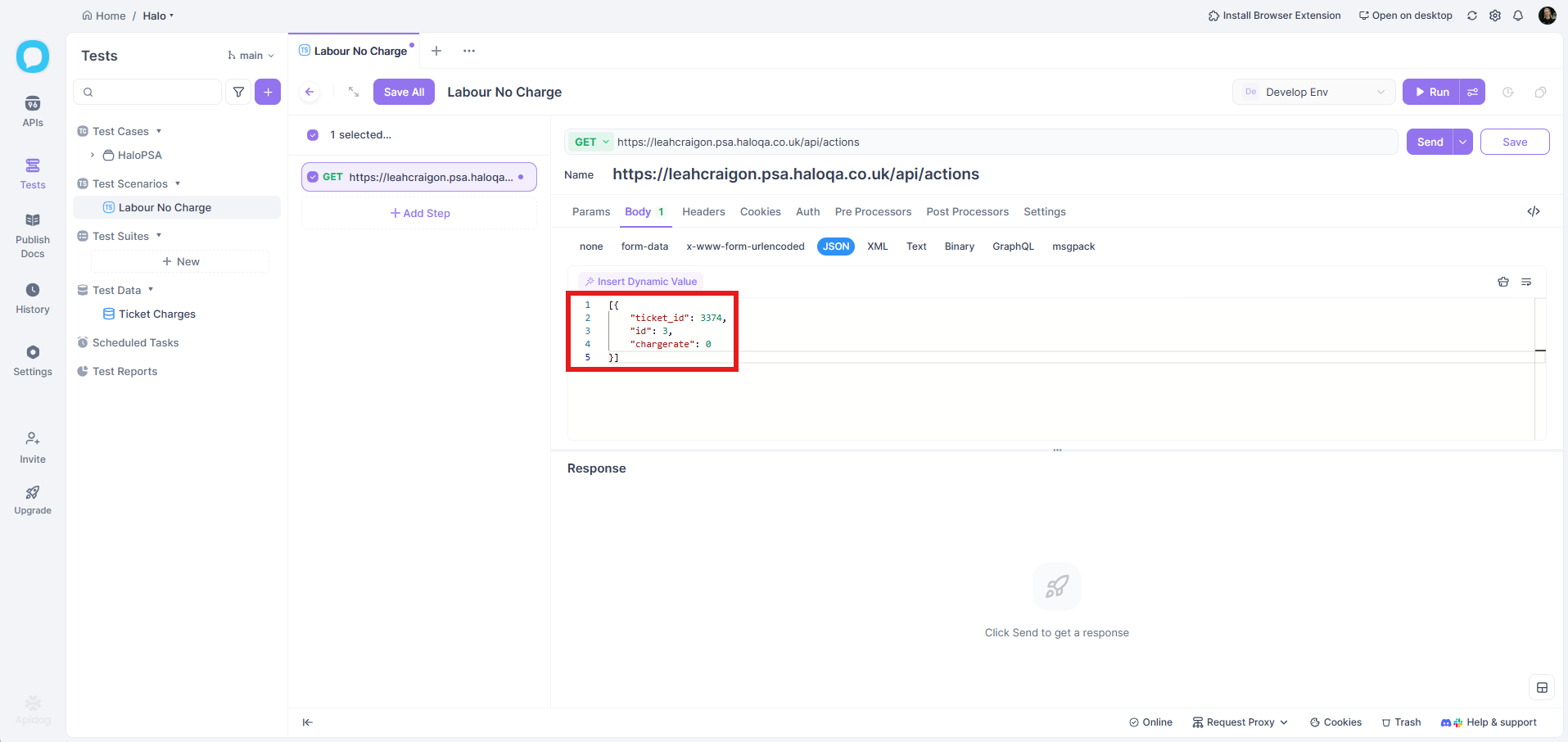
Fig 17. JSON added
Authorising the Request
Switch to the "Auth" tab and select your "Authorization Type". If you are using a Bearer token, this is retrieved during Figure 13.
We will cover how to use OAuth 2.0 with Client Credentials over the next few steps. Set this dropdown to "OAuth 2.0".
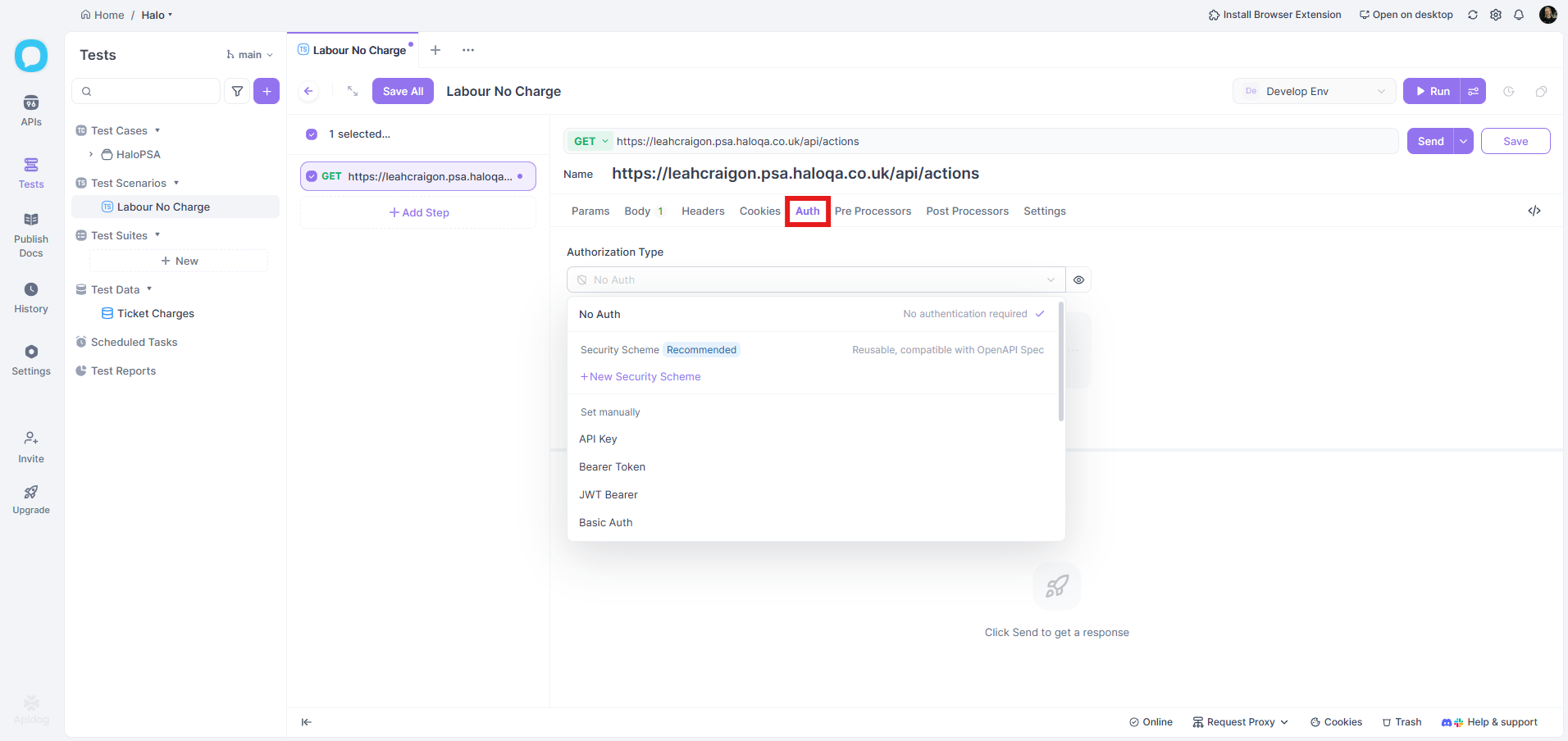
Fig 18. Setting the Auth type
In Halo, navigate to Configuration > Integrations > Halo API and click the "View Applications" button.
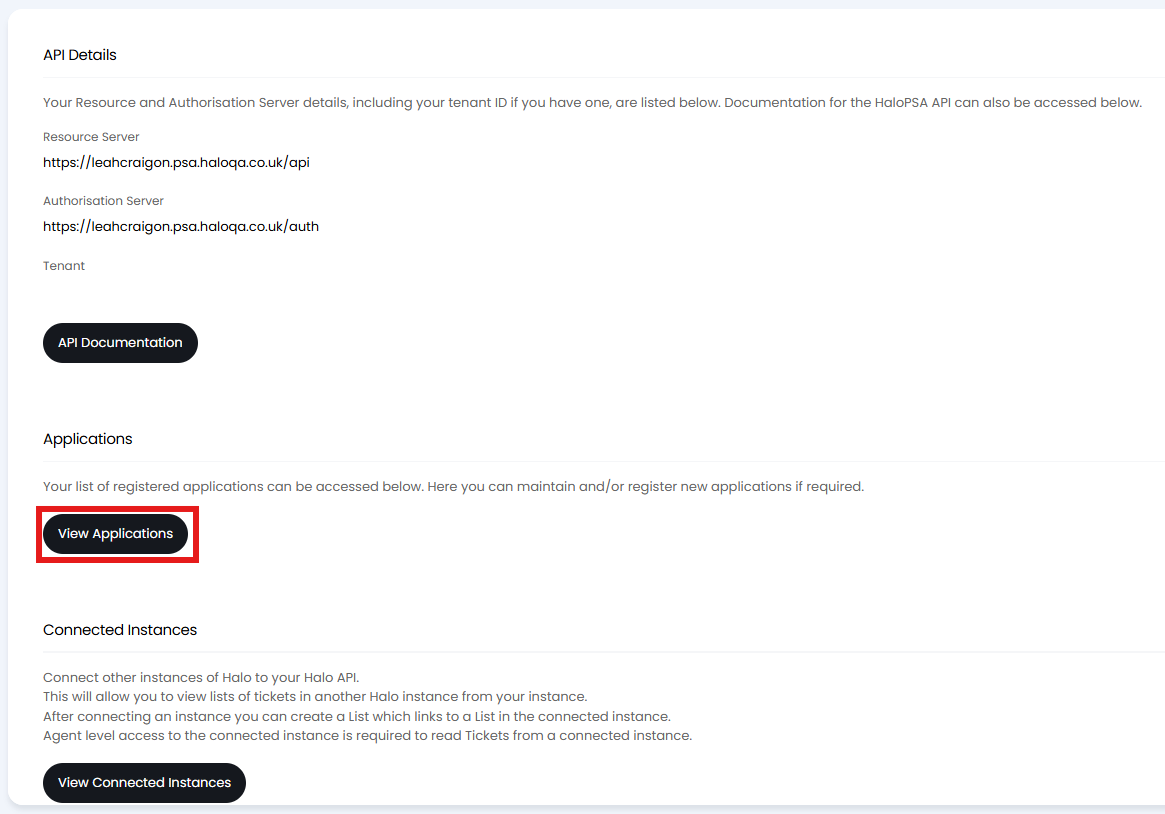
Fig 19. Halo API module
This will bring up a list of existing API applications. Click the "New" button in the top right.
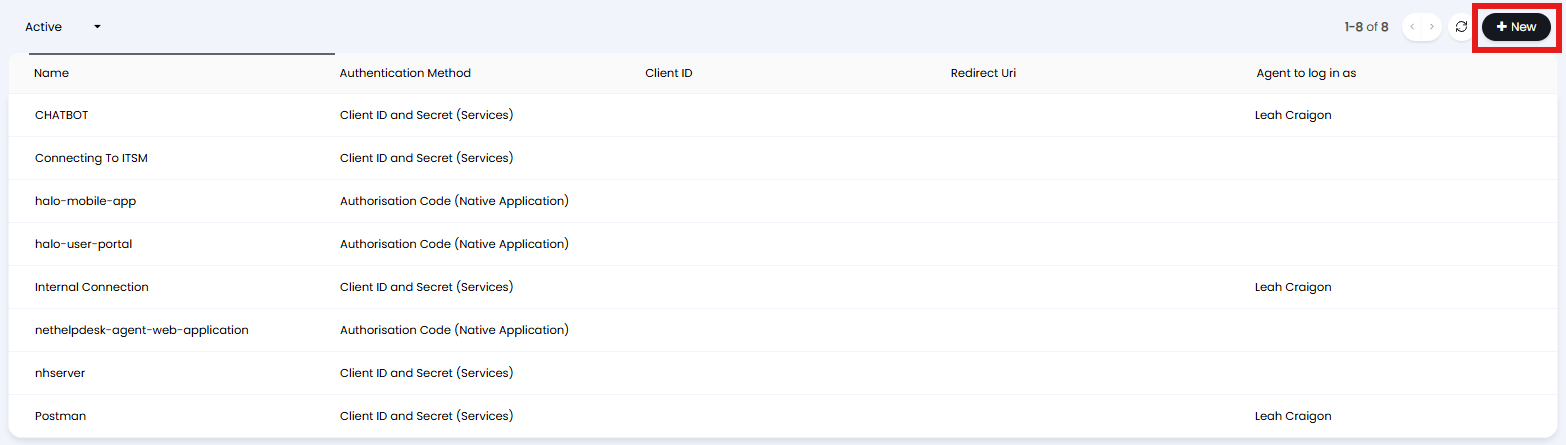
Fig 20. List of existing API applications
A screen will then show to create the application. Select "Client ID and Secret (Services)". A Client ID and Client Secret will then show, along with the option to choose the Login Type. In this example, we are using Agent. If you are using an API Agent, this can be set here as well.
Note: Save the application first and the permissions, then click edit again and generate the secret. This ensures the secret has been generated with the correct permission.
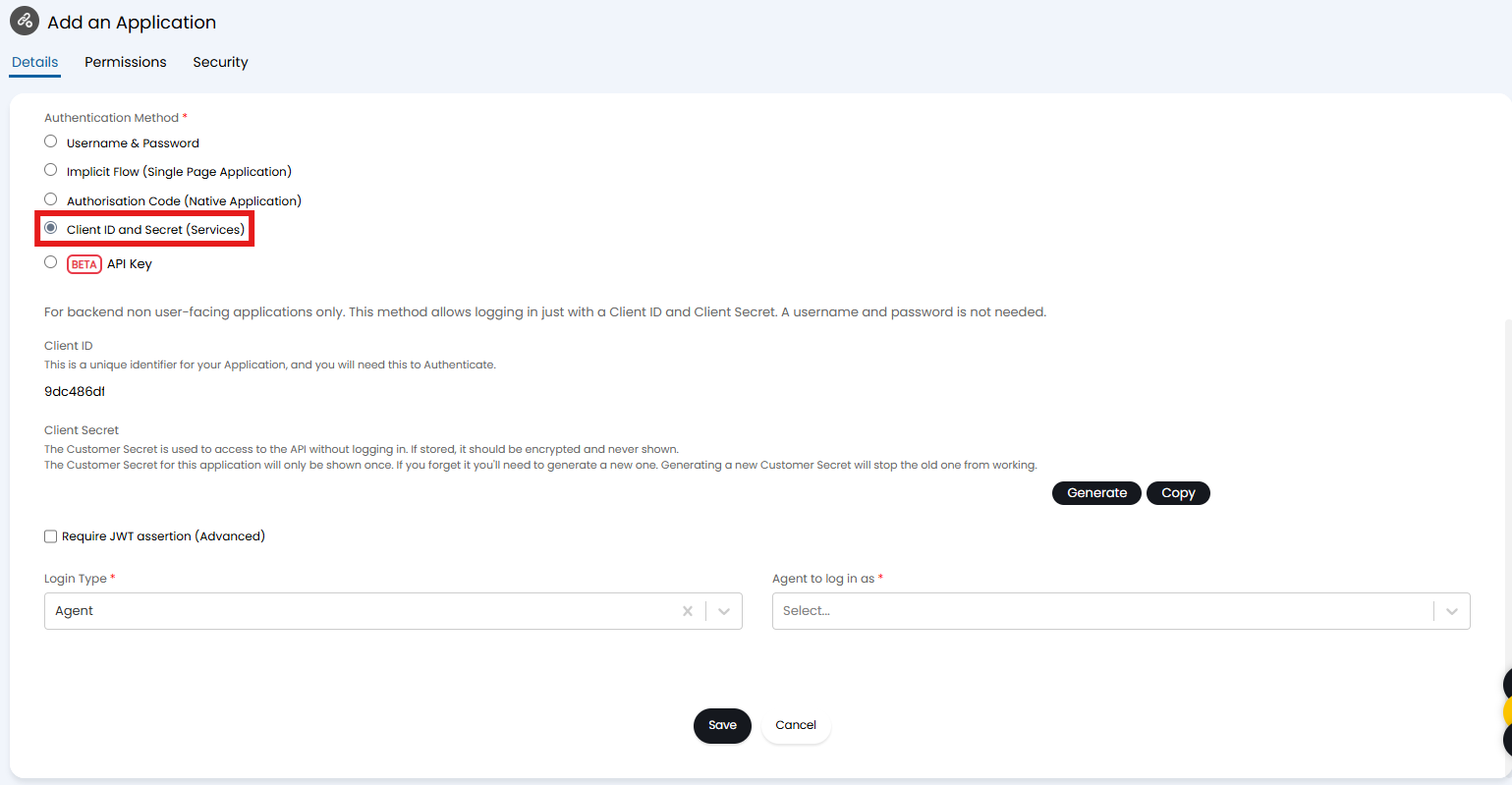
Fig 21. Creating an application
In the "Permissions" tab, set the permissions the application has access to.
Note: If using "Login Type" of "Agent" in the "Details" tab, this will add additional permission restrictions based on what that agent can access.
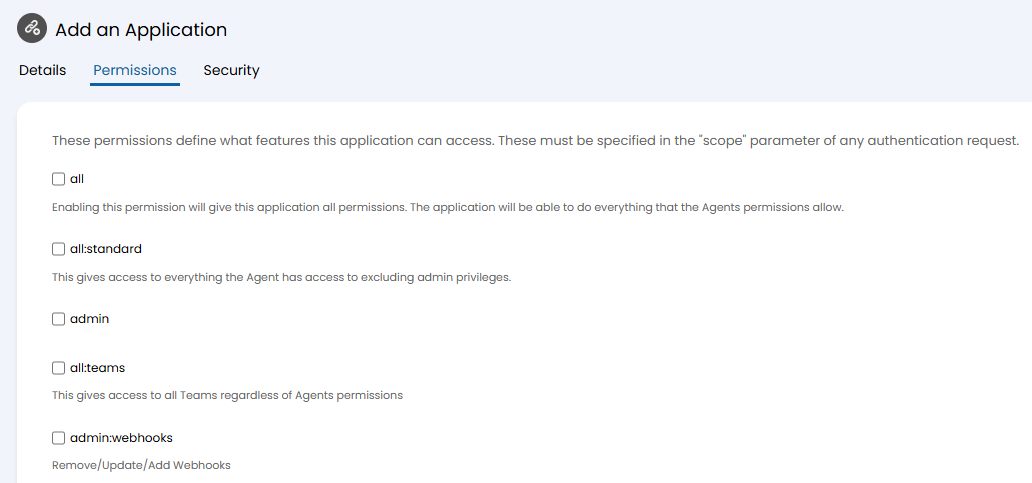
Fig 22. Adding permissions
Back in Apidog, you can then set these credentials. Ensure you open the "More" dropdown to see the rest of the options.
- Grant Type: Client Credential
- Access Token URL: YOURHALOURL/auth/token
- Client ID: Client ID from Figure 21
- Client Secret: Client Secret from Figure 21
- Scope: Type the scope you set in Figure 22
Once the above is set, click "Get Token".
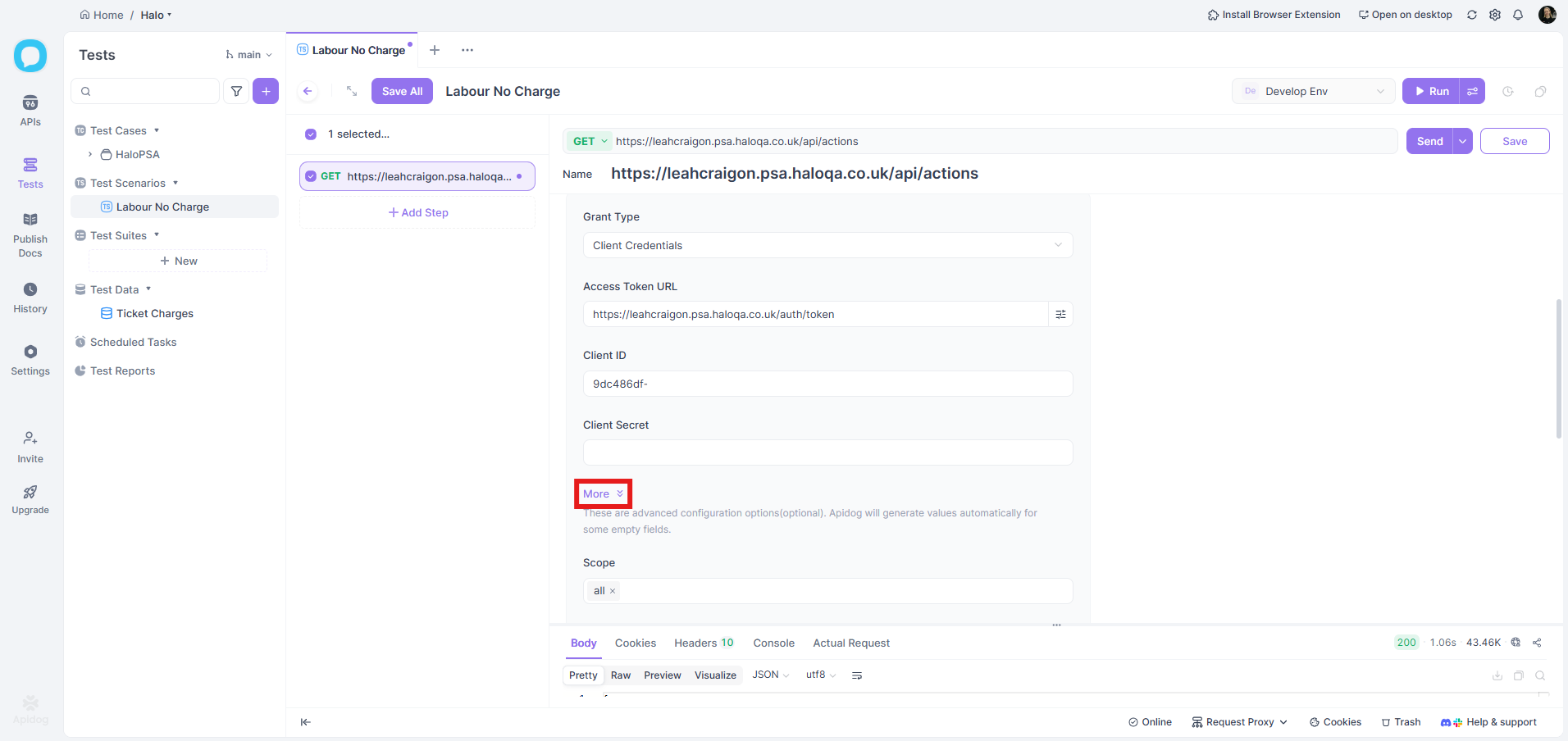
Fig 23. Adding the base credentials
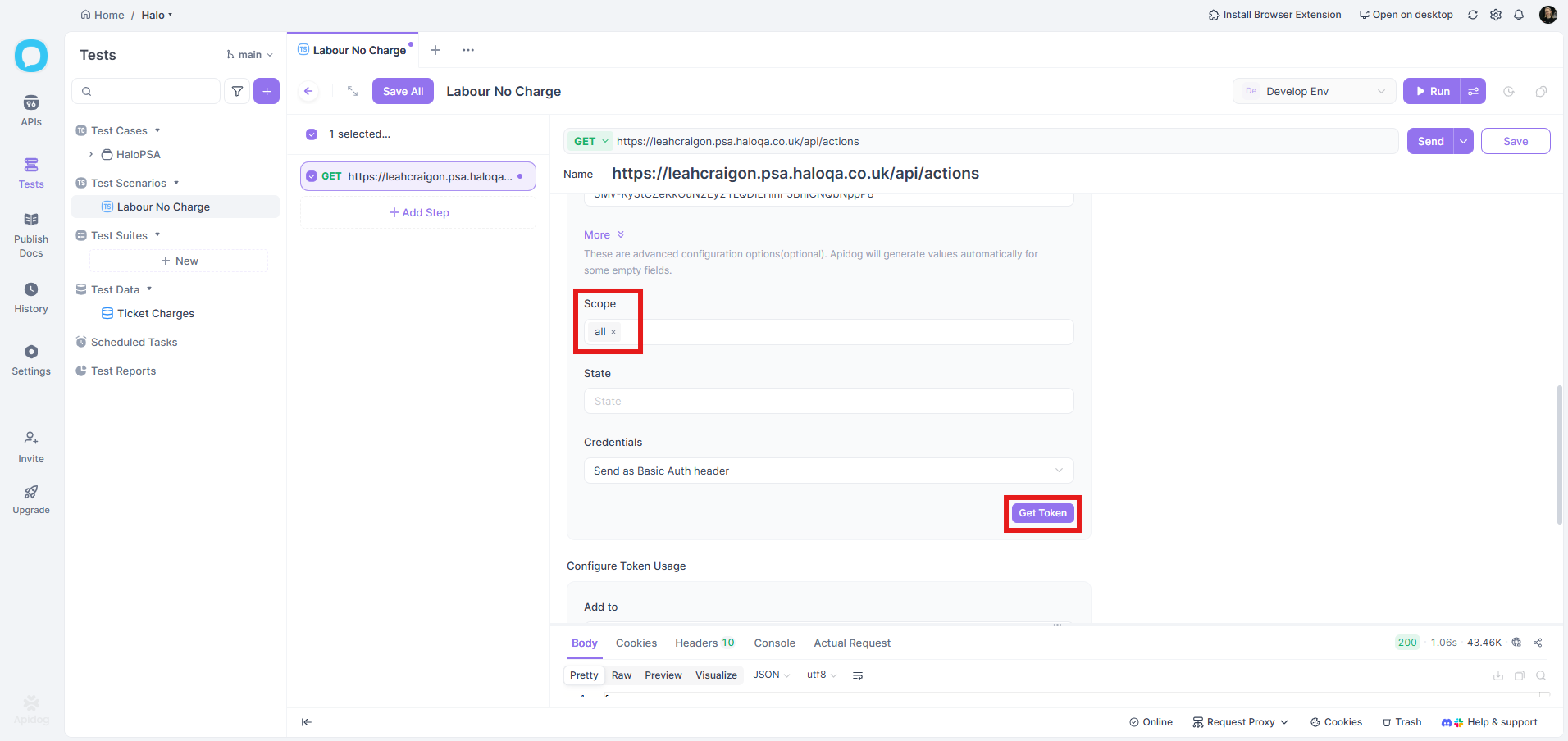
Fig 24. Adding the scope and getting the token
When authentication is complete, you can see the status code on the right to see if it is successful. You may also want to test with a GET request at this point.
If you are running a request without a CSV file, you can use the "Send" button in the top right at this point.
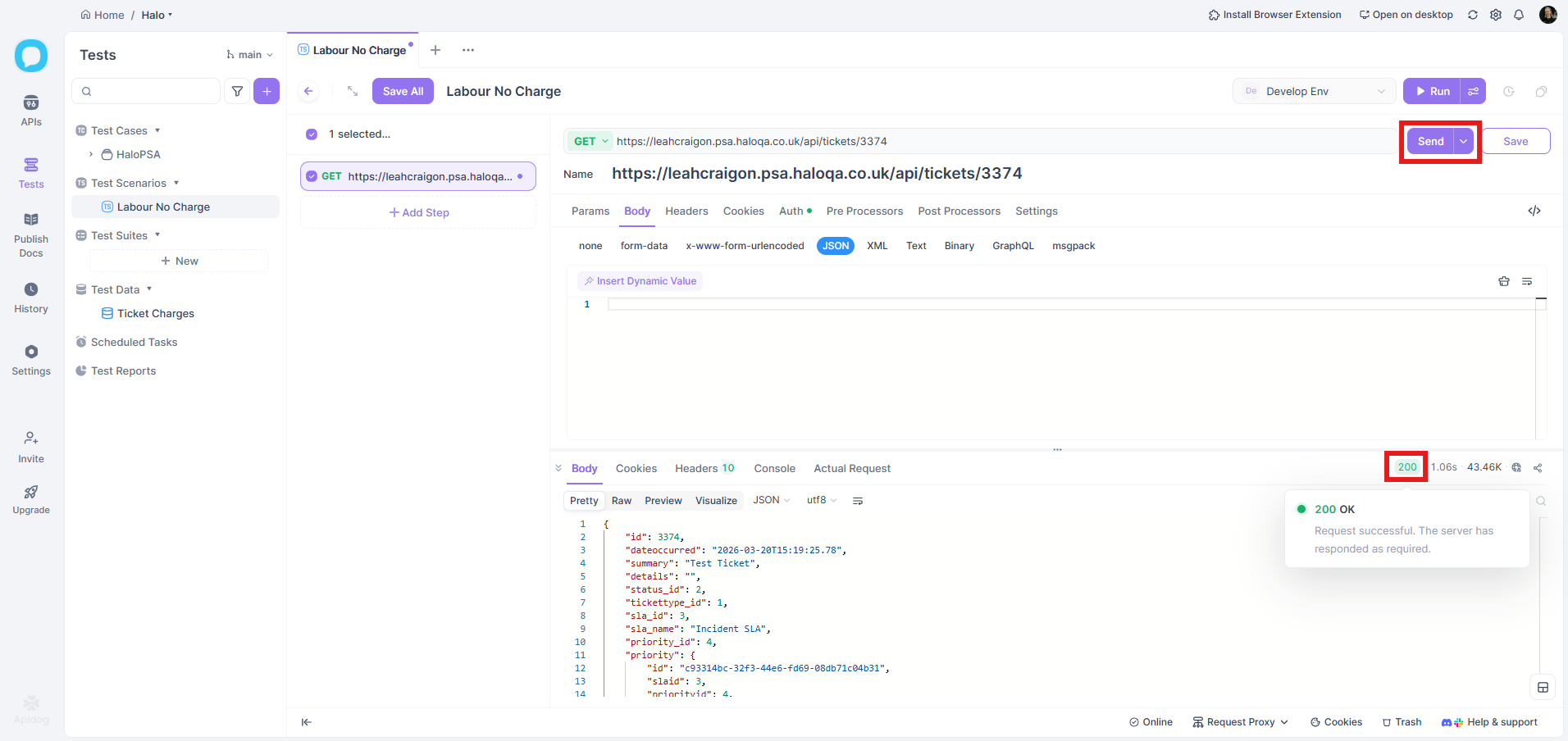
Fig 25. Testing the connection
Linking Dynamic Values to Test Data
If using a CSV file, you may want to utilise dynamic values to replace the JSON with column headers from the file.
Highlight the pre-set value in the JSON you want to replace, and "Insert Dynamic Value".
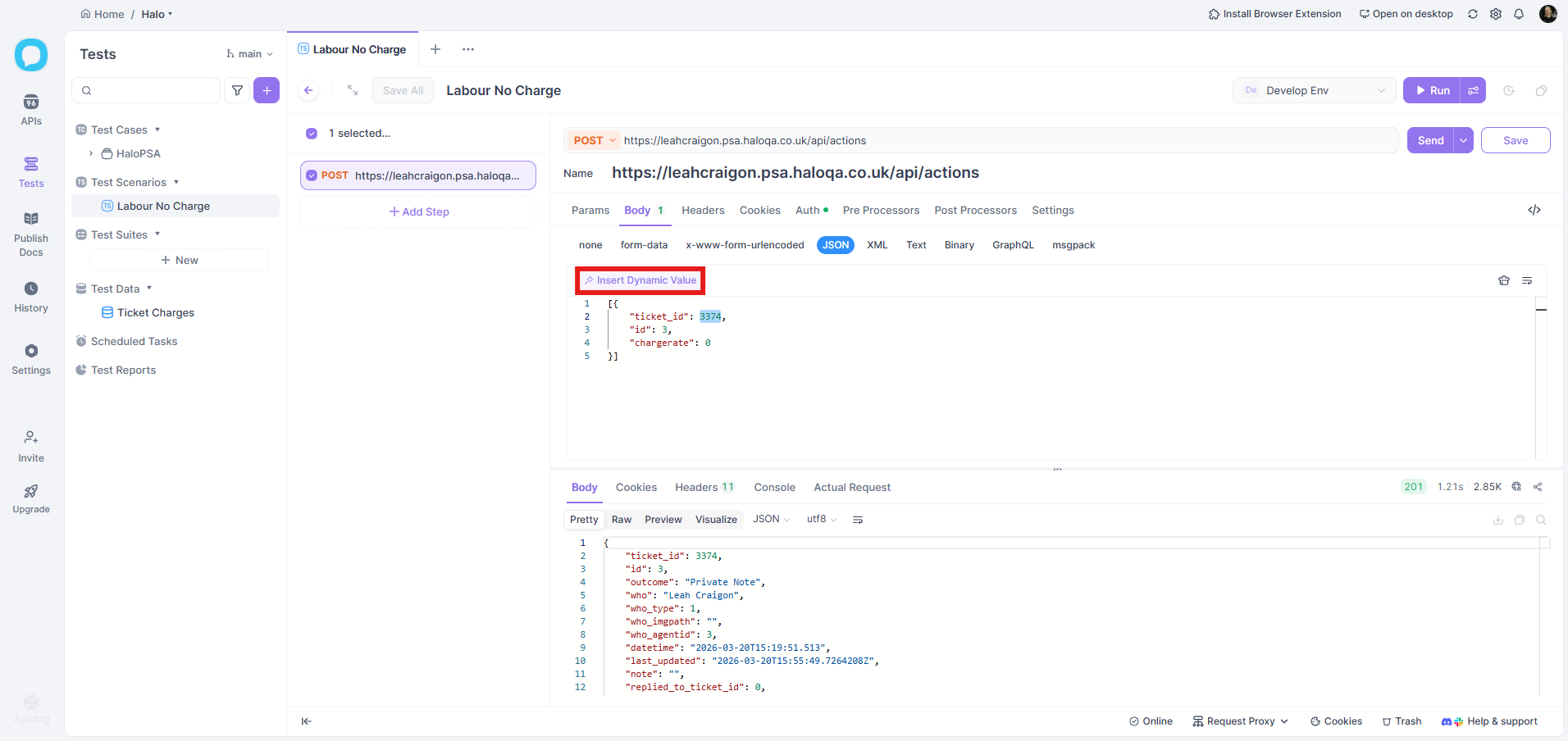
Fig 26. Replacing static values with a dynamic value
Select "Retrieve Variable".
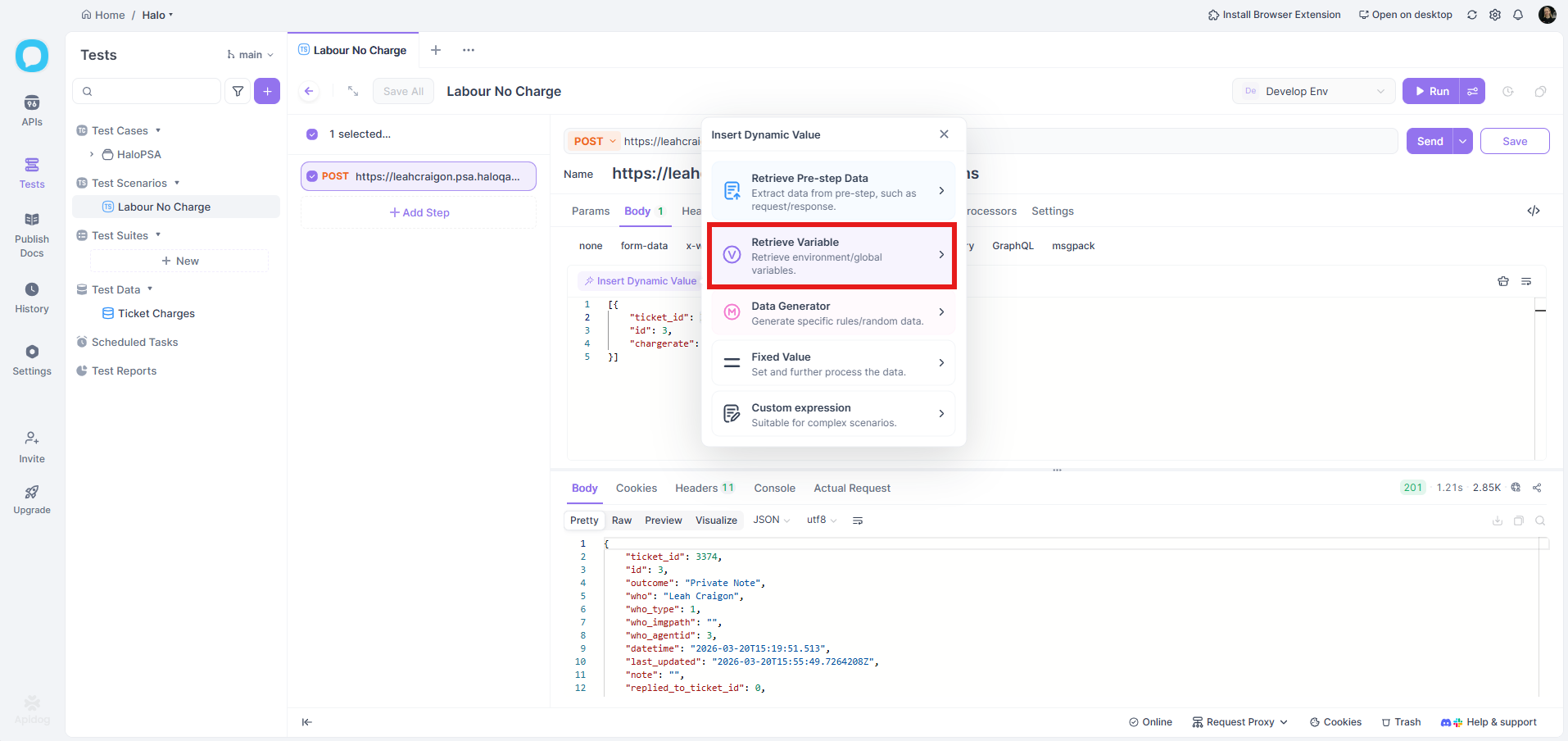
Fig 27. Retrieve Variable option
Type the name of your column header, then click "Insert".
Note: Variables are case-sensitive.
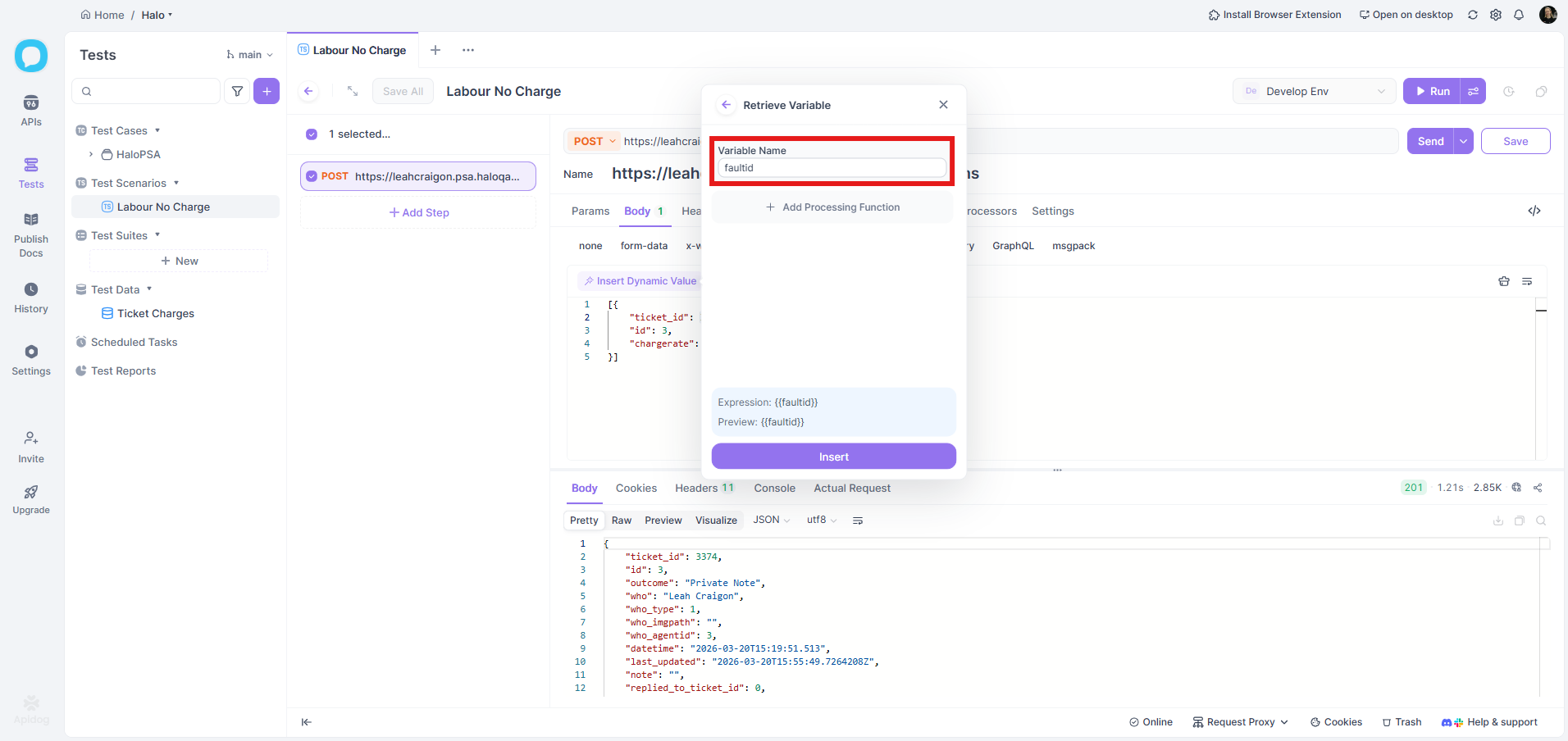
Fig 28. Adding the variable name
This will replace the static value with a dynamic variable.
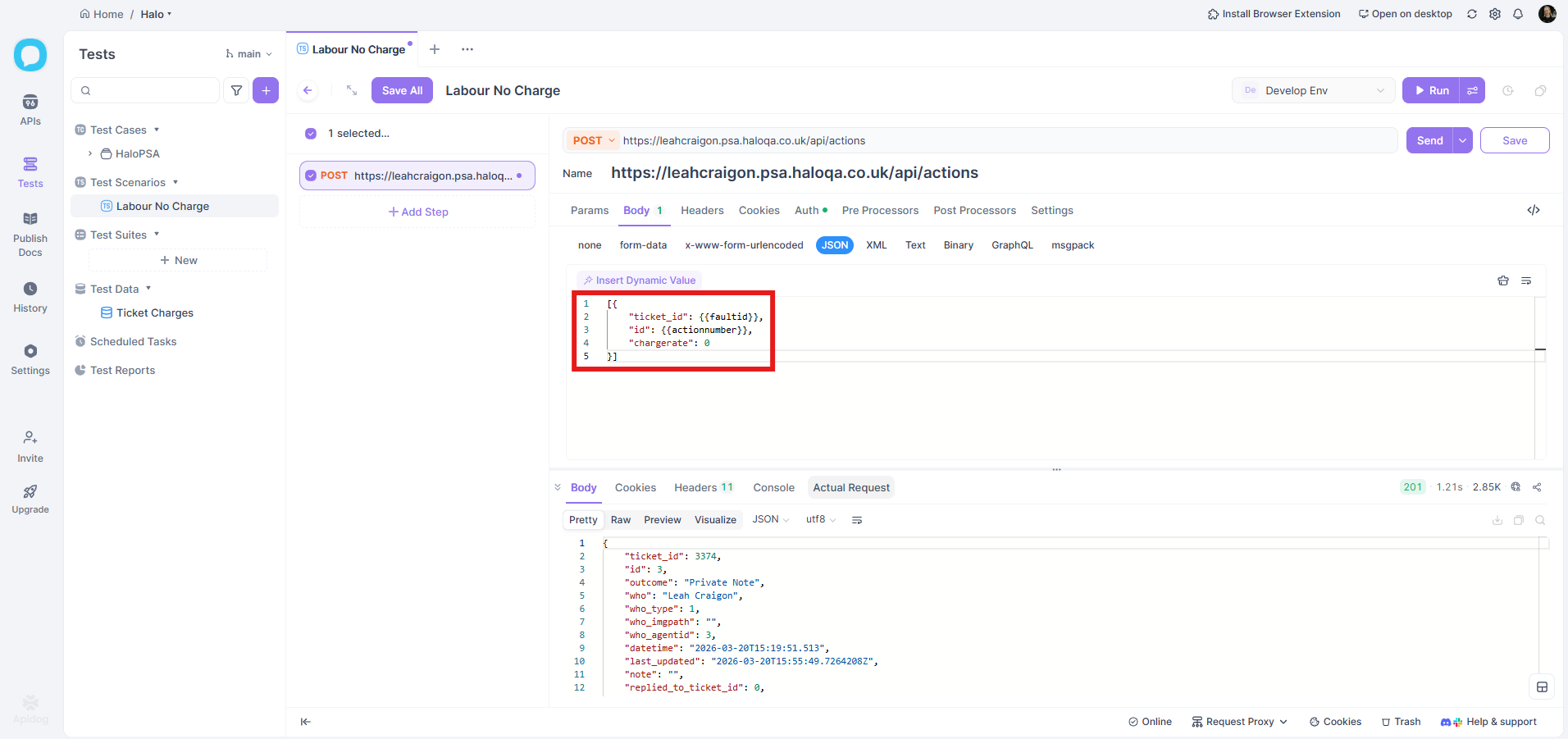
Fig 29. Variables have replaced the values
Running the Request
Once you have the JSON as you need it, click the "Run" button.
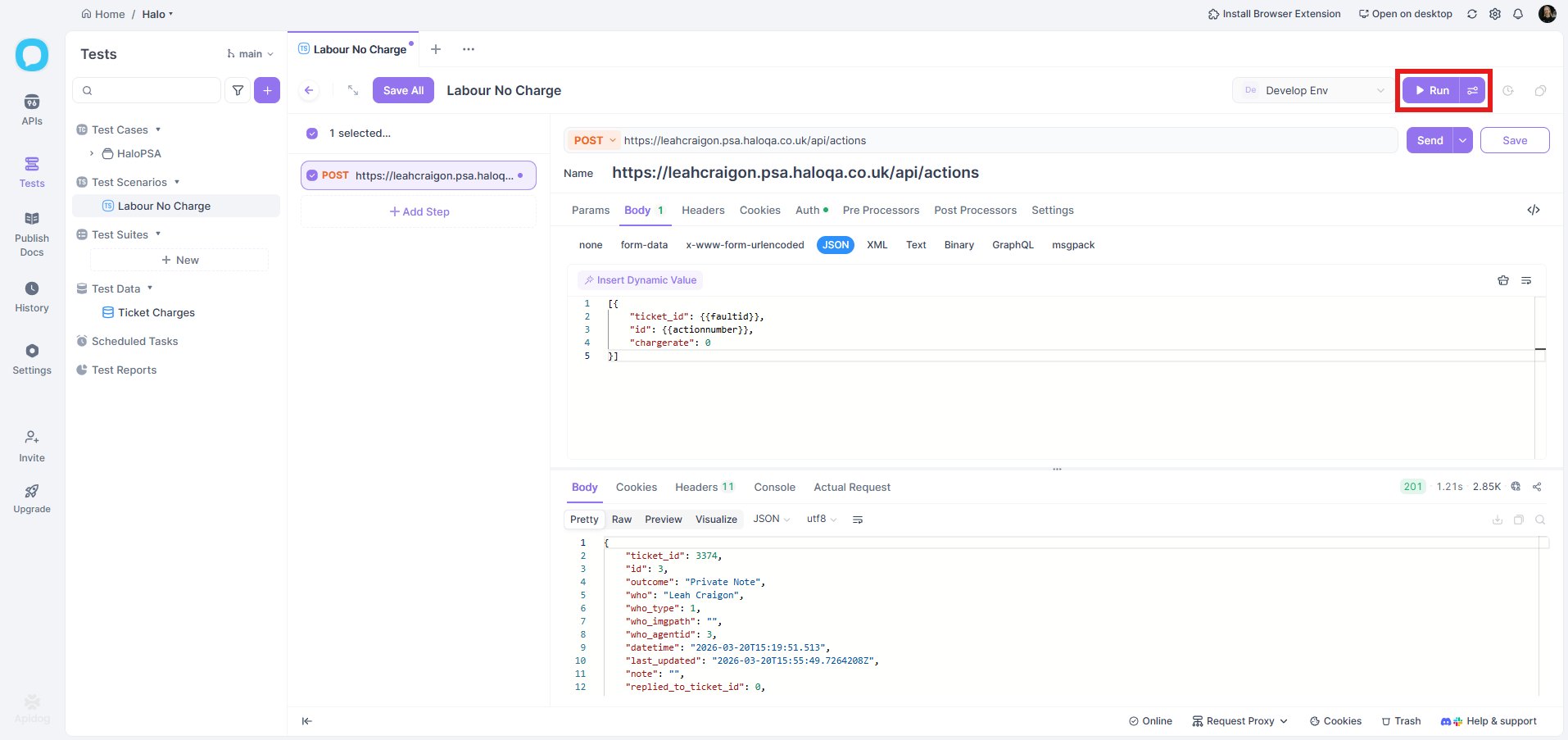
Fig 30. Run button
If using a file, a popup will show to set which rows to run. This will auto-select them all, so click "Run" again.
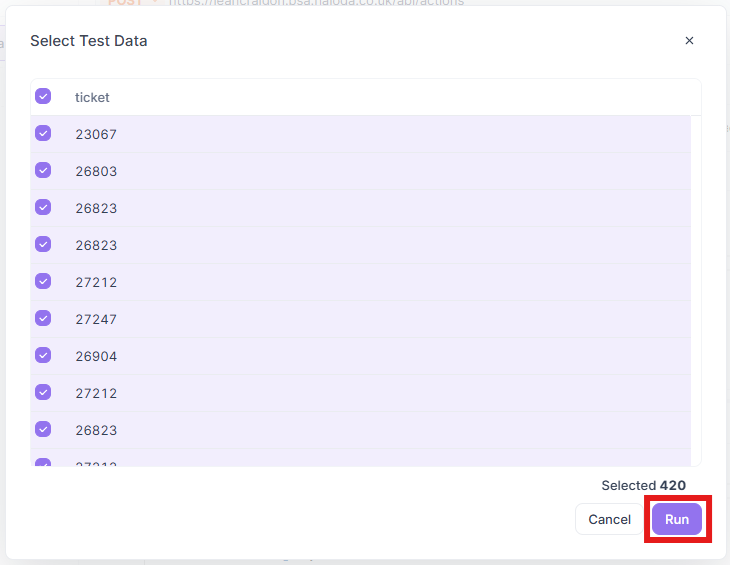
Fig 31. Running values from the CSV
The requests will then start, and show the relevant status codes of each iteration.
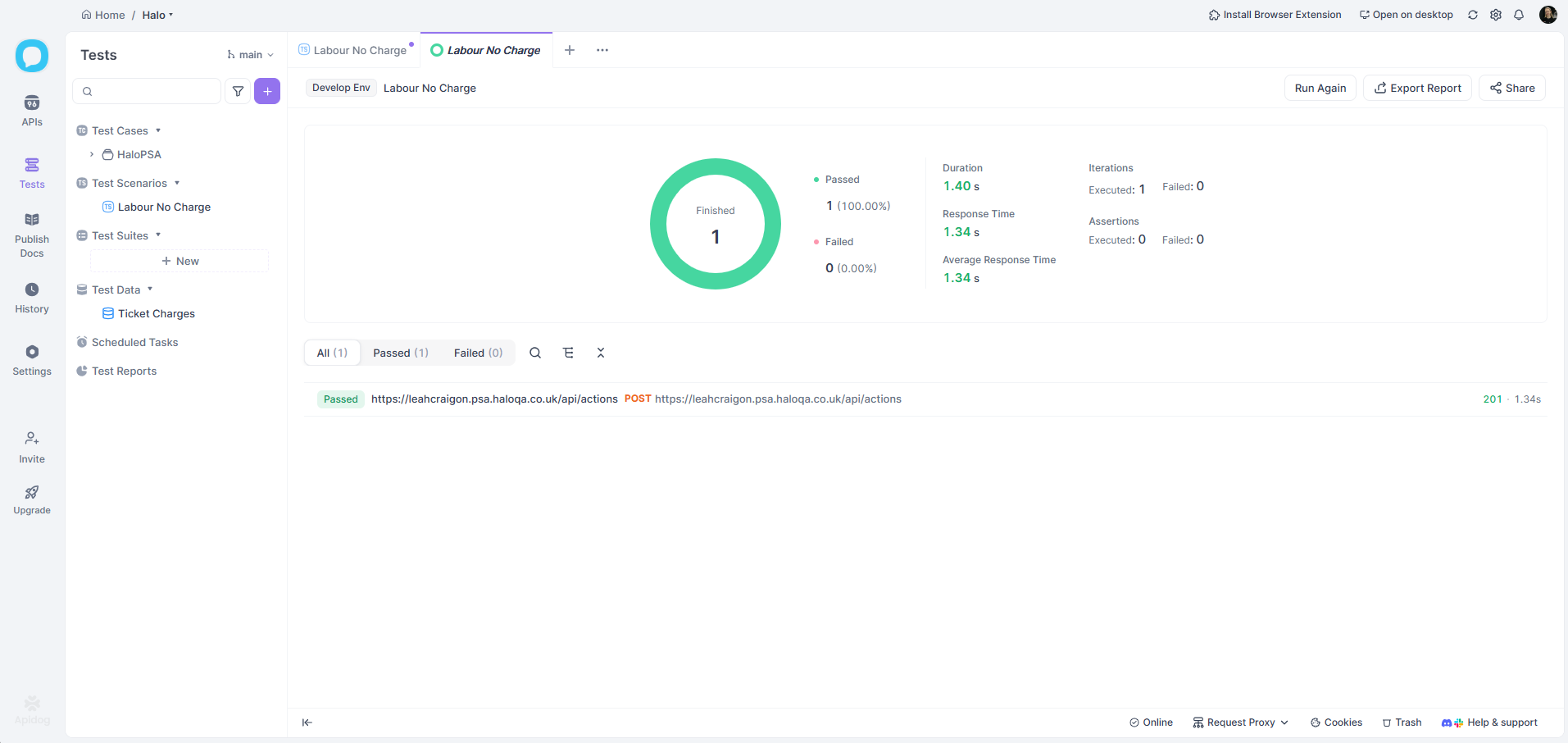
Fig 32. Running the request