Custom CSS in the Self-Service Portal
In this guide we will cover:
- Adding CSS
- How to customise the look of your Self service portal using CSS
- Customisation Examples
Various options are available to allow you to customise your end user portal. These can be set and adjusted easily in the UI. This includes changing elements such as your portal title, colour and logo. However, custom CSS can be created and applied to your end user portal to achieve further customisation that is not available in the UI. In this guide we will cover how to use CSS to customise your portal.
For information on customising the look of the end user portal using settings available in the UI checkout Self-Service Portal Customisation.
Adding CSS
To add CSS to your portal head to Configuration > Self Service Portal > Custom CSS (button).
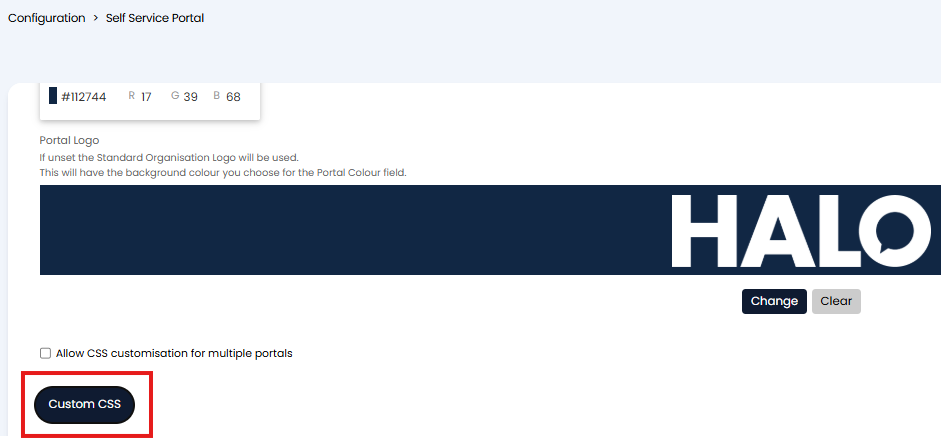
Fig 1. Add Custom CSS
Here, you can call on a CSS selector and add declarations to it, these declarations are then applied as styling to any html elements that match that CSS selector.
The HTML elements in the Halo portal are fixed, but each one is associated with its own CSS selector. To style a particular element, you apply your styling rules to the relevant selector.
Finding a Selector
To find which selector an element uses you can right click on the element you would like to customise and 'inspect' it.
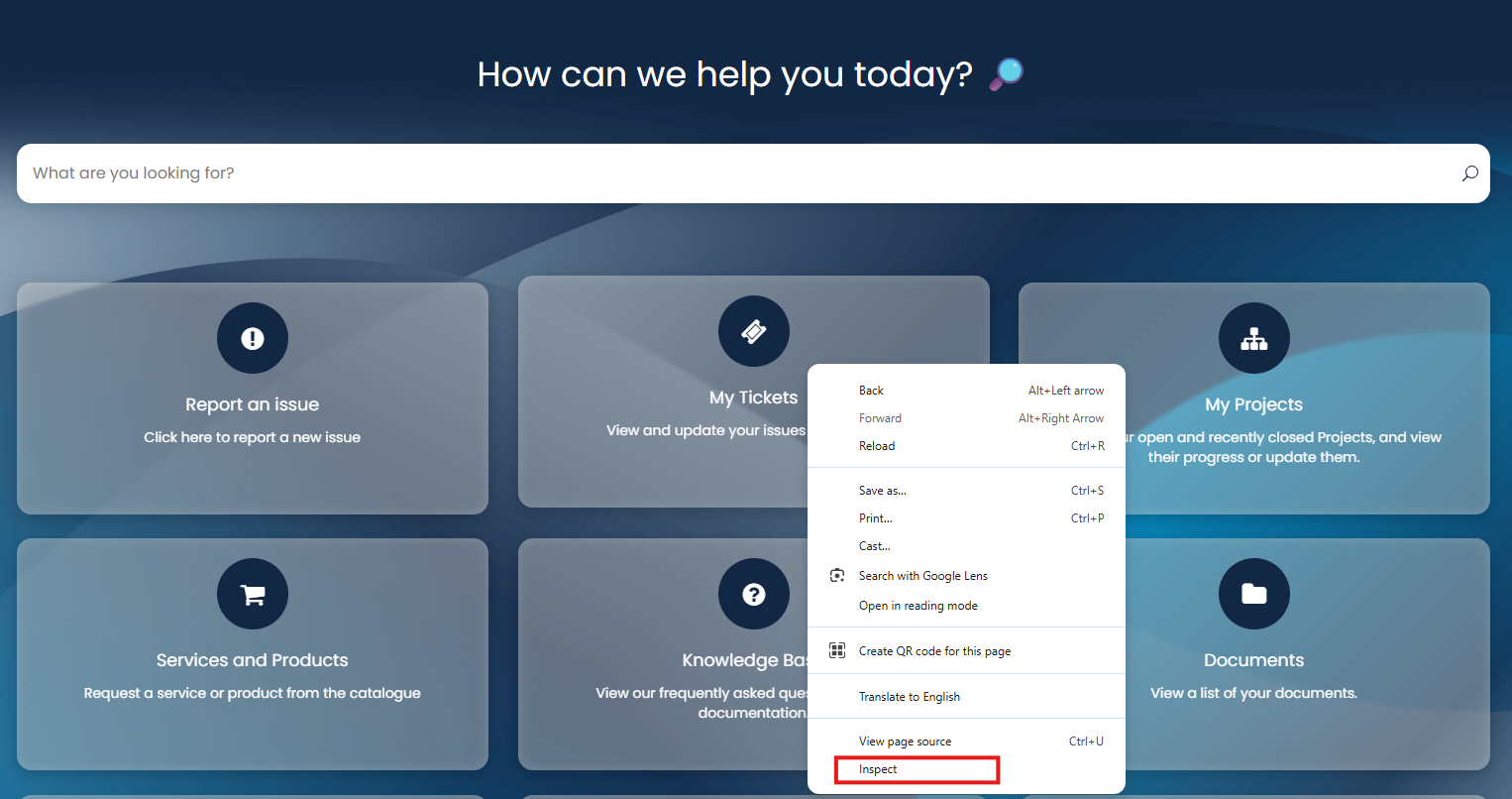
Fig 2. Inspect an Element
In the figure 2 example a button in the portal is being inspected.
Doing this will bring up the console containing the html for this element.
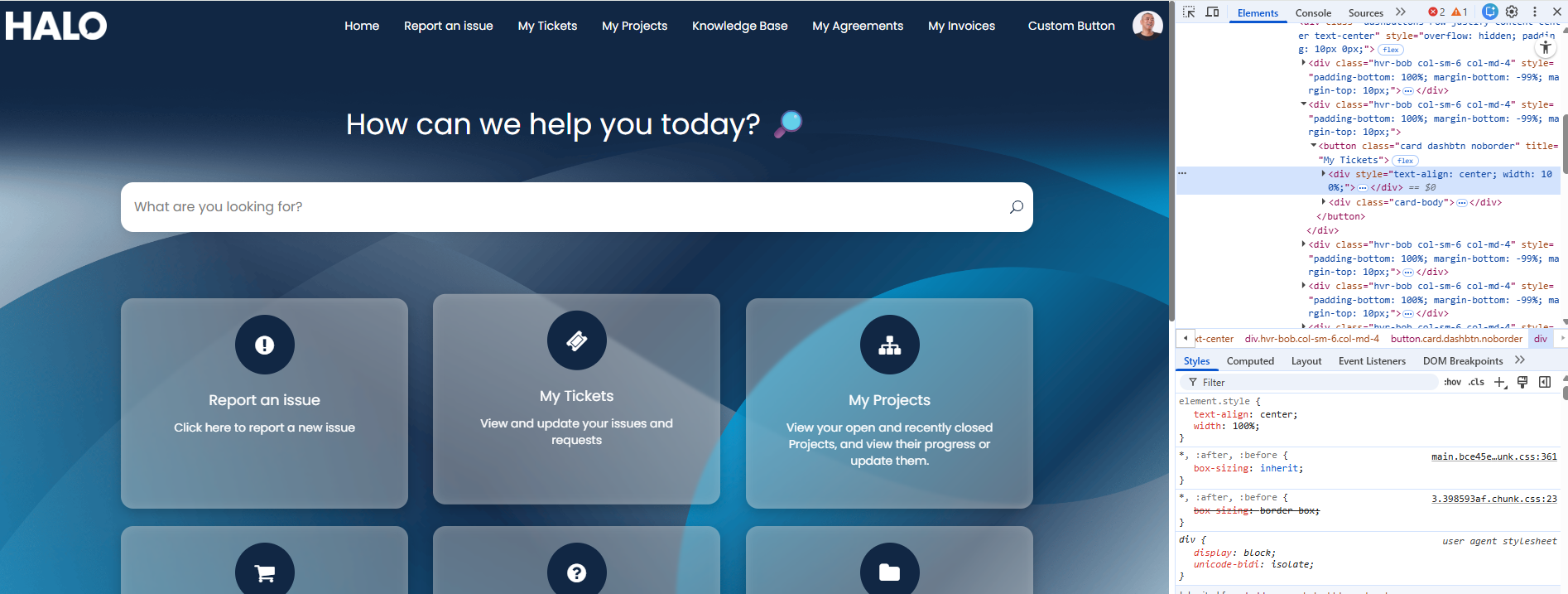
Fig 3. Console showing html for element
Here, you will be able to see the class attributed to the container (div) the element is in, the class tells us which selector styling will be coming from. In the figure x example the selector 'card dashbtn noborder' is being used to style the shape of the button. When using this spaces will need to be replaced with '.'.
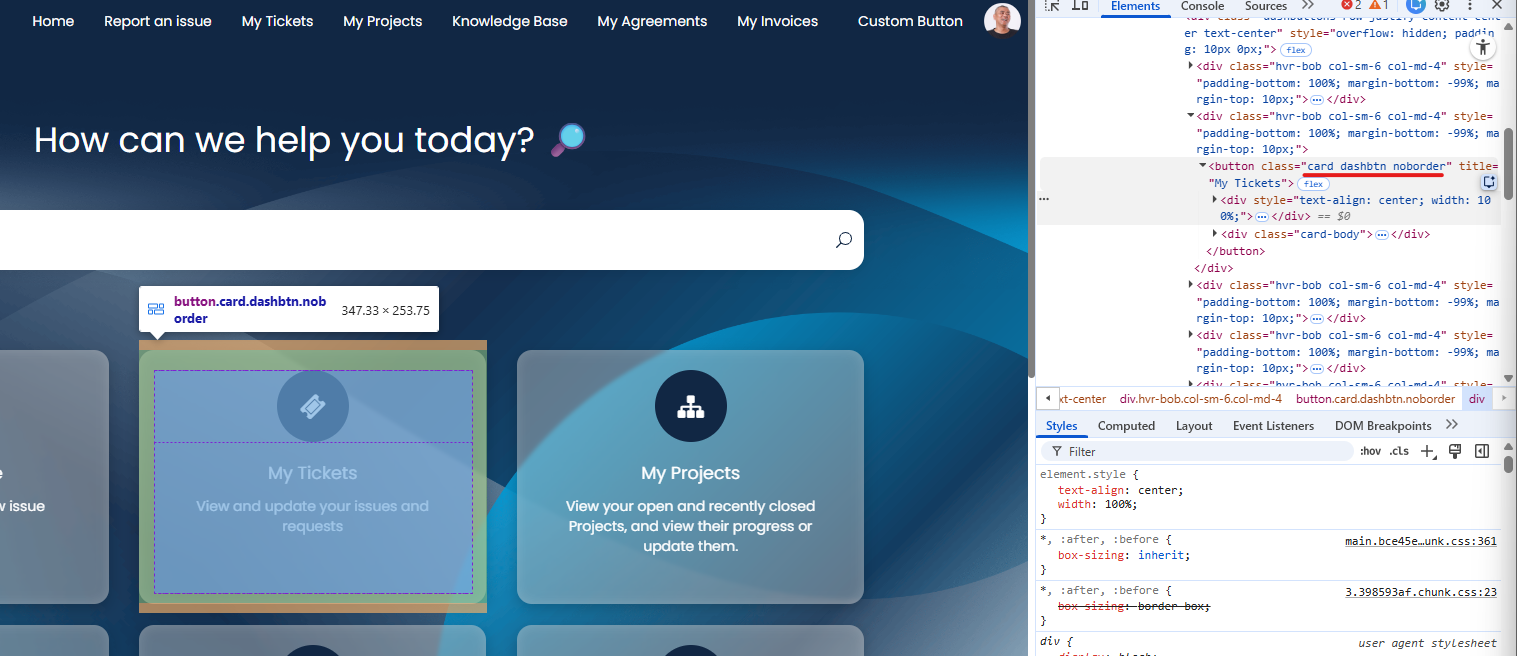
Fig 4. Element Class
Hovering over a div in the console will highlight the element of the page it controls. It will also show the CSS selector used to style it.
Once you have found a selector you can apply styling rules to it to customise it. In the figure 5 example I have creating styling rules that will change the background colour of the buttons on the portal homepage.
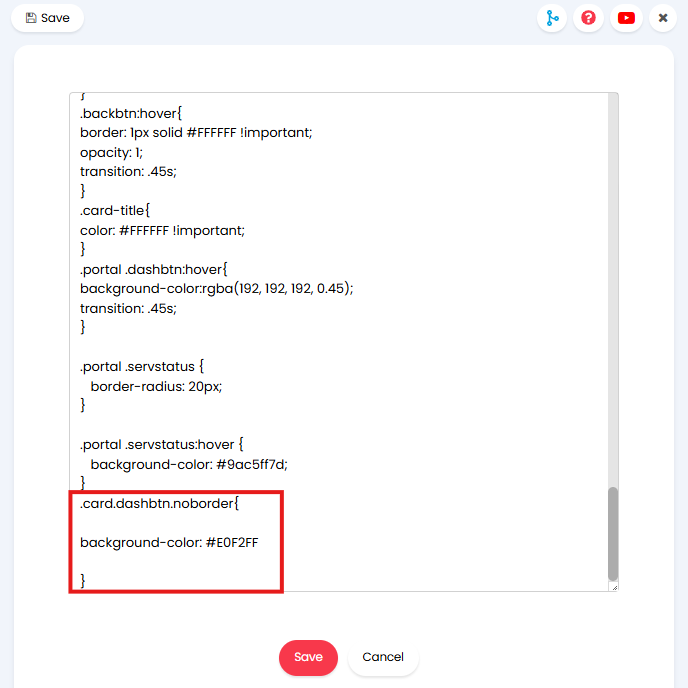
Fig 5. CSS to style portal button background colour
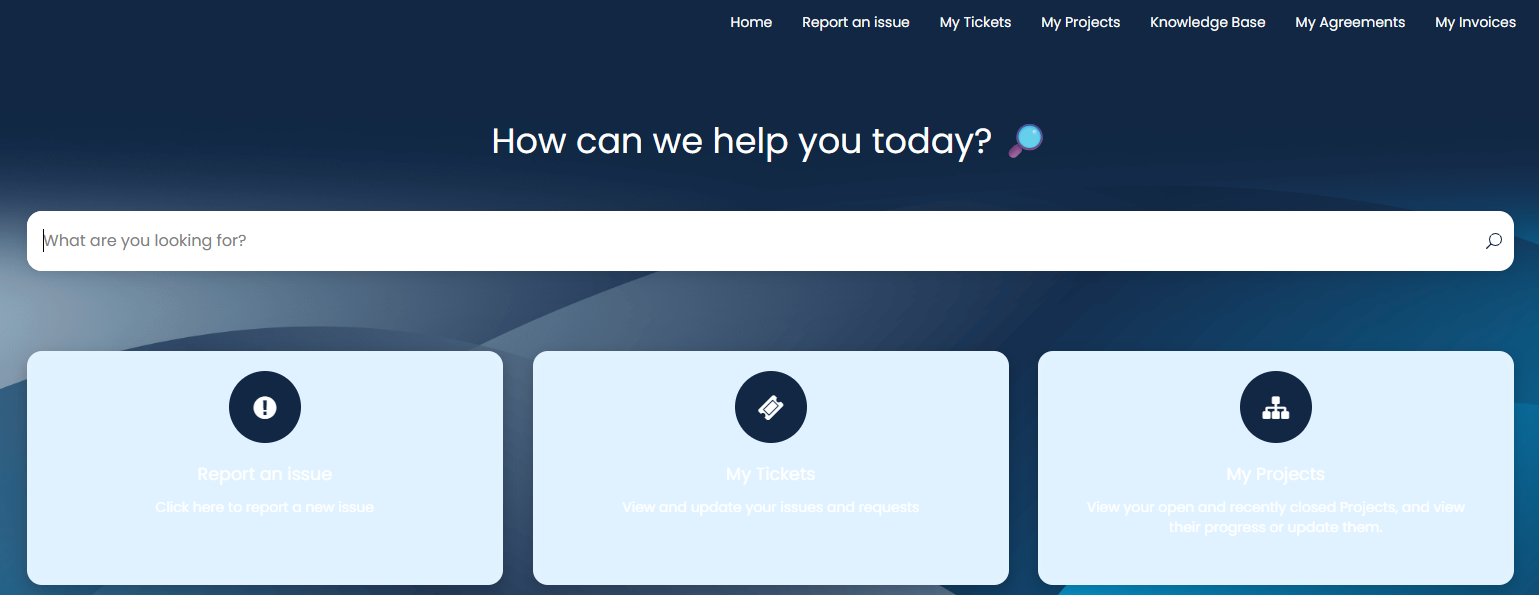
Fig 6. CSS applied to change button colours
Customisation Examples
In this section we will run through how to customise some common elements in the portal using CSS.
Customise Portal Title
The portal title is customised using the following selector:
- .search-title
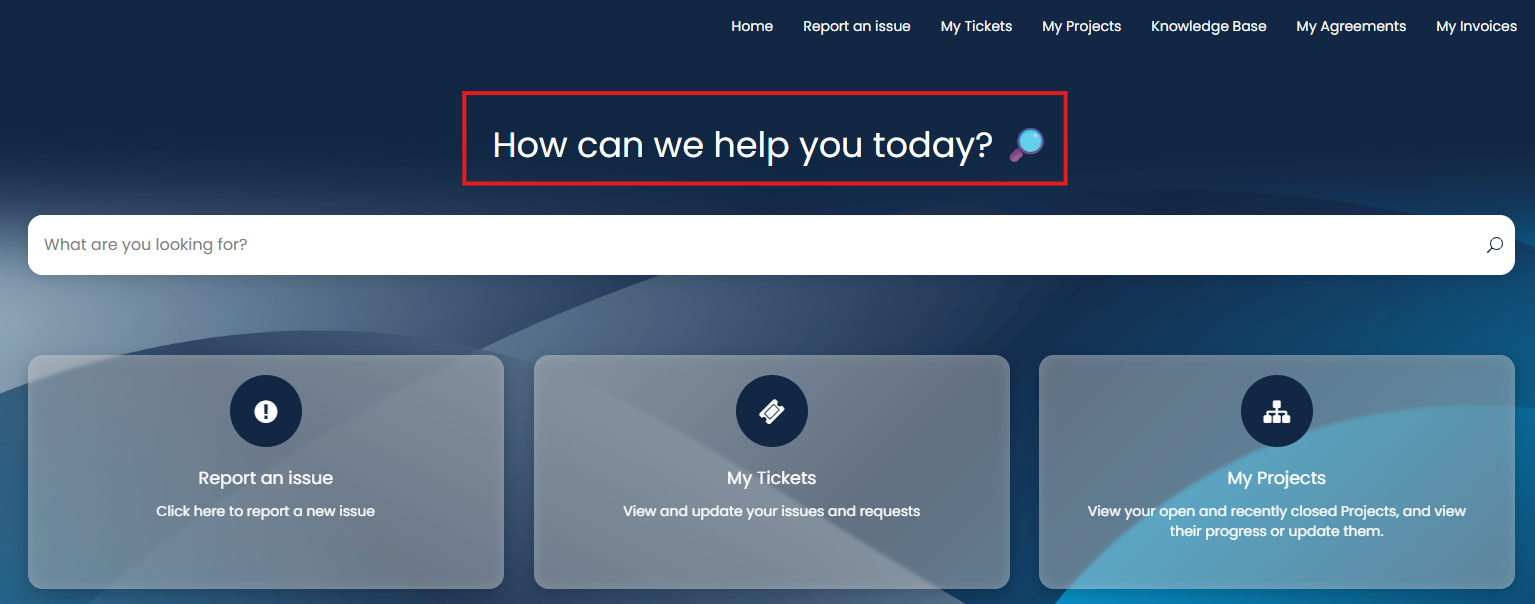
Fig 7. Portal Title
Adding styling rules to this selector will change how the Portal title text will look.
In the figure x example CSS is applied to change the font size, increase the font weight and increase the distance between the title and the search bar. The following CSS was used:
.portal .search-title {
font-size: 2.0rem;
font-weight: 700;
font-family: 'Poppins', sans-serif;
margin-bottom:70px;
}
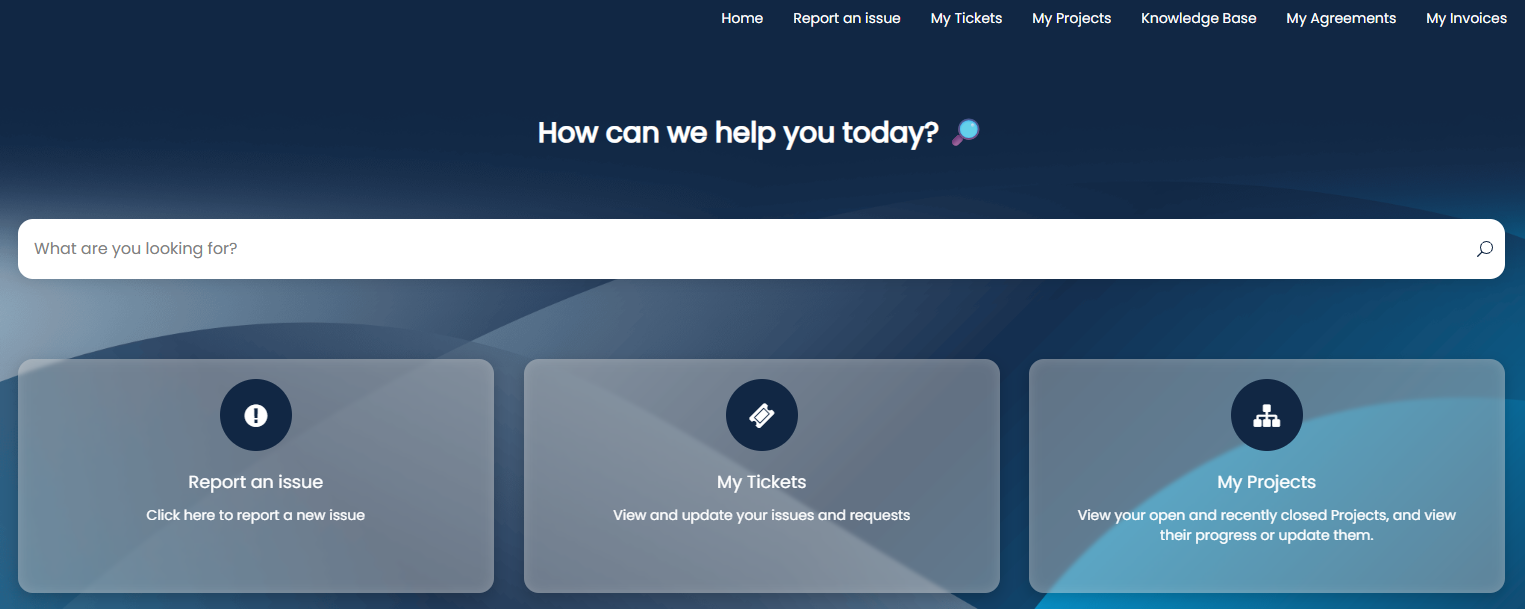
Fig 8. Portal Title after styling applied
Customise Search Bar
The portal search bar is customised using the following selector:
- .searchbox
This will apply to all search bars in the portal.
In the figure x example CSS is applied to change the size of the search box and align this centrally. The following CSS was used:
.searchbox {
height: 60px;
width:400px;
margin: 0 auto;
border-radius: 15px !important;
}
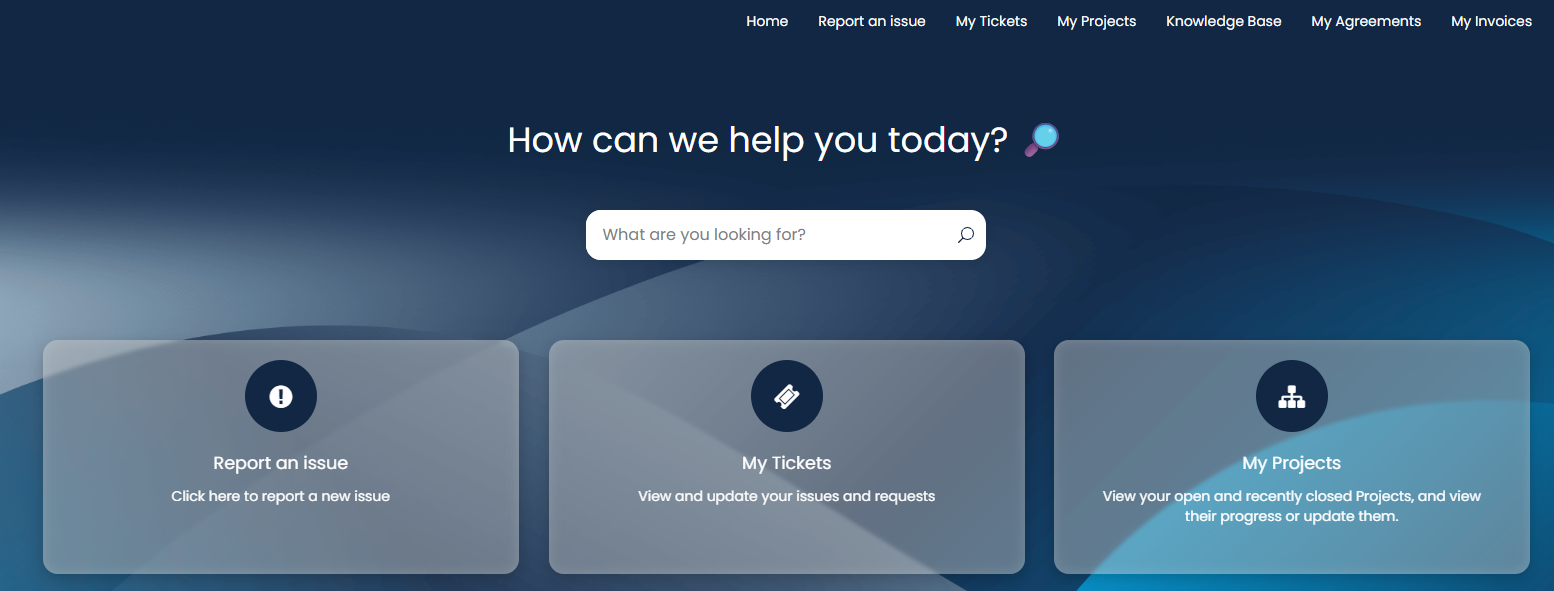
Fig 9. Portal Search bar after styling applied
Customise Homepage Buttons
The portal homepage buttons are customised using the following selector:
- button.card.dashbtn.noborder
This will apply to all the buttons on the homepage.
In the figure 10 example CSS is applied to change the shape of the buttons to circles. The following CSS was used:
button.card.dashbtn.noborder {
width: 300px;
height: 300px;
border-radius: 50%;
border: 2px solid #C7DBF2;
display: flex;
align-items: center;
justify-content: center;
}
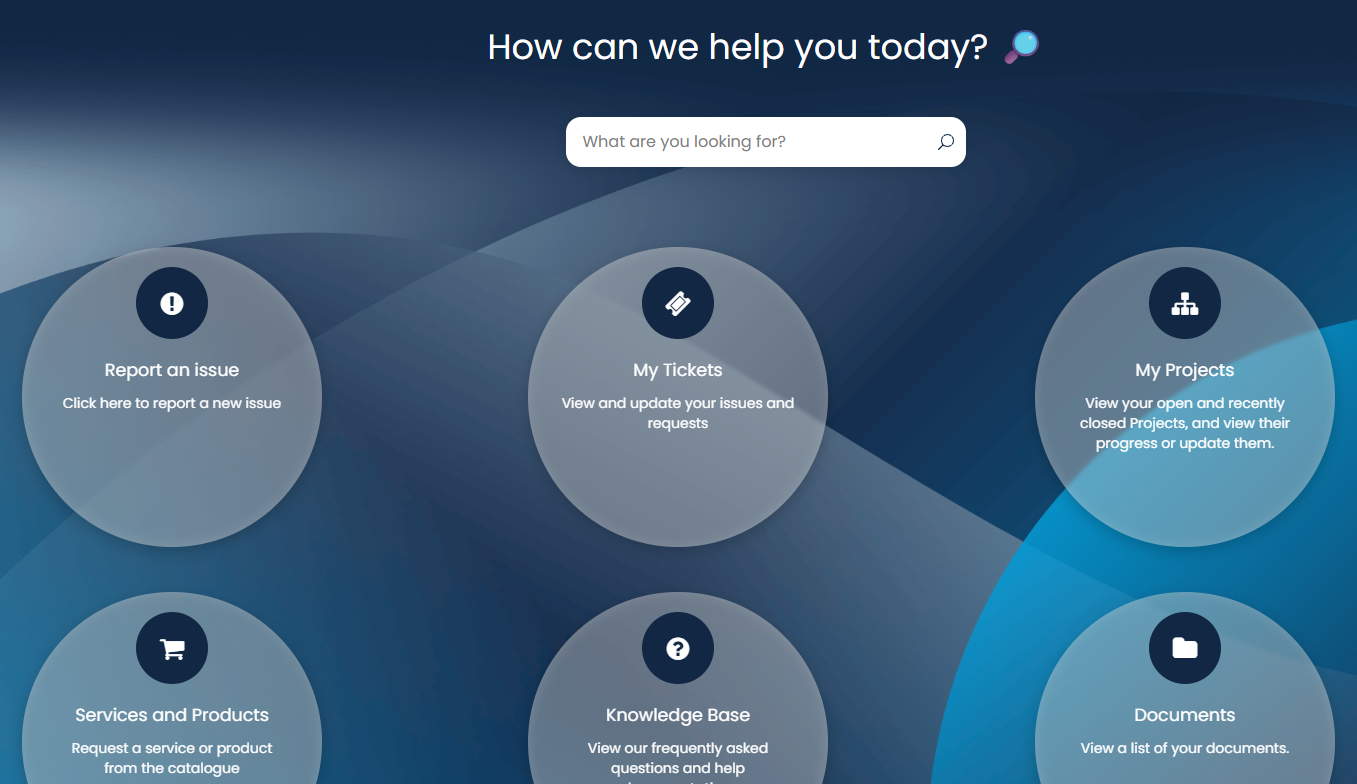
Fig 10. Portal Buttons after styling being applied