Progressive Web Application
- desktop
In this guide we will cover:
- What is the Progressive Web Application
- Agent Application Progressive Web App
- Portal Web Progressive App
What is the Progressive Web Application
The progressive web app allows you to install Halo on your desktop for easy access. Opening the app will take you straight to your Halo, meaning you do not need to open your browser to access your instance. Any Agent/User with access to the instance will be able to download the Web App by following the process outlined below.
Agent Application Progressive Web App
The Agent Application can be installed as a Progressive Web App by using the "Install Halo" option in your browser.
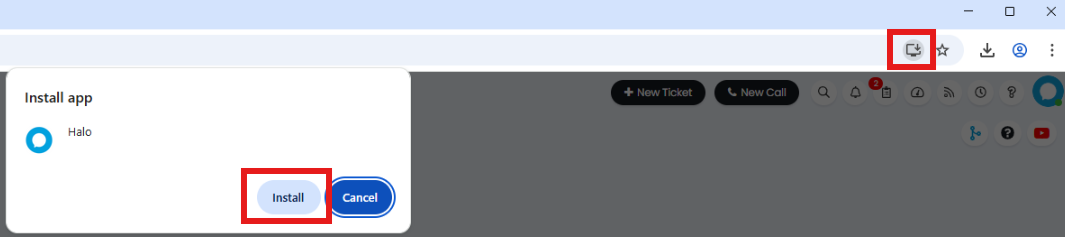
Fig 1. Installing Halo as a Progressive Web App
When downloaded the app will show on your desktop.

Fig 2. Web App in a Taskbar.
Portal Progressive Web App
To install the Self-Service Portal as a Progressive Web App, head to Configuration > Organisation > Configure My Organisation. In here you will find the option to change your portals Favicon, and a checkbox to "Allow the Portal to be installed as a Progressive Web App". When enabled you will be able to provide a name and description for your app as well as the logo.
Important: To do this you must have a self-service portal with it's own host name (separate URL from the Agent application).
Note: This will only work for hosted customers
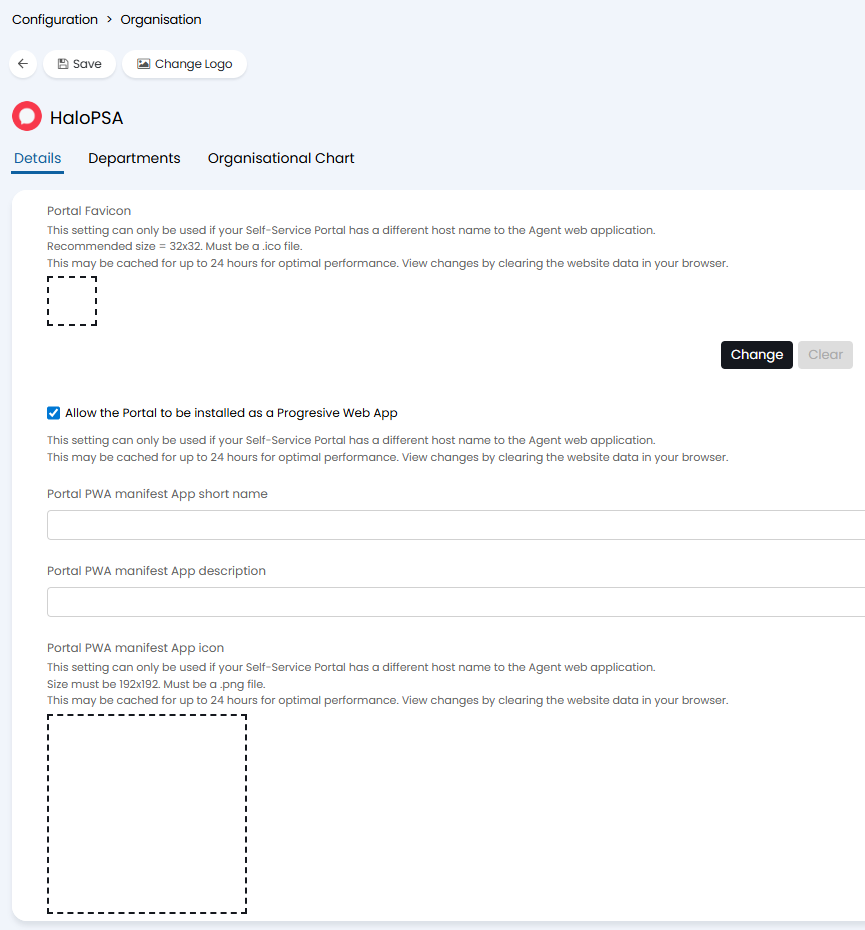
Fig 3. Portal App settings
Following the same steps as for the Agent Application, when you open the portal you will see the option to download your portal as a Web App.
Fig 4. Installing the Portal as a Progressive Web App
When downloaded the app will show on your desktop.
Fig 5. Web App in a Taskbar.