Handling Attachments/Files in Runbooks
- attachments
- attachment api
- attachments in runbooks
- files in runbooks
- importing files
In this guide we will cover:
- Attachment Endpoint
- Sending Files in your Halo Instance to another Halo Instance or to Another Tool as Form Data
- Sending Files in your Halo instance to another Halo instance or to another tool as a Downloadable Link
- Obtaining Files from another Tool
- Obtaining Attachment Details (Get Attachment Metadata API Action)
- Worked Example
This guide covers how the Halo API can be utilised to send/receive files, using integration runbooks. Useful when sending attachments between two Halo instances, or when sending/receiving attachments from Halo to another tool. These features allow you to upload attachments from Halo to another service that accepts files in multipart/form-data format or as a temporary public link, and to download attachments from a file response or temporary public link.
Halo runbooks can download file responses of up to 28MB. Halo runbooks can upload files of up to the attachment size limit.
Throughout this guide we will use the terms 'file' and 'attachment' interchangeably.
Prerequisites:
- Attachment Storage Location = S3
- This can be set under Configuration > Advanced Settings > "Attachment Storage Location".
Attachment Endpoint
In order to send an attachment to a Halo instance, or obtain an attachment from a Halo instance a request will need to be sent to the following endpoint:
- api/attachment
Note: As this uploads the file to the Halo API this is restricted to upload of 28MB, unlike client-side uploads which can upload straight to the tenants own S3 bucket.
Sending Files in your Halo Instance to another Halo Instance or to Another Tool
Obtain Halo attachment ID
In order to send a file in your Halo instance to another service you will first need to obtain the ID of the file you are looking to send. This is required as you will later need to specify the ID of the file you are sending.
Note: Every file stored in Halo will have a unique ID.
This can be done by running a sql query on your database, or you can obtain this information from the API.
To obtain this information from the API you will need to do a GET request on the attachment endpoint in your instance and create a runbook/output variable to store the attachment ID in. Figure 1 shows the method used to obtain attachment data for a specified ticket in your instance.
Note: The value of 'ticket_id' can be replaced with a variable.
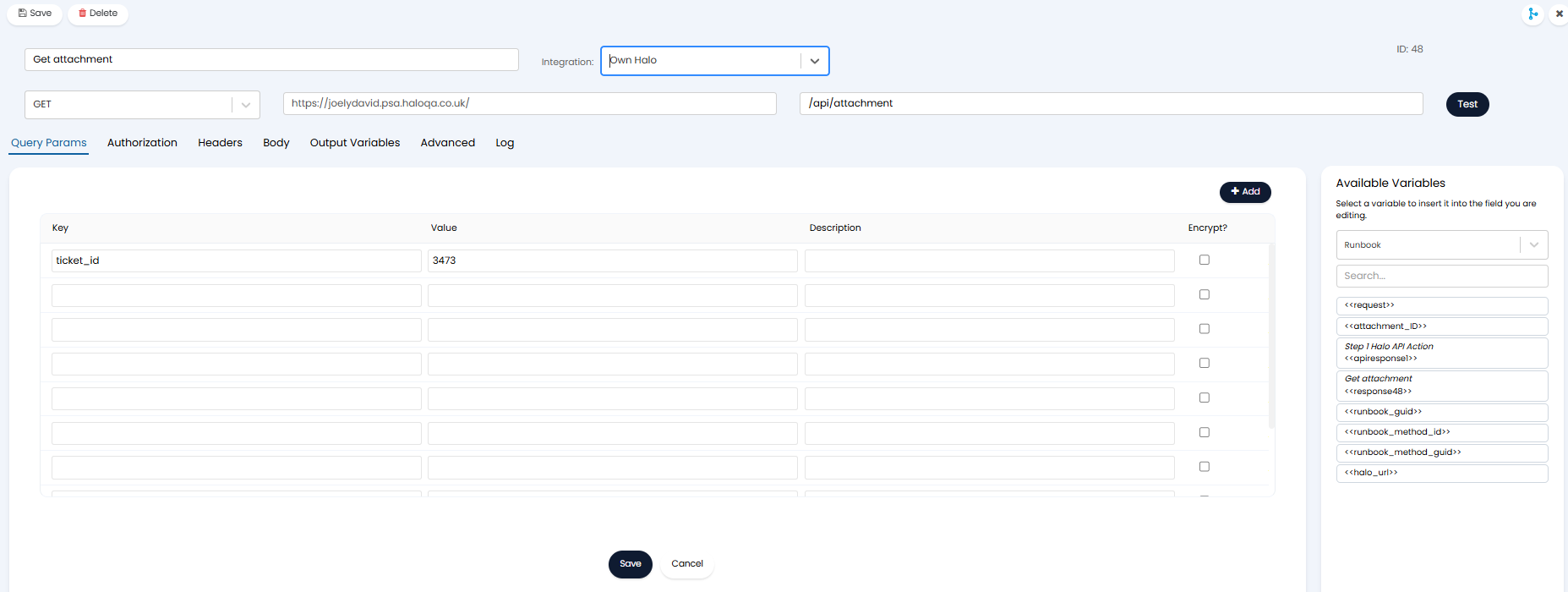
Fig 1. Get Attachment Data for a Specified Ticket
Figure 2 shows the output variable that will store the attachment ID contained within the response to this request.

Fig 2. Output Variable to Store Attachment ID
Keep in mind as multiple attachments can be stored against a single entity, these will be returned as an array. Therefore, you will need to specify which attachment you would like the variable to store. This is done using the [x] element, [0] will return the first attachment in the array.
Once you have created a runbook step to obtain the file ID you will need to create another step to send this file off.
Sending Files as Form Data
Once you have obtained the ID of the file you are looking to send (and have stored this in a variable) you can send this file to another Halo instance or tool. This is done using a POST request with a "form-data" body type. If sending a file from one Halo instance to another, this is the recommended way to send the file over.
To do this create a new Runbook step with type "Action" and action type "Execute an Integration Method", create a new method.
Within the body of the method choose the "form-data" body type. Here, you will need to specify the file part and any text parts to send over.
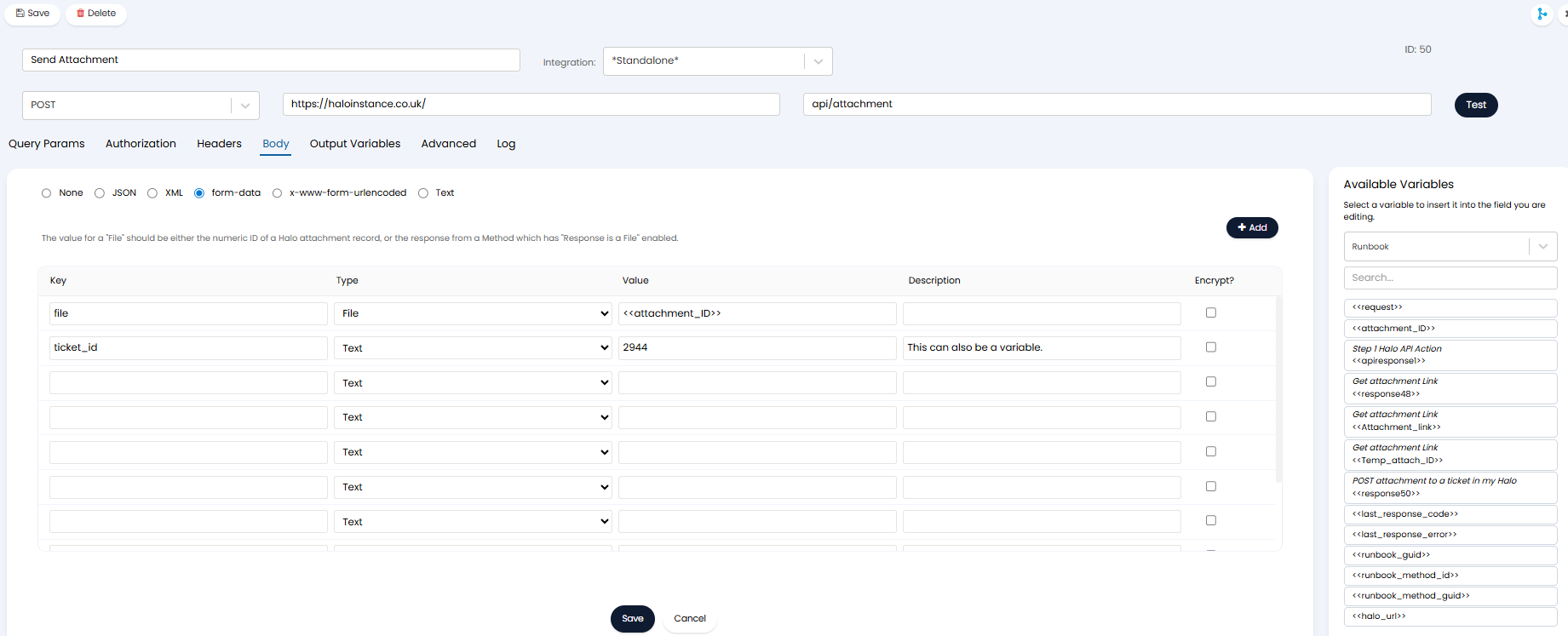
Fig 3. Method to send a File to another Halo Instance
File Part: This must be the ID of the file in your Halo instance that you want to send over. The attachment ID should be obtained in a previous step. Here, enter the variable the attachment ID is stored in.
Text parts: These will be any properties you would like to be included in the request. This could be the name of the attachment, the ticket the attachment is added to in the other Halo instance (if sending to another Halo instance).
Keys: Key names must match the specification of the receiving API. In the figure 3 example a request is being sent to another Halo instance, therefore, the key names reflect those available at Halo's attachment endpoint.
The attachment will be accessed as a stream from S3 and attached to the output request.
If this method is being used to send an attachment to another Halo instance files up to 28MB can be sent, or the "Client Side Upload" flow can be emulated to allow for larger uploads straight to the tenants S3 bucket.
Sending Files in your Halo instance to another Halo instance or to another tool as a Downloadable Link
This method of sending files is used when you would like to send a file you have in your Halo to another service, and this service expects attachments as a link to download.
Obtain a Downloadable Link for a File in your Halo instance (Get Attachment link API action)
Before a file can be sent, you will first need to obtain a downloadable link for this file from your instance.
In order to obtain a downloadable link for an attachment, you will need to obtain the ID of the attachment first. A prior runbook step will need to be created to do this. See the section "Obtain Halo attachment ID" for information on how to do this.
Now, create a Runbook step with the type "Action" and the action type "Halo API Action". Then you can choose the action "Get Attachment Link".
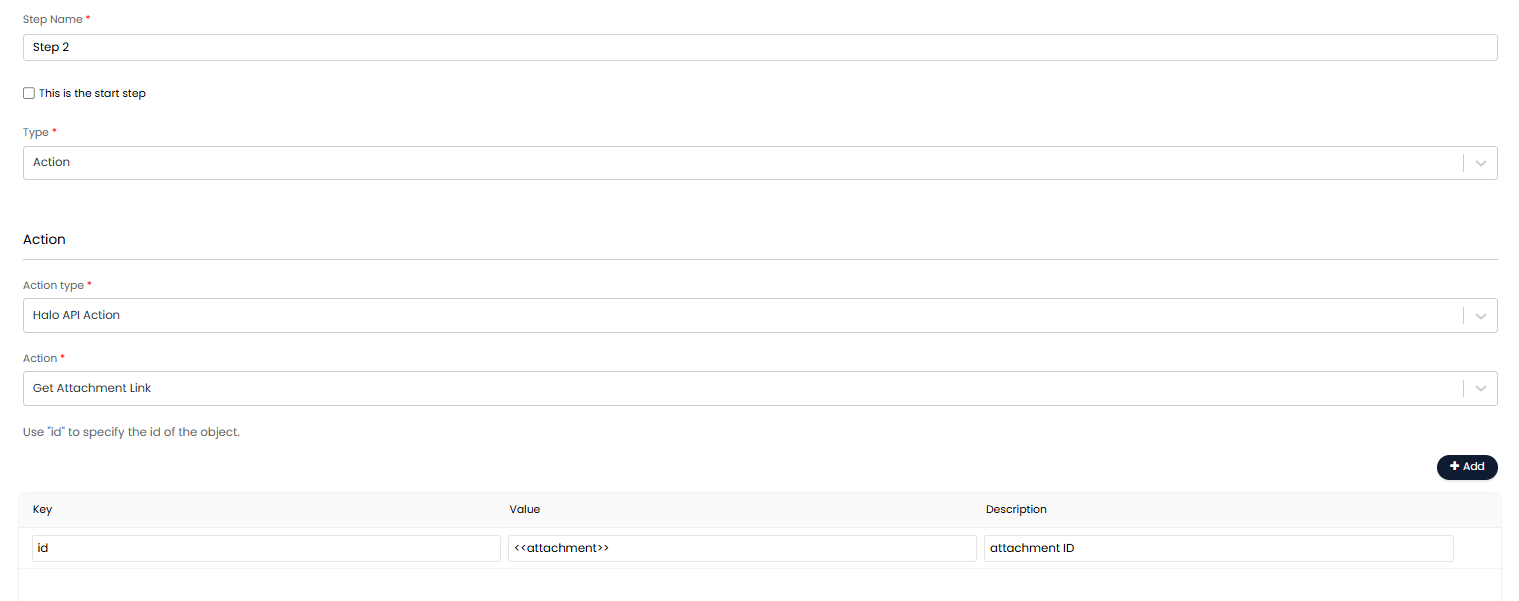
Fig 4. Get Attachment Link API Action
Note: Fields here are case sensitive.
Within the action you will need to specify the ID if the attachment (in your instance) that you would like to send to the other service.
Then add an output variable for the step to store the link that is returned. As shown in figure 5.
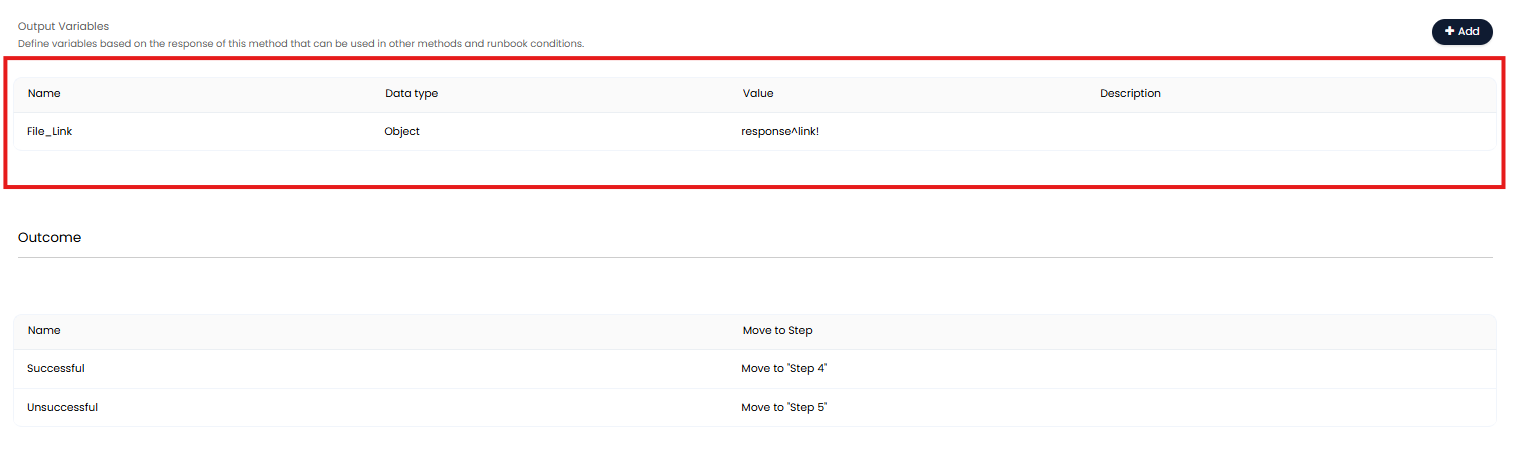
Fig 5. Variable to store attachment link
This variable will need to be used in later steps to send the link out.
Sending the File Link
Once you have obtained a downloadable link for the file in your Halo instance, you will need to create another step within your runbook that sends this link to the endpoint of the chosen tool.
As the link for the file in Halo was obtained in the previous step the output variable created (<<File_Link>>) should be used in the body of the request to send the link.
Obtaining Files from another Tool
Receiving (GET) Attachments
When obtaining a file from outside your current Halo instance, you will need to create a step that executes a GET method within your runbook. The endpoint you are executing this method on will need to returns a file stream (such as a downloadable link).
Within this method you will need to check "Response is a File", under the "Advanced" section.
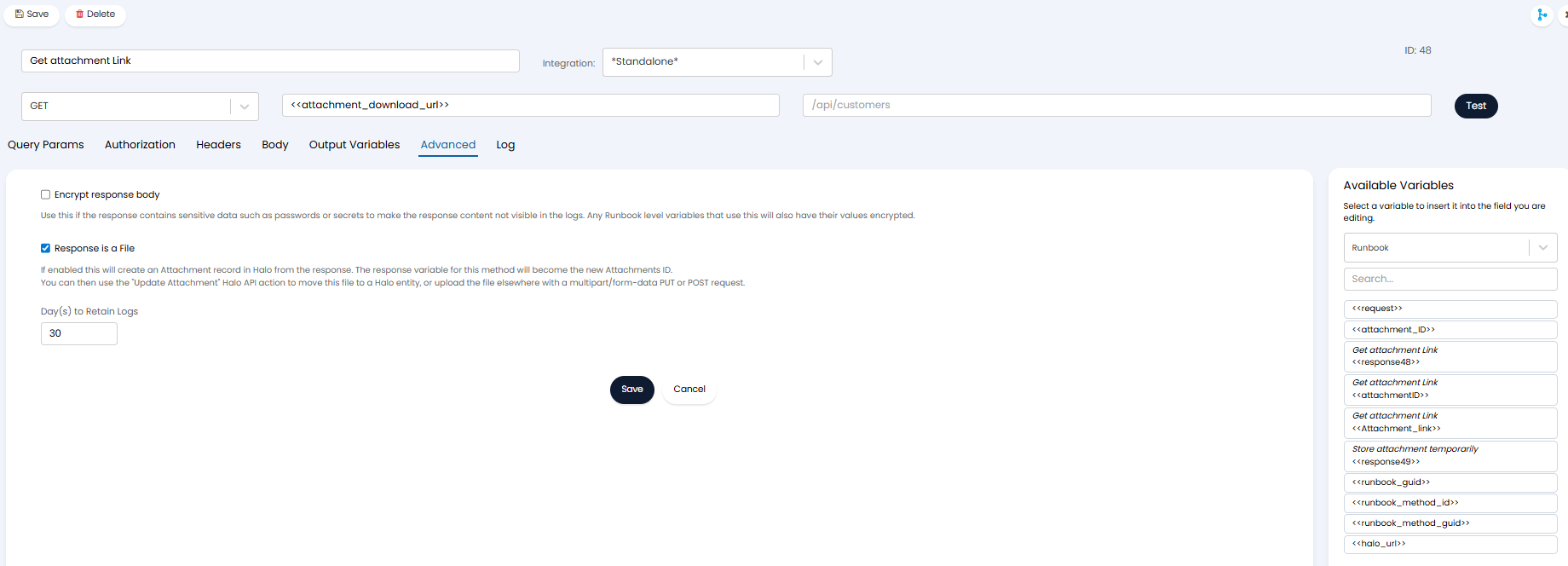
Fig 6. Method to obtain a File using a download URL
When "Response is a File" is checked the file received will be uploaded directly to S3 as a temporary attachment. This temporary attachment will be given an ID and the ID will then be returned as the response of this method. This ID will then be used in later steps to send the attachment elsewhere.
The "Content-Type" header returned will be used to determine the name of the file created/downloaded. Data within this header will be used as the filename.
To save the attachment to an entity in your Halo instance (saving the attachment permanently), use the "Update Attachment" API action. This is covered in the next section.
Upload Files to Halo Entities (Update Attachment API action)
Once you have obtained a file via the API, this will be stored temporarily. In order to store the file in Halo permanently you will need to use the "Update Attachment" API action. This action will move the file from the temporary storage location and store it against a chosen entity, such as a ticket or client.
Note: You cannot write attachment data this way.
To do this create a Runbook step with the type "Action" and the action type "Halo API Action". Then you can choose the action "Update Attachment".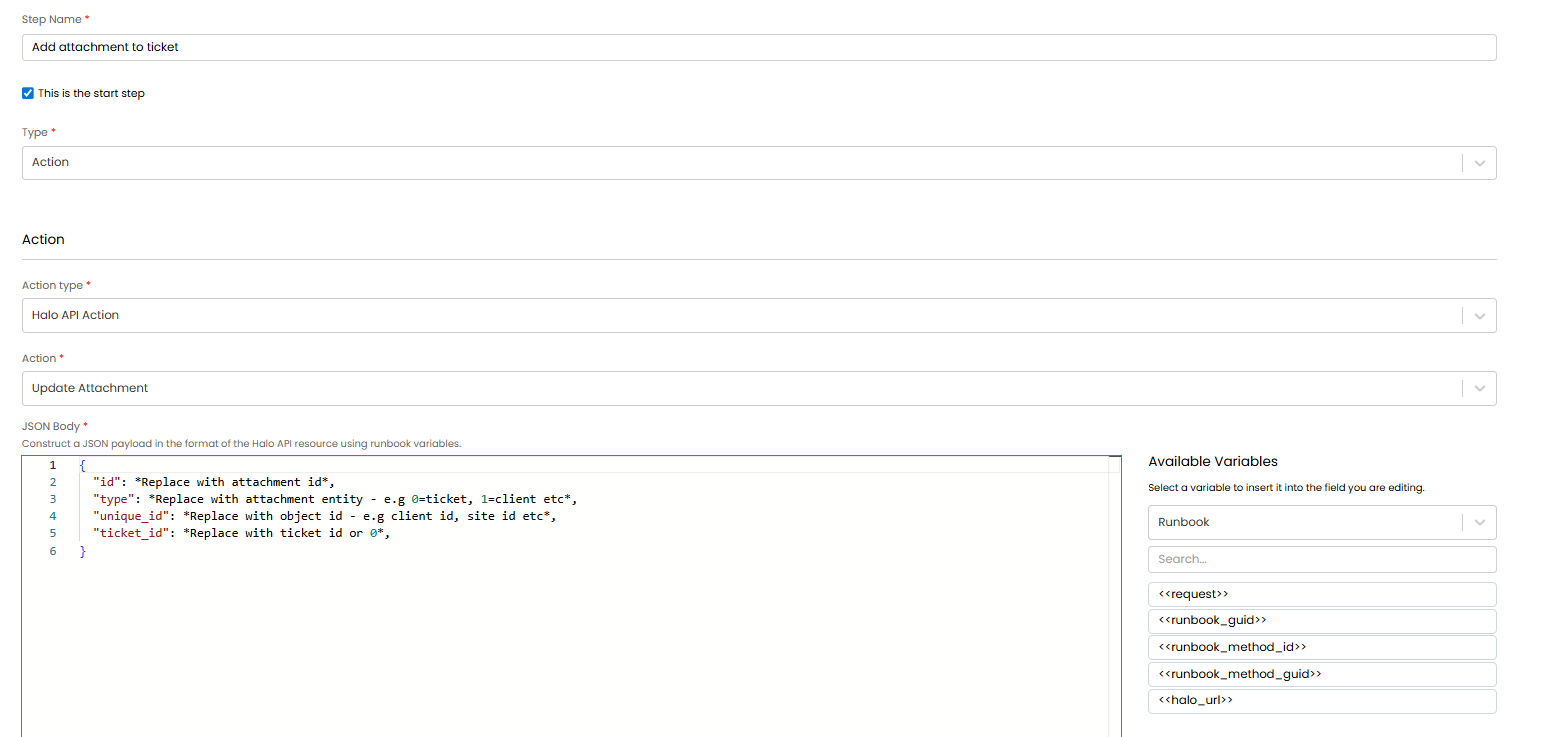
Fig 7. Update attachment API Action
Then you will need to construct a JSON body to determine which attachment you would like to add to which entity. In the figure 8 example the attachment obtained in the previous step will be added to a ticket in my Halo instance.
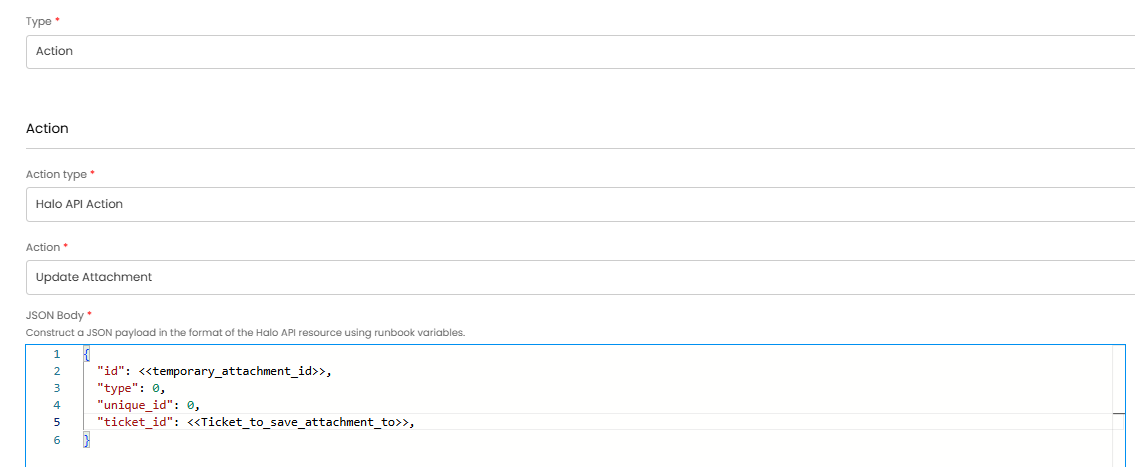
Fig 8. Example body for Update Attachment API Action
id: Here add the ID of the attachment you would like to move. This is usually obtained using the method shown in the section "Receiving (GET) attachments (in responses)".
type: Here add the ID of the type of entity you would like to upload the attachment to. Use 0 for tickets and 1 for clients.
unique_id: Here add the ID of the object you would like to upload the attachment to. If uploading to specific client, add the ID of the specific client here. Ticket IDs can either be added here or using 'ticket_id'.
ticket_id: Only used when uploading the file to a ticket. Add the ID of the ticket you would like to add the attachment to here. If using set 'unique_id' to 0.
Now, when this step is executed, the file will be added/saved to your chosen entity.
Obtaining Attachment Details (Get Attachment Metadata API Action)
This action is used to obtain attachment metadata (such as names and file sizes) from files in your instance, in order to create a pre-signed upload url, emulating the Client side uploads flow in Runbooks.
To do this create a Runbook step with the type "Action" and the action type "Halo API Action". Then you can choose the action "Get Attachment Metadata".
Within the action you will need to specify the ID of the file (in Halo) you would like to get the data of. The response of the action will contain the attachment data.
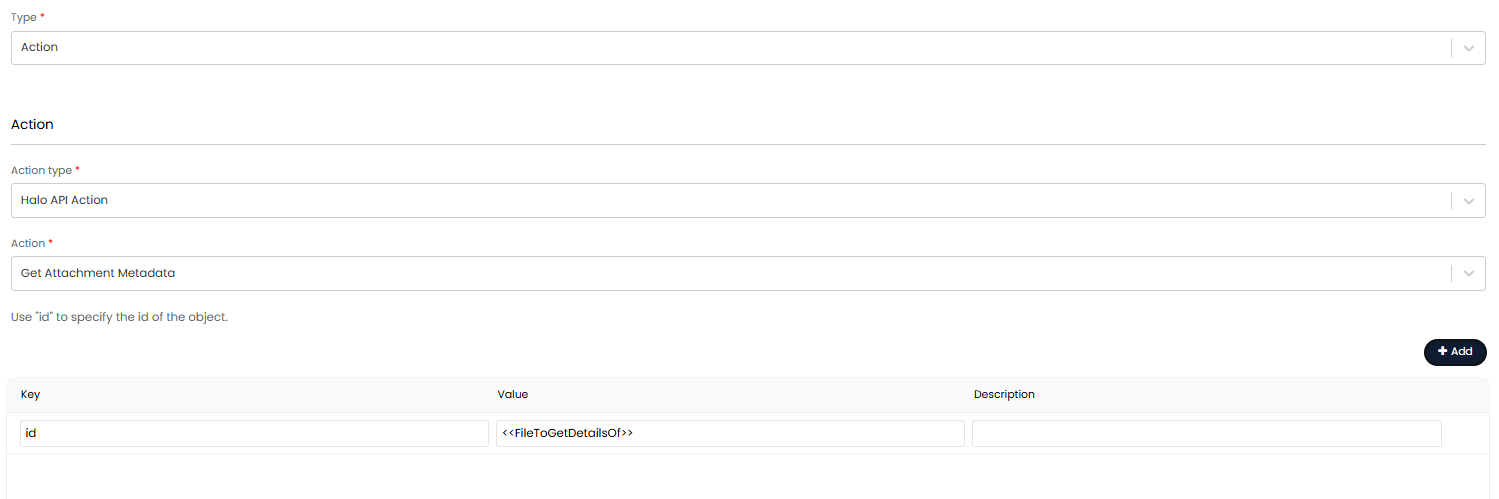
Fig 9. Get Attachment Metadata API Action
Note: Blob data is not included.
Worked Example
In this example we will create a runbook that takes an attachment (file) on a given ticket and sends this to a chosen ticket in another Halo instance. The ticket the attachment is sent to will be determined by a custom field on the Halo ticket, useful when tickets have been migrated to another instance, using a custom field to store the associated ticket's ID.
First, create a runbook and add an event trigger to control when the runbook runs.
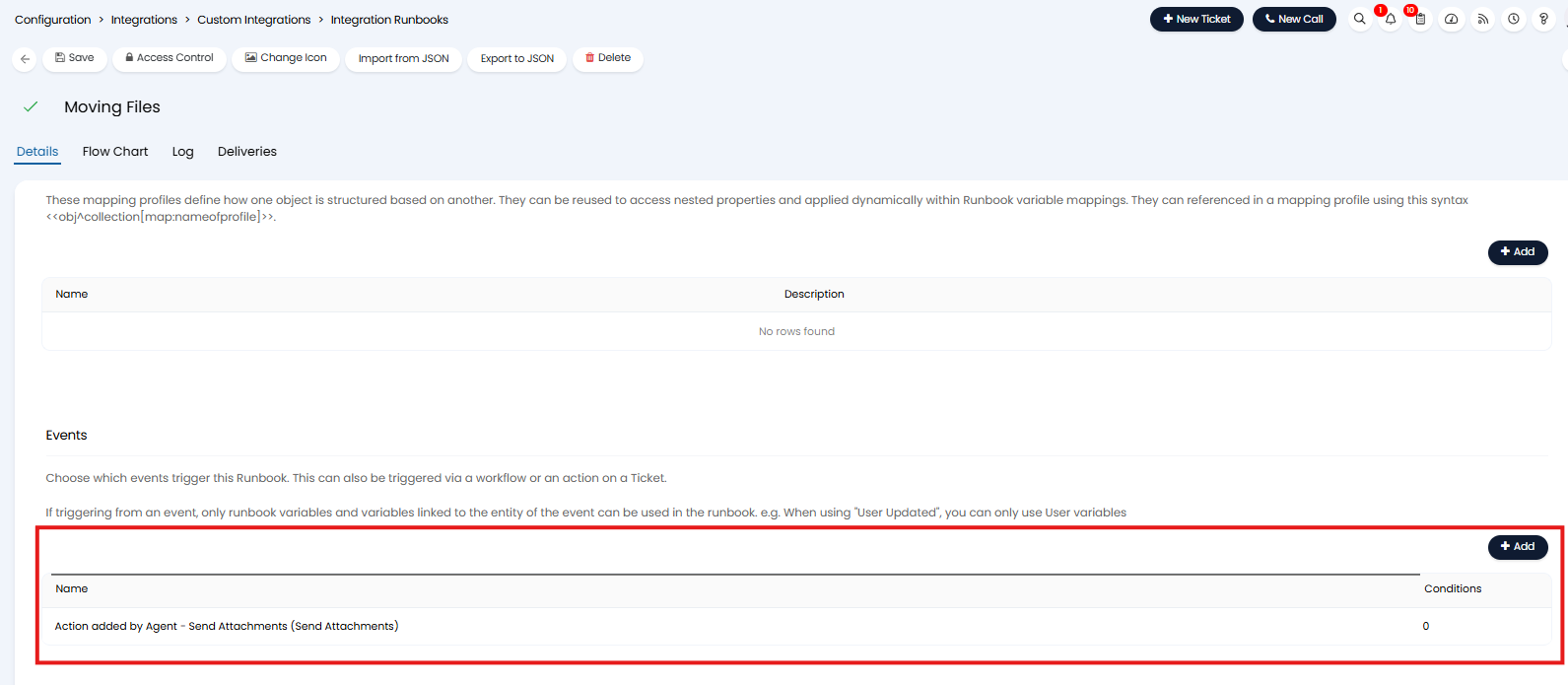
Fig 10. Event to trigger the runbook
In this example we have created an action called "Send attachments" for this purpose.
Now head to the "Flow Chart" tab and add a new step with type "Action" and Action Type "Execute an Integration Method", then make a new method.
The new method will execute a GET request on our own instance.
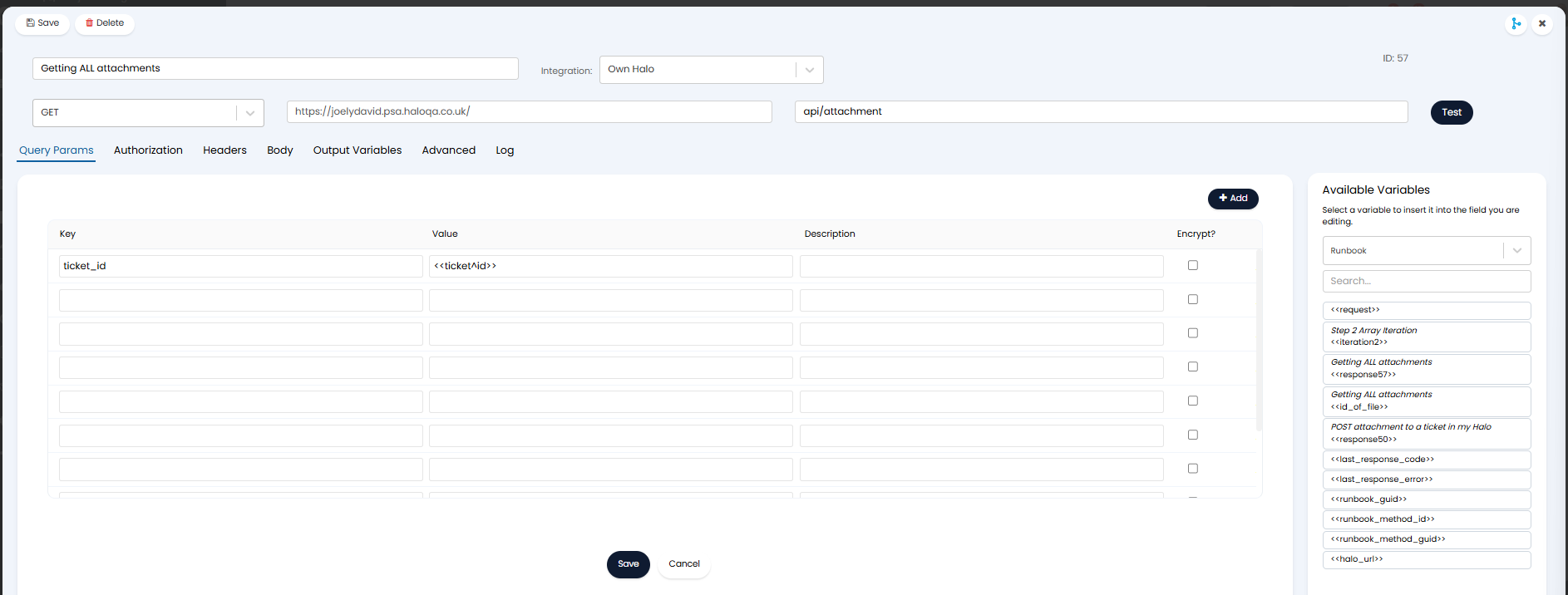
Fig 11. Method to Get attachments from a ticket
Query Params are added to specify which ticket attachments are being taken from. The variable <<ticket^id>> will pull in the id of the ticket that triggered the runbook, that is, the ticket that the action was used on.
Create an Output Variable to store the ID of the attachment returned.
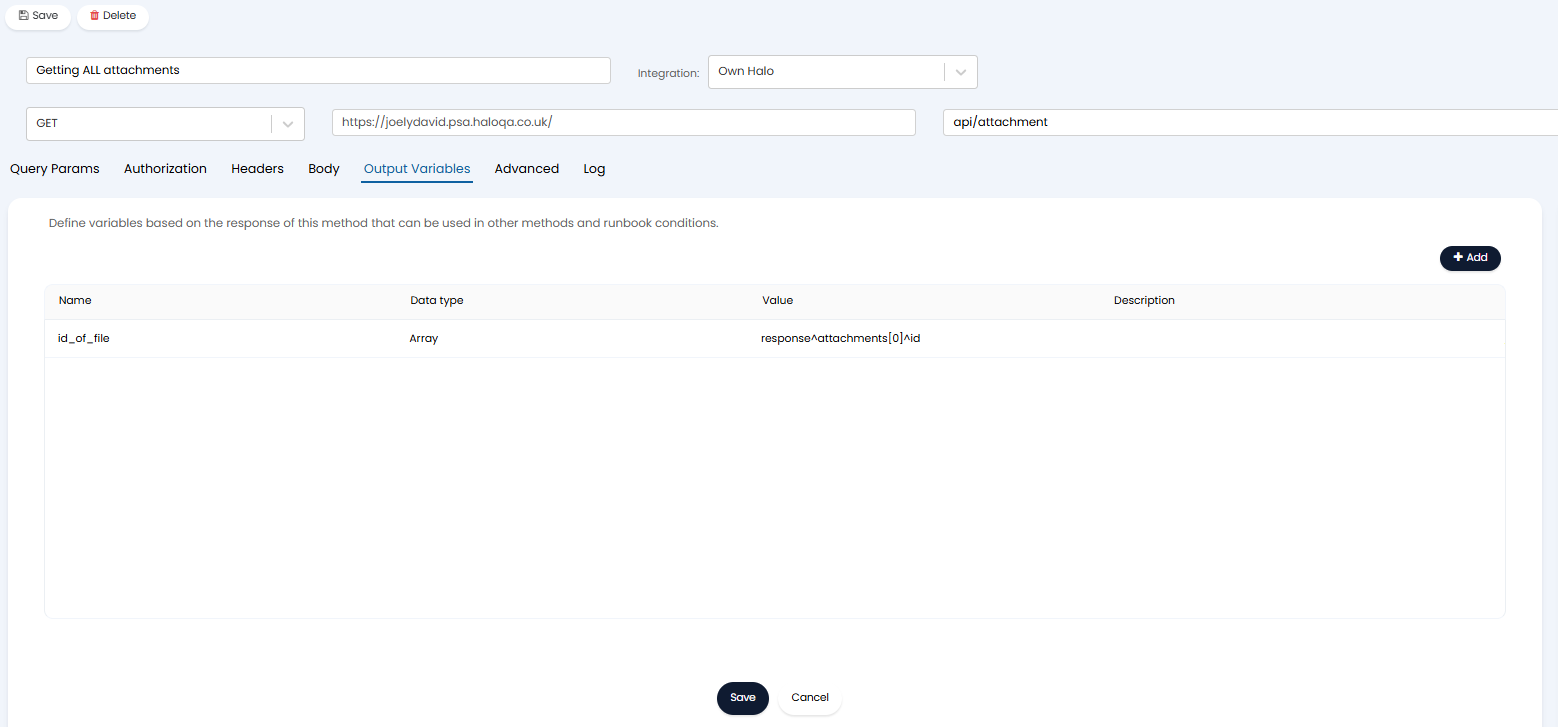
Fig 12. Output Variable to store attachment IDs
The response will return an array of all the IDs of the attachments against the ticket, in this example we only want to send the first attachment returned so we use the [0] to extract the first attachment ID.
In the "Integration" field, you will need to select a custom integration that authenticates access to your own instance. For information on creating custom integrations checkout Custom Integrations.
Now save the method and the step.
Now create a step to send the files to the chosen instance. Create a new step of type Action with an Action Type "Execute an Integration Method". Then create a new method.
The method will look as shown in figure 13.
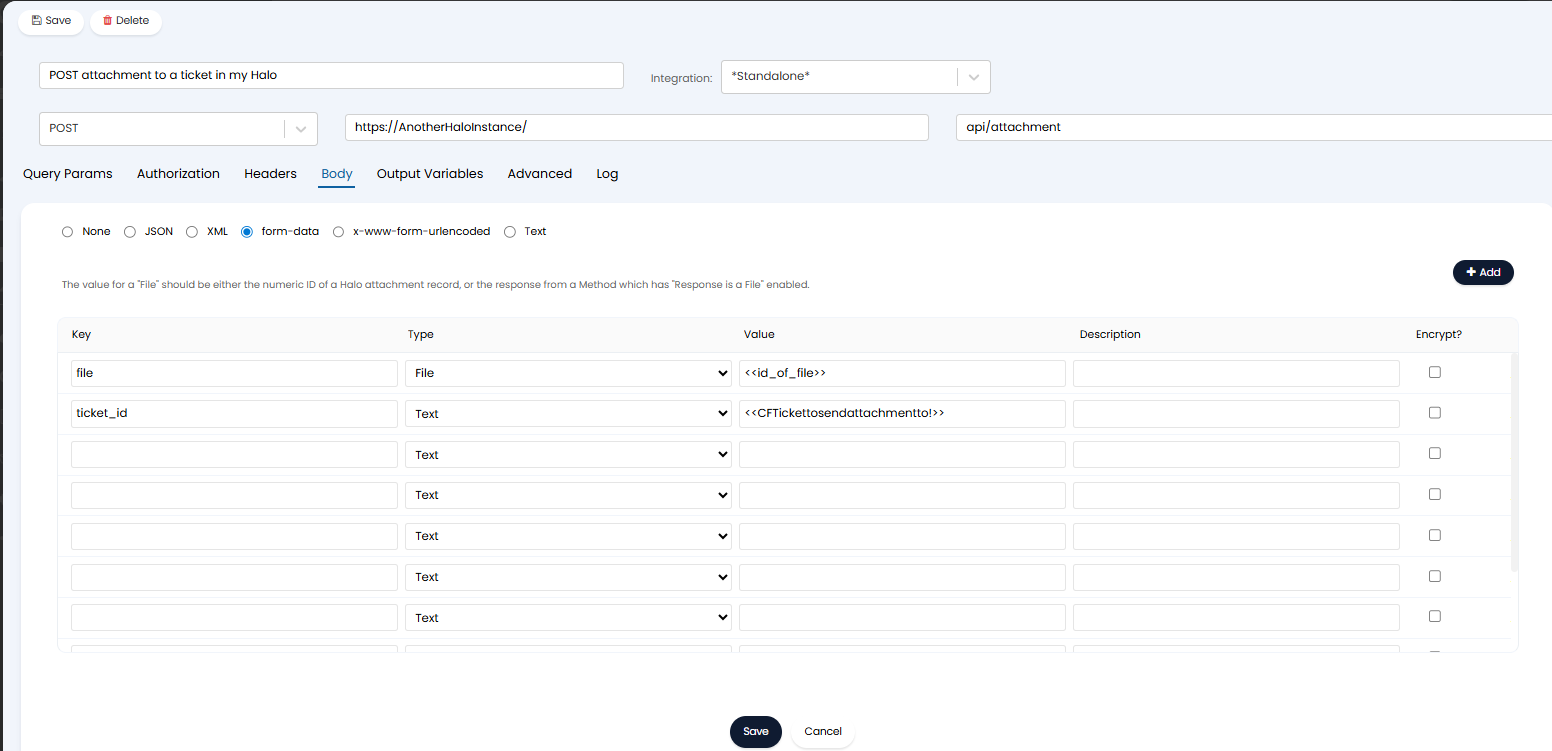
Fig 13. Method to send Attachment to other Instance
Here, the variable <<CFTickettosendattachmentto!>> is used to control the ticket ID that the file will be sent to in the other instance. This field is just a text custom field, containing the ID of the ticket to send the attachment to. The agent may enter this manually when carrying out the action, or this may already be populated. An "!" has been appended to this variable to remove "" marks around the ID.
Note: Remember to configure authorisation to the instance you are sending the attachment to. Authorisation can be added on the runbook step, or using a custom integration.
Now, when the action "Send Attachments" is used, the agent can choose which ticket to send the attachment to. Then the attachment on this ticket will be sent to the specified ticket in the other Halo instance.
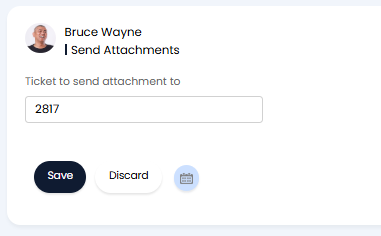
Fig 14. Action to trigger runbook