Project Setup Wizard
- projects
- project management
- sales order project
- project setup wizard
- creating projects
In this guide we will cover:
- What is the Project Setup Wizard?
- Creating Projects
- Creating Project Tasks
What is the Project Setup Wizard?
The Project Setup Wizard is a tab available on Quotations and Sales Orders to directly create a custom project setup based on products that have been added to them. This guide will cover the overall concept of the functionality, and how to create projects and project tasks using it.
First, the Project setup wizard will need to be enabled in Configuration > Sales Orders or Configuration > Project Management > General Settings.

Fig 1. Enabling the project setup wizard.
The tab will be greyed out when creating your quotation or sales order.
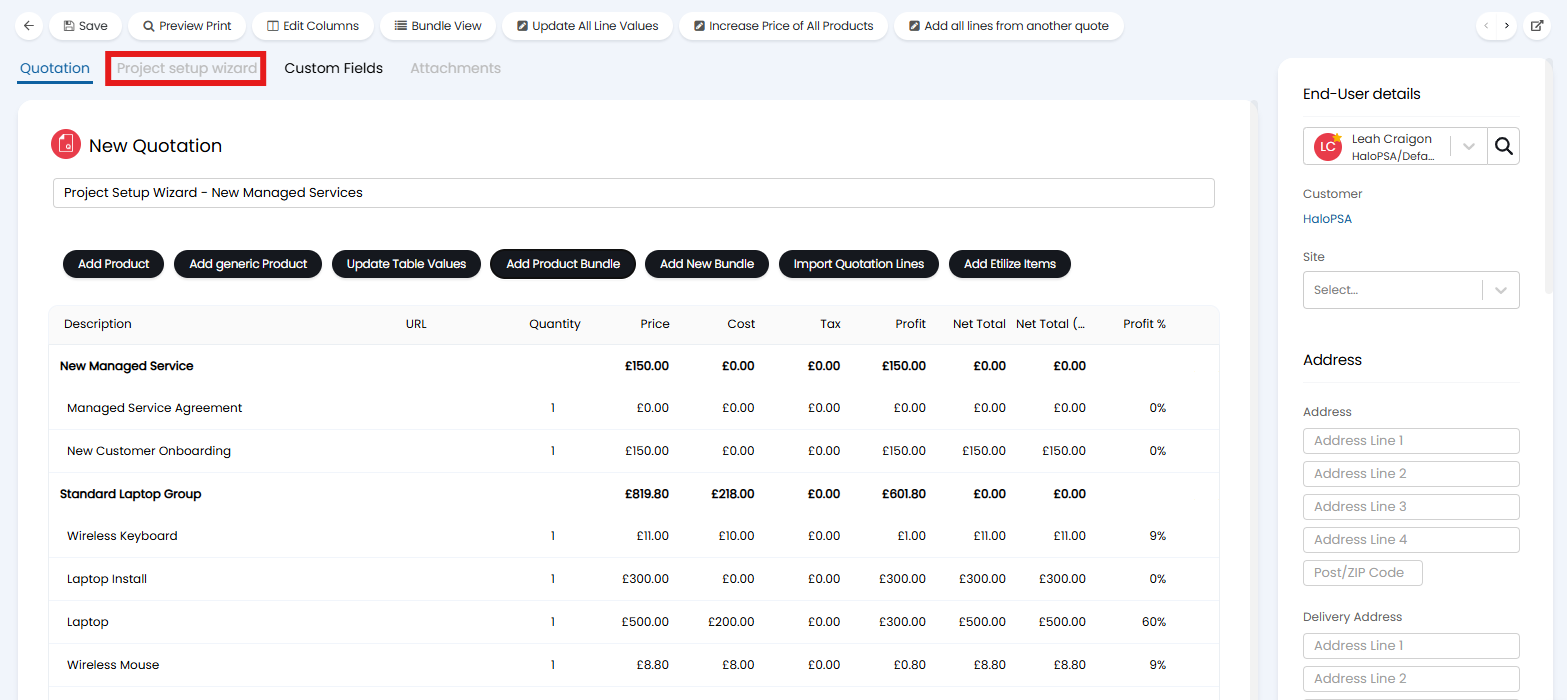
Fig 2. Creating a quotation.
Upon fully saving the quotation or sales order, you can then click "Edit" to add projects to this tab.
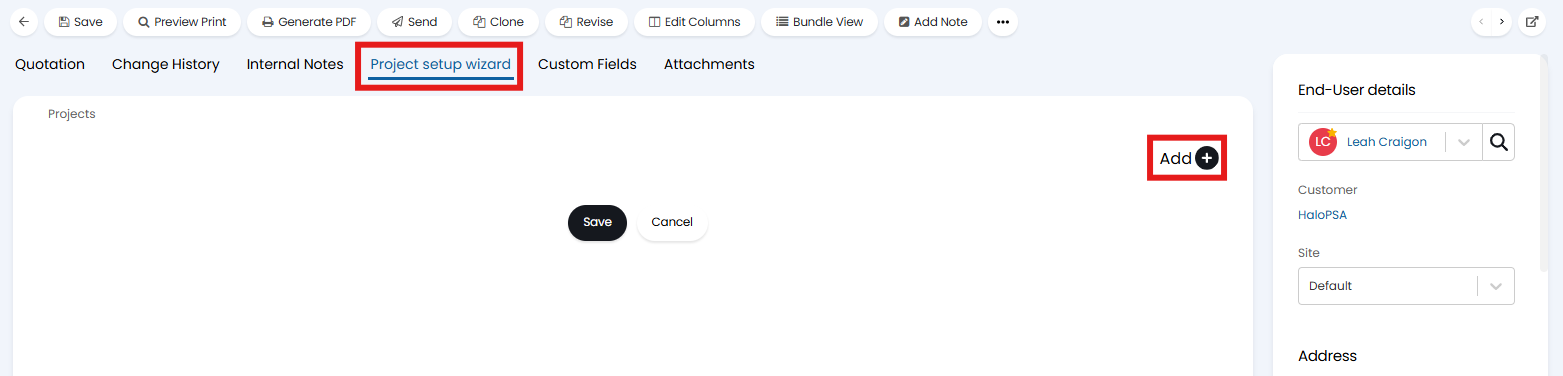
Fig 3. Project setup wizard tab on a quotation.
If the setup is done on a quotation, the added projects will be transferred to the sales order upon clicking the "Create Sales Order" button.
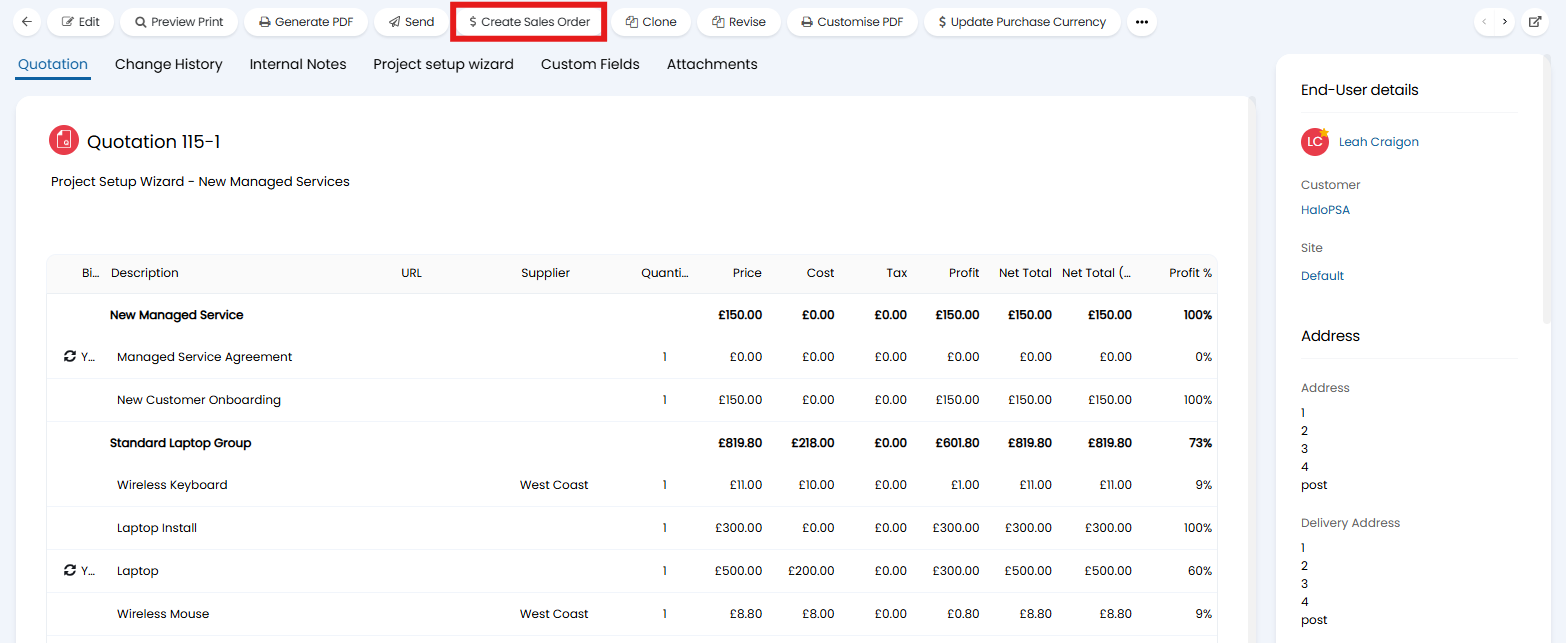
Fig 4. Create Sales Order button.
Creating Projects
A parent project must be created first, so any additional tasks have something to link to.
Method 1: Project Template against the Product
The first method is dependant on a project template being added to the product in the "Details" tab.

Fig 5. Linking a product to a project template.
On a sales order line that uses this product, an available action will be "Create Project".
Note: This may appear as buttons instead of a dropdown, dependant on the option selected within "Line action display behaviour" in Configuration > Sales Orders.
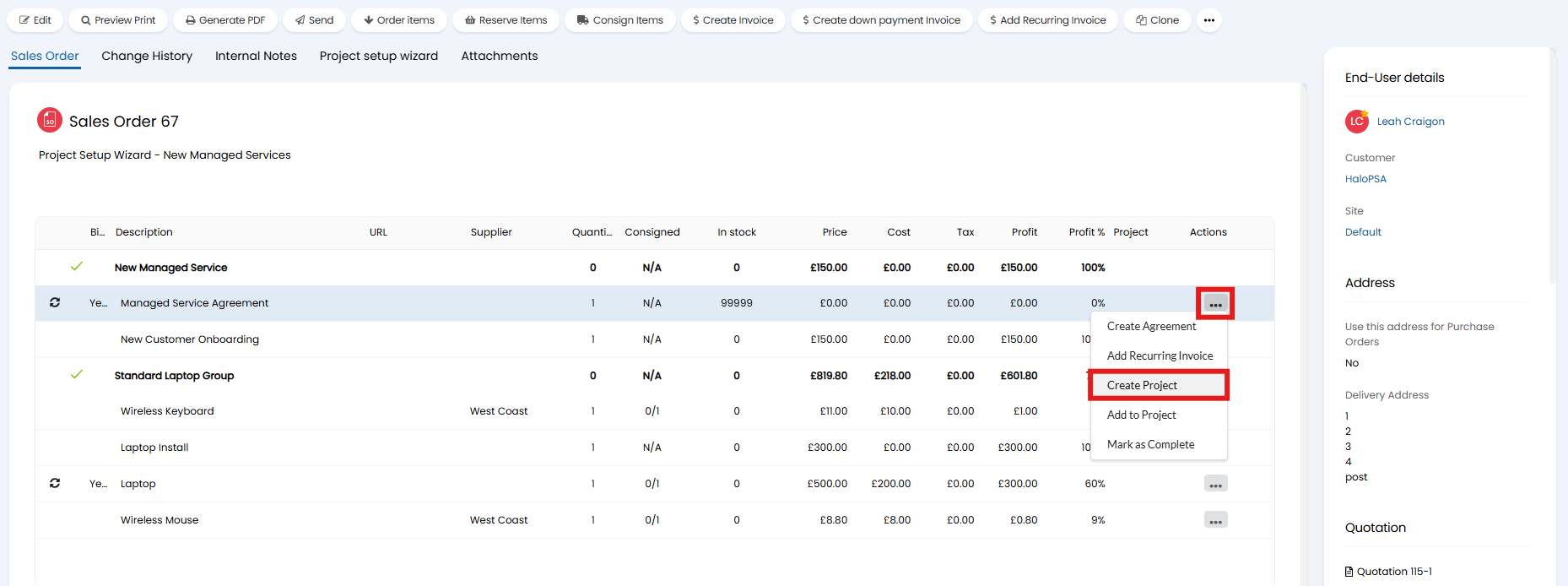
Fig 6. Creating a project from a sales order line.
A project will then be created using the template associated with the product, and linked to the sales order line.
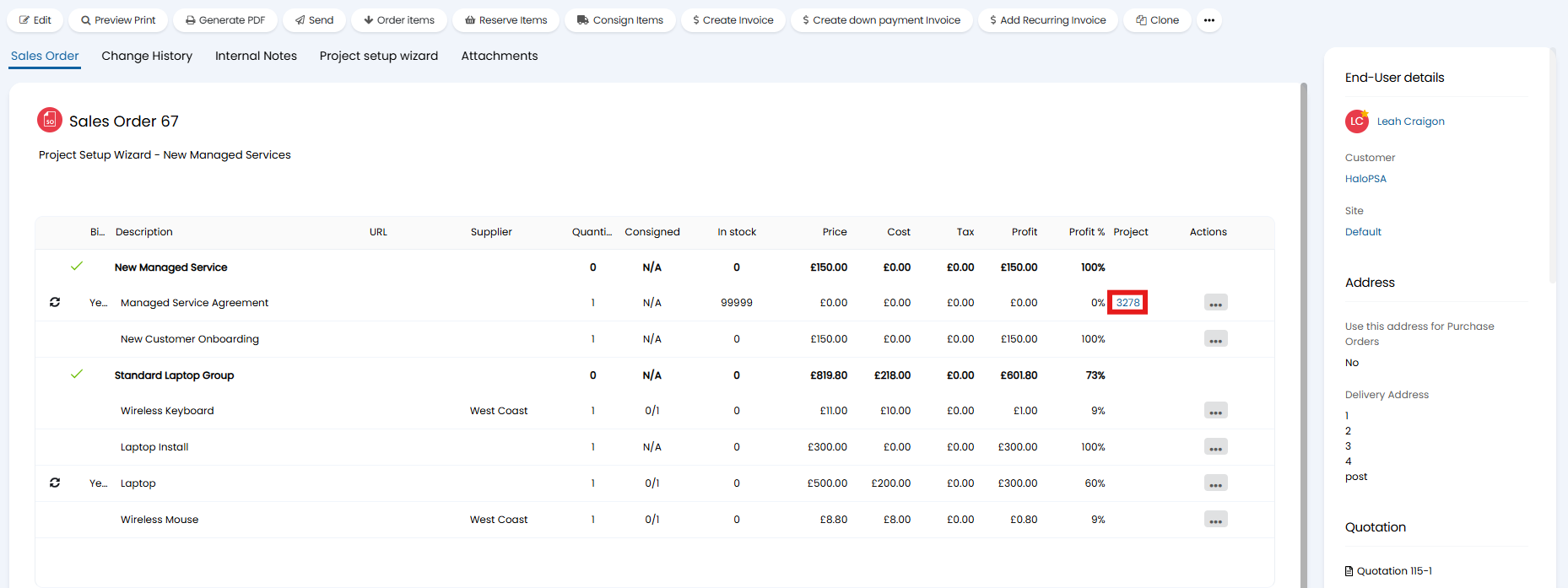
Fig 7. Project linked to sales order line.
Method 2: No Project Template
If a project template has not been linked to the product, you can use the Project setup wizard to create it. After clicking the "Add" button, the following popup will show. Give it a name, this will be used as a placeholder and will not show on the ticket. Select the quotation/sales order lines that correspond with the template, and lave the bottom two options blank.
Note: If using this method, you will need to save the entire quotation/sales order before adding the project tasks that link to this project.
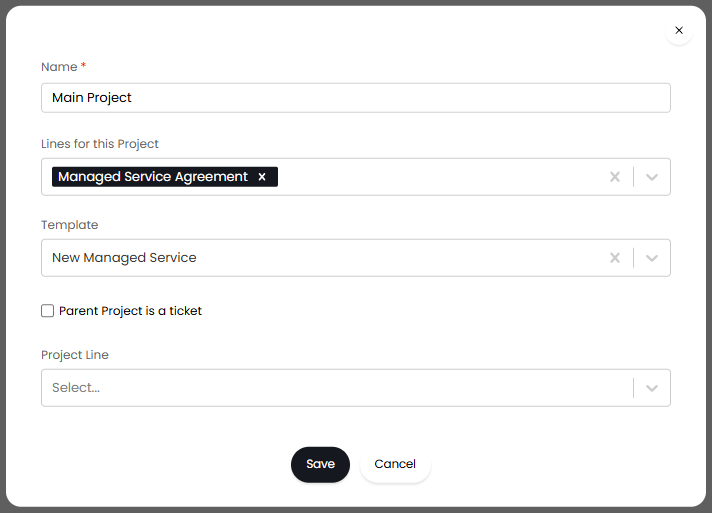
Fig 8. Creating a project.
The tab will now show a project setup that looks similar to the below.
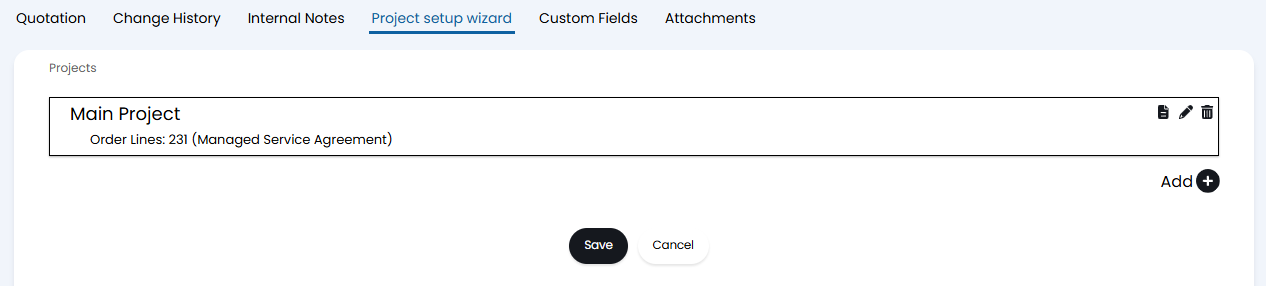
Fig 9. Project setup.
Creating Project Tasks
Once the project has been created/setup, we can create the project tasks to link to it.
Method 1: Linking to the created Project
If a project has been created directly from the sales order line (method 1 above), you can then use the Project setup wizard to link tasks to it. Give the setup a name and select the lines it links to, along with any templates to follow upon creation.
Then, enable "Parent Project is a ticket". The ticket dropdown that appears will only show projects that have been created on that same sales order.
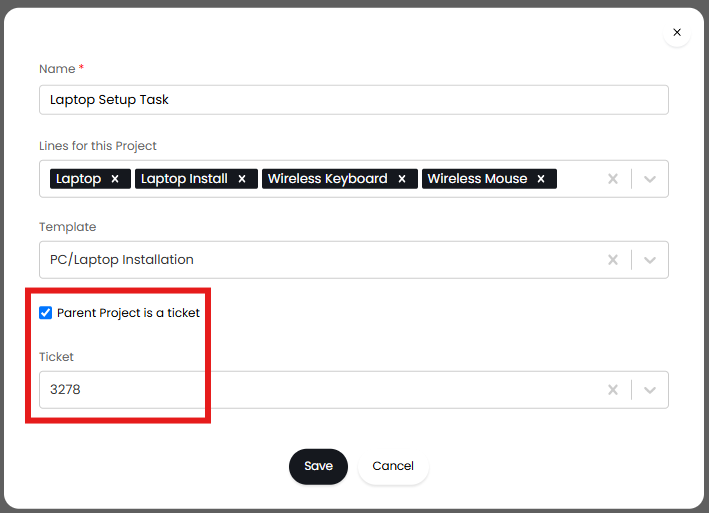
Fig 10. Linking a project task to the created project.
Method 2: Linking to another Setup Line
If the parent project is another setup line within the Project setup wizard, after saving and clicking edit again, you will have the option to set the other project line as the parent.
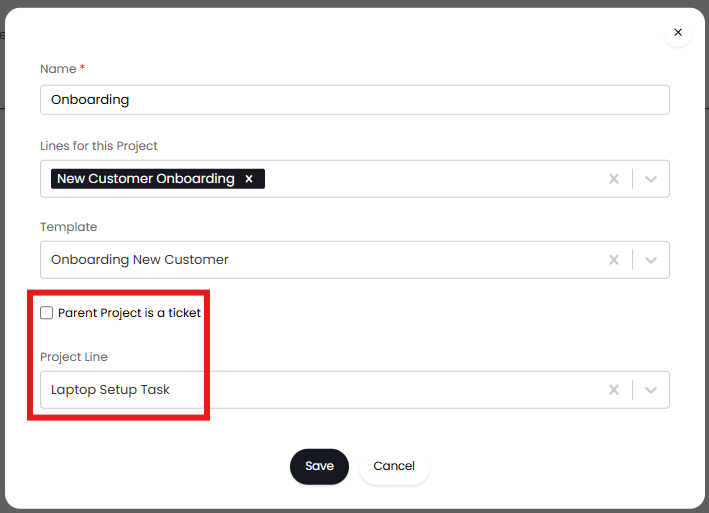
Fig 11. Setting other project setup as a parent.
With method 2 for the project, and either method for the project tasks, you will then have the setup show in the "Project setup wizard" tab. From here, you can click the arrow icon on each line to create the ticket. If one is a child/task of another, ensure you click to create the parent first.

Fig 12. Creating the project task from the Project setup wizard.
The task below was created with method 1, and shows two project ticket numbers: one for the parent project, and one for the task that was created.

Fig 13. Created project task.
Within the main tab of the sales order, you will also need to be able to see the IDs for created project tasks against the "Project" column.
In this example, we can see the project ticket linked to the "Managed Service Agreement" line, and the task associated with it linked to the "Wireless Keyboard" line. If multiple lines are linked to a project task, the lowest line ID will be used.
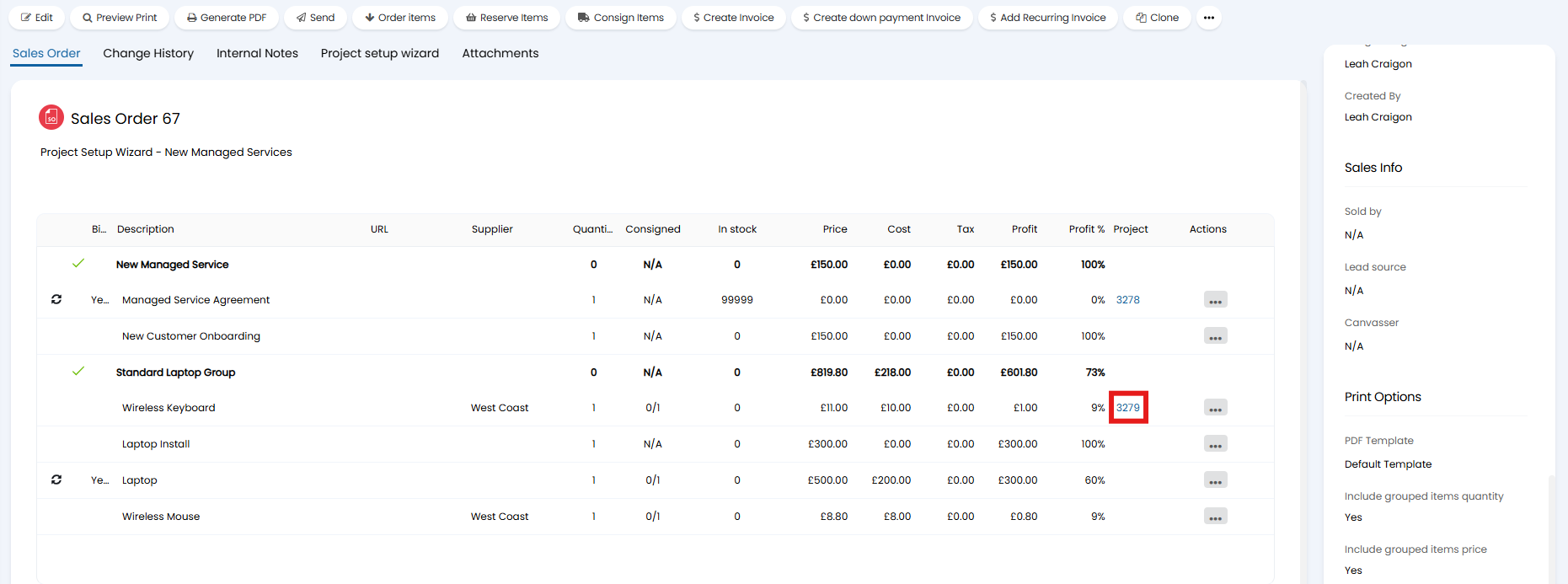
Fig 14. Project task linked to a sales order line.
This is the project that was created with the above configuration. The project is titled based off of the sales order number and title, and has the project task linked underneath.

Fig 15. Project created.
Both the project and project task use the template assigned via the Project setup wizard, so the task is titled based off of the default "Summary" field of that template, and has any associated configuration (such as a to-do list) added.
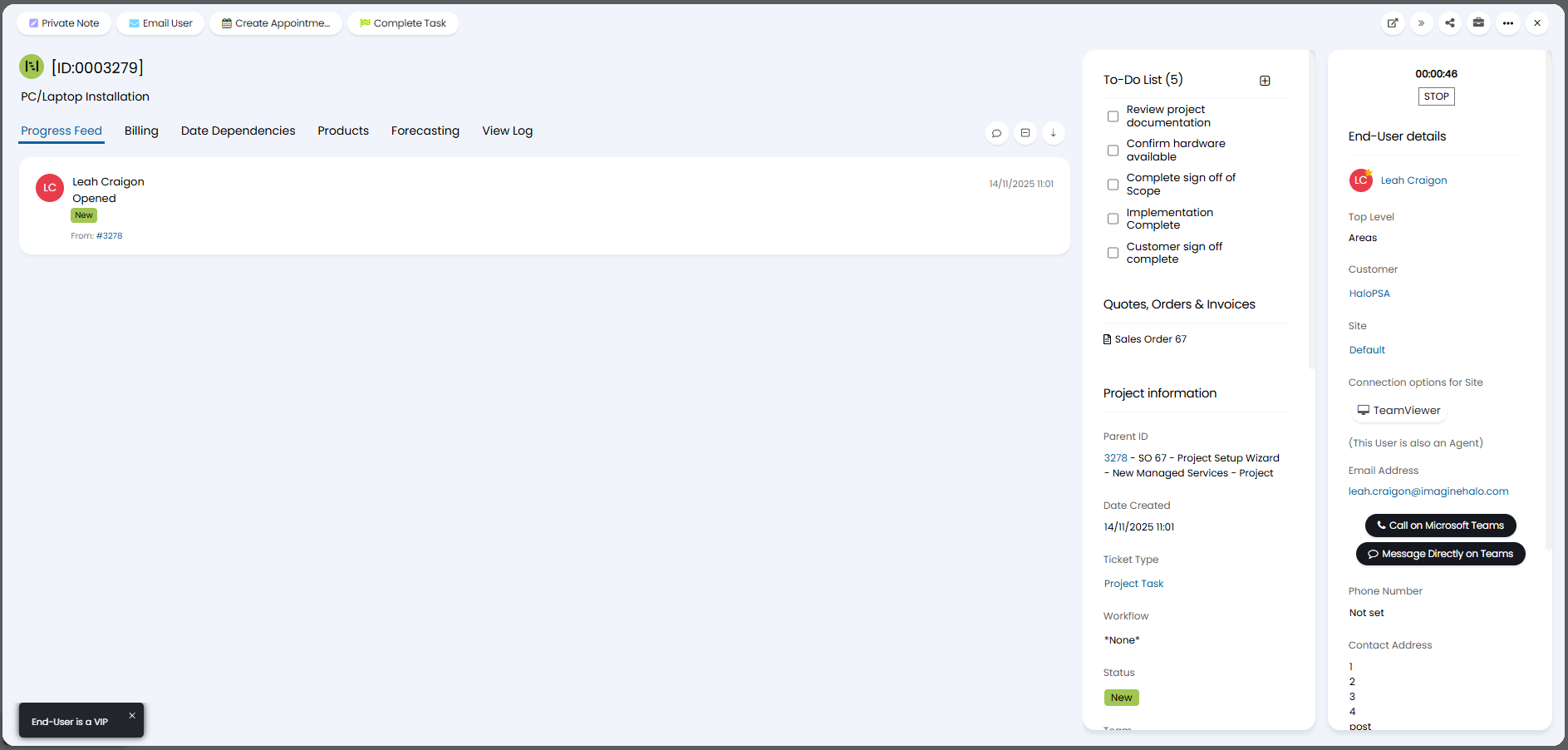
Fig 16. Project task created.