Statistics Tables
- reporting
- Report
- statistics table
- snapshot reporting
In this guide we will cover:
- What is a Statistics Table?
- Creating a Statistics Table
- Reporting on Statistics Tables
Related Guides:
What is a Statistics Table?
Statistics tables are type of Custom Table which allow you to take a snapshot of data based on a query which is run at regular intervals.
These can be used for:
- Capturing point-in-time data for reporting purposes - e.g. current open ticket count at the end of every day, or sales pipeline data every month.
- Simplifying complex reports. Resource intensive calculations and CTEs can instead be pushed into a table with the data already calculated and formatted and then read from there
- Preparing a dataset for Forecasting.
Creating a Statistics Table
Setting up a Statistics table involves writing a SQL query to pull data from the database, defining the columns in the Custom Table to insert the query data into, defining at what interval you want to capture the data (Daily, Weekly or Monthly), and setting up a schedule to automatically populate the table.
Navigate to Configuration > Custom Objects > Custom Tables, and create a new Custom Table. Name your Custom Table, and then set the highlighted fields below.
- "Link to another entity" to "None".
- "Type" to "Statistics Table".
Further configuration options to create the Statistics Table will then show.
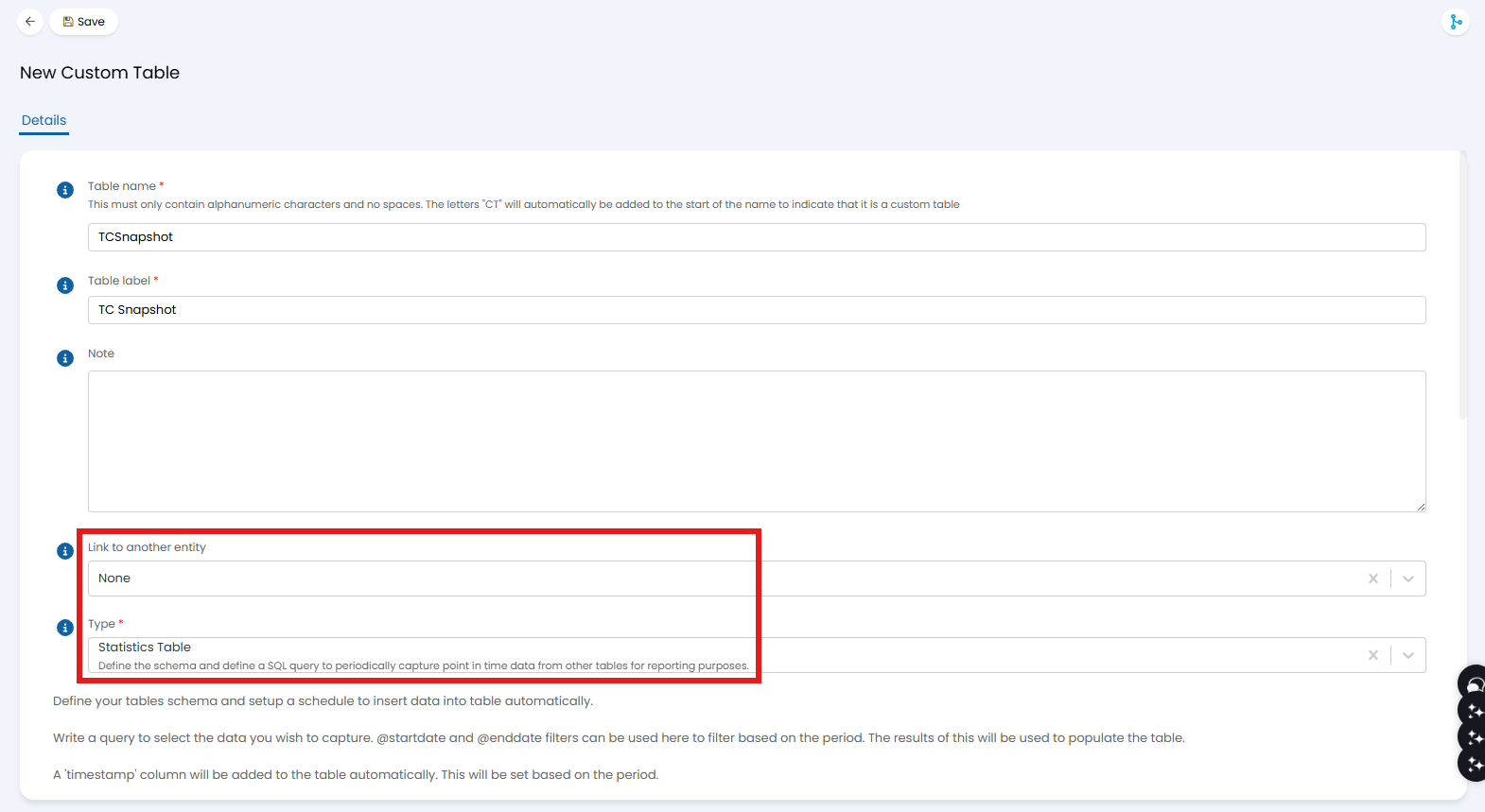
Fig 1. Creating a Statistics Table Custom Table.
Scrolling down, here is where you can write the SQL query. @startdate and @enddate can be used here to filter data based on the period that the data is being captured for, but are not required for most use cases.
You will then need to define the schema based on the columns used in the SQL query. Click the "Add" button on the "Schema" table above the query.
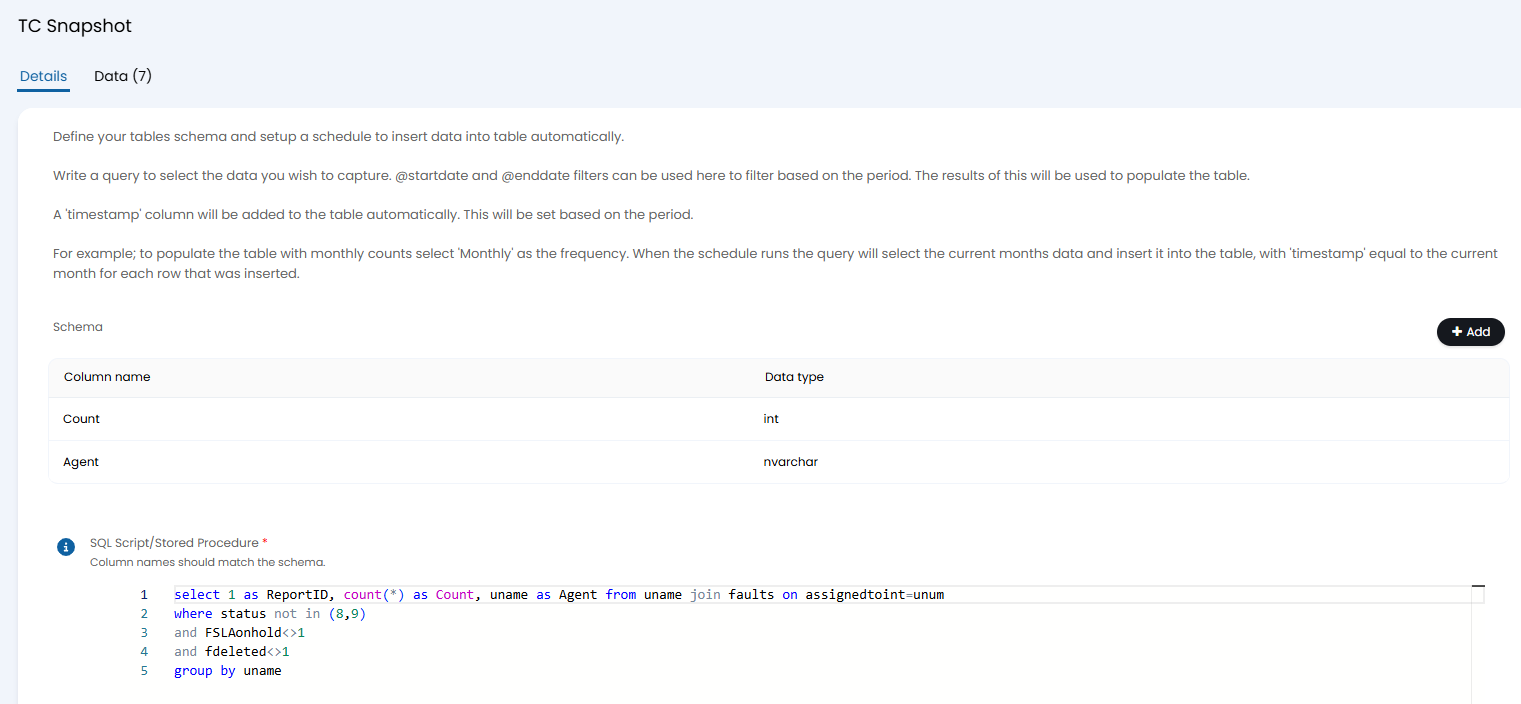
Fig 2. Writing the report.
A popup will show to type the column name, and select its data type from a dropdown. Click "Save", and repeat this process for each column in the query.
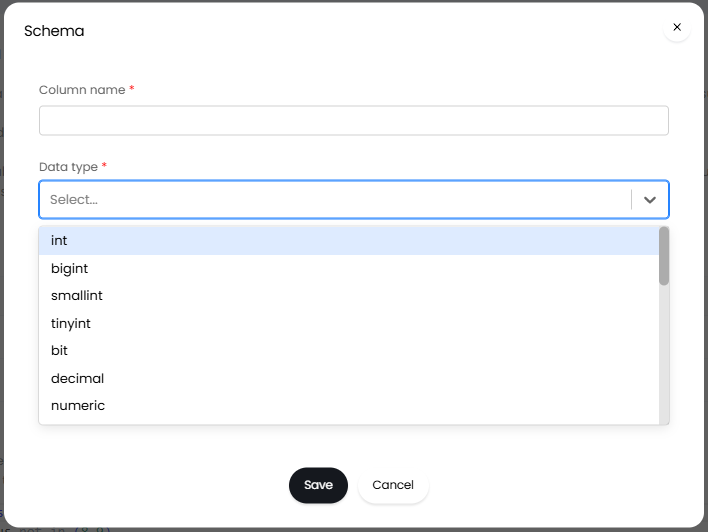
Fig 3. Setting the schema for the query.
At the bottom of the page, you can then choose the reporting frequency shown in the data - Daily, Weekly or Monthly. This sets the "Period" column which will be added to the data outset. For example, "Daily" will show an exact date, whereas "Weekly" will show as "WB" (week beginning) a date.
Then, choose whether running the data capture now means it is reporting on the current period or the previous period.
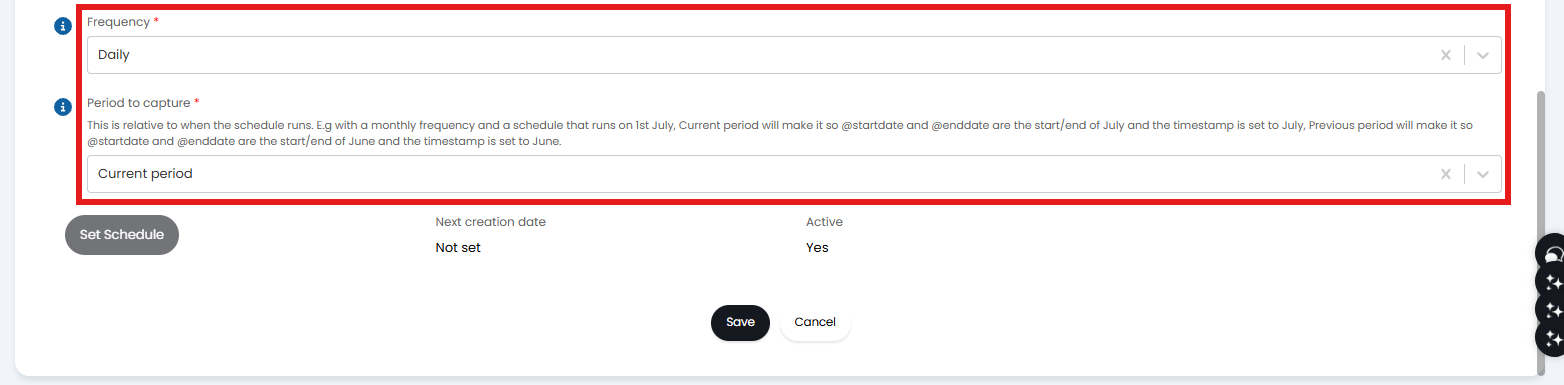
Fig 4. Setting the period used in the data.
Save your Statistics Table, and scroll back down to the bottom. The "Set Schedule" button will now no longer be greyed out, and can be clicked on to configure a schedule for when to automatically capture the data.

Fig 5. Set Schedule button.
This schedule would normally be inline with the frequency but can be delayed - e.g. you may want the schedule to run a day later if the data isn't ready to insert immediately. In this case, you can set the period to capture as the previous period and have the schedule run a day after your data is ready to capture.
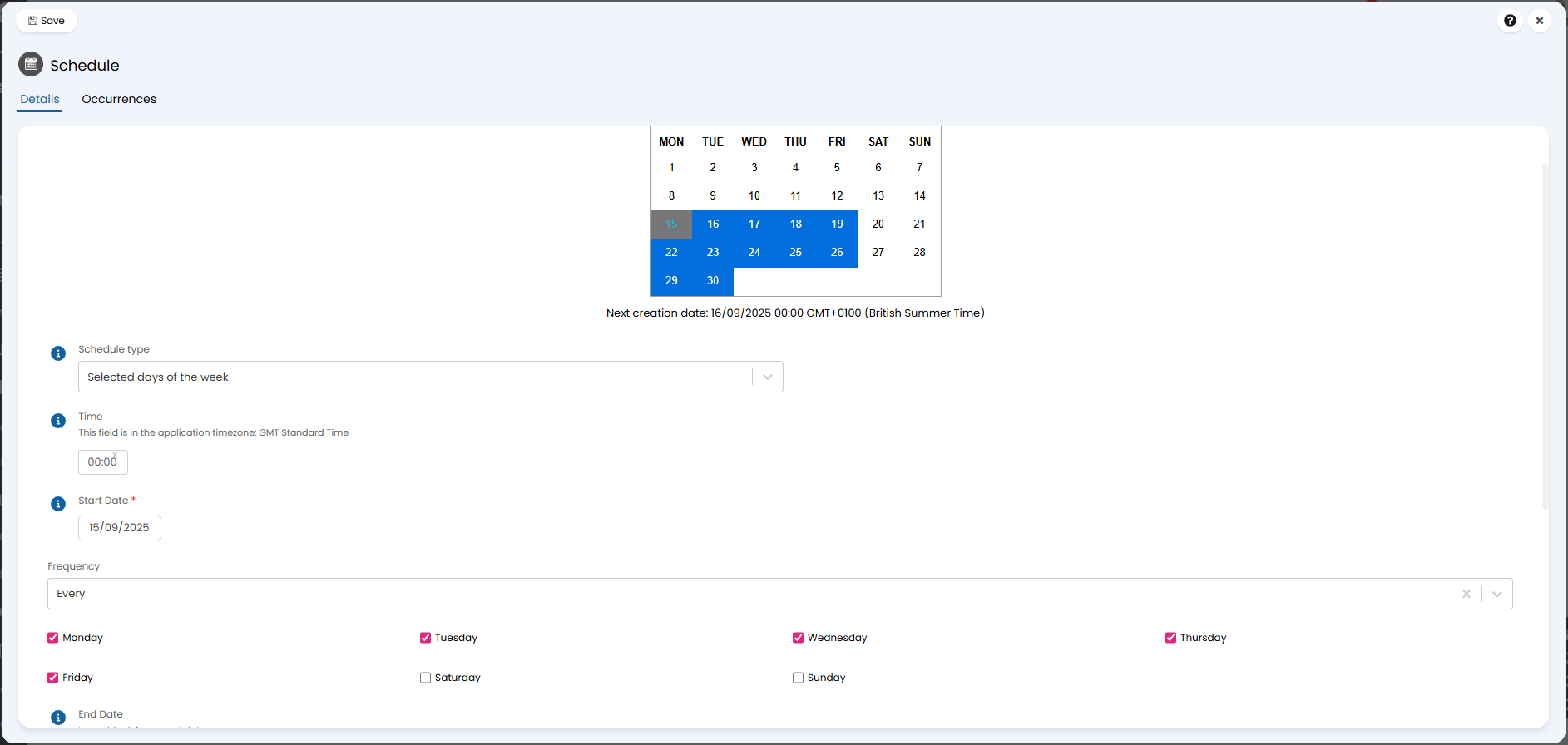
Fig 6. Setting a capture schedule.
Upon saving, your Statistics Table is complete. To test, click the "Run now" button at the top of the page. The "Data" tab will then populate with the first set of data, where you can check if this seems correct.
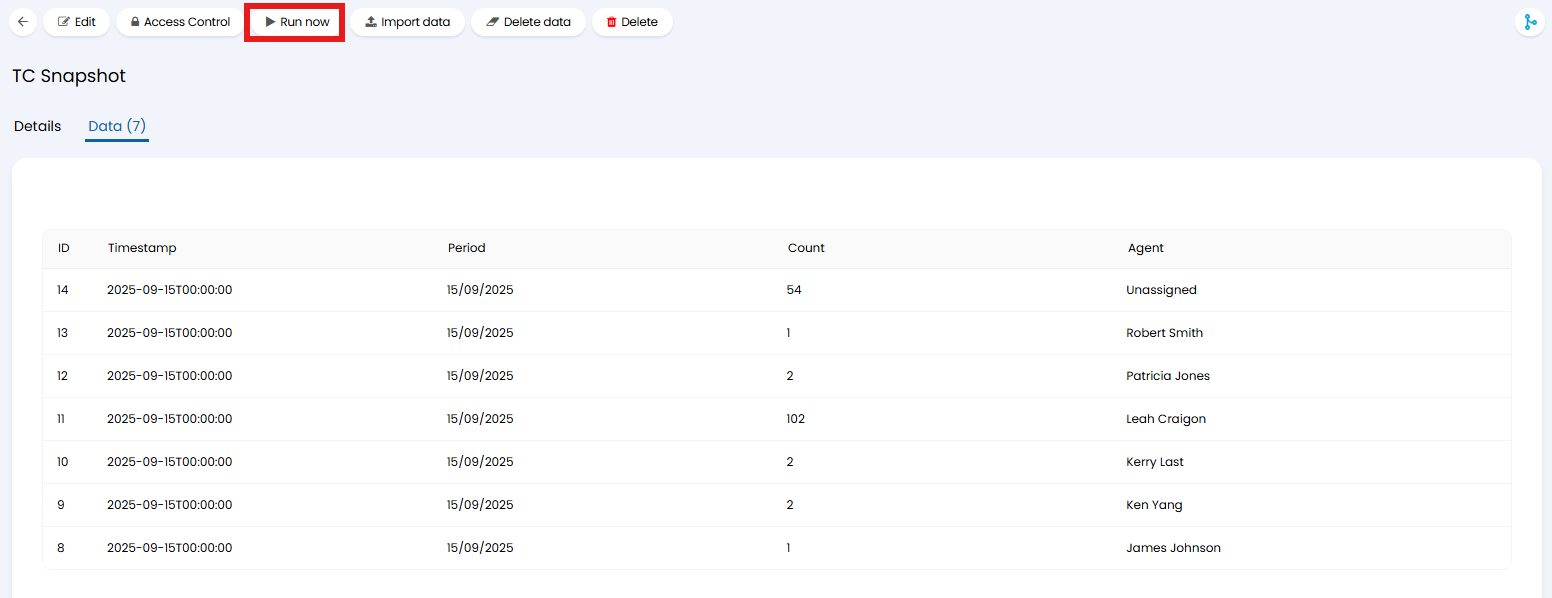
Fig 7. Data tab after first run.
Reporting on Statistics Tables
This data can then be reported on easily in the Reports area by running "SELECT * from CTTCSnapshot". The data is also formatted in a way which allows you to plot the data over time on a chart easily.
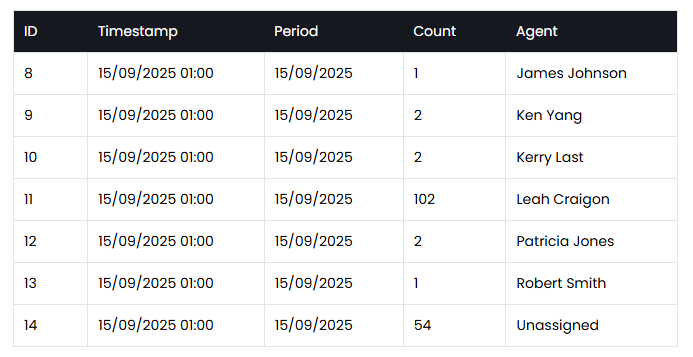
Fig 8. Reporting on the table.