User Out of Office Detection
In this guide we will cover:
- What is user OOO detection
- Setting up user out of office detection
- Out of Office and SLAs
- Out of Office and Approval Delegation
What is user Out of Office Detection?
User out-of-office detection, allows you to set the dates users are out of office (OOO). Then, if an agent emails a user between these dates they will be notified that the user is OOO. SLA hold reminders will also be paused while the user is OOO, preventing tickets from auto-closing due to a lack of response from the user. Approval delegation can also be activated automatically when a user is marked as OOO.
Setting up User Out of Office Detection
To use this functionality you must first enable user out of office functionality under Configuration > Users > General Settings.
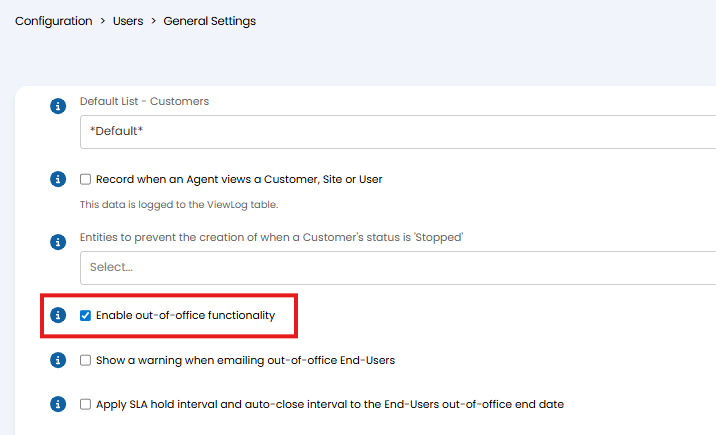
Fig 1. Enable out-of-office functionality
Once enabled, some additional settings will become available.
Show a warning when emailing out-of-office End-Users - When enabled, a warning message will appear when agents compose an email to a user that is OOO. The message displayed can be set against the user profile. The agent will still be able to send the user an email, but will be made aware the user is out of office.
Now, under the preferences under each user profile, out of office dates as well as a message can be set.
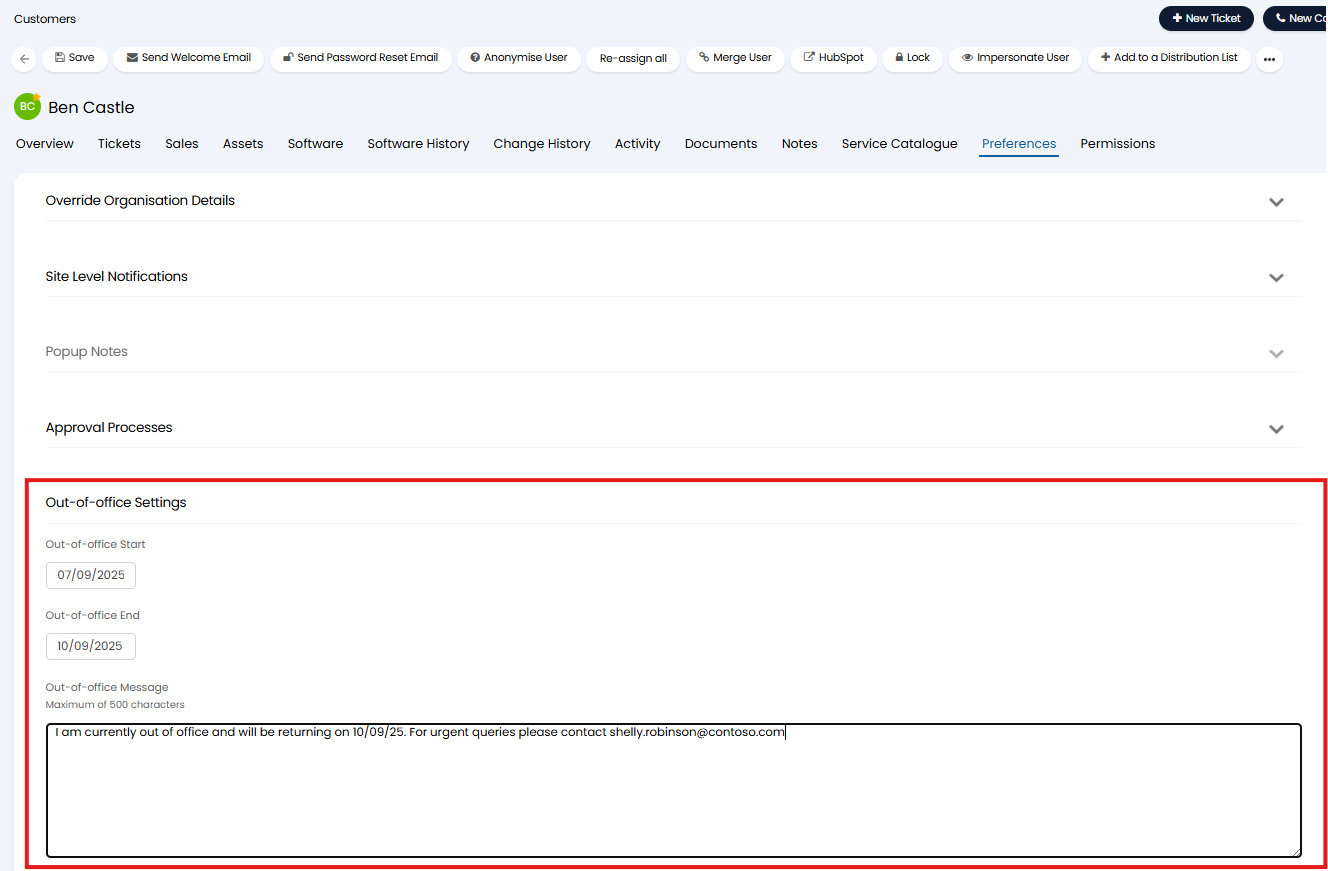
Fig 2. Out of office against user profile
An agent will need to set these for a user against their user profile.
Out-of-office Start - The date the user is OOO from.
Out-of-office End - The date the user is OOO to.
Out-of-office Message - Here, enter the message you would like to show to agents when they email this user when the user is OOO. If no message is set a warning will still show (if warnings are enabled) but the message will just contain the dates the user is OOO.
Now, when an agent emails a user during the dates they are OOO a warning will show, highlighted in figure 3.
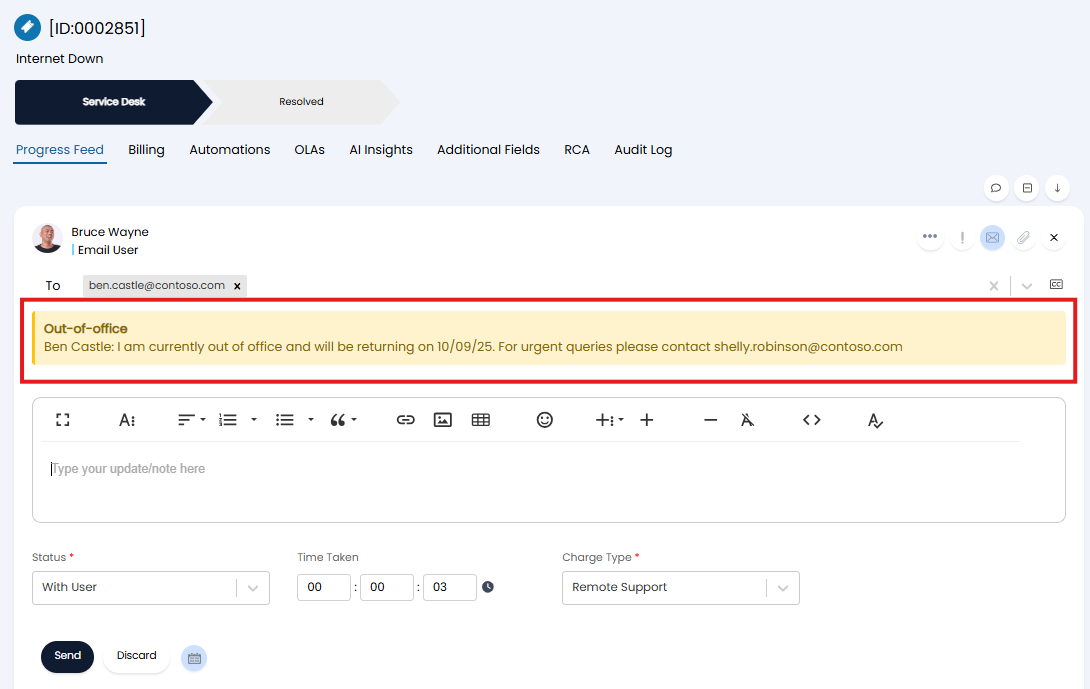
Fig 3. Warning message when emailing user
Out of Office and SLAs
When a user is marked as out of office, you can have SLA hold reminders pause for this user automatically during this period. Useful for preventing the ticket auto-closing if no response from the user has been received.
To do this enable 'Apply SLA hold interval and auto-close interval to the End-Users out-of-office end date' under Configuration > Users > General Settings.
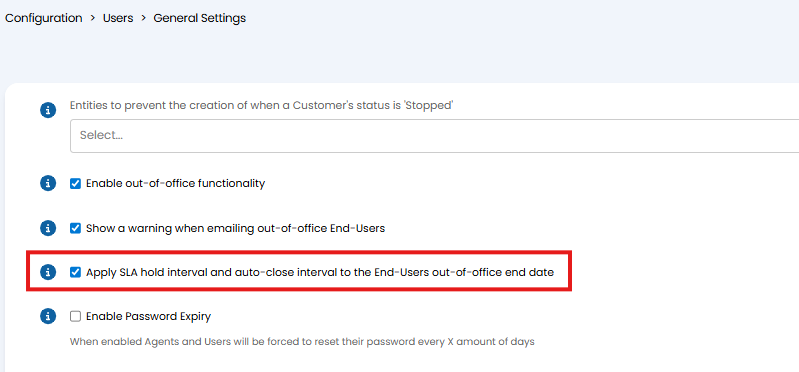
Fig 4. Apply SLA hold interval and auto-close interval to the End-Users out-of-office end date
When enabled, the next SLA hold reminder and auto-close reminder will be recalculated based on the dates the user is OOO for. For example, if SLA hold reminders are sent out on a daily basis, the next SLA hold reminder will not be sent out on the dates that the user is OOO for. Instead, the next reminder will be sent the day the user is back in office.
Out of Office and Approval Delegation
Approval delegation can be activated for the user automatically when they are marked as out of office. Approval delegation re-routes any approvals required from a user to a chosen 'delegate' user, allowing approvals to still take place when the user is OOO. For more information on approval delegation checkout Approval Delegation.
To have approval delegation activated automatically when a user is OOO head to Clients/Customer > Users > select a user > Preferences Tab > Approval Processes section, here you will see the setting "Approval delegation when out of office".
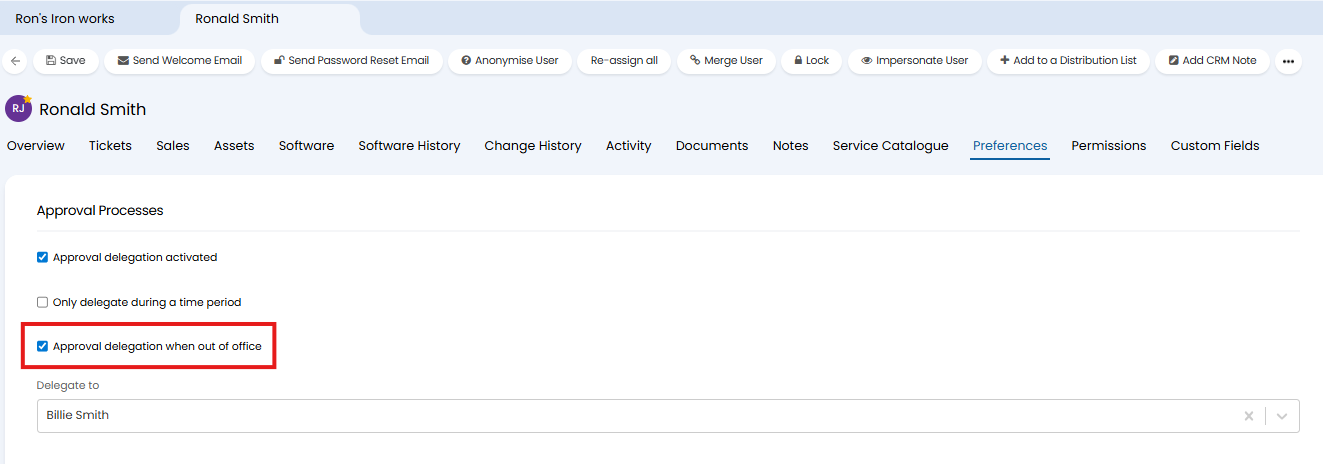
Fig 5. Approval Delegation when OOO
Using the figure 5 example, all approvals required from Ronald Smith will be re-directed to Billie Smith, but only for the period of time that Ronald is out of office.